

Turn recordings into transcripts and summaries in minutes
Upload audio or video for multilingual transcription, AI notes, and action items
Five minutes before a meeting, you're switching back and forth between Gmail, Calendar, and chat, with only one question on your mind: Where exactly is that Google Meet link?
I've been there myself, and I've seen too many teams get stuck at this point.
But let me ask the question more precisely: Are you looking for "a URL," or are you looking for "a meeting that can be preserved"?
These two answers will determine whether you spend the next five minutes or fifty minutes.
What Can a Google Meet Link Do for You?
First, let's clarify what this thing actually is.
A Google Meet link is a URL that starts with meet.google.com, followed by a meeting code like abc-defg-hij.
The code and the link actually point to the same meeting—they're just different representations.
Its uses fall into roughly three categories:
Scenario 1: Ad-hoc meetings. You paste the link into an email or message, and the other person clicks to join—no need to book a conference room.
Scenario 2: Scheduled in advance. When creating an event in Google Calendar, you add a Meet link, and when the meeting time arrives, everyone joins from the same invitation.
Scenario 3: Looking back afterward. After the meeting ends, that link remains your clue for finding meeting notes and related discussions.
When You Can't Find the Google Meet Link, Check These Three Places First
Most people think the link is "hidden," but the common reality is: you're digging through old emails and chat logs while missing the two most direct entry points.
First place: The Google Calendar event.
Open the calendar event for that meeting—the link is usually in the event description. If you're the organizer but can't see it, first check whether the browser is logged into the account that created the meeting. Many people are signed into multiple Google accounts at once, and Calendar is showing another account's calendar.
Second place: Gmail or chat messages.
Meeting invitation emails and chat messages both contain the link. If you don't have enough time to schedule a meeting, just click the link in that message to join.
Third place: Go directly to meet.google.com.
This is the most foolproof approach. Type meet.google.com in the address bar, log in with the correct account, and you'll see a "New meeting" button. Select "Create a meeting for later" and you'll generate a link you can copy and share—without starting a call immediately.
Already have a link but can't get in? Paste the link into the "Enter a code or link" field and click Join.
Another commonly misunderstood point: The host and invitees use the same link. Google identifies the host based on the account you're logged into when you join—not based on different URLs.
If you still can't see the link no matter what you try, open an incognito window, log in to that Gmail account separately, and try again. The problem usually reveals itself.
But Finding the Link Only Solves the First Half of the Meeting
Here's the main point I want to discuss.
The link is found, the meeting is over—now what?
Where's the transcript? Who agreed to what? Where are the three things to follow up on next meeting written down?
In my experience, the real time sink in meetings is never "getting in"—it's "organizing after getting out."
So in recent years, I've adjusted my approach: Treat "finding the link" as a thirty-second action, and put the saved effort into "how to preserve the meeting content."
That's why I started using Tinrec.
It's not a tool to help you find links—it's a tool to turn the fifty minutes of content behind the meeting link into searchable, queryable, deliverable data.
Core Capabilities of Tinrec for Turning Google Meet Meetings into Usable Data
Taking Tinrec as an example, here are the features I actually use.
Bot-free recording of online meetings.
This is what won me over. The Tinrec desktop app directly captures your computer's system audio, handling meetings played on your computer like Google Meet, Zoom, Microsoft Teams, and Webex—no need to invite a meeting bot to join as an observer.
For client meetings or internal decision-making meetings, having one less unfamiliar participant makes a big difference in the atmosphere.
One caveat: This doesn't mean it "automatically joins all your calendar meetings"—you still need to actively open the Tinrec desktop app to start recording.
Real-time transcription.
It transcribes as it records, so text settles in sync while the meeting is happening. During the meeting, you can glance at it occasionally to confirm that key numbers and conclusions are being captured correctly.
Real-time translation and bilingual view.
For cross-language meetings, you can switch between original text, translation, or bilingual side-by-side. I use this feature in cross-regional team weekly meetings—it works much better than translating afterward.
AI summaries and chapters.
It doesn't just condense the transcript into a paragraph—it breaks long meetings into structured sections: what was discussed, what was decided, and which topics were deferred.
Action item extraction.
It pulls action items out of the discussion. In project meetings, once the three things—who, does what, by when—are settled, the meeting is truly over.
AI Q&A.
This is my most-used feature. After transcription is complete, I ask it directly: "What was the budget ceiling the client mentioned in this meeting?" "Did anyone oppose the plan we decided on last week?"
Stop organizing recordings by hand
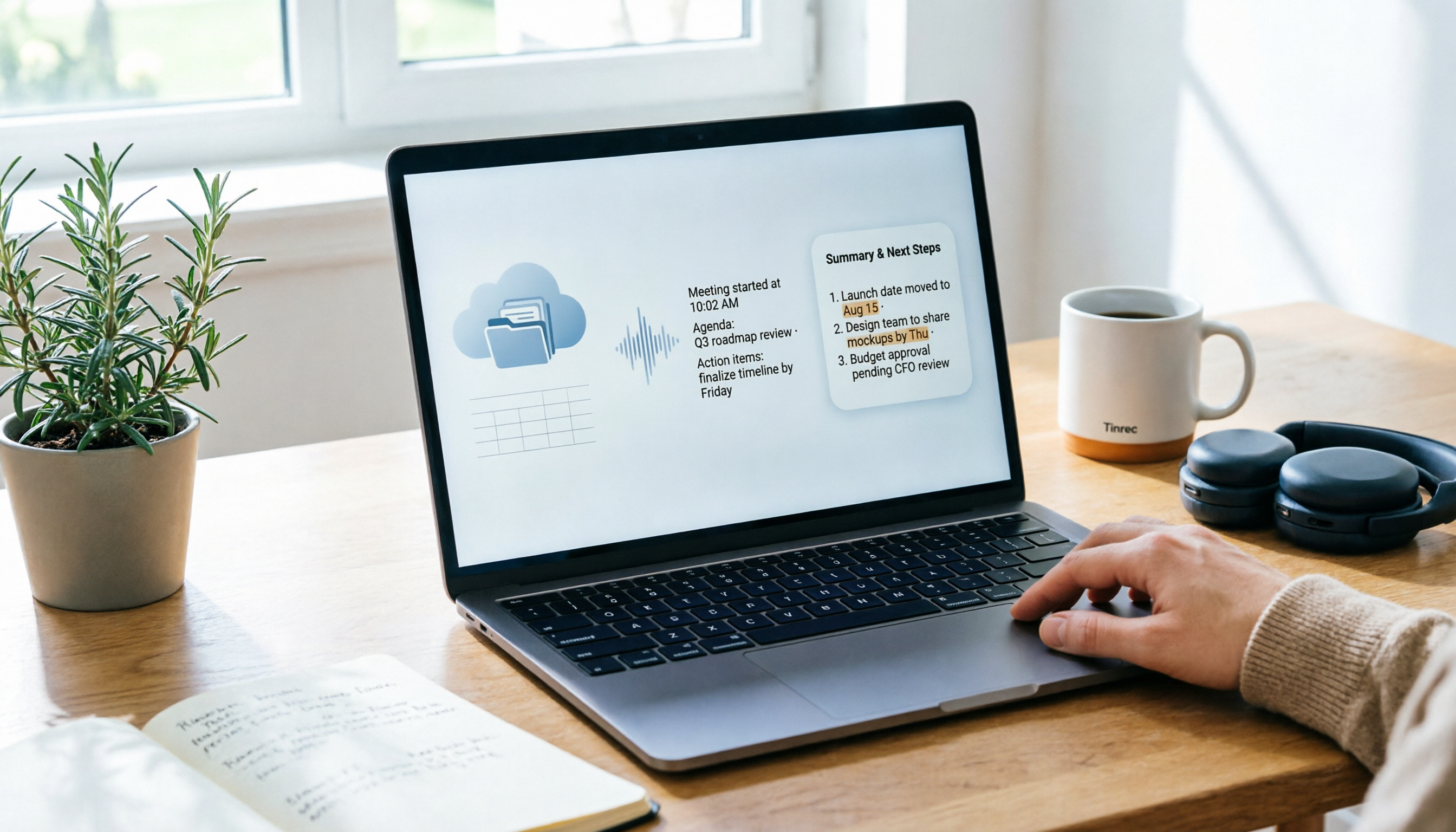
Upload audio or video and automatically get a transcript, summary, and action items
No need to re-listen to the recording, and no need to Ctrl+F for keywords.
Multi-format export and post-meeting processing.
Transcripts, summaries, and action items can be exported as files and brought into Notion, Google Docs, OneNote, or Dropbox for continued use. You can also use Agent post-processing to generate reports, tables, and meeting minutes drafts.
Team workspace.
This is the core of the team edition. Meeting data belongs to the team, not to an individual's account. Members can share and view, and admins can manage roles, seats, usage, and audit logs.
When a member leaves or loses their seat, their team resources can be handed over to others—data doesn't disappear with the person.
Practical Use Cases
Scenario 1: Weekly project meetings.
I used to spend time after meetings trying to recall who said what. Now when the meeting ends, Tinrec has already organized the transcript, summary, and action items. I review them once, add my own judgment, and move on.
Scenario 2: Client interviews and requirements discussions.
Every requirement and every concern the client mentions is in the transcript. Afterward, I use AI Q&A to compile "the three concerns the client mentioned" and turn them directly into material for the next proposal.
Scenario 3: Cross-language meetings.
In mixed Chinese-English settings, real-time translation and bilingual transcripts mean participants don't have to wait for a post-meeting translation—the discussion flows much more smoothly.
Scenario 4: Team knowledge handover.
What new hires lack most isn't documents—it's "why was this decision made this way back then." The team workspace holds transcripts and summaries of past meetings, so they can search and ask questions themselves instead of constantly grabbing senior colleagues.
5 Things to Consider When Choosing a Meeting Notes Tool
1. Does it require a meeting bot to join?
Some tools must enter the meeting as a participant. If your meeting counterparts are sensitive to unfamiliar accounts, confirm this first. Tinrec takes the approach of capturing system audio via the desktop app—no extra bot needed.
2. Performance with Chinese and mixed Chinese-English.
Don't just look at marketing claims. Test it with your own recording, especially one with proper nouns and multiple people talking over each other. Tinrec covers Chinese, Traditional Chinese, and multilingual scenarios, and also supports team hotwords to make technical term recognition closer to your usage.
3. What can you do after the transcript?
Transcription is only the first step. Whether it can generate summaries, chapters, and action items—and whether you can ask questions about the content—is where the real time savings come from.
4. Are audio files retained?
Some tools only provide text and don't keep audio, so you can't go back to verify a specific sentence later. Tinrec retains audio, and the team edition has an audio recycle bin for accidental deletions.
5. Team governance capabilities.
This is the most easily overlooked item. You need to distinguish between "roles" and "seats": Roles determine who can manage the team and audit; seats determine who can record, upload, edit, and export. Members without seats can still view, play, and read team data.
Tinrec's team edition currently offers a 7-day, 1 free seat, 300-minute team shared import quota; paid plans are USD 29.80 per paid seat per month, or USD 199 per paid seat per year (approximately USD 16.58 per month), with each paid seat providing 2,000 minutes of shared import quota per month. Under an active plan, real-time recording is currently not deducted by minutes. Actual prices and benefits are subject to the official purchase page.
Frequently Asked Questions
Q1: Is a Google Meet link the same thing as a meeting code?
Yes. Both point to the same meeting—the only difference is that one is a full URL and the other is the code at the end, like abc-defg-hij.
Q2: Do hosts and participants get different links?
No. Everyone joins using the same link. Google determines whether you're the host based on the account you're logged into when you join.
Q3: Why can't I see the meeting link on my calendar?
First check which account you're logged into. When a browser is signed into multiple Google accounts, Calendar can easily show another account's events. Testing with an incognito window logged into that account alone is the fastest way.
Q4: Does Tinrec automatically join my Google Meet meetings?
No. Tinrec is not a calendar-based meeting bot. You need to actively open the desktop app to start recording, and it captures the meeting audio played on your computer.
Q5: What's the difference between the team edition and the individual edition?
In the individual edition, data belongs to the individual account. The team edition is a separate team workspace where data belongs to the team, with additional features like members, roles, seats, sharing benefits, usage analytics, audit logs, and an audio recycle bin.
Q6: Do I need to inform participants about recording in advance?
Yes. Recording and transcription involve local regulations and participant consent. In practice, I always mention it at the start of the meeting and let everyone know it will be organized into meeting notes.
Conclusion
Back to the original question: Where is the Google Meet link?
It's almost always in the calendar event, in the invitation email, or right there when you open meet.google.com directly.
But what's really worth your effort is the fifty minutes after the link opens—those discussions, those decisions, those "follow up next time" items.
Cut finding the link down to thirty seconds and let Tinrec handle the organization, and you'll find that when the meeting ends, the work has actually moved forward.
Quick start:
- First, confirm you're logged into the correct Google account.
- Get the Meet link from the calendar event or invitation email; if you can't find it, go directly to meet.google.com.
- Use "Create a meeting for later" to generate a shareable link without starting a call immediately.
- Before the meeting starts, open the Tinrec desktop app to start recording.
- After the meeting, review the transcript and use AI Q&A to pull out conclusions and action items.
- Export the results to your existing workflow or save them in the team workspace for accumulation.
Test it step by step, and you'll gradually master this method.
References
- Where Is the Google Meet Link in 2026? 3 Common Mistakes and How to Fix Them - Official Tinrec Blog
- Join a meeting - Computer - Google Meet Help
- Try to find my link for the Google Meet | Community
- How to Create a Google Meet Link: 5 Methods for Every Device
- Hold your first meeting - Google Workspace Learning Center
Turn every recording into actionable outcomes
Get 60 free transcription minutes when you sign in. No credit card required.
Related Reading
You might also like

Where to Find Google Meet on Android in 2026: 5-Step Guide
Can't find Google Meet on your Android phone? This guide walks you through 5 steps to locate Google Meet, join meetings quickly from Gmail and Calendar, and after the meeting use Tinrec to turn speech into transcripts, summaries, and action items.

Google Meet Chat Location in 2026: 3 Steps to Find It on Desktop and Mobile
Can't find the Google Meet chat during a meeting? This practical guide walks you through the chat locations on desktop, mobile, and after the meeting, plus fixes for when the icon disappears and how to keep the discussion for later.

Google Meet Recording Guide 2026: Where to Find Recordings, Why They're Missing, and How to Organize Meeting Notes
Can't find your Google Meet recording after a meeting? This guide explains where recordings are saved by default and why you might not find them, then shows how Tinrec can turn meeting audio into transcripts, summaries, and action items—no more digging through Drive.
Where Are Google Meet Recordings Stored in 2026? 5-Step Guide
Can't find your Google Meet recording after the meeting? The problem usually isn't whether you recorded it—it's that you're looking in the wrong place. This 5-step guide explains whose cloud the recording is saved to, how to quickly retrieve it from Drive and Calendar, how to download a backup, and finally how to turn the recording into a searchable transcript and meeting notes.

What Is Google Meet in 2026: Core Features Explained + How to Organize Meeting Notes
Google Meet is Google's video conferencing service, formerly Hangouts Meet, merged with Duo in 2022. This article explains from a mid-level manager's practical perspective what Google Meet is, who uses it, free vs. paid differences, privacy rules, and demonstrates how to use Tinrec to turn Meet meeting content into transcripts, summaries, and action items, so you don't have to rely on memory after the meeting.

Google Meet vs Tinrec in 2026: 5-Dimension Comparison — Which Is More Cost-Effective for Meetings?
Google Meet pricing actually has three answers: free at $0, Workspace paid plans starting around US$6.30 to US$7, and the hidden cost of upgrading to Standard for recording and AI notes. This article walks you through 5 steps to convert monthly fees into annual per-person expenses, using the Tinrec team plan as a second reference point to help you clearly explain why you chose a particular plan in meetings.

3 Google Meet Note-Taking Tools Tested for 2026: How to Record Online Classes and Group Discussions Most Efficiently
What is Google Meet used for? Starting from real student scenarios, this article first clarifies Google Meet's purpose and what it doesn't solve, then tests and compares 3 note-taking tools, summarizing key buying factors, pitfalls to avoid, and budget-friendly recommendations for students.

Google Meet vs Tinrec: 2 Meeting Note Methods Compared (2026)
Google Meet is Google's video conferencing service launched in 2017. You can hold meetings in a browser, and free accounts generally support 100 participants for 60 minutes. This article first explains what Google Meet is, then compares its built-in transcription with Tinrec across five dimensions: recording method, post-meeting output, input sources, team data management, and cost, to help you decide which meeting note method suits you better.

3 Google Meet Call Recording Tools Compared for 2026: From Audio to Transcripts
Google Meet's free version has a 60-minute and 100-participant limit, but the platform offers little help with post-call documentation. This article addresses real pain points, comparing manual note-taking, built-in transcription, and desktop AI tools, using Tinrec as an example to explain bot-free recording, real-time transcripts, AI summaries, and team spaces.