

Turn recordings into transcripts and summaries in minutes
Upload audio or video for multilingual transcription, AI notes, and action items
Last semester, in a 90-minute online class, the professor spoke rapidly on Google Meet, flipping through slides one after another. I typed while listening, and after class I opened my notebook and found only two lines: "This will be on the exam" and "This is important," plus an arrow I couldn't understand at all.
Before finals, I rewatched the entire class recording from the beginning, spending three hours just to find the five minutes where the professor explained a certain formula.
If you've experienced something similar, you probably already know where the problem lies: Google Meet is great, but it's only responsible for "connecting everyone online," not for "helping you retain the content."
What Exactly Is Google Meet Used For?
Let's start with the basics. Google Meet is a video conferencing service launched by Google, part of Google Workspace, and its purpose is to connect people in different locations via video and voice. For students, the most common scenarios are probably these:
- Online classes and lectures: The teacher shares a link, and the whole class clicks in to attend.
- Group discussions and project meetings: No need to book a classroom; just share your screen and edit presentations together.
- Club and student association meetings: Officers can meet from their dorms.
- Internship and graduate school interviews: I had three internship interviews this year, all on Google Meet.
Here are some practical features: You can join by pasting a link in your browser, no additional software needed on desktop; there's a mobile app; basic video calls are available with any Google account; meetings are encrypted in the cloud, and personal users also have end-to-end encryption. It integrates with Google Calendar and Contacts, so you can join meetings from your calendar with one click. During meetings, there are live captions, translated captions, virtual backgrounds, and raise-hand features.
As for participant limits, free accounts have a cap for basic video calls (around 100 people), while paid plans allow more, with the official page mentioning up to 1,000 participants.
So where's the problem?
Recording and transcripts are not available to everyone. Google's official documentation states that recording and transcripts are only available on certain Google One, Google Workspace Business, and Enterprise plans; Gemini's meeting notes and summarization features are also tied to specific plans. In other words, if you're using a school-provided account or your own free account, after the meeting you have nothing but the words "meeting notes."
The Pain Starts After the Meeting: What You Lack Is Not a Meeting Link, but Searchable Data
The first pain point is not being able to take notes. The professor speaks about twice as fast as you can type; while you're busy writing down the first sentence, they've already moved to the third slide.
The second pain point is having to re-listen. You finally recorded the audio, but when you want to review before finals, you're stuck with a 90-minute audio file, and you can only fast-forward from start to finish without finding that key explanation.
The third pain point is group discussions. Five people talk over each other for an hour, and afterward, when you ask in the group chat "Did we decide A or B?" no one remembers.
The common thread among these three issues is: what you lack is never a "channel for meetings," but "data you can search, query, and hand over to others after the meeting." With the right tool, this process can be compressed from three hours to ten minutes; with the wrong one, you'll end up with another transcript no one opens.
Before Choosing a Google Meet Note-Taking Method, Understand These 4 Key Points
1. Whether to let a bot join the meeting. Many meeting tools on the market rely on a "bot account" joining the meeting to record audio. The problem is, if the meeting is hosted by a teacher, interviewer, or client, you may not have permission to let a stranger account in, and having a "Notetaker" on screen can be awkward. Whether you can record meeting audio directly from your computer without a bot is the first thing to confirm.
2. Whether it gives you a transcript or usable data. A transcript is just raw material. What most people really need is a summary, chapters, action items, and "what was actually decided in this meeting." Tools that only provide transcripts are essentially handing the organizing work right back to you.
3. Whether it understands Chinese and mixed Chinese-English. Classes and meetings in Taiwan are mostly in Chinese, but technical terms, slide titles, and system names are often in English. Tools designed purely for English will frequently make mistakes in such scenarios, and errors in technical terms are usually errors in the most critical words.
4. Whether data is retained and can be exported. Some tools don't save meeting audio, and some only allow viewing within their own app. You need to think: will this data need to go into Notion, Google Docs, or a shared cloud folder for the group later? If exporting is cumbersome, you won't use it.
Additionally, the reality for students is free quotas. Rather than looking at impressive numbers like "how many minutes per month," look at "whether there's a length limit per recording": a 90-minute class is useless if the per-recording limit is only 3 minutes, no matter how large the quota.
Tinrec: The One I Kept After Testing
One-sentence positioning: Tinrec is an AI meeting note-taking and collaboration tool for individuals and teams, available on iOS, Android, and web, with the core purpose of turning meetings into searchable, collaborative, and actionable data.
I initially tried it because of "no meeting bot." Its desktop version directly captures system audio from your computer, handling meetings played on the computer via Zoom, Google Meet, Microsoft Teams, Webex, etc., without inviting an extra bot to join, and without asking the teacher or interviewer to grant you permissions. This is especially practical for students: online classes are someone else's meeting room, and it's hard to ask them to accommodate your setup.
Stop organizing recordings by hand
Upload audio or video and automatically get a transcript, summary, and action items
The second thing that made me stay was "after recording." Most tools end the moment you press stop, but Tinrec is just getting started: it generates a transcript and simultaneously organizes a summary, chapters, and action items. Last semester for a project, after our group discussed for an hour on Meet, I pasted the summary into the group chat, which said "who is responsible for which slide, what needs to be done before the next meeting." That was the first time all semester no one asked afterward, "So what was the conclusion?"
The third is AI Q&A, which I think is where it differs most from other tools. Before finals, I no longer re-listened to recordings; instead, I directly asked it "What did the professor say about the final exam scope?" or "What are the conditions for applying this formula?" It answers directly based on semantics, rather than throwing a list of keyword search results for me to find myself. Among tools at the same price point that I've tried, almost all are still stuck at "helping you search keywords."
Testing conditions: I used a 90-minute online class recording from last semester (laptop built-in microphone, dorm room, air conditioning running) and a five-person group meeting. Mixed Chinese-English content was mostly recognized correctly; the names of some professors in the department and specific system names had errors and needed manual correction. Transcription performance is affected by recording quality, noise, accents, multiple people speaking simultaneously, and technical terminology; no tool can guarantee 100% accuracy, and important content should be verified against recording timestamps.
Three advantages I see:
- Can record online meetings without a bot, which makes a big difference for student scenarios where "the meeting room isn't yours."
- Outputs things you can continue to use: summaries, chapters, action items, and can export to Notion, Google Docs, OneNote, etc., or use Agent post-processing to generate reports and tables.
- Recordings are retained, and with the ability to continuously ask questions about past meetings, the entire semester's classes become a searchable database rather than a bunch of audio files sitting in your gallery.
Honest limitations: The free version only provides a basic quota for you to try; if you want to record every class, you'll need to upgrade; actual quotas and plan details are subject to the official website and purchase page. Also, it's currently not a "bot mode that automatically joins all meetings on your calendar"; you need to open the desktop version yourself to start recording, which takes some getting used to the first time. If a project group or lab wants to share data, the team version offers independent team spaces, member and seat management, usage analytics, and audit logs; first-time eligible users get a 7-day trial, 1 free seat, and 300 minutes of shared team import quota; paid seats provide 2,000 minutes of shared team import quota per month; fees are subject to the official purchase page, and for student groups, it's only cost-effective if you split the cost among members.
Who it's for: People who frequently take classes or hold meetings on Google Meet, need Chinese and mixed Chinese-English recognition, want to find key points by asking directly after recording, and don't want to put a bot in someone else's meeting.
Besides Tinrec, What Other Options Are There?
Google Meet built-in recording and Gemini notes: If your school or internship provides Workspace Business or Enterprise plans, this is the easiest option—no installation needed. But free and personal accounts don't get it, and recorded content stays within the Google ecosystem, offering less flexibility for cross-platform organization and follow-up questions.
Otter.ai: A mature English meeting assistant. The free version offers 300 minutes per month; Pro annual billing is about USD 8.49/user/month, including 1,200 minutes per month and 10 file imports, which is good value for those in all-English instruction. However, its strength is in English business meetings; the Chinese and mixed Chinese-English experience is not as good as Tinrec, and it lacks Tinrec's post-processing workflow of continuously asking questions about a single meeting and exporting to a report.
Notta: Good multilingual transcription capability. The free version offers 120 minutes per month but a maximum of 3 minutes per recording; Pro annual billing is about USD 8.17/month, with 1,800 minutes per month. It overlaps most with Tinrec; the difference is that Tinrec's desktop version offers bot-free recording of online meetings, team spaces, and AI Q&A as a more complete post-meeting workflow; if you mainly need "file-to-text," Notta is sufficient.
Granola: Also records meetings without a bot, focusing on "your handwritten notes plus AI enhancement." Basic is free, Business is USD 14/user/month. Note that it does not support uploading pre-recorded audio files and does not save meeting audio. If you're used to typing while listening and only need real-time notes, consider it; but if you need to keep recordings, re-listen afterward, or import existing class recordings, Tinrec is more suitable.
Pitfall Guide: The 4 Most Common Mistakes When Choosing a Meeting Note-Taking Tool
Pitfall 1: Assuming "having a recording" equals "having notes." A recording just sends you back to the starting point; you still have to rewatch. What really saves time is the summary that organizes chapters and extracts action items for you.
Pitfall 2: Only looking at the officially claimed recognition accuracy. Those numbers are usually measured in quiet environments. Real scenarios have air conditioning noise, keyboard sounds, and five people talking over each other, so performance will definitely decline. I suggest testing with a recording of one of your own classes, not just looking at ads.
Pitfall 3: Ignoring the per-recording length limit. A class is 90 minutes; if the tool can only process 3 minutes per recording, no amount of quota can save you.
Pitfall 4: Using an AI tool as just "audio-to-text." Only doing transcription means using only one-third of its capability. With Tinrec, for example, you can ask directly after recording "What was the conclusion of this meeting?"—much faster than flipping through a 30-minute transcript yourself.
Conclusion: Which One Should You Choose?
In one sentence: Google Meet is responsible for connecting everyone online; recording and organizing require a separate tool.
- Taking classes and holding group meetings on Google Meet, wanting to record conveniently without letting a bot in → Tinrec (desktop version directly captures system audio).
- Classes are mainly in Chinese with mixed Chinese-English → Tinrec (Chinese and multilingual meeting experience is its focus).
- After recording, wanting to directly ask "What were the three key points the professor mentioned?" → Tinrec (AI Q&A is where it differs most from other tools).
- Switching between phone, tablet, and computer → Tinrec (available on iOS, Android, and web).
- All-English instruction, budget really is 0 → Otter.ai free version (300 minutes per month, the only exception I'd recommend).
- Only need to convert a bunch of existing audio files to text → transcription tools like Notta or TurboScribe are also worth considering.
My advice: First run the free version for a month, pick a class you really need to review and record it, and see if the transcript and summary are useful to you. If helpful, then consider paying; there's no need to rush an upgrade at the start of the semester. For students, buying a tool and not using it is the real waste of money.
References
Turn every recording into actionable outcomes
Get 60 free transcription minutes when you sign in. No credit card required.
Related Reading
You might also like

Where to Find Google Meet on Android in 2026: 5-Step Guide
Can't find Google Meet on your Android phone? This guide walks you through 5 steps to locate Google Meet, join meetings quickly from Gmail and Calendar, and after the meeting use Tinrec to turn speech into transcripts, summaries, and action items.

Google Meet Chat Location in 2026: 3 Steps to Find It on Desktop and Mobile
Can't find the Google Meet chat during a meeting? This practical guide walks you through the chat locations on desktop, mobile, and after the meeting, plus fixes for when the icon disappears and how to keep the discussion for later.

Google Meet Link Guide 2026: Find Your Link and Auto-Organize Meeting Notes
Can't find a Google Meet link? It's usually not missing—you're just looking in the wrong place. This guide shows you how to quickly locate meeting links from three entry points: Calendar, Gmail, and meet.google.com. It also explains how, once you've found the link, you can use Tinrec to automatically turn meeting content into transcripts, summaries, and action items.

Google Meet Recording Guide 2026: Where to Find Recordings, Why They're Missing, and How to Organize Meeting Notes
Can't find your Google Meet recording after a meeting? This guide explains where recordings are saved by default and why you might not find them, then shows how Tinrec can turn meeting audio into transcripts, summaries, and action items—no more digging through Drive.
Where Are Google Meet Recordings Stored in 2026? 5-Step Guide
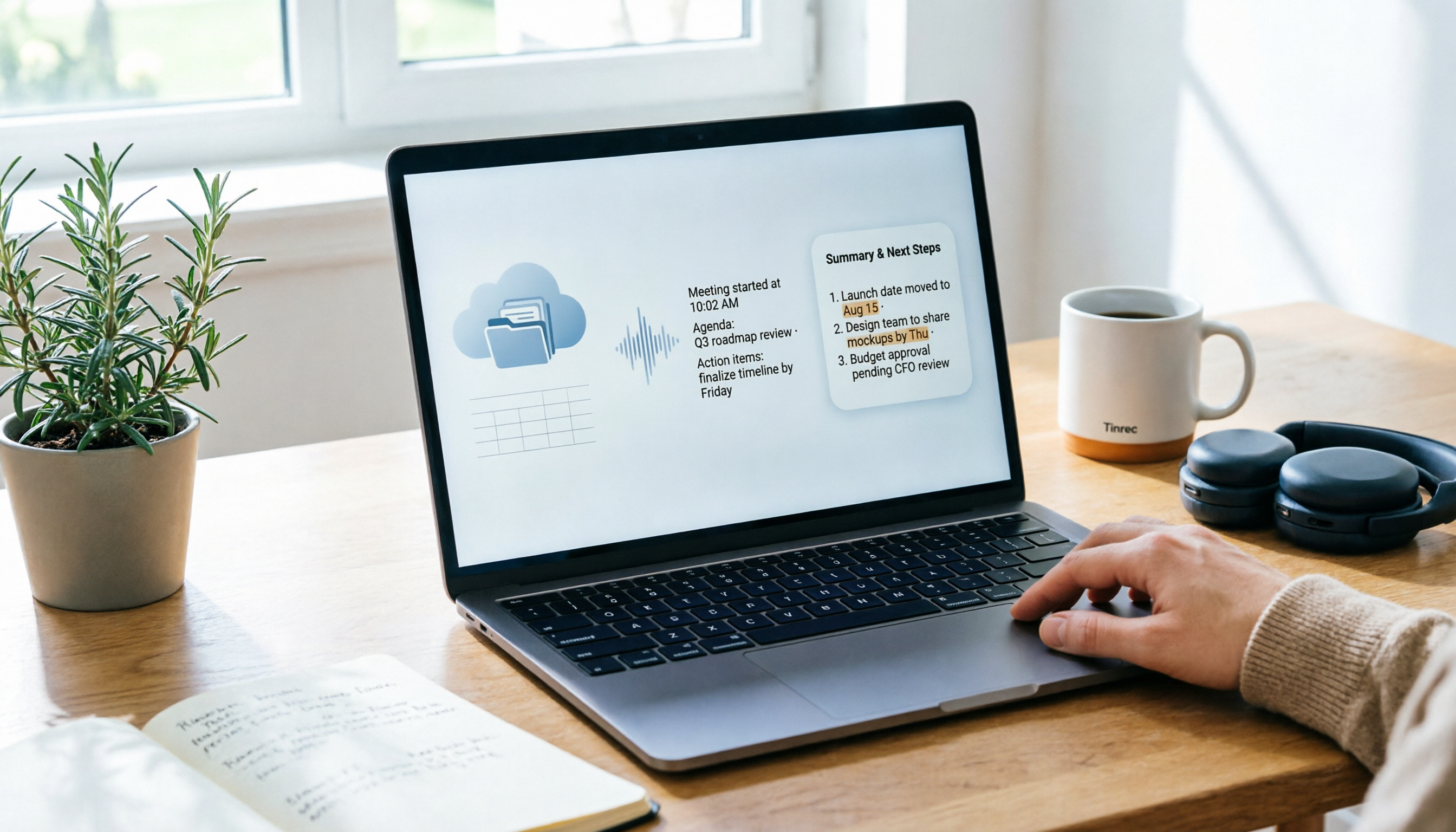
Can't find your Google Meet recording after the meeting? The problem usually isn't whether you recorded it—it's that you're looking in the wrong place. This 5-step guide explains whose cloud the recording is saved to, how to quickly retrieve it from Drive and Calendar, how to download a backup, and finally how to turn the recording into a searchable transcript and meeting notes.

What Is Google Meet in 2026: Core Features Explained + How to Organize Meeting Notes
Google Meet is Google's video conferencing service, formerly Hangouts Meet, merged with Duo in 2022. This article explains from a mid-level manager's practical perspective what Google Meet is, who uses it, free vs. paid differences, privacy rules, and demonstrates how to use Tinrec to turn Meet meeting content into transcripts, summaries, and action items, so you don't have to rely on memory after the meeting.

Google Meet vs Tinrec in 2026: 5-Dimension Comparison — Which Is More Cost-Effective for Meetings?
Google Meet pricing actually has three answers: free at $0, Workspace paid plans starting around US$6.30 to US$7, and the hidden cost of upgrading to Standard for recording and AI notes. This article walks you through 5 steps to convert monthly fees into annual per-person expenses, using the Tinrec team plan as a second reference point to help you clearly explain why you chose a particular plan in meetings.

Google Meet vs Tinrec: 2 Meeting Note Methods Compared (2026)
Google Meet is Google's video conferencing service launched in 2017. You can hold meetings in a browser, and free accounts generally support 100 participants for 60 minutes. This article first explains what Google Meet is, then compares its built-in transcription with Tinrec across five dimensions: recording method, post-meeting output, input sources, team data management, and cost, to help you decide which meeting note method suits you better.

3 Google Meet Call Recording Tools Compared for 2026: From Audio to Transcripts
Google Meet's free version has a 60-minute and 100-participant limit, but the platform offers little help with post-call documentation. This article addresses real pain points, comparing manual note-taking, built-in transcription, and desktop AI tools, using Tinrec as an example to explain bot-free recording, real-time transcripts, AI summaries, and team spaces.