
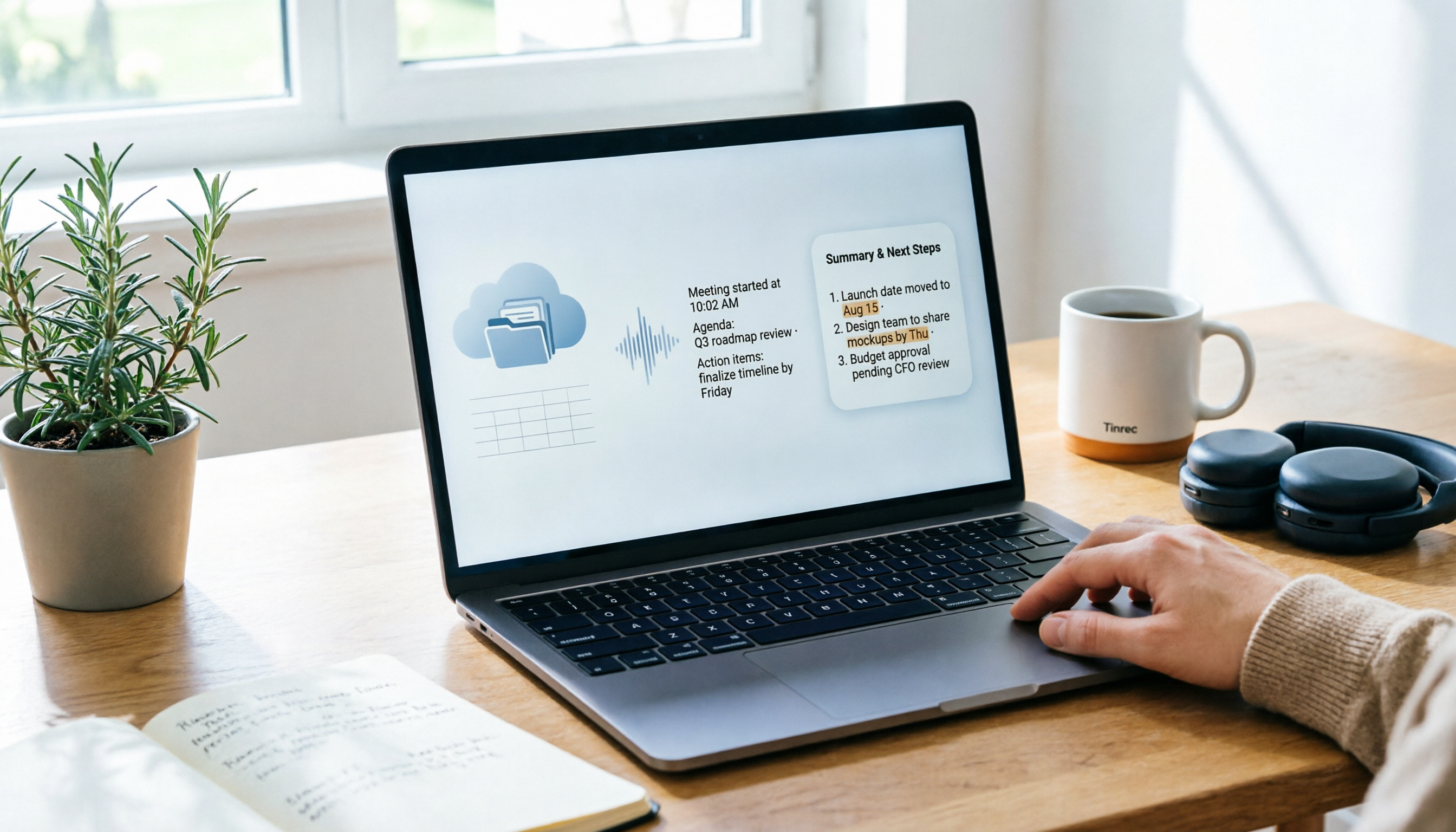
Turn recordings into transcripts and summaries in minutes
Upload audio or video for multilingual transcription, AI notes, and action items
Most people, the first time they look for a Google Meet recording, do the same thing: they check their computer's Downloads folder.
When they can't find it, they start to wonder if the recording was even made.
I used to do that too. Until I understood one thing: this file was never stored on your computer in the first place.
It's stored in the meeting organizer's Google Drive.
That small shift in understanding meant I never wasted half an hour looking for a meeting recording again.
Below are the 5 steps I keep using and have taught to many colleagues.
Before You Start | What You Need to Prepare
Before you begin, confirm these four things to save most of the troubleshooting time later:
• A Google account that can open links. The recording itself is with the organizer, but you'll get an accessible link. • Know who the "organizer" of the meeting is. This is the most critical piece of information, because the file follows their account, not the person who pressed record. • Confirm your account has recording permissions. Google Meet's recording feature is usually part of certain paid versions; it's normal for free accounts not to see a record button—your computer isn't broken. • A recording you want to turn into text. In the later steps, I'll use Tinrec as an example to show you how to turn the recording you find into a searchable transcript.
Step 1 | First, Distinguish Between the "Organizer" and the "Person Who Pressed Record"
The purpose of this step is to know whose cloud to look in for the file.
Most people misunderstand: I pressed record, so the file should be with me. But in reality, no matter who starts the recording, it's always saved to the meeting organizer's Google Drive.
Why emphasize this? Because it determines where you look for the file. If you look in the wrong direction, no amount of searching your own cloud will help.
Figuring it out is simple: go back to the Google Calendar event—the person who sent the invitation is usually the organizer.
Once confirmed, you already know whose cloud the file is in.
(Illustration: A group of people finishing an online meeting, with a calendar event card on screen, an arrow pointing to the organizer's avatar, symbolizing that the file belongs to the organizer's cloud)
Step 2 | Find That Dedicated Folder in Google Drive
The goal is simple: pull the file directly from Google Drive.
Open Google Drive and check "My Drive" first; if you're not the organizer, check "Shared with me." Then look for a folder specifically for meeting recordings.
Here's a common stumbling block: the folder name may appear as "Meet Recordings" or "Google Meet" depending on the account and version—both are the same thing, so don't doubt yourself.
Once you click in, you'll see a subfolder for each meeting, and the recording file is inside.
Why does Google use a "one folder per meeting" design? Because recordings often include more than one file, possibly other outputs, and keeping them separate prevents everything from getting mixed up.
After finding the folder, you'll see a video file with a date and time in its name—that's what you're looking for.
(Illustration: A conceptual view of the Google Drive interface, with the Drive directory on the left, a folder named Meeting Recordings expanded in the center, containing a row of subfolders named by date)
Step 3 | Take a Shortcut from the Calendar Event or Notification Email
The purpose of this step is to save you from digging through Google Drive every time.
After recording ends, the system sends an email with a link to the meeting organizer and the person who started the recording. The link is also added to the original calendar event.
So the fastest path is actually: open the calendar event for that meeting, scroll down to the attachments or links section, and click directly.
My own habit is to add a note in the calendar event on the same day, clearly stating the purpose of the recording.
Why do this? Because two weeks later you'll only remember "there was a meeting," not the file name. Leaving clues where you'll naturally look back is far more effective than creating a new filing system.
After this step, you have a reliable access path.
(Illustration: A conceptual view of a calendar event details page, with a video link in the attachments section below, and a finger tapping it)
Step 4 | Download a Copy—Don't Let Access Follow the Person
The purpose of this step is to protect yourself.
The recording's access permissions are tied to the organizer's account. If the organizer leaves, their account is disabled, or the file is deleted, your link will stop working.
After a file is deleted, it usually goes to the Drive trash and can be restored within 30 days; after that, it's permanently removed and cannot be recovered.
Stop organizing recordings by hand
Upload audio or video and automatically get a transcript, summary, and action items
So my approach is: for important meeting recordings, download a copy to my own cloud or project folder the same day.
Downloading is straightforward—right-click the file and select Download.
Why be so careful? Because the time when a meeting recording is truly valuable is often three months later when someone asks "what exactly did we decide?" By then, it's usually too late to look for it.
Once done, you have a backup that isn't affected by someone else's account.
(Illustration: A person sitting at a desk, a video file being dragged on screen to a folder labeled "Project Backup," with a notebook on the desk)
Step 5 | Use Tinrec to Turn the Recording into a Searchable Transcript
The first four steps solved "where is the file"; this step solves "how to use the file."
Watching a one-hour meeting recording afterward is nearly impossible. My approach is to import the video file into Tinrec, let it generate a transcript, and also produce a summary, chapters, and action items.
The process is: upload the downloaded recording, select the corresponding language, and wait for transcription to finish. If the meeting is multilingual, you can enable real-time translation and view it in original, translated, or bilingual mode.
Why not just watch and take notes yourself? Because watching a video is linear—you can only go from start to finish; but with a transcript, you can search for keywords and jump to the exact moment they were said.
A word of caution: transcription quality is affected by audio clarity, background noise, accents, and multiple people speaking at once. For important decisions, it's still best to verify against the original recording.
When done, you don't just have a video—you have material that can be searched, queried, and extended into meeting notes.
(Illustration: A meeting video on the left side of the screen, with a transcript appearing synchronously on the right, a keyword highlighted, and the cursor hovering over the corresponding timeline)
FAQ and Troubleshooting
Q: I've searched all of Google Drive and still can't find that folder?
First, confirm you're looking in the organizer's cloud, not your own. If you're not the organizer, check "Shared with me" or go back to the link in the notification email—that's much faster than searching in Drive.
Q: My account doesn't have a record button—is it broken?
In most cases, it's not a malfunction but a permissions issue. The recording feature usually requires a paid version with the appropriate permissions; free accounts simply won't see this option.
Q: Why don't I see the chat and notifications in the recording?
That's normal. The recording mainly captures the speakers' video and shared screens; other windows or notifications are not recorded. However, the meeting chat is recorded during the recording and saved as an .SBV file in the organizer's Google Drive; if continuous chat is enabled for the meeting, this file won't be generated separately.
Q: Once I have the recording, what else can I do besides watch it?
That's why I switched to Tinrec. It can do AI Q&A around the meeting content—just ask "what action items came out of this meeting" without rewatching the whole video, and you can export to documents or third-party tools for further processing.
Advanced Tips | 3 Ways to Turn Meeting Recordings into Real Assets
First, replace rewatching with AI Q&A. Instead of playing from the beginning, ask questions directly about the meeting data, such as "what concerns did the client mention" or "what's different from last time." This only works when the transcript is fully preserved.
Second, use team spaces for accumulation. If the same group meets weekly, put recordings and transcripts in Tinrec's team space so new members can browse historical data directly instead of asking "was this discussed before?" The team version also has member, role, and seat management, suitable for scenarios where you need to distinguish "who can view" and "who can edit."
Third, establish your own access ritual. My habit is to do three things after a meeting: download the recording, upload for transcription, and add a note about its purpose in the calendar event. The three steps take less than three minutes but save a lot of searching time later.
If You Don't Use Tinrec, Here Are Other Options
If your need is just to occasionally convert a recording to text, tools like TurboScribe have advantages for long files and batch processing, suitable for handling large amounts of material at once.
If your team primarily holds meetings in English, AI meeting assistants like Otter have deeper experience in English business scenarios.
But if you need Chinese meeting transcripts, summaries, action items, plus team data accumulation, Tinrec's integrated workflow saves a lot of assembly work.
Summary | Make These 5 Steps Second Nature
Now you should be clear: Google Meet recordings are not on your computer—they're in the meeting organizer's Google Drive, one subfolder per meeting, and the fastest location is the link in the notification email and calendar event.
Next time you finish recording a meeting, follow this order:
- Confirm who the organizer is
- Go to Google Drive and find the meeting recordings folder
- Click the link from the calendar event
- Download a backup the same day
- Upload to Tinrec to generate a transcript and action items
Finding the file itself isn't hard; what's hard is having a fixed routine so you don't forget.
Start with your next meeting, adjust it to your own version, and you'll gradually master this method.
Recording and transcription involve local regulations and participant rights; before recording, remember to inform attendees and obtain consent.
References
Turn every recording into actionable outcomes
Get 60 free transcription minutes when you sign in. No credit card required.
Related Reading
You might also like

Where to Find Google Meet on Android in 2026: 5-Step Guide
Can't find Google Meet on your Android phone? This guide walks you through 5 steps to locate Google Meet, join meetings quickly from Gmail and Calendar, and after the meeting use Tinrec to turn speech into transcripts, summaries, and action items.

Google Meet Chat Location in 2026: 3 Steps to Find It on Desktop and Mobile
Can't find the Google Meet chat during a meeting? This practical guide walks you through the chat locations on desktop, mobile, and after the meeting, plus fixes for when the icon disappears and how to keep the discussion for later.

Google Meet Link Guide 2026: Find Your Link and Auto-Organize Meeting Notes
Can't find a Google Meet link? It's usually not missing—you're just looking in the wrong place. This guide shows you how to quickly locate meeting links from three entry points: Calendar, Gmail, and meet.google.com. It also explains how, once you've found the link, you can use Tinrec to automatically turn meeting content into transcripts, summaries, and action items.

Google Meet Recording Guide 2026: Where to Find Recordings, Why They're Missing, and How to Organize Meeting Notes
Can't find your Google Meet recording after a meeting? This guide explains where recordings are saved by default and why you might not find them, then shows how Tinrec can turn meeting audio into transcripts, summaries, and action items—no more digging through Drive.

What Is Google Meet in 2026: Core Features Explained + How to Organize Meeting Notes
Google Meet is Google's video conferencing service, formerly Hangouts Meet, merged with Duo in 2022. This article explains from a mid-level manager's practical perspective what Google Meet is, who uses it, free vs. paid differences, privacy rules, and demonstrates how to use Tinrec to turn Meet meeting content into transcripts, summaries, and action items, so you don't have to rely on memory after the meeting.

Google Meet vs Tinrec in 2026: 5-Dimension Comparison — Which Is More Cost-Effective for Meetings?
Google Meet pricing actually has three answers: free at $0, Workspace paid plans starting around US$6.30 to US$7, and the hidden cost of upgrading to Standard for recording and AI notes. This article walks you through 5 steps to convert monthly fees into annual per-person expenses, using the Tinrec team plan as a second reference point to help you clearly explain why you chose a particular plan in meetings.

3 Google Meet Note-Taking Tools Tested for 2026: How to Record Online Classes and Group Discussions Most Efficiently
What is Google Meet used for? Starting from real student scenarios, this article first clarifies Google Meet's purpose and what it doesn't solve, then tests and compares 3 note-taking tools, summarizing key buying factors, pitfalls to avoid, and budget-friendly recommendations for students.

Google Meet vs Tinrec: 2 Meeting Note Methods Compared (2026)
Google Meet is Google's video conferencing service launched in 2017. You can hold meetings in a browser, and free accounts generally support 100 participants for 60 minutes. This article first explains what Google Meet is, then compares its built-in transcription with Tinrec across five dimensions: recording method, post-meeting output, input sources, team data management, and cost, to help you decide which meeting note method suits you better.

3 Google Meet Call Recording Tools Compared for 2026: From Audio to Transcripts
Google Meet's free version has a 60-minute and 100-participant limit, but the platform offers little help with post-call documentation. This article addresses real pain points, comparing manual note-taking, built-in transcription, and desktop AI tools, using Tinrec as an example to explain bot-free recording, real-time transcripts, AI summaries, and team spaces.