

Turn recordings into transcripts and summaries in minutes
Upload audio or video for multilingual transcription, AI notes, and action items
Many people think Google Meet best practices are just "mute your mic, join on time, keep your background clean." Honestly, that only keeps meetings quiet—it doesn't make them effective.
What really eats up time is after the meeting. Recordings sit in the cloud and no one rewatches them, transcripts go unorganized, action items scatter across chat, and the next meeting means asking the same questions again.
I separate "in-meeting" from "post-meeting." During the meeting, Google Meet has several genuinely useful small features; after the meeting is where most people actually get stuck. Below are the Google Meet best practices I've personally used and found worth keeping, plus a demonstration of how to use Tinrec to connect in-meeting discussion into usable post-meeting data.
What Can Google Meet Best Practices Do for You?
There are three direct benefits.
First, in-meeting communication flows better. Instead of talking over each other, use hand raising and chat to keep speaking orderly.
Second, you can find key points after the meeting. With Tinrec, for example, a transcript, summary, and chapters remain after the meeting ends—no need to rewatch the entire recording.
Third, the team can take over. Once meeting data is placed in a team space, new members can look up past discussions instead of only asking whoever was present at the time.
3 Google Meet Features You Can Use During the Meeting
1. Use the raise hand feature instead of interrupting
In multi-person meetings, speaking up directly easily collides with others. At the bottom of the Google Meet screen there's a "Raise hand" button; press "Lower hand" after speaking. This small action lets the host know who's waiting and reduces talking over each other.
2. Pin key visuals
When a slide or chart is being discussed, hover over the top of the screen and click "Pin" to keep that view in the main position. For remote participants, this saves a lot of hassle compared to asking "what was that image again?" afterward.
3. Use chat for links and questions
If you don't want to interrupt the speaker, or want to share a document or meeting notes link, use chat first. Google Meet's chat is great for this kind of "don't interrupt but leave a record" communication.
Note that these three practices only solve the "in-meeting" part. After the meeting ends, links in chat, questions raised during hand raising, and pinned charts—if not organized separately—will still require rewatching the recording next time you need them.
Best Practices for Hybrid Meetings: You Don't Necessarily Need a Bot in the Meeting
A hybrid meeting means some people are in a conference room and some join from a computer or phone. In Google's official guidance for admins, default settings, accessibility, and management approaches for this kind of meeting are listed as key points.
Many teams' instinct is to add a meeting bot that joins as a participant to record audio. This has benefits but also brings a few small hassles: an unfamiliar account appears on the participant list, the host has to remember to admit it, and some guests may have concerns about a recording bot being present.
Tinrec takes a different approach. Its desktop version directly captures the computer's system audio, handling online meetings on Zoom, Google Meet, Microsoft Teams, Webex, and others without an extra bot joining the meeting. You just open Tinrec before the meeting starts and press record, and it transcribes while recording.
To be clear: this is not "automatically joining all calendar meetings." You need to actively start recording, and Tinrec does not appear in Google Meet as an official partner. It simply captures meeting audio on your computer and organizes it into text along the way.
Also, for the team plan under an active subscription and active seats, real-time recording currently does not deduct minutes; file and web link imports consume the team's shared import quota. This difference should be understood before evaluating usage.
Post-Meeting Organization: The Most Commonly Overlooked Google Meet Best Practice
After the meeting ends, the real work begins. Rather than just leaving a recording, turn the meeting into data that can be searched, queried, and handed over.
Transcripts so you don't have to rewatch the whole thing
Tinrec converts real-time recordings or uploaded audio and video files into transcripts, preserving the original spoken content, searchable and reviewable by timestamp. When you need to confirm "who said this," you don't have to drag the progress bar from the beginning.
AI summaries and chapters: see structure first, then details
The worst part of long meetings is "knowing it was discussed but not knowing which section." Tinrec generates summaries and chapters, breaking a meeting into several topics. I check the summary first to confirm direction, then click into chapters for details—much faster than reading the transcript from the start.
Action item extraction: turn "let's follow up after" into a list
During discussions, phrases like "I'll handle this when I get back" and "I'll reply next week" come up often. Tinrec organizes action items from meeting content, suitable for project meetings and client meetings. Note that AI may miss or misinterpret details; important commitments should still be verified against the transcript and recording.
AI Q&A: ask about meeting highlights directly
After transcription is complete, you can continue asking questions about the meeting content, such as "What budget range did the client mention?" or "Who is responsible for this decision?" This saves time compared to digging through the transcript again and is also useful for searching past meetings.
Translation and bilingual view for cross-language meetings
Stop organizing recordings by hand
Upload audio or video and automatically get a transcript, summary, and action items
If the meeting includes foreign language content, Tinrec supports real-time translation, viewable in original, translated, or bilingual mode. For teams that need to meet with international colleagues or clients, this feature is very practical.
Export and post-processing: bring results back to your workflow
Organized content can be exported to common formats or taken to tools like Notion, Google Docs, OneNote, and Dropbox for continued use. Tinrec also offers Agent post-processing, which can generate reports, tables, and documents based on meeting content—suitable for post-meeting deliverables.
Team space so data doesn't leave with people
Personal plan data belongs to the individual account; the team plan is a separate team space where meeting data belongs to the team. Members can view, play, and read team data, but need a seat to record, upload, edit, and import/export. When a member leaves or is removed, team resources are transferred to other active members rather than being taken away personally.
Practical Use Cases
Weekly department meetings
Weekly meetings usually run an hour or more with many discussion items. Use Tinrec for real-time recording plus transcript, then check summaries and action items afterward. Rather than relying on the host's notes alone, everyone can look back. The team plan can centralize weekly meetings in one space, and new members can browse historical data.
Client interviews and requirements meetings
Client requirements, objections, and commitments are often scattered throughout the conversation. Tinrec's transcript and AI Q&A can quickly retrieve "what the client said at the time," and action item extraction helps organize follow-up actions. Exporting for reports or subsequent processes is also faster than typing manually.
Cross-language meetings
For mixed Chinese-English meetings, rather than listening and taking notes simultaneously, let Tinrec produce a bilingual transcript. Real-time translation helps with in-meeting comprehension; review the transcript afterward to confirm details.
Team handover
When personnel change, the biggest fear is meeting data being left in personal accounts. The team plan centralizes Audio, Folder, and TODO in the team space and provides roles, seats, usage analytics, and audit logs. Admins can view usage trends, and resources can be handed over when members change.
4 Things to Consider When Choosing a Google Meet Note-Taking Tool
1. Does it require a bot to join the meeting?
If your participants include external clients, an extra bot account can sometimes be awkward. Tinrec's desktop version uses system audio capture and doesn't require a bot to join; but you need to remember to start recording manually—it's not an automatic calendar-following meeting bot.
2. Performance with Chinese and mixed Chinese-English
Many tools are primarily designed for English meetings. Tinrec can handle Chinese, Traditional Chinese, and multilingual meetings, and supports team hotwords. Actual accuracy is still affected by recording quality, noise, accents, overlapping speakers, and technical terminology—recommend testing with your own meeting recordings.
3. Are post-meeting outputs sufficient?
Tools that only provide transcripts still require you to organize afterward. Beyond transcripts, Tinrec offers summaries, chapters, action items, mind maps, AI Q&A, and Agent post-processing. Rather than comparing transcription minutes, look at whether it can save you a round of post-meeting organization.
4. How are team permissions and seats calculated?
The team plan distinguishes "roles" and "seats": roles determine who can manage the team, members, and audits; seats determine whether members can record, upload, edit, and export. Active members without seats can still view, play, and read team data. Currently the team plan is primarily team-level sharing, not file-level or member-level granular permissions—confirm this before purchasing.
On pricing, the team plan is currently USD 29.80 per paid seat per month, or USD 199 annually (about USD 16.58/month), with each paid seat providing 2,000 minutes of team shared import quota per month; first-time eligible teams get a 7-day trial, 1 free seat, and 300 minutes of team shared import quota. Actual prices, currencies, and promotional details are subject to the official purchase page.
Frequently Asked Questions
Is Google Meet's built-in transcription not enough?
Built-in transcription is fine for quick reference, but if you need cross-platform organization, post-meeting Q&A, action item extraction, export to other tools, or to accumulate data in a team space, you'll need a dedicated meeting notes tool. Tinrec's difference is connecting the post-transcription workflow, not just providing a block of text.
Does Tinrec require a meeting bot to join?
No. Tinrec's desktop version directly captures computer system audio, handling online meetings on Google Meet, Zoom, Teams, Webex, and others. But you need to actively start recording; it won't automatically join all calendar meetings, nor does it represent official partnerships with these platforms.
Is the free version enough?
If you only occasionally organize a recording, the free version's basic quota is worth trying. For short-term intensive meetings or interviews, consider a weekly card; for steady weekly needs, Pro is more suitable; for long-term data accumulation, look at the annual card. Teams have a 7-day trial to evaluate collaboration workflows.
What's the difference between the team plan and personal plan?
Personal plan data is managed by the individual account. The team plan is a separate team space with member invitations, roles, seat allocation, shared benefits, usage analytics, audit logs, audio recycle bin, and team hotwords. Meeting data belongs to the team and can be handed over when members change, rather than being taken away personally.
Do I need to inform participants before recording?
Yes. Recording and transcription involve local laws and organizational policies; recommend informing participants and obtaining consent before the meeting starts. Tinrec provides tool capabilities; actual use must comply with your compliance requirements.
Summary
Google Meet best practices aren't just about a few buttons during the meeting—they also include how to preserve discussions afterward. During the meeting, use hand raising, pinning, and chat to smooth communication; after the meeting, you need a tool that turns recordings into transcripts, summaries, action items, and searchable data.
Based on my own usage habits, Tinrec's most practical aspects are "no bot required to join" and "you can keep asking questions after transcription." If you have more than three meetings per week, start with the free version to see if post-meeting organization actually gets faster. For team adoption, begin by evaluating the team plan trial and seat planning.
References
- Best practices | Google Meet | Google for Developers
- Google Meet hybrid meeting best practices for admins | Google Workspace Help
- Tips on how to collaborate in a video meeting - Google Meet Help
- Google Meet: Complete Guide with Tips and Tricks for Productive Meetings
- Get more out of Google Meet with these tips
Turn every recording into actionable outcomes
Get 60 free transcription minutes when you sign in. No credit card required.
Related Reading
You might also like

Google Meet Screen Sharing Not Working in 2026: 5-Step Troubleshooting and Meeting Notes Solutions
When Google Meet screen sharing fails, most people blame the network first, but the issue is often browser version, host management permissions, or system screen recording permissions. This article tests a 5-step troubleshooting sequence and provides backup meeting notes solutions for when sharing fails.

Google Meet vs Microsoft Teams in 2026: Which Is Better for Your Team?
Is Google Meet better than Microsoft Teams? This article compares them across ecosystem, meeting size, hardware load, and post-meeting organization, and explains how Tinrec enables bot-free recording, Chinese transcripts, AI summaries, and team knowledge retention across Meet, Teams, and Zoom. The conclusion: there's no universal winner—only the better fit.

Google Meet on CarPlay in 2026: 3 Meeting Note Tools Tested — Who Organizes Your Meeting After the Drive?
In April 2026, Google Meet officially added support for Apple CarPlay, finally letting you join meetings by voice while driving. But in the car you can only listen — no screen, and no transcript after the meeting. This hands-on comparison tests Tinrec, Otter.ai, and Notta, and breaks down the Google Meet CarPlay workflow and limitations, helping you find the smoothest combo between 'attending' and 'organizing.'

How to Buy a Google Meet Subscription in 2026: Workspace + Google One Explained
Google Meet doesn't have a standalone subscription. This guide covers the differences between Google Workspace and eligible Google One plans in 2026, purchase steps, free version limits, and pitfalls to avoid. It also explains how Tinrec can help with post-meeting organization.
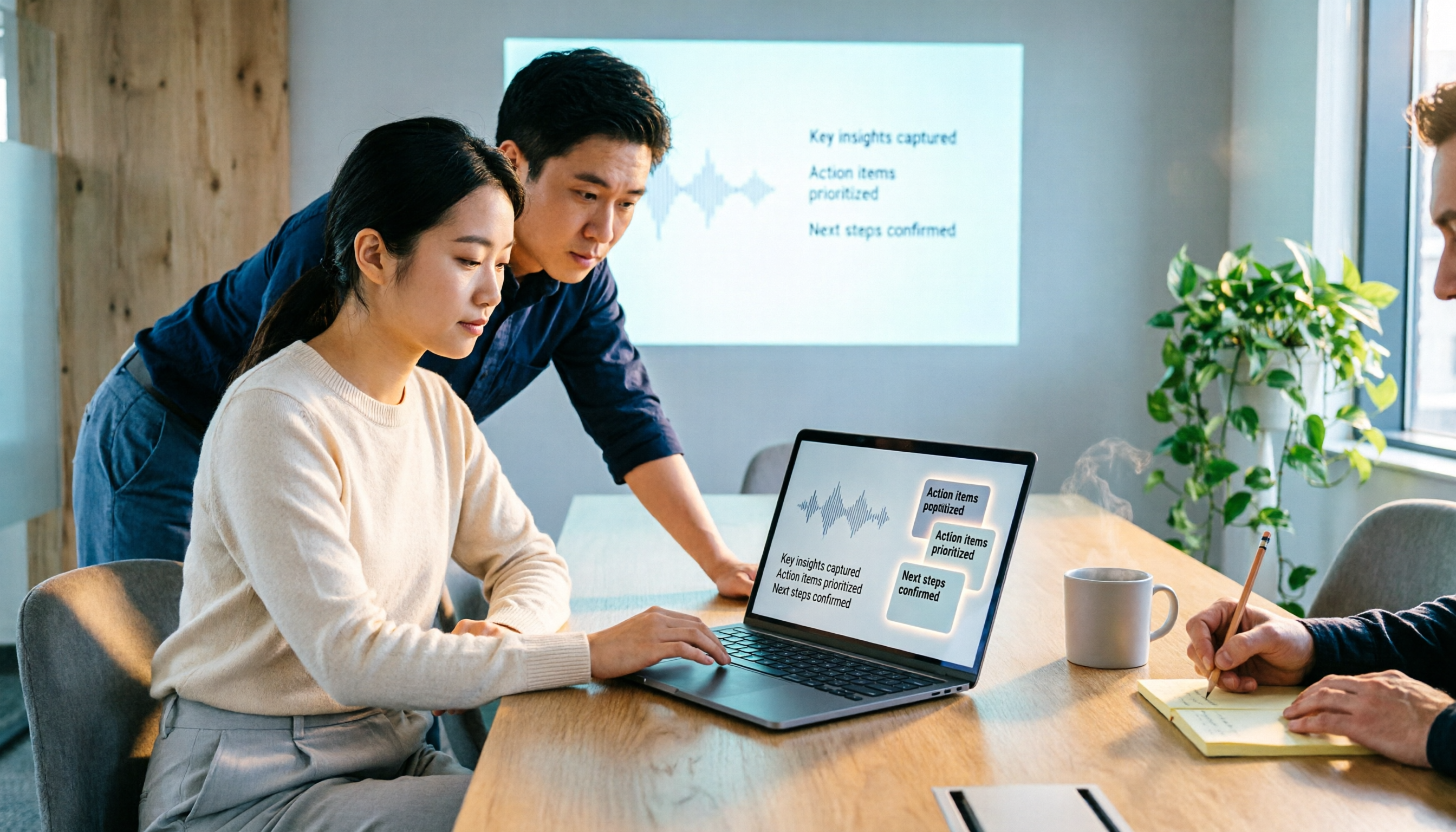
2026 Comparison of 5 Google Meet Meeting Notes Solutions: Is Tinrec's Bot-Free Recording the Most Time-Saving?
Many people search for 'google meet best' but overlook that post-meeting organization is the real pain point. This article starts with Google Meet's recording limitations and post-meeting gaps, then tests and compares 5 meeting notes solutions: Google Meet built-in, Otter.ai, Granola, Notta, and Tinrec. It also covers selection criteria, pitfalls to avoid, and scenario-based recommendations.

2026 Comparison of 3 Google Meet Breakout Room Post-Meeting Tools: How Tinrec Turns Discussions into Action Items
Google Meet breakout rooms let large meetings split into small group discussions, but conclusions often end up scattered. This article starts from real pain points, explains breakout room use cases and limitations, and uses Tinrec as an example to demonstrate how no-bot recording, real-time transcription, AI summaries, action item extraction, and team spaces can turn breakout discussions into searchable, trackable team knowledge.

3 Google Meet Whiteboard Tools Tested for 2026: Start Drawing in One Click
Google Meet doesn't have a built-in whiteboard, so you need a third-party add-on. This hands-on comparison of Whiteboard for Google Meet, Collaborative Whiteboard, and the discontinued Jamboard helps you choose based on launch method, viewer pricing, and content saving. Plus, learn how to turn whiteboard discussions into searchable meeting notes with Tinrec.

2026 Comparison of 3 Google Meet Background & Meeting Notes Tools: Free Stock Photos, Built-in Blur, and Tinrec
What's the easiest way to change your Google Meet background? We tested 3 background and meeting notes solutions: Google Meet's built-in blur and image library, free background websites, and the Tinrec meeting notes tool. From background dimensions and browser requirements to post-meeting transcript organization, we help you understand it all at once.

Google Meet vs Zoom in 2026: Is Google Meet Really Better Than Zoom?
Which is better, Google Meet or Zoom? The answer depends on which dimension you compare. Using the latest 2026 data, this article compares free time limits, ease of use, meeting features, host controls, and ecosystem integration, then covers a post-meeting recording step most people overlook, helping you choose the combination that truly fits you.