

Turn recordings into transcripts and summaries in minutes
Upload audio or video for multilingual transcription, AI notes, and action items
Nine Out of Ten People Get the First Step Wrong When Screen Sharing Fails
When Google Meet screen sharing fails, many people's first reaction is "the network is down"—so they restart the meeting, restart the computer, switch Wi-Fi, and after ten minutes the screen is still gray. In reality, the real causes usually come down to three things: an outdated browser version, the host restricting sharing permissions in Host management, or the system not granting screen recording permission to the browser.
Another common inefficient diagnosis: minimizing the window you want to share. As soon as Google Meet detects that the window is minimized, the screen turns completely black, making it look like "sharing interrupted," but you just need to maximize the window again to fix it.
The sensible approach: check permissions and browser first, then system settings, and only suspect the network last. Below is the tested effective order.
Before Troubleshooting, Understand These 4 Key Points
1. Browser version. Google officially recommends using the latest version of Chrome for the most complete screen sharing compatibility and features. Using a built-in browser or a version that hasn't been updated in a long time may cause the share button to be grayed out.
2. Host's Host management. If the meeting initiator has enabled host management and turned off members' sharing permissions, pressing the share button repeatedly won't do anything. This is the most commonly overlooked item—asking the host directly is fastest.
3. System-level screen recording permission. On macOS, you need to allow the browser to record the screen in "Privacy & Security"; on Windows, it may be blocked by antivirus or graphics settings. Without permission, Meet will fail silently.
4. Whether you're sharing the entire screen or a single window. When sharing a single window, viewers can't see other windows you switch to; sharing the entire screen will broadcast all notifications and private messages. This is both a technical and an information security issue.
Tested Troubleshooting Order: 5 Steps from Simple to Complex
Step 1: Ask the host. Confirm whether Host management is enabled and whether your account is allowed to share. This takes 30 seconds but is most often skipped.
Step 2: Switch to the latest version of Chrome. Disable all extensions and try again. Some ad blockers or privacy extensions can intercept sharing requests—such cases are not uncommon in the community.
Step 3: Check system permissions. On macOS, go to "System Settings → Privacy & Security → Screen Recording" and check the browser; on Windows, check graphics card drivers and antivirus screen protection features.
Step 4: Rejoin the meeting. Leaving and rejoining via the link is more effective than repeatedly pressing share within the meeting. If you're using the app version, test with a desktop browser to quickly determine whether it's an account permission or device issue.
Step 5: Close other programs that occupy the screen. Another software sharing the screen, remote desktop, or recording tools may be competing for resources. Close them all, restart the browser, and try again.
Only if all five steps fail should you restart your computer. With the right order, most people will solve it at step two.
Tinrec (Instant Recording) — Keep Meeting Content Even When Sharing Fails
When screen sharing breaks, the meeting doesn't pause. You still need to meet, take notes, and submit records afterward. Tinrec (Instant Recording) is an AI meeting notes and collaboration tool for individuals and teams, available on iOS, Android, desktop, and web, filling this gap.
Its desktop version directly captures system audio from your computer, handling Zoom, Google Meet, Microsoft Teams, and Webex meetings played on the computer without inviting a meeting bot. For participants, no unfamiliar account appears on the meeting roster—especially important for meetings with external clients. Note that this is user-initiated recording via Tinrec, not automatic joining of all calendar meetings.
Stop organizing recordings by hand
Upload audio or video and automatically get a transcript, summary, and action items
During the meeting, Tinrec generates transcripts in real time and supports live translation and bilingual viewing, so cross-language meetings don't require a separate interpreter for notes. After the meeting, AI summaries, chapters, and action items are already organized—who is responsible for what and when it's due is clear at a glance. Even more practical is AI Q&A: you can directly ask "Who mentioned the budget cap in the last meeting?" and it answers by meaning, not by dumping a list of keyword search results.
For team use, Tinrec's team plan centralizes recordings, transcripts, summaries, and action items in a shared team space, with member, role, and seat management, usage analytics, audit logs, and an audio recycle bin. Team data belongs to the team; when a member leaves or loses a seat, resources can be transferred to other active members and won't disappear with the individual account. Note that the team plan currently focuses on team-level sharing, not file-level granular permissions; members without seats can view and play data, but need a seat to upload, edit, and export.
Limitations should be clear: the free version has a basic quota, and heavy users need to pay; transcription accuracy is affected by recording quality, background noise, accents, and multiple people talking over each other—for important content, cross-check with transcript timestamps and recording playback. Also, before recording, please ensure compliance with local laws and obtain participant consent when necessary.
Besides Tinrec, What Other Meeting Notes Options Are There?
Otter.ai: A mature choice for English business meetings, with a generous free tier of 300 minutes per month. But it lacks strengths in Chinese and multilingual meetings, and doesn't support the complete workflow of desktop bot-free system audio capture. If your meetings are entirely in English, consider it; if meetings are mainly in Chinese, Tinrec is more suitable.
Granola: Also a bot-free AI meeting notes tool, focusing on combining your handwritten notes with AI. But it doesn't retain meeting audio and doesn't support uploading pre-recorded audio or video files. Tinrec retains recordings, supports file import and multi-format export, providing more basis for later verification against the original.
Notta: Good multilingual transcription and translation, with a free tier of 120 minutes per month, 3 minutes per session. Its strengths are file transcription and subtitles, but it lacks Tinrec's AI Q&A and Agent post-processing workflow—generating reports or tables directly after recording is more cumbersome.
Pitfall Guide: The 3 Most Common Screen Sharing Mistakes
Pitfall 1: Minimizing the window you want to share. This is the number one cause of black screens. Keep the window open during sharing; to switch screens, use "Share entire screen" instead.
Pitfall 2: Restarting repeatedly without asking the host. If Host management has disabled sharing permissions, restarting a hundred times won't help. Ask first and save ten minutes.
Pitfall 3: Sharing the entire desktop without turning off notifications. Message pop-ups, private emails, and client lists broadcast to everyone—once is enough embarrassment. Enable Do Not Disturb before sharing, or share only a single window.
Summary: What Should You Do When Screen Sharing Fails?
First ask the host if Host management is enabled → switch to the latest Chrome → check system screen recording permissions → rejoin the meeting → close other programs occupying the screen. These five steps can solve the vast majority of cases.
If the meeting must go on and notes must be submitted, here's how to choose:
- Chinese or mixed Chinese-English meetings, need transcripts and summaries → Tinrec (supports live translation and bilingual viewing)
- Don't want a bot on the participant list → Tinrec desktop version (captures system audio, no need to join the meeting)
- Want to use AI to follow up on details after recording → Tinrec (AI Q&A answers by meaning)
- Team needs to share meeting data and manage seats → Tinrec team plan (team space, usage, audit, recycle bin)
- All-English meetings, zero budget → Otter.ai (larger free quota)
Practical advice: try Tinrec's free version first, record a meeting, see if the transcript and summary are sufficient, then decide whether to upgrade. Tools are meant to help you finish work earlier, not to add another system to learn.
References
- Troubleshoot screen-sharing issues in Google Meet - Google Meet Help
- Screen sharing isn't working in my Google Meet - Google Meet Community
- Google Meet Screen Sharing Not Working? How to Fix the Problem
- A Guide to Fixing Google Meet Screen Sharing Issues: Tips & Solutions
- Persistent Issue: Cannot Share 'Entire Screen' in Google Meets (Follow-up to a Closed Topic) - Brave Browser - Brave Community
Turn every recording into actionable outcomes
Get 60 free transcription minutes when you sign in. No credit card required.
Related Reading
You might also like

Google Meet vs Microsoft Teams in 2026: Which Is Better for Your Team?
Is Google Meet better than Microsoft Teams? This article compares them across ecosystem, meeting size, hardware load, and post-meeting organization, and explains how Tinrec enables bot-free recording, Chinese transcripts, AI summaries, and team knowledge retention across Meet, Teams, and Zoom. The conclusion: there's no universal winner—only the better fit.

Google Meet on CarPlay in 2026: 3 Meeting Note Tools Tested — Who Organizes Your Meeting After the Drive?
In April 2026, Google Meet officially added support for Apple CarPlay, finally letting you join meetings by voice while driving. But in the car you can only listen — no screen, and no transcript after the meeting. This hands-on comparison tests Tinrec, Otter.ai, and Notta, and breaks down the Google Meet CarPlay workflow and limitations, helping you find the smoothest combo between 'attending' and 'organizing.'

5 Google Meet Best Practices Tested for 2026: Which Ones Actually Save Post-Meeting Time?
From in-meeting hand raising, pinning, and chat to post-meeting transcripts, summaries, and action items, we break down common misconceptions and practical approaches to Google Meet best practices, and show how Tinrec turns meeting content into searchable, queryable team knowledge.

How to Buy a Google Meet Subscription in 2026: Workspace + Google One Explained
Google Meet doesn't have a standalone subscription. This guide covers the differences between Google Workspace and eligible Google One plans in 2026, purchase steps, free version limits, and pitfalls to avoid. It also explains how Tinrec can help with post-meeting organization.
2026 Comparison of 5 Google Meet Meeting Notes Solutions: Is Tinrec's Bot-Free Recording the Most Time-Saving?
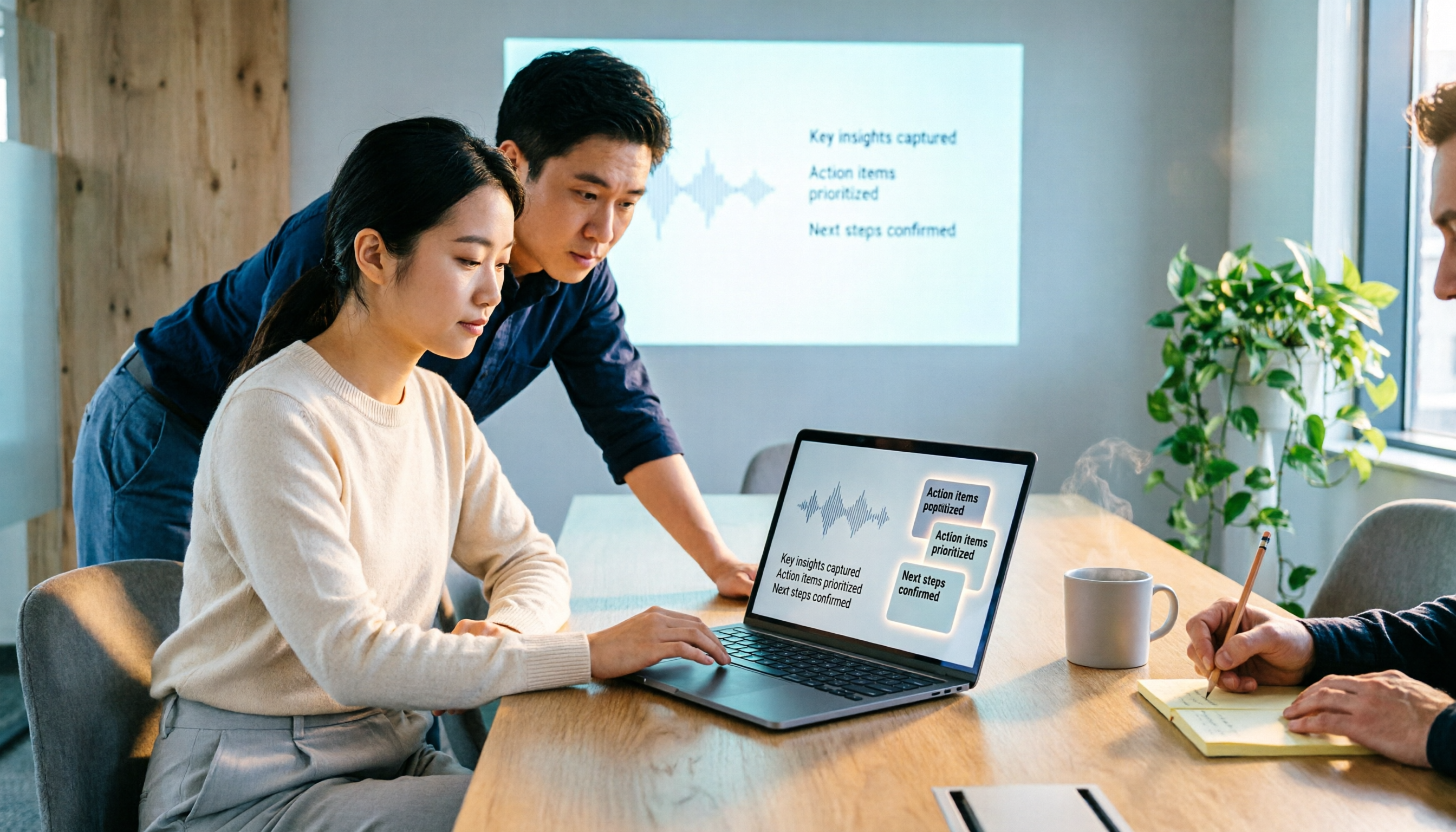
Many people search for 'google meet best' but overlook that post-meeting organization is the real pain point. This article starts with Google Meet's recording limitations and post-meeting gaps, then tests and compares 5 meeting notes solutions: Google Meet built-in, Otter.ai, Granola, Notta, and Tinrec. It also covers selection criteria, pitfalls to avoid, and scenario-based recommendations.

2026 Comparison of 3 Google Meet Breakout Room Post-Meeting Tools: How Tinrec Turns Discussions into Action Items
Google Meet breakout rooms let large meetings split into small group discussions, but conclusions often end up scattered. This article starts from real pain points, explains breakout room use cases and limitations, and uses Tinrec as an example to demonstrate how no-bot recording, real-time transcription, AI summaries, action item extraction, and team spaces can turn breakout discussions into searchable, trackable team knowledge.

3 Google Meet Whiteboard Tools Tested for 2026: Start Drawing in One Click
Google Meet doesn't have a built-in whiteboard, so you need a third-party add-on. This hands-on comparison of Whiteboard for Google Meet, Collaborative Whiteboard, and the discontinued Jamboard helps you choose based on launch method, viewer pricing, and content saving. Plus, learn how to turn whiteboard discussions into searchable meeting notes with Tinrec.

2026 Comparison of 3 Google Meet Background & Meeting Notes Tools: Free Stock Photos, Built-in Blur, and Tinrec
What's the easiest way to change your Google Meet background? We tested 3 background and meeting notes solutions: Google Meet's built-in blur and image library, free background websites, and the Tinrec meeting notes tool. From background dimensions and browser requirements to post-meeting transcript organization, we help you understand it all at once.

Google Meet vs Zoom in 2026: Is Google Meet Really Better Than Zoom?
Which is better, Google Meet or Zoom? The answer depends on which dimension you compare. Using the latest 2026 data, this article compares free time limits, ease of use, meeting features, host controls, and ecosystem integration, then covers a post-meeting recording step most people overlook, helping you choose the combination that truly fits you.