

Turn recordings into transcripts and summaries in minutes
Upload audio or video for multilingual transcription, AI notes, and action items
4 Free Speech-to-Text Apps Tested for 2026: Which One Has Enough Free Minutes and Chinese Accuracy?
Last week a friend messaged me and said he gave up organizing.
Three interview recordings, over two hours total. He planned to listen and type, but after an afternoon he'd only finished one and his wrists were sore.
I asked why he didn't use a speech-to-text app.
He said: "I downloaded three, but each one cut off after ten minutes and showed a paywall. And the text still needed retyping."
That points to two realities.
First, many apps claim to be free, but few can actually finish a job.
Second, getting a transcript doesn't mean you're done—a 20,000-word text file without summaries, action items, or sections just trades typing time for reading time.
So this article isn't about spec sheets. I want to talk about how to use free tiers to complete a recording job from start to finish.
The real pain of audio-to-text isn't transcription failure
Let me describe three scenarios I keep seeing.
Scenario 1: The quota trap.
The free version cuts off after ten minutes. You're just getting into it, and an upgrade prompt pops up. This design isn't for using; it's for trying.
Scenario 2: The output is unusable.
A two-hour meeting produces over 20,000 words. To find "who's responsible for the budget," you have to Ctrl+F one keyword at a time.
Scenario 3: Chinese and mixed Chinese-English.
Product names, people's names, internal jargon—all wrong. Fixing it takes longer than typing it yourself.
These three situations point to the same thing: you don't want "speech to text," you want "recordings turned into directly usable data."
The difference is what happens after transcription.
If your tool only transcribes, you're just converting typing time into proofreading time.
So when choosing a tool, look at what it gives you after transcription.
Before choosing a free speech-to-text app, understand these 5 key points
These 5 points are the order I worked out after making mistakes myself.
1. Free quota isn't just total minutes—look at the per-session limit
Many tools say "120 minutes per month," which sounds enough. But look closer: each session can only transcribe 3 minutes.
One meeting exceeds that.
So the first thing to check is: how long can a single session transcribe? This determines whether it can handle a real meeting.
2. How it "listens" to your online meetings
There are two ways to record online meetings.
One is to send a meeting bot into the room, so everyone sees an extra participant. The other is to capture system audio directly from your computer, without alerting anyone.
The former is convenient; the latter is natural. When you're meeting with a client, having an extra bot in the room changes the atmosphere.
3. Chinese and mixed Chinese-English recognition experience
Chinese meetings are rarely pure Chinese.
Sentences like "Give this proposal to the client by next Wednesday" are everywhere. Whether the tool can follow the context and get it right makes a big difference.
My advice: record a real meeting yourself and test it. Don't rely on official accuracy numbers. Numbers from a quiet studio are a different world from a meeting room with air conditioning, keyboard sounds, and people talking over each other.
4. What it gives you after transcription
A transcript is basic. Beyond that: summaries, chapters, action items, whether you can ask questions about the content, whether you can export to tools you already use.
This part determines whether you're "organizing recordings" or "organizing and finishing."
5. Whether data is retained
Are recordings saved? Will they still be there if you change phones or computers? Do team members' meeting records follow the person?
This usually only gets noticed when something goes wrong.
Tinrec (Miao Ting Recording) — My current main tool
First, positioning: Tinrec is an AI meeting notes and collaboration tool for individuals and teams, available on mobile, desktop, and web.
I use it as my main tool not because it has the most features, but because it handles the most troublesome part: "after the meeting ends."
How it records a meeting
For in-person meetings, I start real-time recording and get a transcript as I go.
For online meetings, I use the desktop version. It captures system audio directly, handling Zoom, Google Meet, Microsoft Teams, Webex, and similar meeting audio without inviting a meeting bot.
(Screenshot: Tinrec desktop recording screen, arrow pointing to system audio source option)
This difference is especially noticeable in client meetings. You don't have to explain "an AI will join the meeting shortly."
After transcription is the key part
When the meeting ends, the transcript is already there. Summaries, chapters, and action items are generated at the same time.
My most-used feature is AI Q&A.
Last week I needed to confirm something from two months ago, so I asked directly: "What was the final budget cap decided in that meeting?"
It doesn't throw a list of keywords at you; it answers directly.
This sounds minor, but it cuts "digging through meeting notes" from ten minutes to ten seconds. And you can ask across meetings.
Stop organizing recordings by hand
Upload audio or video and automatically get a transcript, summary, and action items
From the same data, you can also generate reports, tables, meeting minutes, or export to Notion, Google Docs, OneNote, and other tools you already use.
(Screenshot: AI Q&A screen, question and answer side by side)
Team usage
For teams, Tinrec has a separate team space, not a shared account.
Meeting data belongs to the team. Members can view, play, and read the team's historical meeting data; recording, uploading, editing, and importing/exporting require a seat.
This matters most when people leave—when a member resigns or is removed, their team resources are transferred to other active members, so data doesn't disappear with the person.
Current team plan configuration: eligible teams get a 7-day trial, 1 free seat, and 300 minutes of shared team import quota; paid seats are USD 29.80 per month, or USD 199 per year (about USD 16.58 per month), with each paid seat providing 2,000 minutes of shared team import quota per month. Real-time recording under an active team plan and active seat is currently not deducted by minutes.
Prices and benefits are subject to the official purchase page.
Pros I've experienced
First, no bot needed for online meetings. This is practical for client meetings and cross-department meetings.
Second, it processes data, not just text. Summaries, action items, Q&A, export—the chain is complete.
Third, the Chinese meeting experience is smoother. Mixed Chinese-English and internal jargon can be maintained with team hotwords, improving recognition.
Limitations I should mention
The free version is a basic quota. Enough for light use; heavy use requires payment. If your meeting volume is high, factor in the cost.
It doesn't automatically join all your calendar meetings. You need to open Tinrec and start recording yourself. This is a design trade-off, not a flaw, but you should know.
No fixed accuracy guarantee. Recording quality, accents, noise, and overlapping speech all affect results. For important content, I still go back to the transcript timestamps to verify.
Who it's for
If you mainly hold Chinese meetings, want to use AI to find key points after meetings, don't want a bot in the meeting, or need to turn meeting data into team assets—this is my top recommendation.
Besides Tinrec, what other free options are there?
I've used these three; each has its real strengths.
Otter.ai
A veteran choice for English meetings, with a generous free tier of 300 minutes per month.
If 90% of your meetings are in English, Otter will be smoother than the above. But Chinese meeting support isn't its strength, and it lacks Tinrec's space design for turning meetings into collaborative team data.
Notta
Multilingual transcription is its strength, and the interface is clear. Free version: 120 minutes per month, but each session is limited to 3 minutes—note this, as meetings easily exceed it.
Its positioning is close to Tinrec, but Tinrec's bot-free desktop recording, AI Q&A, and team data retention are areas Notta currently doesn't match.
TurboScribe
If your job is converting large amounts of long audio files into subtitles or transcripts, rather than real-time meeting notes, TurboScribe is more suitable. Free version: 3 files per day, up to 30 minutes per file; paid version supports up to 10 hours per file.
But it's a file transcription tool, not a meeting collaboration tool. It doesn't handle post-meeting action items, Q&A, or team sharing.
By the way: built-in phone notes
If you only occasionally need to dictate a paragraph—iPhone or iPad Notes has real-time dictation, free, no install needed. For light use, it's enough.
Pitfall guide: 4 most common traps when choosing a free speech-to-text app
Pitfall 1: Only looking at total minutes, not per-session limits.
This is the most common. 120 minutes per month sounds enough, but one meeting exceeds the per-session limit. First confirm how long a single session can transcribe.
Pitfall 2: Thinking a transcript is the end.
A transcript is just raw material. The real time is spent finding conclusions, action items, and writing something others can understand. When choosing a tool, ask: how far does it help me go?
Pitfall 3: Not checking if recordings are retained.
Some tools don't save meeting audio, only text. When transcription has errors, you can't go back to the recording to verify. This is a critical flaw for formal meetings.
Pitfall 4: Discovering you can't export only after the free quota runs out.
Some tools offer free transcription but charge for export. Try the full workflow first: record a segment, transcribe, export, and then decide.
Conclusion: Which one should you choose?
Back to my friend's problem. He doesn't need "a free app"; he needs a way to turn two-plus hours of interviews into usable data.
Chinese meetings, mixed Chinese-English, want to ask AI for key points after meetings → Tinrec. It has the highest completeness on this path.
Don't want a bot in online meetings → Tinrec desktop version, captures system audio directly.
Meeting data should stay with the team, even when people leave → Tinrec team version, with separate team space, roles, and seat management.
90% English meetings, only care about free quota → Otter.ai, 300 minutes per month is indeed generous.
A pile of long audio files to batch transcribe into subtitles → TurboScribe, long-file processing is its home turf.
Only occasionally dictate a paragraph → Built-in phone notes are enough; no app needed.
Finally, a practical starting point:
- Pick a real meeting recording of your own, not a demo file
- Use the free quota to go through the full workflow: transcribe → summarize → find one action item → export
- Note where you get stuck—that's your real need
- Stuck on quota? Find one with more quota. Stuck on finding key points? Find one with AI Q&A. Stuck on team? Find one with spaces
- Only consider paying once you're sure you'll use it long-term; don't pay upfront
- Always verify important content against the recording; AI saves time, not provides endorsement
Test step by step, and you'll gradually find your own recording workflow.
References
- Audio to Text - Free Speech-to-Text Tool
- Speech-to-Text Converter – Free Online | TicNote Cloud
- No Time Limit! 3 Free AI Transcription Tools, Highly Recommended! AI Voice Notes Generate Meeting Records, Presentations, Mind Maps | 104 Career Power
- Speech-to-Text APP Recommendations 1. iPhone/iPad "Notes" APP - Supports real-time text conversion - Cost: Free - Supports Chinese, English
- Free Unlimited AI Speech-to-Text Tool, Say Goodbye to Transcript Organization Headaches: Atter App | Lin Weiqing's Salon
Turn every recording into actionable outcomes
Get 60 free transcription minutes when you sign in. No credit card required.
Related Reading
You might also like

2026 Comparison of 4 Sales Meeting Note Tools: Which One Is Best for Chinese Accuracy and Post-Meeting Follow-Up?
Sales meeting notes aren't just about transcribing discussions—they need to capture customer needs, budget, objections, and next steps. This article tests Tinrec, Notta, Granola, and Otter.ai using the same criteria, comparing Chinese and mixed Chinese-English recognition, bot-free recording, post-meeting summaries and action items, team data retention, and pricing. It also lists 4 common pitfalls to help you choose the tool that truly keeps up with your sales cycle.

Which Sales Meeting Notes Tool Is Best? 2026 Hands-On Test of 5 Options—This One Excels for Chinese Meetings
Starting from the sales meeting notes questions PTT users often ask, this guide uses 5 steps to turn a client meeting into a trackable record: recording, transcription, proofreading, AI summaries and action items, export and team knowledge retention. It also compares the Chinese-language experience and pricing of 5 tools.

5 Sales Meeting Note Tools Tested for 2026: Which One Has the Best Chinese Transcription, AI Summaries, and Free Tier?
During my sales internship, I was overwhelmed by meeting notes, so I tested 5 sales meeting note tools. This article compares Tinrec, Otter.ai, Fireflies.ai, Notta, Granola, and TurboScribe on Chinese transcription accuracy, AI summaries and action items, free tiers, and pricing to help you pick the one that saves the most time.

2026 Comparison of 4 Sales Meeting Notes Templates: Which Format Dcard Users Swear By Actually Saves Time?
Always stuck writing sales meeting notes until evening? This article breaks down the fields a usable sales meeting notes template should have, and compares Tinrec, Notta, Granola, and Otter.ai in Chinese meeting organization, post-meeting action items, and team knowledge retention, with 3 common pitfalls and selection advice.

Sales Meeting Notes Template: 5 Steps to Track Client Commitments and Action Items
The biggest mistake with sales meeting notes is relying on memory to fill in an Excel sheet afterward. This guide walks through a 5-step process using Tinrec: record the meeting, AI transcription, proofread key sections, auto-generate summaries and action items, export and archive. It also covers the table fields that actually work and common FAQs.

2026 Speech-to-Text Tools Compared: The Real Work Starts After the Transcript
Starting from a common misconception: the value of a speech-to-text file isn't how fast it transcribes, but whether you can query, delegate, and retain insights afterward. This article tests Tinrec, Otter.ai, Granola, and TurboScribe, covering key buying factors, pitfalls to avoid, and scenario-based recommendations to help you choose the right tool—not the most expensive one.
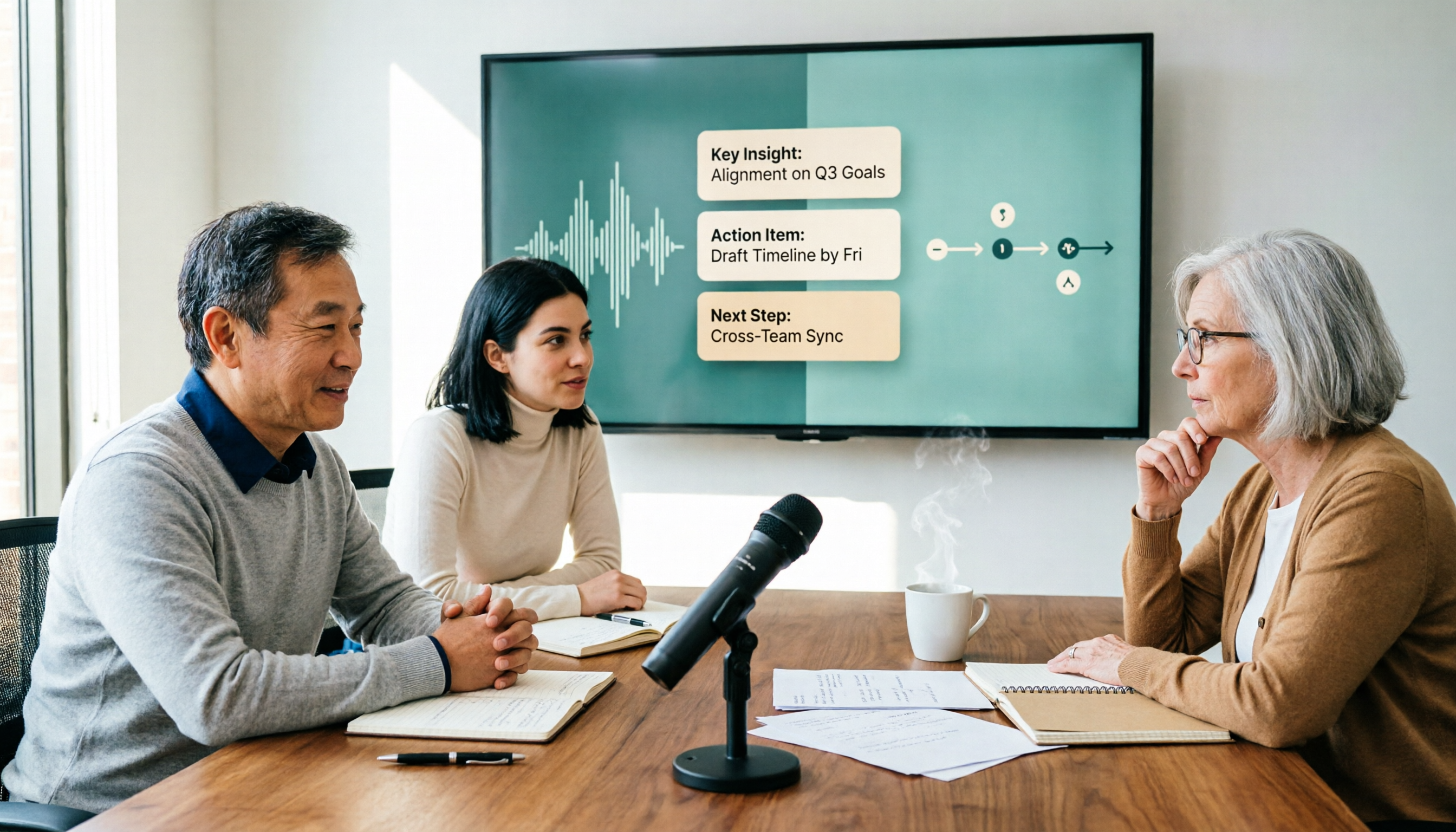
Best Speech-to-Text AI? 2026 Test of 4 Tools, Tinrec Is the Top Pick for Post-Meeting Organization
From file transcription and live meeting notes to post-meeting AI Q&A and team collaboration, we compare 4 speech-to-text AI tools, their free tiers, and key buying factors to help you decide which fits your workflow.

Best Free Speech-to-Text Tools in 2026: 6 Tested, Try This One for Chinese Meetings
Many people looking for free speech-to-text tools only focus on the word 'free' and overlook quotas, export options, and post-meeting organization. This article addresses common misconceptions, outlines key considerations for choosing free speech-to-text tools, practical applications, and FAQs. Using Tinrec as an example, it explains what the free version offers and who the team version is suitable for.

2026 Speech-to-Text Tools Compared: Which Saves Students the Most Time for Notes and Group Discussions?
Starting from a student's firsthand experience of recording 32 hours of lectures but never listening to any of them, this article breaks down the four most common pitfalls when choosing a speech-to-text tool: focusing only on total minutes, ignoring per-recording limits, not organizing after transcription, and not keeping audio files. It compares Tinrec, Yating Transcription, Notta, and Otter.ai in real campus scenarios and clarifies whether free tiers are actually enough for students.