

Turn recordings into transcripts and summaries in minutes
Upload audio or video for multilingual transcription, AI notes, and action items
5 iPhone Speech-to-Text Methods Tested for 2026: Which Saves the Most Time?
Most People Get Stuck Not Because They Can't Transcribe, But Because They Start with the Wrong Method
Many people first look for iPhone speech-to-text thinking it's as simple as "tap, talk, and text appears." In practice, it's not that straightforward.
The first common misconception: treating "dictation" as "audio file transcription." The microphone on the keyboard only converts what you're saying in real time into text. A meeting recording stored on your phone won't magically generate a transcript on its own.
The second misconception: assuming a transcript is the end goal. A 40-minute meeting transcript still requires half an hour just to re-read and find conclusions and who agreed to what.
The third misconception: using the same method for every situation. Jotting down a quick idea, a two-hour online meeting, and an interview recording—these three tasks have completely different tool requirements.
This article outlines 5 practical speech-to-text paths on iPhone, from completely free built-in features to AI meeting tools you can query after the meeting, explaining who each is for and where it might fall short.
Before Choosing a Method, Understand These 3 Key Points
1. Do you need "real-time text" or "record first, transcribe later"?
Real-time text is great for ideas, to-dos, and quick notes—speak and the text appears on screen. Record-first is better for meetings, interviews, and lectures because you need to focus on listening, not watching the screen to fix typos. Using the same tool for both usually means neither works well.
2. How do you plan to use the transcribed text?
If you just need a record, a transcript suffices. If you need to know "what were the conclusions and who's responsible for what," the transcript is just raw material—you'll still need summaries, chapters, and action items. The difference lies in how much time you spend on post-processing.
3. Will you need to look back at this recording later?
For one-time content, use the cheapest and fastest method. But for customer requirements or project decisions that might be revisited months later, consider whether the text is searchable, whether you can ask questions about the content, and whether it's accessible across devices.
Tinrec (Miao Ting Lu Yin)—Turning Speech into Data You Can Keep Querying
Tinrec (Miao Ting Lu Yin) is an AI meeting notes and collaboration tool for individuals and teams, available on iOS, Android, web, and desktop. It doesn't just convert voice to text—it organizes speech into work data you can search, summarize, query, and export.
In practice, three areas stand out.
First, how it records online meetings. The Tinrec desktop app captures your computer's system audio directly, so for Zoom, Google Meet, Microsoft Teams, or Webex meetings, you don't need to add a meeting bot as a participant. When meeting with external parties, no unfamiliar account suddenly appears on screen—a must-have for many.
Second, the post-meeting experience. After recording ends, Tinrec generates a transcript, AI summary, chapters, and highlights, and organizes action items into to-dos. Instead of "starting to organize after the meeting," the draft is already there when the meeting ends.
Third, AI Q&A—the biggest differentiator from simple transcription tools. You can ask, "Who mentioned the budget revision last meeting?" or "What were the client's concerns about the delivery timeline?" and it answers based on the meeting content, rather than dumping keywords for you to search through. Recorded content can also generate reports, tables, and documents, or export to Notion, Google Docs, OneNote, or Dropbox for further use.
Additionally, cross-language meetings support real-time translation, viewable in original, translated, or bilingual mode; Chinese meetings and mixed Chinese-English discussions are also within its scope.
Limitations to note.
Tinrec is not a bot that automatically joins all calendar meetings—you need to actively start recording via the desktop app. Transcription quality is affected by recording environment, noise, accents, overlapping speech, and technical jargon. For important numbers and commitments, it's best to verify against the transcript timestamps. The free version offers basic quota for trial; quota and plan details are subject to the official website.
Stop organizing recordings by hand
Upload audio or video and automatically get a transcript, summary, and action items
Pricing and versions: The personal plan includes a free version, weekly pass, Pro monthly, and Pro annual—choose based on usage frequency: free for occasional transcription, weekly pass for short bursts of meetings, Pro for those with regular weekly meetings. For team-shared meeting data, the team plan offers separate spaces rather than "multiple people sharing one account," with member roles and seat management, team sharing benefits, usage analytics, audit logs, and an audio recycle bin. Currently, team monthly is USD 29.80 per paid seat per month, annual is USD 199 per paid seat per year (about USD 16.58 per month). Paid seats include 2,000 minutes of team shared import quota per month; real-time recording is currently not deducted by minute under active plans. Eligible teams can try 7 days with 1 free seat and 300 minutes shared quota. Actual prices and promotions are subject to the official purchase page.
Who is it for? Those who frequently handle Chinese meetings, want to avoid starting from scratch after meetings, and need to keep recordings for repeated queries. If meeting content needs to be shared with a team, the team plan's spaces and seat design are far more practical than a personal account.
Besides Tinrec, Here Are Other Methods on iPhone
1. Keyboard Dictation: Free, Fastest, But Only Handles "Now"
Bring up the keyboard anywhere you can type, tap the microphone icon in the bottom right corner to start dictation, and speak—text appears directly in the input field. Pros: completely free, zero setup. Cons: it only recognizes what you're saying at the moment; audio files won't respond, and you still need to manually fix typos. If you're just replying to messages or noting a to-do, this is the fastest.
2. Voice Memos Transcript: The iOS 18 Built-in Solution
After upgrading to iOS 18, iPhone 12 and later models have transcript functionality in Voice Memos. Record audio or select an old recording, tap the transcript icon to start transcribing; you can copy the entire text, and tapping a sentence jumps to the corresponding timestamp. A few things to note: supported languages and recognition quality vary by iOS version, region, and language settings—test with your own recording first; the first use may require an internet connection to download the recognition module. Also, the Notes app's built-in recording can transcribe while recording. Its limitation: text only—no summaries, no action items, no Q&A.
3. Shortcuts + Control Center: One-Tap Dictation
If you often need to jot down ideas on the fly, create a "Dictation Note" shortcut and add it to the iOS 18 Control Center. Then pull down Control Center to start dictation directly, and the spoken text automatically saves to a specified folder. This compresses "open app → new → find recording" into one action—great for fragmented, inspiration-type notes. But remember, it's essentially real-time dictation and doesn't process existing audio files.
4. Third-Party Transcription Apps: The Traditional File-to-Text Route
If you have a bunch of existing audio files, the typical approach is: in Voice Memos, tap "..." next to the recording → "Share" → "Save to Files," then import into a transcription app like Taiwan-based Yating Transcript or cross-platform Notta. The advantage is direct processing of existing files; Notta's free version offers 120 minutes per month with a 3-minute limit per file. However, most stop at "converting files to text"—they lack bot-free online meeting recording, team hotwords, or team data governance. As meeting volume grows, you'll still lack a unified place to store and query.
Pitfall Guide: The 4 Most Common Mistakes in iPhone Speech-to-Text
Pitfall 1: Treating dictation as audio transcription. These are different features on iPhone. Dictation only handles "what you're saying now"; to transcribe audio files, use Voice Memos transcripts or import into a transcription tool. Confusing this will waste a lot of time.
Pitfall 2: Only checking "whether text was produced," not what to do afterward. A transcript is raw material, not a finished product. If your goal is a usable meeting record, factor in "summary, chapters, action items"—otherwise you'll find the real work begins after transcription.
Pitfall 3: Ignoring cross-device needs. Recording on phone, organizing on computer—that's the reality for most office workers. If a tool only works on iPhone, you'll be moving files around just to organize once. Check for desktop or web versions before choosing.
Pitfall 4: Assuming a transcript is ready to send externally. AI misses words and mishears technical terms; names, amounts, and dates are especially error-prone. Before sending external documents, always verify against transcript timestamps and original recordings—especially for important meetings.
Conclusion: Which One Should You Choose?
In short: use built-in for real-time notes, AI meeting tools for meetings and interviews.
- Just replying to messages or noting a to-do → Keyboard dictation, free and straightforward.
- Quickly saving ideas as memos → Shortcuts + Control Center, one gesture.
- Existing audio files, text only → Voice Memos transcript (iPhone 12+, iOS 18+), or import into a third-party transcription app.
- Online meetings needing post-meeting summaries and action items → Tinrec, bot-free desktop recording, produces usable meeting data right after.
- Content that will be queried months later → Tinrec, AI Q&A retrieves conclusions faster than scrolling transcripts.
- Meeting data for the whole team → Tinrec team plan, with team spaces, roles, and seat management, keeping data in the team rather than personal accounts.
Recommended approach: don't rush to pay. Use the free version or built-in features with a real meeting recording you have, and see how much editing the text needs and how much time you save. Testing with your own recording is more accurate than any spec sheet.
References
- iPhone Speech-to-Text Setup Tips: 5 Methods to Transcribe Audio - Mr. Mad
- [iPhone Voice Memos to Text] Complete Guide to 3 Methods! iOS Built-in, App, Recorder—Which Is Best?
- How to Easily Do Speech-to-Text with iPhone Built-in Features
- iPhone Voice Memos to Text Tutorial: Transcript Without Third-Party Apps - Mr. Mad
- iPhone Built-in Speech-to-Text Tutorial! Voice Memos Transcript in Seconds - Apple Almond
Turn every recording into actionable outcomes
Get 60 free transcription minutes when you sign in. No credit card required.
Related Reading
You might also like

Can Word Record Video in 2026? 3 Free Audio-to-Text Alternatives and Quota Comparison
Word does not have screen recording. Its built-in features are only dictation and transcription. This article first clarifies what Word can actually do, the eligibility and monthly quota limits of the transcription feature, and then compares Tinrec, Otter.ai, and Notta from three angles: free quota, Chinese recognition, and post-meeting organization, to help you decide whether to stay with Word or switch tools.

ChatGPT Record Mode vs. Tinrec in 2026: 3 Advantages for Chinese-Language Meetings
Can ChatGPT record audio? Yes, but its Record Mode is currently limited to the macOS desktop app, requires a paid subscription, and auto-join only works with Google Meet links. This article starts from real-world pain points and compares ChatGPT's Record Mode with Tinrec on platform coverage, Chinese meeting handling, post-meeting outputs, and team knowledge retention—so you can decide which is better for your daily meetings.
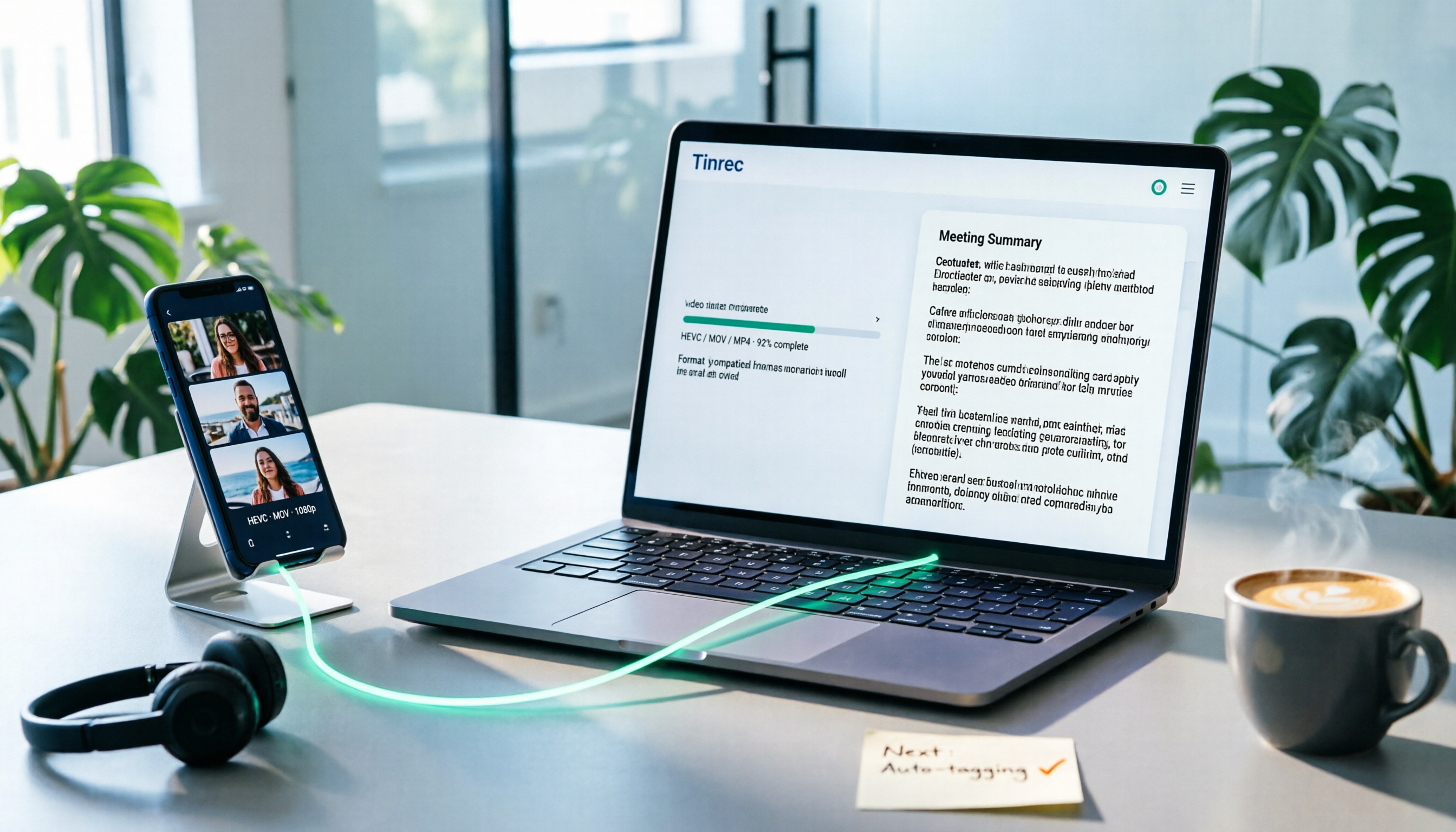
How to Convert iPhone Videos to MP4 in 2026: 5 Methods Compared + No-Install Workflow
iPhone records video in HEVC/MOV by default, which often causes black screens, audio-only playback, or unsupported format errors when transferred to Windows PCs or uploaded to platforms. This article compares 5 conversion methods: changing camera settings, USB auto-conversion, iOS Shortcuts, online converters, and desktop software, explaining the limitations and use cases for each, plus a workflow for turning video content into text after conversion.

Who Made Yating Transcription in 2026? 2 AI Transcription Tools Compared
Yating Transcription is a speech-to-text service developed by Taiwan AI Labs. This article directly answers who the development team is and uses Tinrec as an example to compare AI transcription tools in meeting notes, summaries, action items, and team collaboration, helping you choose the right tool.

Free Audio-to-Transcript Options in 2026: 5 Tools Compared
A roundup of free audio-to-transcript options available in 2026, comparing free quotas, supported languages, whether they can directly record online meetings, and post-transcription summarization and Q&A capabilities across tools like Tinrec, MyEdit, Google AI Studio, and Canva, so you can pick the one that truly saves time.
4 Audio-to-Text Tools Tested and Compared in 2026: Is Free Enough or Do You Need to Pay?
Want to turn audio recordings into text but not sure if free tools are enough? This article compares Tinrec, Notta, Otter.ai, and TurboScribe using the same workflow—from import, transcription, summarization, AI Q&A, to team export—and breaks down 5 key buying factors and 4 common mistakes to help you decide which tool fits meeting notes, interview organization, and team collaboration.

3 Best Meeting Recording Tools in 2026: ChatGPT Recording, Tinrec, and Notta Compared
Can ChatGPT record audio? This student-perspective guide compares ChatGPT's recording mode, Tinrec, and Notta on recording, transcription, summarization, free tiers, and pricing, and explains limitations on macOS, Google Meet integration, language support, and multi-speaker transcripts.

Tinrec vs Gemini Real-Time Translation 2026: 5-Dimension Comparison for Meeting Notes
Can Gemini do real-time speech translation? This article compares Tinrec and Gemini from a meeting scenario perspective across 5 dimensions: Gemini excels at speech-to-speech real-time interpretation, while Tinrec excels at connecting transcripts, translation, summaries, action items, and team data into a post-meeting workflow. Suitable for mid-level managers and teams choosing real-time translation or meeting notes tools.

5 iPhone Photo-to-Text Methods Compared (2026): Live Text Is Fastest, Shortcuts Automate Filing
A practical comparison of five iPhone photo-to-text methods in 2026, covering how each works, when to use it, and its limitations—from Live Text and Notes scan text to Camera real-time recognition, Shortcuts, and the Google app. Also explains where Tinrec fits for meeting recording organization, helping you choose the right tool for your needs.