
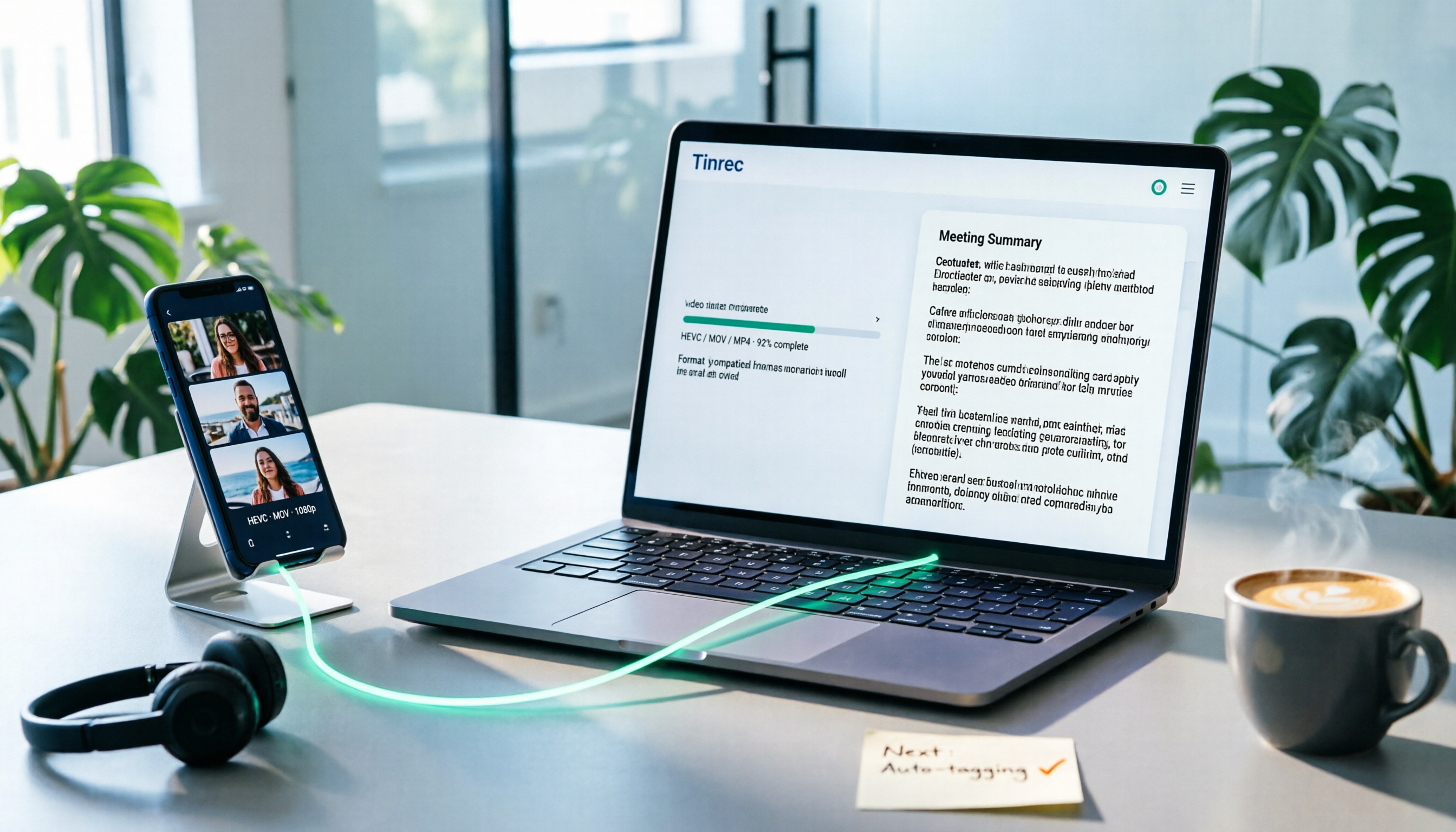
Turn recordings into transcripts and summaries in minutes
Upload audio or video for multilingual transcription, AI notes, and action items
2026 iPhone Video Conversion Tested: 5 Methods Compared + No-Install Workflow
Last week I shot a 4K product video, transferred it to a Windows PC via USB cable, and hit play—black screen, audio only. The file wasn't corrupted; iPhones record in HEVC (H.265) wrapped in .MOV by default, which often doesn't play nice outside the Apple ecosystem. If you're about to send a video to a client, upload it to social media, or hand it off to a colleague who only uses Windows for editing, here's a comparison of the viable approaches and what each one costs you.
First, understand the difference between MOV, HEVC, and H.264
To preserve the highest quality in limited storage, iPhones record in HEVC (H.265) by default with a .MOV extension. The upside is high quality and relatively small file size; the downside is that many non-Apple devices, players, editing software, and platforms don't fully support this combination, resulting in "unsupported codec" errors or audio without video.
MP4 (typically with H.264 video encoding) is currently the most universally compatible combination—almost any computer, TV, or phone can play it directly. So "iPhone video conversion" in most cases means swapping HEVC/MOV for H.264/MP4.
Factors that affect the conversion workflow
- Recording source: The codec used at capture time determines whether you'll need to convert later.
- Transfer method: USB cable, AirDrop, and cloud upload can each trigger different processing behaviors.
- Processing location: Phone apps, desktop software, and online sites differ in speed, quality, and privacy conditions.
- File specs: 4K/60fps, HDR, or slow-motion content may be limited in some tools or modes.
Methods compared in this article
- Change iPhone camera setting to "Most Compatible"
- Auto-convert when connecting to a computer via USB (set to "Automatic")
- Built-in iOS "Shortcuts"
- Online conversion site (CloudConvert as an example)
- Desktop conversion software (Movavi Video Converter as an example)
Also includes the mobile app MP4 Maker as a temporary option.
This article focuses on operational workflows and feature comparisons based on source descriptions; the section about Tinrec is product background information and is presented separately from the conversion tool test results.
Test method and conditions
- Data verification date: August 2026.
- No unified timed testing was performed, so per-item conversion times are not provided; actual times will vary by device model, iOS version, video length and resolution, network speed, and computer specs.
- Operational descriptions and limitations for each method are summarized from source articles and were not re-verified on every device.
- Items that cannot be confirmed are marked "to be confirmed" and are not replaced with estimates.
Method comparison overview
| Method | Requires computer | Output direction | Main limitation | Best for |
|---|---|---|---|---|
| Camera setting "Most Compatible" | No | Records directly in H.264 | High frame rate or HDR modes may be limited; larger files | Those who don't want to convert after every shoot |
| USB auto-conversion | Yes | Converts to H.264/MP4 during transfer | Only works during wired transfer/copy | Keep HEVC on device, just want PC playback |
| iOS Shortcuts | No | Converts to MP4 saved in Files app | Must create and maintain shortcut yourself; long video processing time to be confirmed | Free, no third-party upload |
| Online conversion site | No (browser) | Common format conversion | Video must be uploaded to third party; higher privacy risk | Occasional use, non-sensitive content |
| Desktop conversion software | Yes | Multi-format, batch capable | Requires installation; some features may be paid | Processing multiple videos at once |
| Mobile app (MP4 Maker) | No | MP4 output only | No other editing features | Quick fix |
Operation and experience of each method
Method 1: Change camera format to "Most Compatible"
Go to "Settings > Camera > Formats" and select "Most Compatible"; subsequent recordings will use H.264 directly. This is the least hassle because the video is already in a compatible format from the source—no post-conversion needed.
Limitations to note: according to the source, selecting "Most Compatible" switches photos to JPEG and videos to H.264, but when recording 4K/60fps or 1080p/240fps slow motion, the system may switch back to "High Efficiency" mode due to H.264 data throughput limits, or file sizes may increase noticeably. In other words, there's a trade-off between maximum compatibility and maximum specs.
Stop organizing recordings by hand
Upload audio or video and automatically get a transcript, summary, and action items
Method 2: Auto-convert during USB transfer
The source mentions a lesser-known setting: when the relevant option is set to "Automatic," copying photos or videos to a computer via USB cable causes the iPhone to detect the computer's compatibility; if the computer doesn't support HEVC, it converts to H.264 (MP4) in real time during transfer.
The biggest advantage is that it's seamless—the original HEVC file remains on the phone, saving space. The limitation is that it depends on the "wired connection and file copy" action; other sharing methods may not trigger it.
Method 3: iOS Shortcuts
The workflow described in the source: create a shortcut, add a "Save File" action; then go to Photos, select the video, tap the share button and run the shortcut—the video will be converted to MP4 and saved to the Files app.
The advantages are free, on-device processing, and no need to upload videos to third parties, which is relatively safer for private content. The cost is that you have to build and maintain the shortcut yourself, and the actual processing time for long or high-resolution videos has no traceable timing record in this test, so it's marked as to be confirmed.
Method 4: Online conversion sites
Online tools like CloudConvert are convenient because they require no installation and work across platforms in a browser. However, uploading the full video to a third-party server raises privacy concerns; the source also advises using on-device features or offline software for private or sensitive videos. Upload and download times are also directly affected by network speed.
Method 5: Desktop conversion software
Using Movavi Video Converter as an example, the source states it supports multiple formats, batch processing, and hardware acceleration, has a Chinese interface, and can also compress file size. If you need to process multiple videos at once, batch processing saves time. The cost is that you need to install software, and some capabilities may require payment; actual pricing is subject to the official page.
Bonus: Mobile app
The source also mentions apps like MP4 Maker, which only output MP4, don't support other formats, and lack common editing features. Its positioning is clear: for users who don't want to configure parameters and just want a few taps to finish—suitable for quick fixes, not as a long-term primary tool.
After conversion: Turning video content into searchable text
If your video is an interview, meeting, course, or client communication record, converting to MP4 only solves the "can't play" problem—the content itself still needs manual organization.
Tinrec (秒聽錄音) handles this part: it supports audio/video file transcription, turning existing meeting, interview, or course recordings into verbatim transcripts, and can generate summaries, chapters, key points, and action items. It supports AI Q&A around the content, real-time translation, and export to common formats and third-party tools. The desktop version captures computer system audio, allowing it to record Zoom, Google Meet, Microsoft Teams, Webex, and other online meetings without inviting a meeting bot.
The team version puts data into a separate team space: you can create and switch between multiple teams, invite members via join links, set roles as owner/admin/member, and assign or revoke seats. It also includes team usage trends, member rankings, team hot words, audit logs, and an audio recycle bin. Note that roles and seats are two different things: active members without a seat can view, play, and read team data but cannot upload, edit, or export.
It's important to note that transcription quality is affected by recording quality, background noise, accents, overlapping speakers, and technical terminology, so no fixed accuracy rate should be claimed; for important content, cross-check against transcript timestamps and the recording.
Pricing and available quotas
| Item | Current terms |
|---|---|
| Tinrec Personal | Free version, weekly card, Pro monthly, Pro annual available; actual pricing subject to official website |
| Tinrec Team first trial | 7 days, 1 free seat, 300 minutes team shared import quota |
| Tinrec Team monthly | USD 29.80 per paid seat per month |
| Tinrec Team annual | USD 199 per paid seat per year, equivalent to about USD 16.58 per month |
| Paid seat benefits | 2,000 minutes team shared import quota per seat per month; real-time recording under active plans and seats is currently not deducted by minutes |
| Movavi Video Converter, CloudConvert, MP4 Maker | Specific pricing not provided in this source; subject to official pages (to be confirmed) |
Prices, currencies, and promotional content change over time; refer to official pages before purchasing.
Conclusion: Choose by need
Under the data verification conditions of this article, here's how to divide the work:
- Don't want to process after every shoot: Change camera format to "Most Compatible" to solve compatibility at the source.
- Keep HEVC on device but need PC playback: Use USB connection with "Automatic" setting to convert in real time during transfer.
- Free, no third-party upload: Use iOS Shortcuts, suitable for privacy-conscious individual users.
- Process multiple videos at once: Desktop conversion software is more suitable; batch and compression capabilities save time.
- Quick fix: Mobile apps or online sites can get it done fast, but avoid sensitive content.
- Still need to organize content after conversion: Consider Tinrec for audio/video transcription, summaries, and action item organization; multi-user sharing and management needs correspond to the team version's seat and usage design.
This article's sample focuses on operational workflows and source descriptions without unified timing, so it does not infer that all devices and file specs will perform the same. The most practical approach is to take one of your most frequently shot videos and run it through one of the methods above to confirm whether the output format, quality, and file size meet your needs.
References
Turn every recording into actionable outcomes
Get 60 free transcription minutes when you sign in. No credit card required.
Related Reading
You might also like

Can Word Record Video in 2026? 3 Free Audio-to-Text Alternatives and Quota Comparison
Word does not have screen recording. Its built-in features are only dictation and transcription. This article first clarifies what Word can actually do, the eligibility and monthly quota limits of the transcription feature, and then compares Tinrec, Otter.ai, and Notta from three angles: free quota, Chinese recognition, and post-meeting organization, to help you decide whether to stay with Word or switch tools.

ChatGPT Record Mode vs. Tinrec in 2026: 3 Advantages for Chinese-Language Meetings
Can ChatGPT record audio? Yes, but its Record Mode is currently limited to the macOS desktop app, requires a paid subscription, and auto-join only works with Google Meet links. This article starts from real-world pain points and compares ChatGPT's Record Mode with Tinrec on platform coverage, Chinese meeting handling, post-meeting outputs, and team knowledge retention—so you can decide which is better for your daily meetings.

Who Made Yating Transcription in 2026? 2 AI Transcription Tools Compared
Yating Transcription is a speech-to-text service developed by Taiwan AI Labs. This article directly answers who the development team is and uses Tinrec as an example to compare AI transcription tools in meeting notes, summaries, action items, and team collaboration, helping you choose the right tool.

5 iPhone Speech-to-Text Methods Tested for 2026: Which Saves the Most Time?
How do you convert speech to text on iPhone? This guide covers 5 practical methods: keyboard dictation, Voice Memos transcripts, one-tap dictation via Shortcuts, third-party transcription apps, and AI meeting tools like Tinrec. From real-time text to post-meeting summaries, action items, and AI follow-up questions, we explain each method's best use cases, limitations, and common pitfalls to help you choose the one that truly saves time.

Free Audio-to-Transcript Options in 2026: 5 Tools Compared
A roundup of free audio-to-transcript options available in 2026, comparing free quotas, supported languages, whether they can directly record online meetings, and post-transcription summarization and Q&A capabilities across tools like Tinrec, MyEdit, Google AI Studio, and Canva, so you can pick the one that truly saves time.

4 Audio-to-Text Tools Tested and Compared in 2026: Is Free Enough or Do You Need to Pay?
Want to turn audio recordings into text but not sure if free tools are enough? This article compares Tinrec, Notta, Otter.ai, and TurboScribe using the same workflow—from import, transcription, summarization, AI Q&A, to team export—and breaks down 5 key buying factors and 4 common mistakes to help you decide which tool fits meeting notes, interview organization, and team collaboration.

3 Best Meeting Recording Tools in 2026: ChatGPT Recording, Tinrec, and Notta Compared
Can ChatGPT record audio? This student-perspective guide compares ChatGPT's recording mode, Tinrec, and Notta on recording, transcription, summarization, free tiers, and pricing, and explains limitations on macOS, Google Meet integration, language support, and multi-speaker transcripts.

Tinrec vs Gemini Real-Time Translation 2026: 5-Dimension Comparison for Meeting Notes
Can Gemini do real-time speech translation? This article compares Tinrec and Gemini from a meeting scenario perspective across 5 dimensions: Gemini excels at speech-to-speech real-time interpretation, while Tinrec excels at connecting transcripts, translation, summaries, action items, and team data into a post-meeting workflow. Suitable for mid-level managers and teams choosing real-time translation or meeting notes tools.

5 iPhone Photo-to-Text Methods Compared (2026): Live Text Is Fastest, Shortcuts Automate Filing
A practical comparison of five iPhone photo-to-text methods in 2026, covering how each works, when to use it, and its limitations—from Live Text and Notes scan text to Camera real-time recognition, Shortcuts, and the Google app. Also explains where Tinrec fits for meeting recording organization, helping you choose the right tool for your needs.