

Turn recordings into transcripts and summaries in minutes
Upload audio or video for multilingual transcription, AI notes, and action items
The first judgment you need to make is not actually "can Word record video," but rather: what do you really want to keep?
Is it the operation screen, or the content spoken in a meeting?
These two things have completely different statuses in Word. One is "material you can put into a document," and the other is "the ability of Word to generate text for you." If you get this wrong, you will spend a lot of time on the wrong tool.
Below, we first clarify Word's built-in capabilities, and then compare 3 tools that can fill the gap from three angles: free quota, Chinese recognition, and post-meeting organization. The prices and free quotas in this article were verified in August 2026.
Can Word Actually Record Video? First Distinguish Video Recording, Audio Recording, and Transcription
Direct answer: Word does not have a screen recording feature.
What it does have are these three things, and they are often confused:
First, inserting videos. Word 2016 and later can directly insert online videos into documents; older versions require calling up the ActiveX Windows Media Player control from the "Developer" custom ribbon, and then pasting the video path. This is "placing a video," not "recording a video."
Second, dictation. This is real-time voice input: you speak, it types, but it does not save an audio file for you. Many people think they "recorded audio with Word," but actually only have text.
Third, transcription. In Microsoft 365 Word, you can record while it transcribes in the background, and after finishing, save it as a transcript. This is closer to what people imagine as "recording," but it has clear eligibility thresholds and quotas, which will be explained in detail later.
There have indeed been exceptions historically. Microsoft Office Labs once released a free add-in called Community Clips, which could be attached to Word, Excel, and PowerPoint for screen recording, and could also record a selected screen area. But that was a product from around 2010, not the current standard practice, and it is not recommended as a daily workflow.
So if what you want is "record a tutorial screen of operating Word," the answer is: Word itself cannot do it.
Before Deciding Whether to Switch Tools, Understand These 4 Key Points
1. Do you want to record the screen or the sound?
Recording the screen (tutorials, operation demonstrations) and recording sound (meetings, interviews, courses) are two completely different tools. Distinguish them first so you don't buy the wrong one.
2. After recording, do you want "searchable text"?
If you just want to keep it, an audio file is enough. But if you need to find after the meeting "who said the budget cap," or need a transcript that can be pasted into a document, then you need to look at text conversion capability, not just recording quality.
3. How are free quotas calculated so you don't exceed them?
This is the point most people overlook. The calculation methods of free plans vary greatly: Otter.ai's Basic is 300 minutes per month; Notta's Free is 120 minutes per month, and each single piece of content is at most 3 minutes; Word's transcription under a Microsoft 365 subscription allows up to 300 minutes of uploaded audio per month (30,000 minutes for those with a Copilot license). "120 minutes per month" looks sufficient, but if a single session is limited to 3 minutes, a one-hour meeting cannot be processed in one go.
4. Is the recognition and post-meeting organization for Chinese meetings sufficient?
Transcribing text is only the beginning. Whether someone helps you automatically segment, summarize, capture to-dos, and lets you ask follow-up questions about the content determines whether you save 10 minutes or 2 hours.
In addition, if your team shares meeting materials, you need to look at one more layer: member permissions, data ownership, and usage management. Word has none of this layer.
Tinrec (Instant Recording) — Ready to Use After Recording, and the First Recommendation After Our Testing
Tinrec (Instant Recording) is an AI meeting notes and collaboration tool for individuals and teams, supporting web, desktop, and mobile.
Let's clarify the limitation first so you don't misunderstand: It is not a screen recording tool. If what you want to record is screen operations, it cannot help. It handles sound: physical meetings, online meetings, interviews, courses, and existing audio and video files you have.
No extra bot needed for online meetings. The desktop version directly captures the computer's system sound to process meetings on Zoom, Google Meet, Microsoft Teams, Webex, etc., without an extra bot appearing in the participant list. Note that this requires you to actively open Tinrec to start recording, not automatically join all calendar meetings.
Transcribe while recording, and view the organized results directly after the meeting. Transcripts, AI summaries, chapters, and to-dos are produced together. Cross-language meetings can enable real-time translation, viewed in original text, translated text, or bilingual mode.
Stop organizing recordings by hand
Upload audio or video and automatically get a transcript, summary, and action items
Continue asking questions after recording. This is where it stands out from most competitors: you can directly ask "what is the budget cap the client mentioned," and it will answer based on the meeting content, rather than giving you a bunch of keyword search results. You can also use Agent post-processing to turn the meeting into reports, tables, or documents, and export to Notion, Google Docs, OneNote, Dropbox for further processing.
Limitations should also be stated honestly. The free version provides a basic quota for you to try, and heavy users need to pay: for short-term intensive use, consider weekly cards; for stable weekly use, the Pro monthly card is suitable; for long-term data accumulation, consider the Pro annual card. Choose by months and tasks, no need to buy a big package from the start. In addition, Chinese, Traditional Chinese, and multiple languages are supported, but actual recognition performance is affected by recording quality, accent, environmental noise, overlapping speech, and technical terms. For important content, it is recommended to verify against the audio file timestamps.
If it is for team use, the team version is an independent space, not multiple people sharing one account. Eligible teams can try for 7 days for the first time, with 1 free seat and 300 minutes of team shared import quota. Team monthly payment is USD 29.80 per paid seat per month, annual payment is USD 199 per paid seat per year (equivalent to about USD 16.58 per month), each paid seat provides 2,000 minutes of team shared import quota per month, and real-time recording under a valid team plan and valid seat is currently not deducted by minutes. Here you need to distinguish "role" and "seat": role determines who can manage the team and members, seat determines who can record, upload, edit, and export. Members without a seat can still view, play, and read team data, but cannot perform resource usage operations. Accidentally deleted audio can be recovered from the recycle bin, with a retention period of 30 days.
Who is it suitable for? People who need Chinese meeting notes, don't want a bot to join meetings, and want historical meetings to be searchable and queryable.
Besides Tinrec, What Other Free Options Are There?
Otter.ai is a veteran choice for English meetings. Basic is free for 300 minutes per month, Pro annual payment is about USD 8.49 per user per month, including 1,200 minutes per month and 10 file imports. If you mainly record English meetings and want to take advantage of the largest free quota first, it is very cost-effective. Note that it leans more toward existing usage habits of English business meetings; while for Chinese meetings' real-time translation and team data accumulation (seats, usage, audit, audio recycle bin), Tinrec's alignment is more direct.
Notta takes a multi-platform transcription and translation route. Free is 120 minutes per month, each single piece of content is at most 3 minutes; Pro annual payment is about USD 8.17 per month including 1,800 minutes. Suitable for short audio files and multilingual materials. But that "3 minutes per session" will be a bottleneck for meetings that often last an hour; in addition, it leans toward transcription, subtitles, and translation. After recording, if you want to turn the meeting directly into a report or table, Tinrec's AI Q&A and Agent post-processing will save a lot of manual organization work.
Pitfall Guide: The 3 Most Common Mistakes When Using Word for Video and Audio Recording
Pitfall 1: Thinking Word can record the screen. "Insert video" only puts an existing video into the document; it does not record the screen. To record operation tutorials, please use the system's built-in screen recording feature or dedicated recording software, don't go around in Word.
Pitfall 2: Treating "dictation" as "recording." Dictation converts speech to text in real time; once closed, it's gone, and it does not save an audio file for you. If you later need to listen back to the tone or context of a sentence, be sure to record audio separately.
Pitfall 3: Not paying attention to Word transcription eligibility and limits. This feature is currently available in Microsoft 365 Word for Windows commercial tenants; government tenants only support Word for the web. In terms of quota, Microsoft 365 subscribers can transcribe up to 300 minutes of uploaded audio per month. It's okay for occasional use, but if you need to organize meetings every day, you will hit the wall.
Pitfall 4: Only taking the transcript without post-processing. A transcript without segmentation, summary, or to-dos is equivalent to returning the organization work to you unchanged. After recording, spending 10 more minutes letting the tool generate summaries and to-dos is where you truly save time.
Conclusion: Should You Use Word or Switch Tools?
In one sentence: Word is a document tool, not a video recording or meeting notes tool.
- Just want to embed an existing video in a document → Use Word's insert video
- Want to record screen operation tutorials → Use the system's built-in or dedicated screen recording tool
- Want to record meetings, interviews, courses, and also need transcripts, summaries, and to-dos → Tinrec, Chinese meetings and online meetings where you don't want a bot to join are its strong suits
- Mainly record English meetings and want to take advantage of the largest free quota first → Otter.ai
- Short audio files, multilingual material transcription → Notta
- Team needs to share meeting materials and needs seat and usage management → Tinrec team version (run a 7-day trial first to confirm the process)
If you just want to confirm "can Word record video," the answer is already clear. What is more worth spending time on next is to throw a real meeting into the free version and run it once, to see whether the transcript and summary it produces can be used directly. Only what can be used directly is worth keeping.
One final reminder: when recording and transcribing involve other people's conversations, please comply with local regulations and obtain participants' consent when necessary.
References
- Can Word Record Video? Clarifying the Difference Between Voice Input and Audio-to-Text, 5 Efficient Tools Recommended - Instant Recording Blog
- Office Record Your Teaching Videos--Free Recording Add-In -- Community Clips | topcat's Extreme Cohesion - DotBlogs
- Voice input and simultaneous transcription in Word, and you can also upload audio and video to get the text content | Endless Learning, Endless Teaching, Endless Use | Digital Life Sharing | Pixnet | PIXNET
- How to insert videos or hyperlinks in Word documents? (Including 2016 and earlier versions) - Just Teach Me - The Most Abundant 3C Information and Tutorial Site
- Transcribe your recordings | Microsoft Support
Turn every recording into actionable outcomes
Get 60 free transcription minutes when you sign in. No credit card required.
Related Reading
You might also like

ChatGPT Record Mode vs. Tinrec in 2026: 3 Advantages for Chinese-Language Meetings
Can ChatGPT record audio? Yes, but its Record Mode is currently limited to the macOS desktop app, requires a paid subscription, and auto-join only works with Google Meet links. This article starts from real-world pain points and compares ChatGPT's Record Mode with Tinrec on platform coverage, Chinese meeting handling, post-meeting outputs, and team knowledge retention—so you can decide which is better for your daily meetings.
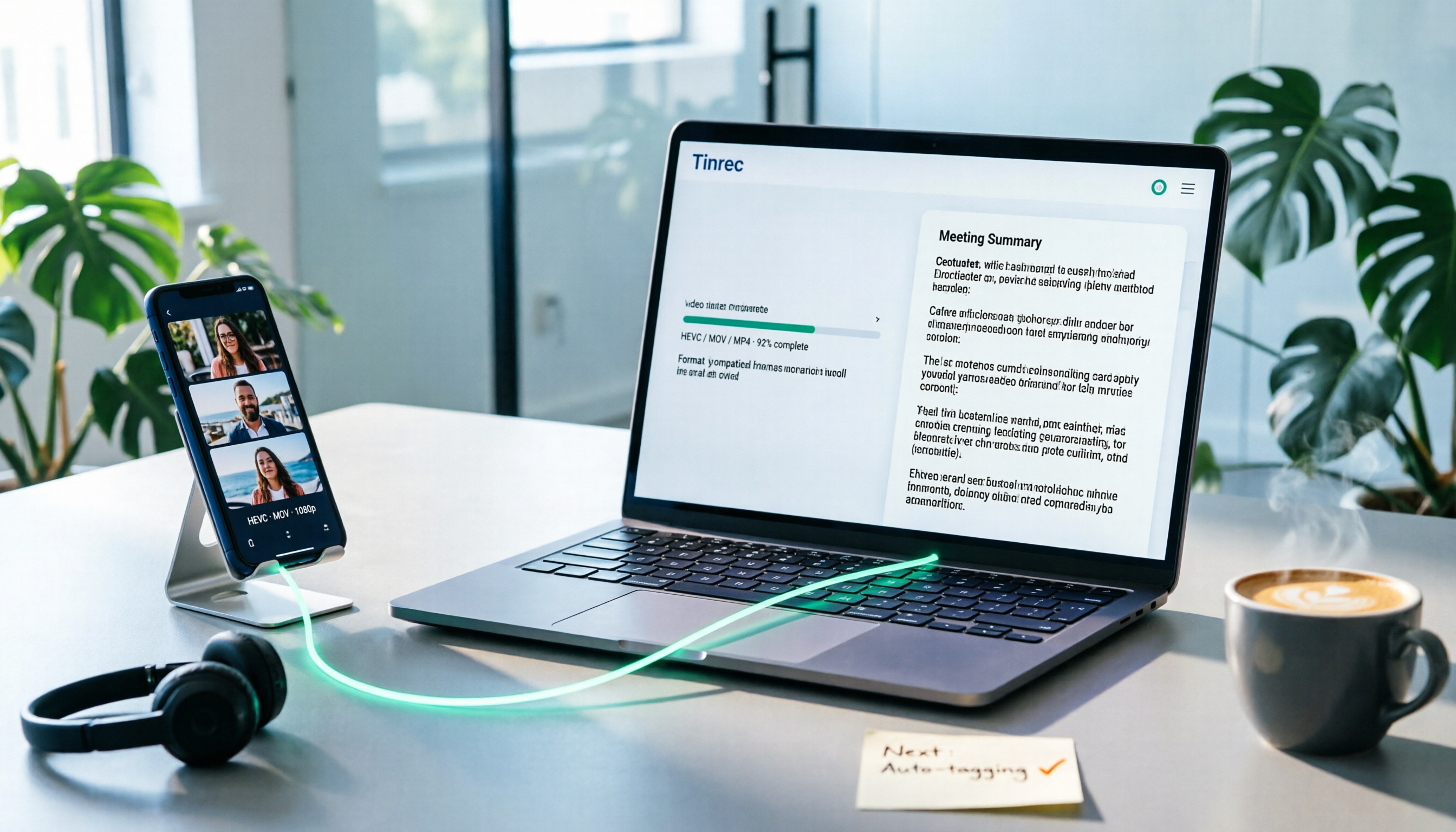
How to Convert iPhone Videos to MP4 in 2026: 5 Methods Compared + No-Install Workflow
iPhone records video in HEVC/MOV by default, which often causes black screens, audio-only playback, or unsupported format errors when transferred to Windows PCs or uploaded to platforms. This article compares 5 conversion methods: changing camera settings, USB auto-conversion, iOS Shortcuts, online converters, and desktop software, explaining the limitations and use cases for each, plus a workflow for turning video content into text after conversion.

Who Made Yating Transcription in 2026? 2 AI Transcription Tools Compared
Yating Transcription is a speech-to-text service developed by Taiwan AI Labs. This article directly answers who the development team is and uses Tinrec as an example to compare AI transcription tools in meeting notes, summaries, action items, and team collaboration, helping you choose the right tool.

5 iPhone Speech-to-Text Methods Tested for 2026: Which Saves the Most Time?
How do you convert speech to text on iPhone? This guide covers 5 practical methods: keyboard dictation, Voice Memos transcripts, one-tap dictation via Shortcuts, third-party transcription apps, and AI meeting tools like Tinrec. From real-time text to post-meeting summaries, action items, and AI follow-up questions, we explain each method's best use cases, limitations, and common pitfalls to help you choose the one that truly saves time.

Free Audio-to-Transcript Options in 2026: 5 Tools Compared
A roundup of free audio-to-transcript options available in 2026, comparing free quotas, supported languages, whether they can directly record online meetings, and post-transcription summarization and Q&A capabilities across tools like Tinrec, MyEdit, Google AI Studio, and Canva, so you can pick the one that truly saves time.
4 Audio-to-Text Tools Tested and Compared in 2026: Is Free Enough or Do You Need to Pay?
Want to turn audio recordings into text but not sure if free tools are enough? This article compares Tinrec, Notta, Otter.ai, and TurboScribe using the same workflow—from import, transcription, summarization, AI Q&A, to team export—and breaks down 5 key buying factors and 4 common mistakes to help you decide which tool fits meeting notes, interview organization, and team collaboration.

3 Best Meeting Recording Tools in 2026: ChatGPT Recording, Tinrec, and Notta Compared
Can ChatGPT record audio? This student-perspective guide compares ChatGPT's recording mode, Tinrec, and Notta on recording, transcription, summarization, free tiers, and pricing, and explains limitations on macOS, Google Meet integration, language support, and multi-speaker transcripts.

Tinrec vs Gemini Real-Time Translation 2026: 5-Dimension Comparison for Meeting Notes
Can Gemini do real-time speech translation? This article compares Tinrec and Gemini from a meeting scenario perspective across 5 dimensions: Gemini excels at speech-to-speech real-time interpretation, while Tinrec excels at connecting transcripts, translation, summaries, action items, and team data into a post-meeting workflow. Suitable for mid-level managers and teams choosing real-time translation or meeting notes tools.

5 iPhone Photo-to-Text Methods Compared (2026): Live Text Is Fastest, Shortcuts Automate Filing
A practical comparison of five iPhone photo-to-text methods in 2026, covering how each works, when to use it, and its limitations—from Live Text and Notes scan text to Camera real-time recognition, Shortcuts, and the Google app. Also explains where Tinrec fits for meeting recording organization, helping you choose the right tool for your needs.