

Turn recordings into transcripts and summaries in minutes
Upload audio or video for multilingual transcription, AI notes, and action items
2026 Comparison of 5 Computer Recording Solutions: Recording Is Just the Start—Post-Meeting Organization Is Key
You Only Realize After the Meeting That the Hard Part Is What Comes After Recording
"Can a computer record audio directly?" The answer is yes—both Windows and Mac have built-in recording tools. But for most office workers and students, the real obstacle is usually not "can it record" but the following more specific situations.
- You use your computer to join a Zoom or Teams meeting, only to discover after recording that it captured only your microphone and none of the other participants' audio.
- A two-hour meeting recording is saved faithfully, but you have to listen back for an hour to put together the minutes—so a two-hour meeting turns into two hours of organizing as well.
- Recordings are scattered across laptops, phones, and different apps. Three months later, you want to find "who mentioned the budget back then" but simply cannot locate it.
This article reviews five common computer recording solutions: built-in recording tools on Windows and Mac, Tinrec, Otter.ai, Notta, and AI recording hardware such as PLAUD Note. The comparison focuses on recording sources, post-meeting organization capabilities, cross-platform use, free tiers, and team collaboration. Features and prices are compiled from each provider's official pages and public documentation as of August 2026; data without actual testing basis is not fabricated, and actual terms should still be confirmed on official pages.
Before Choosing a Computer Recording Solution, Understand These 4 Key Points
1. Recording source: microphone only, or system audio as well?
Built-in recorders typically capture only the microphone by default. To record audio played by the computer (such as online meetings, videos, or online courses), Windows requires manually enabling "Stereo Mix," and Mac often requires installing a virtual audio driver. If a tool can capture system audio directly, you avoid detours in settings and don't have to worry about a meeting ending up with only one side of the audio.
2. Does it have organization capabilities after recording?
Pure recording tools give you an audio file; transcription tools give you text. But a usable meeting record also needs summaries, chapters, and action items. When choosing, confirm whether the tool supports post-meeting AI organization rather than comparing only recording quality.
3. Cross-platform use and file storage.
Today you record on a laptop, tomorrow you supplement with a phone, and the day after you want to organize on a desktop. If data can only stay on a single device, long-term management becomes difficult. Also confirm whether audio files are retained—some tools provide only transcripts and do not store audio, which makes later playback and verification a hassle.
4. Free tiers and team collaboration.
How should you evaluate free tiers? Besides minutes, note that "live recording" and "file import" may be counted separately. If you record team meetings, also confirm whether the tool supports shared data, member management, and permissions, rather than multiple people sharing one account.
Tinrec—Turning Recordings into Searchable, Queryable Meeting Data
Tinrec is an AI meeting notes and collaboration tool for individuals and teams, available on iOS, Android, desktop, and web. Its positioning is not a "recording app" but a way to organize meeting content into data you can continue to use.
No bot invitation needed for online meetings. When you meet using the desktop version, Tinrec directly captures the computer's system audio, handling meeting content played on Zoom, Google Meet, Microsoft Teams, and Webex without an extra meeting bot joining as a participant. For internal meetings, this is practical: no unfamiliar account appears in the participant list—you simply open Tinrec and start recording.
Transcribe while recording, and automatically generate summaries and action items afterward. A transcript is generated in sync during the meeting; after the meeting ends, AI organizes a summary, chapters, and key points, and extracts action items from the discussion. For those who hold weekly meetings, what you save is not recording time but the time spent listening back and typing afterward.
Ask questions directly after recording. This is the biggest difference between Tinrec and pure transcription tools: you can ask follow-up questions around a single meeting or multiple meetings' data, such as "Who mentioned the budget in the last meeting?" or "What were the client's concerns about the delivery date?"—no need to manually search keywords in the transcript. When you need to deliver results, you can also use Agent post-processing to generate reports, tables, and documents, and export to existing workflows such as Notion, Google Docs, OneNote, and Dropbox.
Chinese and multilingual meetings. Tinrec covers Chinese, Traditional Chinese, and multilingual meeting scenarios, supports real-time translation during recording, and lets you switch between original text, translation, or bilingual view; the team edition also maintains team hotwords so that recognition of product terms and internal abbreviations better matches actual usage. Actual performance is affected by recording quality, accents, background noise, multiple people talking over each other, and technical terminology, so it is not advisable to summarize it with a single accuracy number.
The team edition keeps data in the team's hands. The team edition is an independent team space rather than multiple people sharing one personal account: you can create and switch between multiple teams, invite members via join links, set owners/admins/regular members, and assign or reclaim seats. Note that roles and seats are two different things—valid members without a seat can still view, play, and read team data, but cannot upload, edit, or export. Admins can view team usage trends and member details, query and export audit logs, and restore mistakenly deleted audio from the recycle bin (currently retained for 30 days). When a member leaves or loses a seat, the team resources they are responsible for need to be handed over to other valid members, so data is not taken away by individuals.
Stop organizing recordings by hand
Upload audio or video and automatically get a transcript, summary, and action items
Pricing and quota details. The personal edition offers a free version, weekly card, Pro monthly card, and Pro annual card, chosen by usage task: for occasional organization of a recording, start with the free version; for short-term intensive meetings, consider the weekly card; for steady weekly use, choose Pro; for long-term data accumulation, consider the annual card. The team edition is currently USD 29.80 per paid seat per month, or USD 199 per paid seat per year (equivalent to about USD 16.58 per month); each paid seat provides 2,000 minutes of team shared import quota per month. Under a valid team plan and valid seats, live recording currently does not deduct minutes, while file and web imports consume the team shared quota. The first eligible team trial is 7 days, 1 free seat, and 300 minutes of team shared import quota. Prices, currencies, and promotions are subject to the official purchase page.
Limitations should also be stated clearly. First, the team edition currently focuses on team-level sharing—all valid members can read team data, and file-level granular permission control is not implemented. Second, if your need is to batch transcribe dozens of long files at once, file-based transcription tools will better match that usage.
Who is it for? People who frequently hold Chinese online meetings, need to record both sides' audio, want to use AI directly after meetings to find key points and action items, or want to turn meeting records into team assets.
Besides Tinrec, What Other Options Are There?
Windows Voice Recorder / Mac Voice Memos (built-in, zero cost)
Positioned as the simplest recording tools—available out of the box, no registration required. Suitable for temporarily recording a voice memo or an in-person meeting. Limitations are that features are basic, they usually capture only the microphone, recording system audio requires enabling Stereo Mix or installing a virtual audio driver yourself, and they mostly lack transcription and summarization. If you only need to "save the audio," they are sufficient; if you want searchable meeting records, you need another tool.
Otter.ai (AI meeting assistant mainly for English meetings)
Positioned as a mature English business meeting assistant, supporting live transcription, speaker identification, and AI Q&A. Its official pricing page shows Basic free at 300 minutes per month, and Pro annual billing at about USD 8.49 per user per month, including 1,200 minutes per month. If most of your meetings are in English, it is a reasonable choice; however, for Chinese and Traditional Chinese meeting organization experience, and designs close to local usage such as team hotwords, Tinrec currently puts more emphasis there.
Notta (multilingual transcription and subtitles)
Positioned as a cross-platform transcription tool, covering meeting notes, file import, translation, and team plans. Official terms are Free at 120 minutes per month with a maximum of 3 minutes per item, and Pro annual billing at about USD 8.17 per month with 1,800 minutes per month. It suits needs centered on file transcription and subtitles; if what you want is bot-free recording of online meetings on your computer and, after the meeting, using AI to query content and accumulate team meeting assets, Tinrec's workflow is more complete.
PLAUD Note / NotePin (AI recording hardware)
Positioned as portable recording devices, featuring physical buttons, magnetic attachment, and long battery life, suitable for field work, interviews, and phone call recording scenarios. Official device prices are about USD 159 (NotePin) and USD 189 (Note Pro), with membership billed separately. If you are often away from your computer and need standalone hardware, it has value; but if most of your meetings happen on a computer, Tinrec requires no additional device purchase, can directly handle online meetings and existing audio files, and centralizes management in the team space.
Pitfall Guide: The 4 Most Common Mistakes When Choosing a Computer Recording Solution
Pitfall 1: Assuming that pressing record will definitely capture the other party's audio. Built-in recorders capture only the microphone by default, and recording system audio requires extra setup. It is advisable to do a 30-second test recording and play it back before a formal meeting, rather than discovering after an hour-long meeting that only your own voice was captured.
Pitfall 2: Looking only at "can it record" and not at "what happens after recording." Saving an audio file does not mean the data is usable. If you have to listen back and type minutes every time, you are deferring the time cost. When choosing, look at transcription, summaries, action items, and export methods together.
Pitfall 3: Ignoring how quotas are calculated. Even when both say "monthly minutes," live recording and file import may be counted separately, and behavior after exceeding the quota also differs. Before signing or paying, confirm whether your usage pattern is "frequent meetings" or "occasional file conversion."
Pitfall 4: Treating a "shared account" as a team edition. A true team plan distinguishes roles and seats and makes data owned by the team. If data is tied to a personal account, meeting records disappear once someone leaves.
Final reminder: Recording involves other people's conversations; before recording, inform participants and comply with local regulations, obtaining consent when necessary.
Conclusion: Which One Should You Choose?
Return to the original question: of course a computer can record audio directly—the difference lies in how much time you need to spend cleaning up after recording.
- Need to record both sides of an online meeting and also want Chinese transcripts and summaries → Tinrec; the desktop version directly captures system audio without inviting a bot.
- After recording, want to directly ask "What was the conclusion, and who is responsible for what?" → Tinrec; it supports follow-up questions around meeting content and extracts action items.
- The team needs to share meeting data and hand over when members change → Tinrec team edition; manages usage eligibility by roles and seats, with data owned by the team.
- Meetings are almost entirely in English and the budget is zero → Otter.ai free version; 300 minutes per month is sufficient for light use.
- Mainly batch file transcription and subtitles → file-based tools such as Notta are a better fit.
- Often in the field and need a standalone recording device → hardware such as PLAUD has its place.
If you are not sure which one to choose, a practical approach is to first confirm your workflow: which platform the meeting is held on, whether you need the other party's audio, and whether you need to show transcripts to others afterward. Running through a real meeting workflow once with the free tier is more useful for judging fit than reading spec sheets.
References
- Complete Windows Computer Recording Tutorial (2026) | Built-in Features, Software, and Advanced Solutions
- 2026 Comparison of 5 Computer Recording Solutions: How Do Built-in Features Differ from AI Meeting Assistants? - Tinrec Blog
- [Super Simple] Computer Recording Solutions
- 4 Computer Recording Tricks Revealed! Easy to Understand, Easily Record Computer Audio [2026 Latest]
- How to Record Internal Computer Audio on Win11? 5 Methods Explained + Complete Tutorial - EaseUS
Turn every recording into actionable outcomes
Get 60 free transcription minutes when you sign in. No credit card required.
Related Reading
You might also like

Is Recording at Work Legal in 2026? 5 Real-World Scenarios Compared: What Protects You and What Gets You in Trouble
Whether recording at work is legal depends not only on whether you pressed record, but also on the privacy of the setting, the purpose of the recording, and how it is later used. This article outlines the four key judgment points and five common misconceptions, and explains how to turn a lawful recording into searchable, summarizable, and collaborative meeting data with Tinrec. It also covers team plan differences in roles, seats, and data governance.
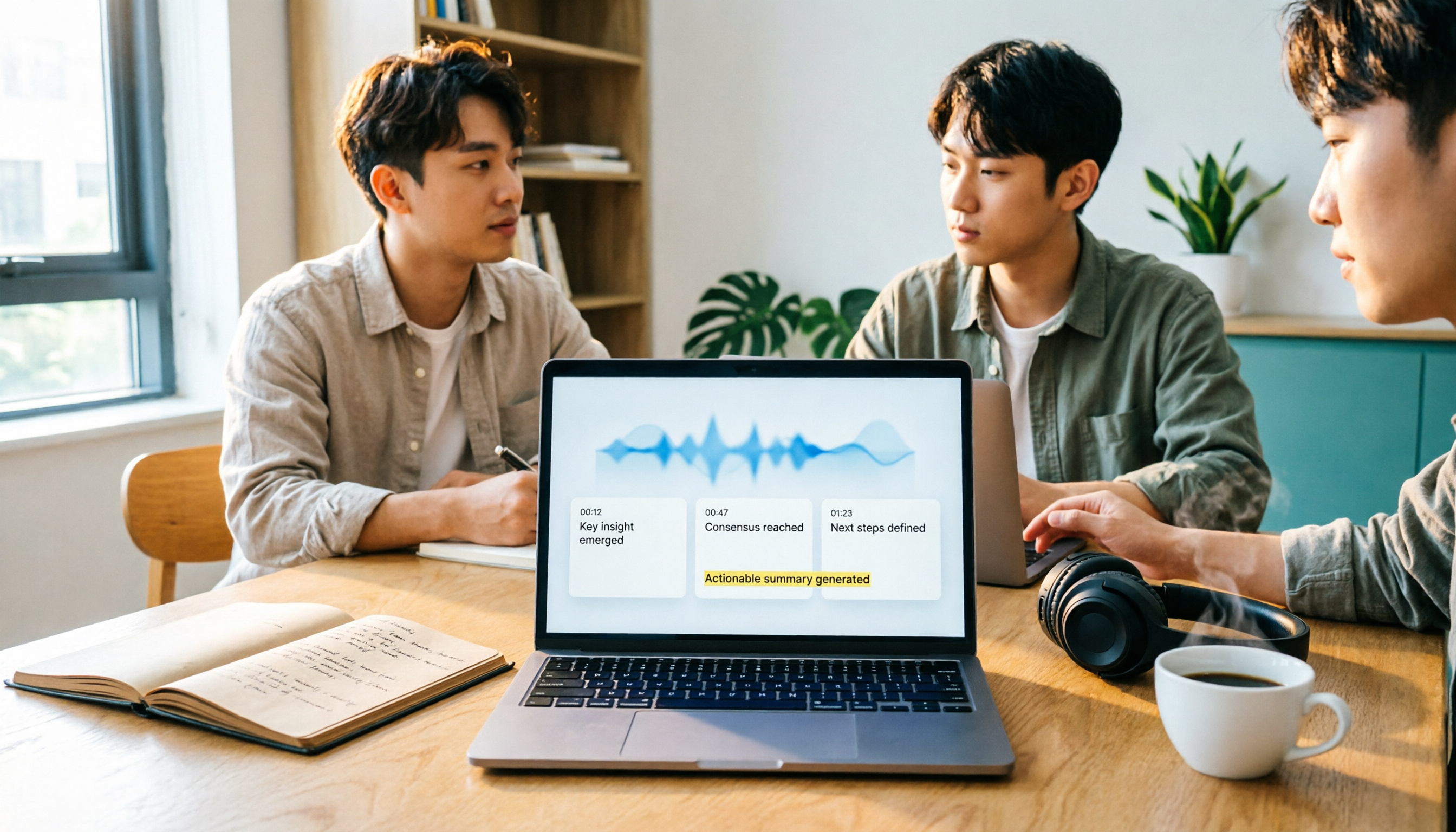
3 Ways to Record Audio on a Desktop Computer in 2026: Built-in Recorder vs. Online Tools vs. Tinrec
Desktop computers can definitely record audio, but most people start off on the wrong foot. This article tackles the common misconception that "being able to record doesn't mean you'll use it" and compares Windows/Mac built-in recorders, free online tools, and Tinrec. It also covers practical use cases for students recording lectures, online seminars, group discussions, and project interviews, along with quotas and purchasing considerations.

5 Screen Recording Methods Compared in 2026: Where the Button Is and How to Record Instantly
Where do you press to record your screen? On Windows it's Win+Alt+R, on Mac it's QuickTime Player > File > New Screen Recording, and on iPhone it's the circular button in Control Center. This guide explains the button locations, how to stop, and where files are saved on four major platforms, plus common pitfalls and how to turn meeting recordings into searchable, queryable transcripts and action items with Tinrec.

How to Record Computer Audio in 2026: A Complete Guide from Free Tools to Transcripts
This article starts with common recording mistakes and covers 5 free ways to record computer audio, including Windows Sound Recorder, Stereo Mix, Audacity, OBS Studio, and Tinrec desktop. It includes a free quota comparison table and recommended use cases to help you understand the difference between system audio and microphone audio.

Where Is the Recording Feature in 2026? Find It on iPhone, Android & PC in 3 Steps + AI Auto-Organize
Where is the recording feature hiding? This guide starts from the decision of whether you just want to record or need to use the recording afterward. It covers the exact locations and ways to open Voice Memos on iPhone, call recording on Android, and Voice Recorder on Windows, then explains why most people get stuck after finding the record button—organizing after the meeting—and tests how Tinrec turns recordings into transcripts, summaries, and action items.

5 Ways to Record Audio on a Computer in 2026: Key Differences When You Only Want Sound, Not Video
Want to record only audio on your computer, not video? This guide compares 5 Windows recording methods in 2026—from the built-in Voice Recorder, Stereo Mix, and Xbox Game Bar to OBS and Tinrec. We explain what each can capture, output formats, free limitations, and step-by-step paths, plus selection advice and 4 common pitfalls to avoid.

4 Windows Recording Methods Tested and Compared in 2026: Is Built-in Enough, and Which Can Record System Audio?
Windows 10 and 11 both have built-in recording features, but the real issue for most people isn't whether they exist—it's whether they can capture the audio they need. This article compares four methods: Voice Recorder, Xbox Game Bar, OBS Studio, and Tinrec. It explains the differences between microphone and system audio, why the other party's voice in online meetings often isn't captured, and which method suits which scenario.
4 Ways to Download iPhone Notes in 2026: Which Is Easiest for Cross-Device Sync and Export?
The built-in iPhone Notes app doesn't need to be downloaded—the real challenge is getting the text and attachments onto a computer or other platform. This guide covers four methods: iCloud web version, using iCloud on Windows, sharing or copying a single note, and downloading attachments. It compares compatible devices, capabilities, and limitations, plus answers common questions to help you choose the easiest path.

Is Transcribe Safe in 2026? 5 Key Factors to Consider
Before searching whether Transcribe is safe, don't just look at SSL. This article uses five key questions to break down data flow, access, AI training, deletion, and compliance, and compares the applicable boundaries of Transcribe App, Tinrec, Otter.ai, and Notta.