
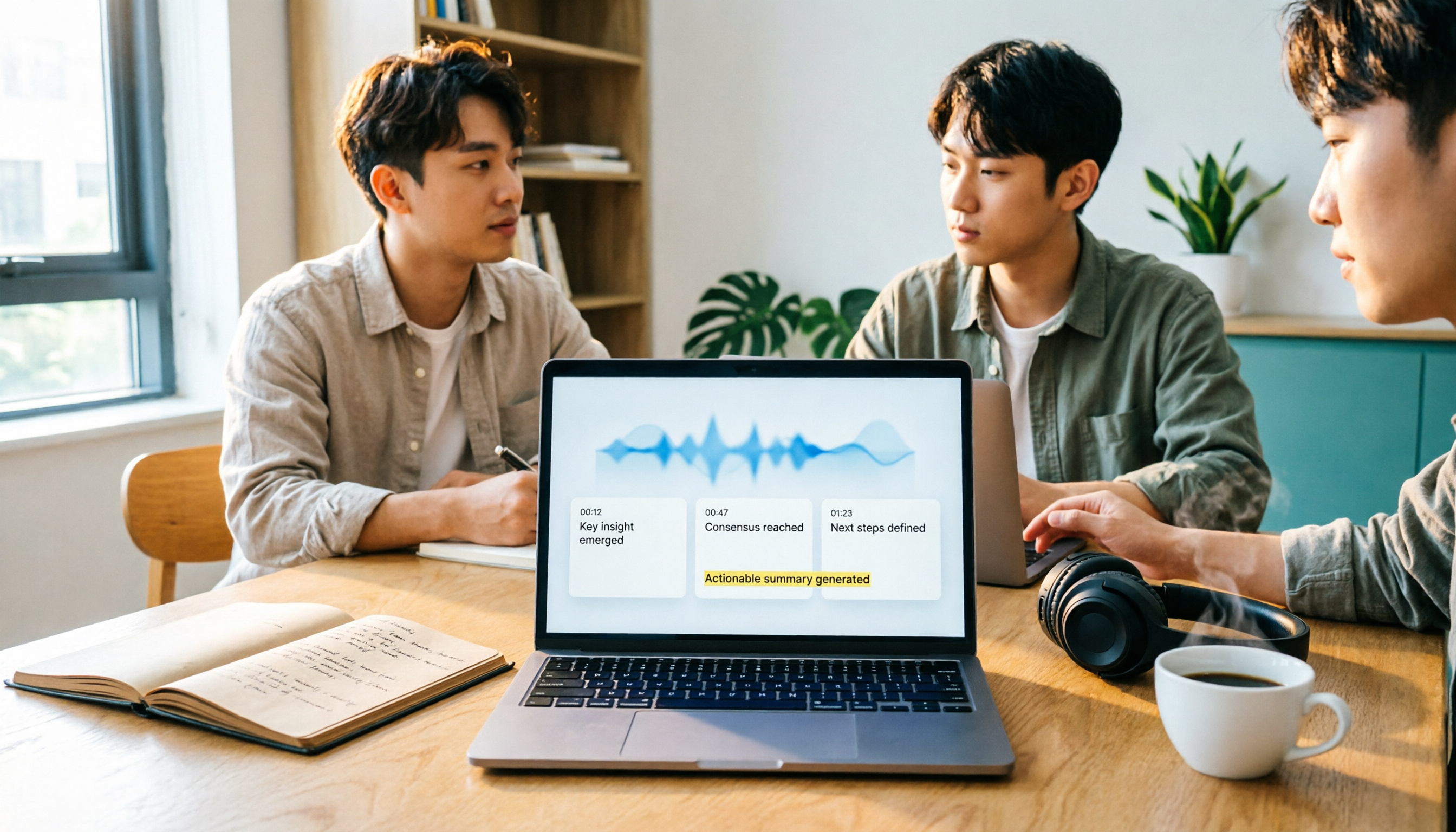
Turn recordings into transcripts and summaries in minutes
Upload audio or video for multilingual transcription, AI notes, and action items
3 Ways to Record Audio on a Desktop Computer in 2026: Built-in Recorder vs. Online Tools vs. Tinrec
"Can a desktop computer record audio?" I actually typed that into the search bar my freshman year because I thought that if a desktop didn't have a built-in microphone, it couldn't record. As a result, I survived an entire three-credit course that semester by taking notes by hand, and when I opened my notebook at finals, I couldn't even read my own writing.
Later I learned that not only can desktop computers record audio, but they're actually better suited for long recordings than laptops—but most people get stuck not on "can it record" but on three very common misconceptions.
Misconception 1: Thinking a desktop without a microphone can't record. Desktop computers usually don't have a built-in microphone (only laptops do), but as long as you connect an external microphone or headset, the built-in recorder works fine. If you want to record sound playing from the computer itself—like YouTube, online courses, or game audio—you don't even need a microphone.
Misconception 2: Thinking pressing record will capture the computer's audio. Built-in recording tools by default only record what the "microphone" picks up—that is, your voice. To record sound played by the computer itself, you need to go into Control Panel and enable "Stereo Mix," or use another tool.
Misconception 3: Thinking you'll actually listen to the recording later. This is the most costly misconception. A two-hour class, sixteen weeks a semester—that adds up to over thirty hours of audio files. You're not going to re-listen to all of it. The value of recording isn't in the file itself, but in whether you can quickly find the key points inside.
Why do many people still look for a better solution after recording?
Windows "Voice Recorder" and Mac "Voice Memos" are completely free built-in tools, and they're simple to use: record, pause, stop, with maybe some basic trimming. For needs like "just recording a segment of my own voice," they're actually sufficient.
But when used in actual classes or meetings, you'll run into several common limitations: relatively basic features, no transcript or summary—just an audio file when you're done; the laptop version sometimes limits a single recording to 3 hours (desktops are usually unaffected, but for long recordings it's still recommended to split into segments). Free desktop software like Audacity is more powerful—it can record system audio and do multi-track editing—but it has a steep learning curve, and ultimately it stops at the "audio file" level.
If what you want is "ready to use right after recording"—with a transcript, summary, searchability, and the ability to ask follow-up questions—then tools like Tinrec that integrate transcription and organization into the same workflow are worth checking out.
How is Tinrec different from built-in recording tools? 5 core experience comparisons
1. Post-recording processing Recording is just the starting point. Built-in recorders give you an audio file, and all the organizing is left to you; Tinrec's approach is to transcribe to text while recording, then produce a summary, chapters, and action items when finished. For students, this means you don't have to re-listen to thirty hours of audio before finals.
2. System audio and online meetings To record internal computer audio with built-in tools, you have to go into Control Panel and enable Stereo Mix; Tinrec's desktop version directly captures the device's system audio, so when handling online meetings on Zoom, Google Meet, Microsoft Teams, Webex, etc., you don't need to send an extra bot into the meeting as a participant. You can use the same method to record online classes, seminars, and info sessions all semester.
3. Chinese and multilingual content Tinrec supports transcription in Chinese, Traditional Chinese, and multilingual meetings, and you can view the original text, translation, or bilingual content during recording, and maintain technical terms using team hotwords. Actual performance will be affected by recording quality, accents, background noise, and overlapping speakers—this is the same for any tool.
4. How to find key points This is where the difference is most obvious. In the past, to find "which chapters the professor said the final would cover," I could only drag the progress bar and listen from the beginning; Tinrec supports AI Q&A around meeting content—just ask "What are the key points of this class" or "What assignments did the teacher give," and it will answer based on semantics. What you save is re-listening time, not recording time.
5. Cross-device and data retention Record on your phone, organize on your computer, check on the web version when needed—Tinrec works on iOS, Android, and Web. Compared to saving audio files in some folder on your desktop and never opening them again, keeping data in one place where it's searchable and can be further processed makes a big difference over time.
Tinrec's core features at a glance
Real-time recording to text: Press record and text appears simultaneously—ideal for offline classes, interviews, and live discussions. You can check the text as you go to make sure you haven't missed key points, and the transcript is ready the moment you finish.
Stop organizing recordings by hand
Upload audio or video and automatically get a transcript, summary, and action items
Desktop version records online meetings without a bot: Captures meeting audio playing on the computer without inviting extra participants. This is especially useful for group presentations and online seminars.
AI summaries, chapters, and action items: Long meetings are automatically broken into sections, highlighting key points and follow-up actions. The most common problem in group discussions—"no one remembers the conclusion afterward"—is solved by this step.
AI chat queries and multi-format export: Ask follow-up questions about the recording content like "What was the conclusion" or "Who's responsible for which item" without manually flipping through dozens of pages of transcript; organized results can be exported to Notion, Google Docs, OneNote, Dropbox to continue writing reports, and can also generate meeting minutes, tables, and documents.
Team space (Team version): If your group or project team has fixed members, the Team version provides an independent team space to centrally store Audio, Folder, and TODO, with member, role, seat management, usage analytics, and audit logs. Note: roles determine who can manage the team, seats determine who can record, upload, edit, and export; members without a seat can still view, play, and read materials but cannot perform resource-usage operations, and team data is primarily shared at the team level, not with granular file-level permissions.
Real-world use cases: 4 scenarios for desktop computer recording
Recording lectures: Connect a USB microphone to your desktop, open Tinrec, and record while transcribing. When a two-hour class ends, the transcript and summary appear simultaneously—when reviewing, you can jump by chapter instead of listening from second one.
Online courses and seminars: Use the desktop version to capture system audio—the speaker talks in your headphones while text runs on the screen. For parts you don't understand, you can use real-time translation and view the original, translation, or bilingual comparison.
Group discussions and project meetings: The most uncontrollable thing about discussions is "everyone talks over each other, and no one remembers the conclusion afterward." After recording, use AI Q&A to extract conclusions and assignments—much more reliable than trying to recall together in the group chat afterward.
Graduation project interviews: What interview recordings need most is "quotations." With a transcript, you can search keywords and directly locate the exact sentence the interviewee said—no need to re-listen to the whole segment before writing it into your report.
Things to look out for when choosing a desktop recording tool
1. Does it keep the original audio file: Some tools only provide a transcript and don't keep the audio. AI can still miss or misinterpret details, so for important content it's advisable to go back and verify against the recording—so whether the audio file can be retained and whether accidentally deleted files can be recovered (Tinrec's Team version has an audio recycle bin, currently retained for 30 days) is worth confirming first.
2. Can it record system audio: Recording only the microphone and recording internal computer audio are two different things. First figure out whether you want to record "your own voice" or "sound played by the computer," so you don't record for two hours only to find you captured keyboard clicks.
3. Does it have transcripts and summaries: Tools with only audio files leave all the organizing cost to you. Whether there's a transcript, summary, chapters, and action items directly determines how much time you'll spend afterward.
4. Quotas and pricing: Free versions usually have basic quotas, suitable for testing first. Tinrec's personal version is divided into Free, Weekly Pass, Pro Monthly, and Annual—choose based on usage frequency: for occasional recording organization, start with the Free version; for short-term intensive meetings or interviews, consider the Weekly Pass; for steady weekly needs, look at Pro; for long-term data retention, consider the Annual. The Team version is currently USD 29.80 per paid seat per month (USD 199 per paid seat per year when paid annually, equivalent to about USD 16.58 per month), with each paid seat providing 2,000 minutes of team shared import quota per month; eligible teams can try 7 days free with 1 free seat and 300 minutes of team shared import quota for the first time. Actual prices, currencies, and promotions are subject to the official purchase page.
5. Collaboration and data ownership: Personal version data belongs to the individual account; Team version meeting data belongs to the team, and when a member leaves or is removed, the resources they're responsible for need to be handed over to other members. If you're doing a group project, this is more important than you might think.
6. Recording consent and privacy: Before recording others' speech, remember to inform them and get consent, and comply with local regulations.
Conclusion: Can a desktop computer record audio? First figure out whether you want a "file" or "key points"
Of course a desktop computer can record audio—what's always been missing isn't recording capability, but post-processing. If your need is just "save a segment of sound," Windows Voice Recorder or Mac Voice Memos is more than enough; but if, like me, your purpose for recording is to review later, write reports, or submit projects, then what really determines efficiency is "whether it's ready to use right after recording."
Tinrec's approach in this regard is: real-time transcription, automatic summaries and action items, AI Q&A around the content, plus a desktop version that can record online meetings without a bot—connecting "recording" to "using." I recommend starting with the Free version and testing it with a recording of your own class—that's more accurate than reading any review.
References
- How to Record Audio on a Desktop Computer in 2026? Complete 4-Step Tutorial - Tinrec Blog
- 4 Best Ways to Record Computer Audio [2026 Best Recording Software Recommendations]
- [Super Simple] Computer Recording Solutions
- 4 Computer Recording Tricks Decoded! Easy to Understand, Easily Record Computer Sound [2026 Latest]
- How to Record Audio on a Computer? Detailed Guide to Various Practical Methods for Recording Internal and Microphone Sound - UpToGo
Turn every recording into actionable outcomes
Get 60 free transcription minutes when you sign in. No credit card required.
Related Reading
You might also like

Is Recording at Work Legal in 2026? 5 Real-World Scenarios Compared: What Protects You and What Gets You in Trouble
Whether recording at work is legal depends not only on whether you pressed record, but also on the privacy of the setting, the purpose of the recording, and how it is later used. This article outlines the four key judgment points and five common misconceptions, and explains how to turn a lawful recording into searchable, summarizable, and collaborative meeting data with Tinrec. It also covers team plan differences in roles, seats, and data governance.

5 Screen Recording Methods Compared in 2026: Where the Button Is and How to Record Instantly
Where do you press to record your screen? On Windows it's Win+Alt+R, on Mac it's QuickTime Player > File > New Screen Recording, and on iPhone it's the circular button in Control Center. This guide explains the button locations, how to stop, and where files are saved on four major platforms, plus common pitfalls and how to turn meeting recordings into searchable, queryable transcripts and action items with Tinrec.

2026 Comparison of 5 Computer Recording Solutions: Recording Is Just the Start—Post-Meeting Organization Is Key
Can a computer record audio directly? Yes, but the real challenge usually comes after recording. This article reviews five computer recording solutions: built-in recording tools on Windows and Mac, Tinrec, Otter.ai, Notta, and PLAUD Note. It compares recording sources, post-meeting transcription and organization, cross-platform use, team collaboration, and free tiers, and includes buying criteria, common pitfalls, and scenario-based recommendations.

How to Record Computer Audio in 2026: A Complete Guide from Free Tools to Transcripts
This article starts with common recording mistakes and covers 5 free ways to record computer audio, including Windows Sound Recorder, Stereo Mix, Audacity, OBS Studio, and Tinrec desktop. It includes a free quota comparison table and recommended use cases to help you understand the difference between system audio and microphone audio.

Where Is the Recording Feature in 2026? Find It on iPhone, Android & PC in 3 Steps + AI Auto-Organize
Where is the recording feature hiding? This guide starts from the decision of whether you just want to record or need to use the recording afterward. It covers the exact locations and ways to open Voice Memos on iPhone, call recording on Android, and Voice Recorder on Windows, then explains why most people get stuck after finding the record button—organizing after the meeting—and tests how Tinrec turns recordings into transcripts, summaries, and action items.

5 Ways to Record Audio on a Computer in 2026: Key Differences When You Only Want Sound, Not Video
Want to record only audio on your computer, not video? This guide compares 5 Windows recording methods in 2026—from the built-in Voice Recorder, Stereo Mix, and Xbox Game Bar to OBS and Tinrec. We explain what each can capture, output formats, free limitations, and step-by-step paths, plus selection advice and 4 common pitfalls to avoid.

4 Windows Recording Methods Tested and Compared in 2026: Is Built-in Enough, and Which Can Record System Audio?
Windows 10 and 11 both have built-in recording features, but the real issue for most people isn't whether they exist—it's whether they can capture the audio they need. This article compares four methods: Voice Recorder, Xbox Game Bar, OBS Studio, and Tinrec. It explains the differences between microphone and system audio, why the other party's voice in online meetings often isn't captured, and which method suits which scenario.
4 Ways to Download iPhone Notes in 2026: Which Is Easiest for Cross-Device Sync and Export?
The built-in iPhone Notes app doesn't need to be downloaded—the real challenge is getting the text and attachments onto a computer or other platform. This guide covers four methods: iCloud web version, using iCloud on Windows, sharing or copying a single note, and downloading attachments. It compares compatible devices, capabilities, and limitations, plus answers common questions to help you choose the easiest path.

Is Transcribe Safe in 2026? 5 Key Factors to Consider
Before searching whether Transcribe is safe, don't just look at SSL. This article uses five key questions to break down data flow, access, AI training, deletion, and compliance, and compares the applicable boundaries of Transcribe App, Tinrec, Otter.ai, and Notta.