

Turn recordings into transcripts and summaries in minutes
Upload audio or video for multilingual transcription, AI notes, and action items
5 Free Tools to Record Computer Audio in 2026: Free Quotas, Limitations, and Use Cases
Have you ever had this experience? You finish an online course and want to record it for review. You press record, save the file, but when you play it back, all you hear is the air conditioner and keyboard clicks—not a single word from the instructor.
This happens because most people assume that pressing record captures all sound, but system audio (sound played by the computer) and microphone audio (environmental sound) are actually two different paths.
This article covers 5 free methods, from built-in Windows features to tools that can also generate transcripts, and honestly lists the free quota and limitations of each.
What to Check Before Using Free Tools
Before you start, confirm these points to avoid unnecessary detours.
1. Is it "free forever" or a "free quota"?
Windows built-in Sound Recorder, Stereo Mix, Audacity, and OBS Studio are free forever; Tinrec's free version offers a basic quota to experience recording, importing, summarizing, and transcribing. Once the quota is used up, you need to evaluate a plan.
2. Do you need to register an account?
Built-in system tools and open-source software do not require registration; cloud services usually require an account to save data.
3. Can system audio and microphone be separated?
This is the most critical point. Stereo Mix usually captures both system audio and microphone; Audacity's WASAPI loopback captures only system audio; OBS lets you decide whether to mix the microphone, and recording on separate tracks is recommended.
4. macOS users will hit a wall first.
Due to limitations of the core audio architecture, macOS cannot directly record system audio by default; you need to install a virtual audio driver to do so.
5. Recording length and file format.
Some tools have time limits, and some offer fewer output formats. Think about long-term use beforehand.
This article is based on products and official information available as of August 2026. For actual quotas and prices, please refer to each service's page.
1. Windows Built-in "Sound Recorder": Fastest, but Basic
Windows users have probably heard of "Sound Recorder." It's completely free, requires no installation, and supports output formats like MP3, AAC, WMA, and FLAC.
The steps are simple: Search for "Sound Recorder" in the Start menu → open it and set the output format and quality → press record.
Key limitations: It can record for a maximum of 3 hours, and it cannot record computer audio alone. That means you need to enable Stereo Mix in system settings first to capture system audio, and it will still record microphone audio together, with no separation.
Best for: Quick voice memos, short class recordings.
2. Stereo Mix: A System Audio Switch Without Installing Software
This is the most overlooked trick on Windows. It's not recording software, but a "recording source" in the sound device settings.
Steps: Open "Control Panel" → click "Sound" → go to the "Recording" tab → right-click "Stereo Mix" → select "Enable."
If you don't see Stereo Mix in the list, right-click on an empty area and check "Show Disabled Devices" to make it appear.
After enabling, open Sound Recorder or any recording program, select Stereo Mix as the source, and you can record the sound played by the computer.
Note: This method records all sounds from the computer. If a notification sound pops up or you play music, it will all be recorded. Close unrelated windows and notifications before recording.
Best for: General users who want a zero-cost, zero-install way to capture system audio.
3. Audacity: For Clean System Audio, Choose WASAPI
Audacity is free, open-source recording and audio editing software available for Windows, macOS, and Linux.
On Windows: Select "Windows WASAPI" as the audio host → choose Stereo Mix in the loopback device menu to capture internal audio → press record.
The advantage is that it captures only system audio without mixing in the microphone. After recording, you can trim unwanted parts directly in the software and export the file.
Limitations: The interface isn't very intuitive, and first-time setup can be tricky; on macOS, you still need to install a virtual audio driver. Also, save the project before exporting for extra safety.
Best for: People who need post-production and a clean system audio track.
4. OBS Studio: Multi-Track Recording, Easiest for Post-Production
OBS is free, open-source broadcasting software and offers the finest audio track control among these methods.
You can set "Desktop Audio" to a separate track and the microphone to another track. This makes it easy to extract clean meeting audio during editing without listening to the whole recording.
Limitations: Steep learning curve and a lot of interface information. If you just want to record a short audio clip, OBS is overkill.
Best for: Advanced users who need to record screen and audio simultaneously or save separate tracks.
5. Tinrec Desktop: Record and Transcribe at the Same Time
Tinrec is an AI meeting notes and collaboration tool for individuals and teams. Besides recording, it organizes content into searchable, summarizable, and queryable data.
The free version offers a basic quota to experience recording, importing, summarizing, and transcribing, so you can check if the workflow suits you before upgrading.
Stop organizing recordings by hand
Upload audio or video and automatically get a transcript, summary, and action items
How it works: Open the desktop app → start recording manually → the desktop app captures the device's system audio → generates a transcript in real time during the meeting.
It can handle audio from online meetings like Zoom, Google Meet, Microsoft Teams, and Webex played on the computer, without needing a meeting bot to join. This is useful for situations where you don't want an extra participant.
After recording, you get more than a transcript: it also generates summaries, chapters, key points, and action items. You can ask AI questions about the content, use real-time translation (original, translated, or bilingual view), and export to Notion, Google Docs, OneNote, Dropbox, and other tools for further processing.
Limitations to note:
- The free version has a basic quota with limits; actual numbers are on the official website.
- It does not "automatically join all meetings"; you need to open the desktop app and start recording yourself.
- Transcription quality is affected by recording quality, background noise, accents, overlapping speech, and technical terms; it's not recommended to interpret it as a fixed accuracy rate.
- If you have dozens of long files to batch process, this is not its main strength.
For team use, the team version is a separate team space, not multiple people sharing one personal account. The first eligible team trial is 7 days, 1 free seat, and 300 minutes of shared team import quota; monthly USD 29.80 per paid seat per month, annual USD 199 per paid seat per year. Paid seats provide 2,000 minutes of shared team import quota per month. Under an active team plan and active seats, real-time recording is currently not deducted by minutes.
The team version also includes member and role management, seat allocation, usage analytics, audit logs, and an audio recycle bin. When a member leaves, team data is transferred to other active members and is not taken away.
Best for: People with many meetings who need to organize minutes and action items afterward, or who want to turn meeting data into team assets.
Free Feature Comparison Table
| Tool | Registration Required | Free Quota or Period | Key Features | Main Limitations | Data Source |
|---|---|---|---|---|---|
| Windows Sound Recorder | No | Free forever | Built-in recording, multiple formats | Max 3 hours, cannot record system audio alone | Brave search source 2 |
| Stereo Mix | No | Free forever | System-level internal audio capture | Requires sound device support, captures microphone and all system audio | Brave search sources 2, 4 |
| Audacity | No | Free forever (open source) | WASAPI loopback captures only system audio, post-editing | Setup not intuitive, macOS requires virtual driver | Brave search source 5 |
| OBS Studio | No | Free forever (open source) | Separate tracks for desktop audio and microphone | Steep learning curve, overkill for simple recording | Brave search source 1 |
| Tinrec Desktop | Yes | Free version basic quota | Bot-free system audio recording, transcript, summary, action items, AI Q&A, export | Limited quota, manual recording start, not for batch file processing | Product introduction |
Which One Is Right for You?
- Just want to record a quick clip without installing anything: Use Windows Sound Recorder, but remember to enable Stereo Mix first.
- Want clean system audio without microphone: Audacity with Windows WASAPI is the most cost-effective solution.
- Need to record screen and edit later: OBS Studio's multi-track recording makes post-production much easier.
- macOS users: Solve the virtual audio driver first, then decide which software to use.
- Need to organize into transcripts, summaries, and action items after recording: Try Tinrec Desktop to combine recording and organizing into one step.
- Team needs to share meeting data: Personal tools will eventually hit limits; consider a team plan with seat and permission design.
Simply put, ask yourself "what will I do after recording." If it's just for archiving, system tools are enough; if you need searchable, deliverable text data, it's worth spending time choosing the right tool.
Finally, recording computer audio itself is not illegal, but the recorded content may be copyrighted. Personal learning and note-taking are usually fine; do not distribute publicly or for profit, and respect creators' rights. For meeting recordings, it's also recommended to get consent from participants first.
FAQ
Q1: Why do I only hear my own voice and not the computer's sound after recording?
Because the recording program defaults to the microphone. You need to enable Stereo Mix in the system or change the input source to system audio in the recording software (e.g., Audacity's WASAPI loopback) to capture the computer's playback.
Q2: What if I can't find "Stereo Mix" in Control Panel?
Right-click on an empty area in the "Sound" → "Recording" tab and check "Show Disabled Devices"; it should appear in most cases. If it still doesn't, your sound driver likely doesn't support this feature.
Q3: Will Line notifications or system sounds be recorded?
Yes. Methods like Stereo Mix record all sounds from the computer. Turn off notifications and close unrelated tabs and players before recording to save editing time.
Q4: Is the free version enough?
It depends on frequency. For occasional recording, free tools are sufficient; if you have weekly meetings to transcribe and organize action items, factor in the quota. Tinrec's free version offers a basic quota; check the official website for actual numbers.
Q5: What if I only get a transcript and still have to organize it myself?
That's duplicate work. Choose a tool that automatically generates summaries, chapters, and action items to reduce organizing time; however, AI may still miss or misunderstand, so for important decisions, replay the recording at the relevant timestamps to verify.
Q6: Do I need to inform others when recording online meetings this way?
It's recommended. Recording itself is not illegal, but when it involves others' speech and privacy, it's better to inform and get consent. Laws vary by country; check local regulations before use.
References
- How to Record Computer Audio? 2026 Complete Tutorial and AI Transcription Tool Recommendations - Tinrec Blog
- 4 Ways to Record Computer Audio! Simple and Easy【2026 Latest】
- How to Record Computer Audio on Win11? 5 Methods + Complete Tutorial - EaseUS
- How to Record Computer Audio in 2026? 4-Step Complete Tutorial - Tinrec Blog
- 4 Best Ways to Record Computer Audio【2026 Best Recording Software Recommendations】
Turn every recording into actionable outcomes
Get 60 free transcription minutes when you sign in. No credit card required.
Related Reading
You might also like

Is Recording at Work Legal in 2026? 5 Real-World Scenarios Compared: What Protects You and What Gets You in Trouble
Whether recording at work is legal depends not only on whether you pressed record, but also on the privacy of the setting, the purpose of the recording, and how it is later used. This article outlines the four key judgment points and five common misconceptions, and explains how to turn a lawful recording into searchable, summarizable, and collaborative meeting data with Tinrec. It also covers team plan differences in roles, seats, and data governance.
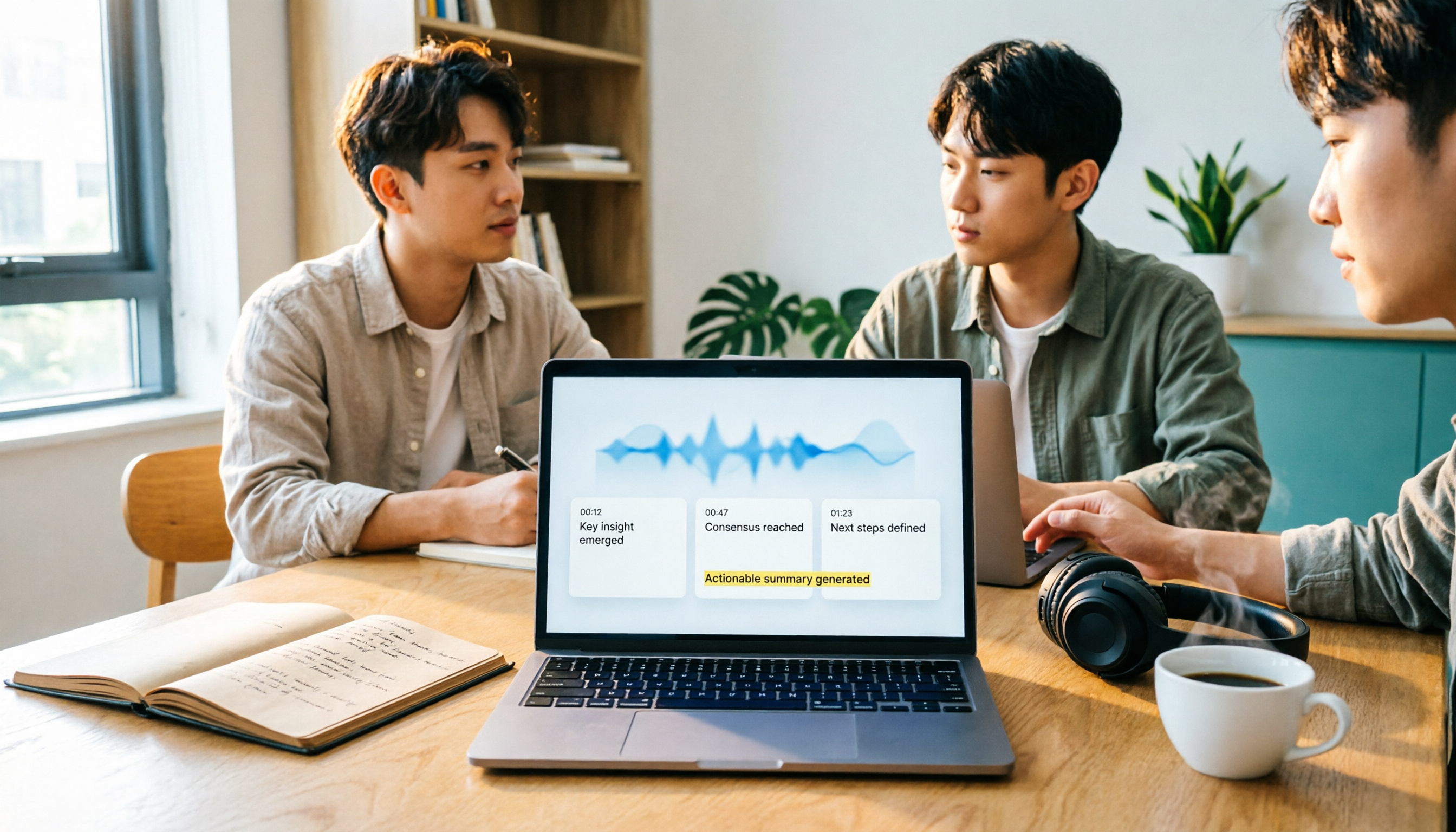
3 Ways to Record Audio on a Desktop Computer in 2026: Built-in Recorder vs. Online Tools vs. Tinrec
Desktop computers can definitely record audio, but most people start off on the wrong foot. This article tackles the common misconception that "being able to record doesn't mean you'll use it" and compares Windows/Mac built-in recorders, free online tools, and Tinrec. It also covers practical use cases for students recording lectures, online seminars, group discussions, and project interviews, along with quotas and purchasing considerations.

5 Screen Recording Methods Compared in 2026: Where the Button Is and How to Record Instantly
Where do you press to record your screen? On Windows it's Win+Alt+R, on Mac it's QuickTime Player > File > New Screen Recording, and on iPhone it's the circular button in Control Center. This guide explains the button locations, how to stop, and where files are saved on four major platforms, plus common pitfalls and how to turn meeting recordings into searchable, queryable transcripts and action items with Tinrec.

2026 Comparison of 5 Computer Recording Solutions: Recording Is Just the Start—Post-Meeting Organization Is Key
Can a computer record audio directly? Yes, but the real challenge usually comes after recording. This article reviews five computer recording solutions: built-in recording tools on Windows and Mac, Tinrec, Otter.ai, Notta, and PLAUD Note. It compares recording sources, post-meeting transcription and organization, cross-platform use, team collaboration, and free tiers, and includes buying criteria, common pitfalls, and scenario-based recommendations.

Where Is the Recording Feature in 2026? Find It on iPhone, Android & PC in 3 Steps + AI Auto-Organize
Where is the recording feature hiding? This guide starts from the decision of whether you just want to record or need to use the recording afterward. It covers the exact locations and ways to open Voice Memos on iPhone, call recording on Android, and Voice Recorder on Windows, then explains why most people get stuck after finding the record button—organizing after the meeting—and tests how Tinrec turns recordings into transcripts, summaries, and action items.

5 Ways to Record Audio on a Computer in 2026: Key Differences When You Only Want Sound, Not Video
Want to record only audio on your computer, not video? This guide compares 5 Windows recording methods in 2026—from the built-in Voice Recorder, Stereo Mix, and Xbox Game Bar to OBS and Tinrec. We explain what each can capture, output formats, free limitations, and step-by-step paths, plus selection advice and 4 common pitfalls to avoid.

4 Windows Recording Methods Tested and Compared in 2026: Is Built-in Enough, and Which Can Record System Audio?
Windows 10 and 11 both have built-in recording features, but the real issue for most people isn't whether they exist—it's whether they can capture the audio they need. This article compares four methods: Voice Recorder, Xbox Game Bar, OBS Studio, and Tinrec. It explains the differences between microphone and system audio, why the other party's voice in online meetings often isn't captured, and which method suits which scenario.
4 Ways to Download iPhone Notes in 2026: Which Is Easiest for Cross-Device Sync and Export?
The built-in iPhone Notes app doesn't need to be downloaded—the real challenge is getting the text and attachments onto a computer or other platform. This guide covers four methods: iCloud web version, using iCloud on Windows, sharing or copying a single note, and downloading attachments. It compares compatible devices, capabilities, and limitations, plus answers common questions to help you choose the easiest path.

Is Transcribe Safe in 2026? 5 Key Factors to Consider
Before searching whether Transcribe is safe, don't just look at SSL. This article uses five key questions to break down data flow, access, AI training, deletion, and compliance, and compares the applicable boundaries of Transcribe App, Tinrec, Otter.ai, and Notta.