

Turn recordings into transcripts and summaries in minutes
Upload audio or video for multilingual transcription, AI notes, and action items
5 Screen Recording Methods Compared in 2026: Where the Button Is and How to Record Instantly
Where do you press to record your screen? The answer really depends on one thing: are you recording the entire desktop, a single window, or an online meeting?
They're all called "screen recording," but Windows' built-in feature can only record a single app window, Mac's QuickTime Player can record the full screen or a custom area, and iPhone's button is hidden in Control Center. Press the wrong thing and you won't get what you wanted.
This article breaks down the methods I use every day: where the button is, how to stop, and where the file goes. At the end, I'll cover something many people overlook—how to turn those visuals and audio into truly usable data after recording.
First Ask Yourself: Are You Recording the "Screen" or the "Meeting Content"?
Most people get stuck because they mix up two different things.
The first is "I want to capture a demo": teaching a colleague how to use a system, recording gameplay, or making a software tutorial. For this, built-in tools are enough.
The second is "I want to capture meeting content": online meetings, client interviews, or listening to a lecture. What you need afterward isn't a video—it's who said what, what the conclusions were, and who needs to do what.
These two needs require different buttons and completely different post-processing. Figure out which one you need first, then read on.
Where Do You Press to Record Your Screen? Button Locations on Four Major Platforms
Windows: Press Windows Key + Alt + R
The fastest way is to press Windows Key + Alt + R simultaneously. A recording control bar appears in the top-right corner and recording starts immediately.
If you want to adjust settings first, press Windows Key + G to open the Game Bar panel, then start recording from the "Capture" widget. There you can choose whether to record system audio, microphone, or both.
To stop, press Windows Key + Alt + R again, or click the stop button on the control bar.
The file is saved in File Explorer under the "Videos" folder, in the "Captures" subfolder, in MP4 format.
Note that Windows' built-in feature by default can only record a single app window—it cannot record the entire desktop or File Explorer. If you switch to another window, recording stops automatically. This is the most commonly misunderstood part.
Mac: QuickTime Player's "File > New Screen Recording"
Mac's screen recording feature is hidden inside QuickTime Player—many people have never even opened this app.
First open QuickTime Player, click "File" in the menu bar at the top-left of the screen, then select "New Screen Recording." A small window appears; press the red record button to start.
You can record the entire screen or drag to select a custom area and record only that portion.
There are two ways to stop: click the "Stop Recording" button at the top of the screen, or press Command + Control + Esc directly.
The finished video is automatically saved to the Desktop for quick preview or sharing.
iPhone: The Circular Record Button in Control Center
Swipe down from the top-right corner of the screen (swipe up from the bottom on older models) to open Control Center, and find the circular record button with a solid circle inside.
Tapping it starts a three-second countdown, then records the entire screen. If you can't find this button in Control Center, go to Settings and add "Screen Recording" to Control Center.
To record with the microphone, long-press the circular button and enable the microphone in the pop-up menu. By default, narration is not recorded—many people only discover this after recording.
To stop, tap the "Screen Recording" button at the top of the screen and then tap "Stop," or open Control Center again and tap the red record button. The video is saved in Photos.
Also note that some apps don't allow audio or video recording, and you can't screen record and mirror simultaneously—be prepared for that.
Android: Pull Down the Quick Settings Menu and Find "Screen Record"
On Android 11 and above, pull down the Quick Settings menu from the top of the screen and you'll usually find the screen recording icon. Tap it to open settings and start recording.
Locations and names vary slightly by brand. If you can't find it, go to the edit mode of the Quick Settings menu and drag the icon out.
Before Choosing a Recording Method, Understand These 4 Key Points
First, what's the scope you can record? If you need to record desktop operations, multi-window switching, or File Explorer, Windows' built-in Game Bar is out—you'll need Mac's QuickTime or a third-party tool. If you don't confirm this, it's common to discover mid-recording that the screen has frozen.
Second, which audio do you need? System audio, microphone, or both—the difference is huge. Recording online meetings usually requires system audio plus microphone; recording tutorials only needs the microphone. iPhone's microphone is off by default—remember to long-press to enable it.
Third, where does the file go? Windows: Videos > Captures; Mac: Desktop; iPhone: Photos. If you can't find the file after recording, it's usually because you didn't know where it was saved.
Fourth, who will use it after recording? If it's just for your own review, leave the video as is. But if the recording is for your team, needs to become meeting minutes, or needs to be searchable by keyword later, the video alone isn't enough. This is where most people really get stuck.
Stop organizing recordings by hand
Upload audio or video and automatically get a transcript, summary, and action items
Tinrec: After Recording, Turn Meeting Content into Usable Data
Let's be clear about positioning: Tinrec is not a screen recording tool—it records audio, not video.
It's an AI meeting notes and collaboration tool for individuals and teams, available on iOS, Android, web, and desktop. Its purpose is to turn meetings into searchable, collaborative, actionable data—not just give you a transcript.
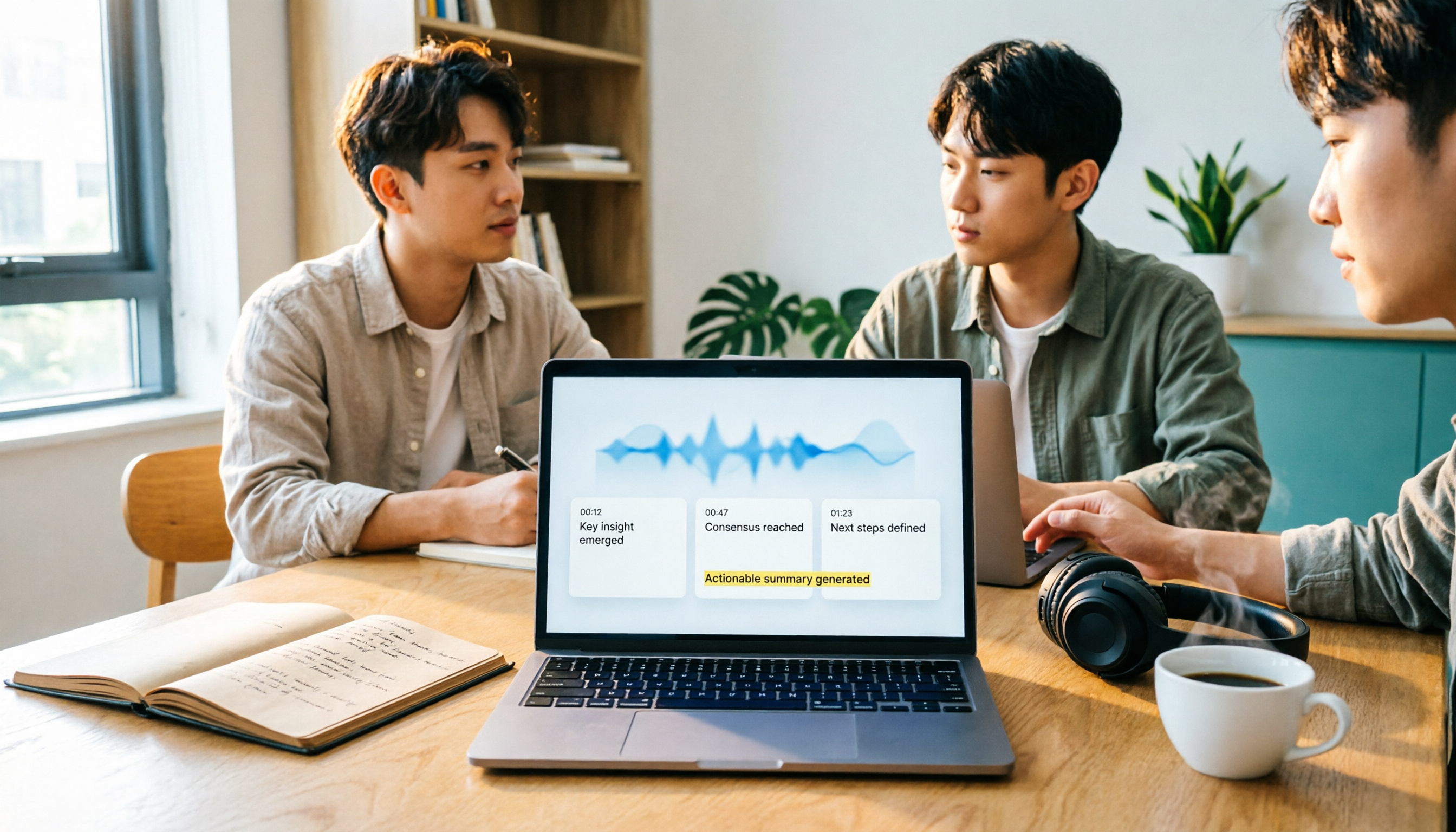
Here's how it works: during a meeting, open the desktop app and it directly captures your computer's system audio, handling online meetings like Zoom, Google Meet, Microsoft Teams, and Webex without needing an extra meeting bot to join the room. While the meeting is happening, the transcript appears in real time. When the meeting ends, AI summaries, chapters, key points, and action items are already organized—who's responsible for what and when it's due, no need to re-listen to a two-hour recording.
Even better is post-meeting Q&A. You can directly ask "Who mentioned the budget in the last meeting?" and it will answer based on the semantic content, not just throw a bunch of keyword search results at you. For those who need to look back at past meetings, this is much faster than manually pressing Ctrl+F. It also offers real-time translation—for cross-language meetings you can view the original, translation, or bilingual content simultaneously; and you can export results to Notion, Google Docs, OneNote, Dropbox, and other tools for further processing, or use Agent post-processing to generate reports, tables, and meeting minutes documents.
If an entire team is using it, the Team plan provides a separate team space: meeting data belongs to the team, not to an individual's account. Member creation, roles, and seats are managed separately, plus team hotwords (add your company's common terminology for better recognition of specialized terms), usage analytics, audit logs, and an audio recycle bin. Currently, the Team monthly plan is USD 29.80 per paid seat per month, and the annual plan is USD 199 per paid seat per year (about USD 16.58 per month). Eligible teams get a 7-day free trial with 1 free seat and 300 minutes of shared team import quota; paid seats provide 2,000 minutes of shared team import quota per month. Actual pricing and benefits are subject to the official purchase page.
Let's be honest about limitations. First, it doesn't record video—if you need a tutorial video, built-in tools are enough. Second, transcription quality is affected by recording quality, noise, accents, overlapping speakers, and specialized terminology; for important content, we recommend cross-checking with transcript timestamps and audio playback. Third, the free version has quotas; heavy use requires payment.
Who is it for? If you have several meetings every week, need to organize notes afterward, and have team members coming and going who need to keep the data, Tinrec handles exactly the most time-consuming part after recording ends.
Besides Built-in Tools, What Other Options Are There?
Granola is also a bot-free AI meeting notes tool that transcribes in real time via desktop system audio and combines handwritten notes to generate content. The Basic version is free. But note that it doesn't support uploading pre-recorded audio files and doesn't save meeting audio. If you need to import old recordings or listen back to the original audio for verification, Tinrec is more practical in this regard.
Otter.ai is a mature choice for English business meetings. Basic is free with 300 minutes per month, and Pro annual billing is about USD 8.49 per user per month. If your meetings are entirely in English and your team is comfortable with an English interface, it's a reasonable option. But for Chinese meetings and mixed Chinese-English content, Tinrec's experience is closer to the Taiwan usage context and also supports bilingual side-by-side viewing.
Notta overlaps significantly with Tinrec—both do multi-platform transcription, meeting notes, and translation. The Free version offers 120 minutes per month with a 3-minute limit per recording. The difference lies in post-meeting and team governance: Tinrec provides team hotwords, seat management, usage analytics, and audit logs, suitable for organizations that need to turn meeting data into team assets and require traceable operation records.
Pitfall Guide: The 4 Most Common Screen Recording Mistakes
Pitfall 1: Assuming Windows built-in can record the entire desktop. It can only record a single app window; switching to another window stops recording, and it can't record the desktop or File Explorer. To record multiple windows, you need a different tool.
Pitfall 2: Recording video but no audio. Especially on iPhone, the microphone is off by default; on Windows, you also need to confirm the audio source in Game Bar. Discovering after an hour of recording that it's completely silent—this really happens.
Pitfall 3: Can't find the file after recording. Windows hides it in Videos > Captures, Mac saves to Desktop, iPhone goes to Photos. Know where it will go before recording and save yourself ten minutes of searching folders.
Pitfall 4: Recording lots of videos that no one watches twice. Video is the hardest format to search. If you're recording meetings to keep a record, rather than storing a bunch of video files, it's better to also convert the audio into transcripts and summaries so you can search, ask questions, and extract action items later. This is why I switched to recording audio plus transcription, and only recording video when necessary.
Conclusion: Which One Should You Actually Use?
- For tutorials, gameplay, or single-window demos → Windows: press Windows Key + Alt + R; Mac: use QuickTime Player
- For full desktop or multi-window switching → Use Mac's QuickTime, or install a tool that can record the full screen
- For phone screen recording → iPhone: start from the circular button in Control Center, remember to long-press to enable the microphone
- To capture online meeting content and conclusions → Use Tinrec desktop to directly capture system audio, transcribe in real time, and view summaries and action items right after the meeting
- For teams sharing meeting data, needing seat and usage management → Tinrec Team plan, start with a 7-day trial with one free seat to get familiar with the workflow
Simply put, where the button is takes five minutes to remember. What really takes time is the organizing work after recording. Think through this part first, and you'll find many recordings can be audio-only.
One last reminder: before recording audio or video, remember to comply with local regulations and obtain consent from participants when necessary.
References
- 2026 Complete Screen Recording Guide: From Windows to Mobile, Record with One Press - Tinrec Blog
- How to Use a Computer for Screen Recording? Introduction to Computer Screen Recording Tools
- Record the screen on iPhone, iPad, or iPod touch - Apple Support (Taiwan)
- 2025 Edition - Beginner Tutorial: How to Screen Record? (Mobile / Computer / Windows / Mac / iOS / Android)
- Windows 10/11 Built-in Screen Recording Feature Settings and Usage Tutorial | KJie Notes
Turn every recording into actionable outcomes
Get 60 free transcription minutes when you sign in. No credit card required.
Related Reading
You might also like

Is Recording at Work Legal in 2026? 5 Real-World Scenarios Compared: What Protects You and What Gets You in Trouble
Whether recording at work is legal depends not only on whether you pressed record, but also on the privacy of the setting, the purpose of the recording, and how it is later used. This article outlines the four key judgment points and five common misconceptions, and explains how to turn a lawful recording into searchable, summarizable, and collaborative meeting data with Tinrec. It also covers team plan differences in roles, seats, and data governance.
3 Ways to Record Audio on a Desktop Computer in 2026: Built-in Recorder vs. Online Tools vs. Tinrec
Desktop computers can definitely record audio, but most people start off on the wrong foot. This article tackles the common misconception that "being able to record doesn't mean you'll use it" and compares Windows/Mac built-in recorders, free online tools, and Tinrec. It also covers practical use cases for students recording lectures, online seminars, group discussions, and project interviews, along with quotas and purchasing considerations.

2026 Comparison of 5 Computer Recording Solutions: Recording Is Just the Start—Post-Meeting Organization Is Key
Can a computer record audio directly? Yes, but the real challenge usually comes after recording. This article reviews five computer recording solutions: built-in recording tools on Windows and Mac, Tinrec, Otter.ai, Notta, and PLAUD Note. It compares recording sources, post-meeting transcription and organization, cross-platform use, team collaboration, and free tiers, and includes buying criteria, common pitfalls, and scenario-based recommendations.

How to Record Computer Audio in 2026: A Complete Guide from Free Tools to Transcripts
This article starts with common recording mistakes and covers 5 free ways to record computer audio, including Windows Sound Recorder, Stereo Mix, Audacity, OBS Studio, and Tinrec desktop. It includes a free quota comparison table and recommended use cases to help you understand the difference between system audio and microphone audio.

Where Is the Recording Feature in 2026? Find It on iPhone, Android & PC in 3 Steps + AI Auto-Organize
Where is the recording feature hiding? This guide starts from the decision of whether you just want to record or need to use the recording afterward. It covers the exact locations and ways to open Voice Memos on iPhone, call recording on Android, and Voice Recorder on Windows, then explains why most people get stuck after finding the record button—organizing after the meeting—and tests how Tinrec turns recordings into transcripts, summaries, and action items.

5 Ways to Record Audio on a Computer in 2026: Key Differences When You Only Want Sound, Not Video
Want to record only audio on your computer, not video? This guide compares 5 Windows recording methods in 2026—from the built-in Voice Recorder, Stereo Mix, and Xbox Game Bar to OBS and Tinrec. We explain what each can capture, output formats, free limitations, and step-by-step paths, plus selection advice and 4 common pitfalls to avoid.

4 Windows Recording Methods Tested and Compared in 2026: Is Built-in Enough, and Which Can Record System Audio?
Windows 10 and 11 both have built-in recording features, but the real issue for most people isn't whether they exist—it's whether they can capture the audio they need. This article compares four methods: Voice Recorder, Xbox Game Bar, OBS Studio, and Tinrec. It explains the differences between microphone and system audio, why the other party's voice in online meetings often isn't captured, and which method suits which scenario.

4 Ways to Download iPhone Notes in 2026: Which Is Easiest for Cross-Device Sync and Export?
The built-in iPhone Notes app doesn't need to be downloaded—the real challenge is getting the text and attachments onto a computer or other platform. This guide covers four methods: iCloud web version, using iCloud on Windows, sharing or copying a single note, and downloading attachments. It compares compatible devices, capabilities, and limitations, plus answers common questions to help you choose the easiest path.

Is Transcribe Safe in 2026? 5 Key Factors to Consider
Before searching whether Transcribe is safe, don't just look at SSL. This article uses five key questions to break down data flow, access, AI training, deletion, and compliance, and compares the applicable boundaries of Transcribe App, Tinrec, Otter.ai, and Notta.