

Turn recordings into transcripts and summaries in minutes
Upload audio or video for multilingual transcription, AI notes, and action items
Let me start with a misunderstanding I often encounter when replying to reader comments: some people believe that "if I'm a party to the conversation, recording it will definitely hold up"; others believe the opposite—that "recording without telling the other person is illegal." Both views are only half right.
When it comes to recording at work, the law doesn't just look at whether you pressed the record button. It also considers whether the setting was private, what your purpose was, and how you use the recording afterward.
This article organizes the most common practical judgment points, then addresses a less-discussed but more impactful issue: after recording, how do you turn those audio files into data you can actually use?
A quick disclaimer: the following is a practical framework, not legal advice. If your situation involves labor disputes, litigation, or trade secrets, consult a lawyer.
Is Recording at Work Legal? Start with These 4 Judgment Points
1. Are You a Party to the Conversation?
Under Article 29, Paragraph 3 of the Communication Security and Surveillance Act, as long as you are a party to the communication and not acting for unlawful purposes, it typically does not constitute a violation. In practice, recording your own conversations with others usually does not fall under the scope of invasion of privacy.
But "I'm a party" is not a free pass. The Supreme Court's 2020 ruling (Tai Shang Zi No. 4458) noted that determining whether there is justifiable reason requires considering whether the means were appropriate and necessary, and whether the protected interest is proportionate to the privacy intrusion.
2. Is the Conversation a "Non-Public Activity"?
Article 315-1 of the Criminal Code penalizes "without justifiable reason" secretly recording another person's "non-public" activities, speech, or conversations.
"Non-public" means the conversation occurs in a private environment where participants subjectively do not wish to make it public and objectively have taken confidentiality measures, such as a closed-door private meeting room or a private booth.
Conversely, everyday conversations in an open office area generally have lower privacy expectations; but once you move into a small meeting room for a one-on-one discussion, the nature changes completely.
3. Is There "No Justifiable Reason"?
This is the core of the law. Self-protection, gathering evidence to defend rights, or exposing wrongdoing are generally considered justifiable reasons; if the purpose is intimidation, extortion, fraud, or stealing trade secrets, it will be deemed "without justifiable reason."
The same recording, with different purposes, can lead to completely different conclusions.
4. How Do You Use the Recording Afterward?
This point is most often overlooked. Uploading the recording online, sharing it with people unrelated to the dispute, or editing and publishing it may additionally involve privacy and defamation liability.
Even if the original recording method was legal, improper subsequent use can still cause trouble.
5 Common Recording Misconceptions
Misconception 1: I'm a party, so I can record however I want. Being a participant is only one condition; purpose, means, and subsequent use also matter.
Misconception 2: Recording in a meeting room is safer. On the contrary, enclosed private spaces are more likely to be considered "non-public activities," increasing risk.
Misconception 3: Deliberately provoking the other person to get them to talk. In practice, such recordings are easily questioned as intentionally manufactured evidence, reducing both admissibility and credibility.
Misconception 4: Forwarding to a colleague to "help listen." Spreading the recording to people unrelated to the dispute may create additional legal liability.
Misconception 5: Recording and leaving it on your phone. This is the most real pain point: a two-hour meeting audio file—when you actually need it, you can't find that sentence or which minute it's in.
Legal Recording Is Just the First Step; the Real Cost Is After Recording
Honestly, the most common situation I see is not legal trouble, but "recorded but unusable."
A two-hour labor-management communication or project meeting, the audio file sits on your phone. When you actually need to organize it, you have to put on headphones and listen again, typing as you go. By the time the transcript is done, the golden window for handling the dispute has passed.
That's why I switched to Tinrec. It's not positioned as a "voice recorder" but as a tool that turns recordings into searchable, summarizable, and queryable meeting data—with Tinrec, for example, after recording you immediately get a transcript, summary, chapters, and action items, and you can click back to the timeline to listen when you need to verify the original text.
For those who record for self-protection or evidence gathering, this is actually more critical than the recording itself: you must be able to quickly find that sentence.
How Tinrec Helps in the Meeting Documentation Workflow
Bot-free recording of online meetings. Tinrec desktop version directly captures computer system audio, handling Zoom, Google Meet, Microsoft Teams, Webex, and other online meetings without needing an extra meeting bot to join. For internal meetings, fewer third-party participants means simpler data flow.
Real-time transcription while recording. Text appears synchronously during the meeting, so you can confirm key commitments are fully captured on the spot.
AI summaries and chapters. Long meetings are automatically broken into structured sections, so you don't have to listen from the beginning when reviewing.
Action item extraction. Who is responsible for what and when it's due, organized into a list from the discussion.
Stop organizing recordings by hand
Upload audio or video and automatically get a transcript, summary, and action items
AI Q&A. After the transcript is ready, you can directly ask, "What conditions did the manager mention about severance in this meeting?" It answers based on the content, no need to Ctrl+F for keywords yourself.
Multi-format export. When you need to preserve evidence or hand it to a lawyer or HR, you can export as documents; for daily use, you can bring it to Notion, Google Docs, OneNote, Dropbox, and other tools.
Real-time translation and bilingual view. For cross-language meetings, you can check the original, translation, or bilingual side-by-side.
To be honest: Tinrec does not judge whether your recording is legal. Tools are just tools; you are still responsible for the setting, purpose, and subsequent use. When necessary, confirm company policies and local laws first.
Practical Use Cases
Scenario 1: Performance reviews and labor-management communication. These conversations often take place in small rooms and involve personal rights. With Tinrec, for example, after recording on mobile or desktop, the transcript and timestamps are available, so what both parties said can be directly verified without relying on memory.
Scenario 2: Client meetings and requirements interviews. Client conditions, objections, and commitments are scattered across ninety minutes. Tinrec organizes summaries and action items, which can be used directly after the meeting without re-listening.
Scenario 3: Project weekly meetings and decision meetings. Held regularly every week, the key is "what was decided last time." Tinrec's AI Q&A can query across meetings, connecting historical decisions.
Scenario 4: Research and interview recordings. Existing large audio files can be uploaded directly for transcription, then organized into transcripts to extract quoted passages.
Team Plan: Turning Meeting Data into Team-Shared Assets
If recordings involve department-level meetings, individual accounts start to become insufficient—who holds the data, what happens after someone leaves, etc.
Tinrec Team Plan is a separate team space: meeting data belongs to the team, members are invited via join links, and roles (who can manage the team, members, audit, and settings) are distinguished from seats (who can record, upload, edit, import/export).
Note that active members without a seat can still view, play, and read team data, but cannot perform resource-consuming operations like uploading or editing.
The Team Plan also provides usage analytics, audit logs, team hotwords, audio recycle bin (currently retained for 30 days, allowing recovery of accidentally deleted audio), and resource handover when members leave.
Pricing: currently team monthly is USD 29.80 per paid seat per month, annual is USD 199 per paid seat per year; each paid seat provides 2,000 minutes of team shared import quota per month, and real-time recording under an active plan is currently not deducted by minutes. Eligible teams can enjoy a 7-day trial with 1 free seat and 300 minutes of shared import quota. Actual prices and benefits are subject to the official purchase page.
For individual use, the free version offers basic quota to try, short-term intensive needs can use weekly cards, and regular use can consider Pro monthly or annual plans.
5 Things to Consider When Choosing a Meeting Documentation Tool
1. Whether original audio is retained. Transcripts may have recognition errors, so being able to verify against the recording is important. Tinrec retains audio and provides a recycle bin.
2. Performance with Chinese and mixed Chinese-English. Meetings in Taiwan almost always mix Chinese and English; test with a real recording of your own. Tinrec covers Chinese, Traditional Chinese, and multilingual scenarios, and supports team hotwords; actual performance is affected by recording quality, accent, noise, and overlapping speakers.
3. Whether it can organize after transcription. A transcript alone is not enough; summaries, chapters, action items, and Q&A are where time is saved.
4. Team governance capabilities. If data is to stay in the company, roles, seats, usage, and audit logs need to be clearly separated.
5. Export and existing workflow. Whether it can be brought into the document tools you already use determines whether the data will actually be used.
FAQ
Q: Is recording at work legal?
In most cases, if you are a party to the conversation and acting for legitimate purposes such as self-protection or evidence gathering, it typically does not constitute criminal liability; however, whether the setting is private, whether the means are necessary, and how it is used afterward all affect the judgment.
Q: Is secret recording without telling the other person always illegal?
Not informing itself is not necessarily illegal; the key remains purpose, setting, and usage. However, if it involves another person's non-public activities, or the purpose is to threaten or humiliate, the risk increases significantly.
Q: Can recordings be used as court evidence?
They can be submitted, but whether they are admitted depends on whether the acquisition method was legal, the legitimacy of the purpose, and subsequent use. Submitting only to the court or a lawyer does not make an originally illegal recording method legal.
Q: Do I need to inform participants before recording a meeting with Tinrec?
Tinrec does not change legal liability. It is advisable to judge according to company policies and local laws; for conversations involving personal rights, prior notification is usually the safer approach.
Q: Is the Tinrec free version enough?
If you only occasionally organize a meeting or interview, the free version's basic quota is a good way to test the waters; if you have weekly meeting needs, consider a paid plan.
Q: Do I have to use the Team Plan?
For individual use, the personal version is sufficient. But if meeting data needs to be shared across members, manage who can edit, and view usage and audit logs, the Team Plan is much clearer than "multiple people sharing one account."
Conclusion
Whether recording at work is legal cannot be answered with a simple "I'm a party" or "I didn't inform them"; setting, purpose, means, and subsequent use must all be considered separately.
But what really makes the difference is often the part after recording: can you find that key conversation within an hour, can you turn a two-hour meeting into three action items?
If you already have a bunch of meeting audio files you're afraid to share or delete, start with the Tinrec free version and try transcribing one of them—first confirm whether it can capture the sentence you need, then decide whether to use it long-term.
References
- 5+ Practical Life Tips on Secret Recording! Workplace Recording and Mobile Recording: Legal and Illegal Situations
- Do You Need Consent to Record? 3 Minutes to Understand Recording Evidence and Legality - Hongan Law Firm - Taipei Corporate, Commercial, Criminal, Labor, Civil, Intellectual Property Legal Consultation, Taipei Zhongshan District Law Firm - Taipei Law Firm | Criminal | Civil | Family | Intellectual Property
- Is Recording Without Consent Illegal? Invasion of Privacy, Communication Security and Surveillance Act, and Admissibility of Evidence | Liang Yuan Law Firm
- The Recording You Thought Would Protect You May Become a Criminal Offense of Secret Recording! | 104 Workplace
- Key to Recording Immunity: In What Situations Does Recording Not Constitute a Crime?
Turn every recording into actionable outcomes
Get 60 free transcription minutes when you sign in. No credit card required.
Related Reading
You might also like
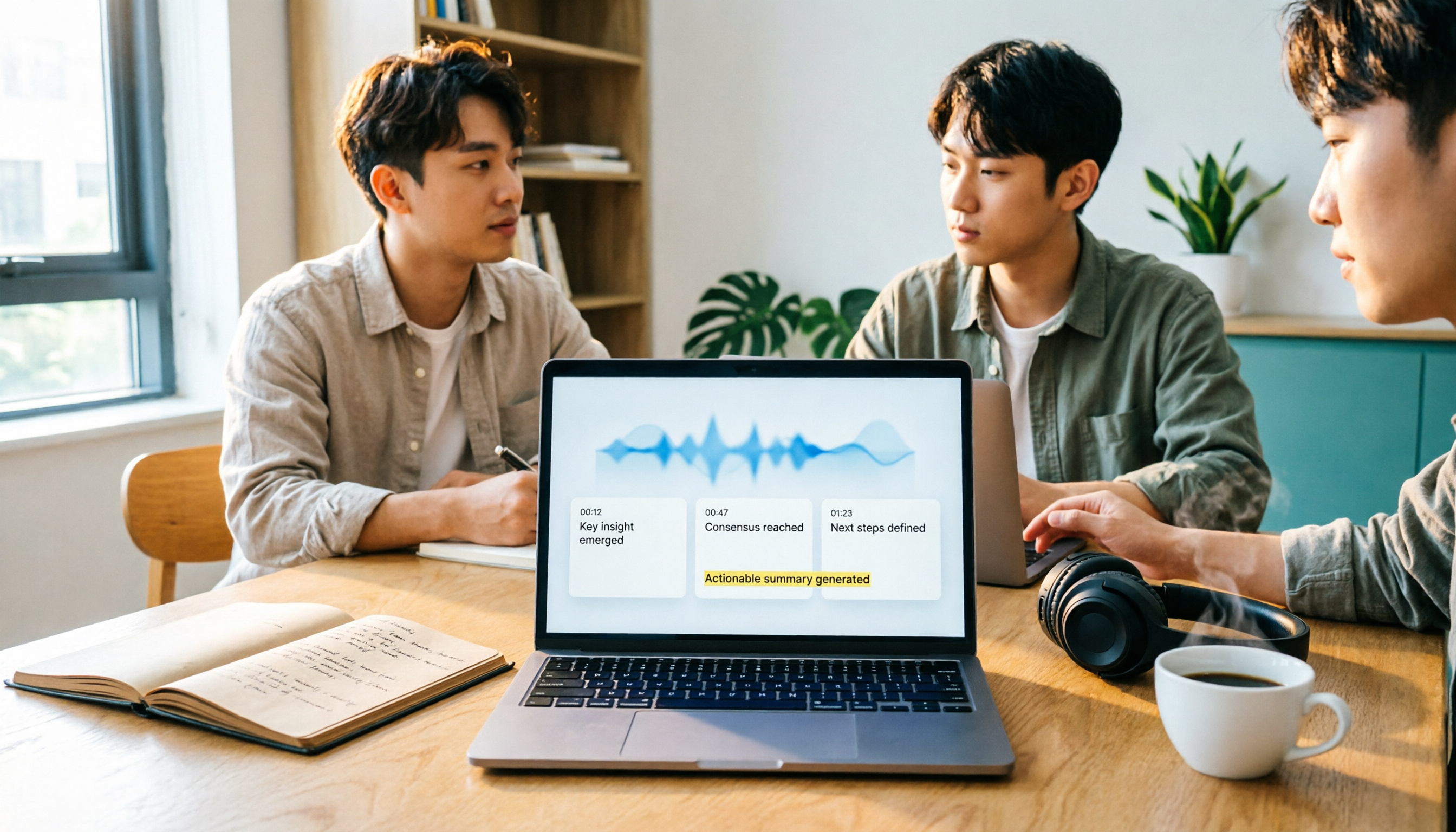
3 Ways to Record Audio on a Desktop Computer in 2026: Built-in Recorder vs. Online Tools vs. Tinrec
Desktop computers can definitely record audio, but most people start off on the wrong foot. This article tackles the common misconception that "being able to record doesn't mean you'll use it" and compares Windows/Mac built-in recorders, free online tools, and Tinrec. It also covers practical use cases for students recording lectures, online seminars, group discussions, and project interviews, along with quotas and purchasing considerations.

5 Screen Recording Methods Compared in 2026: Where the Button Is and How to Record Instantly
Where do you press to record your screen? On Windows it's Win+Alt+R, on Mac it's QuickTime Player > File > New Screen Recording, and on iPhone it's the circular button in Control Center. This guide explains the button locations, how to stop, and where files are saved on four major platforms, plus common pitfalls and how to turn meeting recordings into searchable, queryable transcripts and action items with Tinrec.

2026 Comparison of 5 Computer Recording Solutions: Recording Is Just the Start—Post-Meeting Organization Is Key
Can a computer record audio directly? Yes, but the real challenge usually comes after recording. This article reviews five computer recording solutions: built-in recording tools on Windows and Mac, Tinrec, Otter.ai, Notta, and PLAUD Note. It compares recording sources, post-meeting transcription and organization, cross-platform use, team collaboration, and free tiers, and includes buying criteria, common pitfalls, and scenario-based recommendations.

How to Record Computer Audio in 2026: A Complete Guide from Free Tools to Transcripts
This article starts with common recording mistakes and covers 5 free ways to record computer audio, including Windows Sound Recorder, Stereo Mix, Audacity, OBS Studio, and Tinrec desktop. It includes a free quota comparison table and recommended use cases to help you understand the difference between system audio and microphone audio.

Where Is the Recording Feature in 2026? Find It on iPhone, Android & PC in 3 Steps + AI Auto-Organize
Where is the recording feature hiding? This guide starts from the decision of whether you just want to record or need to use the recording afterward. It covers the exact locations and ways to open Voice Memos on iPhone, call recording on Android, and Voice Recorder on Windows, then explains why most people get stuck after finding the record button—organizing after the meeting—and tests how Tinrec turns recordings into transcripts, summaries, and action items.

5 Ways to Record Audio on a Computer in 2026: Key Differences When You Only Want Sound, Not Video
Want to record only audio on your computer, not video? This guide compares 5 Windows recording methods in 2026—from the built-in Voice Recorder, Stereo Mix, and Xbox Game Bar to OBS and Tinrec. We explain what each can capture, output formats, free limitations, and step-by-step paths, plus selection advice and 4 common pitfalls to avoid.

4 Windows Recording Methods Tested and Compared in 2026: Is Built-in Enough, and Which Can Record System Audio?
Windows 10 and 11 both have built-in recording features, but the real issue for most people isn't whether they exist—it's whether they can capture the audio they need. This article compares four methods: Voice Recorder, Xbox Game Bar, OBS Studio, and Tinrec. It explains the differences between microphone and system audio, why the other party's voice in online meetings often isn't captured, and which method suits which scenario.
4 Ways to Download iPhone Notes in 2026: Which Is Easiest for Cross-Device Sync and Export?
The built-in iPhone Notes app doesn't need to be downloaded—the real challenge is getting the text and attachments onto a computer or other platform. This guide covers four methods: iCloud web version, using iCloud on Windows, sharing or copying a single note, and downloading attachments. It compares compatible devices, capabilities, and limitations, plus answers common questions to help you choose the easiest path.

Is Transcribe Safe in 2026? 5 Key Factors to Consider
Before searching whether Transcribe is safe, don't just look at SSL. This article uses five key questions to break down data flow, access, AI training, deletion, and compliance, and compares the applicable boundaries of Transcribe App, Tinrec, Otter.ai, and Notta.