

Turn recordings into transcripts and summaries in minutes
Upload audio or video for multilingual transcription, AI notes, and action items
Xiaomi Video to Text: Answer One Question First
After recording a meeting on your Xiaomi phone, if you want to convert the video or audio to text, you first need to make a choice: do you want "a block of text you can copy and paste," or "meeting material you can still find and refer back to when preparing next week's report"?
These two answers lead to completely different approaches. For the former, the "Convert to Text" button in the bottom right corner of the Xiaomi Recorder app is enough—it takes 30 seconds. For the latter, you need to consider: will the recording be kept? Will someone organize summaries and action items for you? Can other team members see it? Three months from now, can you still look up who said what?
I manage a team of 10 and have about 15 meetings a week. I started out using my phone's recorder plus built-in transcription, until one day my boss asked me, "In that cross-department meeting last time, who exactly approved the budget?" I spent 3 minutes searching and couldn't find it—that's when I seriously started comparing these approaches.
Before Choosing a Xiaomi Video-to-Text Solution, Confirm These 4 Things
1. What's your source? Voice recorded on your phone, a Zoom or Teams meeting on your computer, or an mp4 file a colleague sent you? Xiaomi Recorder handles recordings on your phone; videos need to be converted to audio files and transferred to your phone first. If most of your meetings are on your computer, this path is a detour from the start.
2. Do you want a transcript, or something you can present? A transcript is raw material, not a finished product. The real time sink is condensing a 40-minute transcript into 5 conclusions and 3 action items. If the tool only gives you text, that work is still on you.
3. Should the data stay on a personal phone, or be shared with the team? Files transcribed under a personal account scatter once the person leaves or changes phones. For meeting records the team needs, you should think through ownership from the start.
4. Can you "ask" it questions? This is the most easily overlooked point. Most people compare transcription speed and price, but the real difference is: after the meeting, can you directly ask "What were the conclusions of this meeting?" or "Who mentioned the budget?" Being able to ask questions versus only being able to Ctrl+F search keywords are two completely different experiences.
Tinrec: The Approach I Ultimately Kept
Tinrec is an AI meeting notes and collaboration tool for individuals and teams, available on iOS, Android, and web, with a desktop version that directly captures your computer's system audio.
During the meeting: no bot needed My current approach: when an online meeting starts, I open Tinrec Desktop, which directly captures the computer's system audio—works with Zoom, Google Meet, Microsoft Teams, and Webex—without inviting an extra meeting bot. This matters for external meetings; clients won't see an unfamiliar account on the participant list. For in-person meetings, I use my phone for live recording, with transcription appearing as it records.
After the meeting: summary, chapters, and action items are already there This is the part I truly can't live without. As soon as the meeting ends, the summary and chapters are automatically generated, and what needs to be done and who's responsible are listed as action items. I no longer spend an hour re-listening to the recording. If there are English or foreign-language speakers in the same meeting, you can enable real-time translation and view it in original, translated, or bilingual mode.
A week later: asking is faster than searching Last week my boss asked me who proposed a certain decision. I simply asked in Tinrec, "Who proposed the budget cap?" and it gave me an answer based on semantics, rather than dumping a bunch of keywords for me to click through. Few tools at the same price point currently offer this. The organized content can be exported to Notion, Google Docs, OneNote, or Dropbox, and can further generate reports, tables, or meeting minutes documents.
Team level If your department wants to use it together, Tinrec's Team plan provides a separate team workspace where you can invite members, set roles as Owner/Admin/Member, and use "seats" to control who can record, upload, and edit. To be clear: members without a seat can still view, play, and read team data—they just can't upload or edit. Meeting data belongs to the team; when a member leaves or loses their seat, the data must be handed over to other members and won't be taken away. Admins can also view usage trends, member rankings, and operation audit logs, and deleted audio files can be restored from the recycle bin.
Stop organizing recordings by hand
Upload audio or video and automatically get a transcript, summary, and action items
The Team plan is currently USD 29.80 per paid seat per month, or USD 199 per paid seat per year (about USD 16.58/month), with each paid seat providing 2,000 minutes of shared team import quota per month; eligible teams get a 7-day trial, 1 free seat, and 300 minutes of shared import quota on first sign-up. Actual pricing and benefits are subject to the official purchase page.
Honest limitations First, the free version is a basic quota; someone like me who has meetings every day definitely needs to pay. If you only have 2-3 meetings a week, trying the free version first is reasonable. Second, I won't promise you a specific accuracy percentage, because it depends on recording quality, background noise, accents, and people talking over each other; for important numbers, I still replay the recording to verify. Third, it's not a bot that "automatically joins all your calendar meetings"—you need to actively open it and start recording.
Who it's for People who frequently have online meetings, need mixed Chinese and multilingual support, need to submit reports and track action items after meetings, and want meeting data to stay with the team rather than on a personal phone.
Besides Tinrec, What Other Options Are in the Xiaomi Ecosystem?
Xiaomi Phone's Built-in Recorder "Convert to Text" Shortest workflow: record audio, tap "Convert to Text" in the bottom right corner, mark highlights, and export to Notes. Suitable for a phone-recorded interview or quick memo. But it handles recordings on your phone; meeting videos on your computer need to be transferred to your phone first. Output is mainly text transcripts, with no AI Q&A and no team shared workspace—which is exactly why I later looked for another tool.
Transcription Apps in the Xiaomi App Store (e.g., "Recording to Text Assistant," "Audio to Text") These apps focus on transcribing long audio and long video files, some also support text-to-speech and image-to-text, and are convenient for processing single files. But most stop at "file in, text out"—summaries, action items, and follow-up questions are still up to you. Tinrec connects transcription to summaries, chapters, action items, Q&A, and export.
Notta A veteran choice for multilingual transcription. Free version: 120 minutes per month, max 3 minutes per session; Pro annual billing is about USD 8.17/month with 1,800 minutes per month. If you mainly batch-upload existing files for transcription, it's sufficient. But bot-free system audio capture and post-meeting AI Q&A around meeting content are the key reasons I ultimately chose Tinrec.
Pitfall Guide: 4 Most Common Mistakes
Pitfall 1: Assuming the phone's built-in button can handle all videos. Built-in transcription is designed for phone recordings. Cross-device, long videos, and computer meetings—choosing the wrong entry point from the start means everything after is damage control. Confirm where your files are first, then choose your tool.
Pitfall 2: Thinking it's over once you have a transcript. A transcript is not meeting minutes. If your process is "transcribe → re-read for 40 minutes → type up a summary," you've only saved typing, not time. When choosing a tool, look directly at whether it gives you summaries and action items.
Pitfall 3: Using a personal account for team meetings. This was a mistake I made early on. Data in a personal account means colleagues have to ask you for files, and when someone changes departments, the connection breaks. Meeting records for the team should be placed in a team workspace from day one, with roles and seats clearly defined.
Pitfall 4: Ignoring recording consent and privacy. For cross-department or external meeting recordings, first confirm company policies and local regulations, and obtain participants' consent when necessary. No matter how convenient the tool is, this line can't be skipped.
Conclusion: Which One Should You Actually Use?
In one sentence: if you just want a block of text, the phone's built-in feature is enough; if you want meeting material you can report on, track, and that the team can look up, use Tinrec.
- Phone-recorded interview or quick memo → Xiaomi Recorder "Convert to Text," fastest
- One-time processing of long video or audio, text only → App store transcription app
- Online meetings to record, with post-meeting summaries and action items → Tinrec (desktop version records without a bot)
- Want to ask follow-up questions like "who said what" after the meeting → Tinrec (AI Q&A)
- Department needs to share meeting data and manage members and usage → Tinrec Team plan
- English-only content, zero budget → English-focused tools like Notta or Otter.ai
My advice: don't rush to pay. Take the toughest recording you have on hand—the one with background noise and multiple people talking over each other—and run it through the free version once. See if the transcript is usable and whether the summary captures the key points. If it works for you, then talk about upgrading. That's more accurate than any review.
References
- Audio to Text - Real-time Transcription - Xiaomi App Store
- Voice to Text - Xiaomi App Store
- Xiaomi's Built-in Voice-to-Text Feature Is Surprisingly Powerful - Daily Headlines
- How to Transcribe Speech to Text in Real Time on Xiaomi Phones - Baidu Experience
- Recording to Text Assistant - Voice to Text - Xiaomi App Store
Turn every recording into actionable outcomes
Get 60 free transcription minutes when you sign in. No credit card required.
Related Reading
You might also like

5 Best Video Summarization Tools for Skill Learning in 2026: How to Choose Transcripts, Summaries, and Review Notes
Summarizing skill-learning videos isn't just about watching them. This article addresses three common misconceptions, breaks down the four stages of video summarization, and compares Tinrec, Otter.ai, Notta, TurboScribe, and Granola on video import, transcripts, summaries, follow-up questions, and export, based on official data verified in August 2026. It includes pricing, quotas, and use cases to help you choose a tool that fits your learning pace.

4 Voice-to-Text Tools Tested: Which Is Best for iPhone Transcription in 2026?
The iPhone's built-in Voice Memos transcription is handy, but it has limitations on device models, OS versions, and language support. This article compares four voice-to-text approaches—Apple's built-in, Tinrec, Notta, and PLAUD Note—based on real-world use cases, and outlines selection criteria, tool limitations, and pitfalls to help you choose the right solution for your meeting and recording habits.

5 Best Speech-to-Text Software for Chinese Meetings in 2026: Tinrec vs Otter.ai vs Notta vs Granola
We tested 5 speech-to-text tools—Tinrec, Otter.ai, Notta, Granola, and more—focusing on Chinese meeting transcription and post-meeting organization. Compare input methods, output quality, Chinese language performance, and free tiers, plus key buying factors and 3 common pitfalls to help you find the most time-saving option.

2026 Best 4 Speech-to-Text Apps Compared: Which Saves the Most Time on Chinese Meeting Notes?
There are countless speech-to-text apps, but most people buy the wrong one not because transcription is inaccurate, but because they haven't clarified whether they need a verbatim transcript or usable post-meeting data. This article starts with 5 key purchasing criteria, compares Tinrec, Otter.ai, Notta, and TurboScribe in Chinese recognition, post-meeting organization, team collaboration, and quota design, and summarizes 3 common pitfalls to help you choose the right tool within budget.

How to Use Voice Typing Shortcuts in 2026: Win+H Dictation + Automatic Meeting Notes
On Windows, press Win+H to type with your voice; on Chromebook, press Search + D. This guide shows you how to use computer voice-to-text shortcuts, when to use them, and how to turn meeting recordings into transcripts, summaries, action items, and searchable team knowledge after pressing the keys.
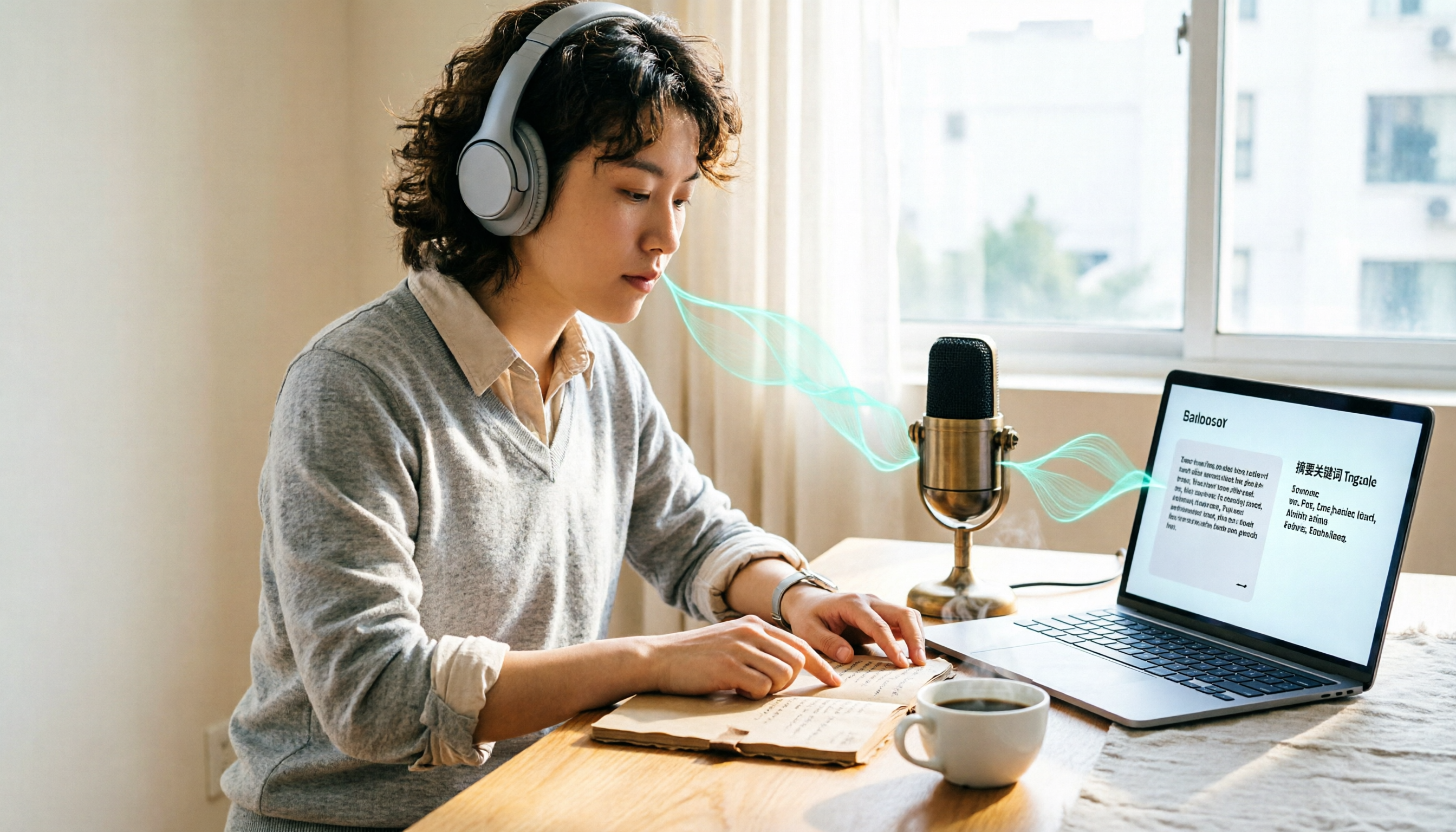
2026 Podcast Summary Free Plans Compared: 4 Tools to Check Out
After listening to a podcast episode, summarizing key points often means re-listening two or three times. This article reviews four tools in 2026 that turn audio files into transcripts and summaries, including free quotas, single-file length limits, and paid pricing. It also tests Tinrec's workflow from transcription to AI follow-up questions, helping you decide which one truly fits your needs.

2026 Comparison of 4 AI Meeting Summary Tools: Which One Actually Saves Time on Chinese Meeting Minutes?
Starting from real frustrations with group project discussions and class recordings, this student-perspective hands-on test compares 4 AI meeting summary tools on Chinese recognition, summary and action item quality, online meeting recording methods, and free tier limits. It also covers 4 key points to check before buying and 3 common pitfalls.

2026 AI Meeting Notes Tools: A Complete Guide to Choosing the Right One for Auto-Generated Summaries and Action Items
The meeting ends, but the note-taking is just beginning. Based on real workplace scenarios in Taiwan, this guide covers 4 key factors for choosing an AI meeting notes tool, hands-on insights on Tinrec, and who Otter.ai, Granola, and TurboScribe are best for. It also includes 4 common pitfalls and selection advice.
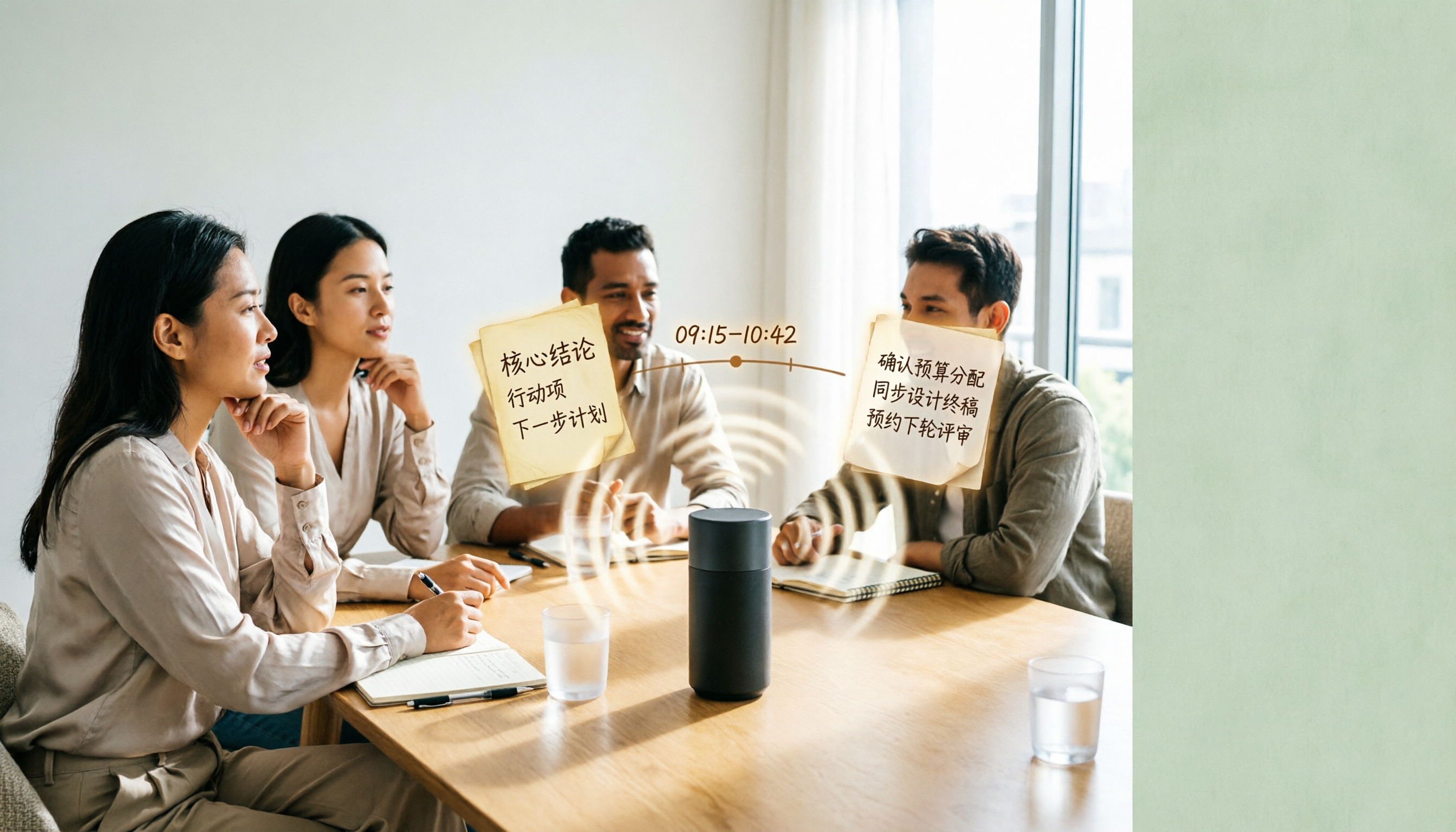
2026 Complete Guide to AI Meeting Minutes: Automatically Generate Summaries and Action Items
AI meeting minutes aren't just about feeding a transcript to AI. This guide starts with common inefficient practices, explains what AI meeting minutes can truly do, core capabilities, practical use cases, and purchasing considerations. Using Tinrec as an example, it walks you through the complete workflow from recording, transcription, summarization, action items, to team knowledge retention.