

Turn recordings into transcripts and summaries in minutes
Upload audio or video for multilingual transcription, AI notes, and action items
Ask yourself one question first: Is your recording just for listening, or is it for work?
Both are about turning iPhone recordings into text, but the needs are very different.
One is a quick note of inspiration or a voice message—you just want to see the text quickly and you're done. The other is a meeting, interview, or class recording where the text needs to be organized, shared with colleagues, and referenced two weeks later to check who said what.
These two situations call for completely different approaches. Using the wrong method won't fail outright, but it will cost you hours.
Below I walk through the four built-in methods currently available on iPhone, then discuss when it's time to switch tools.
Can built-in features work? Pass these 3 thresholds first
Threshold 1: Device model. Voice Memos transcription requires iPhone 12 or later; older models won't get it even after a system update.
Threshold 2: iOS version. Transcription itself requires iOS 18, but Chinese (Traditional and Simplified) is only supported starting iOS 18.4. Many people get stuck here—they upgrade to 18 but still can't transcribe Chinese.
Threshold 3: Audio source. Call recording only works with the native Phone app; third-party messaging apps like LINE and WhatsApp are not supported.
Once you pass all three, read on.
Method 1: Voice Memos transcripts—the easiest path
This is currently the most foolproof approach—no app installation needed.
- Open Voice Memos, tap record, and save when done.
- Check if a small icon with quotation marks inside a speech bubble appears below the recording name. If so, the transcript has been generated.
- Tap the three-dot icon next to the recording and select "View Transcript."
- To copy the text, tap the three dots in the top right, select "Copy Transcript," then paste into Notes or Mail.
Note: Transcripts are generated alongside the recording file; no extra settings are needed during recording. However, if your recording is an old file from before a system upgrade, it may not automatically get a transcript. In practice, the more reliable approach is to re-record or send the audio file to another tool for processing.
Method 2: iMessage voice message to text—good for short phrases
Starting with iOS 17, iMessage voice messages automatically convert to text after sending.
This is great for "say one thing and done" scenarios: noting a license plate, a to-do, or a sudden idea.
The limitation is clear: it's part of the messaging feature, not designed for meeting recordings. To copy the text, you practically have to take a screenshot and select-copy—not a smooth text organization workflow.
Method 3: Notes recording + dictation—for fragmented notes
iPhone's Notes app can also record audio and generate a transcript alongside the recording, suitable for classes or impromptu discussions where you "listen and take notes" simultaneously.
Additionally, iOS dictation can convert your speech to text in real time—great for dictating sentence by sentence in a quiet environment.
However, dictation happens in real time, so mistakes must be corrected on the spot; unlike recordings, you can't re-listen later. It also can't distinguish between multiple speakers.
Method 4: Call recording transcripts—with conditions
iPhone call recording can also generate transcripts after iOS 18, but as mentioned earlier, it's limited to the native Phone app.
If you mainly use LINE or WhatsApp for work discussions, this path won't work—you'll need to record another way and import for processing.
Where do built-in features hit their ceiling? When to switch tools
Built-in features are free and require no app installation—good enough for "turn a recording into text." But you'll start hitting walls in these situations:
- The recording is on your phone, but you organize on your computer.
- After transcription, you still need to extract key points, write to-dos, and email colleagues.
- You're recording online meetings like Zoom, Google Meet, or Teams.
- The recording is 40 minutes long, and you need to find "who mentioned the budget" but have to scroll from the beginning.
At this point, consider Tinrec. It's an AI meeting notes and collaboration tool for individuals and teams, available on web, desktop, and mobile.
Stop organizing recordings by hand
Upload audio or video and automatically get a transcript, summary, and action items
It solves not just "turning into text" but "what happens after text." After recording or importing audio, Tinrec generates a transcript and also organizes summaries, chapters, and action items—no need to read a long meeting from start to finish.
Online meetings are its differentiator. Tinrec's desktop version directly captures your computer's system audio, so when handling Zoom, Google Meet, Microsoft Teams, or Webex, you don't need to invite a meeting bot to join as a participant. For teams that dislike an extra account suddenly appearing in meetings, this is practical.
You can keep asking questions after recording. This sets it apart from ordinary transcription tools: you can directly ask about meeting content, such as "Who mentioned the budget last meeting?" and it will answer based on the content rather than dumping a bunch of keyword search results. It also supports real-time translation, bilingual display, and export to Notion, Google Docs, OneNote, Dropbox, and other tools for further processing.
Multi-person collaboration requires the Team plan. The Team plan is a separate team workspace, not multiple people sharing one account. Admins can manage members, roles, and seats, view usage trends and activity logs, and transfer resources when members leave. Pricing: Team monthly is USD 29.80 per paid seat per month, annual is USD 199 per paid seat per year (about USD 16.58/month), each paid seat includes 2,000 minutes of shared team import quota per month; eligible teams get a 7-day trial with 1 free seat and 300 minutes. The Personal plan includes Free, Weekly, Pro Monthly, and Annual—actual prices and benefits are subject to the official purchase page.
Limitations, clearly stated: Tinrec is not a bot that "automatically joins all your meetings"—you need to actively start recording. Transcription accuracy is affected by audio quality, accents, overlapping speech, and technical terminology; for important content, verify against the recording.
Beyond Tinrec, there are other options
Otter.ai: A mature choice for English business meetings. Free plan includes 300 minutes per month; Pro annual works out to about USD 8.49 per user per month. If your recordings are mainly in English, it's a cost-effective solution. But it lacks Tinrec's post-processing workflow of asking questions directly about meeting content and generating report tables.
Notta: A veteran tool for multilingual transcription and file translation. Free plan includes 120 minutes per month with a 3-minute limit per file; Pro annual works out to about USD 8.17 per month. Suitable for subtitles and file transcription. Downsides: the free quota is fragmented, and it doesn't have Tinrec's desktop bot-free recording for online meetings.
PLAUD Note/NotePin: AI recording hardware, device starting at USD 159, membership extra. Suitable for people who are often on the go and don't want to hold their phone to record. But it's hardware-oriented; online meetings and post-meeting team collaboration are not its strong suit—which is exactly where Tinrec handles things without extra equipment.
Pitfall guide: 4 most common mistakes in transcription
Pitfall 1: Assuming iOS 18 enables Chinese transcription. Chinese transcripts require 18.4 or later, and iPhone 12 or later. Confirm these two things first to save half a day of troubleshooting.
Pitfall 2: Expecting perfect results from distant, noisy recordings. In meeting rooms with air conditioning noise, keyboard sounds, and multiple people talking at once, the transcribed text will definitely need manual correction. To improve, place the phone closer or use a desktop tool that captures system audio.
Pitfall 3: Assuming old recordings will automatically get transcripts. Files recorded before an upgrade may not generate transcripts—don't bet important meetings on this. Confirm the feature works before recording.
Pitfall 4: Using the tool only as "audio-to-text." If after transcription you still manually organize summaries, extract to-dos, and scroll through half an hour of transcript to find one sentence, you're only using a third of what these tools can do.
Conclusion: Which one should you choose for your situation?
- Just turning phone recordings into text, free is fine → Voice Memos transcripts (remember to check iOS 18.4 and device model).
- One-sentence inspiration or to-do → iMessage voice message or Notes dictation.
- Recording on phone, organizing on computer, plus summaries and to-dos → Tinrec, solves cross-device and post-meeting organization in one go.
- Want to ask "What was the meeting conclusion?" right after recording → Tinrec, conversational query is its core difference.
- Pure English meetings, budget-first → Otter.ai's free quota is quite sufficient.
- Large volumes of long documents, subtitle needs → transcription tools like Notta are more suitable.
- Often recording on the go, don't want to hold phone → hardware like PLAUD.
Start with the free options to run through the workflow once, confirm you really need "post-transcription organization," then consider paying. Most people don't need that much at first.
References
- iPhone voice-to-text setup tips: 5 methods to achieve audio-to-text - Mr. Mad
- iPhone Voice Memos to text tutorial: transcripts without third-party apps - Mr. Mad
- iPhone Notes and Voice Memos apps also have transcript features! Turn class, meeting, and speech content into text in seconds: simple 4-step tutorial | BusinessNext
- How to easily do voice-to-text with built-in iPhone features?
- Don't want to pay for audio-to-text tools? iPhone built-in features can do it now | TechNews
Turn every recording into actionable outcomes
Get 60 free transcription minutes when you sign in. No credit card required.
Related Reading
You might also like

2026 Comparison of 4 Audio Transcription Tools: Free Tiers, Chinese Recognition, and Post-Meeting Organization
Meeting recordings pile up on your phone with no time to re-listen? This article starts from real-world usage scenarios and breaks down the core capabilities that audio transcription tools should have, including real-time transcripts, bot-free online meeting recording, AI summaries, action item extraction, and AI Q&A. It also compiles 5 purchase checkpoints and differences between personal and team plans to help you determine which approach truly saves organization time.

4 Subtitle Extraction Tools Tested and Compared in 2026: Which One Turns Video Audio into a Searchable Transcript?
How do you extract subtitles from a video? Most people get stuck not on the tool, but on not first clarifying whether they want an SRT subtitle file or text that can be searched, queried, and organized into notes. This article compares 4 approaches: FFmpeg with Subtitle Edit, TurboScribe, Notta, and Tinrec. It starts with the difference between hard subtitles and soft subtitle tracks, explains who each is suitable for, free quotas and limitations, and summarizes 3 common pitfalls.

5 Best PDF to Text Tools in 2026: OCR for Scanned Files, Output Formats, and Pricing Compared
PDF to text conversion often gets stuck when scanned files lack a text layer, formatting comes out scrambled, and file retention policies are unclear. This article breaks down four common misconceptions, then compares PDF Candy, iLovePDF, Monica, RightPDF Online, and Xodo on output formats and OCR differences. It also explains how Tinrec fits in when your source is actually a meeting recording or video.

5 Free Video-to-Text Tools Tested for 2026: Which Free Tier Is Enough?
We tested five video-to-text tools available in 2026—Tinrec, cSubtitle, VEED, Vidnoz, and Notta—and break down each one's free limits, registration requirements, how to use it, and restrictions. Includes a free-feature comparison table to help you pick the right tool for your needs.

2026 AI Meeting Notes Tools Compared: Free Tiers, Chinese Transcription, and Post-Meeting Q&A
The quality of meeting notes isn't about how clean the transcript is. This article uses the same real meeting recording to test Tinrec, Granola, Notta, and TurboScribe across transcription, summarization, action items, and team collaboration. It outlines 4 key buying factors and 5 common pitfalls, with recommendations for Chinese meetings, bot-free online recording, batch transcription of long files, and team sharing scenarios.

3 Best Free Japanese Speech-to-Text Tools in 2026: Free Tiers and Meeting Notes Comparison
A comparison of three Japanese speech-to-text tools with free options, covering free quotas, Japanese recognition scenarios, post-meeting summaries, and team usage limits. Tinrec focuses on multilingual meeting transcription, bot-free recording, AI Q&A, and team spaces; TurboScribe suits batch transcription of long audio files; MyEdit suits subtitle output. Data verified as of August 18, 2026.
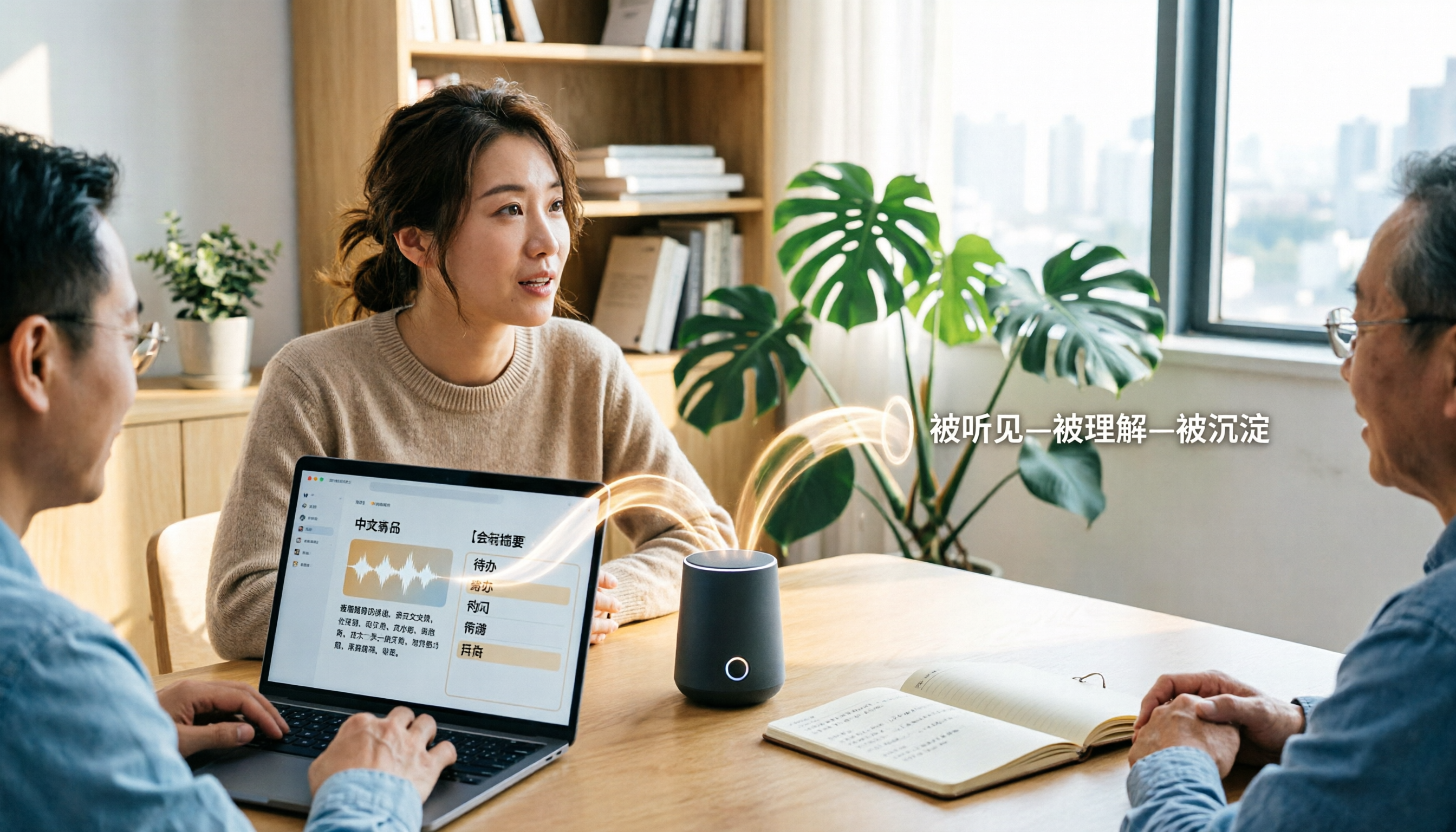
2026 Comparison of 4 Audio-to-Text Tools: Which Saves the Most Time for Chinese Meetings and AI Organization?
How to choose an audio-to-text tool in 2026? This article compares Tinrec, Granola, TurboScribe, and PLAUD from the perspectives of meeting recording, post-meeting organization, team collaboration, and quota limits, helping you determine which one suits Chinese meetings and team data retention.

2026 Comparison of 4 AI Meeting Summary Tools: Which One Has the Best Chinese Summaries and Free Tier?
I used class recordings, group discussions, and interview practice to test Tinrec, Otter.ai, Notta, and Granola—four AI meeting summary tools—comparing Chinese summaries, free tiers, post-meeting Q&A, and export options to help budget-conscious students find the most practical tool.

2026 Podcast Summary Free Plans Compared: 4 Tools at a Glance
A roundup of 4 free podcast summary tools in 2026, covering transcription of recorded audio, AI summaries, Q&A, Chinese recognition, free quotas, and per-file limits, to help you decide which one turns long episodes into searchable, queryable key notes.