
Turn recordings into transcripts and summaries in minutes
Upload audio or video for multilingual transcription, AI notes, and action items
Last semester, I took a seminar course where my group had to meet weekly on Google Meet, sharing screens to report progress. The worst part wasn't making slides—it was taking meeting notes afterward. The professor jumped between topics, and group discussions got chaotic. I'd try to type while listening, and my notes ended up so messy I couldn't even read them. Then I started using Tinrec, and I realized meeting notes could be this easy: while screen sharing on Google Meet, Tinrec records in the background, and within minutes after the meeting, it auto-generates a transcript, AI summary, and action items—no more scrambling.
What Can Tinrec Do for You?
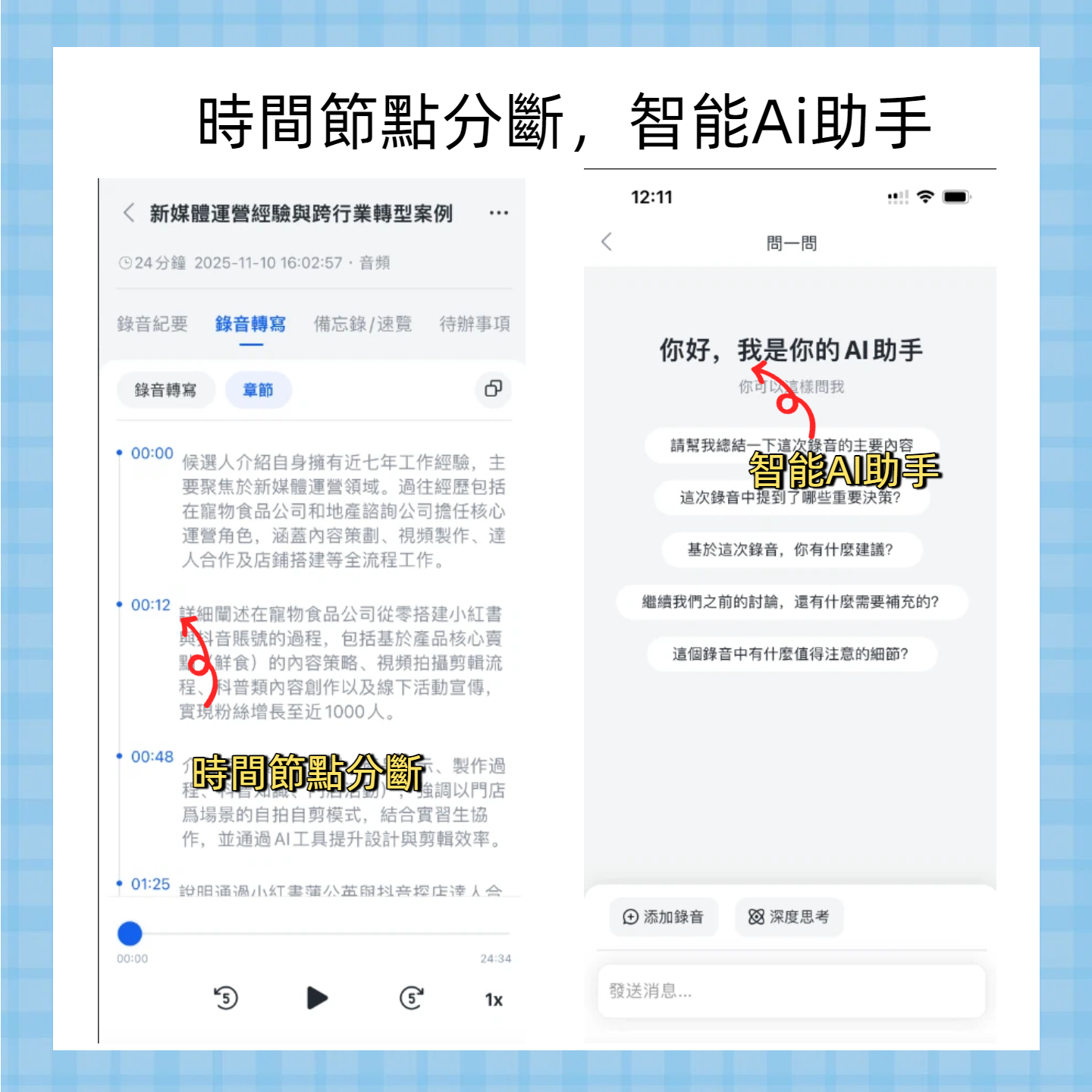
Before, after a two-hour Google Meet, I'd spend at least half an hour re-listening and typing transcripts. Now with Tinrec, it's a breeze. It's not just a recording tool—it turns meeting content into actionable material instantly.
Scenario 1: Meeting minutes in 5 minutes after a project meeting
Every time I screen share to report, while group members ask questions, Tinrec is already transcribing in real time. The moment the meeting ends, the AI summary pops up: meeting topic, conclusions, who's responsible for what, deadlines—all clear. I just drop the summary into the group chat, and everyone says, "Man, you're way too efficient."
Scenario 2: Convert online lectures into review notes
The worst part of remote learning is when professors screen share on Google Meet and flip through slides too fast. I use Tinrec to record the whole class, then later open the transcript and AI chapter breakdown. Before exams, I just search keywords to find key points—saves all that note-taking time.
Scenario 3: Internship interviews or client calls – quickly organize insights afterward
I had a series of online interviews where the interviewer shared a screen to give problems, and I worried about missing details while answering. So I started using Tinrec to record, then used the AI Q&A feature to ask, "What was that technical question about?" It instantly found the relevant segment, making follow-up emails super easy.
What Are Tinrec's Core Features?
Tinrec is completely different from the phone recording apps I've used before. It handles meetings like a smart assistant that organizes key points for you.
Real-time transcription
It transcribes while recording—not after. During a Google Meet, I can watch the live text to make sure I'm not missing anything. The delay is under a second, and accuracy is high, even for mixed Chinese-English technical terms.
AI summary
This feature saved me multiple times during finals. It doesn't just condense the transcript; it structures it: meeting topic, discussion conclusions, action items, all separated. Once after a two-hour project meeting, the summary even caught the extra tasks the professor assigned on the fly. I just pasted it into Notion as a to-do list.
AI Q&A
After transcription, you can ask Tinrec questions, like consulting a librarian. For example: "Who mentioned the budget cap in the meeting?" or "What was the client's feedback on point two?" It answers based on semantics, no need to scan the whole transcript.
Cross-device support
I use both iPhone and MacBook, and I can also log in via browser. Whether I'm using Google Meet on a computer or phone, Tinrec can record. No extra hardware needed—your phone is the recorder.
Stop organizing recordings by hand
Upload audio or video and automatically get a transcript, summary, and action items
Multiple output formats
Exported content can be saved as Word, TXT, PDF, or synced to Notion and Google Docs. I usually export each meeting's summary and action items to Notion's project database, keeping the entire semester's discussion traceable.
Real-World Use Cases
Group project discussions
Our department holds weekly Google Meet screen-sharing sessions. I typically use my MacBook and simultaneously use Tinrec's web version with "Computer Audio" to capture system audio and my microphone. Even during screen sharing, recording works perfectly. After the meeting, minutes are auto-generated. A two-hour meeting produces a summary within five minutes—no more late-night note catch-ups.
Online course review
I once took an online course where the professor screen shared code on Google Meet. I recorded with Tinrec, later exported the transcript, and used the chapter feature to split content by topic. Before exams, I searched keywords like "recursion" or "time complexity" to jump directly to relevant sections—much faster than scrubbing through video recordings.

Internship interview prep
Before interviews, I record mock interviews with seniors on Google Meet, then review them later. Tinrec's AI Q&A lets me find specific feedback on questions like "How to improve my self-introduction?" quickly, cutting note-taking time by half.
4 Key Points When Choosing a Meeting Minutes Tool
There are many voice-to-text tools on the market, but as a student on a budget, I set a few criteria, and Tinrec met almost all of them.
1. Accuracy: Don't just trust ads—test it
Some tools claim high accuracy but fail with Chinese-English mixed speech or background noise. In my tests recording Google Meet with a fan running, Tinrec's Chinese recognition was solid. Technical terms occasionally had errors, but context usually made them guessable.
2. AI features: Transcription is just the start—organization matters
If you only need a transcript, many free apps work. But Tinrec's AI summary, action item extraction, and Q&A are what really save me time. After a meeting, no need to re-listen—just read the summary to know the key points. Few other tools offer all three simultaneously.
3. Language support: Must handle Chinese well
Since our classes and meetings are mostly in Chinese, good Chinese support is crucial. Tinrec handles traditional Chinese well, even mixed with English technical terms. Unlike some foreign tools that only work well with English.
4. Cross-platform and pricing: Works on phone and computer, free tier is enough to start
Tinrec has iOS, Android, and web versions, so no matter what device you use for Google Meet, you can record. Pricing-wise, the free tier offers basic monthly transcription credits. When I tried it, I recorded three project meetings and still had credits left. For frequent meetings, the Pro monthly card costs under $6 (less than a meal out)—great value.
FAQ
Q: How do I use Tinrec to record during Google Meet screen sharing?
A: It's simple. If you're using a computer, open Tinrec's web version, click "Start Recording" and select "Computer Audio." It will capture both meeting audio and your microphone. Screen sharing video isn't recorded, but audio is clear. Mobile works too—just use speakerphone or conference mode.
Q: Is the free tier enough for one meeting?
A: Depends on length. Student project discussions usually last 1–2 hours; the free tier covers about 2–3 meetings. If you have multiple meetings weekly, consider a weekly card during finals—affordable and sufficient.
Q: Does Tinrec support Chinese? Is it accurate?
A: Yes, it supports traditional Chinese and handles mixed Chinese-English well. Accuracy drops if audio is poor or many people speak at once, but under normal conditions it's over 90%. I still recommend double-checking critical details.
Q: Is my recorded data secure? Will it leak?
A: Tinrec encrypts recordings and transcripts in the cloud, accessible only by your account. According to their privacy policy, they don't use your content to train models, so you can use it safely.
Summary
If you're like me—often using Google Meet for meetings, classes, and screen sharing, and struggling with meeting notes—you should really try Tinrec. It's not just a recorder; it's an AI assistant for meeting organization: real-time transcription, auto summary, action item tracking, and direct Q&A, all in one. The student plan is affordable, the free tier lets you experience it, and the Pro monthly card costs about the same as a boba tea. Since the semester started, I've recommended it to three classmates, and they all said, "Why didn't you tell me sooner?" Stop wasting time typing transcripts—give it a try. You'll be amazed how easy meeting notes can be.
Turn every recording into actionable outcomes
Get 60 free transcription minutes when you sign in. No credit card required.
Related Reading
You might also like
2026 Comparison of 2 Post-Meeting Automation Tools: Tinrec vs. Notta for Actionable Follow-Ups
The meeting ends, but the work begins. This article focuses on post-meeting automation and compares Tinrec and Notta across meeting capture, post-meeting summaries, action item extraction, AI Q&A, team knowledge retention, and pricing plans. It also outlines automation workflows for cross-departmental meetings and provides a buying checklist to help you decide which tool better suits professionals and teams with multiple daily meetings.

2026 Comparison of 5 AI Meeting Workflow Tools: Which One Can Actually Help You Send Meeting Minutes Before You Leave Work?
The real challenge for AI meeting workflow tools isn't transcription—it's post-meeting organization, follow-up questions, deliverables, and team knowledge retention. Using Tinrec as the primary example, this article breaks down bot-free recording, real-time transcripts and translation, summaries with chapters and action items, AI Q&A, export options, and team governance, plus 5 key buying considerations and FAQs.

2026 Complete Guide to AI Office Automation: From Meeting Notes to Team Collaboration
A complete 2026 guide to AI office automation, starting from meeting note pain points, analyzing selection criteria, hands-on experience with Tinrec, differences between Otter, Notta, TurboScribe, and Fireflies, and pitfalls to avoid during implementation, helping you turn meeting content into actionable, collaborative team data.

2026 Comparison of 4 Meeting Follow-Up Automation Tools: Whose To-Dos Actually Get Tracked?
Meeting follow-up automation is more than just transcription. This article breaks down the three layers of transcription, organization, and follow-up, demonstrates the complete workflow from recording to to-dos, Q&A, export, and team knowledge retention using Tinrec, and outlines 5 key purchasing checkpoints and team pricing.

2026 Comparison of 5 AI Meeting Action Item Tools: Which One Actually Captures Owners and Deadlines?
After meetings, action items get scattered across group chats and recordings with no one following up? This article starts from the actual workflow of action item extraction, outlines 4 key points for choosing an AI meeting action item tool, and compares Tinrec, Otter.ai, Notta, Granola, and others on Chinese recognition, bot-free recording, to-do structure, and team tracking, with a pitfalls guide and selection advice.

2026 AI Office Automation Tools Compared: Which Really Saves Time on Meeting Notes and To-Dos?
Where should you start with office automation? This article examines the hidden work hours before and after meetings, compares five types of AI office automation approaches, and uses Tinrec as the main hands-on test subject to explain what bot-free recording, transcripts, summaries, action items, AI Q&A, and team spaces can and cannot do. It includes pricing and five key buying criteria.

6 AI Meeting Note Tools Compared for 2026: From Meeting Notes to Actionable Tasks
From small group discussions to project meetings, AI meeting tools shouldn't stop at transcripts. This article uses a student's hands-on perspective to compare 6 AI meeting note tools in 2026, covering recording, summarization, to-dos, and team collaboration, and organizes pricing, free quotas, and use cases to help you decide which one truly turns meetings into actionable tasks.

AI To-Do List Generation in 2026: Turn Meetings into Action Items with Owners
Tired of spending hours after meetings organizing action items? This guide tackles the real pain points of mid-level managers, breaks down what automated to-do generation can and cannot do, and uses Tinrec as an example to demonstrate the complete workflow from recording and transcription to AI summaries, action item extraction, and team knowledge retention. Includes a buying checklist and FAQs.

6 Best AI Meeting Notes Generators in 2026: Which Free Version Is Good Enough?
Tired of writing meeting notes after every call? We tested 6 tools that automatically generate meeting minutes, including Tinrec, Otter.ai, Notta, Granola, TurboScribe, and PLAUD Note. We compare transcription, summarization, action items, and team collaboration, and honestly list the limitations of free and paid plans to help you find the most time-saving option.