

Turn recordings into transcripts and summaries in minutes
Upload audio or video for multilingual transcription, AI notes, and action items
Many office workers ask how long ChatGPT can record. The native ChatGPT recording mode maxes out at 120 minutes, but it isn’t purpose-built for meeting minutes—there’s no speaker separation, no structured summary, and you still have to organize everything after the session. If you want to turn an audio recording into useful meeting notes or a verbatim transcript, a dedicated speech-to-text tool is the real answer. This article uses Tinrec (秒聽錄音) as an example to walk you through a few simple steps, so you can leave work on time instead of staring at a recording.
Before You Start | What You’ll Need
• A smartphone (iPhone or Android—Tinrec supports both platforms) • The Tinrec app (free download from the App Store or Google Play; sign in with Google or Apple ID) • An audio file you want to transcribe (meeting recording, lecture recording, or interview) • A stable internet connection (live transcription requires internet; for offline mode, download a language pack in advance)
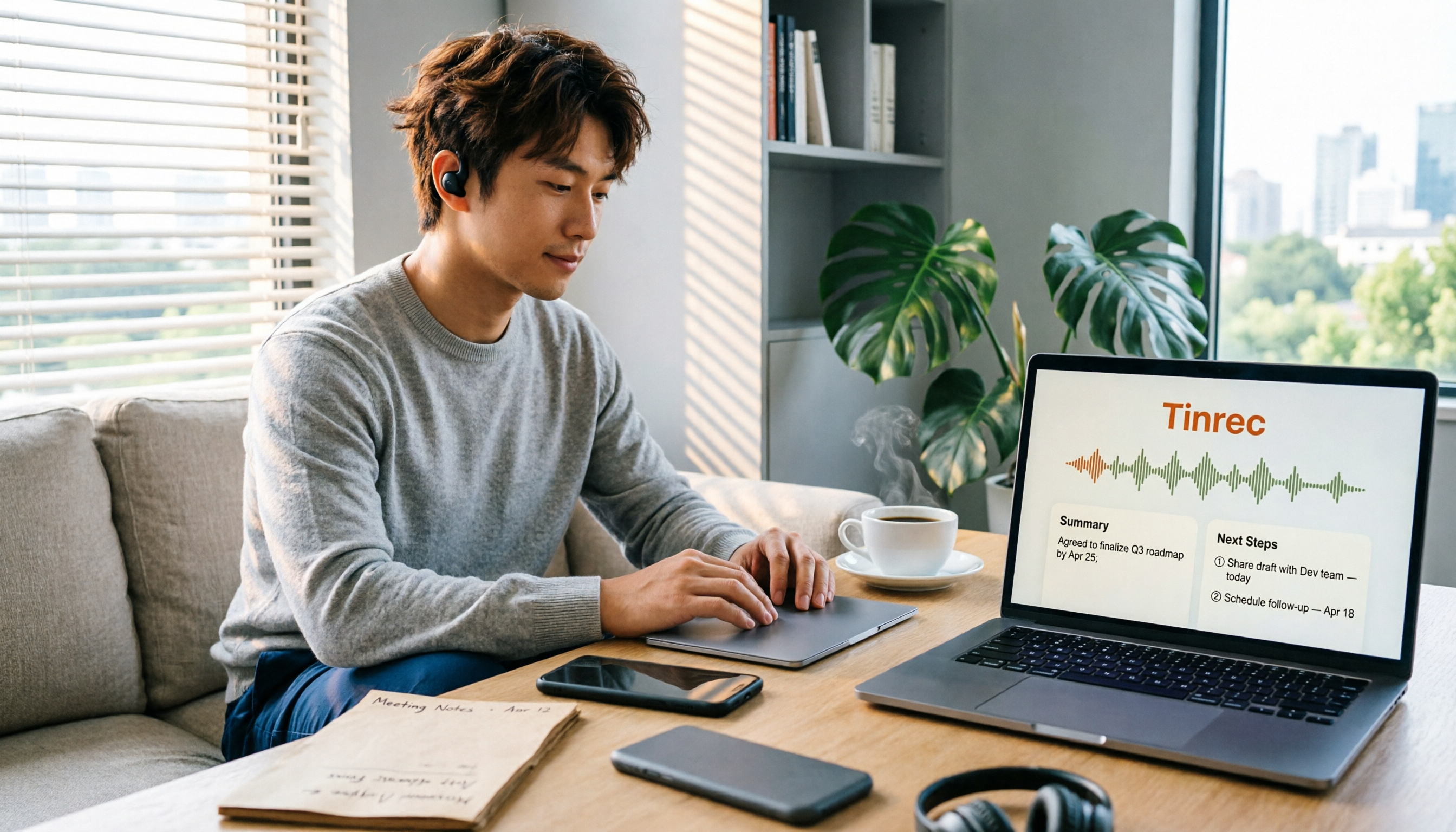
(Illustration: A person in a meeting room in a Central office building opens their smartphone to start recording, with coffee and a notebook on the desk and a skyline visible through the window.)
Step 1: Record the Content You Want to Transcribe
The goal here is to get a clear audio file—every subsequent step depends on it.
Open Tinrec and tap the record button on the main screen to start. During recording, keep the phone close to the speaker—the closer the distance, the better the pickup and the higher the transcription accuracy. For a one-on-one interview, place the phone between the two people; for a multi-person meeting, place it in the center of the table.
Why emphasize recording quality? Because AI transcription accuracy is heavily dependent on audio quality—even the best transcription engine cannot fix a fuzzy recording. Instead of spending time proofreading later, spend 30 extra seconds at the start to confirm the placement.
When you’re done, you’ll see the recording on the Tinrec home screen, with its duration and file size shown alongside.
(Illustration: A person sits in a meeting room with a phone placed in the center of the table surrounded by colleagues; the screen shows real-time transcript text in a professional, natural setting.)
Step 2: Let AI Convert Your Recording into a Transcript
After recording, Tinrec automatically converts the audio to text. This usually takes a few minutes, depending on the length of the recording.
Find your recording in the list and tap it to see the finished transcript. Tinrec supports many languages, including Cantonese and mixed Chinese-English content—something many competitors can’t handle as naturally. If the recording has background noise, turn on smart noise reduction in settings to improve the transcription.
Why is Tinrec’s transcription especially suited to Hong Kong users? Because it recognizes common Cantonese vocabulary and context accurately—it won’t make Taiwanese-style mistakes like turning “的士” into “計程車”.
When you’re done, you’ll have a searchable and editable transcript.
(Illustration: A computer screen displays a clean transcript with timestamps; the background is a modern office with soft lighting.)
Step 3: Quickly Proofread the Transcript
AI transcription isn’t perfect, especially with jargon or overlapping voices, so there may be occasional errors. But Tinrec’s design makes proofreading fast.
You can edit the transcript directly—just tap the text to change it. Tinrec also automatically labels speakers (e.g., “Speaker 1,” “Speaker 2”), and you can rename them for easier reading. If you’re unsure about a passage, tap the timestamp to jump straight to that part of the recording.
Why proofread? Because you’ll use this transcript to create meeting minutes, and errors will affect the quality of the AI summary. With Tinrec, you’ll find proofreading is much faster than with other tools, because the interface doesn’t force you through complex editing functions.
After proofreading, you’ll have an accurate transcript.
(Illustration: A person edits a transcript in Tinrec on a laptop, with a finger on the trackpad; the screen shows the speaker-name editing interface, and a cup of Hong Kong-style milk tea sits nearby.)
Step 4: Let AI Create Meeting Minutes for You
This is where Tinrec saves the most time—you don’t have to read the whole transcript.
On the transcript page, tap the “AI Summary” button, and Tinrec will automatically generate a structured meeting summary, including: • Overview: 2–3 paragraphs covering the main points of the meeting • Key points list: 5–10 important takeaways • Action items: automatically extracts who needs to do what
Stop organizing recordings by hand
Upload audio or video and automatically get a transcript, summary, and action items
You can edit the content on this “canvas,” or ask Tinrec to format it as an official meeting record, or even turn it into an email or project plan. If you want to recall a specific decision, just ask in the AI chat: “What was the decision about the budget in this meeting?” Tinrec will answer within seconds and include links to the relevant audio clips.
(Illustration: A computer screen displays a polished meeting summary with an overview, key points, and action items; an AI chat panel is open as the user types a question, with an open Central office view in the background.)
Step 5: Export and Share
Once you’ve organized everything, you can take the results to other tools.
Tinrec supports exporting to TXT, Word, and PDF, and it can sync directly to cloud services such as Notion, Google Docs, and OneNote. If you often send meeting notes to colleagues, this feature is genuinely convenient—no more downloading and then re-uploading.
Tap the “Share” button to generate a link that teammates can use to view the recording summary—they don’t need Tinrec installed. This is especially useful for office workers who collaborate with colleagues across departments.
(Illustration: A person holds a phone showing a share screen with icons for multiple platforms; they’re tapping Notion, with a bright MTR train car in the background.)
FAQ and Troubleshooting
Q: What if the transcription has lots of errors? Usually it’s due to a noisy recording environment or a distant speaker. Tinrec has built-in smart noise reduction—turn it on in settings before recording. If you’re working with an existing audio file, you can manually select the “High Noise Environment” mode after importing it. Many transcription tools on the market lack this option—they use a default mode for all recordings, so results are naturally worse.
Q: Can I see the transcription immediately after recording? Tinrec supports live transcription, so text appears as you speak—great for meetings where you want to review key points immediately. ChatGPT’s native recording mode also offers real-time transcription, but it doesn’t separate speakers or create summaries; you get a canvas that you have to organize yourself.
Q: How long can Tinrec record? Tinrec has no hard limit on recording length, but the free plan includes a monthly transcription quota of 120 minutes, which is ample for occasional use. If you’re in meetings every day, the Pro version is much better value. Compared with ChatGPT’s 120-minute cap, Tinrec is clearly better suited to long meetings and managing multiple recordings.
Q: Are the recording files kept? Tinrec stores the recordings and transcriptions in your account, so you can go back, listen, and search anytime. ChatGPT, by contrast, automatically deletes the audio after transcription, leaving only the transcript and summary canvas. If you need to keep recordings for long-term reference, Tinrec is the better choice.
Pro Tips: 3 Ways to Double Your Productivity with Tinrec
1. Use AI Chat to Search Past Recordings Tinrec has a unique feature that lets you query it like a database. For example: “In last month’s meeting about the new product, who was responsible for marketing?” It will automatically search all relevant recordings and give you the answer. ChatGPT or other transcription tools can’t do this yet—they only handle a single conversation.
2. Convert Online Videos to Text Directly Want to keep a YouTube or Xiaohongshu (RED) video for reference? Paste the link into Tinrec, and it will transcribe and summarize it. This feature is extremely useful for content creators who frequently watch online tutorials or look for inspiration—and most meeting-note tools on the market don’t offer it.
3. Sync Across Platforms and Edit Anywhere Start recording on your phone and continue editing on your computer when you’re back at the office—Tinrec automatically syncs your data. You can also send transcripts and summaries directly to Notion or Google Docs without switching back and forth. This workflow is especially convenient for people using an iPhone with a Windows computer.
Alternatives If You Don’t Use Tinrec
Otter.ai: Focuses on English meetings and can automatically join Zoom recordings, but it’s weak on Cantonese and Chinese support; best for business people who frequently deal with foreign clients. Pricing starts at $8.33 USD.
Notta: A versatile tool similar to Tinrec, with solid transcription and translation, but its AI Q&A and online video features aren’t as polished as Tinrec’s. The Pro plan costs $8.17 USD/month.
But if you’re a Hong Kong office worker dealing with Cantonese meetings, lecture recordings, or online videos, Tinrec’s localization and all-in-one features will suit you better and save you the hassle of juggling multiple tools.
Conclusion
With these five steps, you can now use Tinrec to turn any recording into a transcript, automatically generate meeting minutes, and even use AI chat to find highlights—no more working overtime to listen to audio and type. Next step: download the free version of Tinrec, grab one of your own recordings and try it—the monthly 120-minute free quota is enough for two or three meetings. Rather than asking “how long can ChatGPT record,” why not try a professional tool and get home in time for dinner.
References
- How Long Can ChatGPT Record? 2026 Recording-to-Text Tools Review and Tinrec Practical Guide - Tinrec Blog
- How to Use the ChatGPT App’s “Voice-to-Text” for Meeting Notes or Notes to Boost Output Efficiency - TNL The News Lens
- ChatGPT Recording | OpenAI Help Center
- ChatGPT Recording Mode Goes Live! One-Click Generation of “Key Summary + To-Do List” for 2-Hour Meetings: 4-Step Tutorial | BusinessNext
- ChatGPT Record - Complete Guide to AI Voice Transcription and Auto-Summary | OAO Studio
Turn every recording into actionable outcomes
Get 60 free transcription minutes when you sign in. No credit card required.
Related Reading
You might also like

4 iPhone Recording Methods Compared in 2026: Which One Helps You Organize Key Points After Recording?
Recording on iPhone isn't just about pressing the red button. This article addresses common misconceptions and covers practical methods for using the built-in Voice Memos, call recording, and external microphones. It explains why post-recording organization is crucial and introduces how Tinrec turns iPhone recordings into searchable, queryable, and shareable transcripts and meeting materials.

4 Best Audio Transcription Tools in 2026: Where Samsung Voice Recordings Are Stored and How to Organize Them
Can't find your Samsung voice recordings? It's usually not because the files were deleted, but because you don't know where they're stored. This article first explains where Samsung voice recordings are located, where the files are saved, and call recording limitations. Then it compares 4 audio organization tools side by side, showing how to use AI to organize transcripts, summaries, and action items after recording.
5 Best iPhone Call Recording Solutions in 2026: From Built-in Features to AI Transcription
iPhone finally has built-in call recording starting with iOS 18, but the real challenge is what comes after: transcription, summarization, and organizing your data. This article compares 5 common iPhone call recording and post-call organization solutions, including iPhone's built-in call recording, Tinrec, Notta, TurboScribe, and PLAUD recording hardware. We break down features, pricing, and ideal users, and remind you about the legal and consent issues you must consider before recording.

5 Fast iPhone Recording Methods Compared: One-Tap Start, But Who Can Organize Your Meeting?
iPhone has 5 built-in quick recording methods: Action Button, Lock Screen shortcut, Back Tap, Control Center's Local Capture, and the basic Voice Memos. This hands-on comparison covers startup speed, use cases, and limitations, and explains how to choose a tool for meeting notes and avoid common pitfalls.

How to Record iPhone Calls in 2026: Built-in One-Tap Recording + Automatic Transcription
Starting with iOS 18.1, iPhone has a built-in call recording feature. This guide walks you through checking your system version, region and language support, the notification both parties hear, and legal considerations, then shows you step by step how to record a call, find the recording file, and access the transcript. It also covers the real limitations of the built-in feature and what you can add for post-call organization, cross-platform use, and team collaboration.

4 Call Recording Transcription Tools Compared in 2026: Can You Record, and What to Do After?
Can you legally record a phone call? This article covers Taiwan legal practice, iPhone and Android support limitations, and compares four tools—Tinrec, PLAUD, Notta, and Granola—to show how to turn call recordings into searchable transcripts, summaries, and action items.

2026 Android Recording Showdown: AI App vs. Dedicated Hardware — Which Should You Choose?
Recording on Android phones seems simple, but since Android 10, call recording has been removed from most devices. This article first covers three Android recording scenarios and their practical methods, then compares Tinrec and PLAUD Note across five dimensions: setup requirements, post-meeting organization, file handling, team collaboration, and pricing. Find out whether you should use your existing phone with an AI tool or invest in a dedicated recording device.

3 Ways to Record iPhone Calls in 2026: Built-in Feature Is Free but Limited, Meeting Organization Needs This
After iOS 18.1, iPhone finally has built-in call recording and transcription, but region restrictions, two-party notification, and no support for LINE and other apps deter many users. This article covers the actual usage and 5 limitations of built-in call recording, common misunderstandings and pitfalls to avoid, and compares alternatives like Tinrec, Otter.ai, Notta, and PLAUD in terms of use cases and pricing to help you decide which approach saves the most time.

5 Android Call Recording Apps Tested in 2026: Cube ACR vs Tinrec — Which Makes Recordings Truly Usable?
People searching for "call recording app Android" often get stuck on the same question: after you record the call, then what? This article compares Android built-in call recording, Cube ACR, Call Recorder, and other recording methods, plus how Tinrec turns call and meeting audio into searchable, summarizable, queryable data. It also covers buying tips and FAQs.