
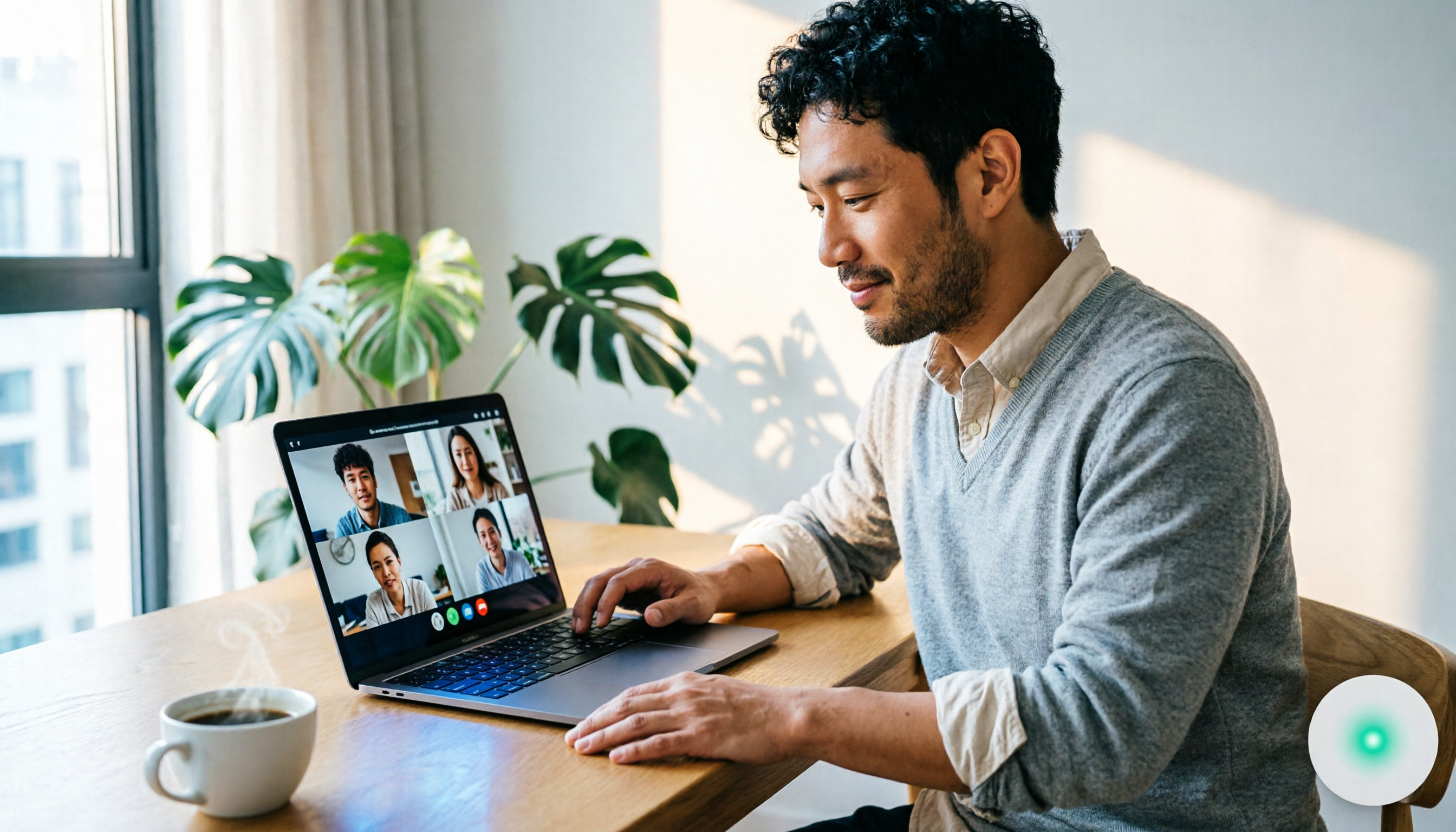
Turn recordings into transcripts and summaries in minutes
Upload audio or video for multilingual transcription, AI notes, and action items
Midway through a meeting, you suddenly realize that the decisions, revision directions, and client commitments you just discussed were never captured.
So you start searching for "Does Google Meet auto-record?"
The answer is: yes, but not for everyone.
Google Meet's automatic recording feature exists, but it's not enabled by default. You need to meet several conditions simultaneously, and many people's accounts aren't even within the supported scope.
So in this article, I want to split the discussion into two parts: the first part covers the setup process and limitations of Google Meet's official automatic recording; the second part covers how you can build your own automatic recording workflow when you can't use the official feature.
First, Understand: Google Meet's Automatic Recording Isn't a Default Feature
Many people assume that once you open Google Meet and the screen appears, recording starts automatically.
That's not how it works.
According to Google Workspace documentation, automatic recording must first be enabled by an administrator in the backend, and only specific Workspace editions support it.
If your organization uses a free Gmail account, or if your admin hasn't included you in the recording permission scope, you won't even see the automatic recording option when you start a meeting.
So the first step isn't to look for a button in the meeting—it's to confirm your account type and organizational settings.
Step 1: Confirm Your Google Workspace Edition Supports It
Google Meet's automatic recording is tied to your Workspace edition, not personal Gmail.
Generally, you need a supported business or education edition, and the admin must enable recording in the Admin Console.
If you don't see the recording option on your screen, there are usually three reasons:
- You're using a free Gmail account.
- Your Workspace edition doesn't support recording.
- Your admin hasn't granted you recording permission.
So instead of endlessly searching the meeting interface, first go back and verify which type of account you're using.
Step 2: Have an Admin Enable Recording Permissions
Even if your organization uses a supported Workspace edition, recording isn't necessarily enabled by default.
An admin needs to go to the Google Admin Console and allow recording in the Meet settings.
Moreover, recording permissions aren't all-or-nothing. Google's documentation notes that certain participants may not be able to record, such as users outside your domain or participants who aren't hosts in a moderated meeting.
This also explains why, in the same organization, some people can record while others can't.
Permissions are tiered.
If you're a host but the recording button is grayed out, you typically need to check whether your admin has excluded you from recording permissions.
Step 3: Hosts Enable "Start Recording Automatically" in Advance
Once permissions are in place, setting up automatic recording is actually quite simple.
When creating a meeting, the host can go to "Video call options," turn on "Meeting recording," and then check "Record meeting."
After that, as long as the host or a co-host joins from the web, recording starts automatically—no need to manually click the record button.
Participants will also see an on-screen notification when they join, letting them know the meeting is being recorded.
Here's a key detail: even if you've enabled automatic recording in advance, if the host or co-host doesn't join from the web, recording won't start.
So if you want to ensure the meeting is captured, don't just set the option—also confirm that the host actually joins via a browser when the meeting starts.
Step 4: When You Lack Permissions or Your Edition Doesn't Qualify, Build Your Own Recording Workflow
This is where most people get stuck.
You're not an admin, so you can't change backend settings.
Or your organization uses the free edition, so automatic recording doesn't exist from the start.
In such cases, I'd suggest a different approach: don't rely on Google Meet's built-in features—build your own meeting recording workflow.
Stop organizing recordings by hand
Upload audio or video and automatically get a transcript, summary, and action items
My approach is to use the Tinrec desktop app.
Its principle differs from meeting bots; it doesn't require adding a stranger bot to your meeting. Tinrec desktop directly captures the system audio playing on your computer, so it can record audio from Zoom, Google Meet, Microsoft Teams, or Webex.
Before a meeting starts, I open Tinrec and start audio recording and live transcription.
When the meeting ends, I already have a transcript, plus AI-generated summaries, chapters, and action items.
I don't need to replay the entire recording to find key points, nor do I need to manually compile meeting notes.
The biggest advantage of this method is that it's not restricted by Google Workspace edition or admin permissions.
As long as you can play meeting audio on your computer, you can record it.
Plus, after recording, you can directly ask Tinrec: "What was the conclusion of this meeting?" "Who's responsible for what?" It will pull the relevant content from the transcript, rather than just giving you keyword search results.
Beyond Official Auto-Recording: What Other Options Are There?
If you're looking for alternatives to Google Meet's automatic recording, there are indeed several tools on the market.
But let me be clear upfront: not every tool fits your situation.
Otter.ai is a mature AI meeting assistant, performing well in English meetings and offering meeting bot features. However, if you primarily hold meetings in Chinese, its contextual advantages aren't as pronounced.
Fireflies.ai excels at meeting automation and sales analytics, but its core model requires adding a bot to your meeting, which can be a concern for those who don't want unfamiliar participants in their meetings.
Tinrec takes a different path.
It doesn't require a meeting bot, nor is it tied to a specific meeting platform. Whatever you play on your computer, it records.
This makes it a more flexible choice for those whose company policies prohibit external bots in meetings, or for those who use multiple meeting tools.
Pitfall Guide: 4 Common Mistakes When Setting Up Automatic Recording
Pitfall 1: Assuming One-Time Setup Lasts Forever.
Google Meet's automatic recording settings are typically tied to a single meeting. Just because you set it for one meeting doesn't mean it will automatically carry over to the next.
So every time you create an important meeting, double-check the recording option again.
Pitfall 2: Forgetting to Confirm the Host Joins from the Web.
Automatic recording starts only when the host or co-host joins from the web. If the host joins only via the mobile app, recording may not start.
Confirming this before the meeting can save you from discovering nothing was recorded after it ends.
Pitfall 3: Treating Recording as the Only Documentation Method.
Recording files are large, and replaying them is time-consuming. What's truly valuable isn't the video itself, but the key points, decisions, and action items extracted from the meeting.
If you only record without organizing, the recording quickly becomes a file nobody opens.
Pitfall 4: Ignoring Participant Consent and Company Policy.
Recording meetings can raise privacy and legal issues. Before starting a recording, confirm the legal requirements in your region and whether your company allows meeting recordings.
When necessary, obtain participant consent first—it's not just polite; it's also protecting yourself.
Summary: What Should You Actually Do?
If your organization uses a supported Workspace edition and your admin has granted permissions, then Google Meet's automatic recording feature can indeed be used.
The setup is: admin enables permissions, host checks the auto-record option in meeting settings, and then confirms the host joins from the web.
But if your situation is:
- You use a free Gmail account with no automatic recording option.
- Your admin hasn't enabled recording permissions.
- You need to record content across multiple meeting tools like Zoom, Meet, and Teams.
- You don't want meeting bots joining your meetings.
- You want summaries, action items, and transcripts directly after recording.
Then building your own recording workflow will be more reliable.
My recommendation: start with Tinrec's free version.
Before a meeting, open the desktop app, record a session, and see if the transcript, summary, and action items meet your needs.
If you find it useful, then consider upgrading.
You don't need to pay upfront, nor do you need to change your entire organization's Workspace settings just for automatic recording.
Test gradually, and you'll be able to build a meeting documentation method that doesn't depend on platform permissions.
References
Turn every recording into actionable outcomes
Get 60 free transcription minutes when you sign in. No credit card required.
Related Reading
You might also like

2026 Comparison of 3 Simultaneous Interpretation Apps: Latency, Bilingual Transcripts, Post-Meeting Organization—Which One Is Really Enough?
The value of a simultaneous interpretation app goes beyond the instant translation in your earphones. Starting from real pain points in cross-language meetings, this article breaks down four key aspects: real-time transcription, bilingual comparison, summary and action items, and team knowledge retention. It also shares five details to consider when choosing an app, based on hands-on experience with Tinrec.
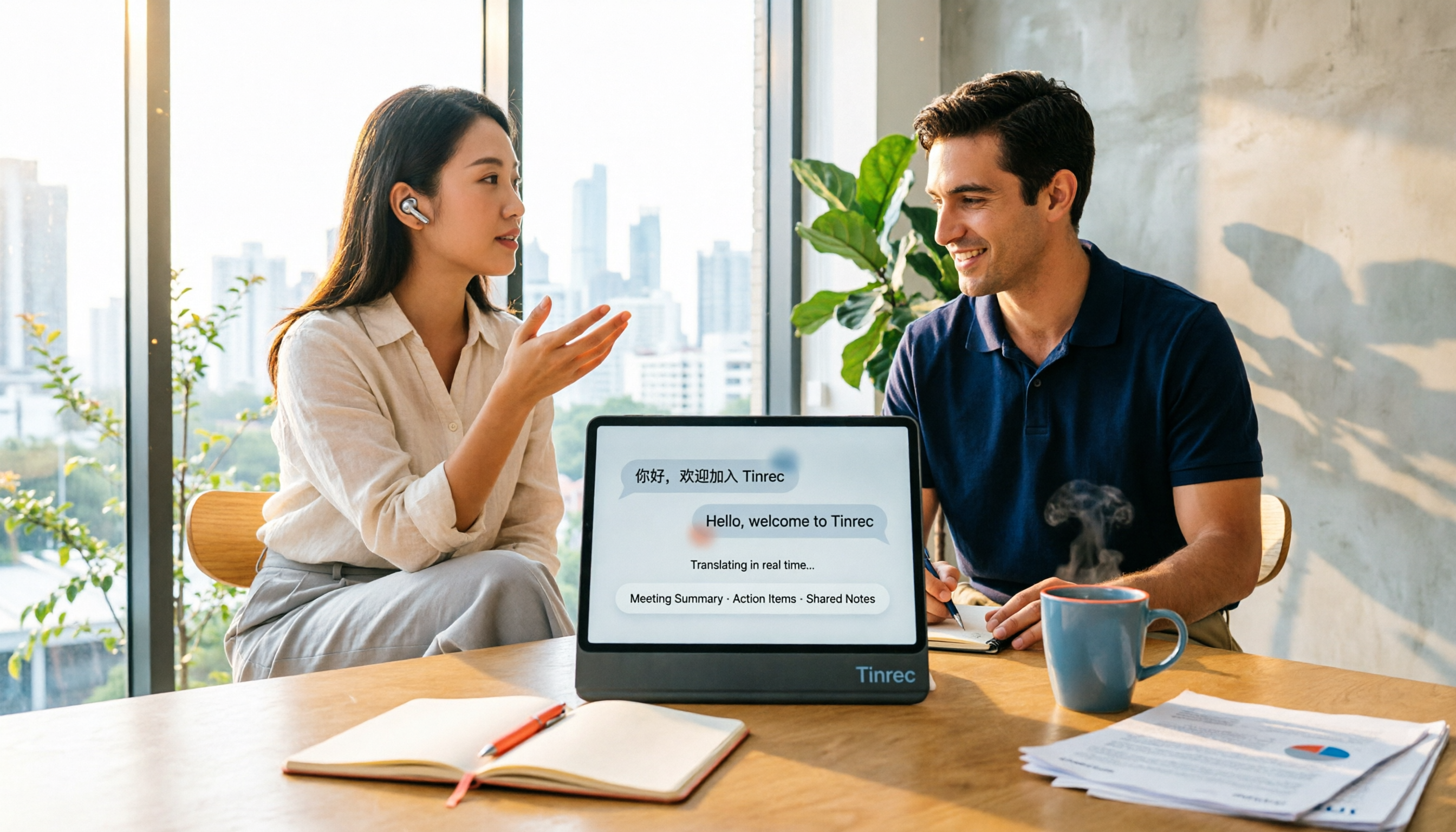
4 Real-Time Translation Apps Compared for 2026: From Travel Conversations to Meeting Notes
Real-time translation apps aren't just about how many languages they support. This article compares Tinrec, Google Translate, Microsoft Translator, and VoiceTra across four angles—travel conversations, multilingual meetings, post-meeting organization, and team collaboration—to help you find the right fit.

2026 Voice Translation App Comparison: Tinrec vs Google Translate — Which One Turns Meetings into Usable Data?
Most people download voice translation apps thinking 'speak a sentence, get a translation,' but the real time sink is reviewing meetings and interviews afterward. This comparison of Tinrec and Google Translate evaluates five dimensions—transcripts, online meeting recording, post-meeting organization, bilingual comparison, and team collaboration—to help you decide which fits your actual workflow.
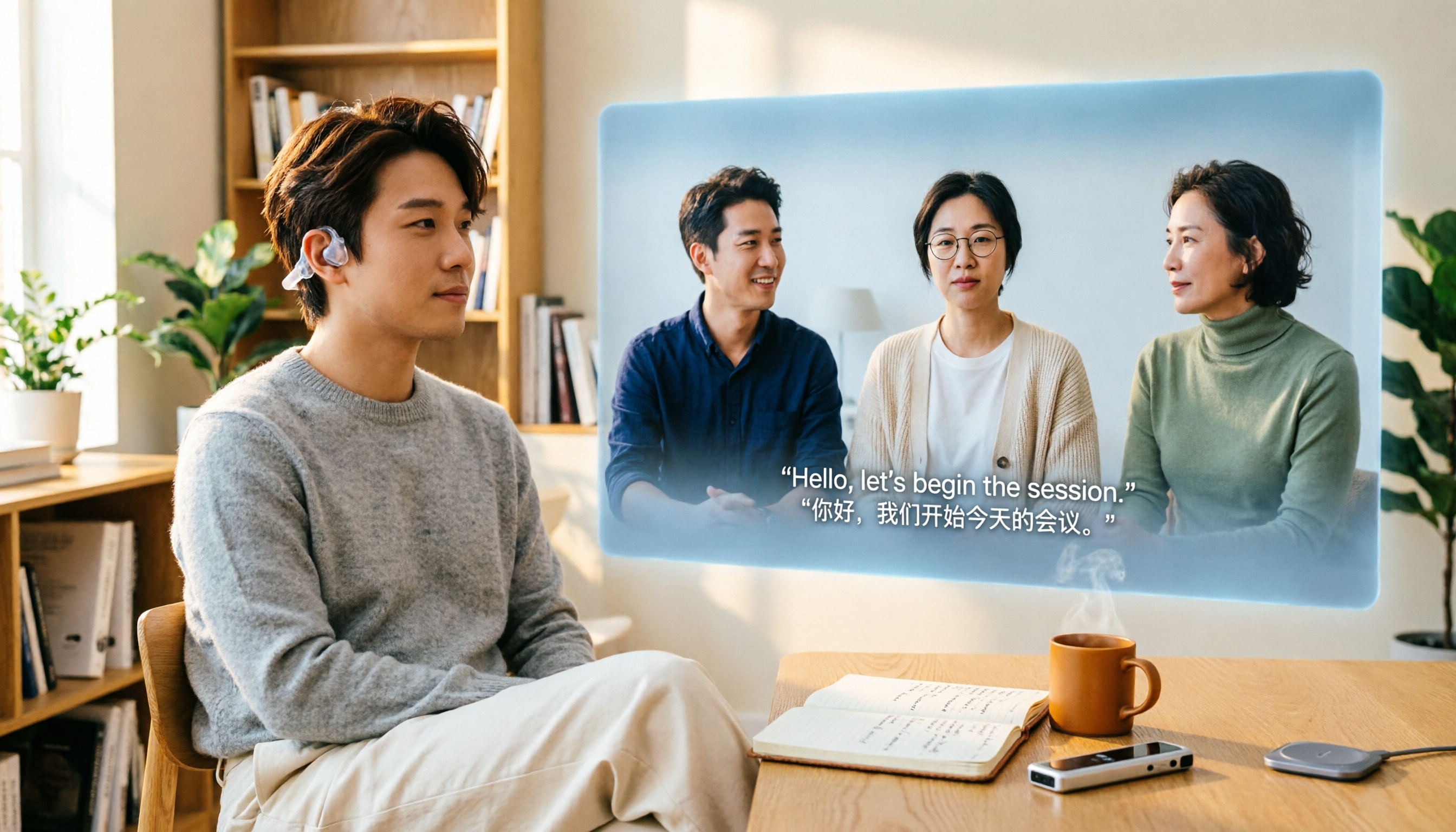
5 Real-World Online Translation Scenarios Compared in 2026: Which Needs Bilingual Subtitles Most—Meetings, Classes, or Videos?
Online real-time translation isn't just pasting text into a translation box. This article breaks down five scenarios—international meetings, online courses, foreign-language videos, client interviews, and team collaboration—and uses Tinrec to compare original text, translated text, and bilingual views. It also covers six buying checkpoints and FAQs to help you choose the right tool, not just the cheapest one.
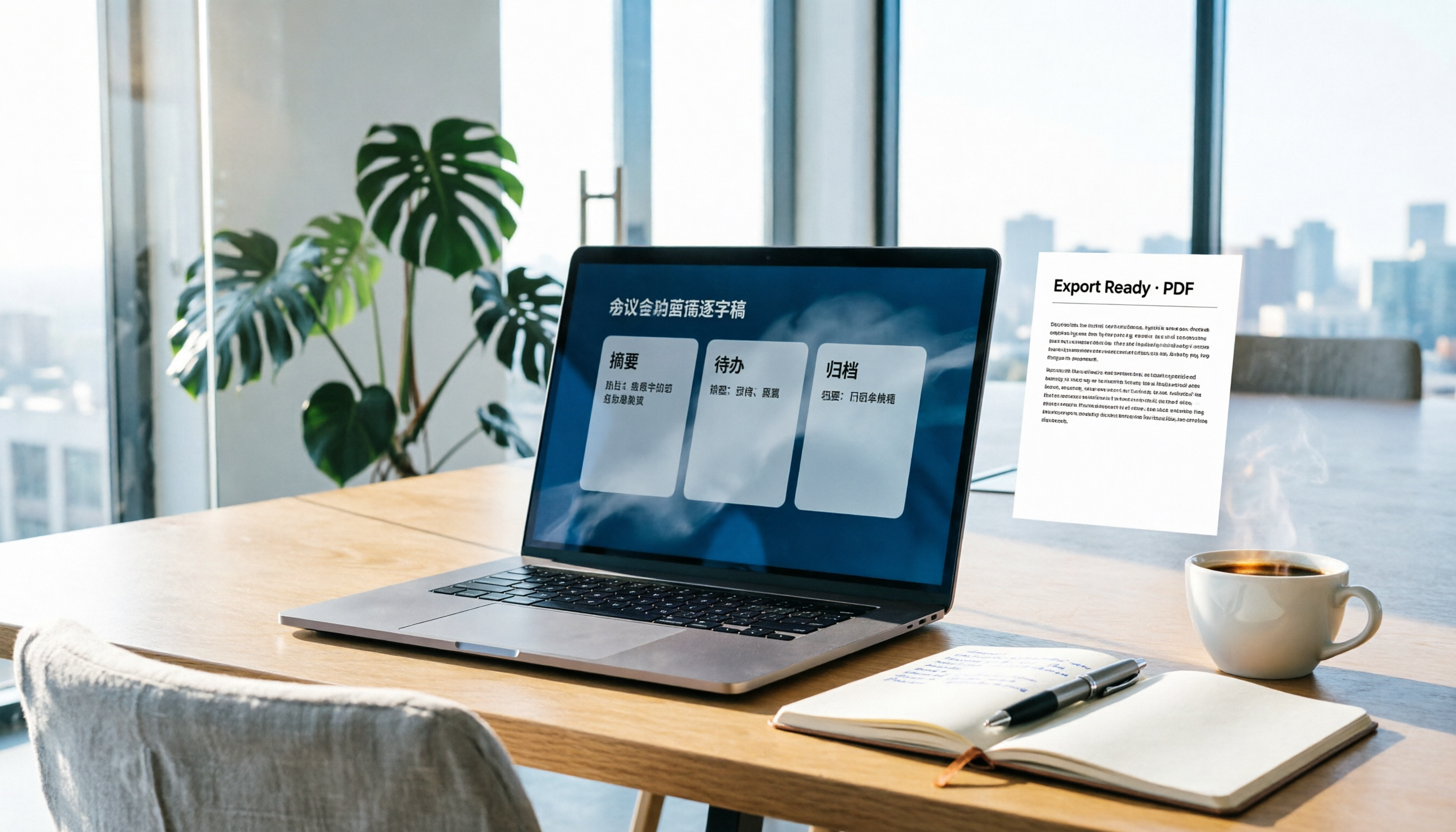
How to Write Meeting Minutes in Word (2026 Workflow): 3-Section Structure + AI-Generated Transcripts
Writing meeting minutes in Word isn't hard—the hard part is where the content comes from. This guide breaks down a three-section Word meeting minutes structure you can hand off directly, and shows how to use Tinrec to generate transcripts, summaries, and action items during the meeting, then export to Word for formatting and archiving—cutting documentation time from two hours to ten minutes.

Tinrec vs Otter.ai: Real-Time Translation Software Comparison for Chinese Meetings (2026)
Based on a student's hands-on experience, this comparison evaluates Tinrec and Otter.ai across five dimensions: real-time translation, Chinese-English mixed speech recognition, free tier limits, post-meeting organization, and recording sources. It verifies pricing and restrictions for each plan and explains which real-time translation software better suits classroom, group project, and international meeting scenarios for Taiwanese university students.
2026 Comparison of 5 Speech-to-Text Tools: Is the Free Version Enough, and Which Handles Chinese Meetings Better?
Speech-to-text isn't just about turning audio into words. This article addresses three common misconceptions, breaks down the real differences between speech-to-text tools, and uses Tinrec to demonstrate a complete workflow from recording, transcription, summarization, to-dos, to team knowledge retention. It also includes 5 purchasing checkpoints and FAQs.
2026 Comparison of 4 Free Transcription Tools: Which One Has the Best Free Quota and Post-Meeting Organization?
Based on real scenarios of meetings, classes, and interviews, this article compares the free transcription capabilities of Tinrec, Google AI Studio, Good Tape, and oTranscribe, and summarizes free quotas, Chinese recognition, post-meeting summaries, and export limitations to help you decide which one to try first.
Free Transcription in 2026: Tinrec's 3-Step Audio-to-Text with AI Summary & Action Items
Turn class, meeting, and interview recordings into searchable transcripts even on a tight budget. This guide covers 4 key factors for choosing a free transcription tool, tests Tinrec's audio-to-text, AI Q&A, and action item extraction workflow, and honestly compares the free limits and use cases of Google AI Studio, Yating Transcription, and MyEdit.