
Turn recordings into transcripts and summaries in minutes
Upload audio or video for multilingual transcription, AI notes, and action items
How Much Should You Budget to Set Up a Conference Room That Works with Google Meet?
When you're tasked with "setting up a conference room that can run Google Meet," the hardest question to answer usually isn't which device to buy—it's the boss asking, "How much will this cost?" The hardware procurement budget isn't a single number; it's a set of items: camera, microphone, speaker, controller, cables, plus licensing. Miss any one of these, and the budget you report will get padded during the procurement phase.
The goal of this article is simple: break down the cost structure, explain which areas are most prone to overruns, and outline what to buy first and what can be deferred at different budget levels. We won't list specific dollar amounts because hardware prices and licensing plans change over time and vary by reseller; official quotes should always come from the manufacturer and resellers.
What Makes Up the Cost of Google Meet Conference Room Hardware?
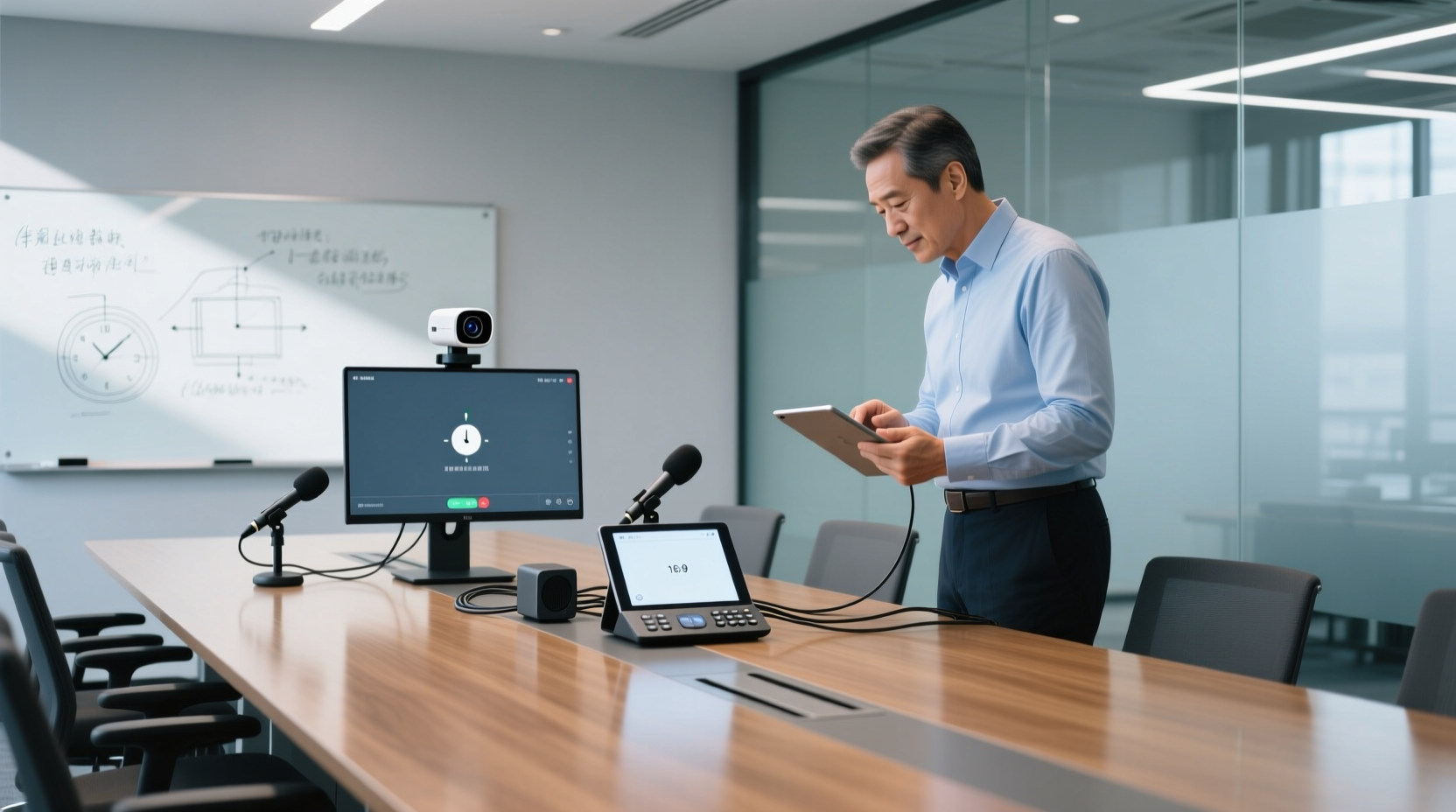
A standard conference room's hardware can practically be broken down into five items:
| Item | Function | Common Trade-offs |
|---|---|---|
| Camera | Captures the room or the speaker | From budget USB cameras to conference room cameras with auto-framing |
| Microphone | Picks up audio; determines whether the other side can hear clearly | Omnidirectional microphone, ceiling microphone, or extension microphone |
| Speaker | Plays remote audio | Can be integrated with the microphone into an all-in-one conference device |
| Controller | Start meetings, join meetings, switch screens | Touch controller or an existing computer |
| Cables and installation | Connections, cable routing, mounting | Most easily overlooked and most likely to incur add-ons |
Beyond these five, there's one more often-missed expense: the display. According to Google Workspace official documentation, Meet hardware kits do not include a display screen; it must be purchased separately. If the conference room doesn't already have a usable TV or monitor, this cost must be listed separately.
In other words, when asked "How much for a conference room?" the correct response is to first confirm what level each of these five items plus the screen needs to be, rather than quoting a total number outright.
The Three Most Underestimated Items: Microphone, Cables, and Licensing
Microphone: Determines Meeting Quality and Is Most Prone to Add-ons
Camera specs are easy to compare, but microphones are often treated as an afterthought. In practice, the most common problem in conference rooms isn't "can't see people"—it's "the other side can't hear clearly." A small conference room usually gets by with one omnidirectional microphone; once the room gets bigger and seating increases, you'll need extension microphones or a ceiling-mounted setup, and this part of the budget is often underestimated in the first quote.
In Reddit discussions about Google Meet hardware, some users mention that budget conference cameras (like the BCC950) are "the lower limit of cheap solutions," and suggest that low-budget scenarios could consider using an old computer connected to a TV. Such approaches can indeed lower the unit price, but audio pickup and stability usually need additional reinforcement—you can't just look at the camera price.
Cables and Installation: Not a Big Amount, but Can Drag Out the Timeline
The cables themselves aren't expensive; what's expensive is routing, mounting, and labor. If the conference room requires running cables through walls, ceilings, or adding power outlets, this is usually quoted by the installer and can easily incur add-ons due to site conditions. It's advisable to list "cables and installation" as a separate line item in the budget, not lumped into equipment costs.
Licensing: Separate from Hardware
This is the most commonly confused item during procurement. Google Meet hardware licensing and Google Workspace account plans are two different things: the former relates to registration and management of conference room devices, the latter to user accounts and features. Both need to be confirmed separately; you cannot assume that because your company already has a Workspace plan, the conference room devices don't need additional licensing.
Cost Differences Between Brand Kits, Third-Party Compatible Devices, and DIY Setups
The three paths have different cost structures and suit different scenarios:
| Path | Cost Characteristics | Suitable Scenarios | Considerations |
|---|---|---|---|
| Brand kit | Higher unit price, but high integration and centralized management | Conference rooms requiring long-term stable operation and unified IT management | Kits usually don't include a screen; must be purchased separately |
| Third-party compatible devices | Lower unit price, more flexibility | Limited budget, few conference rooms | Feature support may differ from certified devices |
| DIY setup | Lowest initial cost | Temporary spaces, small conference rooms with low usage | Weaker stability and manageability; maintenance costs may shift to labor |
According to Google Workspace official pages, Google Meet hardware is compatible equipment provided by partners; Reddit discussions point out that formal Google Meet hardware systems generally offer better stability and management than DIY setups because they are designed for long-term operation and can be managed through Google Admin.
Stop organizing recordings by hand
Upload audio or video and automatically get a transcript, summary, and action items
The trade-off logic here is: DIY setups save on procurement cost but cost you ongoing maintenance and management labor. If the conference room is used daily, this usually doesn't pay off.
What to Buy First and What to Defer at Different Budget Levels
Looking at three budget tiers makes the order clearer:
Tight budget: First ensure "can hear, can see"
Priority order is microphone, camera, speaker. The controller can be replaced by an existing computer, and cables can be run exposed. The goal at this tier is to make meetings possible, not to pursue management features.
Medium budget: Add stability and management
Beyond basic audio and video, add an all-in-one conference device and controller so participants don't need to reconfigure each time. At this tier, you can start considering more stable third-party compatible models.
Ample budget: Include licensing and centralized management
In addition to the equipment itself, include hardware licensing, installation labor, and ongoing maintenance. This tier suits organizations with many conference rooms that need unified IT management.
Items that can usually be deferred: high-end auto-framing cameras, ceiling microphones, a second controller. These can be added later based on pain points after the conference room has been in use for a while, which is usually more precise than buying everything at once.
Compatibility and Licensing Prerequisites to Confirm Before Purchase
Before submitting the purchase order, confirm the following:
1. Is the device on Google's compatibility list? Even if third-party devices have similar specs, feature support may differ.
2. Are both hardware licensing and Workspace plans confirmed? They are independent expense items.
3. Does the conference room need a screen? Meet hardware kits do not include a display; it must be purchased separately.
4. Network and power conditions Cable routing and power configuration will affect installation quotes.
5. Who is responsible for ongoing management? Device registration, firmware updates, and troubleshooting require a designated person.
Once these five are confirmed, the budget you report won't get padded during execution.
Keeping Meeting Content: How to Account for Software Costs Beyond Hardware
Hardware solves "can the meeting happen," but there's another often-overlooked cost in the conference room: organizing meeting content.
Conference room hardware itself doesn't produce meeting notes. No matter how complete the equipment, after the meeting ends, transcripts, decisions, and action items still need someone to handle them. If the conference room hosts meetings daily, this labor cost accumulates with the number of meetings.
This is also worth including when evaluating conference room solutions: rather than just comparing hardware unit prices, factor in "how much labor goes into post-meeting organization."
Team Edition: Enabling Conference Room Meeting Data to Be Shared and Followed Up On
After the conference room procurement is complete, the next question usually isn't about equipment—it's "who holds the data from meetings held in the conference room?"
Tinrec's Team Edition addresses exactly this. It complements conference room hardware; it doesn't replace it.
Step 1: Turn conference room meetings into searchable data
After a meeting in the conference room ends, participants can record meeting audio via the Tinrec desktop app without inviting a meeting bot. The recording is transcribed and automatically generates summaries, chapters, and action items. Meeting content that was scattered across personal notes and chat logs becomes centralized, searchable, and reviewable.
Step 2: Put meeting data into a team space so members can follow up
The Team Edition provides a dedicated team space where meeting data belongs to the team, not an individual's account. New members can view historical meeting data; when a member leaves or loses their seat, their team resources can be handed over to other active members.
It's important to note that the Team Edition currently offers team-level sharing: all active members can read team data, roles determine who can manage the team and members, and seats determine who can record, upload, and edit. This is not file-level granular permission control.
If the conference room hosts meetings daily, rather than letting each meeting's conclusions stay in different people's notes, put meeting data into a shared team space so follow-ups have a basis.
Pre-Purchase Checklist and Usage Boundaries
Before submitting the procurement request, go through this checklist item by item:
- [ ] Are camera, microphone, speaker, controller, and cables all estimated separately?
- [ ] Does the display need to be purchased separately?
- [ ] Are both hardware licensing and Workspace plans confirmed?
- [ ] Is the device on the compatibility list?
- [ ] Have network, power, and cable routing conditions been confirmed on-site?
- [ ] Who is responsible for ongoing device management and maintenance?
- [ ] Has the labor cost of post-meeting organization been included in the evaluation?
Regarding usage boundaries, a few points to note: hardware prices and licensing plans change; actual amounts should be based on official and reseller quotes; third-party devices and DIY setups mentioned in this article may have different feature support than Google-certified devices, and should be confirmed individually before purchase; meeting recording and transcription involve participant rights, and you should confirm compliance with local regulations and obtain necessary consent before use.
Break down the costs and set the order, and this budget can be submitted—and withstand follow-up questions.
Tinrec doesn't just produce transcripts. After organizing summaries, key points, and action items, the Agent can use the meeting context to help turn action items into action plans, follow-up materials, reports, tables, or documents. Important commitments and external communications should still be confirmed by a person.
Tinrec's Team Edition puts meeting data, action items, and post-meeting outputs into a shared team space, allowing members to continue following up, search context, and accumulate long-term. The capabilities selected for this scenario include "team space, shared meeting data."
If these meeting records need to be managed by multiple people, you can further use Tinrec's Team Edition to establish a consistent collaboration process.
References
Turn every recording into actionable outcomes
Get 60 free transcription minutes when you sign in. No credit card required.
Related Reading
You might also like

2025 Comparison of 3 Audio-to-Text Tools: Notta vs. Tinrec for Chinese Meeting Notes—Which Saves More Time?
When choosing a meeting notes tool in 2025, don't just look at how many minutes are included each month. This article starts from three decision points: how audio gets in, what can be produced after transcription, and whether team data remains when people change. It compares Notta, Tinrec, and Otter, and breaks down Tinrec's bot-free recording, AI Q&A, action item extraction, and team spaces to help you decide which one truly saves that hour after meetings.

2026 Free Voice Translation Guide: Tinrec Real-Time Bilingual Subtitles + Transcript Organization
A hands-on comparison of Vidnoz and Tinrec, two voice translation tools you can start using for free, broken down across five dimensions: real-time performance, post-meeting output, audio sources, free quota, and team collaboration, to help you decide which one fits your meeting notes and video dubbing needs.

Tinrec vs Notta in 2026: 5-Dimension Comparison — Which Chinese Meeting Transcription App Is Worth Downloading?
Before searching for 'Notta AI app download,' understand the real limits of the free tier and how online meetings are captured. This article compares Tinrec and Notta across 5 dimensions—meeting audio source, post-meeting organization, Chinese performance, team collaboration, and quota calculation—to help you decide which app to download.

2026 AI Meeting Recorder Comparison: 3 Tools Tested, and the Notta Alternative Worth Buying
Thinking about Notta or comparing AI meeting note tools? This guide starts with what to clarify before buying, breaks down 5 key criteria—live transcription, bot-free recording, summaries and action items, AI Q&A, and team seat governance—and uses Tinrec as the main hands-on example, with team pricing and FAQs to help you spend on features you'll actually use.

2026 Voice-to-Text Tool Comparison: Tinrec vs Granola – Which Delivers More Complete Transcripts and Post-Meeting Organization?
Many people searching for voice-to-text tools actually want to turn meeting audio into searchable, queryable transcripts. This article compares Tinrec and Granola across five dimensions: input sources, audio retention, Chinese language experience, post-meeting organization, and team governance, helping you decide which tool better fits your meeting scenarios.

4 Audio-to-Text Tools Tested: Which Is Fastest for Chinese Meeting Transcripts in 2026?
Transcribing audio isn't just typing—you need to decide whether you want a transcript or a time-coded subtitle file. We tested Tinrec, cSubtitle, TurboScribe, and Notta with real meeting recordings, comparing Chinese recognition, post-meeting summaries, AI Q&A, team collaboration, and pricing limits to help you choose the right workflow for meeting notes, interview organization, and video subtitles.

5 Free Auto Subtitle Solutions Compared in 2026: What Tinrec Adds Beyond CapCut and pyTranscriber
There are many free auto subtitle tools, but their quota calculations, output formats, and post-meeting organization capabilities vary widely. This article starts with 5 common free solutions, breaks down what gaps Tinrec fills in audio-to-text, summarization, AI Q&A, and team collaboration, and includes version selection advice.

2026 Free Subtitle Generator Comparison: Which Tool Saves More Time on Chinese Meeting Transcripts?
How do you choose a free subtitle generator? This article compares two practical options, Tinrec and Otter.ai, across free quotas, Chinese transcription, meeting recording methods, post-meeting outputs, and team governance to help you decide which is better suited for Chinese meetings and video content organization.

2026 Comparison of 3 Online Subtitle Generators: Which Saves More Time for Chinese Meetings and Videos?
There are many online subtitle generation tools, but the key is whether the output is usable. This article starts with common misconceptions and compares Tinrec, Subanana, VEED, and Clideo on Chinese recognition, long audio processing, and post-meeting organization. It also covers free quotas, export formats, and practical limitations of team collaboration to help you choose the right tool.