
Turn recordings into transcripts and summaries in minutes
Upload audio or video for multilingual transcription, AI notes, and action items
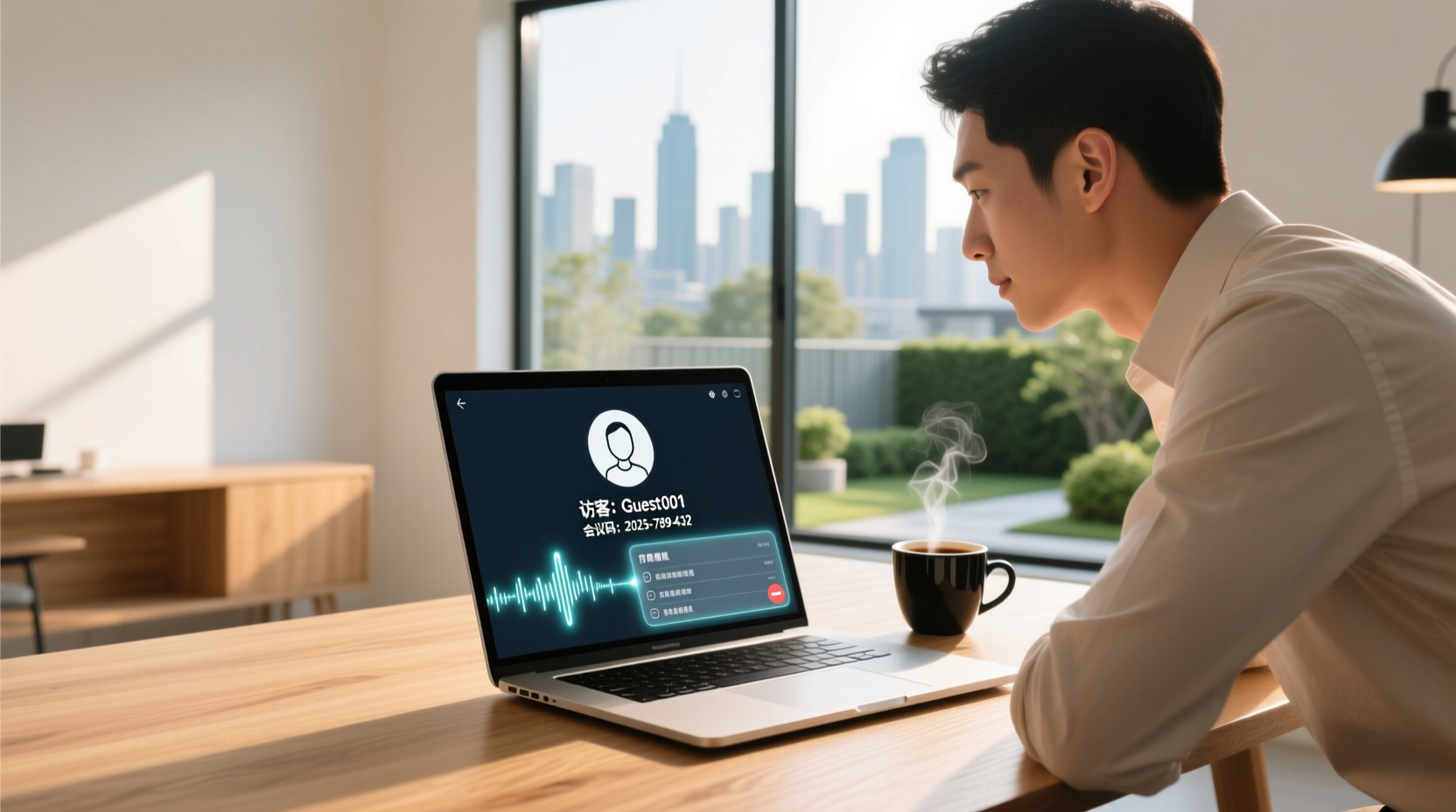
What "No Login" Actually Means in Online Meetings
Let's start with an often-overlooked premise: when most online meeting services say "no login required," they don't mean "no conditions at all"—they mean "attendees don't need to register their own account." These are two very different things.
For sales or administrative staff, the real sticking point usually looks like this: you need to meet with an external client, the client doesn't want to register a new account just for one meeting, and company policy doesn't allow you to log into external meetings with a personal account. At this point, what you need to confirm isn't "which platform is most popular," but three things:
- Does the attendee need to register an account?
- Does the attendee need to install software?
- Does the host need to admit them, or is the meeting itself set up to allow external joining?
In other words, "no login" is a description of the join barrier, not a feature. It might take the form of a guest link, a meeting code, or simply opening a URL in a browser. Let's break down these three forms.
Three Common Forms of Joining Without Login: Guest Links, Meeting Codes, and Browser Join
These three forms are often lumped together, but they solve different problems.
Guest link: The host generates a shareable URL, and attendees click it to enter a waiting room or meeting room. This is the most common form and the easiest for external clients. The limitation is that the link is usually tied to the host's account plan and meeting settings—whether it truly allows login-free entry depends on whether the host has enabled the corresponding permissions.
Meeting code: A string of characters, such as a code made up of three segments. Attendees need to open the service's homepage or app themselves and paste the code into an input field. Its advantage is not having to send a long URL, making it suitable for verbal or message-based sharing; the downside is that attendees must first know "where to enter it," which is actually a higher barrier for first-time users than a link.
Browser join: Attendees don't install any software and simply open the meeting in a browser. This path is especially practical for those temporarily borrowing a public computer, using a company-managed device, or with limited phone storage. But note that browser join typically doesn't give access to the meeting's built-in recording and transcription capabilities, which we'll explain later.
The three forms can coexist. In the same meeting, the host can provide a link, and attendees can also use a meeting code to enter; whether login-free access works still depends on the host's settings.
What Features Are Typically Unavailable When Joining Without Login
This is the most misunderstood part. Joining without login solves "getting in," not "using everything." There are three common gaps:
- In-meeting recording: Most services tie recording to the host or a paid plan, and someone must actively start it. Attendees joining as guests usually don't have this button.
- In-meeting transcription and summary: These capabilities are mostly plan features and controlled by administrator settings. Login-free guests typically can't see the transcript or get a post-meeting summary.
- Post-meeting file access: Even if the host records, the file usually stays in the host's or meeting organizer's cloud storage. Attendees have to wait for the other party to share it.
In other words, login-free joining lets the meeting happen smoothly, but the retention and handoff of meeting content often falls on the host or the few people with accounts. If the meeting involves requirement confirmation, pricing commitments, or task assignments, it's easy to be left with only vague memories afterward.
Alternative 1: Video Conferencing Services That Allow Guest Access
If you're looking for a video conferencing service where attendees can join without logging in, there are indeed several directions worth considering.
According to the search sources for this article, Jitsi Meet is described as an open-source, free video conferencing solution focused on privacy and security, allowing one-click meeting creation without an account; Jitsi also supports team meetings, webinars, product demos, and interviews, and works directly in the browser without an account or software download.
Another frequently mentioned option is Whereby. The source material notes that Whereby is a browser-oriented video conferencing platform that lets teams host and join calls without installing or logging in; attendees can join instantly via a link without downloading, logging in, or creating an account, and it offers screen sharing and flexible participant limits, positioned toward freelancers, small teams, and users who need a simple, reliable solution.
The common logic of these services is to minimize the "join" barrier so external clients or ad-hoc attendees can click a link and get in. But note that each platform's guest access rules and feature limitations may change with versions, so official documentation should be the final reference before publishing.
Alternative 2: Capturing System Audio on Desktop for Meeting Records
A meeting happening doesn't mean its content is retained. This is the most commonly overlooked gap in login-free attendance: attendees get in, but no one has a transcript, and no one organizes the decisions and action items.
Stop organizing recordings by hand
Upload audio or video and automatically get a transcript, summary, and action items
One way to fill this gap is to not rely on the meeting platform's built-in recording and transcription, but instead use a desktop tool to capture the computer's system audio. Take Tinrec as an example: the desktop version processes online meetings by capturing the device's system audio, without inviting a meeting bot or requiring attendees to register an extra account. This approach works for meetings played on a computer via Zoom, Google Meet, Microsoft Teams, Webex, and others.
Its logic is: the host opens the tool on their own computer and starts recording; the meeting audio is captured and converted into a transcript in real time, then after the meeting generates a summary, chapters, and action items. For external clients, they still just click a link to join the meeting and don't need to register anything; for the host, meeting content doesn't get lost just because guests joined without logging in.
One caveat: this is not "automatically joining all meetings." Users need to actively open the tool and start recording, and recording meeting audio requires participant consent and compliance with local regulations.
Comparison Dimensions: Join Barrier, Feature Availability, and Post-Meeting Records
Looking at the two paths above together, you can judge by three dimensions:
| Dimension | Video conferencing services that allow guest access | Desktop system audio capture for records |
|---|---|---|
| Attendee join barrier | Low; click a link or enter a meeting code, usually no registration needed | Doesn't affect attendees; they join the meeting as usual |
| Host prerequisites | Must confirm whether the plan and meeting settings allow guest access | Must open the tool on a computer and start recording |
| In-meeting recording and transcription | Guests usually can't access; mostly tied to the host's plan | Doesn't rely on the meeting platform's built-in features |
| Post-meeting output | Depends on whether the host records and shares | Transcript, summary, chapters, and action items |
| Main limitations | Guest rules and feature limits change with versions | Requires participant consent and must be actively started |
This table isn't about picking "which is best," but helping you judge: if the meeting's focus is "clients can get in," the first column is enough; if the focus is "someone can take over afterward," the second column is the key to filling the gap.
How to Supplement Records for Login-Free Meetings: From Recording to Transcript and Action Items
When joining without login, the meeting's built-in recording and transcription are usually unavailable, so post-meeting records need to be supplemented by another process. Using Tinrec's actual workflow as an example, it can be broken into several steps:
1. Get the transcript: Meeting audio is captured and converted to text, preserving the original spoken content, searchable and reviewable.
2. Generate summary and chapters: Break long meetings into a browsable structure to quickly grasp key discussion points.
3. Extract action items: Organize follow-up actions from the discussion, mapped to people and deadlines.
4. Continue processing: An AI assistant uses the meeting notes and context to help turn action items into action plans, follow-up materials, reports, tables, or documents.
5. Export and hand off: Bring results into existing workflows or share with those who need to take over.
Here we must honestly state the boundaries: the AI assistant can help organize and produce drafts, but important commitments, external communications, and key decisions should still be confirmed by a human. It won't automatically operate third-party systems, nor will it complete unconfirmed external processes for you.
How the Team Edition Supports Post-Meeting Follow-Up
If this login-free meeting is a sales visit or client requirements interview, usually more than one person needs to review it afterward.
The first step is sharing meeting materials. After the transcript, summary, and action items are produced, place them in the team space so managers, colleagues, or whoever takes over can view them directly without asking you for files or re-listening to recordings. This solves the problem of "meeting content staying only with the host."
The second step is continuous follow-up in the team space. Client needs, commitments, and next actions can be placed in the same space as subsequent meeting materials for easy searching and cross-referencing. When members change, team resources belong to the team and won't disappear entirely because someone leaves.
What needs to be distinguished: the Team Edition is an independent collaboration space, not multiple people sharing one personal account. Members can share and view team data, and only after obtaining a seat can they perform resource-using operations such as recording, uploading, editing, and exporting.
If your client meetings have grown to the point where fixed handoffs are needed, you can learn more about how Tinrec's Team Edition turns meeting data into a searchable, collaborative team asset.
Selection Advice and Usage Boundaries
Back to the original question: which alternatives truly allow guests to join without logging in?
- If you want the least hassle for attendees, prioritize video conferencing services that emphasize browser join, guest links, or meeting codes, and confirm before the meeting whether the host's plan and settings allow guest access.
- If you want someone to take over afterward, login-free joining alone isn't enough; you need a separate recording and organizing process to produce transcripts, summaries, and action items.
- If you need both, configure "video conferencing service" and "desktop recording tool" as two layers, rather than expecting one platform to do everything.
Usage boundaries should also be clear: each platform's guest access rules and feature limitations may change with versions, so official documentation should be the final reference before publishing; login-free joining typically can't use the meeting's built-in recording and transcription, and this gap should be honestly communicated to attendees; recording meeting audio requires participant consent and compliance with local regulations.
Handling the join barrier and post-meeting records separately is usually more practical than searching for a platform that "does everything."
References
Turn every recording into actionable outcomes
Get 60 free transcription minutes when you sign in. No credit card required.
Related Reading
You might also like

2025 Comparison of 3 Audio-to-Text Tools: Notta vs. Tinrec for Chinese Meeting Notes—Which Saves More Time?
When choosing a meeting notes tool in 2025, don't just look at how many minutes are included each month. This article starts from three decision points: how audio gets in, what can be produced after transcription, and whether team data remains when people change. It compares Notta, Tinrec, and Otter, and breaks down Tinrec's bot-free recording, AI Q&A, action item extraction, and team spaces to help you decide which one truly saves that hour after meetings.

2026 Free Voice Translation Guide: Tinrec Real-Time Bilingual Subtitles + Transcript Organization
A hands-on comparison of Vidnoz and Tinrec, two voice translation tools you can start using for free, broken down across five dimensions: real-time performance, post-meeting output, audio sources, free quota, and team collaboration, to help you decide which one fits your meeting notes and video dubbing needs.

Tinrec vs Notta in 2026: 5-Dimension Comparison — Which Chinese Meeting Transcription App Is Worth Downloading?
Before searching for 'Notta AI app download,' understand the real limits of the free tier and how online meetings are captured. This article compares Tinrec and Notta across 5 dimensions—meeting audio source, post-meeting organization, Chinese performance, team collaboration, and quota calculation—to help you decide which app to download.

2026 AI Meeting Recorder Comparison: 3 Tools Tested, and the Notta Alternative Worth Buying
Thinking about Notta or comparing AI meeting note tools? This guide starts with what to clarify before buying, breaks down 5 key criteria—live transcription, bot-free recording, summaries and action items, AI Q&A, and team seat governance—and uses Tinrec as the main hands-on example, with team pricing and FAQs to help you spend on features you'll actually use.

2026 Voice-to-Text Tool Comparison: Tinrec vs Granola – Which Delivers More Complete Transcripts and Post-Meeting Organization?
Many people searching for voice-to-text tools actually want to turn meeting audio into searchable, queryable transcripts. This article compares Tinrec and Granola across five dimensions: input sources, audio retention, Chinese language experience, post-meeting organization, and team governance, helping you decide which tool better fits your meeting scenarios.

4 Audio-to-Text Tools Tested: Which Is Fastest for Chinese Meeting Transcripts in 2026?
Transcribing audio isn't just typing—you need to decide whether you want a transcript or a time-coded subtitle file. We tested Tinrec, cSubtitle, TurboScribe, and Notta with real meeting recordings, comparing Chinese recognition, post-meeting summaries, AI Q&A, team collaboration, and pricing limits to help you choose the right workflow for meeting notes, interview organization, and video subtitles.

5 Free Auto Subtitle Solutions Compared in 2026: What Tinrec Adds Beyond CapCut and pyTranscriber
There are many free auto subtitle tools, but their quota calculations, output formats, and post-meeting organization capabilities vary widely. This article starts with 5 common free solutions, breaks down what gaps Tinrec fills in audio-to-text, summarization, AI Q&A, and team collaboration, and includes version selection advice.

2026 Free Subtitle Generator Comparison: Which Tool Saves More Time on Chinese Meeting Transcripts?
How do you choose a free subtitle generator? This article compares two practical options, Tinrec and Otter.ai, across free quotas, Chinese transcription, meeting recording methods, post-meeting outputs, and team governance to help you decide which is better suited for Chinese meetings and video content organization.

2026 Comparison of 3 Online Subtitle Generators: Which Saves More Time for Chinese Meetings and Videos?
There are many online subtitle generation tools, but the key is whether the output is usable. This article starts with common misconceptions and compares Tinrec, Subanana, VEED, and Clideo on Chinese recognition, long audio processing, and post-meeting organization. It also covers free quotas, export formats, and practical limitations of team collaboration to help you choose the right tool.