

Turn recordings into transcripts and summaries in minutes
Upload audio or video for multilingual transcription, AI notes, and action items
3 Teams Meeting Recording Tools Tested for 2026: Which Is Least Disruptive?
"When recording a Teams meeting, should I use the built-in feature or find another tool?" This is one of the questions I get asked most often lately.
The answer depends on three things: who the host is, who needs the file after the meeting, and whether you want to turn the recording into a searchable meeting record. Built-in recording, meeting bots, and bot-free desktop recording each have their own limitations.
In this article, I'll compare the three methods side by side, including actual operation, where files are stored, and which one is best for those who want to save time on organizing.
The Pain Point of Teams Meeting Recording: You Recorded It, Now What?
Most people first record a Teams meeting when they suddenly realize halfway through, "I need to keep a record of this part."
After you press record, Teams notifies all participants, which is thoughtful. But the real trouble comes after the meeting.
The recording is saved to the host's OneDrive or SharePoint, and external participants can't see it unless explicitly shared. If you're not the host, the file is basically out of your hands.
Not to mention that for a two-hour meeting, the transcript and minutes won't generate themselves—recording is recording, organizing is organizing, and there's a manual process in between.
Before Choosing a Teams Recording Solution, Understand These 3 Key Points
Key Point 1: Who owns the recording? Teams built-in recording is tied to the meeting host's Microsoft 365 space. If you're not the host, you can't decide how the file is shared. If your organization hasn't enabled cloud recording policies, you won't even see the button.
Key Point 2: Will there be an extra "bot" in the meeting? Many third-party meeting tools join as a bot, adding an extra account to the participant list. Some companies or clients may mind. Bot-free desktop recording captures the computer's system audio directly without adding a participant.
Key Point 3: After the meeting, do you want a video or usable data? If you only have the video, you'll have to rewatch two hours yourself. If the tool can also give you a transcript, summary, and action items, that's real time saved.
Tinrec—The Smoothest Approach We Tested
Tinrec is an AI meeting notes and collaboration tool for individuals and teams, available on iOS, Android, desktop, and web.
Its biggest difference from Teams built-in recording is "after recording."
Bot-free Teams meeting recording Tinrec desktop captures computer system audio directly, handling meeting audio from Teams, Zoom, Google Meet, and Webex played on your computer, without inviting any bot to join the meeting. You don't have to worry about an unfamiliar account appearing on the participant list.
Live transcription while recording Open Tinrec during the meeting, and it transcribes as it records. When the meeting ends, the transcript is already there—no need to wait for conversion.
Ask AI directly after the meeting After recording, you can ask questions about the meeting content, such as "Who is responsible for the budget in this meeting?" It answers based on semantics, not just keyword search results. This is where it stands out from ordinary transcription tools.
Export to what you already use Summaries, chapters, action items, and mind maps can be generated, and exported to Notion, Google Docs, OneNote, or Dropbox for continued use. Reports, tables, and documents you need to deliver can also be produced with Agent post-processing.
Stop organizing recordings by hand
Upload audio or video and automatically get a transcript, summary, and action items
Team edition keeps data within the team If an entire department is meeting, Tinrec Team edition offers independent team spaces, member and seat management, usage analytics, and audit logs. Data belongs to the team, and when a member leaves, their meeting resources can be handed over to others, not disappearing with them. The team free trial is 7 days, 1 free seat, and 300 minutes of shared import quota; monthly USD 29.80 per paid seat, annual USD 199 per paid seat.
Limitations to note Tinrec is not a bot that automatically joins all calendar meetings; you need to actively open the desktop app to start recording. The free version has a basic quota, and heavy users should evaluate paid plans. Actual transcription quality is also affected by audio quality, accents, and multiple people talking over each other.
Who it's for If you frequently record Teams or other platform meetings, don't want an extra bot, and want summaries and action items right after recording, Tinrec is currently the smoothest choice.
Besides Tinrec, What Other Options Are There?
Teams built-in convenient recording The most direct way: click "More" → "Start recording" in the meeting toolbar. The advantage is it's completely free and integrated with Teams. But the recording is stored in the host's OneDrive or SharePoint, external participants need to be shared separately to see it, and the organizer must first enable cloud recording policies. It only gives you the video; transcript and action items are up to you.
Otter.ai / Fireflies.ai Mature AI meeting assistants, mostly joining as meeting bots, with mature summarization and Q&A for English business meetings. However, these tools are less effective in Chinese meetings than in English, and some clients mind the bot joining the participant list.
Pitfall Guide: The 3 Most Common Mistakes When Recording Teams Meetings
Pitfall 1: Assuming everyone gets the file after you press record. Teams recordings are stored in the host's space, and external participants can't see them by default. Before the meeting, confirm the host is willing to share, or ask for edit permissions, otherwise you won't get it after the meeting.
Pitfall 2: Not checking company or client recording policies. Teams built-in recording requires the organizer to enable cloud recording policies, and some organizations disable it entirely. Also, it's best to get participant consent before recording, especially when external parties are present.
Pitfall 3: Treating the recording only as a video. If you only get the video, you still have to rewatch and organize it yourself. When choosing a tool, first clarify whether you want "a video" or "meeting data that can be searched, queried, and acted upon." The latter is the real key to saving time.
Conclusion: Which One Should You Use?
Just occasionally keeping a record, and you're the host → Teams built-in recording, free and sufficient.
Don't want an extra bot, need Chinese transcript and post-meeting organization → Tinrec, bot-free desktop recording.
Mainly English meetings, need mature automation → Otter.ai, Fireflies.ai are still options.
Team wants to accumulate meeting data, manage members and usage → Tinrec Team edition, with team space, seats, and audit.
I suggest trying the Teams built-in feature once first to feel how much time post-meeting organization takes, then decide whether to switch to a tool that directly produces transcripts, summaries, and action items. Try the free plan first, and upgrade if it suits you.
References
- Manage Teams meeting and event recording policies - Microsoft Teams | Microsoft Learn
- How to download Microsoft Teams meeting recordings | Subanana Help Center
- Start, stop, and find meeting recordings in Microsoft Teams | Microsoft Support
- r/MicrosoftTeams on Reddit: Is there any way to secretly record a Microsoft Teams meeting without others knowing, and record the sound from headphones?
- How to Record Microsoft Teams Meetings: Complete Step-by-Step Guide - Tinrec Blog
Turn every recording into actionable outcomes
Get 60 free transcription minutes when you sign in. No credit card required.
Related Reading
You might also like
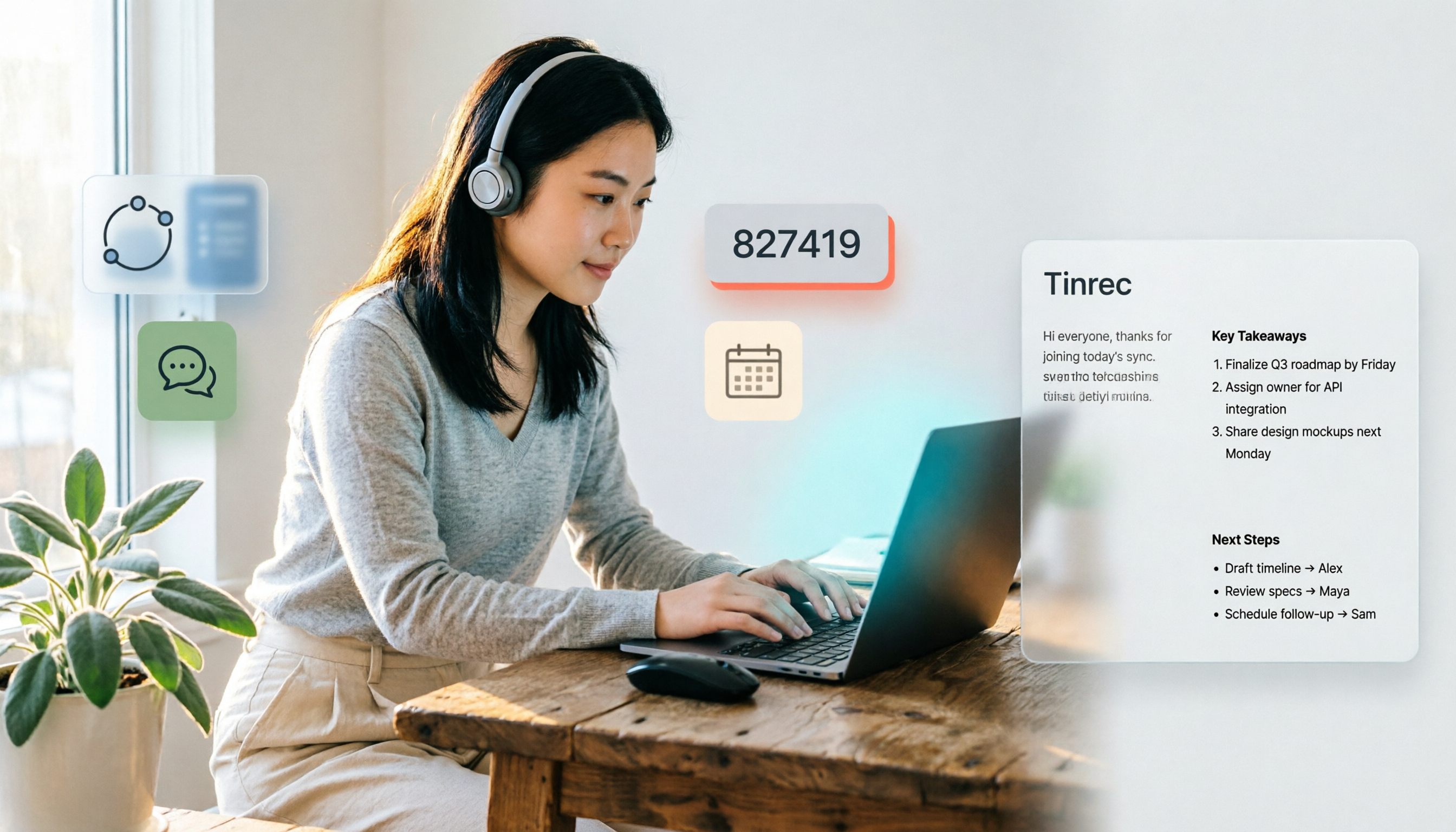
4 Ways to Join a Teams Meeting in 2026: Meeting ID, Link, or Calendar — Which Is Most Reliable?
A practical guide to joining Teams meetings via link, meeting ID, calendar, or chat invite, plus personal account limitations, lobby settings, and tips for using Tinrec to capture transcripts, summaries, and action items after the meeting.

4 iPhone Recording Methods Compared in 2026: Built-in, Shortcuts, Call Recording, and Tinrec — Which Should You Choose?
A practical comparison of four common iPhone recording methods in 2026: Voice Memos, one-tap Shortcuts recording, iOS call recording, and Tinrec. Learn how each works, their limitations, compliance reminders, and which one fits your needs.

2026 Teams Meeting Retention Showdown: 3 Solutions Compared for Recordings, Transcripts, and Data Storage
Does recording a Teams meeting guarantee it's saved? This article breaks down common misconceptions about Teams retention policies, call holds, and where meeting recordings and transcripts are stored. It compares Tinrec, Otter.ai, Notta, and Granola on meeting record retention to help you find the right approach.

2026 Comparison of 3 Teams Meeting Recording Tools: Which Bot-Free Recorder Is Easiest?
Halfway through a Teams meeting, you're asked to keep a record—but there's no record button? This article covers 3 ways to record Teams meetings, including the permission requirements for Teams built-in recording, Tinrec desktop's bot-free system audio capture, and use cases for Otter.ai and Granola. It also includes recording retention periods and 4 common pitfalls to avoid.

3 LINE Call Recording Methods Tested for 2026: How to Record on iPhone and Android, and How to Organize Recordings
LINE does not have a built-in call recording button, but iPhone users on iOS 26 can use the built-in "Local Capture," while Android users can use screen recording or Cube ACR, or use speakerphone with an external recording device. This article covers 3 tested methods, common mistakes, and legal reminders, and explains how to use Tinrec to turn call recordings into transcripts, summaries, to-dos, and searchable team data.
5 LINE Call Recording Methods Tested and Compared in 2026: How to Turn Recordings into Transcripts
LINE doesn't have a built-in call recording feature, but the real challenge isn't capturing the call—it's ending up with only your own voice or an audio file no one wants to listen to twice. This article reviews 5 common LINE call recording methods, tests the pitfalls of each, and explains how to use Tinrec to turn audio files into searchable, queryable transcripts and meeting notes. It also highlights legal considerations before recording.

2026 Comparison of 3 iPhone Recording Organization Tools: Which Saves the Most Time Converting .m4a Audio to Transcripts?
iPhone's built-in Voice Memos saves recordings in .m4a format by default, but converting the file only solves playback issues, not organization. This article first explains what file iPhone recordings are, then tests and compares recording organization tools like Tinrec, Otter.ai, Notta, and PLAUD to help you understand key buying factors and avoid common pitfalls.

Google Meet Recording Tools Compared: 4 Options for Automatic Transcripts in 2026
We start with how to download and install Google Meet on Android, iOS, desktop, and web, then compare Tinrec, Otter.ai, Granola, and Notta on post-meeting transcripts, summaries, action items, and team collaboration to help you find the most time-saving meeting notes setup.

How to Use Google Meet on TV in 2026: Chromecast Casting & Meeting Notes
How do you use Google Meet on TV? This guide clears up common misconceptions, explains why Android TV doesn't support meeting mode, how to cast with Chromecast and Google TV Streamer, and how to use Tinrec desktop to record Google Meet without a bot—generating transcripts, summaries, and action items.