

Turn recordings into transcripts and summaries in minutes
Upload audio or video for multilingual transcription, AI notes, and action items
How to Use Google Meet On-the-Go in 2026: A 5-Step Guide
Meeting on the Move: You Think You're Saving Data, But You're Missing the Record
Many people think Google Meet's On-the-Go mode is just "audio-only meetings" to save data. But the real problem is: after the meeting, you only remember the gist—no transcript, no to-dos, no summary. If someone assigns you a task during the meeting, you have to rely on memory. This article not only shows you how to use On-the-Go, but also how to fill that gap.
What Is Google Meet On-the-Go?
Google Meet's On-the-Go mode is a feature designed specifically for mobile devices, allowing you to join meetings while walking, driving, or taking public transit. It automatically turns off your video, showing only key information such as the current speaker and number of participants, and enlarges buttons for mute, raise hand, and audio device selection, while saving bandwidth. This feature launched in November 2023 and is available to all Google Workspace customers and personal Google accounts.
5 Steps to Enable Google Meet On-the-Go
Step 1: Open the Google Meet app on your phone and join or start a meeting.
Step 2: During the meeting, tap "More controls" at the bottom of the screen.
Step 3: Select "On-the-Go."
Step 4: When the system detects you're moving, it will also automatically prompt you—tap "Go" to switch.
Step 5: To turn it off, during the meeting tap "More controls" > "On-the-Go" again to exit. After exiting, the camera is off by default and needs to be turned on manually.
On-the-Go: Practicality and Limitations
The advantage of On-the-Go is that you can participate in discussions while on the move without being distracted by video and complex interfaces. But note: it does not record for you, and there's no transcript or AI summary. That means after the meeting, you still have to manually organize your notes. If you frequently need to meet on the go and don't want to miss important information, you need an additional meeting notes tool.
Tinrec: The Note-Taking Backbone for Mobile Meetings
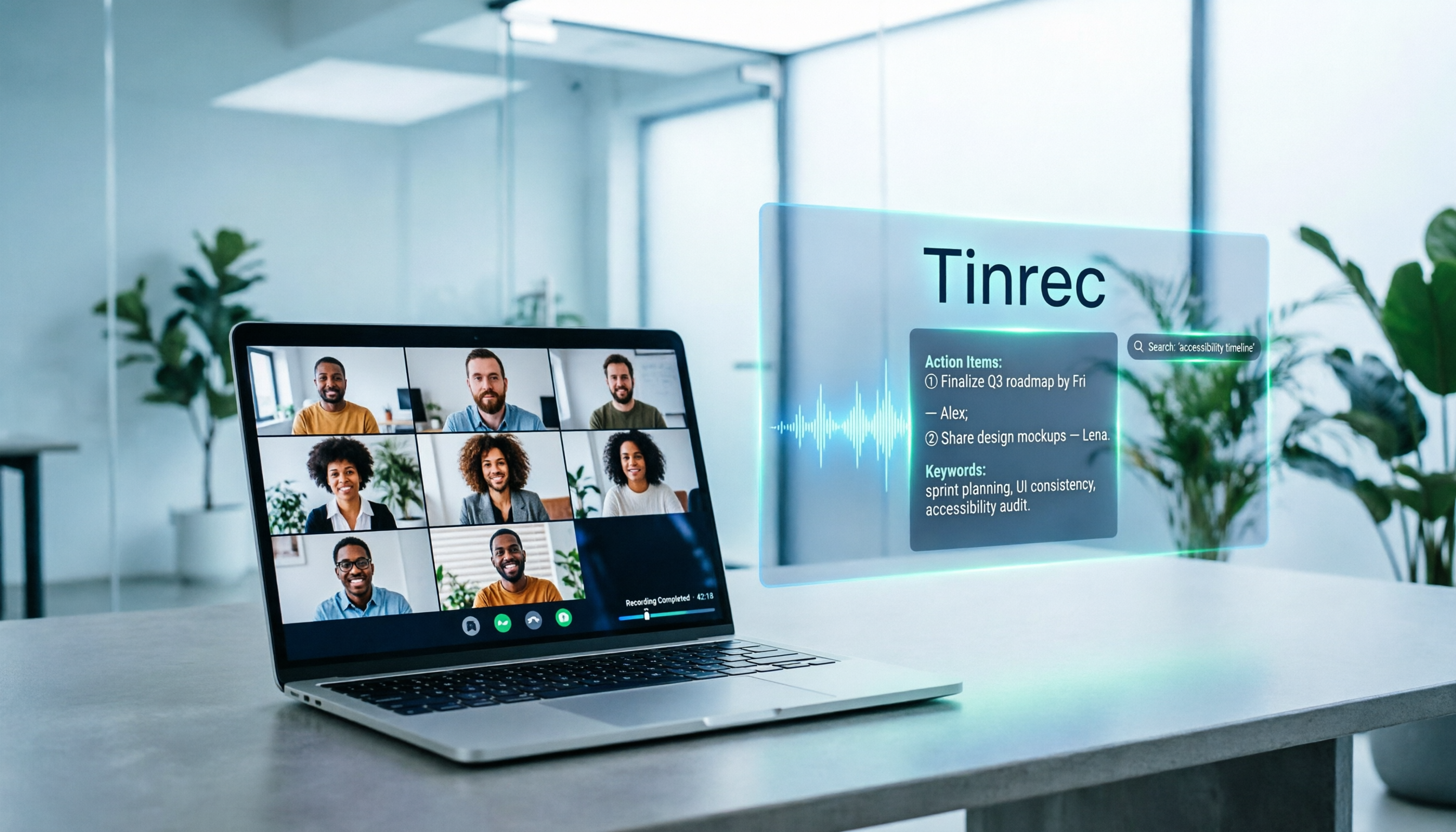
Tinrec is an AI meeting notes and collaboration tool for individuals and teams. It supports real-time audio transcription and can capture system audio via the desktop version—no bot needed to join—to record online meetings on Zoom, Google Meet, Microsoft Teams, Webex, and more. When you're in a Google Meet On-the-Go meeting on your phone, you can record with Tinrec at the same time, and after the meeting it automatically generates a transcript, summary, chapters, and to-dos.
Stop organizing recordings by hand
Upload audio or video and automatically get a transcript, summary, and action items
Even better, Tinrec supports AI Q&A. You can directly ask it: "Who mentioned the budget in the meeting just now?" It will answer based on semantic understanding, rather than just throwing keyword search results at you. In addition, Tinrec supports real-time translation, multi-format export, and can save meeting data to a team space for team members to view and collaborate.
The free version offers a basic quota, suitable for light use; the Pro monthly plan is for office workers who have meetings every week; the team version provides an independent team space, member and seat management, usage analytics, and audit logs, priced at USD 29.80 per paid seat per month (monthly) or USD 199 per paid seat per year (annual). Actual results may be affected by recording quality, noise, and accents; it's recommended to cross-check with the transcript.
Other Options: Otter.ai and Notta
Otter.ai: A mature English meeting assistant with a free version offering 300 minutes per month, suitable for users whose meetings are mainly in English. But it does not support real-time Chinese transcription and requires a meeting bot to join, unlike Tinrec's bot-free desktop recording.
Notta: Supports multilingual transcription and translation, with a free version offering 120 minutes per month, up to 3 minutes per session. Suitable for file transcription needs, but lacks Tinrec's AI Q&A and team seat management.
Pitfall Guide: The 3 Most Common Mistakes When Using On-the-Go
Thinking On-the-Go records automatically: It doesn't, and nothing is saved after the meeting. It's recommended to record with Tinrec.
Ignoring that the camera is off by default: After exiting On-the-Go, the camera is off and needs to be turned on manually—don't assume you've been on video the whole time.
Using it in a noisy environment: On-the-Go is audio-only, but background noise can affect how others hear you. It's recommended to wear headphones.
Conclusion: The Best Combo for Mobile Meetings
If you only occasionally join meetings on the move, Google Meet On-the-Go is more than enough. But if you need post-meeting records, summaries, and to-dos, Tinrec is currently the best companion. We suggest downloading the free version of Tinrec first—the monthly basic quota is enough to experience meeting notes a few times. If you find it useful, then consider upgrading.
References
Turn every recording into actionable outcomes
Get 60 free transcription minutes when you sign in. No credit card required.
Related Reading
You might also like
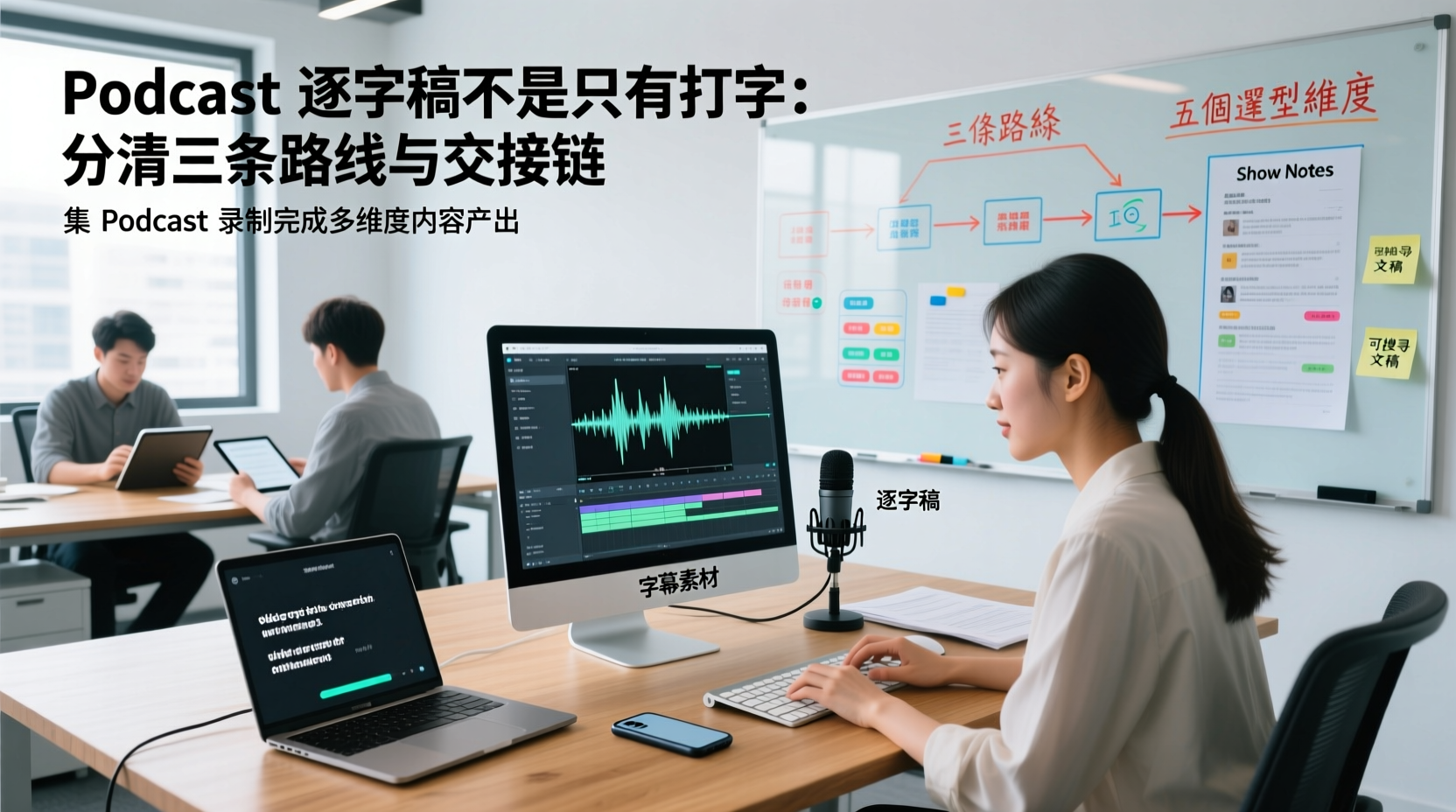
A Podcast Transcript Isn't Just Typing: Separate the Three Paths and Handoff Chain to Connect Audio to Captions, Show Notes, and Searchable Text
A finished podcast episode doesn't just need a transcript—it also needs caption assets, Show Notes, and searchable text, each with different people taking over. This article breaks down three common paths and five selection dimensions, explaining the handoff chain from audio file to each output, which fields must be filled in first, which steps still require human proofreading, and how assets are centralized, shared, and handed off in multi-person production.
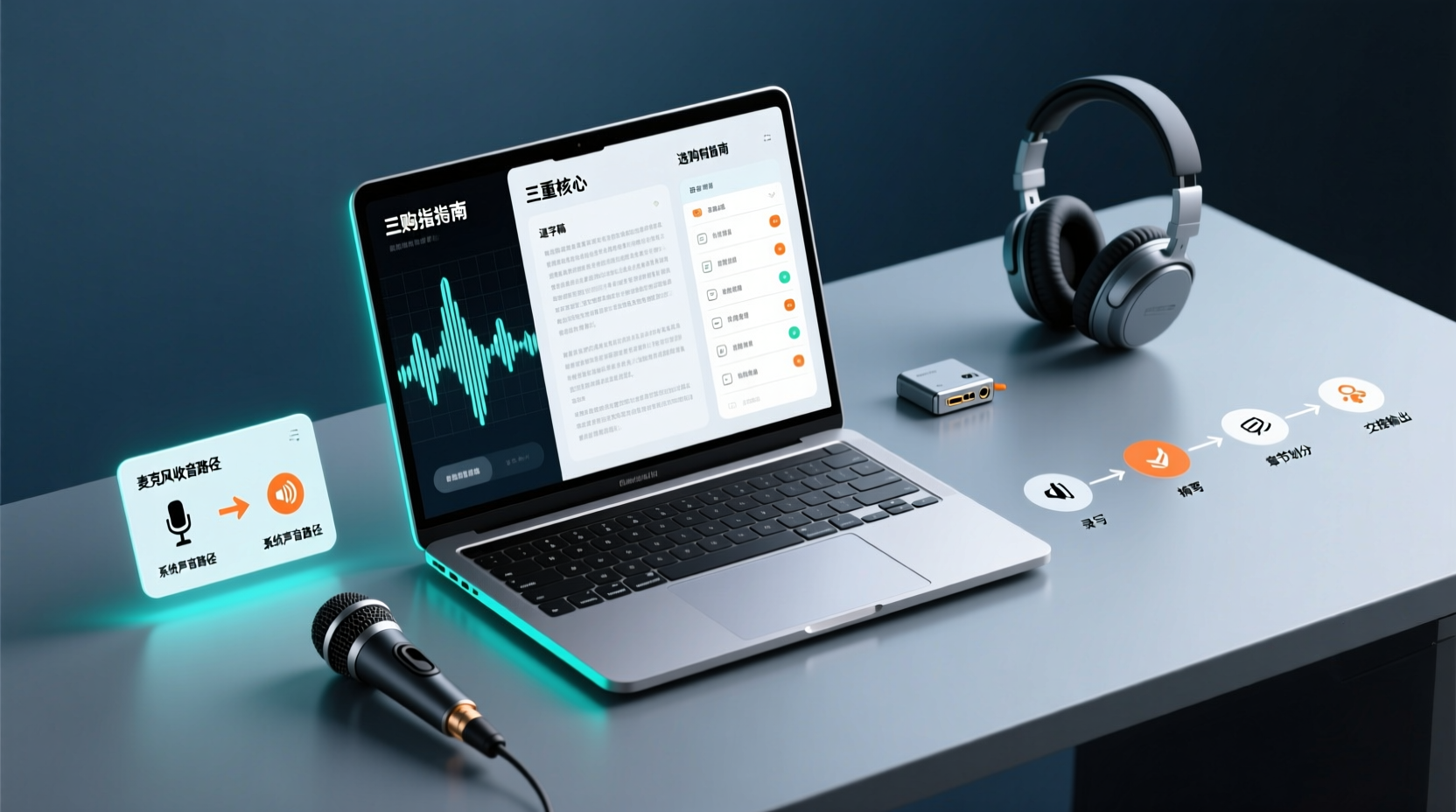
How Do You Choose PC Recording Software? First Tell Microphone Capture Apart From System Audio, Then Handle the Transcript and Action Items
Recording audio on a computer doesn't end with one button press. First determine whether your sound source is microphone capture, system audio, or an existing audio file, then verify the platform, output, and language requirements. After recording, you still have to produce the transcript, summary, chapters, and action items, and share and hand off in a team space. This article follows the order of buying decisions to explain when each path applies and where its factual limits lie.
How Should You Choose a Podcast Transcription App? Run 5 Criteria First, Then Compare Four Types of Solutions: The Workflow from Audio File to Show Notes
Between finishing a recording and publishing an episode, transcripts, segmentation, and show notes are the stages most likely to stall the production line. This article lays out 5 checkable criteria, compares four common approaches, and shows how to use Tinrec to go from an audio file to a transcript, key points, and deliverable assets — while explaining which steps require human confirmation and how a show team shares and hands off the work.
Notta vs Fireflies: How to Choose — From Meeting Capture Architecture and Chinese Bilingual Limits to Team Data Ownership, a Selection Conclusion for 5–20 Person Teams
The difference between Notta and Fireflies isn't just price and minutes — it's how a meeting actually gets recorded. This article compares the two in order: their meeting capture methods, the limits of their Chinese and bilingual experience, what you get after the transcript, and team data ownership and member handover. It then narrows the conclusion into three team selection scenarios, explaining under what conditions you should evaluate a bot-free approach like Tinrec.

How to Choose a Budget Voice Recorder: Check 4 Specs, Avoid 3 Pitfalls, and Calculate the Real Transcription Cost After Recording
Shopping for a voice recorder on a budget of a few hundred to NT$2,000? First understand where cheaper models cut corners, how to evaluate 4 key specs, how 3 common setups compare, and the practical workflow for turning recordings into transcripts, key points, and action items using free quotas.

What Is 'good tape vs hockey tape' Comparing? First Distinguish AI Speech-to-Text Services from Sports Tape, Then Use Four Criteria to Determine if a Meeting Transcription Tool Is Suitable
good tape and hockey tape belong to different categories, so this comparison itself does not hold. This article first clarifies the product positioning of the two, then uses four criteria—input source, language context, post-meeting deliverables, and data retention and sharing—to explain how to choose a meeting and interview transcription tool, and how Tinrec turns transcripts and action items into deliverable materials, and how team spaces share and hand over meeting records.

5 Online Meeting Transcription Solutions Compared for 2026: What to Know Before Buying Google Meet
Before you buy Google Meet, do you understand the difference between the free version and paid Workspace? This article compares 5 online meeting transcription solutions, including Google Meet, Tinrec, Otter.ai, Notta, Granola, and PLAUD, breaking down pricing, Chinese language support, post-meeting organization, and team collaboration to help you choose the right solution without paying for features you won't use.
5 Google Meet Note-Taking Tools Tested and Compared for 2026: How to Keep Meeting Records After Downloading
Downloading Google Meet takes only 30 seconds, but the real challenge is keeping meeting content after the download. This article covers three ways to download Google Meet on Android, iOS, and computer, then compares 5 tools that turn meetings into usable data, including Tinrec with bot-free recording and AI chat queries, Google Meet built-in transcription, Otter.ai, Notta, Granola, and TurboScribe. Finally, it provides clear recommendations based on budget and use cases.

Google Meet India Pricing in 2026: 4 Plans Compared — Costs, Limits, and How to Choose Meeting Notes
Google Meet in India isn't a standalone subscription — it comes with Google Workspace plans. This article breaks down the price differences, participant limits, and meeting notes restrictions across Free, Base, Starter, Standard, and Enterprise, and explains how Tinrec fills the gap for post-meeting transcripts, summaries, action items, and team knowledge retention.