
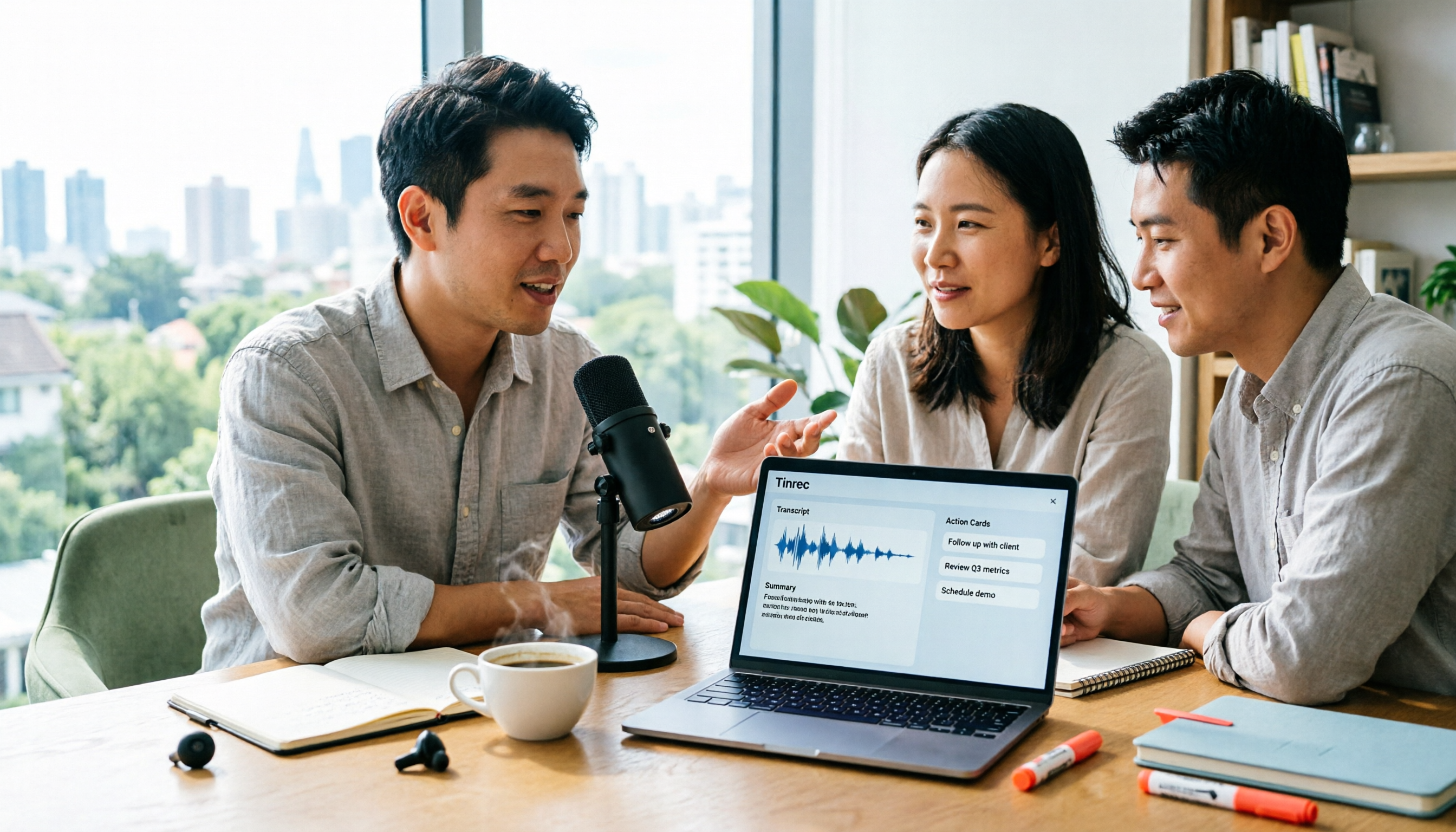
Turn recordings into transcripts and summaries in minutes
Upload audio or video for multilingual transcription, AI notes, and action items
Do you first use Mac's built-in Voice Memos to record a meeting, or do you directly find a tool that can conveniently turn recordings into transcripts? The key to this choice isn't actually about recording—it's about what happens after the recording ends.
Apple computers certainly have recording capabilities—Mac's Voice Memos can record, store, play back, and edit audio files, and the sound quality has always been decent. iPhones have also gradually added recording and call recording features in recent years. But if your goal is to avoid listening to the meeting again after it ends, then what you really need to compare is: who can help you turn sound into data that can be searched, shared, and acted upon. This is exactly the gap Tinrec aims to fill.
Why are people starting to look for alternatives to Mac's built-in Voice Memos?
Voice Memos is the first recording tool many people use after opening their Mac. It handles recording, storing, playing, and editing all in one place. If you simply want to capture sound, there's not much to criticize.
The gap appears after recording. To turn a 60-minute meeting into a transcript, key points, and action items, you have to listen again, type while listening, and then organize who is responsible for what. This kind of information transformation work is not the primary design purpose of built-in recording tools.
If you only occasionally record a bit of audio, the built-in tool is sufficient. But if you have meetings, classes, or interviews to organize every week, a tool like Tinrec that puts recording, transcription, summarization, action items, and collaboration into a single workflow is worth exploring.
Tinrec vs Mac built-in Voice Memos: What's different in the core experience?
What you get after recording Built-in Voice Memos delivers an audio file, and how you organize it afterward is up to you. Tinrec delivers a transcript, AI summary, chapters, key points, and action items. Right when the meeting ends, the draft of your meeting notes is already there. For people who need to produce meeting notes every day, this is the difference between finishing on time or not.
How to record online meetings Meetings on Zoom, Google Meet, Microsoft Teams, and Webex have both video and audio on your computer. Tinrec's desktop version directly captures system audio without needing to invite an extra meeting bot, so no strangers appear on the participant list. The approach is that the user actively starts recording, rather than automatically joining all meetings in the background.
Chinese and mixed Chinese-English meeting content Meetings in Taiwan often mix three English words into a Chinese sentence, plus product codes and technical terms. Tinrec supports transcription for Chinese, Traditional Chinese, and multilingual meetings, and you can switch between original text, translation, or bilingual view. Teams can also maintain a hotword list for frequently used terms. Actual performance will be affected by recording quality, ambient noise, accents, and overlapping speakers, so it's not recommended to judge accuracy by a single number.
Is the recording a dead file or searchable data? A file that can only be played from the beginning is a dead file. Tinrec supports AI Q&A around meeting content—"What was the conclusion of this meeting?" "Who promised to deliver what?" Just ask directly, no need to flip through 30 pages of transcript. Multiple meetings from the same month can also be placed together to look back for clues.
Does data stay on a personal computer or become a team asset? Recordings stored on personal devices scatter when people leave. Tinrec's team version provides an independent team space where meeting data belongs to the team. Members can view historical meetings; administrators can manage roles, seats, shared quotas, usage analytics, and audit logs. When a member leaves or loses their seat, their team resources can be handed over to other members and won't disappear with them.
Tinrec's core features at a glance
Real-time recording to text: Open Tinrec and start recording, and text is generated simultaneously. During the meeting, you can watch the text to confirm no key points are missed. By the time the meeting ends, the transcript is already complete—no need to schedule time to listen again.
Bot-free online meeting recording: The desktop version captures system audio to handle online meetings on Zoom, Google Meet, Microsoft Teams, Webex, etc., without needing a meeting bot to join or asking the host to grant extra permissions.
AI summary, chapters, and action item extraction: Long meetings are automatically split into browsable chapters and key points, and follow-up action items are organized from the discussion. For project meetings that require post-meeting reporting, this step saves the most time.
Stop organizing recordings by hand
Upload audio or video and automatically get a transcript, summary, and action items
AI conversational search: After recording a one-hour meeting, you can directly ask about conclusions, responsible persons, or the final decision on a topic. No need to remember which minute something was said, and no need to re-read the entire transcript.
Multi-format export and Agent post-processing: Transcripts and summaries can be exported to Notion, Google Docs, OneNote, Dropbox, and other common tools for further processing. You can also use Agent to generate reports, tables, and documents, directly integrating with your existing workflow.
From individual to team: The missing piece Tinrec's team version fills
When meeting data starts to accumulate, personal accounts hit bottlenecks. Tinrec's team version centralizes recording, transcripts, summaries, action items, and member management in one team space. Members can be invited via a join link, and roles are distinguished as owner, admin, and regular member.
Roles and seats should be viewed separately: roles determine who can manage the team, members, and audits; seats determine whether a member can record, upload, edit, import, and export. Members who are active but have no seat can still view, play, and read team data, but cannot perform resource usage operations. Also, teams currently focus on team-level sharing, not a granular file-level permission system.
For billing, the team monthly plan is USD 29.80 per paid seat per month, and the annual plan is USD 199 per paid seat per year, about USD 16.58 per month. The first eligible team trial is 7 days, 1 free seat, and 300 minutes of team shared import quota. Each paid seat provides 2,000 minutes of team shared import quota per month. Under an active team plan and active seat, real-time recording currently does not deduct minutes, while file and web link imports consume team shared quota. Actual prices and benefits are subject to the official purchase page.
The team space also includes built-in usage trends, member rankings and details, audit log search and export, and a 30-day audio recycle bin for recovery after accidental deletion or submission for permanent cleanup.
Real-world use cases
Online meetings and cross-department weekly meetings: Start Tinrec on the desktop before the meeting begins. By the end, the transcript, summary, and action items are ready. After the meeting, you only need to confirm and assign—no need to schedule time to type notes.
Classes, lectures, and online courses: Use Tinrec as a note-taking tool for class. Later, use AI Q&A to find "what was the example the teacher mentioned when covering chapter three?"—much faster than scrubbing through a video timeline.
Customer interviews and requirements interviews: Requirements, concerns, and commitments during the interview are fully recorded. After the meeting, export directly into deliverable documents, reducing back-and-forth communication costs.
Personal notes and idea capture: Record a quick thought while commuting or walking. Tinrec turns it into searchable text. When you want to find it later, just type a keyword instead of listening through each segment.
Points to consider when choosing an audio-to-text tool
Does the recording source cover your real scenarios?: Are your recording sources offline meetings, online meetings, existing audio files, or phone recordings? Being able to handle all of these is more important than specs for a single feature. Tinrec covers real-time recording, desktop online meetings, audio and video file import, and mobile recording.
What is produced after recording: Having only a transcript versus also getting a summary, chapters, action items, and Q&A are two completely different workloads. When choosing a tool, ask yourself: after I get the transcript, how much more time do I need to produce a summary?
Language support and handling of mixed Chinese-English: Chinese meetings often mix in English technical terms. Being able to switch between original text, translation, or bilingual view directly affects reading efficiency. Tinrec provides multilingual transcription and team hotword management.
Team governance and permission design: If data will be used by multiple people, you need to see management interfaces for roles, seats, usage, and audits—not just a shared account.
Quota and billing methods: The quota rules for real-time recording and file import may differ. Before purchasing, check clearly which one deducts minutes so you don't miscalculate costs.
Legal and consent: Recording and transcription involve others' privacy. Before use, confirm compliance with local regulations, and if necessary, obtain participants' consent before starting recording.
Conclusion: Is Tinrec worth a try?
Back to the original question: Does Apple computers have recording capabilities? Yes, and the built-in tool is enough to capture sound well. But if your workflow includes review and organization, relying only on audio files will cost you a lot of extra time.
Tinrec's value lies in three things: first, the desktop version records online meetings without a bot, so you don't need to change how you meet; second, after recording you immediately have a transcript, summary, and action items, and you can use AI Q&A to ask for details; third, the team space makes meeting data belong to the team, so knowledge doesn't leave when members change.
If you are an office worker or project team that needs Chinese meeting notes, frequently handles online meetings, and needs to produce summaries after meetings, Tinrec is currently one of the few choices that can satisfy all three. It's recommended to start with the free version and run through a real meeting of your own—this is more direct than reading any review.
References
Turn every recording into actionable outcomes
Get 60 free transcription minutes when you sign in. No credit card required.
Related Reading
You might also like

2026 iPhone Call Recording Showdown: Tinrec vs PLAUD Note — Which One Fits Your Workflow?
iPhone has built-in call recording starting with iOS 18.1, but the real time sink is turning those recordings into transcripts, summaries, and action items. This article first answers whether you can record calls on iPhone using official sources, then compares Tinrec and PLAUD Note across five dimensions: hardware requirements, meeting scenarios, post-call organization, Chinese-language experience, and team collaboration, so you can decide which approach better fits your workflow.
3 iPhone 17 Screen Recording and Post-Meeting Solutions Compared: From Control Center Setup to Tinrec
Screen recording on iPhone 17 isn't hard—it's what comes after that's tricky. This guide walks you through adding Screen Recording to Control Center, enabling the microphone, and stopping and saving your recording. Then we compare built-in screen recording, Dual Capture, and Tinrec for post-meeting organization, so you can see which fits your workflow.

4 Windows 11 Recording Tools Compared in 2026: Do Built-in Features Cut It for Meeting Transcripts and Summaries?
How do you record audio on Windows 11? This article compares four approaches: the built-in Sound Recorder, Xbox Game Bar, Stereo Mix with free software, and Tinrec. It explains the key settings for capturing system audio, the differences between transcripts and meeting summaries, and gives clear recommendations based on your use case.

Tinrec vs Notta 2026: 5-Dimension Comparison of AI Meeting Assistants
A mid-level manager overseeing a 10-person team and 15 weekly meetings puts Tinrec and Notta head-to-head across 5 dimensions: recording methods, Chinese and mixed-language experience, post-meeting workflow, team governance, and plan quotas, with honest limitations and use cases.

4 Cantonese Speech-to-Text Tools Tested for 2026: Which Saves More Time on Transcripts and AI Meeting Notes?
The hardest part of a Cantonese meeting isn't understanding it—it's turning what you heard into written form. This hands-on comparison of Tinrec, Notta, Granola, and TurboScribe examines their differences in Chinese and Cantonese meeting transcription, post-meeting summaries, AI Q&A, and team collaboration. We break down each tool's free tier, pricing, and limitations, plus key buying factors and pitfalls to avoid, so you can pick the one that truly saves you cleanup time.

5 Best iPhone Screen Recording with Audio Solutions in 2026: Built-in vs Tinrec vs Otter vs Notta vs TurboScribe
Can iPhone screen recording capture audio? Yes, it can record both system audio and microphone sound. This guide covers the actual settings for built-in screen recording, why there's no sound, and tests importing recordings into Tinrec for transcripts, summaries, and action items—making screen recordings not just usable but searchable and collaborative meeting materials.

4 Recording Tools Tested for 2026: How to Record Meetings Without Disturbing or Alerting Others
Want to record a meeting but worried about a recording indicator popping up or a bot appearing in the participant list? This article compares four recording methods—Tinrec, Granola, Otter.ai, and PLAUD—and explains why bot-free desktop capture is the least disruptive. It also covers key buying factors like Chinese recognition, audio retention, post-meeting organization, and legal risks.

Can You Record Phone Calls Freely in 2026? 5 Steps for Legal Recording and Organizing
You can't just record phone calls whenever you want. This article first helps you understand the legal and system notification mechanisms for call recording, then explains in 5 steps how to record legally and how to organize recordings afterward, and compares the differences between Tinrec and PLAUD Note in post-recording workflows.
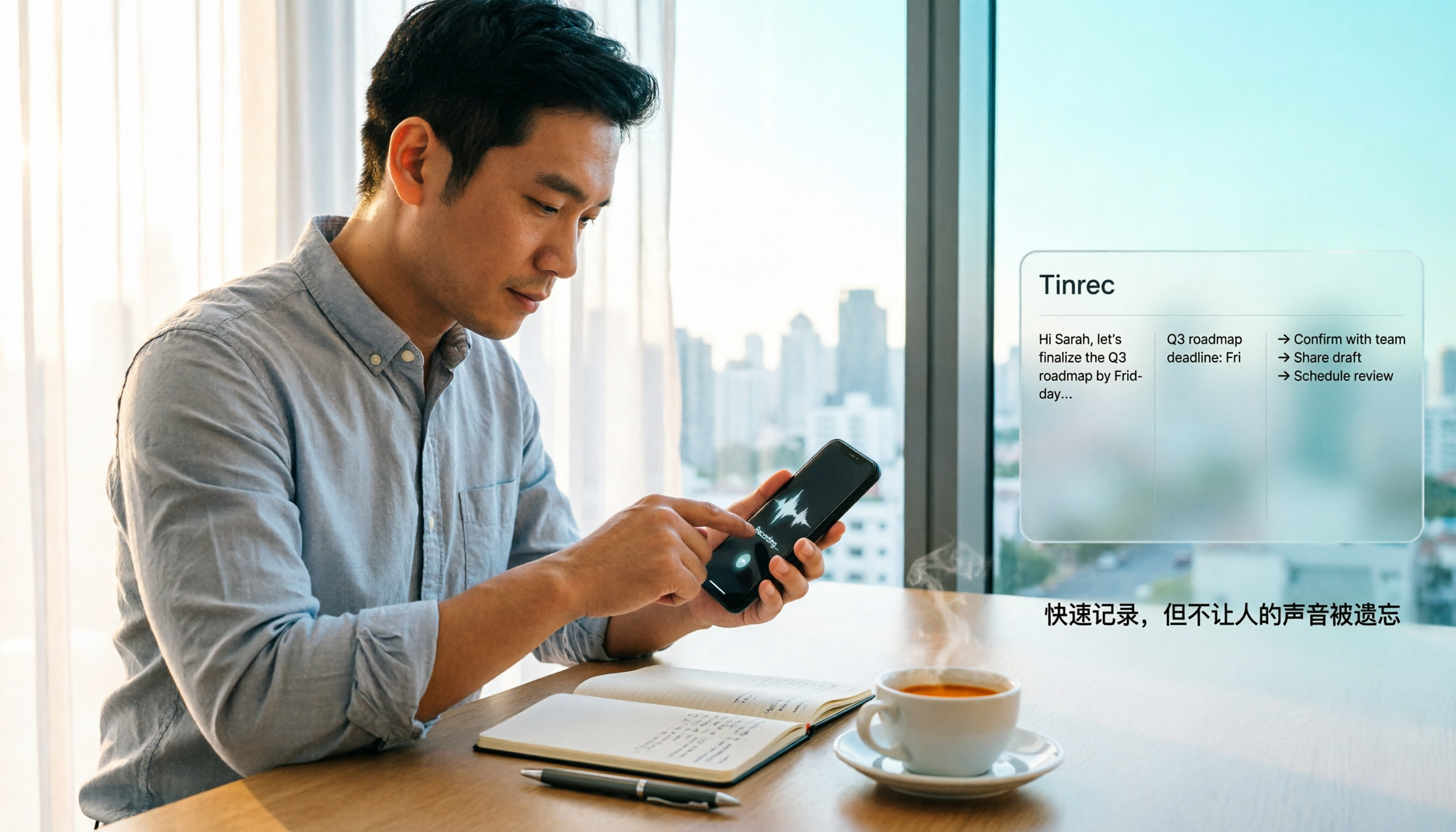
How to Quickly Start Recording on iPhone in 2026: 3 Shortcuts + Auto-Organize After Recording
iPhone has a one-tap recording method, but the settings are buried. This guide covers 3 ways to quickly start recording: Action Button, Back Tap, and Shortcuts on Home Screen. It also explains how to use Tinrec to turn recordings into transcripts, summaries, and to-dos, so quick recording actually saves time instead of piling up unheard audio files.