

Turn recordings into transcripts and summaries in minutes
Upload audio or video for multilingual transcription, AI notes, and action items
Many people ask me the same question: "Isn't recording a call just pressing a button? What's the big deal?"
My answer usually makes them pause.
Whether you can record has never been about the phone itself. It comes down to three things: the laws where you are, whether the other party knows, and what you plan to do with the recording afterward.
I've been coaching teams on meeting notes for years, and I've seen too many people focus on the wrong things—spending time figuring out how to record secretly, but never thinking about the fact that those 30-minute audio files end up never being opened again.
So I want to change the order in this article.
First, "can you?" Then, "how to record." Finally, "how to turn the recording into useful data."
Can You Record Phone Calls Freely? Three Questions You Must Think Through First
First, the law: Not every place allows "one-party consent"
This is the most easily overlooked point.
Different countries and regions have different rules. Some places allow recording as long as one party to the call consents, while others require consent from all participants.
Apple's official documentation is clear: before starting a recording, confirm that the other party agrees to be recorded.
So before you press the record button, take ten seconds to think: Where are you? Who is on the other end? Will this recording be made public or used as evidence later?
If any answer is uncertain, don't rush to record.
Second, notification: iPhone and Google Phone both actively alert the other party
Even if the law allows it, many systems will help the other party stay informed.
iPhone has built-in call recording starting with iOS 18.1, but during recording, the system displays a notice during the call saying "This call will be recorded."
Google's Phone app does the same—before the call starts, it sends a notification to participants that recording is about to begin.
In other words, "quietly recording without the other party knowing" is usually not possible with standard system features.
Whether a prompt appears on screen can vary by system version, region, and carrier, so always verify before use.
(Note: Some third-party tutorials share methods using system-level screen or audio capture to record calls on messaging apps, but whether such methods work depends on system version and device support, and you still have to consider the legal and notification aspects.)
Third, organizing: Recording is just the beginning
This is what I most want to remind you about.
A 30-minute call recorded is just a 30-minute audio file. It won't turn into key points on its own, nor will it become action items by itself.
Unless you're willing to spend another round listening to it all.
So instead of obsessing over "how to record without anyone knowing," think first: What will I do with the content of this call later?
Tinrec vs PLAUD Note | Quick Overview
Once you've determined you can record, the next step is to choose an approach that won't cause you pain later.
There are two common paths: one is "hardware-based recording," the other is "software that turns meetings and recordings into usable data." In this article, I'll compare Tinrec and PLAUD Note.
| Item | Tinrec | PLAUD Note |
|---|---|---|
| One-line positioning | AI meeting notes and team collaboration tool | AI recording hardware |
| Main platforms | Web, desktop, mobile | Standalone recording device plus app |
| Core difference | Directly organizes recordings into transcripts, summaries, action items, and team data | Portable recording, phone call recording, and hardware experience |
Next, I'll use 5 dimensions to clarify the differences between the two in "after recording."
Dimension 1 | Breadth of recording sources
PLAUD Note's strength is the hardware itself. It's a standalone device, suitable for carrying around and recording anytime, and it supports phone call recording—intuitive for people who are often on the go.
But hardware also means one thing: you have to remember to bring it and remember to charge it.
Tinrec takes a different path. It doesn't rely on an extra device. The desktop version can directly capture your computer's system audio to handle online meetings on Zoom, Google Meet, Microsoft Teams, Webex, without needing a meeting bot to join. Plus real-time recording, audio and video import, and mobile recording—most sound sources you encounter can be brought in.
→ This dimension: If you want "one place to gather various sources," Tinrec is more convenient.
Dimension 2 | Can you use it directly after recording?
PLAUD Note provides summaries, templates, and Q&A, which is enough for someone who simply wants to turn a recording into key points.
Stop organizing recordings by hand
Upload audio or video and automatically get a transcript, summary, and action items
Tinrec does this part more completely: transcripts preserve original speech, AI summaries capture key points, chapters segment long meetings, action items are picked out from discussions, and you can continue AI Q&A around meeting content, then export to Notion, Google Docs, OneNote, Dropbox, etc., or use Agent post-processing to generate reports, tables, and documents.
In other words, PLAUD helps you get "a summary," while Tinrec helps you get "data you can continue working with."
→ This dimension: Tinrec clearly wins.
Dimension 3 | Team collaboration and data retention
If your recordings are only for yourself, you can skip this section.
But as soon as a team is involved, things are completely different. PLAUD offers team membership and device management, but the focus remains on the device side.
Tinrec's team version is a separate team space: meeting data belongs to the team, you can invite members, set owners, admins, or regular members, assign or revoke seats, view team usage trends and member details, manage team hotwords, query and export audit logs, and there's an audio recycle bin to recover accidentally deleted files.
Here's a commonly confused concept: roles determine who can manage the team, seats determine who can record, upload, edit, and export. Valid members without a seat can still view, play, and read team data, but cannot edit or export.
So when members leave, meeting data doesn't leave with them.
→ This dimension: For scenarios requiring team retention, Tinrec wins.
Dimension 4 | Chinese and multilingual experience
PLAUD's experience largely depends on the device and app, and language support follows the app.
Tinrec focuses on Chinese, Traditional Chinese, mixed Chinese-English, and multilingual meetings, and supports real-time translation during recording, allowing you to switch between original text, translation, or bilingual view; teams can also maintain hotwords to make technical term recognition more stable.
I must be clear: no tool can guarantee a fixed accuracy rate. Recording quality, background noise, accents, multiple people talking over each other, and technical terms all affect results. Important content should still be verified against transcript timestamps and recording playback.
→ This dimension: For users mainly in Chinese meetings, Tinrec is more aligned with needs.
Dimension 5 | Cost and entry barrier
PLAUD's entry cost includes the hardware itself. Based on current prices on the official US website, NotePin is USD 159, Note Pro is USD 189, and there are also Starter, Pro, Unlimited membership plans.
Tinrec doesn't require buying a device first. The personal version has a free plan to experience recording, import, summaries, and transcription with basic quota; for short-term intensive use there's a weekly card; for steady weekly use consider the Pro monthly card; for long-term data retention the Pro annual card is suitable.
For the team version, first-time eligible teams get a 7-day trial, 1 free seat, and 300 minutes of shared team import quota; paid seats are USD 29.80 per month or USD 199 per year, with each paid seat providing 2,000 minutes of shared team import quota per month. Actual prices, currencies, and promotions are subject to the official purchase page.
→ This dimension: If you don't want to invest in hardware first, Tinrec has a lower barrier.
What unique advantages does each have?
Tinrec's unique advantages
- No extra hardware: Works on web, desktop, and mobile, so you're not stuck without a device when you need to record.
- No bot for online meetings: Desktop version directly captures system audio, no extra account joining the meeting.
- Complete post-recording workflow: Summaries, chapters, action items, AI Q&A, translation, export to third-party tools, even generating reports and tables.
- Complete team governance: Roles, seats, usage, audit, recycle bin—turning meetings into team assets.
PLAUD Note's unique advantages
- Mature portable hardware experience: Standalone device, pick it up and record, no need to keep a computer or phone on.
- Supports phone call recording and long battery life: Practical for people who are often on the move and need immediate audio capture.
Conclusion: Which one should you choose?
- If you need to get transcripts, summaries, action items, and follow-up reports done in one go → Tinrec
- If you want to keep asking questions about the recording content → Tinrec (has AI Q&A)
- If you want meeting data to stay with the team and not be lost when members change → Tinrec (team space plus seats and audit)
- If you mainly have Chinese or mixed Chinese-English meetings → Tinrec (Chinese experience plus real-time translation and hotwords)
- If you're often on the go, need a device you can pick up and record with, and have hardware needs for phone call recording → Hardware like PLAUD Note is more suitable
In one sentence: For most people who want to turn calls and meetings into usable data, Tinrec is the more complete choice. You can start with the free version and test it with one of your own recordings.
But no matter which you choose, please return to those first three things: confirm the law, confirm the other party knows, and think clearly about what you'll do after recording.
Quick Start Checklist (6 Steps)
- Confirm local laws on call recording, and obtain consent if necessary.
- Check your device and system version to see if it supports call recording and related prompts.
- Decide whether you're recording a phone call, online meeting, or in-person meeting, and choose the corresponding recording method.
- Before recording, clearly state the purpose to avoid future disputes.
- Organize immediately after recording: summary, chapters, action items—finish the same day so you don't forget.
- Put the organized data into a team space or cloud tool so it can be found next time.
Test step by step, and you too can gradually turn "recording" into "usable data."
References
- iPhone Call Recording Tutorial: Step-by-Step Guide to Recording Phone Calls
- Record and transcribe a call on iPhone - Apple Support (Taiwan)
- Record a call with the Phone app - Phone app Help
- [Phone Tips] LINE can now record calls! iPhone built-in call recording trick, no notification to the other party! | Jyes Communication ~ Challenge the lowest phone market price
- How to enable automatic call recording on Phone | Official Support | ASUS Taiwan
Turn every recording into actionable outcomes
Get 60 free transcription minutes when you sign in. No credit card required.
Related Reading
You might also like

2026 iPhone Call Recording Showdown: Tinrec vs PLAUD Note — Which One Fits Your Workflow?
iPhone has built-in call recording starting with iOS 18.1, but the real time sink is turning those recordings into transcripts, summaries, and action items. This article first answers whether you can record calls on iPhone using official sources, then compares Tinrec and PLAUD Note across five dimensions: hardware requirements, meeting scenarios, post-call organization, Chinese-language experience, and team collaboration, so you can decide which approach better fits your workflow.

3 iPhone 17 Screen Recording and Post-Meeting Solutions Compared: From Control Center Setup to Tinrec
Screen recording on iPhone 17 isn't hard—it's what comes after that's tricky. This guide walks you through adding Screen Recording to Control Center, enabling the microphone, and stopping and saving your recording. Then we compare built-in screen recording, Dual Capture, and Tinrec for post-meeting organization, so you can see which fits your workflow.

4 Windows 11 Recording Tools Compared in 2026: Do Built-in Features Cut It for Meeting Transcripts and Summaries?
How do you record audio on Windows 11? This article compares four approaches: the built-in Sound Recorder, Xbox Game Bar, Stereo Mix with free software, and Tinrec. It explains the key settings for capturing system audio, the differences between transcripts and meeting summaries, and gives clear recommendations based on your use case.

Tinrec vs Notta 2026: 5-Dimension Comparison of AI Meeting Assistants
A mid-level manager overseeing a 10-person team and 15 weekly meetings puts Tinrec and Notta head-to-head across 5 dimensions: recording methods, Chinese and mixed-language experience, post-meeting workflow, team governance, and plan quotas, with honest limitations and use cases.

4 Cantonese Speech-to-Text Tools Tested for 2026: Which Saves More Time on Transcripts and AI Meeting Notes?
The hardest part of a Cantonese meeting isn't understanding it—it's turning what you heard into written form. This hands-on comparison of Tinrec, Notta, Granola, and TurboScribe examines their differences in Chinese and Cantonese meeting transcription, post-meeting summaries, AI Q&A, and team collaboration. We break down each tool's free tier, pricing, and limitations, plus key buying factors and pitfalls to avoid, so you can pick the one that truly saves you cleanup time.

5 Best iPhone Screen Recording with Audio Solutions in 2026: Built-in vs Tinrec vs Otter vs Notta vs TurboScribe
Can iPhone screen recording capture audio? Yes, it can record both system audio and microphone sound. This guide covers the actual settings for built-in screen recording, why there's no sound, and tests importing recordings into Tinrec for transcripts, summaries, and action items—making screen recordings not just usable but searchable and collaborative meeting materials.

4 Recording Tools Tested for 2026: How to Record Meetings Without Disturbing or Alerting Others
Want to record a meeting but worried about a recording indicator popping up or a bot appearing in the participant list? This article compares four recording methods—Tinrec, Granola, Otter.ai, and PLAUD—and explains why bot-free desktop capture is the least disruptive. It also covers key buying factors like Chinese recognition, audio retention, post-meeting organization, and legal risks.
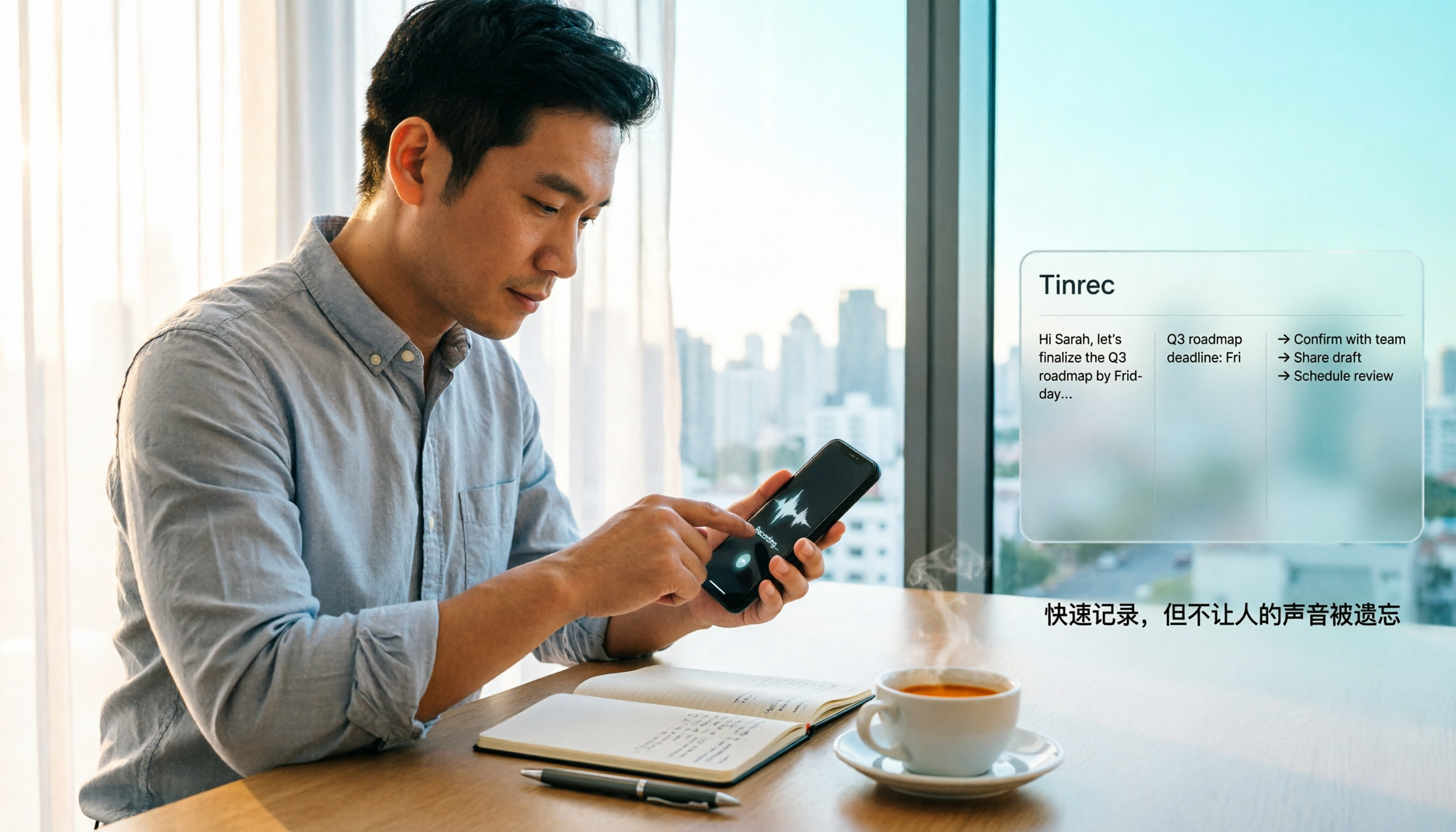
How to Quickly Start Recording on iPhone in 2026: 3 Shortcuts + Auto-Organize After Recording
iPhone has a one-tap recording method, but the settings are buried. This guide covers 3 ways to quickly start recording: Action Button, Back Tap, and Shortcuts on Home Screen. It also explains how to use Tinrec to turn recordings into transcripts, summaries, and to-dos, so quick recording actually saves time instead of piling up unheard audio files.

2026 Mac Audio-to-Text Showdown: Beyond Built-in Voice Memos, Why Tinrec Saves More Time
Apple's built-in Voice Memos can record, store, and edit audio, but after recording, you still have to create transcripts, summaries, and to-do lists yourself. This article compares Mac's built-in recording with Tinrec, explaining how bot-free online meeting recording, AI summaries, action item extraction, AI Q&A, and team spaces fill the post-recording workflow gap.