
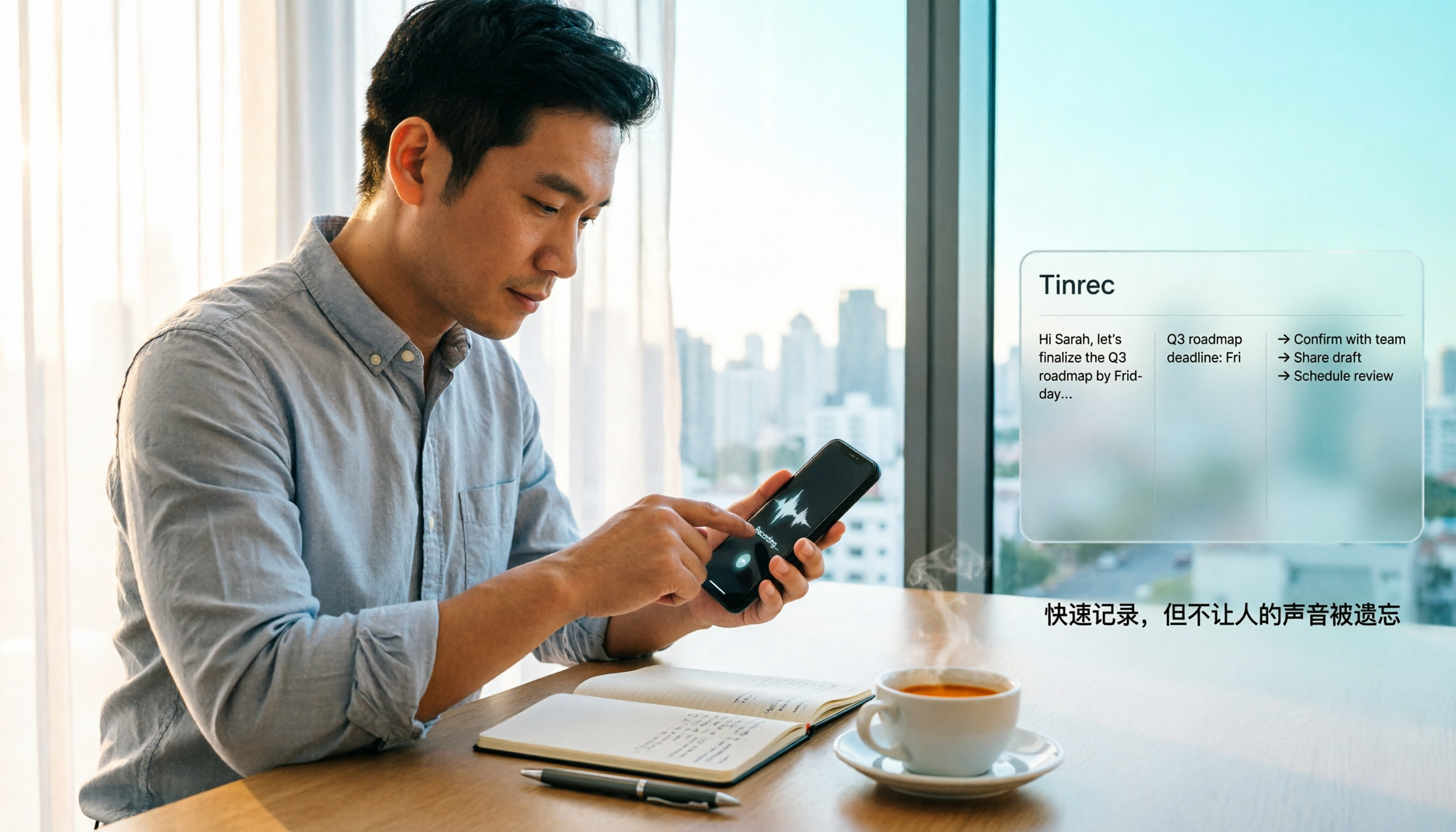
Turn recordings into transcripts and summaries in minutes
Upload audio or video for multilingual transcription, AI notes, and action items
The Slowest Way to Record on iPhone Is What You're Doing Now
An engineer on my team was in a meeting last week when his boss dropped a key decision. He grabbed his phone to record—unlock, swipe to Utilities, open Voice Memos, then hit the red button. By the time he actually started recording, the sentence was over.
Most people think this is just how iPhone recording works, which is why they feel phone recording is inconvenient. But that's a misconception: iPhone has long supported one-tap recording, it's just that the settings are buried and no one shows you how to enable it.
There's an even bigger misconception: treating quick capture as the end goal. Recording is just the beginning. If a 40-minute meeting means you later spend 40 minutes re-listening and hunting for key points, those 10 seconds you saved upfront mean nothing. In this article, I'll first show you 3 ways to quickly start recording on iPhone, then talk about how I handle the after-recording part—that's where your time really gets eaten.
3 Ways to Quickly Start Recording on iPhone (Tested Setup Steps)
Method 1: Action Button (iPhone 15 Pro and Later)
If you have an iPhone 15 Pro, 15 Pro Max, or later 16 or 17 series, you can assign the Action Button on the left side to start recording.
Setup path: Open Settings > Tap Action Button > Select Voice Memos.
After that, just long-press the Action Button on the left side to start recording immediately. This is my most-used method because I can do it one-handed whether the phone is on a desk or in my pocket, without looking at the screen.
Method 2: Back Tap (Works on Most Models)
For models without an Action Button, Back Tap is the closest thing to one-tap recording, and it requires the built-in Shortcuts app.
Step 1: Create a recording shortcut. Open Shortcuts > Tap + in the top right > Search for Voice Memos > Select Create Recording > Tap Done.
Step 2: Assign it to Back Tap. Go to Settings > Accessibility > Touch > Back Tap, choose Double Tap or Triple Tap, scroll down to find Shortcuts, and select the Create Recording shortcut you just made.
Once set up, double-tap the back of your phone to start recording. Two practical notes: First, you must unlock the screen before using it. Second, a thick case may interfere with the tap—I tap just below the camera, which works more reliably for me.
If you want a more complete shortcut, you can set the recording quality to High Quality, set Start Recording to Immediately, add a Save File action, turn off Ask Where to Save, and name the file yourself. That way, each recording saves with the same filename, making it much faster to find later.
Method 3: Put the Shortcut on Your Home Screen or Control Center
The same recording shortcut can also be added to your Home Screen or accessed via a custom Control Center control. This is great if you're used to a certain gesture and don't want to change settings, but want to save a couple of taps. For me, when driving or carrying a lot of things, this is the most practical option.
Before Setting Up Quick Recording, Understand These 3 Key Points
1. First, check if your model has an Action Button. The Action Button is only available on certain models after iPhone 15 Pro. If you have a different model, you won't find the setting—just use Back Tap or a Home Screen shortcut instead.
2. The trigger should match your immediate situation. In a meeting with the phone flat on the table, the Action Button is fastest. If the phone is in your pocket and you don't want to take it out, Back Tap is smoother. If you often hold your phone one-handed, a big button on the Home Screen is most intuitive. There's no single best method—only the one you can actually press in the moment.
3. Who will organize the recording? This is the most overlooked point. iPhone's built-in recording solves the capture, but it won't highlight the key points, to-dos, and conclusions you need. I have about 15 meetings a week, and I used to spend one to two hours just re-listening to recordings afterward. My criteria became: can this tool give me a transcript, summary, and to-dos right after I record? That matters far more than where the record button is.
After Recording Is the Real Battlefield: Tinrec
Tinrec is an AI meeting notes and collaboration tool for individuals and teams, available on mobile, desktop, and web. It's not about how to record, but what to do after recording.
Stop organizing recordings by hand
Upload audio or video and automatically get a transcript, summary, and action items
First, it turns your iPhone recordings into transcripts. You don't have to re-listen—open it and it's text, searchable, and you can jump to timestamps. It handles mixed Chinese-English meetings too, which is practical for teams like ours that constantly say roadmap and deadline.
Second, it doesn't just give you a transcript—it automatically generates summaries, chapters, and action items. After a meeting, who's responsible for what and when it's due is listed out. I used to spend 40 minutes writing a meeting summary; now I spend about 5 minutes reviewing and tweaking a few words before sending it out.
Third, and the reason I can't switch away: AI Q&A. After recording, you can ask it directly, "Who mentioned the budget in the last meeting?" or "What were the client's concerns about pricing?" It doesn't dump a bunch of keyword search results on you—it gives you the answer. Data can also be exported to Notion, Google Docs, OneNote, and other tools, so it's not trapped in the app.
Also, if you often have online meetings like me, Tinrec's desktop version captures your computer's system audio directly, so you don't need to add a meeting bot as a participant in Zoom, Google Meet, Microsoft Teams, or Webex. This is especially important for client meetings—you don't want an unfamiliar bot showing up in front of a client.
There are limitations. The free plan has limited minutes, so someone like me with a dozen meetings a week definitely needs to pay. Also, it's user-initiated recording, not automatic joining of every meeting on your calendar—you still have to press the button when the time comes. But that complements the quick-start gestures you set up earlier: you press once, and it handles the rest.
If you're using it with a team, Tinrec's team plan is a separate team space where meeting data belongs to the team, not tied to an individual's account. When a member leaves, is removed, or loses their seat, data can be transferred to other active members—it doesn't leave with the person. For managers, that's far more controllable than everyone recording and storing separately.
Besides Tinrec, What Are the Alternatives?
Apple's built-in Voice Memos: Free, zero setup, and with quick-start gestures it's the simplest option. Recordings sync across iPhone, iPad, and Mac via iCloud. But its output is just an audio file plus text—no AI summary, no action item extraction, no asking questions about the content. If you just want to capture first, it's enough; for organizing, you're on your own.
Otter.ai: The top choice for English meetings, with a generous free plan of 300 minutes per month. But its strength is English business scenarios; Chinese and mixed Chinese-English meetings aren't its home turf, and it lacks Tinrec's approach of turning meeting data into a team space. If your meetings are almost entirely in English, Otter.ai is a more cost-effective choice than Tinrec.
PLAUD Note / NotePin: AI recording hardware, starting around USD 159. It offers one-tap recording via a physical button, with advantages in battery life and portability. But the trade-off is carrying an extra device and spending on hardware. Tinrec requires no extra hardware—it works on phone, computer, and web, and handles online meetings directly.
Pitfall Guide: 3 Most Common Mistakes with iPhone Quick Recording
Pitfall 1: Assuming one setup lasts forever. System updates, switching phones, or reinstalling Shortcuts can break your recording shortcut. My habit is to record a 10-second test after every major iOS update to confirm the gesture still works.
Pitfall 2: Recording without organizing, ending up with an audio graveyard. This is my most painful experience. I used to think I'd record first and deal with it later, and ended up with over 60 unorganized meeting recordings in Voice Memos—I never went back to listen to any of them. The cost of recording is on the back end. Without a transcription and summary workflow, quick recording just helps you accumulate junk faster.
Pitfall 3: Ignoring recording laws and consent. Before recording, check local regulations and get consent from participants when needed. No matter how convenient the tool is, you can't cross that line.
Summary: Do You Want One-Tap Recording, or Recording You Can Use Right Away?
To be clear:
- Just want to capture audio and listen later yourself → Use built-in Voice Memos with Back Tap or Action Button. Zero cost.
- Want transcript, summary, and action items right after recording → Tinrec. After testing, I find it saves the most post-meeting time.
- Meetings are in Chinese or mixed Chinese-English → Tinrec. Chinese and bilingual scenarios are its home turf.
- Record on phone, organize on computer, occasionally use web → Tinrec. No need to switch tools across devices.
- Use with a team, meeting data stays with the team → Tinrec team plan. It has a separate team space, member roles and seats, usage analytics, and audit logs. Eligible teams get a 7-day trial, 1 free seat, and 300 shared import minutes. After that, it's USD 29.80 per paid seat per month, or USD 199 per paid seat per year, with 2,000 shared import minutes per paid seat per month.
- Meetings are almost all English, want to minimize budget → Otter.ai.
One last honest note: setting up the record button takes five minutes. What really determines whether you'll regret it is how you handle those 40 minutes after recording. I suggest starting with Tinrec's free plan, record two or three meetings, and see if the summaries it produces can be used directly. If yes, consider paying; if not, you've only lost the time of a meal.
References
Turn every recording into actionable outcomes
Get 60 free transcription minutes when you sign in. No credit card required.
Related Reading
You might also like

2026 iPhone Call Recording Showdown: Tinrec vs PLAUD Note — Which One Fits Your Workflow?
iPhone has built-in call recording starting with iOS 18.1, but the real time sink is turning those recordings into transcripts, summaries, and action items. This article first answers whether you can record calls on iPhone using official sources, then compares Tinrec and PLAUD Note across five dimensions: hardware requirements, meeting scenarios, post-call organization, Chinese-language experience, and team collaboration, so you can decide which approach better fits your workflow.
3 iPhone 17 Screen Recording and Post-Meeting Solutions Compared: From Control Center Setup to Tinrec
Screen recording on iPhone 17 isn't hard—it's what comes after that's tricky. This guide walks you through adding Screen Recording to Control Center, enabling the microphone, and stopping and saving your recording. Then we compare built-in screen recording, Dual Capture, and Tinrec for post-meeting organization, so you can see which fits your workflow.

4 Windows 11 Recording Tools Compared in 2026: Do Built-in Features Cut It for Meeting Transcripts and Summaries?
How do you record audio on Windows 11? This article compares four approaches: the built-in Sound Recorder, Xbox Game Bar, Stereo Mix with free software, and Tinrec. It explains the key settings for capturing system audio, the differences between transcripts and meeting summaries, and gives clear recommendations based on your use case.

Tinrec vs Notta 2026: 5-Dimension Comparison of AI Meeting Assistants
A mid-level manager overseeing a 10-person team and 15 weekly meetings puts Tinrec and Notta head-to-head across 5 dimensions: recording methods, Chinese and mixed-language experience, post-meeting workflow, team governance, and plan quotas, with honest limitations and use cases.

4 Cantonese Speech-to-Text Tools Tested for 2026: Which Saves More Time on Transcripts and AI Meeting Notes?
The hardest part of a Cantonese meeting isn't understanding it—it's turning what you heard into written form. This hands-on comparison of Tinrec, Notta, Granola, and TurboScribe examines their differences in Chinese and Cantonese meeting transcription, post-meeting summaries, AI Q&A, and team collaboration. We break down each tool's free tier, pricing, and limitations, plus key buying factors and pitfalls to avoid, so you can pick the one that truly saves you cleanup time.

5 Best iPhone Screen Recording with Audio Solutions in 2026: Built-in vs Tinrec vs Otter vs Notta vs TurboScribe
Can iPhone screen recording capture audio? Yes, it can record both system audio and microphone sound. This guide covers the actual settings for built-in screen recording, why there's no sound, and tests importing recordings into Tinrec for transcripts, summaries, and action items—making screen recordings not just usable but searchable and collaborative meeting materials.

4 Recording Tools Tested for 2026: How to Record Meetings Without Disturbing or Alerting Others
Want to record a meeting but worried about a recording indicator popping up or a bot appearing in the participant list? This article compares four recording methods—Tinrec, Granola, Otter.ai, and PLAUD—and explains why bot-free desktop capture is the least disruptive. It also covers key buying factors like Chinese recognition, audio retention, post-meeting organization, and legal risks.

Can You Record Phone Calls Freely in 2026? 5 Steps for Legal Recording and Organizing
You can't just record phone calls whenever you want. This article first helps you understand the legal and system notification mechanisms for call recording, then explains in 5 steps how to record legally and how to organize recordings afterward, and compares the differences between Tinrec and PLAUD Note in post-recording workflows.
2026 Mac Audio-to-Text Showdown: Beyond Built-in Voice Memos, Why Tinrec Saves More Time
Apple's built-in Voice Memos can record, store, and edit audio, but after recording, you still have to create transcripts, summaries, and to-do lists yourself. This article compares Mac's built-in recording with Tinrec, explaining how bot-free online meeting recording, AI summaries, action item extraction, AI Q&A, and team spaces fill the post-recording workflow gap.