
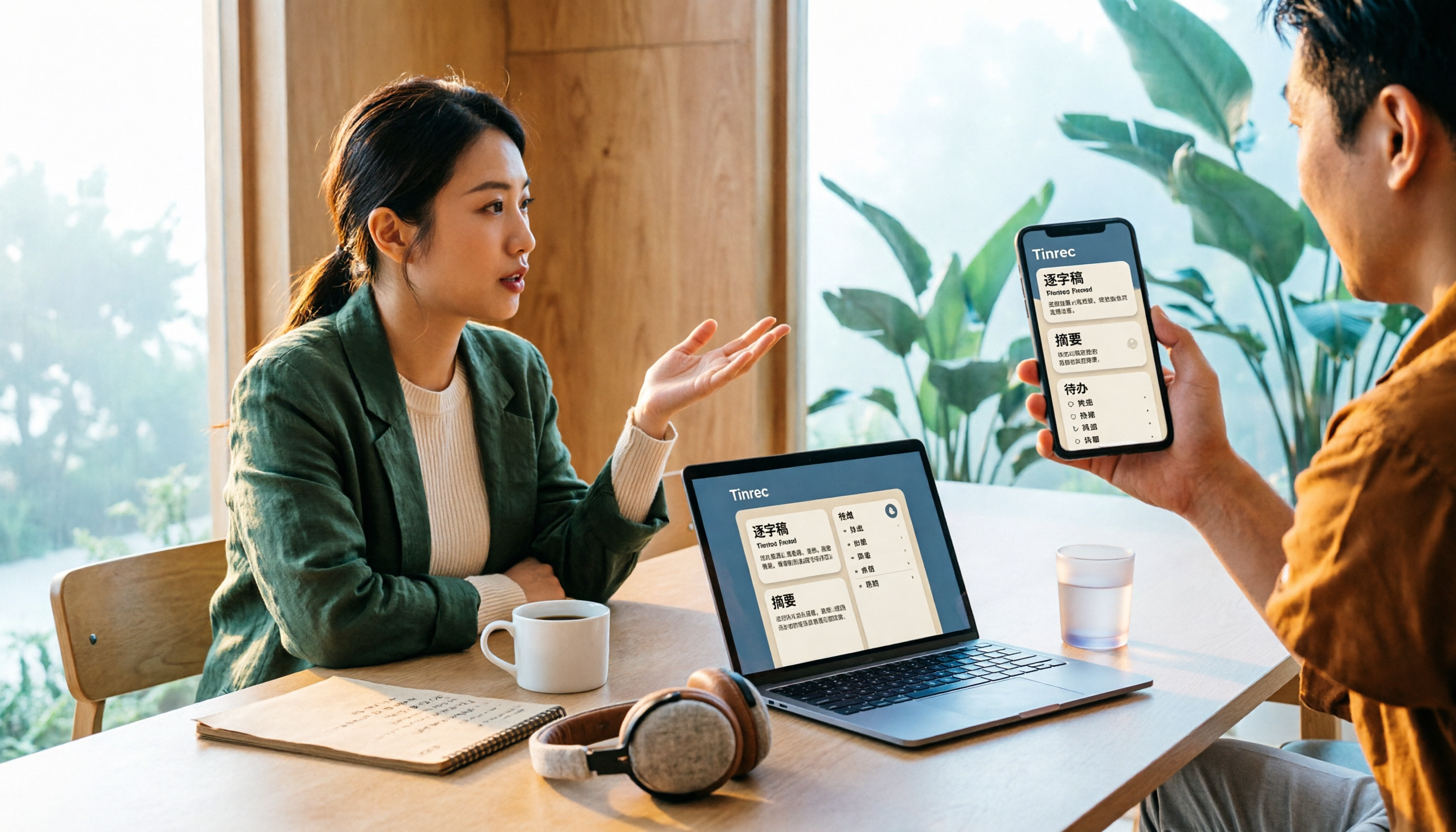
Turn recordings into transcripts and summaries in minutes
Upload audio or video for multilingual transcription, AI notes, and action items
5 Best iPhone Screen Recording with Audio Solutions in 2026: Built-in vs Tinrec vs Otter vs Notta vs TurboScribe
Can iPhone Screen Recording Capture Audio? First, Figure Out Which Sound You Want to Record
Yes. iPhone's built-in Screen Recording can record audio, and it captures two sound sources: system audio and microphone sound.
System audio is the sound played by your phone—app sound effects, video audio, the other party's voice in a meeting. Microphone sound is the ambient sound of you speaking. You can record both simultaneously or just one, depending on whether the microphone is turned on before recording.
Many people's pain point isn't "can't record" but "discovering there's no sound after recording." The three most common reasons: phone is on silent, microphone isn't on, or the app itself restricts screen recording.
If you're recording a meeting, class, or interview, the real hassle often comes later: you have a bunch of videos saved, but finding key points, organizing transcripts, and extracting action items still takes time. This article will first teach you how to set up iPhone screen recording with audio, then test importing recordings into AI meeting tools like Tinrec to see if we can upgrade from "just recorded" to "ready to use."
Before Choosing an iPhone Screen Recording Solution, Understand These 4 Key Points
1. Do You Want to Record System Audio or Microphone Sound?
When screen recording on iPhone, system audio is automatically captured, provided the phone isn't on silent mode. As for your own commentary, nearby voices, or ambient sound, you must long-press the screen recording icon in Control Center and manually turn on the microphone.
If you need "screen + phone internal audio + your narration," make sure both are confirmed. If you're just recording a video playing on your phone, leaving the microphone off actually gives you cleaner audio.
2. Silent Mode Is a Hidden Killer
Many people think their phone is broken when screen recording has no sound, but it's just on silent. On iPhone, system audio may not be recorded in silent mode. Before recording, check the volume and silent switch—this is the most easily overlooked step.
3. Some Apps Don't Allow Recording
Apple support documents note that some apps may not allow recording of content or audio, and you can't screen record and use screen mirroring at the same time. If you're recording copyrighted streaming content, failure is normal—it's not a settings error.
4. What Do You Plan to Do After Recording?
If you just want to keep the video, built-in features are enough. But if you want transcripts, meeting summaries, chapters, action items, or even team sharing, iPhone's built-in screen recording only completes half the job.
This is where Tinrec comes in: it doesn't handle screen recording, but it can turn videos or audio from your iPhone into searchable, queryable, exportable meeting materials.
Tinrec — Our Top Pick After Testing
Tinrec is an AI meeting notes and collaboration tool for individuals and teams. It supports iOS, Android, and web, and its core isn't "screen recording" but organizing audio, video, and meeting content into usable text and action data.
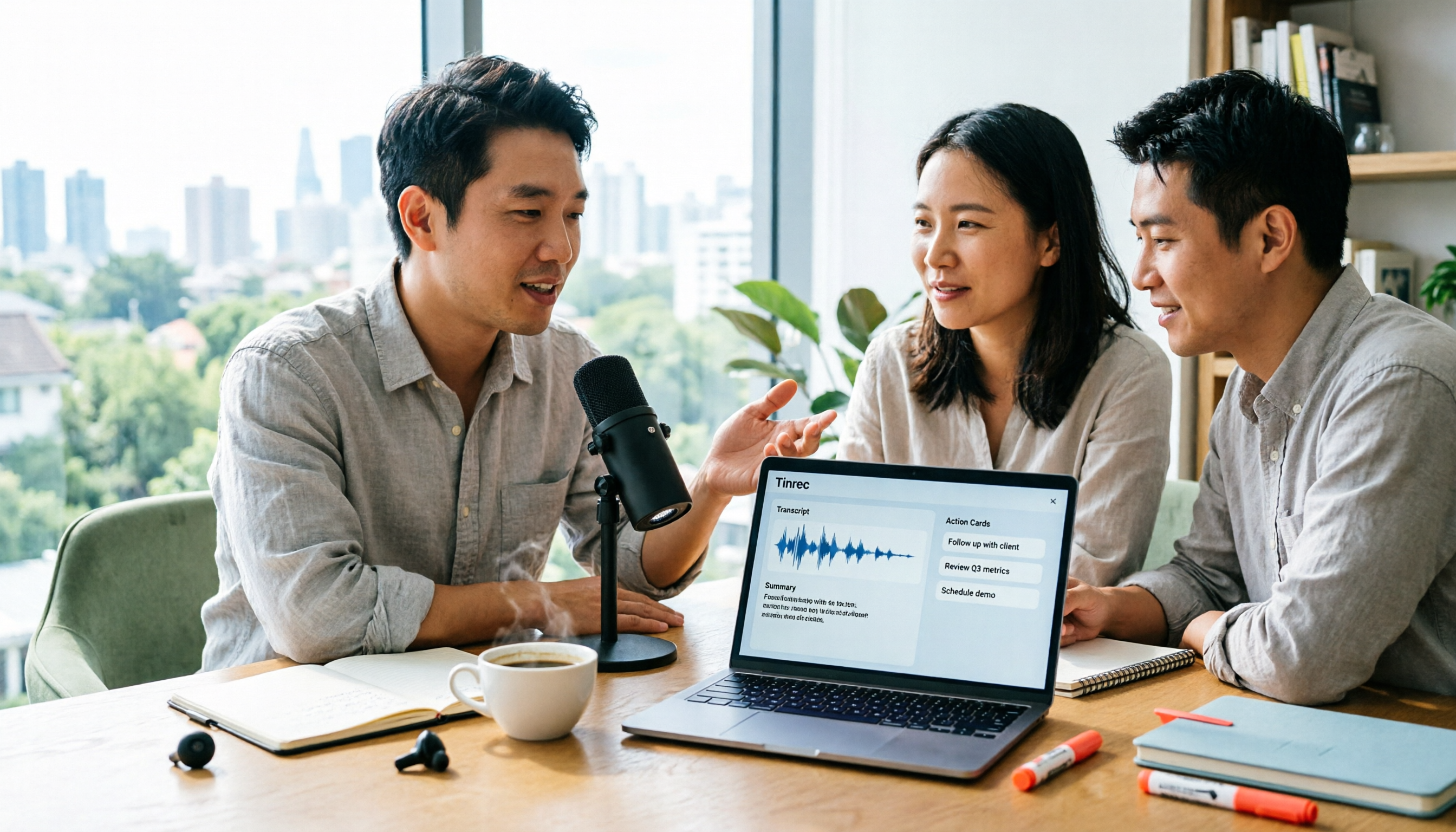
Take iPhone screen recording as an example: you can first use the built-in feature to record your phone screen and audio, then import the video into Tinrec. It will transcribe the audio into text, then automatically generate summaries, chapters, and key points. For a 30-minute meeting, this saves the process of repeatedly scrubbing the timeline and typing notes.
Tinrec's AI Q&A is where it stands out from ordinary transcription tools. After recording, you can directly ask: "What was the conclusion of this meeting?" "Who mentioned submitting a report next week?" It doesn't just throw keyword search results—it organizes answers based on meeting semantics. For those who need to trace decision context, this is much faster than manual Ctrl+F.
If you're recording online meetings, Tinrec's desktop version can directly capture computer system audio, handling Zoom, Google Meet, Microsoft Teams, Webex, etc., without needing an extra meeting bot to join. This is very practical for those who don't want an extra participant but still want to record the meeting.
In our testing process, we imported an iPhone screen recording into Tinrec and confirmed it could complete transcription, summarization, and action item extraction. Actual recognition accuracy is affected by recording quality, background noise, accents, overlapping speakers, and technical terms. We recommend verifying important content against transcript timestamps and the original video.
Stop organizing recordings by hand
Upload audio or video and automatically get a transcript, summary, and action items
Tinrec's advantages can be summarized in three points. First, it handles the "after recording" workflow: transcripts, summaries, chapters, action items, mind maps, AI Q&A, and multi-format export. Second, it supports Chinese, Traditional Chinese, and mixed Chinese-English content, and offers real-time translation and bilingual viewing. Third, the team version centralizes meeting data in a team space, where members can view historical meetings, and admins can manage roles, seats, usage, and auditing.
Limitations should also be clear. Tinrec is not a screen recording tool and cannot replace iPhone's built-in screen recording. The free version has basic quotas; heavy users need to consider weekly, Pro monthly, or annual plans. The team version is a separate team space; first-time eligible users can try 7 days, 1 free seat, and 300 minutes of shared team import quota; paid seats are USD 29.80/month or USD 199/year (about USD 16.58/month), with each paid seat providing 2,000 minutes of shared team import quota per month. Prices and promotions are subject to the official purchase page.
If you frequently need to turn iPhone screen recordings into transcripts, or want meeting recordings to directly generate summaries, action items, and a queryable database, Tinrec is a very suitable choice. But it's not for those who just want to "record the screen"—iPhone's built-in is enough for that.
Besides Tinrec, What Other Options Are There?
Otter.ai: A mature English AI meeting assistant. Basic is free with 300 minutes/month; Pro annual billing is about USD 8.49/user/month. It's very complete for English business meetings, but if you mainly record Chinese meetings and want to organize iPhone videos into Chinese transcripts and team data, Tinrec's Chinese experience and team space are more aligned with your needs.
Notta: A multi-platform transcription tool. Free is 120 minutes/month, max 3 minutes per session; Pro annual billing is about USD 8.17/month with 1,800 minutes/month. It overlaps significantly with Tinrec, but Tinrec can emphasize desktop bot-free recording of online meetings, AI Q&A, Agent post-processing, and team auditing; Notta leans more toward transcription and translation.
TurboScribe: A cost-effective file transcription tool. Free is 3 files/day, 30 minutes per file; Unlimited annual is USD 120. It's suitable for long files and batch uploads, but Tinrec is better for real-time meetings, post-meeting organization, action item extraction, and team collaboration; if you just need to transcribe existing audio files in bulk, TurboScribe is worth considering.
Pitfall Guide: 3 Most Common Mistakes When Choosing iPhone Screen Recording with Audio
Pitfall 1: Assuming pressing screen record will capture microphone audio. Wrong. System audio is recorded automatically, but the microphone is off by default. You need to long-press the screen recording icon in Control Center, tap the microphone, then start recording.
Pitfall 2: Recording in silent mode. This makes you think iPhone screen recording can't record audio. Before recording, check volume, silent switch, and app restrictions.
Pitfall 3: Just leaving the video after recording. Videos don't turn into transcripts by themselves, nor do they grow action items. If you're recording a meeting or class, use a tool like Tinrec to convert the video into text, summaries, and action lists for easy searching or handoff later.
Conclusion: Which One Should You Choose?
If you just want to record iPhone screen and system audio, iPhone's built-in screen recording is enough—just remember to check silent mode and microphone switch.
If you also want transcripts, AI summaries, chapters, action items, and AI Q&A after recording, Tinrec is our top pick. It supports importing videos from iPhone screen recordings, and can also handle online meetings, audio files, and subsequent exports.
If your meetings are mainly in English and you're already used to Otter.ai's workflow, Otter is still a reasonable choice. If you often transcribe long audio files in bulk and are budget-oriented, TurboScribe can be included in the comparison. But if you need Chinese meetings, team data retention, and post-meeting collaboration, Tinrec better fits the needs of most teams.
We recommend starting with Tinrec's free version and importing an iPhone screen recording to try it out. First confirm that the transcript and summary match your meeting scenario, then decide whether to upgrade or use the team version. This is more prudent than paying from the start.
References
- Take a screen recording on iPhone - Apple Support (Taiwan)
- Record the screen on iPhone, iPad, or iPod touch - Apple Support (Taiwan)
- How to record system audio and ambient sound with iPhone screen recording? Complete tutorial | Tako Girl | LINE TODAY
- After setting up iPhone screen recording, you can record audio (including phone sound and your voice) ...
- 2026 Comparison of 2 iPhone Screen Recording with Audio Methods: Is Built-in Enough? - Tinrec Blog
Turn every recording into actionable outcomes
Get 60 free transcription minutes when you sign in. No credit card required.
Related Reading
You might also like

2026 iPhone Call Recording Showdown: Tinrec vs PLAUD Note — Which One Fits Your Workflow?
iPhone has built-in call recording starting with iOS 18.1, but the real time sink is turning those recordings into transcripts, summaries, and action items. This article first answers whether you can record calls on iPhone using official sources, then compares Tinrec and PLAUD Note across five dimensions: hardware requirements, meeting scenarios, post-call organization, Chinese-language experience, and team collaboration, so you can decide which approach better fits your workflow.
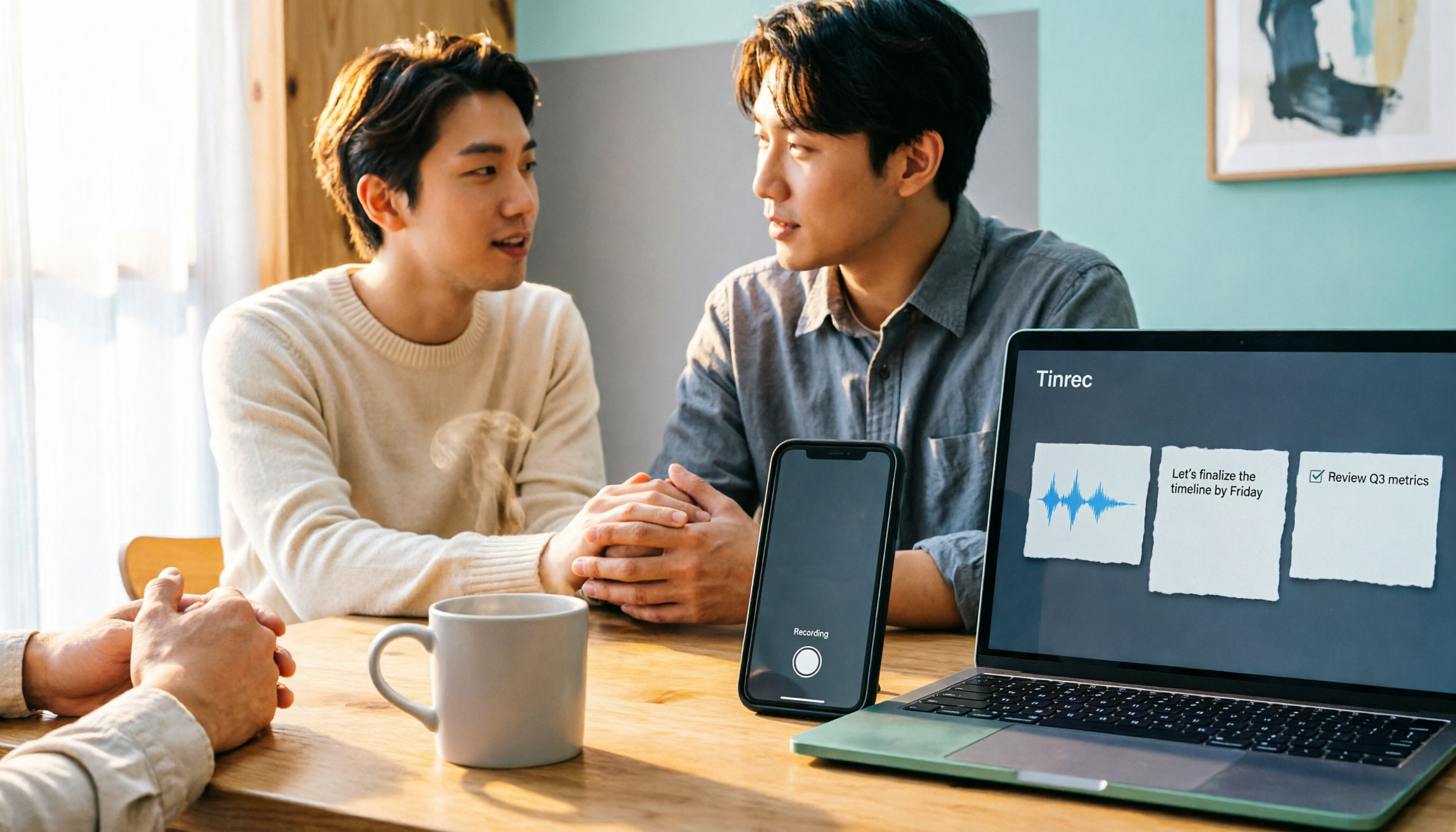
3 iPhone 17 Screen Recording and Post-Meeting Solutions Compared: From Control Center Setup to Tinrec
Screen recording on iPhone 17 isn't hard—it's what comes after that's tricky. This guide walks you through adding Screen Recording to Control Center, enabling the microphone, and stopping and saving your recording. Then we compare built-in screen recording, Dual Capture, and Tinrec for post-meeting organization, so you can see which fits your workflow.

4 Windows 11 Recording Tools Compared in 2026: Do Built-in Features Cut It for Meeting Transcripts and Summaries?
How do you record audio on Windows 11? This article compares four approaches: the built-in Sound Recorder, Xbox Game Bar, Stereo Mix with free software, and Tinrec. It explains the key settings for capturing system audio, the differences between transcripts and meeting summaries, and gives clear recommendations based on your use case.
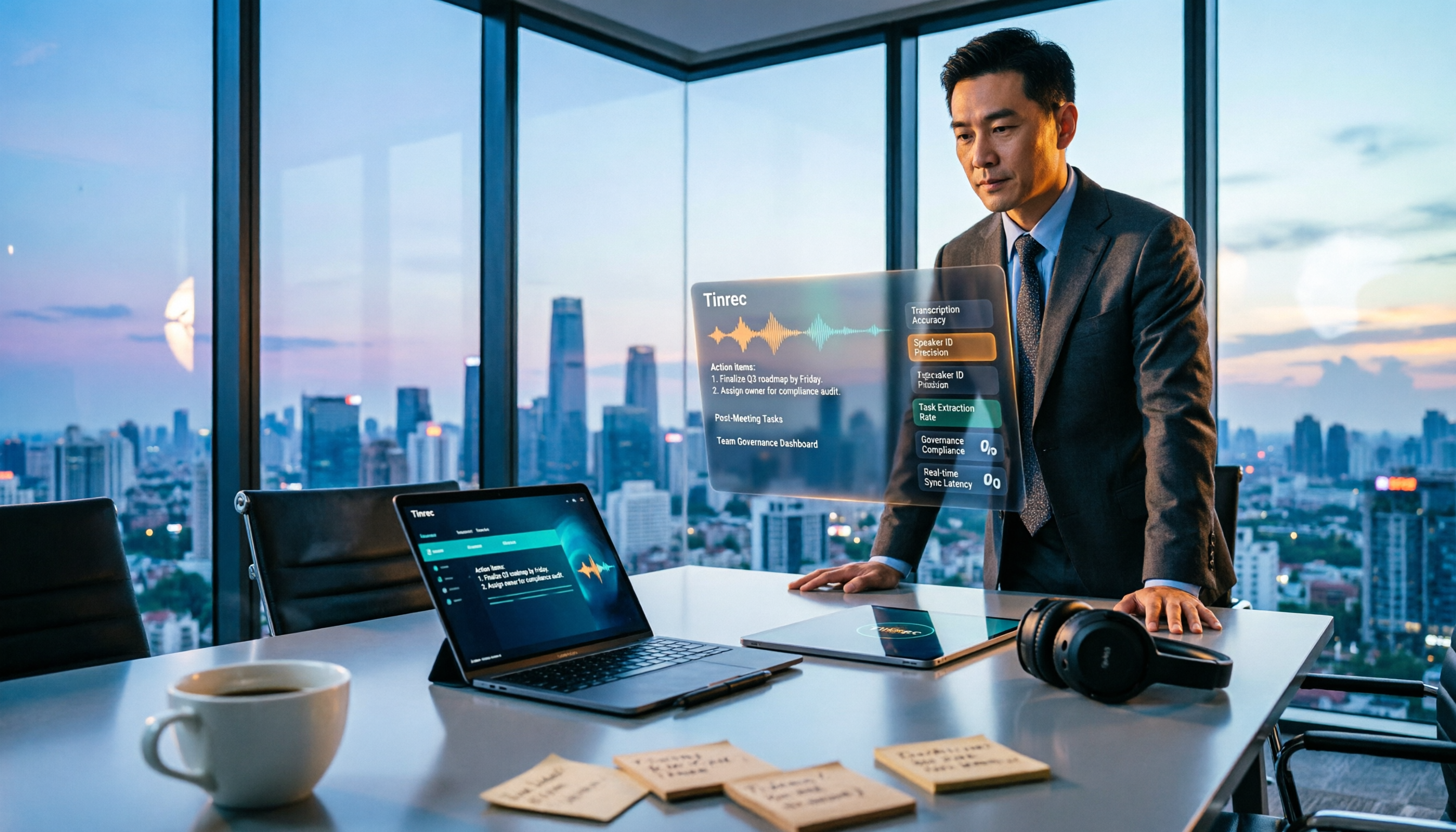
Tinrec vs Notta 2026: 5-Dimension Comparison of AI Meeting Assistants
A mid-level manager overseeing a 10-person team and 15 weekly meetings puts Tinrec and Notta head-to-head across 5 dimensions: recording methods, Chinese and mixed-language experience, post-meeting workflow, team governance, and plan quotas, with honest limitations and use cases.

4 Cantonese Speech-to-Text Tools Tested for 2026: Which Saves More Time on Transcripts and AI Meeting Notes?
The hardest part of a Cantonese meeting isn't understanding it—it's turning what you heard into written form. This hands-on comparison of Tinrec, Notta, Granola, and TurboScribe examines their differences in Chinese and Cantonese meeting transcription, post-meeting summaries, AI Q&A, and team collaboration. We break down each tool's free tier, pricing, and limitations, plus key buying factors and pitfalls to avoid, so you can pick the one that truly saves you cleanup time.

4 Recording Tools Tested for 2026: How to Record Meetings Without Disturbing or Alerting Others
Want to record a meeting but worried about a recording indicator popping up or a bot appearing in the participant list? This article compares four recording methods—Tinrec, Granola, Otter.ai, and PLAUD—and explains why bot-free desktop capture is the least disruptive. It also covers key buying factors like Chinese recognition, audio retention, post-meeting organization, and legal risks.

Can You Record Phone Calls Freely in 2026? 5 Steps for Legal Recording and Organizing
You can't just record phone calls whenever you want. This article first helps you understand the legal and system notification mechanisms for call recording, then explains in 5 steps how to record legally and how to organize recordings afterward, and compares the differences between Tinrec and PLAUD Note in post-recording workflows.
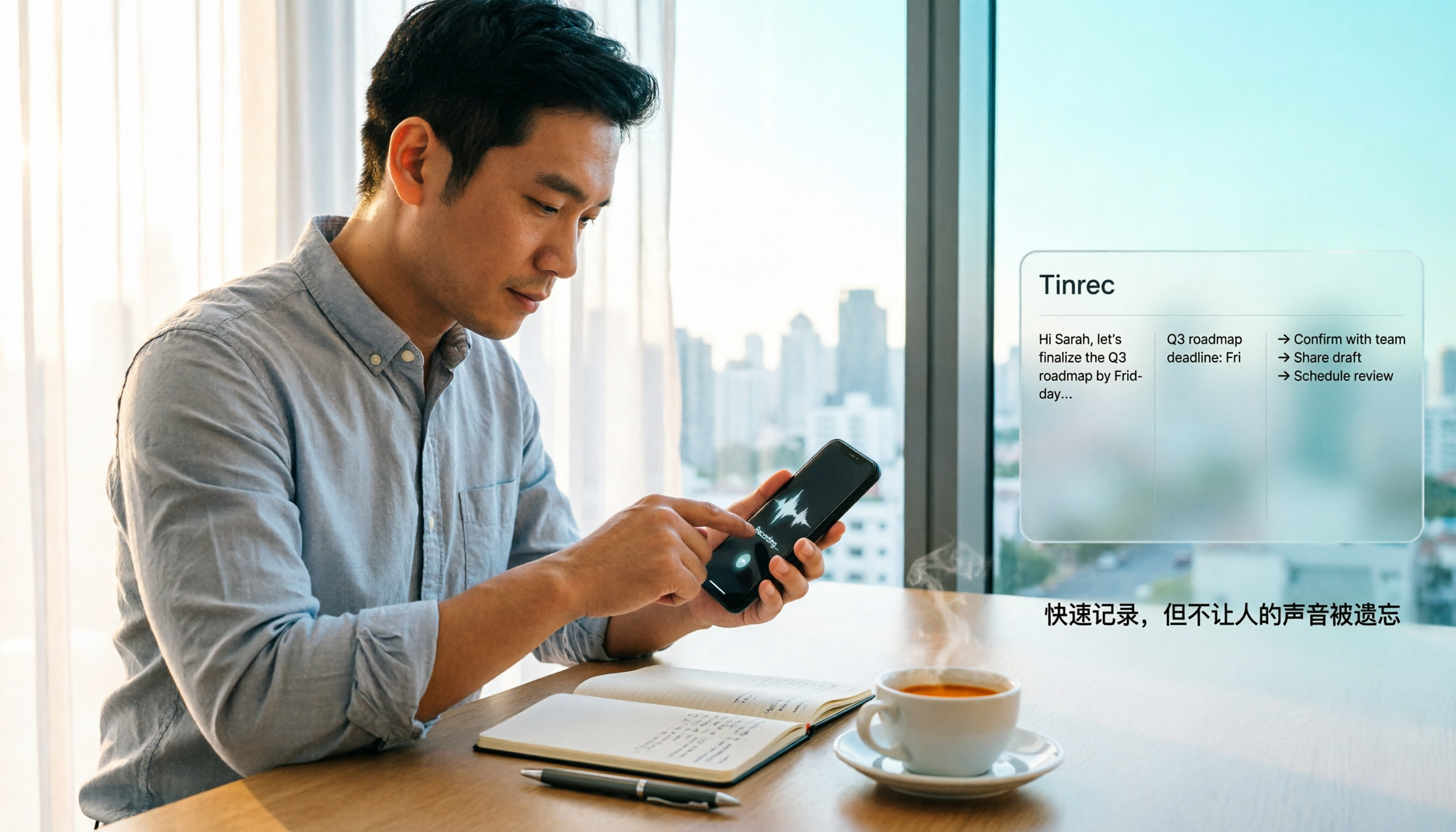
How to Quickly Start Recording on iPhone in 2026: 3 Shortcuts + Auto-Organize After Recording
iPhone has a one-tap recording method, but the settings are buried. This guide covers 3 ways to quickly start recording: Action Button, Back Tap, and Shortcuts on Home Screen. It also explains how to use Tinrec to turn recordings into transcripts, summaries, and to-dos, so quick recording actually saves time instead of piling up unheard audio files.
2026 Mac Audio-to-Text Showdown: Beyond Built-in Voice Memos, Why Tinrec Saves More Time
Apple's built-in Voice Memos can record, store, and edit audio, but after recording, you still have to create transcripts, summaries, and to-do lists yourself. This article compares Mac's built-in recording with Tinrec, explaining how bot-free online meeting recording, AI summaries, action item extraction, AI Q&A, and team spaces fill the post-recording workflow gap.