
Turn recordings into transcripts and summaries in minutes
Upload audio or video for multilingual transcription, AI notes, and action items
Can iPhone Be Used as a Level in 2026? Measure App vs Camera Level: 5-Dimension Comparison, Which to Use for Home Improvement and Photography?
Why You Need a Level: Pain Points of Hanging Pictures and Photo Composition
A crooked picture makes the whole wall look off. A frame on the table looks flat, but in photos it's always slightly off. When taking pictures, you try to capture a level line, only to find later that the image is tilted.
These situations don't require a professional toolbox. Your pocket phone can actually help. Can iPhone be used as a level? Yes, and you don't need to download ad-filled third-party apps. Apple has built sensors and software support into iOS to help you determine if a surface is level, if something is vertically aligned, and even assist with photo composition.
If you've ever experienced the "slightly off" problem, this article is for you.
Before Using iPhone as a Level, Understand These 5 Key Points
1. System version determines feature location After iOS 17, the Camera app added a "Level" option that displays a horizontal line to assist with composition. The level in the Measure app is a more general measurement tool. On older iOS versions or some versions, you may need to swipe right on the Compass app to see the level measurement page. Check your system version first, then follow the steps below.
2. Camera bump affects flat placement accuracy Newer iPhone rear camera modules usually protrude. When you place the phone flat on a table, the camera bump may prevent it from lying completely flat, causing measurement errors. If your phone case covers the camera, this usually reduces the problem. If not, you can measure vertical surfaces by placing the phone on its side, or find a flat area to compensate.
3. Not a professional measuring instrument, but good enough for daily use The iPhone level is suitable for home repairs, hanging pictures, photo composition, and other daily scenarios. For engineering-grade, high-precision situations, a professional spirit level is still recommended. Think of it as a "handy辅助 tool" for everyday use.
4. Do you need to install an extra app? The biggest advantage of the built-in level is no extra installation. Third-party level apps may have fancier features, but they often come with ads and vary in quality. If you only occasionally need to check level, the built-in feature is sufficient.
5. Measurement speed and convenience Take out your phone, open the app, point at the object—the whole process takes just seconds. Compared to digging through a toolbox for a level, the iPhone's advantage is speed. Especially when you need to hang a picture or adjust a screen angle on the fly, this convenience makes you more likely to check.
How to Use the Built-in iPhone Level: 3 Methods Tested
Method 1: Measure App Level (Most Versatile)
This is currently the most recommended built-in method. Open the iPhone's Measure app, tap "Level," and start measuring.
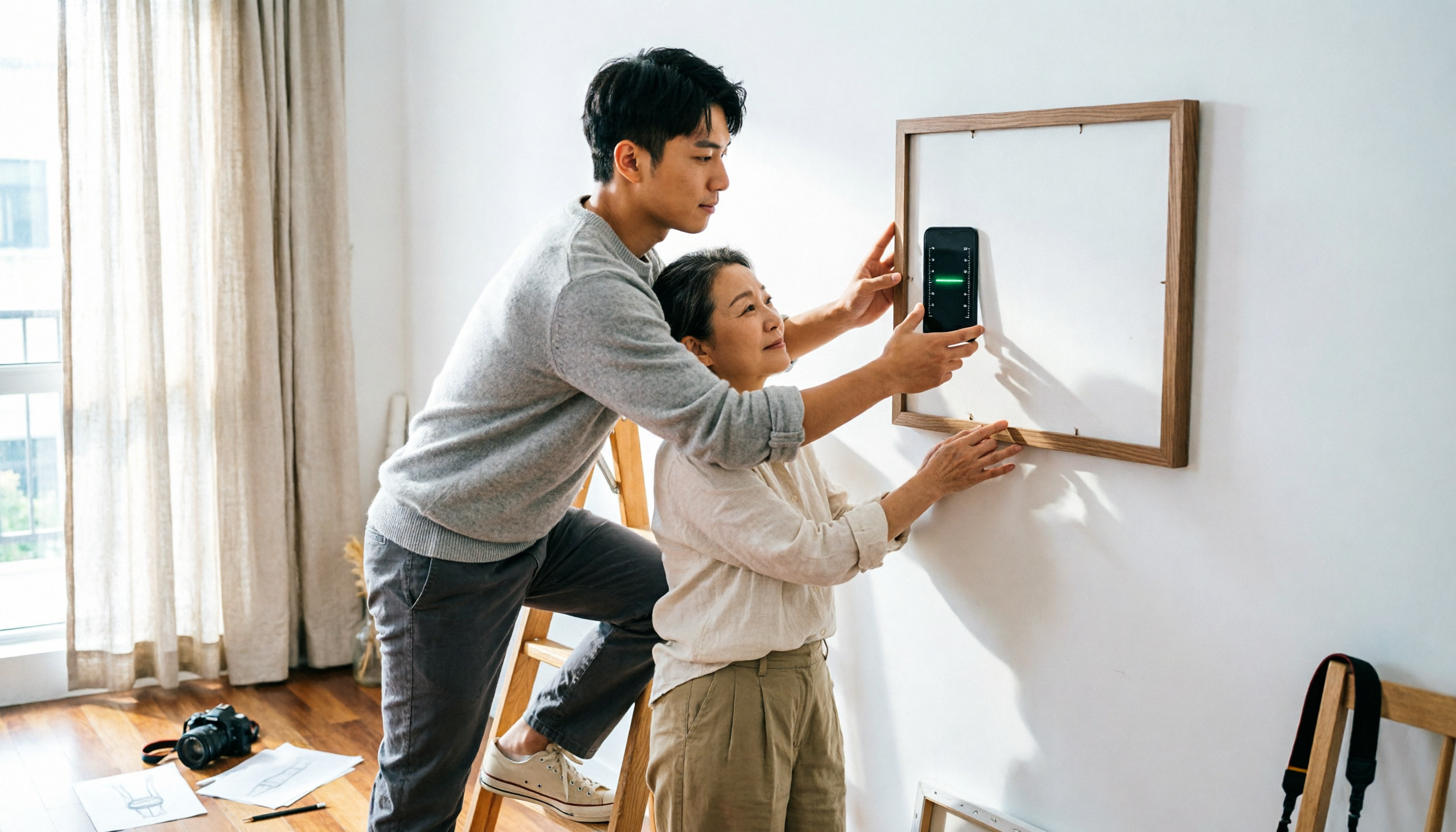
- Flat measurement: Place the iPhone flat on an object, such as a table or the top of a picture frame. The screen shows the current angle. When perfectly level, a green 0-degree indicator appears.
- Vertical measurement: Place the iPhone upright or on its side against the edge of an object, such as the side of a picture frame. A horizontal line splits the screen. When the line aligns with the markers on both sides and turns green, the object is level.
- Relative angle: If you want to measure a slope or the relative angle between two objects, move the phone to the second object. The red area or number on screen shows the angle difference. Tap the screen again to reset.
The advantage of this method is it's intuitive, fast, and requires no extra app. Whether hanging pictures, adjusting shelves, or checking if a table is flat, it's very practical.
Stop organizing recordings by hand
Upload audio or video and automatically get a transcript, summary, and action items
Method 2: iOS 17 Camera Level (Photo Assist)
If you often take photos with your iPhone, iOS 17 added a convenient feature. Go to Settings >> Camera, and under "Composition" you'll see a "Level" option. Turn it on, and when taking a photo, if the camera detects a tilt, a level will appear to help correct it.
This feature is not for measuring objects, but for aligning with horizontal lines in the scene. For example, when shooting landscapes, buildings, or tabletop arrangements, it reduces the chance of discovering a tilted photo later. For photography enthusiasts, this little tool is quite thoughtful.
Method 3: Compass App Level Measurement (Older/Some Versions)
On older iOS versions, the level feature may be hidden in the Compass app. Open the Compass app, and at the bottom of the interface there are two small dots, indicating you can swipe right to the next page. Swipe right to see the level measurement interface.
This interface also shows angles. When the surface is perfectly level, a green 0-degree screen appears. If you hold the iPhone upright, the interface switches to a horizontal line display, focusing on left-right leveling. Also, when the phone tilts backward, the white block may turn red as a warning.
Note that the feature location may differ across iOS versions. If you can't find level measurement in the Compass app, use the Measure app instead.
Besides Built-in Features, What Other Options Are There?
Third-party level apps There are many third-party level apps on the App Store. Some have classic interfaces and even display physical dimensions on screen for direct comparison. However, quality varies, and some are full of ads. If you only need it occasionally, the built-in feature is sufficient.
Traditional spirit level Traditional spirit levels remain a reliable choice for professional renovation and engineering. Their precision, stability, and immunity to phone camera bumps are things the iPhone cannot fully replace. If you're doing large-area work or need repeated confirmation, it's best to have one.
Android phones If you're not using an iPhone, many Android phones also have built-in levels. For example, Google Pixel series have a level in the camera, and some models show tilt angles. So "phone as a level" is not exclusive to iPhone; it's just that iPhone's built-in features are relatively well integrated.
Pitfall Guide: 3 Most Common Mistakes When Using iPhone as a Level
Mistake 1: Ignoring the camera bump and measuring flat directly This is the most common source of error. The camera module prevents the phone from lying completely flat, so measurements may be off by a degree or two. Use a case that covers the camera, or measure vertical surfaces by placing the phone on its side.
Mistake 2: Assuming all iOS versions have the same location Some say the level is in Compass, some say Measure, others say Camera. It depends on the iOS version. When looking for the feature, check your system version first to avoid wasting time.
Mistake 3: Treating the level as a professional measuring instrument The iPhone level is great for daily assistance, but it's still a consumer device. If you're hanging an expensive painting, installing custom cabinets, or doing precision work, use a professional spirit level or hire a professional.
Summary: Can iPhone Be Used as a Level? Which One Should You Use?
Can iPhone be used as a level? Yes, and its features are more complete than you might think.
- Hanging pictures, adjusting shelves, checking tables → Use the Measure app level, fastest and most intuitive.
- Photo composition, avoiding tilted images → Turn on the iOS 17 camera level for direct assistance.
- Older iOS users → Swipe right in the Compass app to find the level measurement page.
- Need professional precision → Use a traditional spirit level or hire a professional.
Overall, the iPhone's built-in level features are quite comprehensive and free. Next time you need to hang a picture, adjust an angle, or take a photo, try picking up your phone first.
References
- Use iPhone as a level - Apple Support (Taiwan)
- "iOS Tutorial" iPhone actually has a built-in level!? For interior design, photography, and anyone in need, a great thing not to miss! - ^(oo)^~Xiaomi Mobile CCC
- Apple Emergency Room: Renovation "measurement" without help! iPhone is your level + carpenter's square ~ #Chen Ning (124160) - Cool3c
- Hanging pictures without help! Can iPhone be used as a level? Hidden built-in features and accuracy tested - UpToGo
- Even Apple didn't mention this hidden iOS 17 feature! iPhone camera finally has a built-in "level" | Toolman Classroom | udn Tech Player
Turn every recording into actionable outcomes
Get 60 free transcription minutes when you sign in. No credit card required.
Related Reading
You might also like

2026 Comparison of 2 Transcription Tools: What Is Yating Transcription? How Does It Differ from Tinrec?
Many people think transcription tools are all about who recognizes speech more accurately, but the real difference comes after recording. This article compares Yating Transcription and Tinrec across 5 dimensions: Taiwanese accent recognition, online meeting recording methods, post-meeting summaries and action items, pricing plans, and team collaboration, to help you decide which workflow suits you.

3 iPhone Voice Typing Methods Compared in 2026: Built-in Dictation, Tinrec, or Notta — Which Is Most Accurate?
How do you use voice typing on iPhone? This article compares three methods—built-in dictation, Tinrec, and Notta—covering setup steps, recognition accuracy, and post-meeting organization to help you find the best voice input method for your needs.

iPhone Frozen? 2026 Guide: Force Restart vs DFU Recovery Mode Compared
iPhone suddenly black screen and unresponsive? Should you force restart first or plug into a computer? This article compares force restart vs computer recovery mode/DFU across 5 dimensions—difficulty, data risk, time, and applicable symptoms—with button steps for each model and when to seek repair, helping you decide your next step in 5 minutes.

2026 AI Transcription Tools Comparison: Which Is Best for Chinese Meeting Minutes?
The real pain begins after the meeting—replaying recordings, extracting key points, and writing minutes often takes more time than the meeting itself. This article compares AI transcription tools like Tinrec, Otter.ai, Notta, and PLAUD, covering differences in Chinese and mixed Chinese-English recognition, online meeting audio capture, AI summary Q&A, and team data management. It also highlights key purchasing factors and common pitfalls to help you find the most time-saving option.

5 Professional AI Tools Tested in 2026: Which Offers the Best Free Tier for Students?
During my freshman year, I juggled three AI tools at nearly $500 a month, but only one was actually opened daily. This article tests five common approaches from a student's perspective—from lecture recordings and group discussions to graduation project interviews—explaining how to calculate free tiers, which pitfalls to avoid, and why I ultimately consolidated my notes and meeting records into Tinrec.
Best Phone Recording Apps in 2026: We Tested 5 — This One Makes Chinese Transcripts and Meeting Notes Easiest
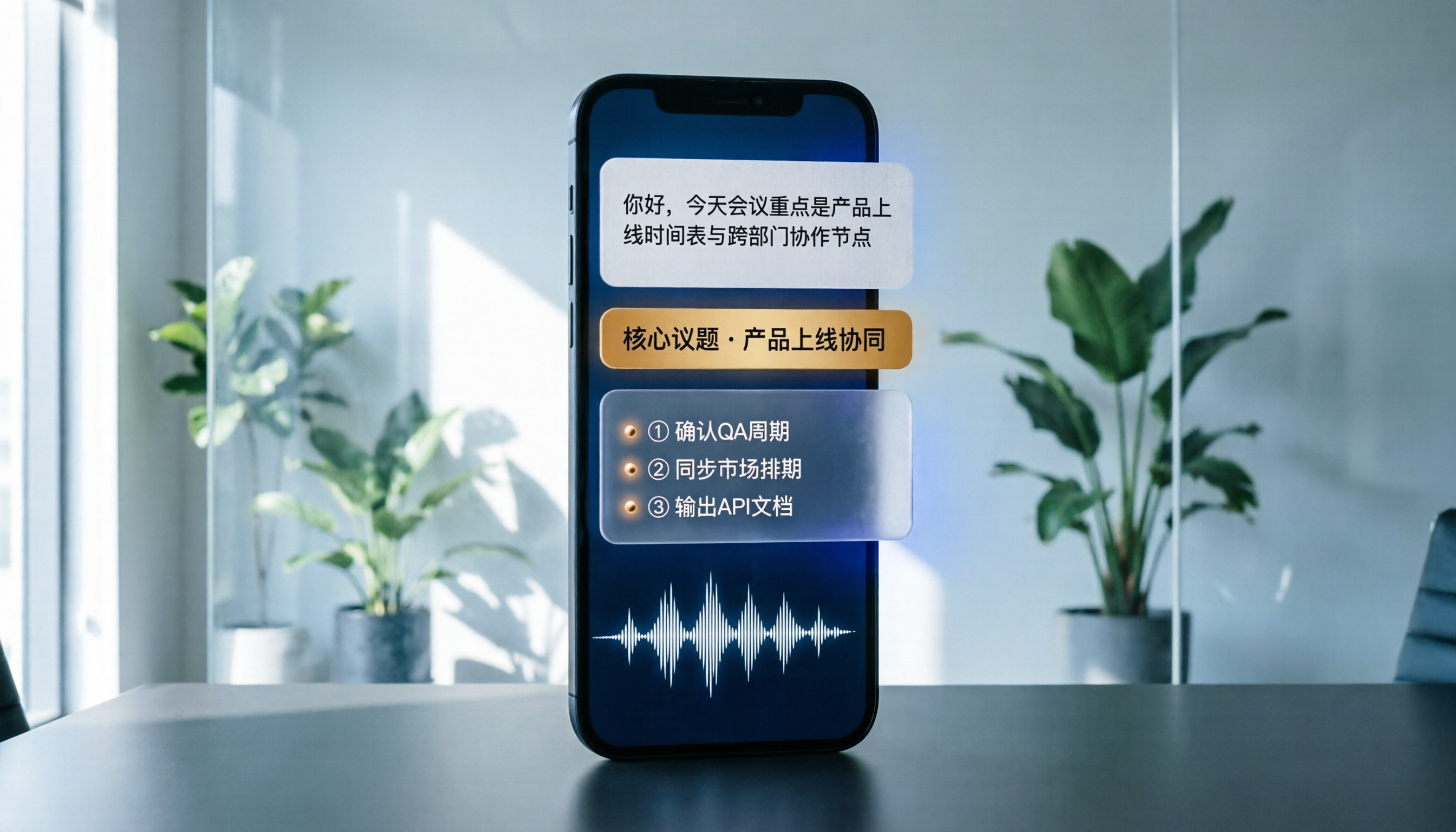
Recording on your phone is easy; the hard part is what comes after. Based on real scenarios like meetings, interviews, and classes, this guide covers common iPhone recording methods, the 5 key factors to consider when choosing a recording tool, and uses Tinrec as an example to show how to turn a recording into a searchable transcript, summary, and to-do list.
3 WeChat Voice Forwarding Alternatives Tested for 2026: How to Turn Voice Messages into Shareable Text
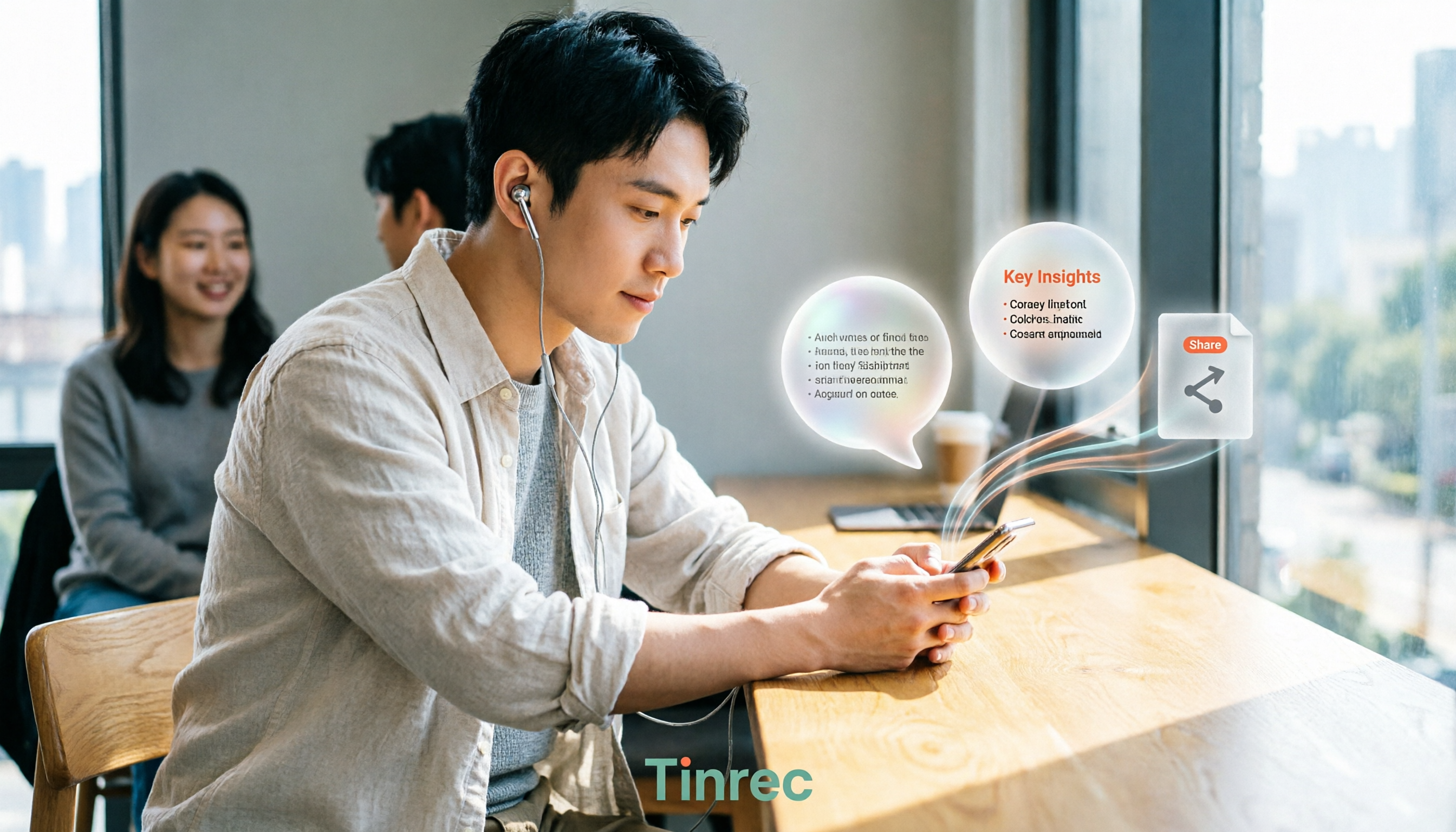
WeChat does not offer a voice forwarding feature, so received voice messages stay in the original chat. This article explains why this limitation exists and three common misconceptions, then uses Tinrec as an example to show how to turn voice into transcripts, summaries, and shareable documents, while comparing personal and team plans and offering buying advice.
Best Real-Time Transcription Tools in 2026: 5 Options Tested, This Free One Is Enough
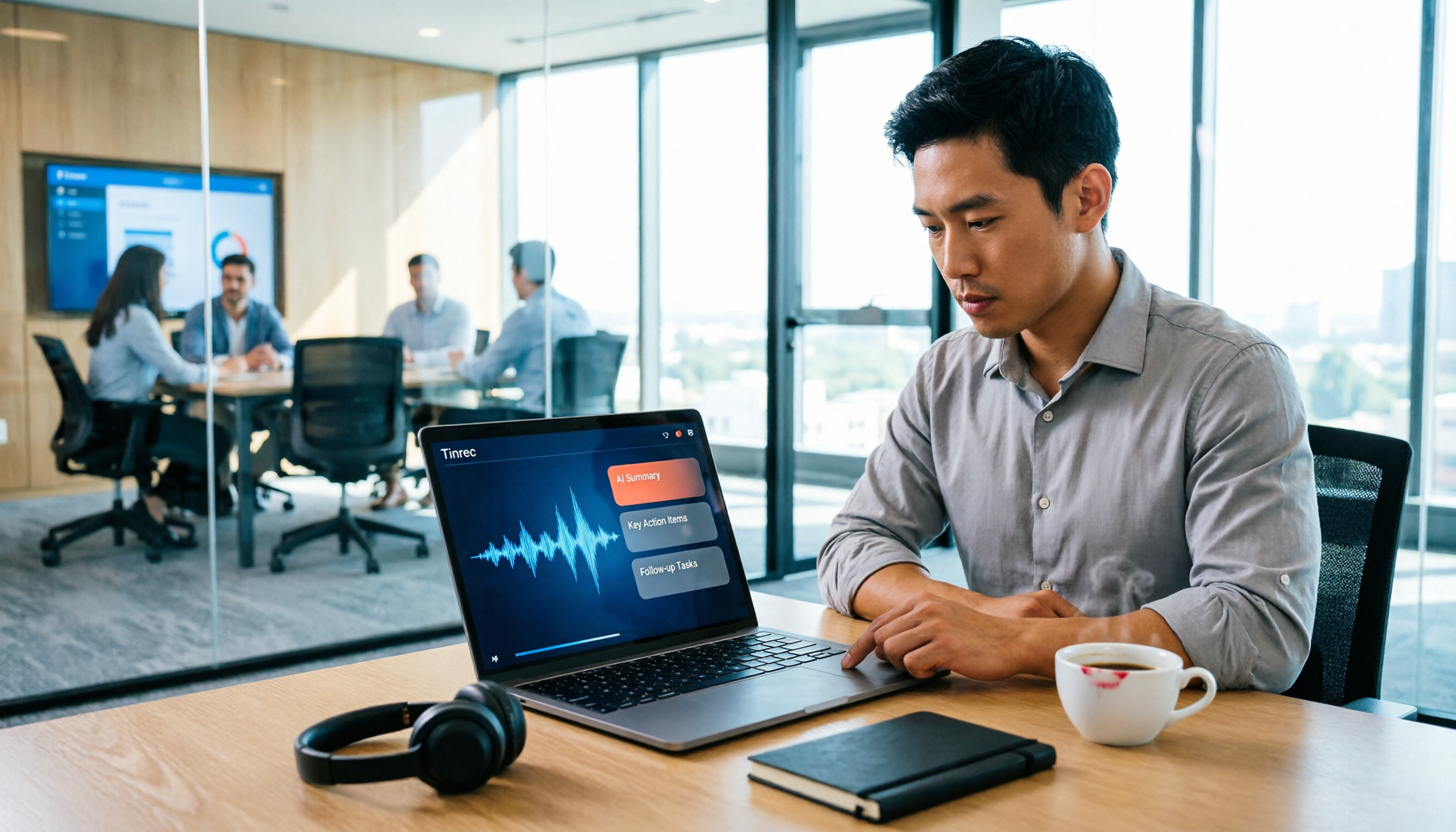
How much do real-time transcription tools cost? This article breaks down the pricing structure from free versions to individual paid plans and team seats, using Tinrec as an example to show how real-time transcription, AI summaries, action item extraction, and team spaces can save you from re-listening to recordings and typing transcripts manually. Suitable for office workers, managers, and team procurement evaluating transcription tool budgets.
2026 Live Transcription Tools Compared: Free Tiers and Per-Minute Costs
How do you do live transcription, and how much does it cost? This article compiles actual rates for human transcription in Taiwan (general conversation NT$15-25 per minute, multi-speaker or foreign language NT$40-70, rush jobs add 50-100%), and compares free tiers, plan limits, and live transcription tutorial steps for tools like Tinrec, Notta, Granola, and Otter.ai, helping you find the most cost-effective approach within your budget.