

Turn recordings into transcripts and summaries in minutes
Upload audio or video for multilingual transcription, AI notes, and action items
iPhone Frozen? 2026 Guide: Force Restart vs DFU Recovery Mode Compared
Your phone suddenly goes black and won't respond to anything. The first thing you want to know is: should you force restart first, or plug it into a computer? This article compares the two most common paths for a frozen iPhone—force restart on the phone and recovery mode/DFU on a computer—so you can decide your next step in 5 minutes.
Bottom line: If your phone hasn't been dropped or exposed to water, always try a force restart first. It requires no computer, no cable, and won't erase data. You'll know within about 30 seconds if it works. If it doesn't, then move to computer-based recovery. If your computer can't detect the phone at all, or there's obvious physical damage, go straight to an Apple Store or Apple Authorized Service Provider.
Force Restart vs Computer Recovery | Quick Overview
Common causes of a frozen iPhone include app-system incompatibility, failed system updates, insufficient storage, battery aging, and hardware failure from drops or water damage. The first few can often be fixed on your own; the last one requires professional repair.
| Item | Force Restart | Computer Recovery (Recovery Mode/DFU) |
|---|---|---|
| Tools Needed | The phone itself | Mac or PC + cable |
| Estimated Time | About 30 seconds | 10+ minutes |
| Data Risk | Almost zero | Choosing "Restore" erases data |
| When to Use | Black screen, frozen screen, unresponsive | Force restart fails, stuck on Apple logo or recovery mode |
| Difficulty | Low | Medium-High |
Below, we compare across 5 dimensions: difficulty, data preservation, time, applicable symptoms, and recovery cost.
Dimension 1 | Difficulty and Tools Required
Computer recovery is clearly at a disadvantage here. You need to find a computer, determine if it's Mac or Windows, connect a cable, and distinguish between Finder, iTunes, or Apple Devices—not user-friendly for those who don't usually deal with computer settings.
Force restart just requires the right button combination. For iPhone 8 or later (including SE 2nd and 3rd gen): "Quickly press and release Volume Up, then quickly press and release Volume Down, then press and hold the Side button until you see the Apple logo." For iPhone 7 series: press and hold both Volume Down and Side button. For iPhone 6s or earlier: press and hold both Home and Top (or Side) button.
→ This dimension: Force restart wins.
Dimension 2 | Data Preservation Risk
The first option in computer recovery is actually "Update," which reinstalls the system but keeps data. The real risk is the second step, "Restore," which erases all data unless you have an iCloud or computer backup.
Force restart simply interrupts and reloads the system without deleting anything. For those with unbacked-up photos and messages, this is the only zero-risk step.
→ This dimension: Force restart clearly wins.
Dimension 3 | Time and Interruptibility
Computer recovery requires waiting for the computer to recognize the device, then downloading or applying system files—10 minutes or more. Unplugging mid-way can leave the phone stuck in recovery mode.
Stop organizing recordings by hand
Upload audio or video and automatically get a transcript, summary, and action items
Force restart takes about 30 seconds: if you see the Apple logo, it worked; if not, this method won't help and you can move on. Time cost is minimal.
→ This dimension: Force restart wins.
Dimension 4 | Applicable Symptoms
This is the only area where computer recovery truly excels. If your phone is stuck on the Apple logo, constantly reboots, or shows the connect-to-computer icon, it's usually a system-level issue that only computer recovery can handle.
But for the most common frozen scenarios—frozen screen, unresponsive buttons, sudden black screen—the order is the same: force restart first, then computer if that fails. Reversing the order just wastes time. Also, if the phone vibrates when plugged in, alarms sound, or calls ring but the screen stays black, it's more likely a screen failure than a simple freeze—pressing buttons won't help.
→ This dimension: Tie (different symptoms, but order is fixed).
Dimension 5 | Recovery Cost
If computer recovery goes to "Restore," your next steps are logging back into Apple ID, re-downloading apps, re-pairing Bluetooth and watch, and trying to recover unbacked-up data—high recovery cost.
After a successful force restart, the phone basically returns to its pre-freeze state, at most refreshing background apps—no follow-up work.
→ This dimension: Force restart wins.
What Are the Unique Advantages of Each?
Advantages of force restart:
- No tools needed: can be done immediately when out, in a meeting, or commuting.
- Zero data risk: won't erase photos, messages, or app data.
- Answer in 30 seconds: quickly determine if it's a simple freeze or a real problem.
- Works on almost all models: from iPhone 8 to the latest, there's a button combination.
Advantages of computer recovery:
- Can handle system-level issues: Apple logo loop, recovery mode loop, etc.—only it can fix these.
- Can choose "Update" first to keep data: try reinstalling the system without erasing the phone initially.
FAQ
Q: After an iPhone freezes, is the data still there? As long as you haven't performed "Restore" or erased it yourself, data is usually intact. Force restart and computer "Update" do not delete data.
Q: What's the difference between force restart and normal power off/on? Normal power off/on is a standard process, but requires the system to respond. Force restart directly interrupts and reloads, specifically for unresponsive states.
Q: Does charging help first? If the phone just ran out of battery, plugging it in and waiting a while may revive it. Apple also recommends checking charging status when troubleshooting "won't turn on" issues.
Q: When should I stop trying and go for repair? If the computer can't detect it at all, there's physical damage or water exposure, or abnormal lines or touch failure after power on—these are hardware issues. Take it to an Apple Store or Authorized Service Provider.
Summary: Which Should You Choose?
- Phone suddenly black, buttons unresponsive → Force restart first: no computer, no data loss, results in ~30 seconds.
- Force restart fails, or stuck on Apple logo/recovery mode → Connect to computer for recovery mode: choose "Update" first to keep data, only choose "Restore" if necessary.
- Computer can't detect it, physical damage or water exposure → Go straight to repair, don't keep trying.
- Important unbacked-up data on phone → Avoid "Restore" at all costs; if you can get it to boot, you still have a chance to back up.
In one sentence: For most freeze situations, always start with the force restart—no tools, no data loss. Computer recovery is the second step, not the first.
References
Turn every recording into actionable outcomes
Get 60 free transcription minutes when you sign in. No credit card required.
Related Reading
You might also like

2026 Comparison of 2 Transcription Tools: What Is Yating Transcription? How Does It Differ from Tinrec?
Many people think transcription tools are all about who recognizes speech more accurately, but the real difference comes after recording. This article compares Yating Transcription and Tinrec across 5 dimensions: Taiwanese accent recognition, online meeting recording methods, post-meeting summaries and action items, pricing plans, and team collaboration, to help you decide which workflow suits you.

3 iPhone Voice Typing Methods Compared in 2026: Built-in Dictation, Tinrec, or Notta — Which Is Most Accurate?
How do you use voice typing on iPhone? This article compares three methods—built-in dictation, Tinrec, and Notta—covering setup steps, recognition accuracy, and post-meeting organization to help you find the best voice input method for your needs.

2026 AI Transcription Tools Comparison: Which Is Best for Chinese Meeting Minutes?
The real pain begins after the meeting—replaying recordings, extracting key points, and writing minutes often takes more time than the meeting itself. This article compares AI transcription tools like Tinrec, Otter.ai, Notta, and PLAUD, covering differences in Chinese and mixed Chinese-English recognition, online meeting audio capture, AI summary Q&A, and team data management. It also highlights key purchasing factors and common pitfalls to help you find the most time-saving option.

Can iPhone Be Used as a Level in 2026? Measure App vs Camera Level: 5-Dimension Comparison, Which to Use for Home Improvement and Photography?
Can iPhone be used as a level? Yes. This article tests the built-in Measure app level, the iOS 17 camera level, and the level measurement feature that may be hidden in the Compass app on older versions. It organizes 5 practical dimensions, step-by-step instructions, and pitfalls to help you quickly determine level when hanging pictures or composing photos.

5 Professional AI Tools Tested in 2026: Which Offers the Best Free Tier for Students?
During my freshman year, I juggled three AI tools at nearly $500 a month, but only one was actually opened daily. This article tests five common approaches from a student's perspective—from lecture recordings and group discussions to graduation project interviews—explaining how to calculate free tiers, which pitfalls to avoid, and why I ultimately consolidated my notes and meeting records into Tinrec.
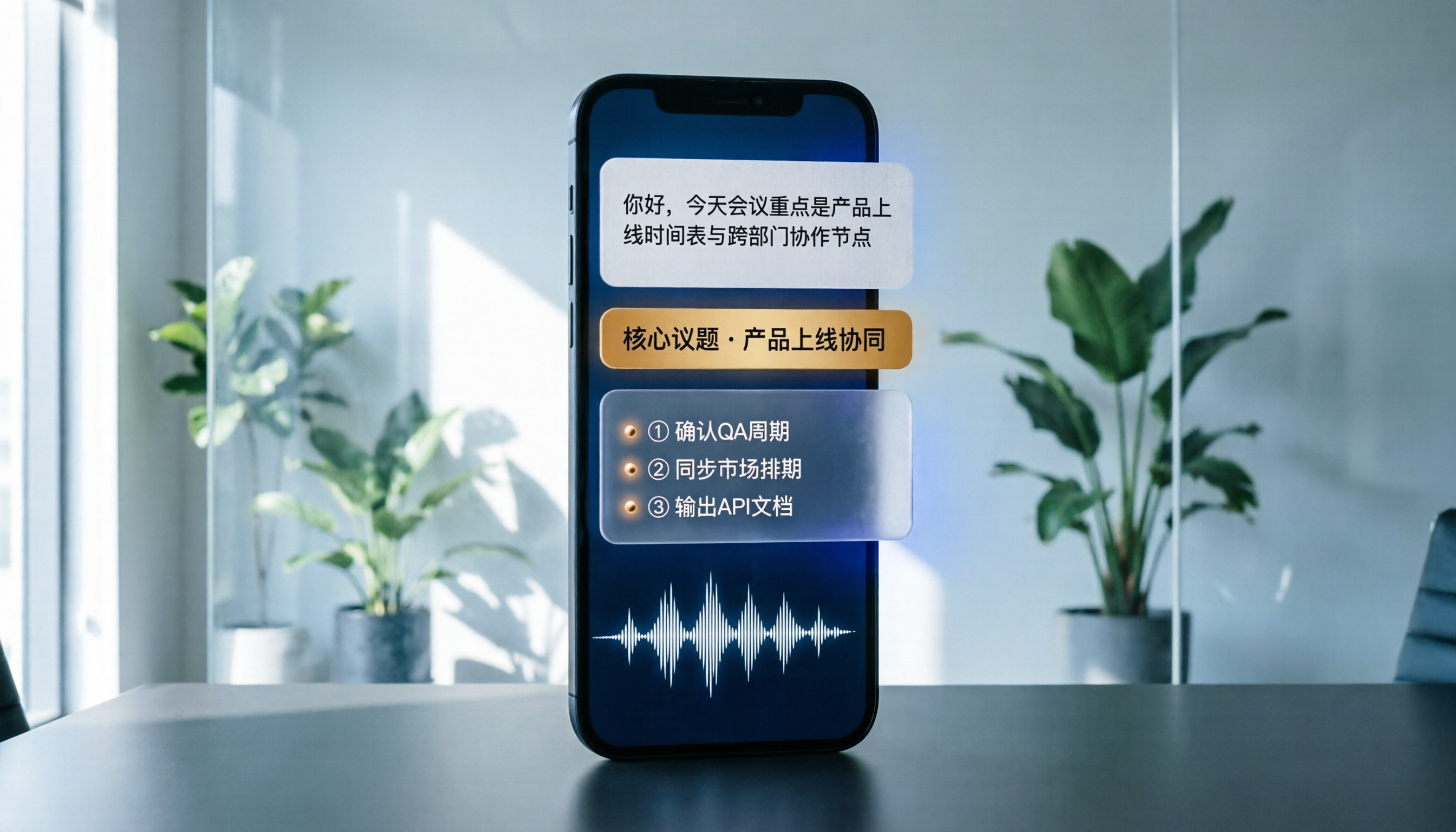
Best Phone Recording Apps in 2026: We Tested 5 — This One Makes Chinese Transcripts and Meeting Notes Easiest
Recording on your phone is easy; the hard part is what comes after. Based on real scenarios like meetings, interviews, and classes, this guide covers common iPhone recording methods, the 5 key factors to consider when choosing a recording tool, and uses Tinrec as an example to show how to turn a recording into a searchable transcript, summary, and to-do list.
3 WeChat Voice Forwarding Alternatives Tested for 2026: How to Turn Voice Messages into Shareable Text
WeChat does not offer a voice forwarding feature, so received voice messages stay in the original chat. This article explains why this limitation exists and three common misconceptions, then uses Tinrec as an example to show how to turn voice into transcripts, summaries, and shareable documents, while comparing personal and team plans and offering buying advice.

Best Real-Time Transcription Tools in 2026: 5 Options Tested, This Free One Is Enough
How much do real-time transcription tools cost? This article breaks down the pricing structure from free versions to individual paid plans and team seats, using Tinrec as an example to show how real-time transcription, AI summaries, action item extraction, and team spaces can save you from re-listening to recordings and typing transcripts manually. Suitable for office workers, managers, and team procurement evaluating transcription tool budgets.

2026 Live Transcription Tools Compared: Free Tiers and Per-Minute Costs
How do you do live transcription, and how much does it cost? This article compiles actual rates for human transcription in Taiwan (general conversation NT$15-25 per minute, multi-speaker or foreign language NT$40-70, rush jobs add 50-100%), and compares free tiers, plan limits, and live transcription tutorial steps for tools like Tinrec, Notta, Granola, and Otter.ai, helping you find the most cost-effective approach within your budget.