

Turn recordings into transcripts and summaries in minutes
Upload audio or video for multilingual transcription, AI notes, and action items
Don't Rush to Hit "Share": Three Common Misconceptions
Many people search for "how to export Apple voice memos and transcribe to text" thinking it's a single action: press a button and text appears. In reality, "export" and "transcribe" are two separate things on iPhone.
The first misconception is thinking that seeing a transcript means you have a text file. Starting with iOS 18, iPhone 12 and later models can view transcripts while recording or after recording in Voice Memos, but that's just a view within the app. To turn it into a document you can send or include in a report, you usually have to manually select, copy, and paste—especially painful for long meetings.
The second misconception is thinking that sharing a recording shares the text. In Voice Memos, tap the "..." next to a recording, then "Share" → "Save to Files." What gets saved is an audio file; the text doesn't come along.
The third misconception is thinking every iPhone and every language can transcribe. Audio transcription has device and OS version limitations, and language support is mainly for specific languages announced by Apple (e.g., English, Japanese, Korean). Throwing in a Chinese meeting won't necessarily give you the results you expect.
More importantly: even if the transcript is generated successfully, a several-thousand-word transcript without a summary, key points, or action items still requires manual reading—that's where the real time sink is. So the question isn't "find a button that turns audio into text," but "hand your iPhone recording to a tool that can transcribe, organize, and export." Below is a complete walkthrough using Tinrec.
What Can Tinrec Do for You?
Scenario 1: Turn old Voice Memos recordings into transcripts Previously, you'd have to re-listen to a two-hour meeting recording before you could start typing. Now, just import the audio file into Tinrec to get a searchable, reviewable transcript, and you can jump directly to the corresponding section for verification.
Scenario 2: Get text synced in real-time during meetings Tinrec desktop captures your computer's system audio to record online meetings—no extra meeting bot needed to join Zoom, Google Meet, Microsoft Teams, or Webex. You can see the transcript being generated live as the meeting progresses.
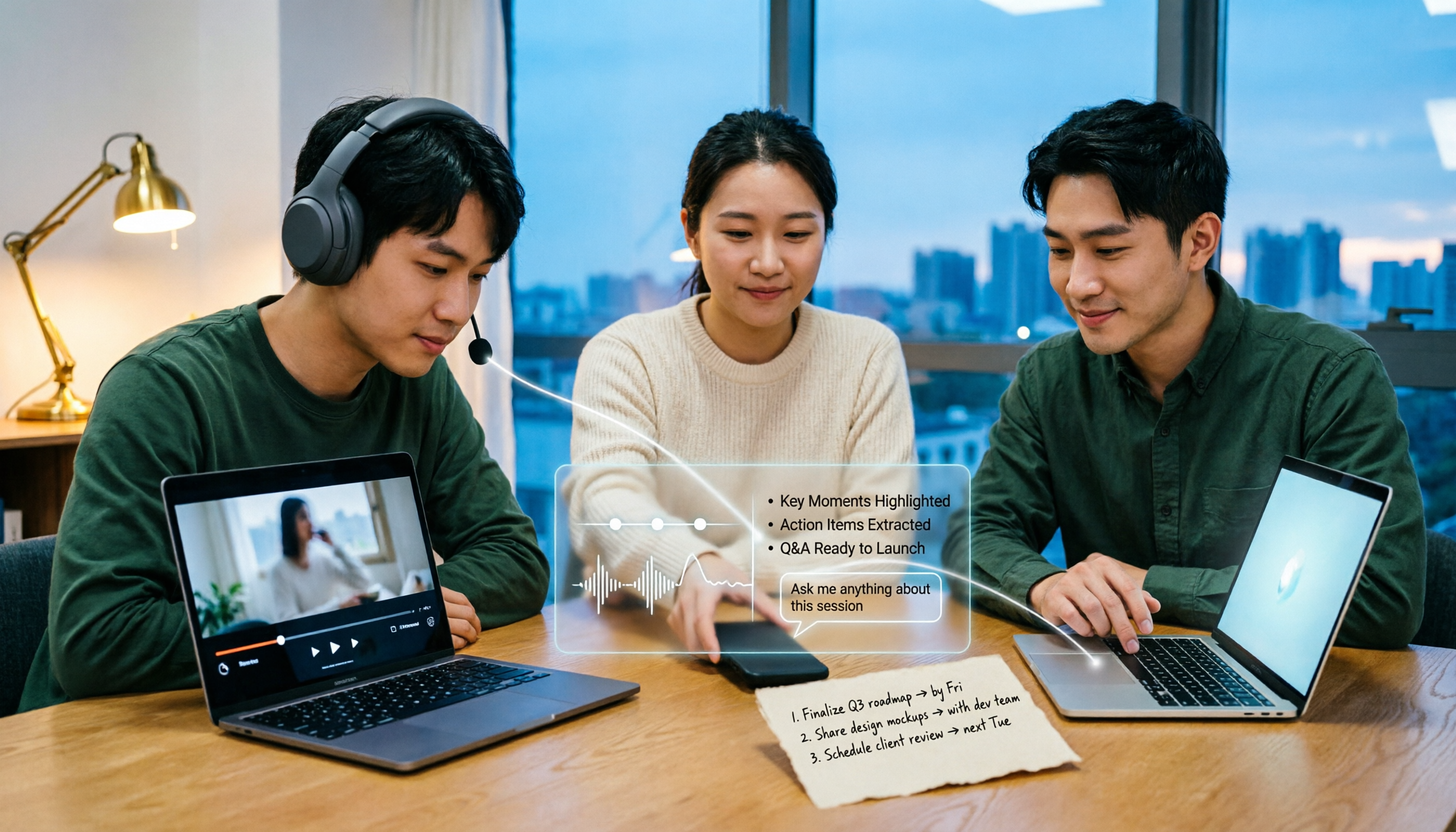
Scenario 3: No need to organize after transcription Tinrec automatically generates summaries, chapters, and action items, and you can ask questions directly about the meeting content, such as "What was decided in this meeting?" or "Who is responsible for which item?"
Scenario 4: Bring results into your existing workflow Organized content can be exported to Notion, Google Docs, OneNote, Dropbox, and other tools for further editing, saving manual copy-pasting.
From iPhone Export to Usable Text: 5 Steps
Step 1: Export the audio file from your iPhone Open Voice Memos, tap the "..." next to the recording, select "Share" → "Save to Files," and save the audio to the Files app or cloud storage.
Step 2: Import the audio file into Tinrec In Tinrec, choose to import an audio or video file and drop in the file you just saved. If the recording is still on your phone, you can also record directly in the Tinrec mobile app, skipping the export step.
Step 3: Start transcription Tinrec supports transcription of audio and video files, as well as real-time recording to text. If the meeting is multilingual, you can enable real-time translation and view it in original, translated, or bilingual mode.
Step 4: Use AI summaries, chapters, and action items to turn content into key points After transcription, Tinrec generates summaries and chapters, and extracts action items from the discussion. When you need to follow up on details, use AI Q&A to query directly without scrolling through the entire transcript.
Step 5: Export to formats you can use directly Finally, export the results to Notion, Google Docs, OneNote, Dropbox, or other common tools, or ask Tinrec's Agent to post-process and generate reports, tables, and documents for direct delivery.
What Are Tinrec's Core Capabilities?
Real-time transcription: Transcribe while recording, so you can verify key points during the meeting instead of discovering issues afterward. Especially useful when you need to confirm conclusions on the fly.
AI summaries and chapters: Not just condensing the transcript into a paragraph, but structurally organizing meeting topics, discussion points, and conclusions—so you can quickly scan even long meetings.
Action item extraction and AI Q&A: Organize action items from conversations and support follow-up questions across single or multiple meetings—great for going back to confirm "who said they'd do what."
Bot-free online meeting recording: The desktop version captures system audio directly, so no bot account needs to join the meeting and you don't have to ask the host for permission. Just start Tinrec to begin recording.
Stop organizing recordings by hand
Upload audio or video and automatically get a transcript, summary, and action items
Multi-format output and third-party export: Transcripts, summaries, reports, and tables can all be brought into your existing tools, shortening the distance from "meeting ended" to "deliverable ready."
Team spaces and governance: The team version provides independent team spaces where members can share historical meeting data, and administrators can manage roles, seats, usage, and audits. Even if a member leaves, is removed, or loses their seat, team resources can be handed over to other active members and won't disappear with the individual account.
Practical Use Cases
Meeting notes: After weekly meetings, review meetings, or cross-department meetings, Tinrec directly produces transcripts, summaries, and action items. For teams with more than three meetings per week, this saves the entire post-meeting organization time.
Courses and interviews: Import class recordings or interview audio into Tinrec to get a transcript first, then use AI Q&A to quickly find key sections and quotable statements—significantly improving research organization efficiency.
Content creation: Recordings from podcasts, videos, or live streams can be turned into text material, then ask Tinrec to generate outlines or drafts, saving time on repeated listening and typing.
Team knowledge retention: Put meeting recordings uniformly into Tinrec team spaces. New members can search historical meetings directly without asking "What was that decision last time?"
5 Things to Consider When Choosing This Type of Tool
Can it handle your files: iPhone exports are mostly m4a audio files, so first confirm the tool supports importing audio and video files. Tinrec supports transcription of audio and video files without needing to convert formats first.
Performance with Chinese and mixed Chinese-English: Meetings in Taiwan often mix Chinese with English terms. It's best to test with your own recordings. Tinrec covers Chinese, Traditional Chinese, and multilingual meeting scenarios, and provides team hotwords to maintain recognition of professional terminology.
Can it organize after transcription: Having only a transcript means you still have to read it manually. Tinrec provides summaries, chapters, action items, and AI Q&A after transcription—that's where the real time savings come from.
Output and workflow integration: Confirm whether it can export to tools you already use. Tinrec supports multi-format export and third-party tool export, and can also use Agent to generate reports and tables.
Permissions and data ownership for team use: When multiple people share, roles, seats, and data ownership must be clear. Tinrec team version stores data centrally in team spaces; roles determine governance permissions, seats determine whether you can record, upload, and edit; active members without seats can still view, play, and read team data.
Frequently Asked Questions
Q: How exactly do I export Apple voice memos and transcribe to text? The fastest way is to first save the audio file from Voice Memos using "..." → "Share" → "Save to Files," then import it into a transcription tool like Tinrec, and export directly to a text file after transcription. If you don't want to export, you can also record directly in the Tinrec mobile app.
Q: Can't I just copy the built-in iPhone transcript? You can view it, but to turn it into a usable document you usually have to manually select and copy; moreover, the transcript itself has no summary, chapters, or action items, so long meetings still require a lot of manual organization afterward.
Q: Which iPhone models have built-in audio transcription? According to Apple's official documentation, iPhone 12 and later models can use audio transcription, and language support is subject to Apple's official announcements—not all languages are supported.
Q: Which meeting platforms does Tinrec support? Tinrec desktop records meeting content played on your computer via system audio, and can handle platforms like Zoom, Google Meet, Microsoft Teams, and Webex without a meeting bot joining. This means it can handle meeting audio played on these platforms on a computer, not that there is an official partnership with the platforms.
Q: What's the difference between the team version and the personal version? Personal version data belongs to the individual account; the team version provides an independent team space where meeting data belongs to the team, and adds capabilities such as members, roles, seats, sharing benefits, usage analytics, audit logs, and audio recycle bin. The first eligible team trial is 7 days, 1 free seat, 300 minutes of team shared import quota; paid seats are USD 29.80/seat/month, annual payment USD 199/seat/year (about USD 16.58/month), each paid seat provides 2,000 minutes of team shared import quota per month, and under an active team plan, real-time recording is currently not deducted by minutes. Actual prices and benefits are subject to the official purchase page.
Conclusion
The real difficulty of "how to export Apple voice memos and transcribe to text" has never been the export action itself, but whether there's a place after export that can help you turn a several-thousand-word transcript into summaries, key points, and action items. First save the audio file from Voice Memos, then hand it to Tinrec for transcription and organization—that's currently the most hassle-free approach. If your meeting is already on a computer, you can even use the desktop version to transcribe while the meeting is happening, skipping the export entirely. Tinrec's free version offers basic quota, so you can try it with one of your own recordings before deciding whether to use it long-term.
References
- View Voice Memos transcripts on iPhone - Apple Support (Taiwan)
- Record and transcribe audio in Notes on iPhone - Apple Support (Hong Kong)
- iPhone voice-to-text setup tips: 5 methods to transcribe recordings - Mr. Mad
- [Latest] How to transcribe iPhone recordings to text in iOS 18
- [iPhone Voice Memos to Text] Complete guide to 3 major methods! iOS built-in, app, recorder—which is best?
Turn every recording into actionable outcomes
Get 60 free transcription minutes when you sign in. No credit card required.
Related Reading
You might also like
5 Bilibili AI Summary Tools Tested in 2026: Which One Actually Saves Time on Long Videos?
Your Bilibili watch later list keeps growing, but you never finish watching? We tested 5 Bilibili AI summary tools, comparing subtitle recognition, AI follow-up questions, cross-device support, and team sharing. We also honestly explain how Tinrec handles meeting recordings while organizing videos, helping you pick the one that truly saves time.

Tinrec vs Notta 2026: 5-Dimension Comparison — Which Is Better for Dialect Transcription and Meeting Organization?
A tool review for dialect-to-text needs, comparing Tinrec and Notta across 5 dimensions: language support, post-meeting organization, recording retention, team collaboration, and pricing, with buying advice.

4 AI PPT Summarizers Tested in 2026: First Decide Whether You're Summarizing Slides or Meetings
Looking for an AI that can summarize PPTs? First, figure out whether you need to read an existing presentation file or meeting content that hasn't been turned into slides yet. This article compares SlidesPilot, Linnk, Microsoft 365 Copilot, and Tinrec, and explains how Tinrec, starting from meeting recordings, turns transcripts, summaries, and action items directly into presentation material.

How to Choose a Speech-to-Text App in 2026: A 5-Step Comparison
Looking for a reliable speech-to-text app? This article compares Tinrec and Otter.ai in 5 steps, covering Chinese recognition, meeting recording, file processing, AI organization, and team collaboration to help you find the best tool for your needs.

4 Meeting Transcription Tools Tested for 2026: Auto-Generate Minutes Without a Meeting Bot
The biggest pitfalls in meeting transcription are transcribing recordings word by word after the meeting or treating built-in transcripts as meeting minutes. This article compares four tools—Tinrec, Otter.ai, Granola, and PLAUD—using the same testing method, breaking down recording methods, output content, Chinese recognition, and team data ownership, with buying criteria and a guide to avoiding pitfalls.

2026 Free Real-Time Speech-to-Text for Classes: 2 Tools Compared
Can't keep up with note-taking in class? This guide compares the free plans of Tinrec and Yating Transcription, two real-time speech-to-text tools for classes, across 6 dimensions: live recording, post-class organization, AI Q&A, language support, export workflow, and team sharing. It also includes free and team plan quotas to help you decide which tool fits your class scenario.

Tinrec vs Otter.ai 2026: 5-Dimension Comparison — Which Is Better for Chinese Meeting Transcription?
How do you turn meeting recordings into usable text? This article tackles the common workplace pain point of transcription by comparing Tinrec and Otter.ai across five dimensions: Chinese transcription, meeting recording methods, post-meeting organization, AI Q&A, and team management. It also includes brief reviews of Notta and Granola, plus three common pitfalls when choosing a tool, helping you find the best recording-to-text solution for your needs.

Tinrec vs Otter.ai 2026: 5-Dimension Comparison for Chinese Video-to-Text Scenarios
If you're looking for software to convert video to text, you're likely torn between Tinrec and Otter.ai. This article compares them across five dimensions: Chinese recognition, file transcription, meeting recording methods, post-meeting organization, and team governance. It also honestly lists the free tiers and paid prices of both to help you decide which one better suits your video and meeting scenarios.

2026 Guide: Summarize English Videos with Tinrec — Auto Summaries & Bilingual Transcripts
The most common mistake when organizing English videos is spending time transcribing instead of understanding. This article compares the actual workflows and problems of 4 common approaches, explains how Tinrec turns videos and audio into transcripts, AI summaries, chapters, and to-dos, and outlines 5 key criteria—bilingual comparison, AI Q&A, export, and team collaboration—to help you choose the right tool.