
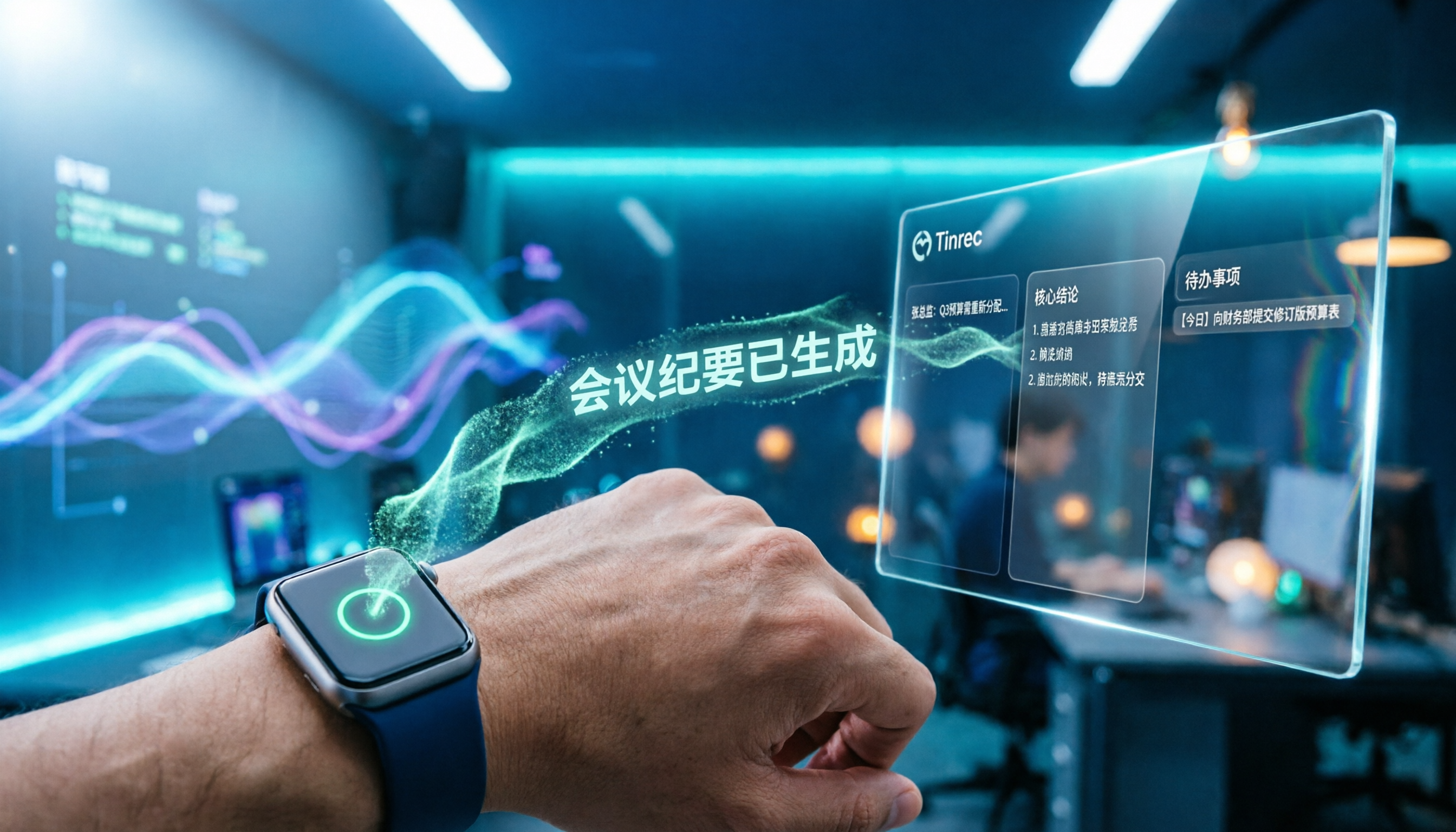
Turn recordings into transcripts and summaries in minutes
Upload audio or video for multilingual transcription, AI notes, and action items
Apple Watch WeChat Voice-to-Text in 2026: 3 Input Methods Compared and How to Set Up Chinese
Watch Buzzed but You Don't Want to Pull Out Your Phone? Don't Assume the Watch Can't Type
Many people's first reaction when they get a WeChat message on Apple Watch is: "The watch can only display; to reply I still need my phone." This is the most common misconception.
The second misconception is that "voice on the watch can only become a voice message." You record a message and send it; the recipient gets an audio clip they have to tap to listen. But with a different method, the same words can be sent directly as text.
The third misconception is the most annoying: thinking the watch's Chinese voice input is broken. Usually it's not broken; the language setting has just changed.
If you've ever experienced "the watch buzzed, my hands were full, and I couldn't reply with a complete sentence," this article lays out several methods for comparison.
Understand These 5 Things First, Then Voice Can Become Text
1. The watch has its own Dictation, which is the key to turning voice into text. Apple's support documentation states directly: tap the microphone icon to transcribe what you say. Note that some languages don't support Dictation.
2. Dictation on the watch is a system capability, not developed by WeChat. On iPhone, WeChat has its own voice-to-text; but on the watch, the reply box uses input methods provided by watchOS, including Dictation, Scribble, and the on-screen keyboard. Someone on V2EX asked this question: "Is voice-to-text on watch Apple's interface or made by third-party apps?"
3. Voice messages and voice-to-text are two different things. WeChat on Apple Watch can already receive and reply to messages, send voice, use emojis, and tap preset quick replies. But when you record a voice message and send it, the recipient gets an audio file; to convert to text, you use Dictation. In earlier versions, each voice message was limited to 30 seconds.
4. Language settings directly affect whether Chinese Dictation works. A user on Mobile01 shared that the watch's voice input once couldn't call up Chinese; they had to long-press on the voice input screen to see Chinese as an option. If you find Dictation keeps recognizing English, check the language settings first.
5. When iPhone is nearby, you can use Handoff input. Apple Support mentions that after you start dictating or typing on the watch, iPhone shows an "Apple Watch Keyboard Input" notification; tap it to continue dictating or typing, essentially borrowing the phone's larger screen and keyboard.
The actual operation is only 3 steps: Open the WeChat conversation on your watch → choose Reply, tap the microphone to use Dictation to convert speech to text (if Chinese doesn't appear, long-press to switch language) → confirm the text is correct and send. For longer content, switching to iPhone Handoff is much smoother.
For short replies, this is enough. But if you need to handle a whole meeting, this process quickly hits its limit.
The Watch Can't Handle a Whole Meeting; That's When Tinrec Comes In
"Two-hour meeting, then two more hours to organize afterward"—this is not a problem the watch can solve. Watch Dictation is good for replying with one sentence, not for capturing an entire meeting.
Tinrec (秒聽錄音) is an AI meeting notes and collaboration tool for individuals and teams, available on desktop, mobile, and web. Its biggest difference from watch Dictation is that it turns "recording" into data you can continue to use:
Stop organizing recordings by hand
Upload audio or video and automatically get a transcript, summary, and action items
- Record online meetings without a meeting bot. Tinrec desktop directly captures your computer's system audio, so for Zoom, Google Meet, Microsoft Teams, Webex, etc., you don't need to invite a bot account into the meeting as an extra participant. This is especially practical for meetings with external clients present.
- Get live transcripts, and after the meeting, summaries, chapters, and action items. By the time the meeting ends, who is responsible for what and when it's due is already organized into a list—no need to re-listen to the recording.
- Ask it questions after recording. Questions like "Who mentioned the budget in the last meeting?" don't require you to Ctrl+F through a 30-minute transcript; it gives you the answer directly.
- Mixed Chinese-English, multilingual meetings. Supports real-time translation, viewable in original, translated, or bilingual mode; teams can also maintain a glossary to improve recognition of product names and technical terms.
- Outputs you can take with you. Transcripts, summaries, and action items can be exported to Notion, Google Docs, OneNote, Dropbox, etc., for further use, and can also be post-processed via Agent to generate reports, tables, and documents.
- Team Edition keeps data within the team. Independent team spaces, member and seat management, usage analytics, audit logs, audio recycle bin. Note that roles and seats are two different things: members without a seat can still view, play, and read team data, but cannot upload, edit, or export.
Limitations are also clear: transcription quality is affected by recording quality, ambient noise, accents, overlapping speakers, and technical terminology. It should not be considered a guarantee of 100% accuracy; important content should still be checked against transcript timestamps and the recording. Also, recording and transcription involve other people's conversations; please comply with local laws and obtain consent from participants when necessary.
Pricing: Team Edition is currently USD 29.80 per paid seat per month, or USD 199 annually (about USD 16.58 per month); each paid seat provides 2,000 minutes of team shared import quota per month. The first eligible team trial is 7 days, 1 free seat, 300 minutes shared import quota. Under an active plan and active seat, live recording currently does not deduct minutes; file and web imports use the team shared quota. Personal plans include Free, Weekly, Pro Monthly, and Pro Annual—choose based on your usage frequency. Actual prices and benefits are subject to the official purchase page.
In short: if you handle two or three meetings a week, need Chinese transcripts, and want to find key points directly with questions afterward, Tinrec is the best fit in this article.
Besides Tinrec, What Other Options Are There?
Notta: The closest competitor to Tinrec, also offering multi-platform transcription, meeting notes, file import, and translation. Official free version: 120 minutes per month, max 3 minutes per session; Pro annual is about USD 8.17/month, 1,800 minutes per month. Its team capabilities focus on permissions and usage reports; Tinrec separates roles and seats, and adds audit logs and an audio recycle bin.
Otter.ai: A mature choice for English meetings. Basic free: 300 minutes per month; Pro annual is about USD 8.49/user/month, including 1,200 minutes of in-app recording and 10 file imports per month. If 90% of your meetings are in English, Otter is more cost-effective; but for Chinese meetings plus bot-free desktop recording, Tinrec is a better fit.
PLAUD: Hardware-focused, NotePin USD 159, Note Pro USD 189; membership Starter 300 minutes per month, Pro USD 99.99/year, Unlimited USD 239.99/year. Suitable for those who want a portable recording device; if you don't want to carry an extra device, Tinrec handles online meetings and historical files via desktop and mobile.
Pitfall Guide: 4 Most Common Mistakes When Handling Voice on the Watch
Pitfall 1: Thinking WeChat on Apple Watch has a "voice-to-text" button. Converting voice to text on the watch relies on watchOS Dictation, not a separate WeChat engine. Not finding that button is not your fault.
Pitfall 2: Not checking Dictation language. Some languages don't support Dictation, and settings can change. If it keeps recognizing English, long-press to switch back to Chinese first.
Pitfall 3: Confusing voice messages with voice-to-text. The recipient gets a voice message they have to tap to listen to, not text. If you really want text, use Dictation.
Pitfall 4: Using the watch for long content. The watch's screen, Dictation length, and voice message time limits are not suitable for meetings or interviews. Forcing the watch in such situations will only cost more time to fix later.
Summary: Which One Should You Use?
- Quick reply on watch like "OK, I'm here" → System Dictation
- The other person wants to hear your voice → WeChat voice message on watch
- Need to type a longer reply → iPhone Handoff input
- Meetings, interviews, classes needing full transcript + summary + action items → Tinrec
- Meetings almost all in English, zero budget → Otter.ai
Watch Dictation solves "replying with one sentence in the moment"; Tinrec solves "capturing the whole meeting." You can start by using Dictation to reply a couple of times to get familiar; if what you really need to handle is meeting notes, try Tinrec's free quota for one transcription and summary to see how much organizing time you can save.
References
Turn every recording into actionable outcomes
Get 60 free transcription minutes when you sign in. No credit card required.
Related Reading
You might also like

4 AI Meeting Minutes Generators Tested for 2026: Which Handles Chinese Meetings and Free Tiers Best?
Two-hour meeting, another afternoon organizing minutes? This article compares 4 AI meeting minutes generators using the same criteria, breaking down audio sources, Chinese recognition experience, post-meeting output, free tiers, and team data ownership. It also shares hands-on experience with Tinrec's bot-free recording, AI Q&A, and team governance capabilities, and provides selection advice based on use cases.

Best Video Speech-to-Text Tools in 2026: 5 Tested, Top Pick for Chinese Meetings and Post-Meeting Organization
Need to convert speech from videos to text? This article uses the same mixed Chinese-English meeting material to compare 5 video speech-to-text tools on input sources, post-meeting processing, AI Q&A, export, and team collaboration. It also covers 4 key points to check before buying and 4 common mistakes, helping you choose the best fit based on your use case and budget.

2026 Short Video Learning Note Tools Compared: Which AI Best Organizes Course Highlights?
I lead a team learning short videos, with piles of course recordings and livestream replays, but notes scattered everywhere. This article, from a mid-level manager's practical perspective, tests Tinrec, Notta, Otter, and Granola in short video learning note scenarios, and compiles selection criteria, pitfalls to avoid, and scenario-based recommendations.

5 iPhone Transcription Solutions Compared for 2026: Is Apple's Built-in Enough?
Apple's built-in Voice Memos and Notes apps can already transcribe recordings into text for free, but there are prerequisites for supported models, system versions, and proofreading costs. This article first explains how to use Apple's built-in transcription, then reviews five third-party solutions: Tinrec, Otter, Notta, Granola, and TurboScribe, with actual pricing and selection advice to help you decide if the built-in is enough and when to upgrade.

5 Free Image-to-Text OCR Options in 2026: A Complete Guide
How can you use image-to-text (OCR) efficiently? Starting with the most common pitfalls, this article reviews 5 free image-to-text methods, explains OCR limitations and key considerations, and shows how Tinrec fills the gap for meetings, classes, and interviews with transcripts, AI summaries, action item extraction, AI Q&A, and team collaboration.

2026 Audio-to-Text Tools Comparison: Tinrec vs Otter.ai vs cSubtitle for Chinese Transcription
Turn recordings into transcripts without typing for 6 hours. This article compares Tinrec and Otter.ai in real meeting scenarios, focusing on Chinese transcription, bot-free recording, post-meeting organization, and team collaboration. It also explains where lightweight tools like cSubtitle fit in, with a 4-step tutorial and FAQs.

4 iPhone Speech-to-Text Tools Compared in 2026: How to Choose When Built-In Transcription Isn't Enough
How do you transcribe speech to text on iPhone? This guide compares the built-in Voice Memos transcript, iMessage voice message transcription, and the AI meeting tool Tinrec, covering device requirements, language support, recording length, and post-meeting organization capabilities to help you decide whether to use the free built-in features or switch to a meeting tool that generates summaries, action items, and AI Q&A.

Tinrec vs Notta 2026: 5-Dimension Comparison — Which Is the Best Summarization Tool?
After a meeting, the real time sink isn't recording — it's turning the transcript into conclusions. This article compares Tinrec and Notta across five practical dimensions, explaining why the ability to ask AI follow-up questions directly after a meeting is the dividing line for summarization tools, with a pitfalls guide and quick-start checklist.
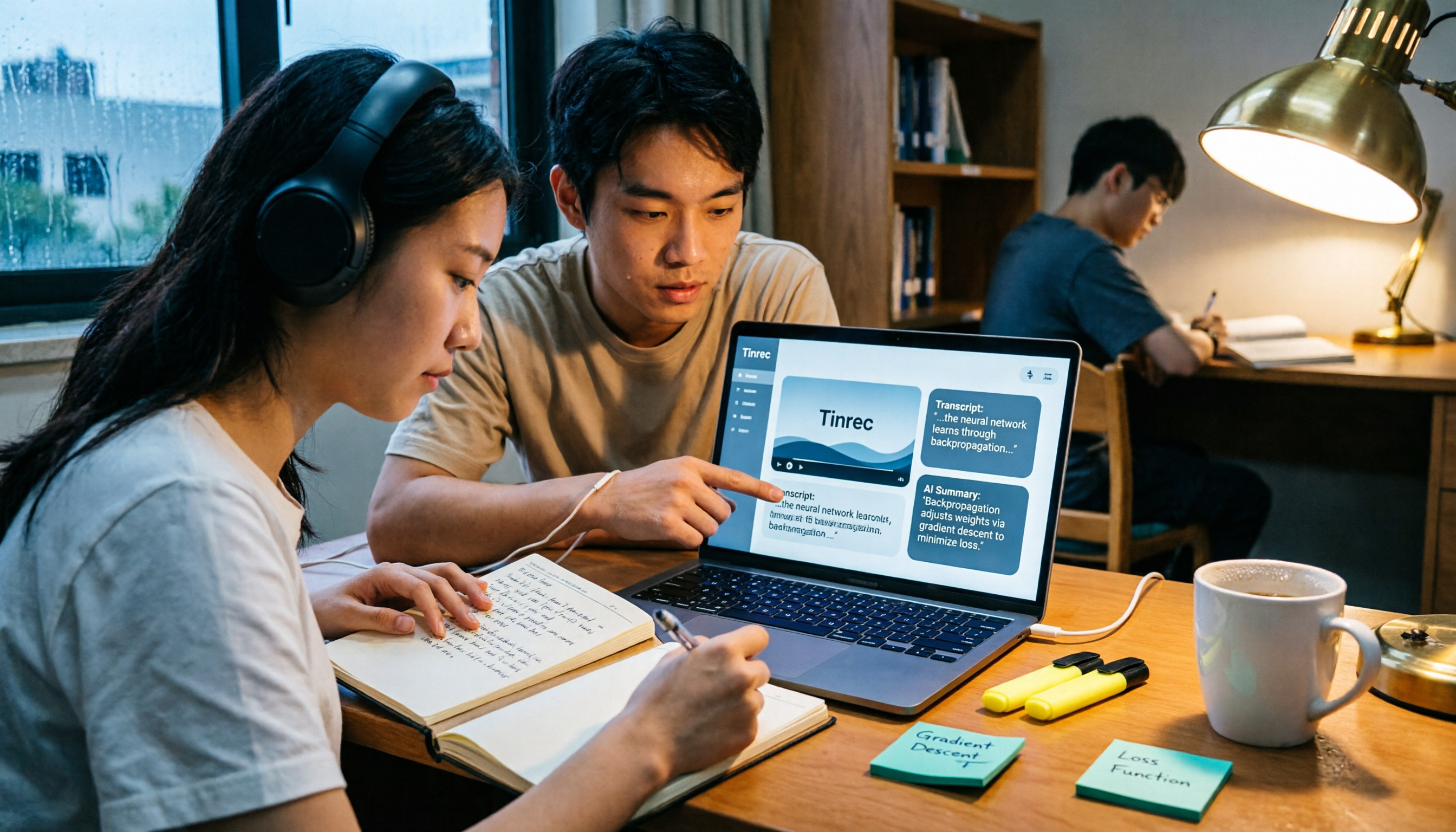
2026 AI Video to Text Tools Comparison: Which Saves Students More Time on Online Courses?
Don't want to rewatch 18 hours of online course videos before finals? This student-tested comparison of Tinrec and Otter.ai covers Chinese transcription, video file import and AI summarization, transcript Q&A and export, free tiers and student budgets, and cross-device and group collaboration—5 dimensions to help you build a repeatable video note-taking workflow.