

Turn recordings into transcripts and summaries in minutes
Upload audio or video for multilingual transcription, AI notes, and action items
Before You Start | Clearing Up the Most Common Misconception
"Meeting transcription is just about throwing the file into AI, pressing a button, and the transcript pops out."
This is the statement I hear most often and want to correct the most.
Because most people's workflow goes like this: finish the meeting, upload the recording, wait for it to process, download a transcript—and then nothing else happens.
The transcript sits in a folder, no one opens it before the next meeting, and action items still rely on memory.
The second common misconception is: if the transcript has typos, the tool isn't good enough.
Actually, it's usually not a tool problem but a process problem. Microphone placement, file length, whether you process in segments, and whether you've pre-built a glossary of proper nouns all directly affect the results.
So in this article, I won't talk about tool rankings. Instead, I'll walk you through a complete workflow of "how meeting recordings become usable text."
I'll use Tinrec as an example because it puts summarization, action items, Q&A, and export all in one streamlined flow after transcription.
Over the past year, the sequence I've tested goes something like this: first use Google AI Studio's Gemini to transcribe, then throw it into NotebookLM for organization; I've tried CLOVA Note for speed, and also Yating Transcript; when dealing with large volumes, I've used cSubtitle.
Each has its suitable scenarios.
But if your need is "every meeting must go through the same workflow," what you ultimately need isn't the most powerful tool, but the one that requires the least moving around.
Before You Start | What You Need to Prepare
• A computer or phone (Tinrec has a web version, desktop version, and app)
• A registered account
• A piece of content you want to convert to text (meetings, interviews, course recordings all work)
• A stable internet connection (real-time transcription requires connectivity)
• First clarify what output you want: just the transcript, or also summary, action items, and export
The last point is the most important. Different goals lead to different approaches.
Step 1 | Record Good Audio First (This Step Determines 80% of the Quality Later)
The only purpose of this step is: to get a clean recording.
For in-person meetings, open Tinrec and start real-time recording. Place your phone in the center of the table, not next to your laptop. The closer the distance, the cleaner the audio, and the easier the subsequent recognition.
For online meetings, use the Tinrec desktop version to directly capture your computer's system audio. It handles meeting audio played on your computer from Zoom, Google Meet, Microsoft Teams, Webex, etc., using a no-bot recording method—no bot account will appear in the meeting participant list.
This makes a big practical difference: you don't have to explain to participants "an AI will join later," and you don't have to deal with concerns about a stranger account appearing.
Why emphasize recording quality? Because more than half of AI transcription accuracy is determined at the moment of recording. Instead of spending a lot of time proofreading later, spend 30 extra seconds before the meeting to confirm your phone's position.
Once done, the recording will appear in Tinrec with its duration displayed, and the transcript will emerge paragraph by paragraph.
(Illustration: A person sitting in a meeting room, phone placed in the center of the table recording, transcript text appearing in real-time on screen, atmosphere natural and non-disruptive to the meeting)
Step 2 | Let AI Convert Audio to Transcript
If your recording wasn't made live but is a file already on your phone or computer, just import it.
Tinrec supports importing audio and video files, and can also handle content from some web links. This is suitable for organizing historical meetings, client interviews, or course recordings.
My own judgment on the difference between real-time transcription and post-import is this:
Real-time transcription is suitable for meetings "you'll need right after"—you see the text while the meeting is happening, and if you notice a mishearing or omission, you can correct it on the spot, with almost no need to re-listen afterward.
Post-import is suitable for "building your database"—slowly organizing past scattered recordings into searchable text.
Don't mix the two. When in a meeting, just focus on the meeting; when organizing, focus on organizing.
Step 3 | Proofread, But Never Proofread Word by Word
This is where most people fall into a trap.
The inefficient approach: treating the AI transcript as a typing draft and editing from the first line to the last. A one-hour meeting could take an entire afternoon to edit.
A more reasonable approach: only proofread three types of things.
First, proper nouns like names, company names, and product names.
Second, numbers, amounts, and dates.
Third, decision sentences and commitment sentences—things like "we'll get back to you by next Wednesday."
As for filler words, redundancies, and repeated "you know," unless it's for external publication, don't spend time on them.
If you're using Tinrec's team version, there's another time-saving method: add frequently appearing product names and project codes to team hotwords to make terminology recognition more stable. Do this once, and every future meeting benefits.
Step 4 | Let AI Generate Meeting Minutes for You
The transcript is not the end goal.
Tinrec automatically generates summaries and chapters, breaking long meetings into quickly scannable sections. It also extracts action items from discussions and provides a mind map to see the overall structure.
Stop organizing recordings by hand
Upload audio or video and automatically get a transcript, summary, and action items
But here's a methodological key: don't let AI freestyle.
You need to give it a clear output format. My commonly used prompt goes something like this, which you can copy directly:
"Based on this transcript, please organize into the following four parts: 1. A three-sentence summary; 2. Chapters and key points segmented by topic; 3. An action item list in the format (owner/task/deadline). If the original text doesn't mention an owner or deadline, please mark 'not specified'; 4. Unresolved points that need further confirmation. Please do not rewrite the original meaning of statements, and mark uncertain areas where you cannot determine."
Adding those last two sentences makes AI less likely to "hallucinate" things not said in the meeting.
The organized results can further generate reports, tables, or documents for direct use in post-meeting deliverables.
Step 5 | Export and Share, Let Data Flow into Your Existing Workflow
The final step is to send it out.
Tinrec supports export to Notion, Google Docs, OneNote, Dropbox, and other common tools, and can also output as file formats.
The methodological significance of this step: don't let meeting data stop at the meeting tool. It should flow into the documents, projects, or knowledge base you already use, so it actually gets used.
If your team runs meetings, Tinrec's team version centralizes meetings in a team space, and meeting data belongs to the team, not the person who uploaded it. New members can look back at historical meetings, and when members leave, data can be handed over to others.
The team version currently offers a 7-day trial after qualification, 1 free seat, and 300 minutes of team shared import quota; after payment, each paid seat provides 2,000 minutes of team shared import quota per month. Monthly payment is USD 29.80 per paid seat per month, annual payment is USD 199 per paid seat per year (about USD 16.58 per month). Under an active team plan and seats, real-time recording is currently not deducted by minutes. Actual prices and benefits are subject to the official purchase page.
Also, distinguish roles and seats: roles determine who can manage the team and members, seats determine who can record, upload, edit, and export. Members without seats can still view, play, and read team data, but cannot perform editing and uploading.
Common Questions and Troubleshooting
Q: There are many typos in the transcription. What should I do?
First look back at the recording, not switch tools. It's mostly due to distance being too far or a noisy environment. Tinrec's team version can improve terminology recognition through team hotwords; when recording, it's recommended to be close to the main speaker. Most transcription tools have only one default recognition mode and lack this kind of adjustment space for team vocabulary.
Q: Can I throw a one-hour meeting directly in?
Yes, but for long audio files, processing in segments is more stable. If it's real-time recording, this problem is naturally solved—content is transcribed as it's spoken, so it won't accumulate into a huge file.
Q: Do online meetings always require a bot to join?
Not necessarily. Tinrec's desktop version captures the computer's system audio and doesn't need an extra bot account to join the meeting. This is different from inviting a bot into the meeting participant list.
Q: Can it handle meetings with mixed Chinese and English?
Tinrec covers Chinese, Traditional Chinese, and multilingual meeting scenarios, and also supports real-time translation, allowing you to view in original, translated, or bilingual mode. Actual results are still affected by audio quality, accents, and overlapping speakers.
Q: How do I make the transcript visible to the whole team?
Put it in the team space. All active team members can read team data; assign seats to those who need to edit.
Q: Are there legal issues with meeting recordings?
Before recording, please check local regulations and obtain participant consent when needed. Tools are just tools; this is something you need to handle yourself.
Advanced Tips | 3 Ways to Double Tinrec's Efficiency
- Use AI Q&A instead of re-listening to recordings.
Stop playing from the beginning to find that one sentence. Just ask: "What was the conclusion about pricing in this meeting?" "What three concerns did the client mention?" Tinrec supports follow-up questions around single or multiple meeting data. Ordinary transcription tools end at the transcript; this layer is where it differs the most.
- Use real-time translation and bilingual view for cross-language meetings.
During recording, you can see original, translated, or bilingual content. Practical effect: no need to wait for post-meeting translation in international meetings; you can keep up during the meeting.
- Treat the team space as a meeting database to cultivate.
Features like team hotwords, usage analytics, audit logs, and audio recycle bin sound very "administrative," but their real value is turning meeting data into a long-term accumulating asset. When members change, data doesn't leave with them—something personal tools can't do.
If You Don't Use Tinrec, Here Are Other Options
• Google AI Studio's Gemini: Log in with a Google account to upload recordings and generate transcripts with timestamps and speaker labels. Free and quick to get started. Experience shows it's prone to errors over one hour, so it's recommended to split into smaller segments.
• CLOVA Note: A free tool from LINE, usable with a LINE account, fast recognition, and can distinguish different speakers.
These two options are suitable for "occasionally processing a recording." If you want every meeting to automatically connect to summary, action items, export, and team sharing, then a tool that packages the latter half of the workflow will save you a lot of moving time.
Summary
You now have a complete workflow: record good audio, convert to transcript, proofread only three key areas, use prompts to generate minutes and action items, and finally export to your original work documents.
The benefit of this workflow isn't "speed," but that every meeting's output lands in the same place, can be searched, questioned, and handed over.
If you want to start, follow this order:
- First register for Tinrec and try one meeting with the free version's basic quota
- 30 seconds before the meeting, confirm your phone or computer's microphone position
- For online meetings, use the desktop version to start recording directly, without inviting a bot
- After the meeting, first look at the summary and chapters, then go back to proofread names, numbers, and decisions
- Apply the prompt above to generate minutes and action items at once
- Export to your work documents, or put into the team space to accumulate
Start by trying one meeting. Test gradually, and you'll master this workflow.
References
- Online AI voice, video, audio file automatic transcription - Free trial - cSubtitle
- Get meeting minutes done! How to do AI speech-to-transcript? Gemini Notebook, Gemini, EchoScript operation analysis | 104 Workplace Power
- How to use AI for meeting minutes? How to organize meeting transcripts? | AI speech-to-transcript tutorial | 104 Workplace Power
- Yating Transcript
- From recording to text: Gemini helps you get transcripts done - Lawyer Zhang Qinghao's blog
Turn every recording into actionable outcomes
Get 60 free transcription minutes when you sign in. No credit card required.
Related Reading
You might also like

Tinrec vs Notta 2026: 5-Dimension Comparison for Chinese Meeting Transcription
How to choose an audio-to-text tool? This article addresses common pitfalls and reviews 6 practical solutions, including Tinrec, Notta, Otter.ai, Fireflies.ai, Granola, and a no-registration online tool. It compares them across 5 dimensions: meeting capture method, Chinese transcription, post-meeting organization, team collaboration, and pricing. All prices and free limitations are listed accurately to help you find the best fit for your meeting scenario.
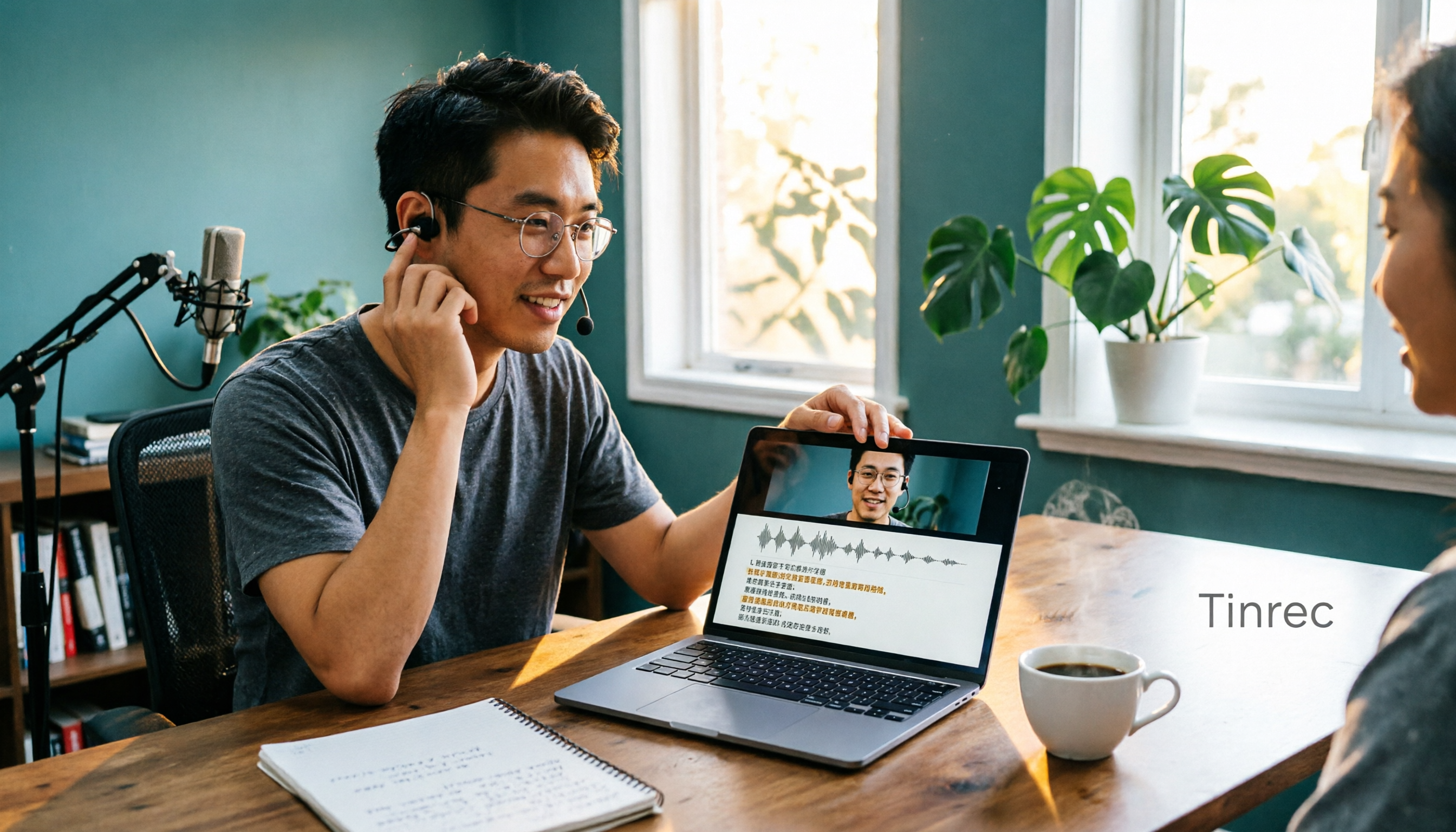
2026 Video-to-Text Tools Compared: Which AI Transcription Saves the Most Time for Chinese Content?
How do you turn video audio into text? This article explores real-world scenarios to explain what pain points AI video transcription solves and what core capabilities to look for. It covers 5 key considerations when choosing a tool and compares Tinrec's personal and team plans. A FAQ section addresses common questions about long videos, accuracy, free quotas, and team permissions.

2026 Audio Extraction to MP3 Comparison: Tinrec One-Click Conversion with Transcript
Audio extraction to MP3 is just a means; what you really need is the content inside. This article uses real scenarios like meetings, client interviews, classes, and content creation to break down how Tinrec directly processes audio and video files, producing transcripts, AI summaries, and action items in one go, and organizes 5 key points to consider when buying and common questions to help you save time on repeated conversions and manual transcription.

5 Online Audio-to-Text Tools Tested and Compared for 2026: Which Free Tier and AI Summary Tool Is Most Practical?
There are many online audio-to-text tools, but most people make the wrong choice from the start. This article examines five key points: free tier limits, audio sources, Chinese recognition, post-meeting organization, and team data ownership. It compares Tinrec, Notta, TurboScribe, and Otter.ai, highlights four common pitfalls, and provides clear recommendations based on budget and use case.
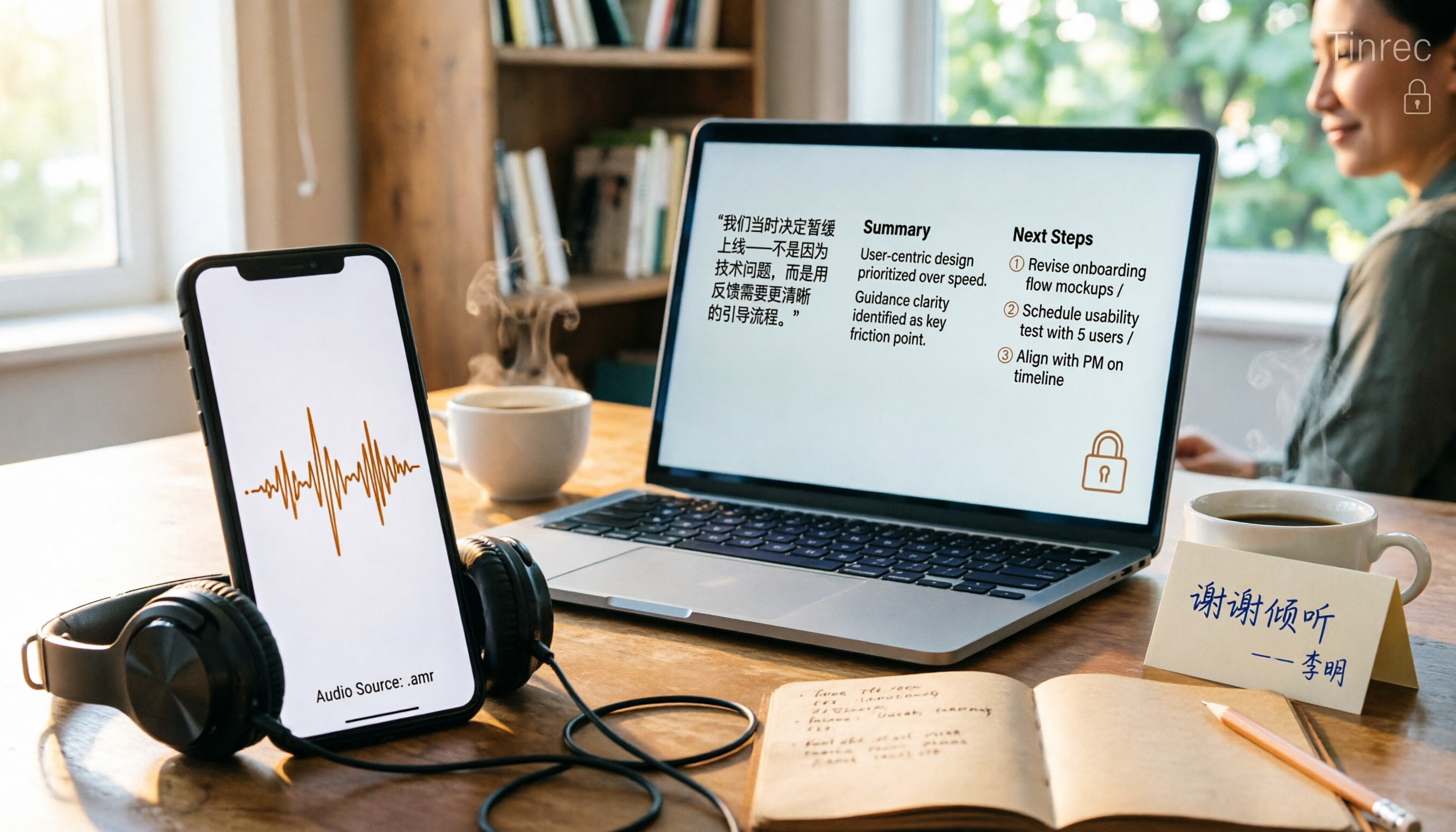
3 AMR to MP3 Tools Tested and Compared in 2026: Which Is Easiest and Safest for Privacy?
Phone recordings are often saved as .amr files, which computers can't open and which you may worry about leaking when sharing. This article compares three approaches: online conversion, browser-based local conversion, and desktop tools. It also explains that if your AMR files are meeting or interview recordings, Tinrec can turn audio directly into transcripts, summaries, and action items, saving you hours of typing.

2026 Comparison of 4 Meeting Minutes Tools for State-Owned Enterprises: Which Saves the Most Time?
For state-owned enterprises and large organizations, organizing meeting minutes often gets stuck in the hour or two after the meeting. This hands-on comparison tests Tinrec, Notta, Otter.ai, and PLAUD on Chinese meeting transcription, post-meeting summaries, action item extraction, and team collaboration. It also covers 4 key purchasing factors and 3 common pitfalls to help you decide which tool best fits your meeting scenario.

2026 Comparison of 4 Audio-to-Text Tools: How to Turn Audio Evidence into a Transcript
Got a key recording but stuck on how to turn it into text that courts, mediators, or supervisors can understand? This article first outlines 5 key principles for audio transcripts, then compares Tinrec, Notta, Otter.ai, and TurboScribe in real tests, focusing on file import, timeline completeness, AI Q&A, and team data storage, helping you choose the right tool for your situation.

6 iPhone Voicemail and Call Transcription Solutions Tested for 2026: Which Organizes Messages Best?
When you miss a call on iPhone, it goes to voicemail, but the real challenge starts after the message arrives. This article addresses common misconceptions and reviews 6 ways to handle voicemail and call content on iPhone, including iOS 17's built-in Live Voicemail, carrier Visual Voicemail, and Tinrec, which can turn messages into transcripts, summaries, and to-dos. It also covers roaming charges, Low Power Mode, and spam call considerations.

2026 AI Meeting Recorder Comparison: 5 Tools Tested for Turning Audio into Shareable Meeting Minutes
Most AI tools can turn recordings into transcripts, but what really slows you down after a meeting is producing minutes you can send out directly. This article starts from the question of whether decisions, action items, and numbers are ready to hand off, outlines 4 key factors for choosing an AI meeting minutes tool, and compares Tinrec, Otter.ai, Notta, and Granola in hands-on testing, with 4 common pitfalls and scenario-based recommendations.