

Turn recordings into transcripts and summaries in minutes
Upload audio or video for multilingual transcription, AI notes, and action items
"Halfway through the meeting, the toolbar disappeared"—what's really blocking you isn't recording, it's finding the button
Twenty minutes into an online meeting, you want to pause or switch to the transcript to confirm something that was just said, but you notice the toolbar on the left is gone.
The screen is still there, recording seems to be running, but you just can't find that button.
Most people's first reaction is to refresh the page, which splits the recording into two parts; the second reaction is to switch browsers, which wastes another five minutes. The meeting is still going, but you're fighting the interface.
This article is divided into two parts: first, how to troubleshoot a missing toolbar on your own; then, what to look for when choosing a tool so you don't have to hunt for buttons every meeting.
Don't rush to restart: 6 troubleshooting steps you can try yourself
Bottom line: most of the time it's not a broken tool—the button is hidden or the layout is compressed.
1. Browser zoom is off. This is the most common cause. Press Ctrl+0 (Command+0 on Mac) to reset to 100%, and the toolbar often reappears.
2. Window too narrow, sidebar auto-collapses. Many services collapse the left toolbar into a hamburger menu or icons only when the window is narrow. Enlarge the window or look for the menu icon in the top left.
3. Accidentally entered full-screen or focus mode. Press F11 or Esc to exit and see if the toolbar comes back.
4. Browser extension interference. Ad blockers or dark mode extensions can occasionally hide layout elements. Testing in an incognito window is the quickest way.
5. Cache stuck on an old interface. Force refresh (Ctrl+Shift+R) or clear the cache.
6. Browser version too old. Make sure you're on the latest version of Chrome, Edge, or Safari.
Note: do these tests in a new tab, not on the page that's currently recording.
If you've tried all six and it's still missing, it's not your fault—it's a platform interface change. Instead of digging through forums, check the official tutorials. For example, Vocol's official blog has a tutorial video section, and button locations usually update with new versions.
4 key points to understand before choosing an AI meeting recorder
A disappearing toolbar is ultimately an interface design issue. Rather than hunting for buttons every meeting, pick a tool with a smooth workflow from the start.
Here are the 4 things I check first when choosing this type of tool.
1. How many steps for common actions. Recording, uploading, viewing transcripts, exporting—if any of these requires digging through three levels of menus, you'll want to switch tools after three months.
2. Are input sources sufficient. Only having online meetings on a computer is very different from needing to handle offline interviews or existing audio files.
3. What you get after transcription. Just a transcript versus having summaries, chapters, action items, and the ability to ask follow-up questions are two completely different workloads.
4. How team authorization works. Is it a shared account, or does it have members, roles, and seats? This doesn't matter for teams under three, but makes a big difference for ten or more.
Tinrec—puts recording, transcript, and summary on the same workflow
Tinrec is an AI meeting recorder and collaboration tool for individuals and teams, available on web, desktop, and mobile.
I'm putting it first because its workflow aligns well with the four points above.
No bot to invite for online meetings. The desktop version directly captures system audio to handle Zoom, Google Meet, Microsoft Teams, Webex, and similar meetings. Just open Tinrec and press record—no extra bot joins the meeting room. This is especially noticeable in client meetings; no need to explain "an AI will join shortly."
Transcript appears as you speak, with real-time translation. The transcript grows while recording, and for cross-language meetings you can switch between original, translation, or bilingual view. Chinese and mixed Chinese-English meetings are its main use cases.
Post-meeting is the key. After recording, it automatically generates summaries, chapters, key points, and action items. You can also ask questions directly about the meeting, such as "What was the budget cap the client mentioned?"—no need to Ctrl+F through a 30-minute transcript. Organized content can be exported to Notion, Google Docs, OneNote, etc., and further used to generate reports, tables, or meeting minutes.
Stop organizing recordings by hand
Upload audio or video and automatically get a transcript, summary, and action items
Team version is a separate team space, not a shared account. This deserves special mention. The team version has roles (owner, admin, member) and seats: active members without a seat can still view, play, and read team data; but only seat holders can record, upload, edit, and export. Meeting data belongs to the team; when a member leaves or loses a seat, resources are transferred to other members and don't disappear with the personal account.
Admins can also see team usage trends, member rankings, hotword maintenance, and query/export audit logs; accidentally deleted audio files can be recovered from the recycle bin (currently retained for 30 days).
Pricing (subject to the official purchase page): Team monthly USD 29.80 per paid seat per month, annual USD 199 per paid seat per year (about USD 16.58/month); each paid seat includes 2,000 minutes of team shared import quota per month, and real-time recording under an active team plan is currently not deducted by minutes. Eligible teams get a 7-day trial with 1 free seat and 300 minutes of shared import quota. Personal plans include free, weekly, Pro monthly, and annual cards—choose based on usage frequency.
Limitations to be clear about. The free version provides a basic experience quota; heavy users need to pay. It does not automatically join every meeting on your calendar—you need to open the desktop app and record yourself. The team version currently offers team-level sharing, not file-level granular permissions. Transcription accuracy is affected by recording quality, noise, accents, and overlapping speech; for important content, cross-check with the audio.
Who it's for. People who frequently have Chinese or mixed Chinese-English meetings, want to use AI to find key points directly after meetings, and need to turn meeting data into team assets.
Besides Tinrec, what other options are there?
Vocol.ai: A web-based AI voice collaboration platform offering recording, audio/video upload, shared documents, and transcript comments. It supports transcription in Chinese, English, and Japanese, and transcripts can be translated into 20+ languages, with summaries and topics generated. Suitable for teams that already run their collaboration workflow on the web. If your meetings mainly happen on Zoom or Teams on a computer and you want desktop system audio capture with original audio files preserved, Tinrec is more convenient.
Notta: Strong in multilingual transcription and file import. Free version: 120 minutes per month, 3 minutes per session; Pro annual about USD 8.17/month (1,800 minutes per month); Business annual about USD 16.67 per seat per month, including unlimited transcription, role permissions, and usage reports. Suitable for those processing large amounts of existing audio files. Tinrec's difference lies in bot-free online meeting recording and post-meeting AI Q&A, action items, and team data retention.
Otter.ai: A mature choice for English meetings. Basic free: 300 minutes per month; Pro annual about USD 8.49 per user per month, including 1,200 minutes of in-app recording per month and 10 file imports. If 90% of your meetings are in English, it's a great value. For Chinese and mixed Chinese-English meetings, Tinrec's experience is more tailored.
Pitfall guide: 4 most common mistakes when choosing this type of tool
Pitfall 1: Only comparing free minutes. More minutes but buttons hidden deep and requiring hunting each time may save you less time than a tool with fewer minutes.
Pitfall 2: Thinking a transcript is enough. Using the tool only as "audio-to-text" means using only part of its capability. Asking "What was the conclusion of this meeting?" right after recording is much faster than manually scanning the transcript.
Pitfall 3: Ignoring device and window. The same tool looks very different on desktop vs. mobile, and toolbar collapse logic differs. Before buying, run the free version on your usual devices.
Pitfall 4: Team sharing one account. Convenient short-term, but long-term you'll face situations where anyone can edit, no one dares delete, and data is lost when someone leaves. Plans with member and seat design have much lower governance costs.
Conclusion: A missing toolbar is annoying, but what you should really replace is the workflow that makes you hunt for buttons
- Just occasional recording, want to try first → Start with the free version
- Regular weekly meetings, need transcript plus summary → Tinrec Pro
- Need mixed Chinese-English meetings and post-meeting AI follow-up → Tinrec
- Want to keep meeting data for the team, manage members and usage → Tinrec Team (start with 7-day trial)
- 90% of meetings are in English → Otter.ai is also a great value
One final reminder: whether the toolbar disappears largely depends on interface design; but whether meeting content is retained and findable depends on which tool you choose. I recommend running the free version on one or two of your own meetings first, and upgrading only when it feels smooth—no need to pay upfront.
References
- Home | Vocol.ai Voice Collaboration Platform
- Media Library | Vocol.ai Voice Collaboration Platform
- [Question] Win11 toolbar completely gone and won't come back... @ Computer Application Discussion Forum - Bahamut
- No more typing transcripts! A powerful speech-to-text AI tool that frees up your time - Vocol.ai – Mingchun Says
- Vocol Tutorial Video Series: Must-Know Features to Boost Productivity with Transcripts
Turn every recording into actionable outcomes
Get 60 free transcription minutes when you sign in. No credit card required.
Related Reading
You might also like
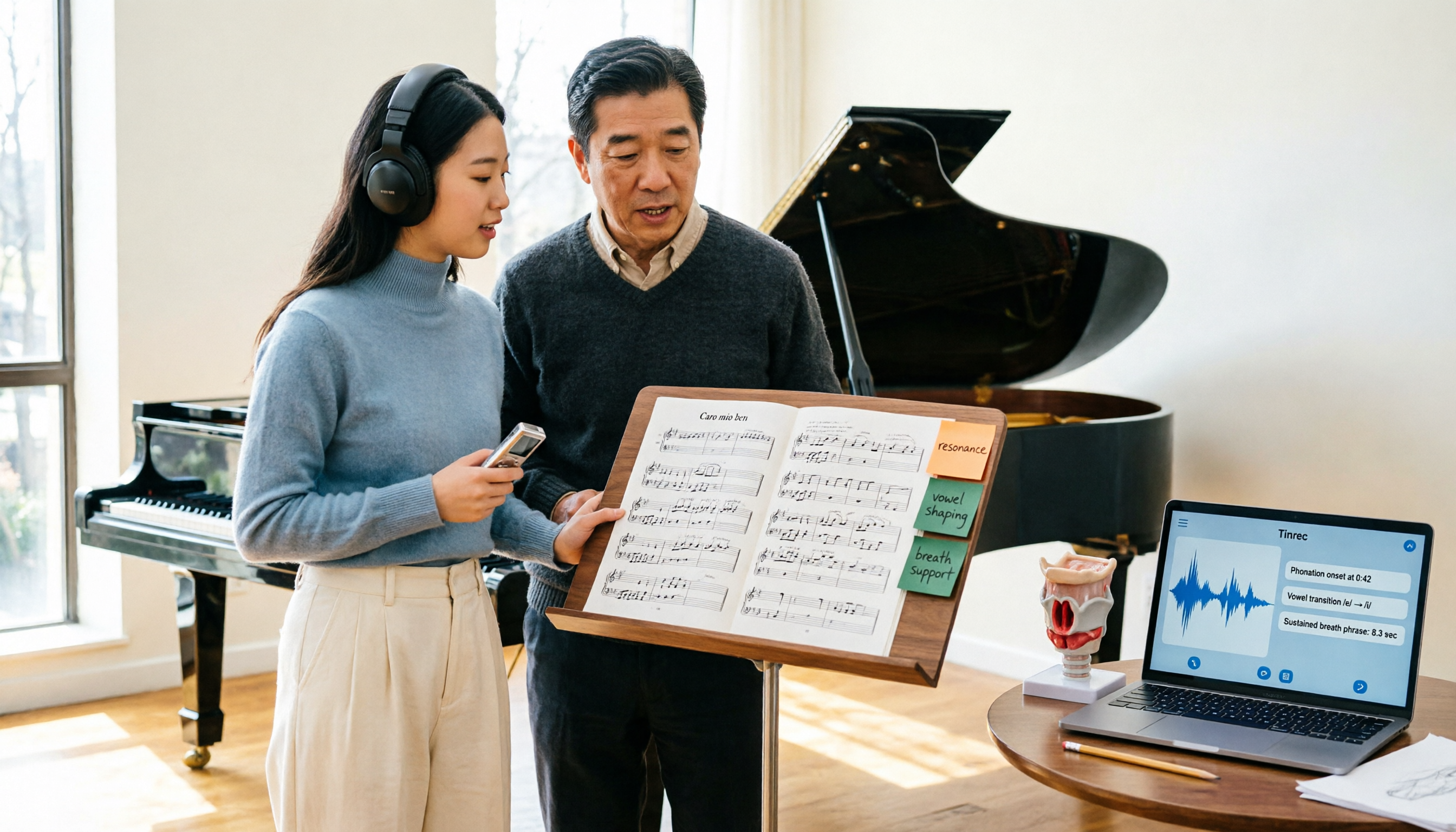
2026 Vocologia Master's Degree Complete Guide: 5 Real-World Learning Scenarios Tested, How to Organize Class Recordings Most Efficiently
Admissions for the 2025-2026 academic year in Vocologia Artistica (vocalogy) master's programs are gradually opening, but the courses are entirely in Italian and span voice medicine and singing pedagogy—handwritten notes alone won't capture it. This article breaks down what the master's covers, who it suits, and tests 5 real learning scenarios, demonstrating how to use Tinrec to turn lectures, clinical discussions, and thesis interviews into searchable, queryable data.

VOCOlinc vs Atuvos: Price Comparison Logic and Why Tinrec Is Better for Meeting Notes
VOCOlinc and Atuvos are Apple Find My-compatible trackers with nearly identical specs, so comparing them is straightforward. But for mid-level managers, the real time drain is post-meeting organization and follow-up. This article explains in 3 minutes how to compare VOCOlinc vs Atuvos, then applies the same 'specs don't equal experience' logic to show how Tinrec turns meetings into searchable, actionable team data.

Vocol vs Tinrec 2026: 5-Dimension Comparison for Chinese Meeting Notes and Team Collaboration
Vocol and Tinrec are both practical tools for Chinese meeting notes, but one focuses on recording organization and the other on team meeting assets. This article compares them across 5 dimensions: capture method, Chinese performance, post-meeting outputs, team governance, and quota billing, to help you decide which suits your team.

2026 AI Voice Collaboration Tools Comparison: Vocol.ai, Tinrec, and Otter.ai Features and Team Collaboration
This article starts with common misconceptions and compares three AI voice collaboration tools: Vocol.ai, Tinrec, and Otter.ai. It explains selection criteria, feature differences, team collaboration, and pricing limitations to help you decide which one suits Chinese meetings and team knowledge retention.

2026 AI Meeting Transcription Tools Cost Comparison: How Does Vocol Pricing Work?
How does Vocol pricing work? The official stance is billing by transcript minutes and file storage, with v-point redemption also available in the market. This article breaks down Vocol's three payment methods, the hidden costs of usage-based pricing, and compares the billing logic and use cases of Tinrec, Otter.ai, Notta, and TurboScribe, plus 4 common budgeting mistakes.
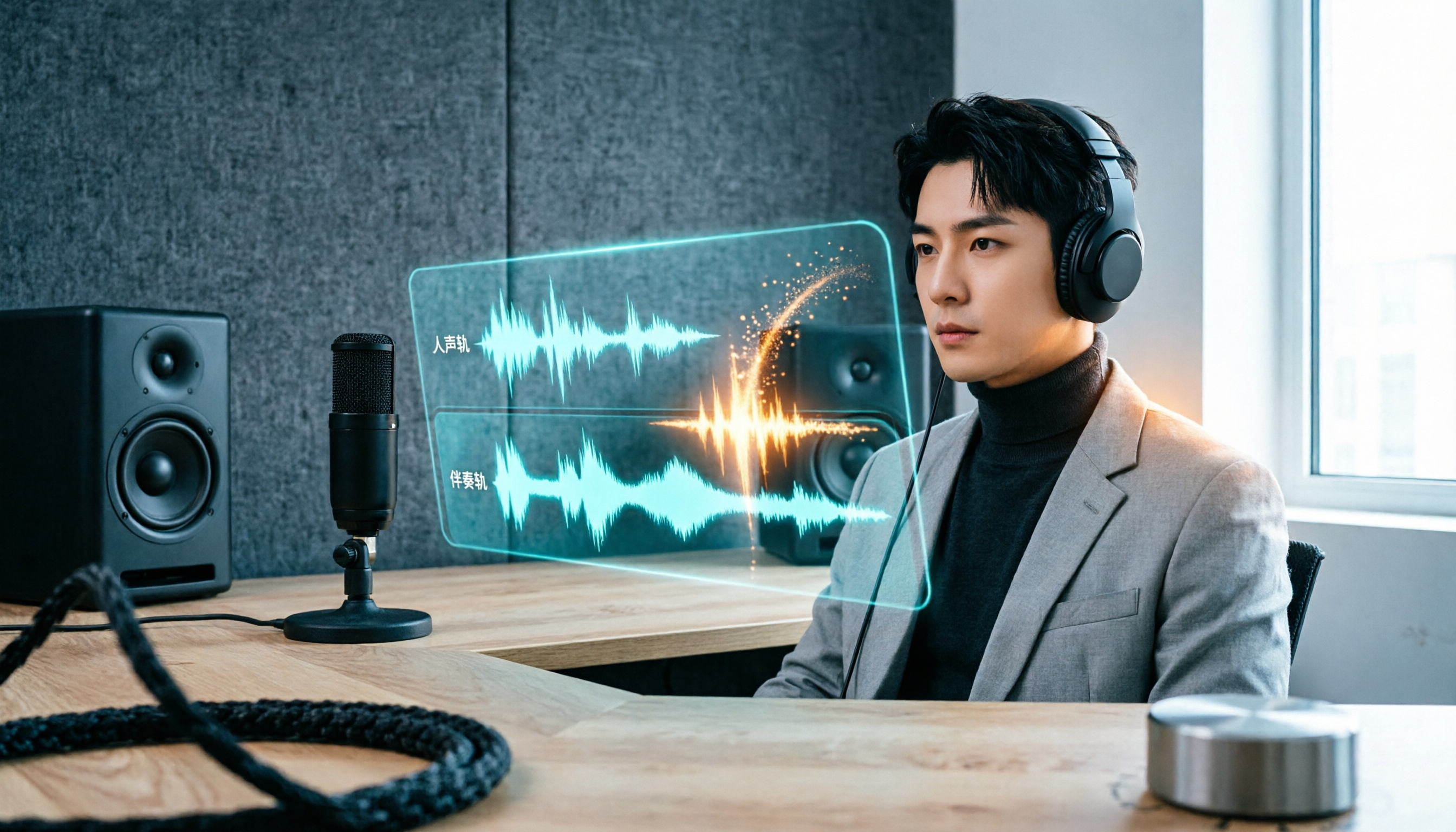
vocal-remover.ai vs LALAL.AI 2026: 5-Factor Comparison — Free & Fast vs. Pro Stem Splitting
Most people searching for a vocal AI remover just want a clean backing track fast. This guide compares vocal-remover.ai and LALAL.AI across 5 practical factors, adds 3 free alternatives and 4 common pitfalls, and ends with scenario-based recommendations so you can decide in 5 minutes.

4 VS Code Voice Tools Compared in 2026: How to Choose Between Tinrec and Editor Extensions
If you want voice input in VS Code, VS Code Speech, VoiceMode, and VoxPilot each take different approaches. But for long-form audio like meetings and interviews, you need a different kind of tool. This article first clarifies the two meanings of "vocol," then compares Tinrec with editor voice extensions in terms of input sources, post-meeting organization, AI Q&A, and team collaboration.

Vocol vs Google in 2026: Which of These 3 Meeting Transcription Tools Saves the Most Time?
What's the real difference between Vocol and Google's built-in transcription? This article breaks down the comparison across four dimensions: recording methods, post-meeting organization, Chinese recognition, and team data storage and management. It also explains when Tinrec is a better fit for teams in Taiwan, helping you choose the right tool within your budget.

2026 iPhone App Comparison: VOCOlinc, Apple Home, and Tinrec — Which One Is Right for You?
Starting with the VOCOlinc app on iPhone, we first distinguish between 'controlling devices' and 'processing content,' then explain how Tinrec turns meeting recordings into searchable, queryable, and shareable team data.