
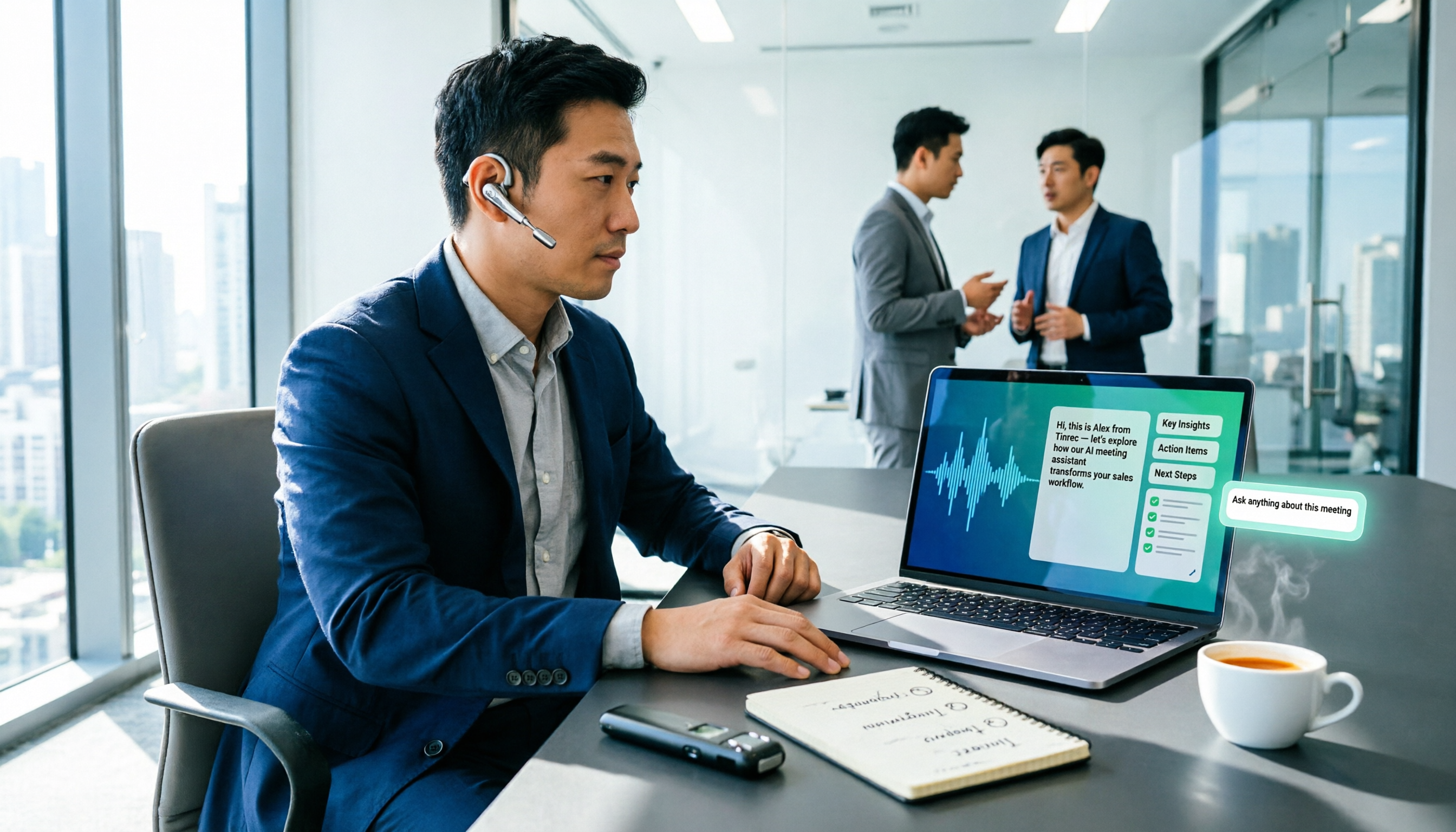
Turn recordings into transcripts and summaries in minutes
Upload audio or video for multilingual transcription, AI notes, and action items
The customer says on the other end of the line: "I need to confirm the price with my boss, and I'll get back to you by next Wednesday."
You nod, and the meeting ends.
Three days later, you want to open your notebook, but all you see is one line: "Confirm budget." Then you completely can't remember—which option he meant, which number, which day.
This isn't a bad memory. Sales meetings are inherently information-dense, and the human brain isn't good at remembering details.
The real purpose of sales meeting notes isn't to submit a report to your manager; it's to let you reconstruct the scene two weeks later.
This article won't talk theory—I'll walk through the workflow directly. The main tool is Tinrec, with Notta and Granola alongside for comparison—all three can do meeting notes, but the "after the meeting ends" part differs a lot.
Before You Start | What You Need to Prepare
• A phone or computer. Tinrec has a web version, desktop version, and mobile app. Use your phone for customer visits and the desktop version for online meetings.
• An account. You can sign up with Google or Apple login. The free version has a basic quota, so you can run through the workflow once before deciding whether to pay.
• A piece of sales meeting material. It can be a live recording, an online meeting, or an already-recorded audio/video file.
• Desktop version + stable internet. To handle audio from Zoom, Google Meet, Teams, and Webex, the desktop version is the easiest.
• The most important item: participant consent. Before recording, say, "I'm recording this session to make it easier to organize afterward." This isn't just courtesy—it's a legal and trust issue.
(Illustration: A salesperson places a laptop on the table in a customer meeting room, with the meeting screen open and a half-finished cup of coffee nearby.)
Step 1 | Record the Meeting First
The goal of this step is to get a clean recording—everything later comes from here.
Tinrec's desktop version directly captures the computer's system audio, so you don't need to pull a meeting bot into the meeting room.
This makes a big difference in customer meetings. You won't see a bot suddenly appear in the participant list, and the customer won't ask, "Who is that?"
But there's a limitation to clarify upfront: It won't automatically join every meeting on your calendar; you have to press start recording yourself. If you forget to press it, nothing is recorded, and there's no way to recover it.
For in-person visits, record directly with your phone and place it on the table closer to the person speaking. The closer the distance, the more accurate the later transcription.
If the meeting is already over and you only have the recording file, you can also import the file directly for processing without listening to it again.
(Illustration: A salesperson presses record at the meeting room table, and text is appearing line by line on the phone screen.)
Step 2 | Let AI Transcribe It
After recording, Tinrec converts the content into a transcript, transcribing while recording rather than waiting until the meeting ends to start.
The transcript is the "raw material" for the entire meeting record.
Without a transcript, what you write is actually memory; with a transcript, what you write is fact. These two things make a big difference when a customer goes back on their word.
It supports Chinese, mixed Chinese-English, and multilingual meetings. Actual accuracy will be affected by recording quality, accents, noise, and multiple people talking over each other—this is the same for any tool, so don't believe claims like "98% accuracy."
Step 3 | Proofread, but Only Pick Key Sections
Honestly, a transcript can't be error-free, and you shouldn't proofread it from beginning to end.
My approach is to look for only three types of sections:
- Numbers: quotes, discounts, quantities, timing
- Names and titles: who is responsible, who approves
- Commitment sentences: the sentence where the customer says, "I'll get back to you next week"
Skip the small talk and off-topic content. Ten minutes of proofreading saves you from re-listening to the recording for the next three months.
Step 4 | Generate Summaries, Chapters, and Action Items
This step is where you really save time.
Tinrec automatically generates summaries, breaks long meetings into chapters, and extracts action items from the discussion into to-dos.
Sales meeting to-dos usually look like this:
• Send the formal quote to the customer (sales, by Friday)
• Supplement the security documentation (technical, next Tuesday)
• Confirm whether the procurement process requires approval (customer contact)
In the past, I wrote these by hand while listening to the recording. Now AI lists a version first, and I revise it. I save at least half an hour, and nothing gets missed.
Stop organizing recordings by hand
Upload audio or video and automatically get a transcript, summary, and action items
(Illustration: A salesperson organizes meeting notes, with a notebook nearby containing customer needs, budget, and next steps.)
Step 5 | Export and Put It into the Tools You Already Use
If no one reads the notes after they're written, it's the same as not writing them.
Tinrec supports exporting to common tools like Notion, Google Docs, OneNote, and Dropbox.
My habit is:
• Put the meeting summary into project notes so both sales and managers can see it
• Put to-dos into the task list with owners and deadlines
• Keep the transcript where it is and check it when you need to replay and verify
If a team works on a customer together, putting data in a team space is safer than storing it in individual accounts—when a member leaves, the meeting data belongs to the team and won't disappear with the person. But to be clear upfront: Tinrec's team plan is team-level sharing; all active members can read team data, and currently there are no file-level granular permissions. Roles govern management, and seats govern whether someone can record, upload, and edit. Members without a seat can view and listen but cannot edit or upload.
Common Questions and Troubleshooting
Q: What should I do if the transcript has many typos?
It's usually because the recording environment is too noisy or too far from the microphone. Before recording next time, check the position first; for multi-person meetings, place the phone or laptop in the center of the table. If importing an existing file, poor source audio quality is hard to fix later.
Q: The customer speaks too fast, two people talk over each other, and the transcription comes out a mess?
This is a common weakness of all AI transcription, and Tinrec is the same. The practical solution is: ask the customer to repeat key conclusions, or confirm via text message after the meeting. Don't rely entirely on the transcript.
Q: I want to find the part about "the customer's reaction to the price." Do I need to re-listen?
No. Tinrec has built-in AI Q&A; just ask it and it will find the relevant section from the transcript. This is much more accurate than using Ctrl+F to search for "price," because the customer may not say the word "price" at all.
Q: If a team member leaves, will meeting data be taken away?
Team resources belong to the team. When a member exits, is removed, or loses their seat, their resources need to be handed over to other active members. Also, deleted audio can be recovered from the 30-day recycle bin (to-dos are not included in the recycle bin).
Q: Is the free version enough? What's different about the team plan?
If you occasionally organize one or two recordings, the free version is worth trying. If you have customer meetings every week, Pro is more reliable; for short-term intensive projects, you can use a weekly pass. The team plan is a separate space with member invitations, roles and seats, sharing benefits, usage analytics, audit logs, and team hotwords. Currently, first-time eligible users get a 7-day trial, 1 free seat, and 300 minutes of shared import quota; paid plans are USD 29.80 per paid seat per month, or USD 199 per paid seat per year (about USD 16.58 per month), with 2,000 minutes of shared import quota per paid seat per month. Under an active plan and seat, live recording currently does not deduct minutes. Actual prices are subject to the purchase page.
Advanced Tips | 3 Ways to Double Tinrec's Efficiency
1. Use AI Q&A to uncover what the customer didn't say
Don't just ask "What are the meeting highlights?"—that's a lazy question. Ask "What are the customer's concerns about the delivery timeline?" or "How many times did he mention the budget?" With the same transcript, different questions uncover completely different things. This is something tools that only provide transcripts can't do.
2. Team hotwords
AI often mishears product model numbers, project codes, and industry terminology. The team plan lets you maintain a set of hotwords to improve recognition of specialized terms. Sales teams especially need this—customers use product abbreviations more often than you think.
3. Real-time translation and bilingual viewing
For international customer meetings, you can view the original text, translation, or bilingual content while recording. No need to wait until after the meeting to find someone to translate.
If You Don't Use Tinrec, There Are These Options
Notta: Strong in multilingual transcription and subtitles. Business annual billing comes to about USD 16.67 per seat per month. But bot-free desktop recording and post-meeting agent output are not its main strengths.
Granola: Also takes the bot-free route. Business is USD 14 per user per month, with a lightweight interface. But it doesn't support uploading pre-recorded audio files and doesn't save meeting audio—so if you want to replay and verify later, you're at a disadvantage.
Both are worth trying, but it depends on whether you need the whole chain of "keep the recording + ask follow-up questions after the meeting + team knowledge retention."
Conclusion
Sales meeting notes aren't paperwork; they're ammunition for the next negotiation.
The five steps covered in this article are: record it, transcribe it, proofread key sections, generate summaries and to-dos, and export to your existing workflow. In between, use AI Q&A to fill in the "what does the customer really care about" part.
Tinrec isn't perfect—its batch transcription for large volumes of files at once isn't as good as TurboScribe, and it won't automatically join every meeting for you. But for the line of "Chinese sales meeting → trackable customer data," its workflow is coherent.
The free version has a basic quota. Take the recording of your last customer meeting and run through it—in ten minutes you'll know whether it's right for you.
References
- How to Make a Sales Meeting Notes Template in 2026? 5 Steps from a Blank Form to AI Auto-Organization - Tinrec Blog
- Meeting Minutes Format Template [Ready to Copy] 4 Key Points + Writing Examples, Fill It In and Submit
- Meeting Minutes Tips with Examples | Indeed.com Hong Kong
- Automated Sales Meeting Follow-Up | Kollab
- How to Do Meeting Minutes? The Complete Guide: Practical Tips and Templates from Beginner to Expert - Roo.Cash
Turn every recording into actionable outcomes
Get 60 free transcription minutes when you sign in. No credit card required.
Related Reading
You might also like

2026 Comparison of 4 Sales Meeting Notes Solutions: From Blank Templates to AI Auto-Organization
Most sales meeting notes templates fail not because of poor field design, but because the cost of taking notes is too high and no one reviews them afterward. This article starts with three common inefficient practices, outlines 4 key purchasing criteria, and then compares Tinrec, Otter.ai, Notta, and Granola across meeting capture, post-meeting organization, search and follow-up, and team handover—helping you choose the one that will actually be opened and used.

How to Choose a Sales Meeting Notes App in 2026: 5 Steps from Recording to Auto-Organized Action Items
Stop treating transcripts as meeting notes. This article reviews 4 apps that can handle sales meetings within their free tiers, explains the difference between long-term free plans and limited-time trials, single-recording length limits, and whether a desktop version is needed, with a comparison table and selection advice.

Tinrec vs Notta 2026: 5-Factor Comparison for Laptop Meeting Recording — Which Saves More Time?
Recording meetings on a laptop often means capturing only the microphone, dealing with background noise, and re-listening to create transcripts. This article compares Tinrec and Notta across five key factors, covering system audio recording, Chinese meeting transcription, AI summaries and action items, and team data management, with practical tips and selection advice.

Tinrec vs Granola 2026: 5-Factor Sales Meeting Notes Showdown — Which Is Worth It?
Forgot the client's budget, decision timeline, and competitor quotes the day after a sales meeting? This guide reviews 6 practical sales meeting notes solutions, from AI meeting tools to pure transcription services, and compares Tinrec and Granola across 5 dimensions: bot-free recording, audio retention, post-meeting output, team governance, and pricing. It ends with a scenario-based checklist you can follow directly.

2026 Free Screen Recording with Audio: 3 Options Compared
A guide to capturing system audio and microphone with Windows Game Bar, macOS QuickTime, and DiReec online tool, plus limitations for iPhone and LINE calls; also compares Tinrec for meeting recording, transcripts, and summaries.
2026 Comparison of 6 Computer Recording Solutions: Built-in, Free, and AI Transcription
Can a computer record audio directly? Yes, both Windows and Mac have built-in tools, but system audio and post-meeting organization are key. This article covers 6 computer recording solutions, from free built-in options to Tinrec AI meeting notes, helping you choose based on budget and use case.
Recording Police Interviews in 2026: 3 Methods Compared — Can You Record Yourself?
Can you record your own police interview? This article compares three approaches using public sources: recording privately on your own, requesting that police record the interview as required by law, and having a lawyer present plus requesting the official record afterward. It covers differences between criminal investigations and administrative inquiries, divergent practical views, potential legal risks, and how to turn a lawful recording into usable transcripts and notes with Tinrec.

5 Computer Screen Recording Tools Compared for 2026: From Free Built-ins to AI Meeting Summaries
Should you use built-in tools or a professional solution for computer screen recording? This article starts with the key question: 'Do you want to keep the visuals or the meeting content?' It hands-on compares Windows Game Bar, Mac screen recording, Tinrec, Granola, Notta, and TurboScribe, and outlines 4 key buying criteria and 4 common mistakes to help you choose the right solution in one go.

3 Transcription Tools Compared in 2026: How Long Does Yating Take & How Free Hours Work
How long does Yating take? This article compiles public claims about free quotas, single audio file limits, and transcription wait times, and uses Tinrec to demonstrate a complete workflow for long meeting transcripts, summaries, and action items, helping you decide if the free version is enough.