
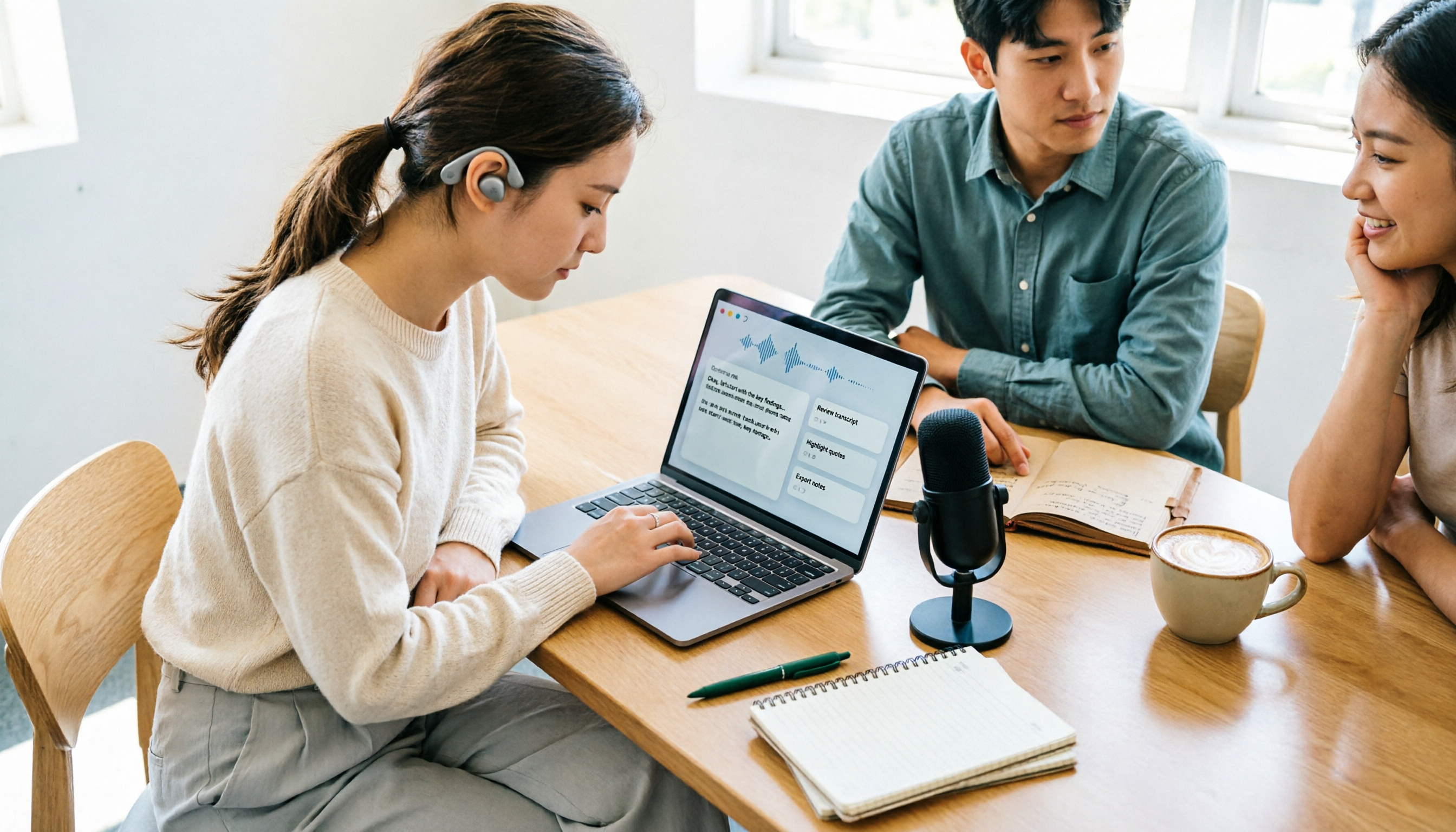
Turn recordings into transcripts and summaries in minutes
Upload audio or video for multilingual transcription, AI notes, and action items
The Complete 2026 Guide to Recording Audio and Video on Your Computer: System Sound, Microphone, and Transcription All in One
You Only Realize There's No Sound After Recording — It's Not Your Fault
Last semester, for our graduation project, our group scheduled an evening Google Meet discussion. After over an hour of talking, I thought recording it would be the easiest way to review later. When the meeting ended, I opened the file — the video was crystal clear, but the audio was completely silent.
The second time, I learned my lesson and checked the microphone before recording. This time there was sound, but it was mostly my keyboard typing and chatting with my roommate, while the actual discussion was muffled.
Another common scenario is online courses. The teacher speaks fast and flips through slides even faster. You think "I'll remember this," but two weeks later when you open the video to review, you can only scrub from start to finish, unable to find that crucial 3 minutes.
This article is the method I put together after going through a round of trial and error: how to record video on a computer, how to capture both system sound and microphone, and how to make those files actually useful a second time. Recording itself isn't hard; the hard part is what comes after.
Before You Start Recording, Understand These 4 Things
1. System sound and microphone are two separate tracks. The sound your computer plays (videos, classmates' speech in online meetings) is system sound; your own voice and classroom ambient sound go through the microphone. Many built-in tools default to "video only," and you need to enable audio separately. Before recording, say a few words and play some music to test — it's much easier than discovering silence after the fact.
2. The purpose of video recording and audio recording is different. For assignments or demonstrating steps, you need the visuals; for remembering lectures or meeting conclusions, you really only need audio plus text. Clarify this, and you won't create a 2 GB screen recording for a 20-minute discussion.
3. Know the limitations of built-in tools in advance. Windows Game Bar can be called up with Win + G, but you can't pause during recording, and switching to other apps may interrupt the recording. On Mac, use Shift + Command + 5 to bring up screen recording; you can check the microphone in options, but capturing computer playback audio usually requires extra handling. It's sufficient, but don't expect it to organize anything for you.
4. Think clearly about "what to do after recording." If it's just for archiving, built-in tools are fine; if you plan to go back and find key points, extract action items, or create transcripts, you should hand the audio to a tool that converts to text from the start, rather than figuring it out afterward.
Tinrec — How I Organized Classes and Group Meetings This Semester
In a nutshell: it's an AI meeting notes tool that turns "audio" into "searchable, queryable, shareable" content, available on web, desktop, and mobile. My usage: record classes and group meetings with the desktop or mobile app, then organize on the web version afterward.
The first reason I stayed was that the desktop version directly captures system sound. Our group uses Google Meet and Teams for meetings, and we don't need to invite a meeting bot into the room — just open the desktop app and hit record, and the transcript is ready when you finish. This is very practical for students — you don't want to explain to your group members "who this bot is and why it's in the meeting" during a project discussion.
The second is post-recording organization. Tinrec automatically generates summaries, chapters, and action items, and splits long meetings into segments. For our one-hour project discussion, which mixed "who will send out the survey next time," "how to divide the literature review," and "what the advisor reminded us," you can see the conclusions in the summary without re-listening to the whole hour.
The third is my most-used AI Q&A. Even a complete transcript can be 30 pages you won't read. My approach now is to ask directly: "What was the advisor's suggestion on research methods?" "Who was assigned to conduct interviews in this meeting?" It gives you answers based on the content, not a bunch of keywords to search through yourself. At the same price point, not every tool has this feature.
Stop organizing recordings by hand
Upload audio or video and automatically get a transcript, summary, and action items
I should also be clear about the gaps in real use: when the classroom is quiet and the teacher wears a microphone, the transcript barely needs editing; but in group discussions with people talking over each other and background air conditioning noise, names and technical terms need to be double-checked. My habit is to always go back and listen to the recording at key conclusions — use the transcript as an index, not the sole answer.
Three points I think are worth it:
- No bot needed for online meetings; the desktop version directly records system sound — this is the most hassle-free for student groups.
- After transcription, you get summaries, chapters, action items, and AI Q&A — essentially a first pass of review for you.
- Available on web, desktop, and mobile — record with your phone in class, organize on your computer back in the dorm, no exporting or converting in between.
Limitations too: The free version has a basic quota; if you record every class and have several meetings a week, you'll definitely want to upgrade. Also, it doesn't handle "screen recording" — for assignments that need visuals, use the built-in screen recorder. Think of it as the layer that turns "audio into data," and you'll use it most smoothly.
Who it's for: People who frequently need to record classes, online courses, and group meetings, and who will actually go back to find key points. If you only occasionally record audio to save, built-in tools are enough.
About the team version: our project borrowed a senior's team space this semester, data belongs to the team, new members can directly view previous meeting records, and when members graduate or leave, files don't disappear with them. On an annual basis, a paid seat is about USD 16.58/month, the team shares 2,000 minutes per month of onboarding quota, and real-time recording currently isn't deducted by minutes — split among many people, it's a reasonable calculation for groups like department teams, labs, or project groups that pass things down.
Besides Tinrec, What Other Audio-to-Text Options Are There?
Otter.ai: A veteran choice for English meetings, with a generous free tier of 300 minutes per month. If your recordings are mainly English lectures or English meetings, its value is hard to beat. The downside is that its Chinese and mixed Chinese-English organization experience is noticeably weaker, and it lacks Tinrec's team hotwords and post-meeting report/table workflows.
Notta: Good multilingual transcription, free version 120 minutes per month with a 3-minute single limit, Pro annual billing about USD 8.17/month with 1,800 minutes per month. It overlaps heavily with Tinrec; the difference is Tinrec's desktop version can record online meetings without a bot and accumulates data into team spaces, while Notta is more of an "upload file to get text" usage.
TurboScribe: Most cost-effective for long files and batch transcription, paid version up to 10 hours per file and 50 files at once, USD 120 per year. If you have a batch of recorded lectures to transcribe for subtitles, it's very suitable; but it's post-processing, and can't record while meeting and generate summaries and action items directly afterward like Tinrec.
Pitfall Guide: The 4 Most Common Mistakes in Audio and Video Recording
Pitfall 1: Assuming built-in tools automatically record audio. Too many people get stuck here — recording software often defaults to video only. Make it a habit: before hitting record, say "test one two three," confirm you can hear it on playback, then start the actual content.
Pitfall 2: Using your phone to record the teacher's speaker from the back of the room. Poor audio quality, heavy echo, and high error rates in transcription. Use system sound when possible; for online courses, record directly on the computer — it's ten times clearer than recording with a phone from the back of the classroom.
Pitfall 3: Recording and leaving it, never opening it again. This is the most common waste. The value of recording is in the second use, so extract summaries and action items the same day and paste them into your notes; the file is just a backup.
Pitfall 4: Forgetting to inform. Recording involves others' voices; before recording club activities, interviews, or meetings, give a heads-up and get consent when necessary — it's both courtesy and a legal requirement.
Conclusion: Choose Based on Your Scenario, No Need to Install Everything
- Need to submit assignments with visuals or demonstrate steps → Windows: Win + G; Mac: Shift + Command + 5. Free and sufficient.
- Need records of online courses and group meetings, and want to find key points later → Tinrec: desktop version directly records system sound, with post-meeting summaries, action items, and AI Q&A all in one.
- Mainly English lectures, zero budget → Otter.ai: 300 free minutes is a rare generous quota for students.
- Have a bunch of recorded files to batch transcribe → TurboScribe: long files and batch processing are its strengths.
- Labs, department teams, project groups need to share meeting data → Tinrec team version: data belongs to the team, members can hand over.
My advice is simple: use the free version to record your next class or group meeting once, and see if the summary captures the key points. If it does, you'll know how to use it going forward.
References
- 2026 Comparison of 5 Computer Screen Recording Tools: Whose Recording Function Is the Simplest and Most Usable? - Tinrec Blog
- How to Record Computer Internal Audio on Win11? 5 Methods Explained + Complete Tutorial - EaseUS
- The 4 Best Ways to Record Computer Audio [2026 Best Recording Software Recommendations]
- 4 Computer Recording Tips Decoded! Simple and Easy, Record Computer Sound Effortlessly [2026 Latest]
- How to Use Computer Screen Recording? Windows/Mac Built-in Screen Recording Tool Tutorial!
Turn every recording into actionable outcomes
Get 60 free transcription minutes when you sign in. No credit card required.
Related Reading
You might also like

Where Are Google Meet Recordings Stored in 2026? 4 Steps to Find Files and Turn Them into Meeting Notes
Google Meet recordings aren't saved on your computer—they're stored in the meeting host's Google Drive. This guide starts with common file-finding mistakes, then walks you through 4 steps to check permissions, locate the Meet Recordings folder, understand file names and subfolders, and offers backup solutions when files seem missing. Finally, it explains how to use Tinrec to convert found MP4 files into transcripts, summaries, and action items, turning them into reusable team meeting materials.

2026 Comparison of 4 Online Meeting Recording Tools: Capture Complete Records Without Bots
How to record online meetings? Based on real meeting scenarios, this article outlines 4 key purchasing criteria, compares Tinrec, Otter.ai, Granola, and Notta in terms of recording methods, post-meeting organization, and team collaboration capabilities, and includes a pitfalls guide and selection advice to help you find a way to keep complete records without needing a meeting bot.

Word Voice Input in 2026: 3 Options Tested and Compared — Where's the Microphone, and Which One Actually Saves Time?
The microphone button in Word is hidden in the Dictate feature on the Home tab, but many people click it and nothing happens — or they don't know what else they can do with the dictated text. This guide starts with where the microphone is, walks through the complete steps to enable Word Dictate, covers common stumbling blocks, and compares three voice input approaches: built-in Word Dictate, Tinrec, and Notta, to help you decide which fits your meetings and workflow.
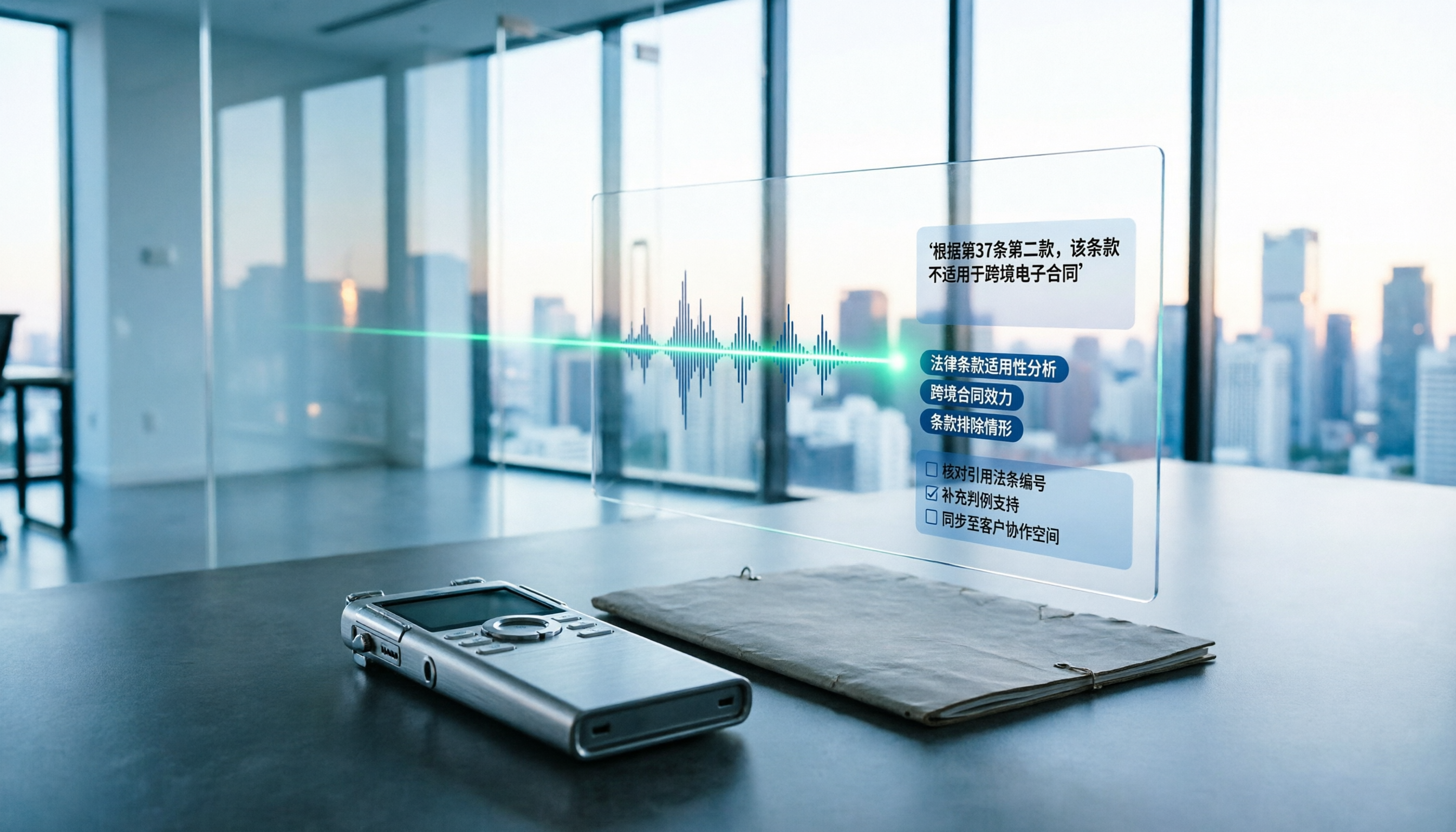
4 Recording Evidence Tools Compared for 2026: Is Recording Illegal, and Can It Be Used as Evidence?
Is recording a conversation illegal? The key is whether you are a party to the conversation, whether you have a legitimate reason, and whether the conversation is considered 'non-public.' This article breaks down the criteria under Article 315-1 of the Criminal Code and the Communication Security and Surveillance Act, then demonstrates how Tinrec can quickly turn recordings into transcripts, summaries, and action items—so both evidence gathering and meeting notes leave usable records.

Free Mobile Voice-to-Text Options in 2026: 5 Methods Compared
Mobile voice-to-text actually covers two distinct scenarios: real-time dictation and transcribing existing recordings—and that's where most people get stuck. Drawing on a mid-level manager's real-world experience, this article outlines five mobile voice-to-text approaches, explains the limits of built-in dictation on iPhone and Android, how to transcribe existing audio files, and how Tinrec is used in practice for meeting notes, action items, and client interviews.

2026 Comparison of 4 Note-Taking Recording Tools: Is Built-in Transcription Enough?
Can you record audio in Notes? Yes, and iPhone, iPad, and Mac Notes all support it, with some models even generating transcripts automatically. But built-in features have clear limits for cross-platform use, post-meeting organization, and team collaboration. This article addresses common misconceptions and compares four options—Apple Notes, Voice Memos, Notta, and Tinrec—to help you determine which one truly fits your use case.
Can Word Record Video? 4 Audio-to-Text Tools Compared for 2026 (Pricing & Features)
Word does not have a screen recording feature. Its built-in Dictate/Transcribe can only convert speech to text, which is often mistaken for video recording. This article clarifies three easily confused recording functions in Word, then compares four audio-to-text tools—Tinrec, Otter.ai, Notta, and Granola—covering their positioning, limitations, and pricing to help you choose the right tool for your needs.
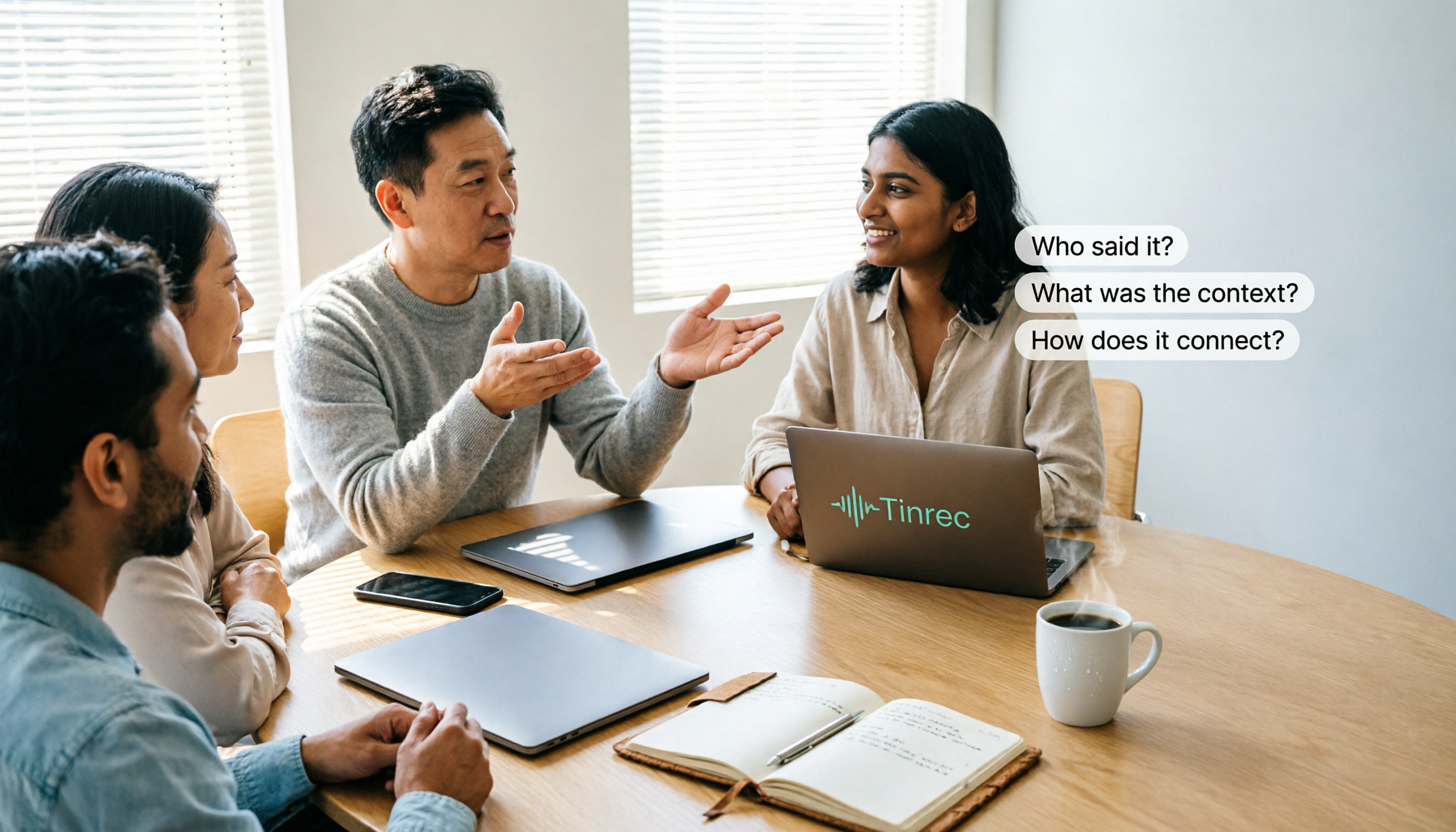
How to Choose a Vocal AI in 2026: Meeting Transcription + AI Q&A in One Go
People searching "Is Vocal AI good?" are split between music and vocals, and turning meeting recordings into usable data. This article focuses on meeting transcription, covering 4 key buying factors, then hands-on testing Tinrec's bot-free recording, post-meeting AI Q&A, and team spaces, with brief reviews of Otter.ai, Notta, and Granola, ending with clear recommendations by scenario.

2 Free iPhone Recording Transcription Methods in 2026: Where to Find Voice Memos Transcripts and Their Limitations
A guide to where iPhone recording transcripts are located and how to enable them, covering the two free entry points—Voice Memos and the Notes app—along with device, OS version, language, and region restrictions. It also provides troubleshooting steps when transcripts are missing, how to copy them, and tips for further organization.