

Turn recordings into transcripts and summaries in minutes
Upload audio or video for multilingual transcription, AI notes, and action items
2 Free iPhone Recording Transcription Methods in 2026: Where to Find Voice Memos Transcripts and Their Limitations
The meeting just ended, and you need to submit notes within the deadline, so you look for a transcript on your iPhone. Most people get stuck not on transcription quality but on two earlier questions: Where exactly is the transcript button? And why doesn't your iPhone have this option at all? These two issues require different troubleshooting steps, so understanding the difference first will save you from searching blindly in the app.
This article is a compilation of features and publicly available information; no timed hands-on testing was conducted. Sections involving Tinrec are based on its product documentation, and our stance is noted in the text.
First, Distinguish Between Two Situations
- Situation A: You can see the recording but can't find the transcript entry point. This is usually a navigation issue—the button may be hidden in the bottom-left corner of the recording screen or under the "More" menu in the recordings list.
- Situation B: The entire app has no transcript feature. This is typically related to device model, OS version, language, region, or download requirements for first-time use—not because you tapped the wrong place.
Where the Transcript Feature Is Hidden: Two Free Entry Points
iPhone audio transcription is a built-in system capability, and there are currently two common entry points:
- Voice Memos app: Located in the "Utilities" folder, this is where most people record and find transcripts.
- Recording feature in the Notes app: After recording in Notes, you can also get a transcript and add it to the note.
Both use the same audio transcription capability, so the device, version, and language requirements mentioned below apply to both.
Where to Find Voice Memos Transcripts: Navigation Path
- Go to the "Voice Memos" app on your iPhone (located in the "Utilities" folder).
- Select a recording or start recording directly.
- A text-related button will appear in the bottom-left corner of the recording screen (depending on the version, it may say "Text" or "View Transcript").
- After tapping it, the waveform will temporarily disappear, the transcript will appear, and the currently spoken word will be highlighted.
- To return to the waveform view, tap the transcript page.
- To copy the text, tap "More" or the three dots in the top-right corner and select "Copy Transcript."
- You can also select "Add Transcript to Notes" to send the transcribed text to the built-in Notes app for further editing.
After recording ends, you can also find "View Transcript" and "Copy Transcript" in the options for the recording item.
Requirements: Check These Five Things First
| Requirement | Current Public Documentation |
|---|---|
| Device model | iPhone 12 or later |
| OS version | iOS 18.0 or later; Traditional Chinese support was added in a later version, and some sources indicate iOS 18.4 or later is required |
| Supported languages | English (all variants), Spanish, Portuguese, Italian, French, German, Japanese, Korean, Simplified Chinese, Traditional Chinese |
| Available regions | Not available in some countries or regions |
| Network | First-time use typically requires a Wi-Fi connection to download the language module |
Additionally, if you open a recording made on iOS 17 or earlier that contains speech, Voice Memos will automatically transcribe it.
Why You Can't Find the Transcript: Troubleshooting Order
We recommend checking in the following order—it's more efficient than repeatedly restarting the app:
- Is your device an iPhone 12 or later? Older models do not support this feature.
- Is your system updated? If the version is too old, the transcript entry point will not appear in the interface.
- Language and region settings. The recording language must be on the supported list, and the feature must be available in your country or region.
- Did you connect to the internet for first-time use? If the language module hasn't been downloaded, the transcript may not generate.
- Does the recording itself contain recognizable speech? Extremely short recordings, excessive background noise, or content with no human voice may not produce a meaningful transcript.
- Is the button name different from the tutorial? Different iOS versions may show "Text" or "View Transcript," usually in the bottom-left corner of the recording screen.
If you still can't see it after confirming all of the above, try updating the system and restarting your iPhone, then test with the same recording again.
Stop organizing recordings by hand
Upload audio or video and automatically get a transcript, summary, and action items
Boundaries of the Built-in Free Solution
The advantage of iPhone's built-in transcription is that it's free, requires no third-party app installation, and lets you copy text to Notes or elsewhere. However, it is still positioned as a standalone tool, with several clear limitations:
- Transcripts are per recording; there is no team sharing space.
- No member, role, seat, or usage management.
- No cross-meeting AI Q&A, and it does not automatically turn transcripts into action items or reports.
- It does not handle online meeting recordings from Zoom, Google Meet, Microsoft Teams, etc., on a computer.
- Paragraph browsing, highlight marking, and post-meeting delivery for long meetings still require manual organization.
In other words, it's suitable for individuals who need quick text from a single recording; if you need a database that a team can search, follow up on, and hand off after a meeting, you'll need a different type of tool.
If You Need Team Meeting Data: Another Type of Option
The following is based on product documentation for Tinrec (秒听录音), provided for reference in assessing your needs. This article did not conduct timed hands-on testing, and it does not imply that Tinrec is superior to built-in features in all scenarios.
Tinrec is positioned as an AI meeting notes and collaboration tool, with key capabilities including:
- Real-time recording to text, generating transcripts while recording.
- The desktop version captures computer system audio to record online meetings without requiring a meeting bot to join; this is "user-initiated recording," not automatic joining of all meetings.
- Audio and video file import for transcription, suitable for organizing past meetings and interviews.
- Real-time translation, viewable in original, translated, or bilingual mode.
- Post-meeting generation of summaries, chapters, action items, and mind maps, with AI Q&A around meeting content.
- Multi-format export to Notion, Google Docs, OneNote, Dropbox, and other tools for continued use.
- The team plan provides independent team spaces, member invitations, role and seat management, usage analytics, audit logs, audio recycle bin, and team hotwords.
Limitations to note:
- No fixed accuracy rate is promised; actual performance is affected by recording quality, noise, accents, overlapping speakers, and technical terminology.
- The team plan currently focuses on team-level sharing and is not a document-level ACL that allows independent permissions per file.
- Members without seats can still view, play, and read team data but cannot upload, edit, or export.
- Team resources belong to the team; when a member leaves or loses their seat, the resources they are responsible for must be handed over to other active members.
Cost and Quota Comparison
| Plan | Cost and Quota | Use Case |
|---|---|---|
| iPhone built-in transcription | Free, no minute-based plan; but subject to device, version, language, and region restrictions | Individuals needing quick text from a single recording |
| Tinrec Free | Provides basic quota to experience recording, import, summaries, and transcription | Occasional transcription of a single recording |
| Tinrec Weekly Card | Short-term use plan | Intensive meeting, course, or interview periods |
| Tinrec Pro Monthly/Annual | Choose based on usage frequency; annual plan has a lower monthly equivalent | Regular weekly use, long-term data accumulation |
| Tinrec Team Plan | First-time eligible users can try 7 days, 1 free seat, 300 minutes of team shared import quota; monthly USD 29.80 per paid seat per month; annual USD 199 per paid seat per year, equivalent to about USD 16.58 per month; 2,000 minutes of team shared import quota per paid seat per month | Multi-person meetings, team sharing and governance |
Under an active plan and active seats, real-time recording on the team plan is currently not deducted by minutes; file and web imports use the team shared quota and are not supplemented by individual member quotas. Prices, currencies, and promotional content may change; actual amounts should be based on the official purchase page. Data verified: August 2026.
Conclusion: Choose Based on Your Needs
- You just want to know where the transcript is. Open "Voice Memos" first, tap the text button in the bottom-left corner of the recording screen; to copy text, go to "More" in the top-right → "Copy Transcript."
- You can't find the transcript entry point. Check in order: iPhone 12 or later, iOS 18 or later, language and region, first-time internet connection for module download, then whether the recording contains recognizable speech.
- You want to turn transcripts into meeting minutes and action items. Built-in features only provide text; summaries and action items still require manual organization. Evaluate dedicated tools when you need automation.
- Your meetings are shared by multiple people and require historical search and handoff. Compare solutions with team spaces, seats, and export capabilities; Tinrec's team plan offers a 7-day trial so you can verify on your own audio files whether the transcription and organization workflow meets your needs.
Finally, note that recording and transcription involve personal data and local regulations. Before recording, confirm whether participant consent is required, and store and share meeting content in accordance with organizational policies.
References
- View Voice Memos transcripts on iPhone - Apple Support (Taiwan)
- iPhone Notes and Voice Memos apps also have transcript features! Turn class, meeting, and speech content into text in seconds: simple 4-step tutorial | BusinessNext
- iPhone Voice Memos to text tutorial: built-in transcript without third-party apps - Mr. Mad
- Free iPhone recording-to-text transcripts! iOS 18 supports 10 languages | Quality Life | 500 Times
- [iPhone Voice Memos to text] Complete tutorial of 3 major methods! iOS built-in, app, voice recorder—which is best?
Turn every recording into actionable outcomes
Get 60 free transcription minutes when you sign in. No credit card required.
Related Reading
You might also like

Free Mobile Voice-to-Text Options in 2026: 5 Methods Compared
Mobile voice-to-text actually covers two distinct scenarios: real-time dictation and transcribing existing recordings—and that's where most people get stuck. Drawing on a mid-level manager's real-world experience, this article outlines five mobile voice-to-text approaches, explains the limits of built-in dictation on iPhone and Android, how to transcribe existing audio files, and how Tinrec is used in practice for meeting notes, action items, and client interviews.

2026 Comparison of 4 Note-Taking Recording Tools: Is Built-in Transcription Enough?
Can you record audio in Notes? Yes, and iPhone, iPad, and Mac Notes all support it, with some models even generating transcripts automatically. But built-in features have clear limits for cross-platform use, post-meeting organization, and team collaboration. This article addresses common misconceptions and compares four options—Apple Notes, Voice Memos, Notta, and Tinrec—to help you determine which one truly fits your use case.
Can Word Record Video? 4 Audio-to-Text Tools Compared for 2026 (Pricing & Features)
Word does not have a screen recording feature. Its built-in Dictate/Transcribe can only convert speech to text, which is often mistaken for video recording. This article clarifies three easily confused recording functions in Word, then compares four audio-to-text tools—Tinrec, Otter.ai, Notta, and Granola—covering their positioning, limitations, and pricing to help you choose the right tool for your needs.

How to Choose a Vocal AI in 2026: Meeting Transcription + AI Q&A in One Go
People searching "Is Vocal AI good?" are split between music and vocals, and turning meeting recordings into usable data. This article focuses on meeting transcription, covering 4 key buying factors, then hands-on testing Tinrec's bot-free recording, post-meeting AI Q&A, and team spaces, with brief reviews of Otter.ai, Notta, and Granola, ending with clear recommendations by scenario.

Is Recording at Work Legal in 2026? 5 Real Workplace Scenarios Compared: What Protects You and What Gets You in Trouble
Is secretly recording at work legal? This article compares five common workplace scenarios against Article 315-1 of the Criminal Code, the Communication Security and Surveillance Act, and practical legal interpretations. It outlines four key factors for determining recording legality and provides a tested workflow for using recordings, including Tinrec's real-time transcription and AI Q&A, so you can gather evidence while staying compliant.

5 Free Transcription Tools Compared in 2026: Free Tiers and Post-Meeting Workflows
Compare the free plans of five transcription tools—Yating, Tinrec, Notta, Otter.ai, and TurboScribe—from free quotas and sign-up requirements to post-meeting organization capabilities. Learn which meeting and interview scenarios each tool suits, along with data verification dates and usage limits.
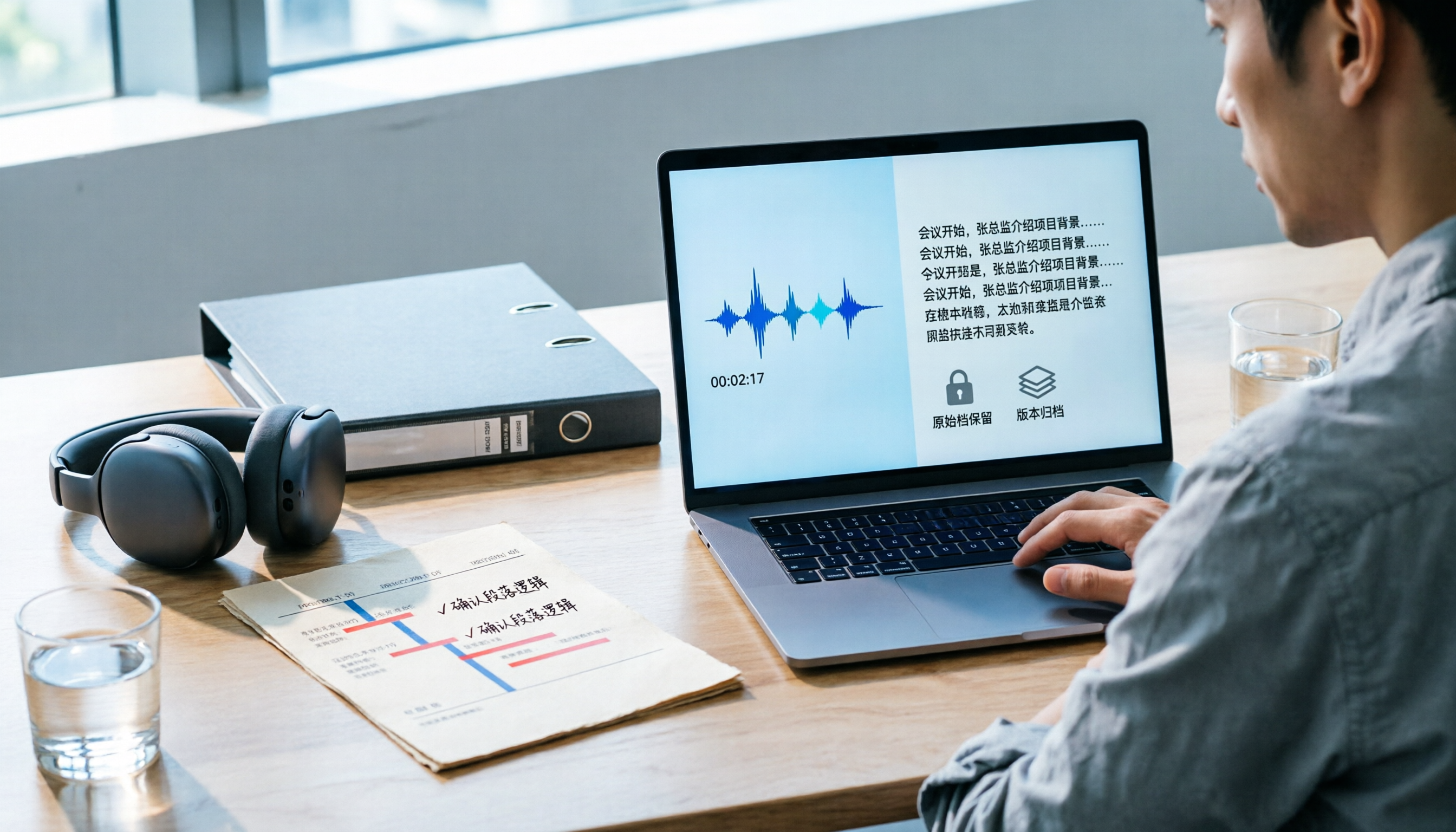
4 Recording Organizer Tools Tested and Compared in 2026: Is a Recording Evidence? Key Points for Legal Evidence Collection and Transcript Retention
Whether a recording can be used as evidence depends not on the tool, but on whether the method of acquisition is legal, whether you are a party to the conversation, and whether the recording is complete. This article uses real scenarios to explain common court judgments and compares recording organizer tools such as Tinrec, Otter.ai, TurboScribe, and Notta, teaching you to preserve original files and organize transcripts to avoid unintentionally breaking the law.

2026 Comparison of 4 Meeting Notes Tools: What to Record in Meeting Minutes and Which AI Notes Tool Is Enough?
What exactly should meeting minutes include? This article first breaks down the 5 essential fields of meeting minutes (topic, discussion summary, decisions, action items, future issues), then compares Tinrec, Otter.ai, Notta, and Granola from a senior student's hands-on perspective on differences in Chinese meetings, AI summaries, post-meeting follow-up questions, and free quotas, along with the 4 most common pitfalls for beginners and selection advice.

2026 Comparison of 4 Audio-to-Text Tools: Free Tiers, Chinese Support, and Post-Meeting Organization
Can audio files be converted to text? This article addresses common misconceptions and compares Tinrec, Notta, TurboScribe, and Otter on input sources, free tiers, Chinese support, and post-meeting organization capabilities. Fields not timed under identical conditions are clearly marked, helping you choose tools based on needs rather than marketing claims.