
Turn recordings into transcripts and summaries in minutes
Upload audio or video for multilingual transcription, AI notes, and action items
Can Word Record Video? 4 Audio-to-Text Tools Compared for 2026 (Pricing & Features)
The most common point of confusion is assuming that because Word can record audio, it can also record video.
You open Word, can't find a record button, and start wondering if your version is too old, the feature is hidden, or where to enable it.
It's not your fault. Word has never had a screen recording feature.
This article first clarifies three commonly confused recording functions, then reviews four tools that can actually handle meeting audio-to-text conversion, including free tiers and pricing, so you can decide which one to use.
Can Word Record Video? Clarifying 3 Easily Confused Recording Functions
1. Screen Recording: Word Doesn't Have It
Recording a video of screen operations in Word is not possible.
Word is a word processing software, and Microsoft has not added screen recording to Word's menu. To record screen operations, you need a separate screen recording tool.
2. Audio-to-Text: Word Has Dictate/Transcribe
Word's Voice menu includes Dictate/Transcribe, which can convert speech to text in real time and also upload audio files to generate transcripts.
But it produces text, not video, and won't save a shareable media file for you.
Many people think this is video recording, but it's far from it.
3. Insert Video: That's Placing, Not Recording
Word can insert videos, placing existing video files or online video links into a document for playback.
This is putting something already recorded into the document, which is completely different from recording.
Simply put: Word can record audio to text and insert videos, but it cannot record video.
Why Do Some People Think Word Can Record Video?
This impression didn't come out of nowhere.
Microsoft Office Labs once offered a free add-in called Community Clips that could be loaded into Word, Excel, and PowerPoint to do full-screen recording, record a specified screen area, or even record a specific application window.
For people who needed to create tutorial videos back then, this was indeed an experience of recording video in Word.
However, this is an old tool from around 2010. I can't confirm whether it's still downloadable or if it will cause issues on newer versions of Word. I recommend treating it as historical information and not as a currently viable solution.
If You Need Screen Recording Videos
Word can't help you here; you'll need to look for a separate screen recording tool.
When choosing one, I look at three things: whether it can record just a specific window, whether it has synchronized microphone audio, and whether the output format is easy to edit. These three factors determine whether you'll need to spend extra time processing after recording.
You can then insert the recorded video back into Word using Insert Video. This workflow is feasible.
If You Need Meeting Audio-to-Text, These 4 Tools Are Worth Comparing
Most people who ask Can Word record video are actually trying to solve meeting or interview documentation problems.
Word's dictation works, but if you throw in a one-hour meeting, the transcript has no paragraphs, no summary, no action items, and you still have to read through it yourself.
Here are four tools with different approaches.
Tinrec: From Transcripts to Team Knowledge
Tinrec is an AI meeting notes and collaboration tool for individuals and teams.
Its desktop version directly captures computer system audio, so when handling online meetings like Zoom, Google Meet, Microsoft Teams, and Webex, you don't need to invite a separate meeting bot.
After transcription is where it shines: it automatically generates summaries, chapters, key points, and action items, supports AI Q&A about meeting content, and can export to Notion, Google Docs, and other tools for further use.
Note that it is not the type to automatically join all meetings; you need to open the desktop app yourself to start recording.
Additionally, the official statement explicitly does not promise a fixed accuracy rate; actual performance is affected by recording quality, accents, and overlapping speakers.
The team version is a separate collaboration space where you can manage members, roles, and seats. A commonly misunderstood point: members without a seat can still view and play team data, but cannot upload, edit, or export.
Otter.ai: A Mature Choice for English Business Meetings
Otter is a veteran AI meeting assistant that supports Zoom, Teams, and Meet, offering real-time transcription, speaker identification, AI Chat, and team management.
Its strength is in English business scenarios, with more complete meeting workflows and integrations.
If your meetings are primarily in Chinese, you'll need to verify whether transcription performance meets your expectations.
Stop organizing recordings by hand
Upload audio or video and automatically get a transcript, summary, and action items
Notta: Multilingual and File Import Focused
Notta overlaps significantly with Tinrec, covering multi-platform transcription, meeting notes, file import, translation, and team plans.
Its free version has notable limitations: 120 minutes per month, and a maximum of 3 minutes per single session. Trying to use the free version for a full meeting will hit the single-session length limit.
Granola: No Bot, but a Note-Enhancement Approach
Granola also uses a no-bot approach, transcribing in real time through the desktop device's system audio and microphone.
What's unique is that it combines user handwritten notes to generate meeting content that better reflects personal thinking.
Two limitations to note: it does not support uploading pre-recorded audio files, and it does not save meeting audio. If you need to go back and verify the original audio, this is a critical point.
Pricing and Free Tier Comparison
The following prices are compiled from official product pages and information provided by the vendors, verified in August 2026. Please refer to the official websites for actual plans and amounts.
| Tool | Free Tier | Paid Starting Price | Special Notes |
|---|---|---|---|
| Tinrec | Free version offers basic quota to experience recording, import, summaries, and transcription | Personal plans include weekly, Pro monthly, and Pro annual; team monthly USD 29.80 per paid seat per month, annual USD 199 per paid seat per year (about USD 16.58 per month) | Team paid seats include 2,000 minutes of shared import quota per month; eligible teams get a 7-day trial, 1 free seat, and 300 shared minutes on first signup |
| Otter.ai | Basic free, 300 minutes per month | Pro annual billing equivalent to USD 8.49 per user per month | Pro includes 1,200 minutes of in-app recording per month and 10 file imports |
| Notta | Free 120 minutes per month, max 3 minutes per session | Pro annual billing equivalent to USD 8.17 per month, 1,800 minutes per month | Business annual billing equivalent to USD 16.67 per seat per month, includes unlimited transcription and usage reports |
| Granola | Basic free | Business USD 14 per user per month | Enterprise USD 35 per user per month; does not support uploading pre-recorded audio files, does not save meeting audio |
Note: Under Tinrec's team plan, real-time recording currently does not deduct minutes; file import and web link import consume shared team minutes. Don't confuse the two.
How to Choose: Match Your Scenario
- Just occasionally organizing a recording: Try the free version first; don't pay upfront.
- Weekly meetings to document: Look directly at Pro-level plans; the free tier won't be enough.
- Need Chinese meetings and bilingual transcripts: Both Tinrec and Notta are worth comparing; the former emphasizes post-meeting organization and team knowledge retention, while the latter has broader multilingual and file processing capabilities.
- Meetings primarily in English, workflow needs to integrate with existing systems: Otter's integrations and maturity are advantages.
- Prefer taking notes while listening: Granola's note-enhancement mode fits better, but be prepared for meeting audio not being saved.
- Multiple people sharing meeting data: Prioritize team space, roles, and seat design rather than just transcription minutes.
3 Things to Know Before Use
First, get consent for recording. Before recording meetings or interviews, inform participants and comply with local regulations. This is not something the tool can handle for you.
Second, AI transcripts are not 100% accurate. For important numbers, names, and commitments, it's advisable to replay the original audio at the transcript timestamp to verify.
Third, free tiers usually don't cover heavy use. Single-session limits, monthly minutes, and import file counts are the most common bottlenecks in free versions. Check your meeting length before choosing.
FAQ
Q1: Does Word's Dictate count as recording?
No. It converts speech to text in real time, focusing on text output, not saving audio or video. To keep audio, you still need to record separately.
Q2: Can Word insert my own recorded video?
Yes. You can insert a video file into a document or embed an online video link; both are supported by Word. But this is placing, not recording.
Q3: Will new versions of Word add screen recording?
Currently, there is no such feature. If Microsoft makes changes, refer to official feature descriptions; old online tutorials may not apply to current versions.
Q4: Are free audio-to-text tools sufficient?
It depends on your meeting length. For example, Notta's free version has a 3-minute single-session limit, and Otter's free version offers 300 minutes per month. Short meetings are fine, but long meetings will frequently hit limits.
Q5: How to record online meetings without disturbing others?
Tools like Tinrec desktop and Granola capture system audio, so no bot needs to join the meeting as a participant. The catch is you have to open the tool yourself to start recording.
Q6: What specs to look at for team sharing of meeting notes?
Look at three things first: whether data ownership is personal or team-based, whether members can have read-only access, and how data is handed over when members leave. These matter more than price for long-term usability.
References
- Can Word Record Video? Clarifying the Difference Between Voice Input and Audio-to-Text, 5 Efficient Tools Recommended - Tinrec Blog
- Office Record Your Tutorial Videos -- Free Recording Add-In -- Community Clips | topcat's Blog - dotblogs
- How to Insert Videos or Hyperlinks in Word Documents? (Including 2016 and Earlier Versions) - Just Teach - Your Richest 3C Info and Tutorial Site
- Voice Input and Simultaneous Transcription in Word, Plus Upload Audio and Video to Get Text Content | Endless Learning, Endless Teaching | Digital Life Sharing | Pixnet | PIXNET
- What Cannot Be Directly Operated in Word Documents - IT Knowledge Tutorial - CE Dongli
Turn every recording into actionable outcomes
Get 60 free transcription minutes when you sign in. No credit card required.
Related Reading
You might also like

Free Mobile Voice-to-Text Options in 2026: 5 Methods Compared
Mobile voice-to-text actually covers two distinct scenarios: real-time dictation and transcribing existing recordings—and that's where most people get stuck. Drawing on a mid-level manager's real-world experience, this article outlines five mobile voice-to-text approaches, explains the limits of built-in dictation on iPhone and Android, how to transcribe existing audio files, and how Tinrec is used in practice for meeting notes, action items, and client interviews.

2026 Comparison of 4 Note-Taking Recording Tools: Is Built-in Transcription Enough?
Can you record audio in Notes? Yes, and iPhone, iPad, and Mac Notes all support it, with some models even generating transcripts automatically. But built-in features have clear limits for cross-platform use, post-meeting organization, and team collaboration. This article addresses common misconceptions and compares four options—Apple Notes, Voice Memos, Notta, and Tinrec—to help you determine which one truly fits your use case.
How to Choose a Vocal AI in 2026: Meeting Transcription + AI Q&A in One Go
People searching "Is Vocal AI good?" are split between music and vocals, and turning meeting recordings into usable data. This article focuses on meeting transcription, covering 4 key buying factors, then hands-on testing Tinrec's bot-free recording, post-meeting AI Q&A, and team spaces, with brief reviews of Otter.ai, Notta, and Granola, ending with clear recommendations by scenario.

2 Free iPhone Recording Transcription Methods in 2026: Where to Find Voice Memos Transcripts and Their Limitations
A guide to where iPhone recording transcripts are located and how to enable them, covering the two free entry points—Voice Memos and the Notes app—along with device, OS version, language, and region restrictions. It also provides troubleshooting steps when transcripts are missing, how to copy them, and tips for further organization.

Is Recording at Work Legal in 2026? 5 Real Workplace Scenarios Compared: What Protects You and What Gets You in Trouble
Is secretly recording at work legal? This article compares five common workplace scenarios against Article 315-1 of the Criminal Code, the Communication Security and Surveillance Act, and practical legal interpretations. It outlines four key factors for determining recording legality and provides a tested workflow for using recordings, including Tinrec's real-time transcription and AI Q&A, so you can gather evidence while staying compliant.
5 Free Transcription Tools Compared in 2026: Free Tiers and Post-Meeting Workflows
Compare the free plans of five transcription tools—Yating, Tinrec, Notta, Otter.ai, and TurboScribe—from free quotas and sign-up requirements to post-meeting organization capabilities. Learn which meeting and interview scenarios each tool suits, along with data verification dates and usage limits.
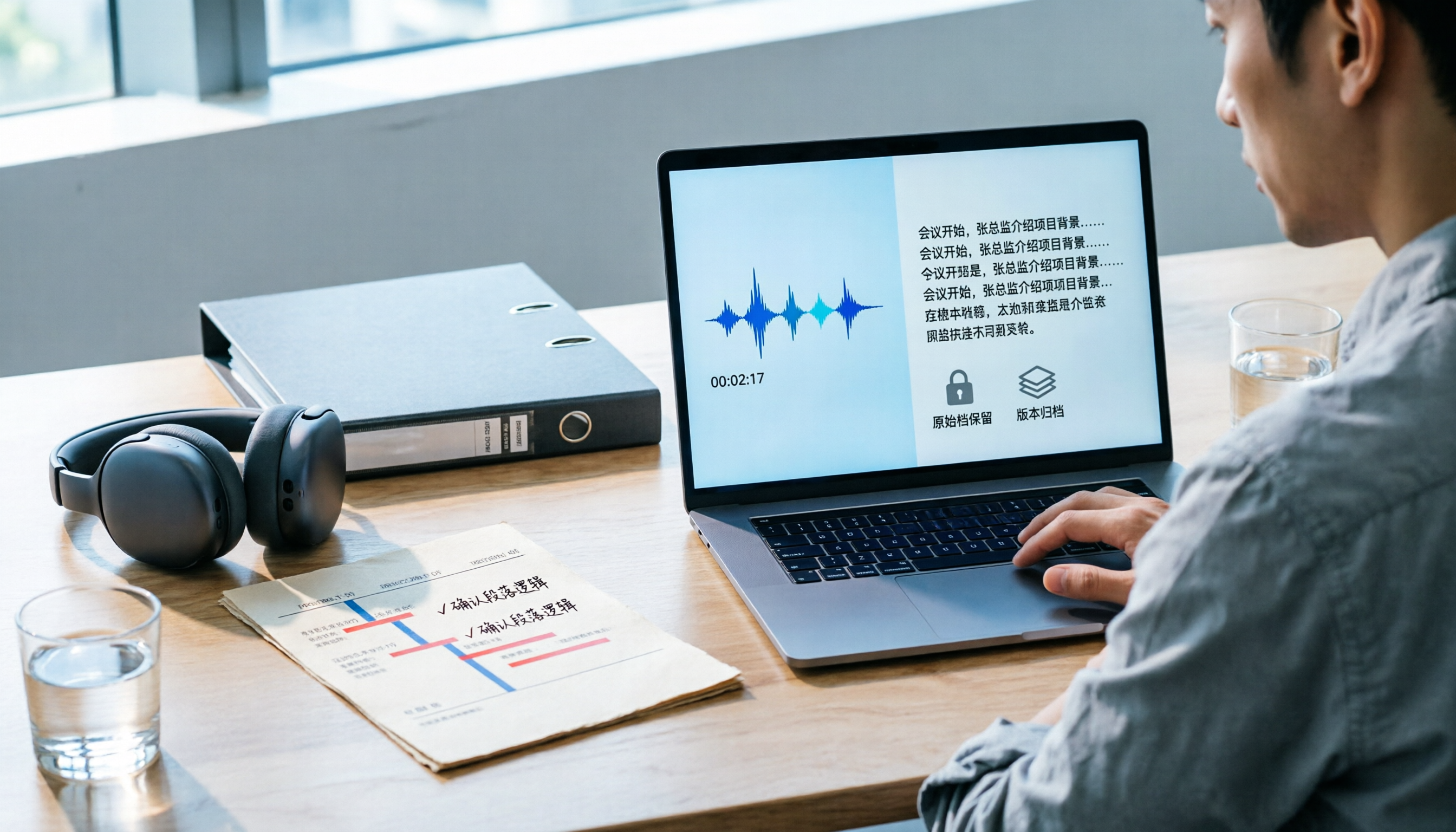
4 Recording Organizer Tools Tested and Compared in 2026: Is a Recording Evidence? Key Points for Legal Evidence Collection and Transcript Retention
Whether a recording can be used as evidence depends not on the tool, but on whether the method of acquisition is legal, whether you are a party to the conversation, and whether the recording is complete. This article uses real scenarios to explain common court judgments and compares recording organizer tools such as Tinrec, Otter.ai, TurboScribe, and Notta, teaching you to preserve original files and organize transcripts to avoid unintentionally breaking the law.
2026 Comparison of 4 Meeting Notes Tools: What to Record in Meeting Minutes and Which AI Notes Tool Is Enough?
What exactly should meeting minutes include? This article first breaks down the 5 essential fields of meeting minutes (topic, discussion summary, decisions, action items, future issues), then compares Tinrec, Otter.ai, Notta, and Granola from a senior student's hands-on perspective on differences in Chinese meetings, AI summaries, post-meeting follow-up questions, and free quotas, along with the 4 most common pitfalls for beginners and selection advice.
2026 Comparison of 4 Audio-to-Text Tools: Free Tiers, Chinese Support, and Post-Meeting Organization
Can audio files be converted to text? This article addresses common misconceptions and compares Tinrec, Notta, TurboScribe, and Otter on input sources, free tiers, Chinese support, and post-meeting organization capabilities. Fields not timed under identical conditions are clearly marked, helping you choose tools based on needs rather than marketing claims.