

Turn recordings into transcripts and summaries in minutes
Upload audio or video for multilingual transcription, AI notes, and action items
2026 Word Voice Input Free Options: 4 Tools Compared
Let me ask you a question first: when you use voice input, is it to "add a few draft sentences in Word or reply to a message," or to "turn a 40-minute cross-department meeting into a to-do list with owners and deadlines"?
Those two answers will determine which button you should press, and whether you'll waste money.
I attend about 15 meetings a week, and my own team has asked me this question more than once: "Where is the microphone in Word?" The button itself isn't hard to find; the hard part is that many people press it and only then realize it can't solve their real problem.
Where Is the Word Microphone? Understand the Button's Limits First
Here's the direct answer: open a Word document, go to the Home tab in the ribbon, and you'll see a Dictate button on the right with a microphone icon. Click it to start voice input.
But the button doesn't work just because you press it. It has three prerequisites:
- You need to sign in to a Microsoft 365 account
- Your device needs a working microphone
- Your internet connection needs to be stable (the button turns gray when offline)
The first time you use it, the system will pop up a window asking you to allow microphone access. Remember to click Allow. If you open Word for the web in a browser and the browser blocks microphone permission, you'll see the "Dictate can't hear you" situation.
There are a few practical details worth remembering:
- To pause or resume dictation, press the keyboard shortcut ALT + ' or click the microphone icon on the floating dictation window.
- Dictation supports voice commands. For example, saying "add comment" will create a comment box in the document.
- Punctuation and formatting can also be spoken. For example, after dictating a sentence, say "bold."
- If no text appears on the screen, first check whether another app or webpage is using the microphone, or recheck the microphone plug and system sound settings.
There's also a practical pitfall: older perpetual-license versions of Office may not have dictation at all. In contrast, Word for the web works as long as you have a Microsoft account, with no extra subscription.
So the real answer to "Where is the Word microphone?" is: it's on the Home tab, but it's a microphone for "short sentence input," not a microphone for "meeting notes."
Before Choosing a Speech-to-Text Option, Think Through These 4 Things
1. Are you recording "a sentence" or "a meeting"
Word Dictate is designed for "speaking the sentences you have in mind"—you talk while it types. It's suitable for drafting, writing outlines, and taking a few lines of notes. But meetings aren't like that—meetings involve multiple people talking over each other, background noise, 40-minute length, and the key point is usually "what you'll do with it afterward."
2. After the transcript, what else do you need
If all you get is a transcript, you've only traded "typing time" for "re-reading time." What really saves time is what comes after: summaries, chapters, action items, and Q&A you can follow up on. When choosing a tool, this matters much more than the free quota.
3. Recognition performance for Chinese and mixed Chinese-English
About 30% of our team's meetings mix in English product names and technical terms. This kind of mixed Chinese-English content is a weak point for many tools. When choosing a tool, I suggest testing it directly with a real recording of one of your own meetings, rather than just looking at marketing claims on the website.
4. Who ultimately holds the data
For personal use it doesn't matter, but once you start managing a team of 10, whose account the meeting data sits in becomes a governance issue. When a colleague leaves, changes departments, or has their account deactivated, are those meeting records still there? This is where personal and team versions of tools differ greatly.
Tinrec (Instant Recording) — Our Team's Current Main Tool
In one sentence: Tinrec is an AI meeting notes and collaboration tool for individuals and teams. It supports live recording, online meeting transcription, audio/video file import, and outputs transcripts, summaries, chapters, action items, and meeting data you can query.
At first I was just looking for something "more durable than Word Dictate." After using it for a few months, these three scenarios are what kept me using it.
Scenario 1: Record online meetings without a meeting bot.
When we meet with external vendors, they may not want an extra bot sitting in the meeting room. Tinrec's desktop version captures your computer's system audio directly to process meetings on Zoom, Google Meet, Teams, and Webex, without inviting an extra participant. This is very practical for cross-company meetings—you don't always have permission to add something to someone else's meeting.
Scenario 2: When the meeting ends, the minutes already have shape.
My old process was: record → find time the next day to listen again → type while listening. Now it's: the meeting ends, the transcript is already there, and the summary and chapters are generated. Action items are organized into a list. What I need to do is verify and supplement, not start from scratch. For cross-language meetings, it can also show the original text, translation, or bilingual view during recording, which is very useful for my international projects.
Scenario 3: After recording, you can ask it directly.
Stop organizing recordings by hand
Upload audio or video and automatically get a transcript, summary, and action items
This is where I feel the biggest gap versus "just dictating in Word." When my boss asks me "who proposed that budget last time, and what was the conclusion," I don't need to dig through a 30-minute transcript—I just ask the meeting data directly. It gives you answers based on content understanding, rather than dumping a bunch of keyword search results on you. Meeting data can also be exported to tools like Notion and Google Docs, or used to generate reports, tables, and meeting minutes.
Honestly, its limitations:
The free version only provides a basic quota. If you have meetings every day like I do, you'll definitely hit the quota ceiling and need to move to a paid plan. Also, it's not the kind of tool that "automatically joins all meetings on your calendar"—you have to actively open it and start recording. There's no magic there. One more important point: AI-generated summaries will inevitably miss or misunderstand some details. For important numbers and commitments, I still go back and check the timestamps and recordings in the transcript.
If you're going to use it with a team, the team version is worth a look:
We later moved our department's meetings into team spaces. The main differences are: meeting data belongs to the team, not to an individual's account; new members can view historical data; administration can separate roles and seats. Members without a seat can still view, play, and read team data, but need a seat to actually record, upload, and edit. Admins can also see usage trends, member rankings, and operation audits.
Currently, the team version's first eligible trial is 7 days, 1 free seat, and 300 minutes of team shared import quota. After payment, each seat provides 2,000 minutes of team shared import quota per month. Team monthly billing is USD 29.80 per paid seat per month, and annual billing is USD 199 per paid seat per year (equivalent to about USD 16.58 per month). Under an active team plan and active seat, live recording currently does not deduct minutes; file and web imports use the team shared quota. Actual prices and benefits are subject to the official purchase page.
Who it's for: People who often hold Chinese or mixed Chinese-English meetings, don't want a bot in the meeting, and want to ask follow-up questions and export directly after recording.
Besides Word's Built-in Dictation, What Other Free Options Are There?
Otter.ai: A veteran choice for English business meetings. The Basic free version offers 300 minutes per month, which is a generous quota. If your meetings are entirely in English, it's a very reasonable free starting point. But Chinese meetings and mixed Chinese-English organization are not its strong suit; Tinrec clearly puts more emphasis on Chinese meetings, bilingual views, and post-meeting follow-up and export workflows.
Notta: Good multilingual transcription capability. The Free version offers 120 minutes per month, but the maximum length per item is only 3 minutes—which means a normal-length meeting has to be split into many segments. With Tinrec, live recording under an active plan and seat does not deduct minutes, so for people who "meet on a fixed weekly schedule," it's less fragmented to use.
TurboScribe: A cost-effective file transcription tool. The Free version allows 3 files per day with a 30-minute limit per file, and the paid version is strong for long files and batch uploads. If you have a pile of recorded audio files to convert to text, it's genuinely good at that. But it handles "files," not "the meeting you're currently in"—live meeting recording, post-meeting action items, and team spaces are things Tinrec has that it doesn't.
Pitfall Guide: The 4 Most Common Voice Input Mistakes
Pitfall 1: Thinking that because Word has a microphone, it can record an entire meeting. Word Dictate is a writing aid where "you speak a sentence and it types a sentence." It's not a meeting notes system. If you use it to record a 40-minute multi-person meeting, what you end up with is a transcript you have to reorganize yourself.
Pitfall 2: Comparing only free minutes, not "what happens after recording." Of course you should look at the free quota, but what matters more is: does it automatically generate summaries and action items? Can you ask questions about the content? Can you export to your existing workflow? Getting only a transcript means you saved typing but not organizing.
Pitfall 3: Ignoring the recognition gap for Chinese and mixed Chinese-English. You usually can't see what conditions the accuracy numbers on the website were tested under. The practical approach is to take a real recording of one of your own meetings (the kind with air-conditioning noise and people talking over each other) and try it out. The gap will show up immediately.
Pitfall 4: Putting your team's meeting data in personal accounts. I made this mistake at first too. It's convenient for individuals, but when it's time to hand over, audit, or let a new colleague take over a project, you discover the data is scattered across several people's accounts. The real difference between team and personal versions isn't the number of features—it's "data ownership" and "seat management."
Conclusion: Which One Should You Actually Use?
In one sentence: Word's microphone is for "writing," while tools like Tinrec are for "recording."
Routing suggestions:
- If you just want to speak the sentences in your head in Word, write drafts, or take a few lines of notes → use Word's built-in dictation. It's right on the Home tab, zero cost.
- If meetings need to keep recordings, transcripts, summaries, and action items → Tinrec. That's the scenario it's designed for.
- If you don't want a meeting bot in external meetings → Tinrec's desktop version captures system audio directly.
- If after recording you want to find key points through Q&A instead of manually pressing Ctrl+F → Tinrec. AI Q&A is its biggest difference from pure transcription tools.
- If you need to lead a team, hand over work, and track usage → Tinrec's team version. Data belongs to the team, and roles and seats are managed separately.
- If meetings are entirely in English and you just want the largest free quota → Otter.ai's Basic version is worth a try.
- If you have a large number of already-recorded audio files to batch transcribe → TurboScribe is a better fit.
If you're currently stuck on the question "Where is the Word microphone?", I suggest you first press that Dictate button once and get a feel for its rhythm. Then take a real recording of one of your meetings and try Tinrec's free version—it offers a basic quota. First confirm whether "having summaries and action items right after the meeting" is worth changing your existing note-taking habits. If it works for you, then talk about upgrading. You don't need to pay from the start.
References
- Dictate your documents in Microsoft Word | Microsoft Support
- Dictate your documents in Word - Microsoft Support
- How to Use Word Voice Input in 2026? Complete 5-Step Tutorial - Instant Recording Blog
- How to dictate documents in Microsoft Word - Zhihu
- How to Turn On Voice Typing and Dictation in Word | Speechify
Turn every recording into actionable outcomes
Get 60 free transcription minutes when you sign in. No credit card required.
Related Reading
You might also like

2026 AI Meeting Notes Tools Compared: Google AI Studio Has No Chinese UI—Which One Handles Chinese Best?
Google AI Studio's interface is English-only, but the Gemini model can respond directly in Chinese. Starting from real meeting-notes needs, this article compares Tinrec, Google AI Studio, Otter.ai, and Notta on Chinese-language experience, post-meeting output, and team collaboration to help you decide which one you can actually use every day.

2026 Comparison of 3 Speech-to-Text Tools: How to Choose Between Yating Transcript and Tinrec
Many people search for 'Is Yating Transcript good?' but overlook that the real time sink is organizing after transcription. This article starts from common misconceptions and compares Yating Transcript and Tinrec across five dimensions: meeting capture methods, post-meeting processing, bilingual translation, team collaboration, and pricing flexibility. It also summarizes key criteria and common questions to consider when choosing a speech-to-text tool.

2026 iPhone Camera to Text Free Options: 3 Methods Compared
Using your iPhone camera to convert text seems simple, but three common pitfalls often trip people up: assuming the yellow frame means the text is saved, missing the device and iOS version requirements, and ending up with jumbled formatting after copying. This article covers three free methods in 2026—Live Text, Notes scan text, and Tinrec—and explains why camera-based text capture alone isn't enough, plus when you should switch to an AI meeting notes tool.

4 Phone Transcription Tools Tested: Is iPhone Built-in Enough?
How do you turn a phone recording into a transcript? This article starts with the built-in transcription features in iPhone's Voice Memos and Notes apps, then compares Tinrec, Notta, and Granola in Chinese transcription, post-meeting organization, and team collaboration. It includes a four-step tutorial, common mistakes, and selection advice to help you decide which combination saves the most time.

iPhone Voice Memos vs Tinrec (2026): 5-Dimension Comparison, Where to Find Transcripts & Post-Meeting Organization
Many people think iPhone recording transcripts are hidden in Settings, but they're actually in the Voice Memos app. This article first shows you where to find transcripts, copy them, and add them to Notes, then compares iPhone Voice Memos and Tinrec across 5 dimensions to help you decide if built-in is enough or if you need post-meeting organization and team collaboration.

2026 iPhone Recording Solutions Compared: Tinrec vs. Voice Memos vs. PLAUD
Recording on an iPhone is never as simple as just pressing the red button. This article tackles three common misconceptions and compares Voice Memos, Tinrec, and PLAUD in real classroom, online meeting, and group project scenarios. It also covers free tiers, Chinese recognition, export workflows, and team permissions to help you find the recording setup you'll actually use after hitting stop.

2026 Speech-to-Text Comparison: Tinrec vs PLAUD Note — Which Is Better for Turning Audio Files into Text?
Many people think of uploading audio files to free tools for transcription, but overlook Chinese punctuation, multi-speaker conversations, and post-meeting organization. This article compares Tinrec and PLAUD Note across 5 dimensions—hardware requirements, meeting recording, file import, team collaboration, and post-meeting workflow—to help you decide which solution better turns audio files into usable text data.

ChatGPT Meeting Notes Free Plans in 2026: 5 Options Compared
How does ChatGPT handle meeting notes? This article covers ChatGPT Record's actual workflow, Chinese-language limitations, and paid requirements, and compares free tiers from Tinrec, Otter.ai, Notta, and Granola. It evaluates recording sources, post-meeting outputs, team collaboration, and privacy consent to help US professionals choose the right meeting notes workflow.
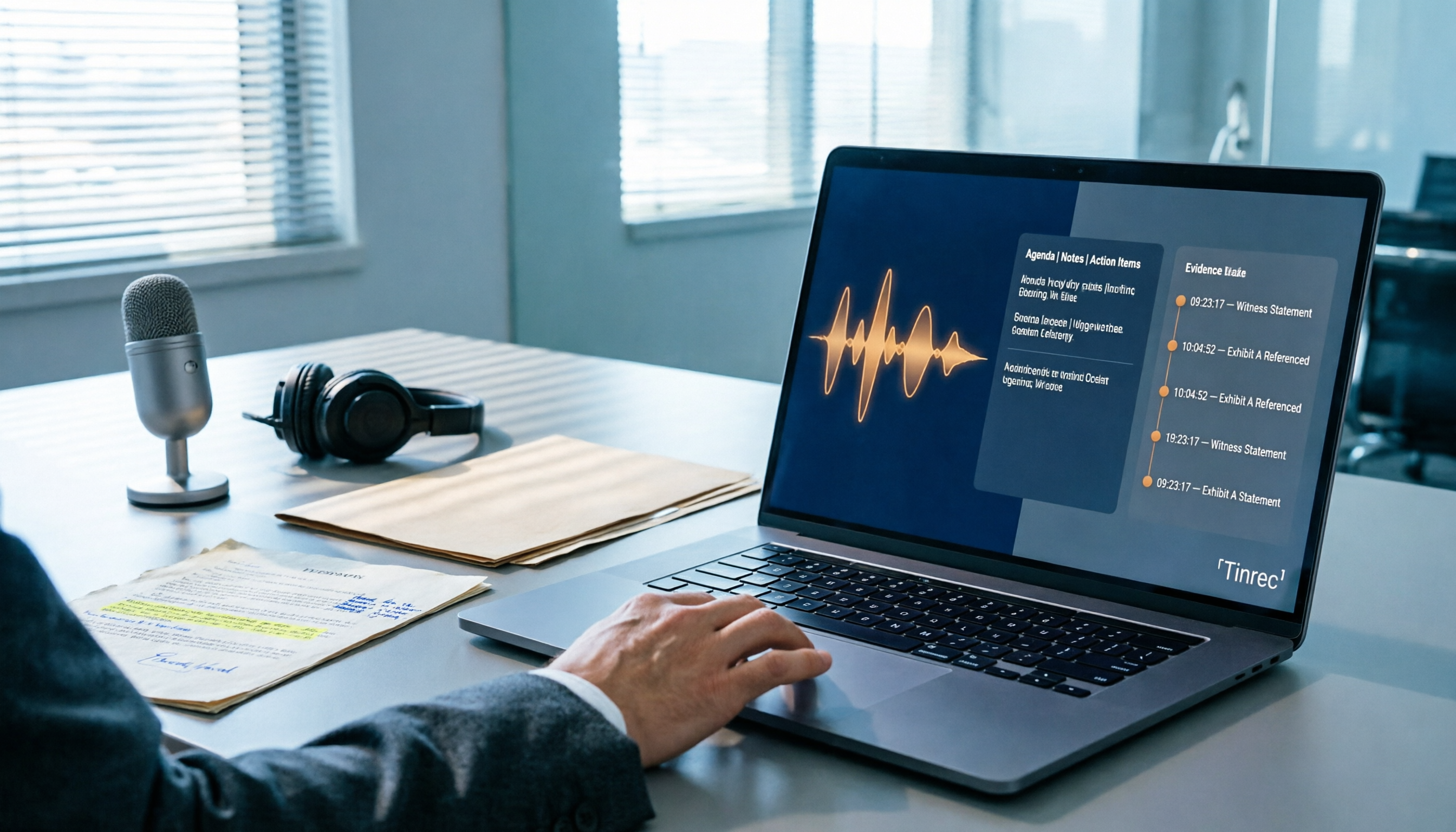
4 Best Audio-to-Text Tools in 2026: Is Recording Legal, Evidence Gathering, and Meeting Notes Explained
Is recording a conversation illegal? It depends on more than whether you're a party to the conversation. This article covers Taiwan's Criminal Code Article 315-1, the Communication Security and Surveillance Act Article 29, and how courts judge evidence admissibility, then compares Tinrec, Otter.ai, Granola, and TurboScribe for transcription and team workflows.