

Turn recordings into transcripts and summaries in minutes
Upload audio or video for multilingual transcription, AI notes, and action items
5 Mobile Voice-to-Text Tools Compared (2026): Built-in Dictation, AI Meeting Assistants, and Recording Hardware
First, ask yourself: Do you want "text as you speak" or "turn recordings into transcripts"?
Most people searching for "how to do voice-to-text on mobile" are actually thinking of two completely different things.
The first is real-time dictation. Replying to a message, jotting a memo, noting an address—you say a few words and the text appears right in the input field.
The second is recording-to-text. You've already recorded a meeting, interview, or class, and you need a searchable, quotable transcript.
These two tasks require completely different tools. The cost of choosing wrong: after a 40-minute meeting, you realize the microphone button on your keyboard can't handle audio files at all.
So this article doesn't start with a feature list. It starts by breaking down "which scenario are you in?"
4 Things to Understand Before Choosing a Solution
1. Real-time dictation and recording-to-text are two different things
On iPhone, you need to enable dictation first: Settings → General → Keyboard → Enable Dictation. Then you can tap the microphone on the keyboard and speak to input text.
On Android, the GBoard keyboard also has a microphone icon; long-press to switch languages.
In LINE chats, it's the same: the solid microphone next to the input field is for "voice-to-text," while the other blue microphone sends a voice message directly without converting it to text.
Note that all of the above only handle what you say in the moment. They cannot transcribe an existing m4a file. This is the most common misunderstanding, and people usually discover it only when they actually need it.
2. Recognition of Chinese, Taiwanese accents, and mixed Chinese-English
With a Taiwanese accent, fast speech, or mixed Taiwanese, the built-in engine's recognition results will be noticeably unstable.
Actual performance is affected by recording quality, background noise, accent, and overlapping speakers. So when you see claims like "98% accuracy," ask: under what conditions was it tested?
3. What the output looks like after conversion
Text from mobile dictation usually has no periods, no commas, and no paragraph breaks.
For replying to messages, it doesn't matter. But for a 10-minute meeting, you'll be editing until you question your life choices. So for the second scenario, choose a tool that segments, adds headings, and extracts action items—not just one that transcribes quickly.
4. Cross-device and downstream use
Recording on mobile, organizing on computer, sharing with the team—this is a common workflow for office workers.
If a tool is tied to a single device, your data ends up scattered between chat apps and your desktop. This is often overlooked when choosing, yet it has the biggest impact on long-term efficiency.
Tinrec — For meetings and long recordings, this is the one I'd try first
Tinrec is an AI meeting notes and collaboration tool for individuals and teams. It supports iOS, Android, and desktop, and also has a web version for organizing data. It doesn't just convert sound to text; it turns meetings into searchable, queryable, exportable data.
In practice, it fits exactly the second scenario above.
During a meeting, you record on your phone or desktop, and it generates a transcript in real time. Online meetings are even easier: the desktop version directly captures your computer's system audio, handling Zoom, Google Meet, Microsoft Teams, and Webex without needing to add a bot as a participant. This is especially useful when you're pulled into a meeting last minute—no need to notify anyone in advance.
After recording is where it really stands out from ordinary transcription tools. AI generates summaries, chapters, key points, and action items. When you need reports or tables, you can continue generating documents through Agent post-processing. You can also ask questions directly about the meeting content—for example, "What was the final budget decision in this meeting?"—and it will answer based on the content, rather than dumping a bunch of keywords on you.
It also handles cross-language meetings with real-time translation, allowing you to view the original, translation, or bilingual side-by-side. Transcribed content can be exported to Notion, Google Docs, OneNote, Dropbox, and other tools, fitting into your existing workflow.
For team use, the team version is a separate collaboration space, not several people sharing one account. Meeting data belongs to the team; managers can manage member roles and seats, view usage trends, query and export audit logs, and there are also an audio recycle bin and team hotwords. When a member leaves or loses a seat, data can be handed over to other members—it doesn't disappear with the person.
Stop organizing recordings by hand
Upload audio or video and automatically get a transcript, summary, and action items
Pricing and limitations are also clear. The personal version has a free quota to try, a weekly card for short-term intensive use, a Pro monthly card for steady use, and a Pro annual card for long-term data accumulation. The team version is currently USD 29.80 per paid seat per month, or USD 199 per paid seat per year (about USD 16.58 per month). Each paid seat provides 2,000 minutes of team shared import quota per month; real-time recording is currently not deducted by minutes under an active plan. Eligible teams get a 7-day trial, 1 free seat, and 300 minutes of shared import quota for the first time. Actual prices and benefits are subject to the official purchase page.
To be frank, it does not promise a fixed accuracy rate. Recording quality, accents, overlapping speakers, and technical jargon all affect results. For important content, we recommend cross-checking with transcript timestamps and audio playback.
If you have two or three meetings to document each week, need to organize conclusions and action items afterward, and even share this data with colleagues, this kind of tool is far more practical than slowly typing it out on your phone.
Besides Tinrec, what other options are there?
Notta: A multi-platform transcription and meeting notes tool that supports document import and translation, with significant overlap with Tinrec. The free version offers 120 minutes per month, up to 3 minutes per item; Pro annual billing works out to about USD 8.17 per month (1,800 minutes per month). It relies more on meeting bots or uploading files. If you want to record online meetings without a bot, plus post-processing like generating reports and tables, Tinrec's workflow is more complete.
PLAUD Note / NotePin: A representative of AI recording hardware, selling the experience of a standalone device and portable recording. NotePin is USD 159 on the US official site, Note Pro USD 189; membership Starter is 300 minutes per month, Pro USD 99.99 per year (1,200 minutes per month). Those who are often on the go and need to record in-person conversations or phone calls will like it. However, you have to carry an extra device, and online meetings and team data accumulation are not its focus—Tinrec can handle that with software.
Otter.ai: A veteran choice for English meetings. Basic is free with 300 minutes per month; Pro annual billing is about USD 8.49 per user per month. If your meetings are entirely in English and your budget is zero, its free quota is quite sufficient. But Chinese and mixed Chinese-English are not its strong suit, and real-time translation and bilingual comparison are not its strengths either—Tinrec's setup is closer to the daily needs of Taiwanese teams.
Pitfall Guide: The 4 Most Common Mistakes in Mobile Voice-to-Text
Pitfall 1: Thinking keyboard dictation can transcribe existing recordings. iPhone dictation, GBoard, and Samsung keyboard only handle real-time speech. To transcribe recorded files, you need to find another tool to upload them—don't wait until after recording to find out.
Pitfall 2: Only looking at advertised accuracy numbers. Results from a quiet recording studio are completely different from a meeting room with air conditioning noise, keyboard clicks, and three people talking over each other. We recommend testing with your own recordings; that's more reliable than spec sheets.
Pitfall 3: Ignoring punctuation and paragraphs. Text from mobile dictation has almost no punctuation; manually fixing 10 minutes of content takes half an hour. Built-in dictation is fine for short sentences, but for long content, choose a tool that automatically segments and adds headings.
Pitfall 4: Leaving transcribed text where it is. Transcripts saved on your phone are still hard to find next time. When choosing, also think: will you need to search, query, or share this content with colleagues later? If so, whether data can be stored centrally is key.
Conclusion: Which one should you choose for your situation?
Go back to that question: Do you want real-time input, or do you want to turn recordings into data?
Just replying to messages, writing memos, short input → Built-in mobile dictation is enough. It's free, no installation needed. Remember to enable iPhone dictation first.
Meetings, interviews, classes needing transcripts and summaries → Tinrec. Supports real-time recording-to-text, audio import, AI summaries and action items, post-meeting Q&A, and multi-format export. The desktop version can also record online meetings without a bot.
Teams need to share meeting data, manage members and usage → Tinrec Team version. Has independent team space, roles and seats, usage analytics, audit logs, and audio recycle bin. Data stays with the team when members change.
Often recording in-person conversations outside, need phone call recording → Recording hardware like PLAUD. The hardware form factor has its value.
Pure English meetings, zero budget → Otter.ai free version offers 300 minutes per month, one of the few scenarios in this article suitable for starting free.
We recommend trying the free quota first, running it with the type of meeting recording you encounter most often, and seeing if the transcript reads smoothly and the summary captures the key points. If it works for you, then consider upgrading—no need to pay upfront.
Data References
- Mobile Voice-to-Text Tutorial (2026) | Comparison of iPhone, Samsung, LINE Voice Methods
- No More Typing—Voice-to-Text Made Easy! 5 Must-Learn LINE Tips
- iPhone Voice-to-Text Setup Tips: 5 Ways to Transcribe Recordings
- Otter.ai official pricing page, Notta official pricing page, PLAUD official device page and membership pricing page
Reference Sources
- Mobile Voice-to-Text Tutorial (2026) | Comparison of iPhone, Samsung, LINE Voice Methods
- No More Typing—Voice-to-Text Made Easy! 5 Must-Learn LINE Tips | 50+
- Free Your Hands! How to Do Voice-to-Text on Mobile? From Input Methods to AI Notes - UpToGo
- iPhone Voice-to-Text Setup Tips: 5 Ways to Transcribe Recordings - Mr. Mad
- Voice-to-Text iPhone Practical Guide
Turn every recording into actionable outcomes
Get 60 free transcription minutes when you sign in. No credit card required.
Related Reading
You might also like

3 Ways to Get iPhone Recording Transcripts in 2026: Built-in Features and How Tinrec Fills the Gaps
Since iPhone 12, the Voice Memos app has a built-in transcription feature, but the button isn't obvious and many people can't find it—or they're blocked by device model, iOS version, or language settings. This article first shows you the 3 places to find iPhone recording transcripts, then discusses the limits of the built-in feature and how Tinrec fills in the gaps with summaries, action items, AI Q&A, and team collaboration.

4 Transcription Tools Tested for 2026: What Is Yating Transcription? Which Saves the Most Time?
What is Yating Transcription? This article first explains the positioning, features, and pricing of this Taiwan-based AI speech-to-text service, then compares Tinrec, Otter.ai, and Notta across four dimensions: accuracy assessment, post-meeting organization, meeting capture methods, and team collaboration. It concludes with buying criteria and pitfalls for Hong Kong office workers choosing a transcription tool.
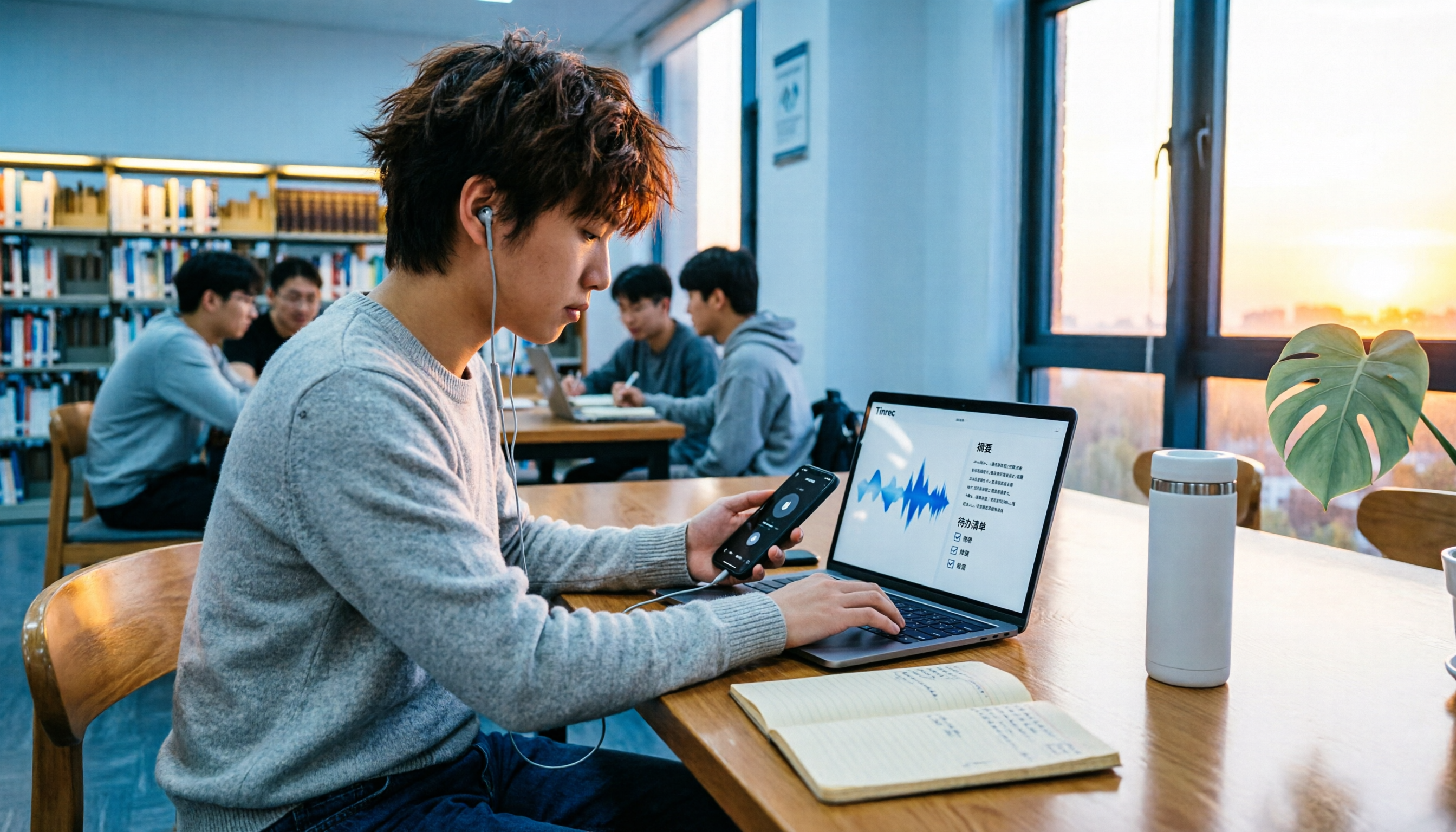
The Complete Guide to Phone Recording in 2026: iPhone Recording, Call Recording, and Transcription Made Simple
From step-by-step Voice Memos on iPhone and the requirements for call recording in iOS 18.1, to turning recordings into transcripts, summaries, and action items with Tinrec. A student's perspective on free tiers, pricing, and key factors for choosing a tool—avoiding the common misconception that 'having a recording means having notes.'

2026 Audio-to-Transcript Tools Tested: Is Gemini Good Enough?
Can Gemini really turn audio files into transcripts? I tested 5 audio-to-transcript tools in real student scenarios, comparing Chinese recognition, AI follow-up questions, free tiers, and pricing. I also share how to choose the right tool for class recordings, group discussions, and final exam review without wasting time.

2026 Word Voice Input Free Options: 4 Tools Compared
The microphone in Word is actually the Dictate button on the Home ribbon, but it has clear limits. This article starts from the real-world needs of mid-level managers, first explains where the button is and what prerequisites are required, then reviews four free speech-to-text options and explains which one fits scenarios like meeting notes.

2026 AI Meeting Notes Tools Compared: Google AI Studio Has No Chinese UI—Which One Handles Chinese Best?
Google AI Studio's interface is English-only, but the Gemini model can respond directly in Chinese. Starting from real meeting-notes needs, this article compares Tinrec, Google AI Studio, Otter.ai, and Notta on Chinese-language experience, post-meeting output, and team collaboration to help you decide which one you can actually use every day.

2026 Comparison of 3 Speech-to-Text Tools: How to Choose Between Yating Transcript and Tinrec
Many people search for 'Is Yating Transcript good?' but overlook that the real time sink is organizing after transcription. This article starts from common misconceptions and compares Yating Transcript and Tinrec across five dimensions: meeting capture methods, post-meeting processing, bilingual translation, team collaboration, and pricing flexibility. It also summarizes key criteria and common questions to consider when choosing a speech-to-text tool.

2026 iPhone Camera to Text Free Options: 3 Methods Compared
Using your iPhone camera to convert text seems simple, but three common pitfalls often trip people up: assuming the yellow frame means the text is saved, missing the device and iOS version requirements, and ending up with jumbled formatting after copying. This article covers three free methods in 2026—Live Text, Notes scan text, and Tinrec—and explains why camera-based text capture alone isn't enough, plus when you should switch to an AI meeting notes tool.

4 Phone Transcription Tools Tested: Is iPhone Built-in Enough?
How do you turn a phone recording into a transcript? This article starts with the built-in transcription features in iPhone's Voice Memos and Notes apps, then compares Tinrec, Notta, and Granola in Chinese transcription, post-meeting organization, and team collaboration. It includes a four-step tutorial, common mistakes, and selection advice to help you decide which combination saves the most time.