
Turn recordings into transcripts and summaries in minutes
Upload audio or video for multilingual transcription, AI notes, and action items
The Complete Guide to Phone Recording in 2026: iPhone Recording, Call Recording, and Transcription Made Simple
When I recorded my first college lecture, here's what I did: put my phone on the desk, hit record, and packed up when class ended. Before finals, I opened that file—over three hours of audio—and gave up after ten minutes because I had no idea which minute the key points were in.
Later I realized most people fall into the same traps the first time they record with their phone:
Trap 1: Thinking "having a recording" equals "having notes." The file is there, but when you need it, it's still just audio—can't search it, can't copy and paste, can't drop it into a group study doc.
Trap 2: Thinking call recording can be done without the other person knowing. On iPhone now, both parties get a notification when recording starts—more on that later. Quietly recording an entire conversation just isn't possible.
Trap 3: Thinking more files means more peace of mind. I had over forty "New Recording" files on my phone, all with identical names, and I couldn't find a single one.
A better approach is to treat recording as raw material, not the final product—first capture clean audio with your phone, then use a tool to turn it into a transcript, summary, and action items. This article follows that order: how to record with iPhone's built-in tools, how to enable call recording, and how to organize your recordings afterward.
iPhone Built-in Recording: Voice Memos in Three Steps
If you just need a clean recording, iPhone's built-in Voice Memos is enough—and completely free.
- Open the Voice Memos app from the Utilities folder.
- Tap the record button to start. You can use the built-in microphone, a supported headset, or an external mic.
- Tap "Done" to save. The recording will be named "New Recording" or by location; tap the recording and then the name to rename it.
A few easily overlooked settings:
- If you select "Stereo" or "Spatial Audio," Voice Memos uses multiple iPhone microphones to record left and right channels—you'll hear a sense of direction with headphones; the waveform display looks the same.
- During recording, you can switch to other apps that don't play audio without interrupting the recording.
Three shortcuts to start recording in one second:
- Open Control Center and tap the record button directly.
- Go to Settings > Accessibility > Touch > Back Tap, choose double tap or triple tap, and assign it to a new "Create Recording" shortcut. Then double-tap the back of your phone to start recording—but you'll need to unlock the screen first.
- Go to Settings > Action Button and assign the Action Button to Voice Memos. You can even press it while the screen is locked to start recording immediately.
Record to protect your rights—please don't use it for illegal or harmful purposes.
Call Recording: iOS 18.1 Offers a Solution, But With One Condition
Previously, iPhone had no built-in call recording—people relied on third-party apps or external recording devices. Starting with iOS 18.1, Apple introduced built-in call recording, but with a condition: both parties hear a system notification when recording begins.
The process is roughly: during a call, start recording and confirm the timer next to the recording icon is counting up, meaning it's recording. After the call ends, the file is automatically saved to the "Call Recordings" folder in the Notes app, where you can play it back directly. If your device supports and has Apple Intelligence enabled, it can also generate a call summary. Still, it's best to double-check the transcript yourself—it may not fully reflect the conversation.
So if your need is "without the other person knowing," the built-in feature won't help; if you just want a record, the built-in option is quite convenient. Either way, it's best to check local laws before recording and get consent when necessary.
The Key Is What Happens After Recording: Tinrec Turns Audio into Usable Data
Built-in recording solves "capturing the sound," but what I really need is "finding the key points without re-listening." That's where the tool I've been using this semester comes in—Tinrec.
It's an AI meeting notes and collaboration tool—not just a recording app, but a way to turn recordings, online meetings, audio, and video files into searchable, summarized, queryable, and exportable data.
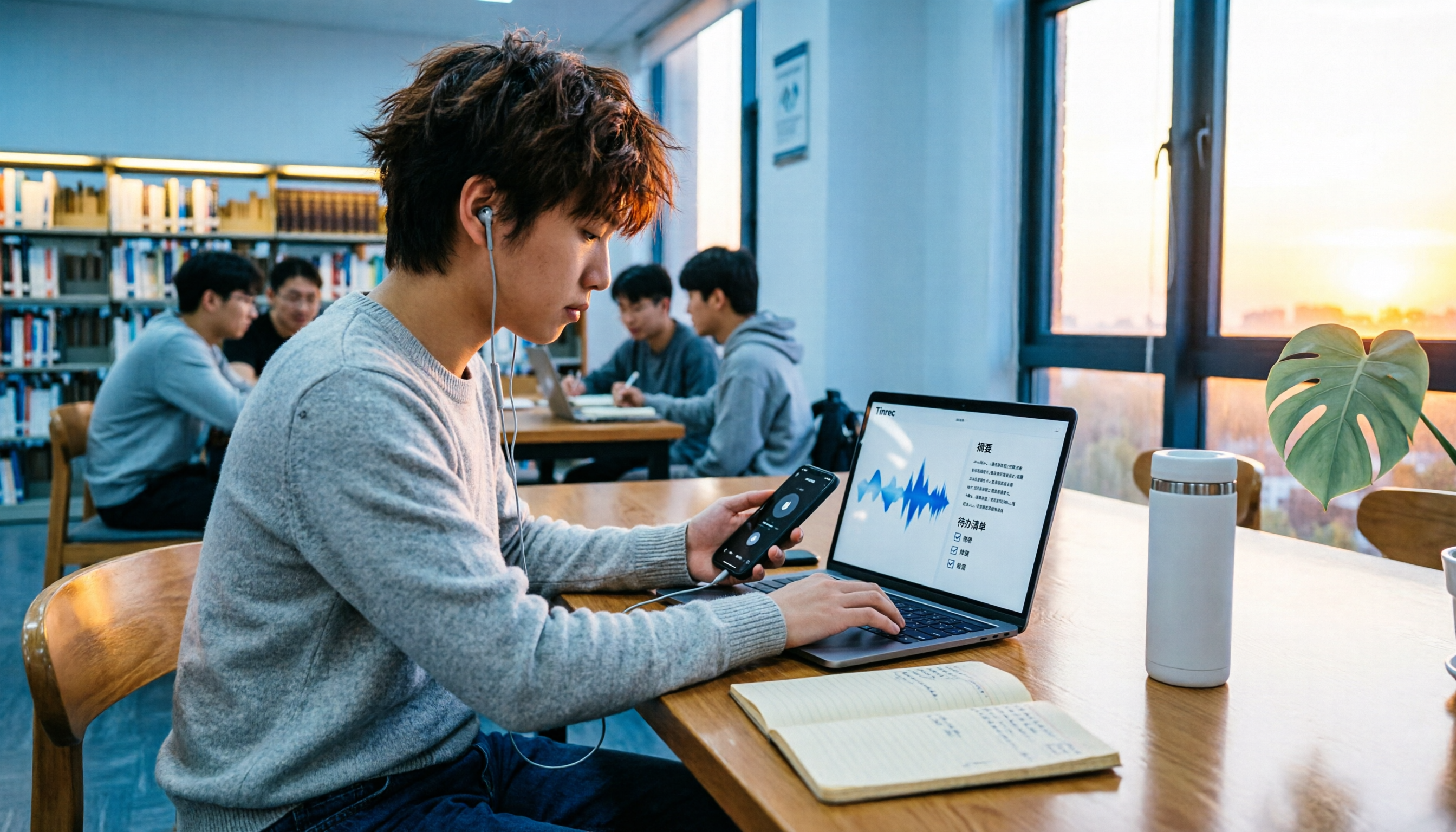
My workflow is simple: record lectures or group discussions on my phone, then drop the file into Tinrec when I'm back in my dorm. It handles the transcript, summary, chapters, and action items. Before, finals review meant "listening to recordings"; now it's "reading the transcript and asking it questions directly."
Stop organizing recordings by hand
Upload audio or video and automatically get a transcript, summary, and action items
Tinrec's Core Features at a Glance
Real-time speech-to-text: Transcribes as you record—text appears synchronously during meetings or classes, and the transcript is ready the moment you finish, no waiting for processing.
Audio and video file transcription: Upload existing Voice Memos, interview recordings, or lecture videos for organization. This is crucial for someone like me who "records first and asks questions later."
AI summaries and chapters: Automatically breaks long meetings into sections and highlights key points. For a two-hour lecture, I can just look at chapter titles to decide which parts to revisit.
Action item extraction: The worst part of group discussions is "no one remembers the conclusions." Tinrec pulls out action items from the discussion, making it clear who's responsible for what.
AI Q&A: My most-used feature. Instead of scrolling through thirty pages of transcript, I just ask "What were the three exam key points the professor mentioned?" or "What was the final division of work decided by the group?" It answers based on semantic understanding.
Multi-format export: Organized content can be exported or taken to Notion, Google Docs, OneNote, or Dropbox for further editing. That's how our project notes came together.
Real-time translation: View the original, translation, or bilingual side-by-side—especially handy for group discussions with exchange students.
Online meeting recording without a bot: For internship interviews or team online meetings, the desktop version captures computer system audio directly—works with Zoom, Google Meet, Microsoft Teams, and Webex, no need to invite an extra meeting bot.
Four Scenarios I Actually Use
Classroom: Professors talk fast, slides flip even faster. Phone recording plus Tinrec transcription gives me a transcript within ten minutes of class ending—before exams, I just search for keywords instead of re-listening from minute one.
Group discussions: Four people talking over each other, and no one remembers the conclusions afterward. Now I always record, then check the summary and action items and paste them directly into the group chat.
Phone interviews and internship interviews: For these, I first confirm the relevant recording regulations, then use an appropriate method to preserve them, and later drop the audio into Tinrec to organize key points—much faster for replying or writing reflections.
Project and club meetings: For long-term multi-person collaboration, Tinrec's Team plan offers independent team spaces where meeting data belongs to the team, with role and seat management, plus usage and audit logs; when members leave, resources can be transferred rather than disappearing with them. The Team plan provides 2,000 minutes of shared team import quota per seat per month; monthly billing is USD 29.80 per paid seat per month, annual billing is USD 199 per paid seat per year (about USD 16.58 per month), and first-time eligible users get a 7-day trial, 1 free seat, and 300 minutes of shared import quota.
What to Consider When Choosing a Recording Tool
Is the free tier enough to last the semester: Most tools have free plans, but the quota calculations differ. Start by recording a class or two with the free version to estimate your weekly minute usage, then decide whether to pay.
Does it retain audio files: Some tools keep only transcripts, not audio. When you need to verify the tone or context of a specific sentence, the audio is still important.
Performance with Chinese and mixed Chinese-English: Classes in Taiwan often mix Chinese and English—best to test with a real recording of your own rather than relying on official numbers. Tinrec covers Chinese, Traditional Chinese, and multilingual scenarios, and offers team hotwords for maintaining common terminology, but actual performance is still affected by recording quality, accents, background noise, and multiple people speaking at once.
What you can do after transcription: With only a transcript, you still have to read through it yourself. Summaries, chapters, action items, and Q&A are what truly save time.
Cross-platform: Recording on phone and organizing on computer is the norm—whether you can switch between mobile, desktop, and web directly affects whether you'll stick with it long-term.
Teams and handover: If you're using it with classmates, first understand the difference between roles and seats—having a role means you can manage the team; having a seat means you can record, upload, edit, and import/export. They're not the same thing.
Conclusion: Do You Want a "File" or an "Answer"?
Phone recording itself isn't hard—the hard part is what comes after. Built-in Voice Memos is free and intuitive, suitable for simple preservation; call recording has an official solution since iOS 18.1, but both parties get notified—think that through first.
If, like me, your purpose for recording is "to use it later"—for review, group notes, or organizing interviews—then connecting recording to transcription and AI organization will save you a lot of time. Tinrec's Personal plan offers a free version, weekly pass, Pro monthly, and Pro annual. My advice is to choose based on your usage rhythm: use the free version for occasional one or two recordings; consider the weekly pass during finals crunch or interview-heavy weeks; go Pro if you have regular weekly meetings or classes; and for long-term accumulation of a full year's materials, the annual pass offers a better monthly rate.
Try recording your hardest class with your phone, then drop it into the free tier once—you'll clearly feel the difference between "re-listening for three hours" and "reading a ten-minute transcript."
References
- Record in Voice Memos on iPhone - Apple Support (Taiwan)
- How to Record Calls on iPhone? 5 Methods Revealed!
- How to Record Calls on iPhone? Can It Be Done Without Being Noticed? 5 Tutorials at Once - Apple Almond
- iPhone Call Recording Tutorial: Step-by-Step Guide
- iPhone Recording Made Easy! One-Tap Quick Self-Protection at Key Moments
Turn every recording into actionable outcomes
Get 60 free transcription minutes when you sign in. No credit card required.
Related Reading
You might also like

3 Ways to Get iPhone Recording Transcripts in 2026: Built-in Features and How Tinrec Fills the Gaps
Since iPhone 12, the Voice Memos app has a built-in transcription feature, but the button isn't obvious and many people can't find it—or they're blocked by device model, iOS version, or language settings. This article first shows you the 3 places to find iPhone recording transcripts, then discusses the limits of the built-in feature and how Tinrec fills in the gaps with summaries, action items, AI Q&A, and team collaboration.

5 Mobile Voice-to-Text Tools Compared (2026): Built-in Dictation, AI Meeting Assistants, and Recording Hardware
Mobile voice-to-text actually covers two very different scenarios: real-time dictation and converting recordings into transcripts. Choosing the wrong tool wastes your time. This guide starts from real-world use cases and compares iPhone and Android built-in dictation, Tinrec, Notta, PLAUD recording hardware, and Otter.ai—covering their differences, limitations, and pricing. It also highlights four common pitfalls to help you choose the right tool in one go.

4 Transcription Tools Tested for 2026: What Is Yating Transcription? Which Saves the Most Time?
What is Yating Transcription? This article first explains the positioning, features, and pricing of this Taiwan-based AI speech-to-text service, then compares Tinrec, Otter.ai, and Notta across four dimensions: accuracy assessment, post-meeting organization, meeting capture methods, and team collaboration. It concludes with buying criteria and pitfalls for Hong Kong office workers choosing a transcription tool.

2026 Audio-to-Transcript Tools Tested: Is Gemini Good Enough?
Can Gemini really turn audio files into transcripts? I tested 5 audio-to-transcript tools in real student scenarios, comparing Chinese recognition, AI follow-up questions, free tiers, and pricing. I also share how to choose the right tool for class recordings, group discussions, and final exam review without wasting time.

2026 Word Voice Input Free Options: 4 Tools Compared
The microphone in Word is actually the Dictate button on the Home ribbon, but it has clear limits. This article starts from the real-world needs of mid-level managers, first explains where the button is and what prerequisites are required, then reviews four free speech-to-text options and explains which one fits scenarios like meeting notes.

2026 AI Meeting Notes Tools Compared: Google AI Studio Has No Chinese UI—Which One Handles Chinese Best?
Google AI Studio's interface is English-only, but the Gemini model can respond directly in Chinese. Starting from real meeting-notes needs, this article compares Tinrec, Google AI Studio, Otter.ai, and Notta on Chinese-language experience, post-meeting output, and team collaboration to help you decide which one you can actually use every day.

2026 Comparison of 3 Speech-to-Text Tools: How to Choose Between Yating Transcript and Tinrec
Many people search for 'Is Yating Transcript good?' but overlook that the real time sink is organizing after transcription. This article starts from common misconceptions and compares Yating Transcript and Tinrec across five dimensions: meeting capture methods, post-meeting processing, bilingual translation, team collaboration, and pricing flexibility. It also summarizes key criteria and common questions to consider when choosing a speech-to-text tool.

2026 iPhone Camera to Text Free Options: 3 Methods Compared
Using your iPhone camera to convert text seems simple, but three common pitfalls often trip people up: assuming the yellow frame means the text is saved, missing the device and iOS version requirements, and ending up with jumbled formatting after copying. This article covers three free methods in 2026—Live Text, Notes scan text, and Tinrec—and explains why camera-based text capture alone isn't enough, plus when you should switch to an AI meeting notes tool.

4 Phone Transcription Tools Tested: Is iPhone Built-in Enough?
How do you turn a phone recording into a transcript? This article starts with the built-in transcription features in iPhone's Voice Memos and Notes apps, then compares Tinrec, Notta, and Granola in Chinese transcription, post-meeting organization, and team collaboration. It includes a four-step tutorial, common mistakes, and selection advice to help you decide which combination saves the most time.