

Turn recordings into transcripts and summaries in minutes
Upload audio or video for multilingual transcription, AI notes, and action items
"Can Word do voice input?" Yes—Microsoft Word has a built-in Dictate feature that supports Chinese too.
But behind this question lies another, more critical choice: do you want to "speak the sentences in your head into a document," or do you want to "turn a meeting into data you can look up and query later"?
For the former, Word is enough. For the latter, Word can't help. This article will draw a clear line between the two approaches.
Two-hour meeting, two more hours to organize—the problem was never typing speed
Most people first think about voice input because they're forced into it by these three situations.
The first is meeting notes. Typing while listening leaves only fragmented keywords by the end. To fill in the gaps, you have to replay the recording—another hour gone.
The second is interviews and classes. The audio files are saved diligently but never opened a second time, because just thinking about listening from the beginning is exhausting.
The third is cross-department discussions. Conclusions are scattered across everyone's notes, and two weeks later no one remembers why the decision was made.
You'll notice that what's missing in all these situations isn't "faster typing"—it's "turning spoken words into data that can be organized and searched." With the right tool, you don't have to do this from scratch yourself.
Before choosing a voice input method, understand these 4 key points
First, do you need real-time dictation or existing files? These two seem like the same thing but are actually completely different. Real-time dictation is "you speak, it types as you go"; file transcription is "drop in an existing MP3 or M4A and let it run." Buying the wrong one means wasting money.
Second, can Chinese recognition and punctuation be handled automatically? Chinese has no spaces to segment words, so punctuation relies entirely on the model. If you speak a whole paragraph and end up with a wall of text without commas or periods, organizing it afterward won't take less time than typing.
Third, what will you do with it after speaking? If you just want to add a paragraph to a document, having text is enough. But if it needs to become meeting minutes, a to-do list, or a report for your boss, then "converting to text" is only the first step.
Fourth, who ultimately holds the data? Recordings and transcripts from personal accounts follow the individual; team meeting data should stay with the team. This makes the biggest difference when someone leaves or changes projects.
How to enable Word's built-in dictation: desktop and web setup steps
Word's dictation isn't hidden deep—it's on the far right of the "Home" tab, with a microphone icon.
Step 1: Open Word (desktop or web version both work) and click the "Dictate" button on the "Home" tab. The first time you use it, Word or your browser will ask for microphone permission—be sure to allow it.
Step 2: Click the gear icon on the floating dictation toolbar, set the language to "Chinese (Taiwan)," and check "Auto punctuation." This is the step most people miss—skip it and you'll get a whole paragraph without punctuation.
Step 3: Place your cursor where you want to start typing, speak into the microphone, and text will appear in real time. To pause or resume, press the keyboard shortcut ALT + ' or click the microphone icon on the floating toolbar.
In addition to dictating content, Word also supports voice commands. You can speak punctuation or say "new paragraph" to start a new paragraph. Formatting can also be done by voice—for example, say "reply by 5 PM tomorrow," then say "tomorrow bold" to apply bold to the word "tomorrow." To add a comment, say "add comment" and a blank comment box will be created directly.
Note that the desktop version typically requires a Microsoft 365 license, while the web version is free with a Microsoft account—but both require a stable internet connection.
Three boundaries of Word dictation: real-time, standalone, text-only
After using it for a while, you'll hit three clear ceilings.
Boundary 1: It only does real-time dictation; it can't upload existing recordings. Have a one-hour meeting recording? Word can't drop it in and convert it to text. You can only play the recording and let it re-listen through the microphone—ambient noise plus speaker distortion usually makes recognition results terrible.
Boundary 2: It gives you text, not structure. After speaking for an hour, you'll get a transcript, but no summary, sections, key points, or a to-do list of "who's responsible for what and when it's due." You still have to read through it yourself.
Boundary 3: It only serves the current document. What was discussed in last month's meeting? Unless you remember which folder you saved it in, there's no way to search back—let alone ask it "how was the budget issue finally decided last time?"
Also, the early web version occasionally output simplified Chinese when recognizing Chinese. If that happens, select all text and use the translation tool on the "Review" tab to convert to traditional Chinese—not a big problem, but an extra step.
Simply put, Word's dictation is a great digital pen, but it's not a meeting assistant.
Stop organizing recordings by hand
Upload audio or video and automatically get a transcript, summary, and action items
Tinrec—turning spoken words into data you can keep working with
If you want the second approach, Tinrec is the most complete tool I've tested for handling "after the meeting." It's an AI meeting notes and collaboration tool for individuals and teams, available on iOS, Android, web, and desktop.
The first scenario is online meetings. Tinrec's desktop version directly captures your computer's system audio, handling meetings on Zoom, Google Meet, Microsoft Teams, and Webex—no need to invite a meeting bot to join as a listener. This is especially noticeable in client-facing meetings, because no one likes seeing a stranger's account on the participant list.
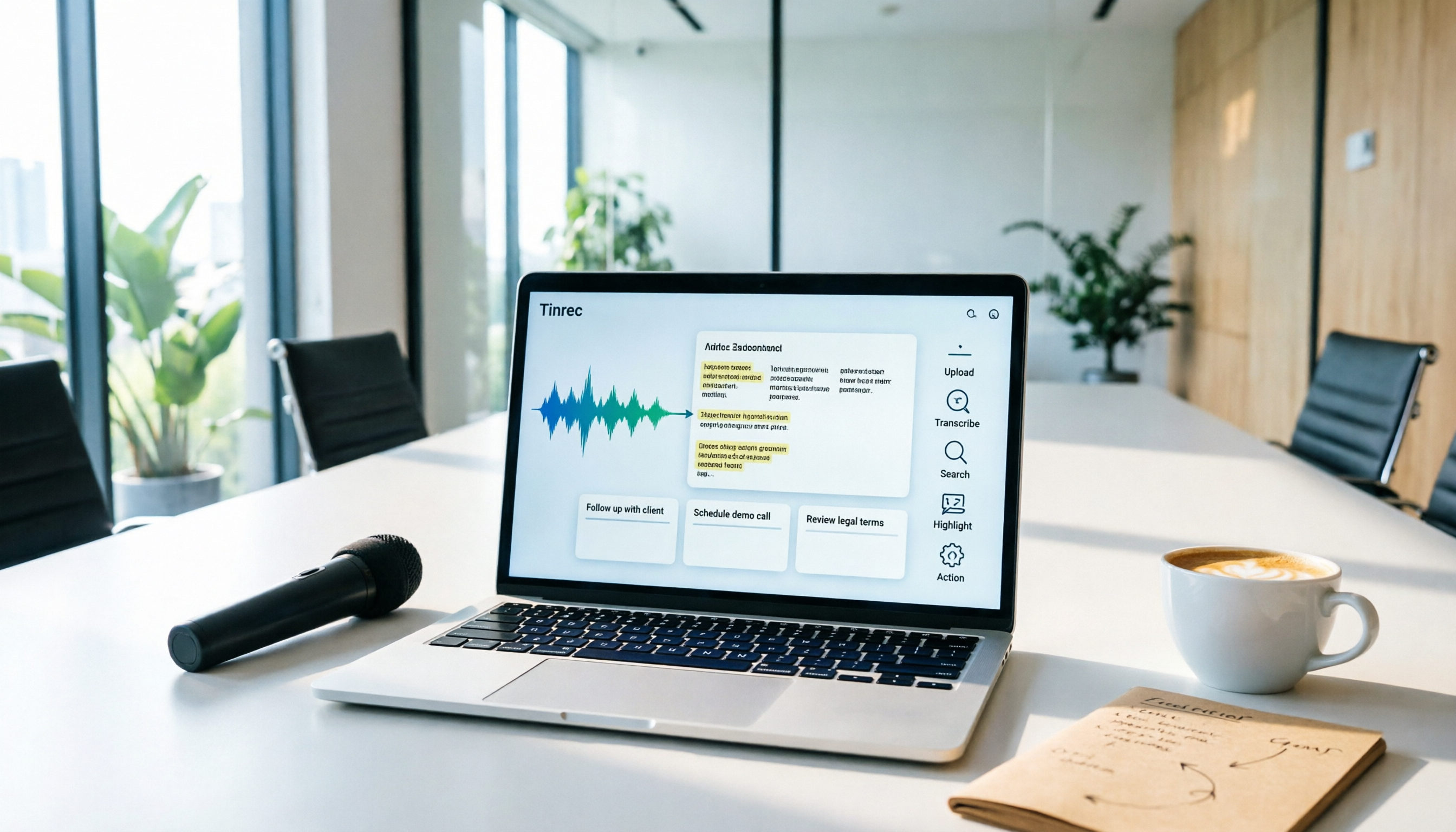
The second scenario is post-meeting organization. When the meeting ends, the transcript is already there, and it automatically generates summaries, sections, and key points, plus organizes follow-up actions from the discussion into to-dos. You can also do real-time translation of spoken content, switching between original, translation, or bilingual view as needed.
The third scenario—and where it differs most from most transcription tools—is AI Q&A. After recording, you can directly ask "What was the conclusion about the budget in this meeting?" or "What were the three concerns the client mentioned?" It answers based on semantics rather than dumping keywords for you to slowly Ctrl+F. For the same discussion, manually scanning the transcript takes about ten minutes; asking takes about ten seconds.
Additionally, results can be exported to Notion, Google Docs, OneNote, and other tools for further processing, and built-in post-processing can directly generate meeting minutes, reports, or tables—saving considerable time for those who submit weekly reports.
Honestly, it's not without limitations. The free version provides a basic quota; if you're a heavy user who meets every day, you'll eventually need to consider a paid plan (weekly card, Pro monthly, Pro annual—choose based on usage frequency). Also, transcription quality is affected by recording quality, ambient noise, accents, and overlapping speakers. For important numbers and commitments, it's still advisable to cross-check against the recording timestamp rather than relying entirely on AI.
For team use, Tinrec's team version is a separate workspace, not "multiple people sharing one account." Meeting data belongs to the team, with management of members, roles, and seats, usage trends and activity logs, and resource handover when members leave—so nothing gets taken away wholesale. Currently, eligible teams can try 7 days free with 1 free seat and 300 minutes of shared team import quota; paid seats are USD 29.80/seat/month or USD 199/seat/year (about USD 16.58/month), with each paid seat providing 2,000 minutes of shared team import quota per month. Actual prices and benefits are subject to the official purchase page.
Besides Word dictation and Tinrec, what other options are there?
Otter.ai: A mature English meeting assistant. The free version offers 300 minutes per month, which is generous, and Pro annual works out to about USD 8.49/month. If 80% of your meetings are in English, it's a reasonable choice. However, it still focuses on the bot-joins-meeting workflow, while Tinrec's desktop bot-free recording plus post-meeting AI-generated reports and tables is an organization approach Otter doesn't currently take.
Notta: Does multilingual transcription and subtitle translation well. Free version offers 120 minutes per month with a 3-minute limit per item; Pro annual works out to about USD 8.17/month. It's more positioned as "file transcription + translation"; if your focus is real-time recording of online meetings without a bot joining, Tinrec's desktop system audio capture is more aligned with your needs.
PLAUD Note/NotePin: AI recording hardware. NotePin is about USD 159, Note Pro about USD 189, and Pro membership is USD 99.99/year including 1,200 minutes per month. Suitable for people who are often on the go and need portable recording. But if most of your meetings are on a computer, Tinrec requires no extra device—web, desktop, and mobile all work—and handles online meetings more directly.
Pitfall guide: The 4 most common mistakes with voice input
Pitfall 1: Assuming "has voice input" equals "can organize meetings." These are very different. Voice input only converts sound to text; summaries, to-dos, and follow-up questions are all separate work. First figure out which layer you need.
Pitfall 2: Using Word to transcribe existing recordings. Many people play the recording and let Word re-listen through the microphone, resulting in error rates too high to use. To handle existing files, find a tool that supports audio upload—don't take this long way around.
Pitfall 3: Ignoring recording conditions. Even the best model can't save an audio file full of echo and keyboard clicks. Use a noise-canceling headset microphone if possible, and remind everyone to speak one at a time during meetings—recognition quality will differ significantly.
Pitfall 4: Leaving meeting data in personal accounts. This is fine normally, but it hurts when someone leaves or changes projects. If meeting content is a shared team asset, it should be in a team workspace, with clear rules on who has a seat and who can only view.
Conclusion: Which one should you actually use?
In one sentence: Word solves "typing is tiring," Tinrec solves "meetings are hard to organize."
If you just want to add a paragraph to a document, write a draft, or jot down a few ideas, use Word's built-in dictation—free, no installation, works with Chinese, no reason not to.
If you need real-time meeting recording and want to turn transcripts into queryable data, choose Tinrec—its AI Q&A and to-do extraction are capabilities Word completely lacks.
If your meetings are mainly in English and budget-conscious, Otter.ai's free 300 minutes can hold you over for a while.
If you need batch file transcription and subtitle translation, tools like Notta or TurboScribe are more suitable.
If you're frequently on the move and need a physical recording device, hardware like PLAUD has its value.
If your problem is team data scattered everywhere and nothing retained after members come and go, you should look at Tinrec's team workspace, seats, and usage management.
Start with the free version. Use a meeting you were going to have anyway, run through the process once, and see if the transcript and summary fit your work habits before deciding whether to upgrade—no need to pay upfront.
References
- Dictate your documents in Microsoft Word | Microsoft Support
- How to turn on voice typing and dictation in Word | Speechify
- How to use Word voice input in 2026? Complete 5-step tutorial - Tinrec Blog
- Say goodbye to sore hands! Can Word do voice input? Built-in dictation and setup tutorial - UpToGo
- Can Word do voice input? 2026 efficient audio-to-text tool review and selection guide - Tinrec Blog
Turn every recording into actionable outcomes
Get 60 free transcription minutes when you sign in. No credit card required.
Related Reading
You might also like

2 iPhone WhatsApp Voice-to-Text Methods Tested in 2026: Built-in Transcription vs. Tinrec — Which Should You Choose?
WhatsApp voice-to-text on iPhone doesn't always work with a simple tap—system version, Siri, and language packs are three common stumbling blocks. This article tests two approaches: built-in transcription and Tinrec, comparing language support, workflow, post-transcription usability, and team data retention to help you decide which one fits your situation.

4 LINE Voice-to-Text Tools Tested and Compared for 2026: The Easiest Way to Convert Voice Messages and Call Recordings
LINE does not have a built-in voice message-to-text feature. Most people get stuck not because they can't find a tool, but because they start off in the wrong direction. This article first clarifies three common misconceptions, then outlines the positioning, pricing, and limitations of four tools: Tinrec, Yating Transcription, Whisper, and Plaud. It also provides selection advice based on scenarios such as 'only a few voice messages,' 'daily meetings,' and 'often on the go.'

5 Speech-to-Text Tools Tested and Compared in 2026: Free Tiers and Chinese Recognition — Which One Is Enough?
How can you quickly turn meeting recordings and interview audio into transcripts? Based on real-world use cases, this article compares 5 speech-to-text tools on free tiers, Chinese recognition, post-meeting organization, and team collaboration differences, plus key buying factors and common pitfalls, to help you pick the one that truly saves time.
ChatGPT vs Tinrec in 2026: 5-Dimension Comparison — Who Can Actually Handle Audio Uploads?
Can ChatGPT read audio recordings? The answer depends on your plan, app version, and workspace settings. This article breaks down the real boundaries of ChatGPT's recording mode and audio upload, compares it with Tinrec across 5 dimensions, and helps you choose the right tool to turn meeting recordings into searchable, actionable data.
4 iPhone Transcription Tools Tested for 2026: Voice Memos Duration vs. AI Organization—Which Saves More Time?
iPhone Voice Memos has no fixed single-recording limit; the real constraints are storage space and battery. But the pain point comes after recording—re-listening and organizing. This article compares 4 tools in 2026 on recording duration, transcription, AI Q&A, to-dos, and team collaboration, and explains the ideal use cases and pricing checkpoints for Tinrec, Notta, Otter.ai, and TurboScribe.

4 Free Audio-to-Transcript Tools Tested for 2026: Whose Free Tier Actually Holds Up?
A breakdown of four free ways to turn recordings into transcripts: Tinrec, Google AI Studio, ChatGPT Work, and iPhone Voice Memos. Each entry covers the free scope, step-by-step process, and real limitations, plus a comparison table and selection advice.

ChatGPT vs Tinrec in 2026: A 5-Dimension Comparison — Read Aloud Listening Experience vs. Meeting Documentation
ChatGPT's Read Aloud feature can speak responses in natural-sounding voices, supports multiple languages and background playback, but it reads text it generates itself—not meeting audio turned into deliverable records. This article first clarifies three common misconceptions, then compares ChatGPT and Tinrec across five dimensions for meeting scenarios, with verifiable sources and limitations noted.

2026 Video-to-Text Showdown: 4 Tools Tested for Free Limits, Chinese Accuracy, and Post-Transcription Workflow
Turning video into text is easy; the real challenge is making the output usable. This hands-on comparison tests Tinrec, Vidnoz, VEED, and Google Docs voice typing across input sources, Chinese recognition, post-meeting organization, and team sharing. We also break down four common pitfalls to help you decide which tool suits occasional YouTube transcription and which fits weekly interview and meeting video workflows.

ChatGPT vs Tinrec: AI Meeting Notes Comparison (2026)
How does ChatGPT handle meeting notes, and where does it fall short? This article breaks down the real workflow and limitations of ChatGPT Record, then compares it with Tinrec across six dimensions: Chinese transcription, online meeting recording, post-meeting organization, existing audio files, team collaboration, and pricing. Find out when ChatGPT is enough and when you need a dedicated tool.