

Turn recordings into transcripts and summaries in minutes
Upload audio or video for multilingual transcription, AI notes, and action items
4 Free Meeting Transcription Tools in 2026: Free Tiers and Transcript Workflow Comparison
Last week I dropped a 50-minute client interview recording into a transcription service and got a complete transcript five minutes later.
Then it took me nearly an hour to turn it into meeting minutes I'd feel comfortable sending to my boss.
The problem wasn't transcription speed. The problem is that a transcript is just raw material—not a finished product.
I'm guessing you've been in the same situation: the transcribed text is all there, but you still have to rename "Speaker 1" to the right person, replay and fix misheard project codes, dollar amounts, and dates, and only then start thinking about what the meeting actually decided.
If you're looking for a workflow that takes meeting recordings in and delivers usable minutes out—rather than just comparing who gives you more free minutes—this guide should help.
The meeting ends, but you still have to listen from the start—the problem isn't transcription, it's what comes after
Here are the three places I get stuck most often.
First, speakers. Transcription tools assign a label to each voice, but they don't know who's the sales rep and who's the client. If you don't rename them first, the readability of the entire document suffers.
Second, terminology. In meetings with mixed Chinese and English, product codes, internal abbreviations, and names easily get transcribed into words that look similar but are completely wrong. These errors are the most dangerous because they read smoothly—you won't notice them.
Third, "then what." A transcript gives you the process, but meeting minutes need decisions, action items, and open questions. There's another step in between, and many tools don't help you with it.
So what really matters isn't who transcribes faster—it's who shortens the second half for you.
Four key points to understand before choosing a meeting transcription tool
1. Is the free tier for "trying once" or "testing the full workflow"?
Many tools' free plans only let you verify that "it understands Chinese," but what you actually need to verify is "can it handle my weekly meeting volume." When evaluating a free plan, I look at the monthly quota, the per-recording length limit, and whether export features are locked.
2. Can the transcript be edited?
Can you rename speakers, click timestamps to jump back to the audio, and search keywords across the full text? These three things determine how fast you can replay and verify, and whether you'll want to use it for your second meeting.
3. Does the export format fit your existing workflow?
If you just need to read the content, plain text is enough; if you need to continue editing in a document editor, you need an editable document format; if it's going to a video editing or subtitling workflow, you need a format with timestamps. Choosing the wrong export format means doing the work twice.
4. Post-meeting output and data retention
Meeting minutes aren't just for you. Can summaries, action items, and decisions be generated with one click, and can they live in a shared, searchable team space? This may not matter for teams under three people, but it becomes a pain point at ten or more.
Tinrec—my actual workflow for turning meeting recordings into trackable records
Tinrec is an AI meeting notes and collaboration tool for individuals and teams, available on web, desktop, and mobile. It's positioned not as "audio-to-text" but as an end-to-end solution that takes a meeting from recording, transcription, and summarization to Q&A, export, and team retention.
Here's the sequence I actually use.
During the meeting: record directly on desktop, no bot invitation needed
For online meetings, I always start recording on the desktop app. It captures your computer's system audio, so for Zoom, Google Meet, Microsoft Teams, Webex, and similar platforms, you don't need to add a bot to the meeting room.
This makes a big difference for external meetings. When clients see an unfamiliar account join, they usually ask "what's this?" Without that step, the meeting can proceed as usual.
Note that this is not "automatically join all your calendar meetings." You still have to press start recording yourself.
During the meeting: live transcription, with bilingual view for cross-language content
For in-person interviews or physical meetings, I use live transcription, and the transcript grows on screen. If the meeting involves foreign languages, you can enable live translation and view the original, translation, or both side by side.
My habit is not to look at it during the meeting—just glance at it before the end to make sure no section was missed.
After the meeting: summary, chapters, action items, then a round of Q&A
This is where I feel it differs most from pure transcription tools. After transcription, it generates a summary and chapters that break a long meeting into key sections, and it pulls action items mentioned in the discussion into a to-do list.
Then comes my most-used step: asking questions directly about the meeting.
For example, "What were the client's concerns about the quote?" "Which items need a reply by next week?" "Who mentioned providing samples?" It answers based on the meeting content, rather than dumping a bunch of keyword search results on you.
Before, I'd Ctrl+F five or six times in a 50-minute transcript; now it's one question.
Export and further editing
Organized content can be exported and taken to Notion, Google Docs, OneNote, Dropbox, and similar tools to continue writing. It can also generate reports, tables, and documents based on meeting content—useful for situations where "the meeting ends and something must be delivered."
Team scenarios: meeting data belongs to the team, not individuals
Stop organizing recordings by hand
Upload audio or video and automatically get a transcript, summary, and action items
If multiple people share meeting data, this is where the team edition comes in.
The team edition is a separate team space, not everyone sharing a personal account. It centralizes Audio, folders, and to-dos, and distinguishes three things: roles determine who can manage the team and members, seats determine who can record, upload, edit, and export, and membership determines who belongs to the team.
So a state can exist where someone is an active member without a seat—they can view, play, and read team data but cannot upload or edit. This design matters during staff turnover: when a member leaves or loses their seat, their team resources must be handed over to someone else, and data doesn't leave with the person.
The team edition also includes usage analytics, audit logs, an audio recycle bin, and team hotwords. Hotwords are very useful for teams with lots of industry terminology—you can pre-load your frequently misheard proper nouns for recognition optimization.
Current team edition trial and pricing details (subject to the official purchase page): first eligible team trial is 7 days, 1 free seat, 300 minutes of shared team import quota; team monthly billing is USD 29.80 per paid seat per month, annual billing is USD 199 per paid seat per year (about USD 16.58 per month); each paid seat provides 2,000 minutes of shared team import quota per month. Under an active team plan, live recording currently does not deduct minutes; file and web imports consume shared team import minutes.
Limitations I should be honest about
The free version is a basic quota, suitable for validating the workflow first, not as a long-term primary tool. If your weekly meeting volume is high, you'll eventually need a paid plan. Also, it doesn't focus on "batch transcription of dozens of long files at once"—that's another category of tool's strength.
Also, it cannot promise a fixed accuracy rate. Recording quality, background noise, accents, people talking over each other, and technical terminology all affect results. For important amounts and dates, I still click the timestamp to replay and verify.
Who it's for
People whose meetings are mainly in Chinese or mixed Chinese-English, who want summaries and action items right after the meeting, who need bot-free recording for online meetings, and who want meeting data retained and shared with the team.
Besides Tinrec, what other free options are there?
Otter.ai
A mature English AI meeting assistant with a free Basic plan of 300 minutes per month—a generous quota.
If 90% of your meetings are in English, it will be smoother than most tools. But for Chinese and mixed Chinese-English meetings, I'd expect more manual verification; and when it comes to organizing transcripts into handover-ready team data, Tinrec's team edition with its spaces, seats, and hotword mechanisms is another path.
Notta
Solid multilingual transcription and translation, with a free plan of 120 minutes per month and a maximum of 3 minutes per recording.
That 3-minute limit means the free version is better for verifying "can it understand short clips"—it's hard to get through a full meeting. If you want to run a whole meeting and directly produce action items, Tinrec's free version offers a more complete workflow.
TurboScribe
The value leader for file-based transcription: free plan allows 3 files per day, up to 30 minutes per file; paid plans handle very long files and batch uploads.
If you have a pile of historical recordings to clear out at once, it's a great fit. But it doesn't handle live meetings, and it lacks post-meeting summaries, action items, and AI Q&A—that's the gap Tinrec fills.
Pitfall guide: the 4 most common mistakes in meeting transcription
Pitfall 1: Comparing only free minutes
A bigger quota doesn't mean better usability. Check whether it resets monthly or is one-time, whether there's a per-recording length limit, and whether export is locked. I once ignored a per-recording limit and had to split a long meeting into several parts—which took more time.
Pitfall 2: Sending the transcript as meeting minutes
A transcript is the process; meeting minutes are the conclusions. Before sending, always separate decisions, action items, and open questions, and replay to verify names, numbers, and dates. No template can save you from this step.
Pitfall 3: Not renaming speakers first
The first thing to do with a transcript isn't to read it—it's to listen to the first 30 seconds of the meeting and replace each voice label with the correct name. Do it in the wrong order, and you'll be guessing who's speaking after every sentence.
Pitfall 4: Ignoring recording consent and data ownership
Notify participants and get consent before recording—this isn't a formality. For team use, also think clearly: should data live in personal accounts or a team space? The former disappears when people leave; only the latter persists.
Conclusion: which one should you choose for your situation?
To sum up in one sentence: the value of meeting transcription isn't the transcript itself—it's how quickly you can turn it into something others can understand and act on.
Recommendations by scenario:
- Chinese or mixed Chinese-English meetings, need summaries and action items after → Tinrec
- Want bot-free recording on Zoom, Meet, Teams → Tinrec desktop app
- Team sharing of meeting data, need roles, seats, usage, and audit → Tinrec team edition
- Meetings almost entirely in English, high volume → Otter.ai free 300 minutes
- Large batch of historical recordings to transcribe → TurboScribe
- Just want to verify short-clip recognition → Notta free plan
I've condensed my workflow into 6 starting steps—you can run through them in this order:
- Notify participants and get consent before recording.
- For online meetings, record system audio with the desktop app; for in-person meetings, use live recording.
- When you get the transcript, listen to the first 30 seconds and rename speaker labels to the correct names.
- Search for project names, amounts, dates, and internal terminology, and replay section by section to correct.
- Use the summary and chapters to grasp the structure, and pull out decisions, action items, and open questions into separate sections.
- If handover is needed, export to a shared team location—don't leave it on your own computer.
Finally, here's a prompt I paste during post-meeting organization—feel free to copy and use it:
"Below is a meeting transcript. Please output four sections: 1. Decisions made in this meeting (list each with the person who proposed it); 2. Action items (owner + deadline, mark as unassigned if not specified); 3. Open questions and numbers that need further confirmation; 4. Three segments you think I must replay the original audio to verify, with reasons."
Tools change; the workflow can stay. Start with a meeting you've already recorded but haven't organized yet—after one run-through, you'll know which part you're missing. Test step by step, and you'll gradually master this method.
References
- Meeting Recording to Text Online Tool | Transcrever
- [Speech to Text] How to Choose Between Recording-to-Transcript and AI Meeting Notes: Word, Google Docs, Mobile, and Dedicated Service Comparison
- Meeting Ink - 2026 AI Meeting Notes Tool Test | 7 Speech-to-Text and Summary Speed Comparison | Meeting Ink - AI Meeting Notes Assistant Auto-Transcribe Transcript Summarize Meeting
- How to Use AI for Meeting Minutes? How to Organize Meeting Transcripts? | AI Speech-to-Transcript Tutorial | 104 Workplace
- Online AI Speech, Video, Recording Auto-Transcription - Free Trial - cSubtitle
Turn every recording into actionable outcomes
Get 60 free transcription minutes when you sign in. No credit card required.
Related Reading
You might also like

2026 Comparison of 4 Meeting Transcription Platforms: From Upload to Meeting Minutes, Which Saves the Most Post-Meeting Time?
After a meeting, do you want a verbatim transcript or a meeting record you can send out directly? This article compares the actual capabilities and limitations of four meeting transcription platforms—Tinrec, Otter.ai, Notta, and Granola—across five stages: import, transcription, summarization, action items, and export. It also compiles pricing and quotas verified in August 2026 to help you choose the right platform based on your needs.
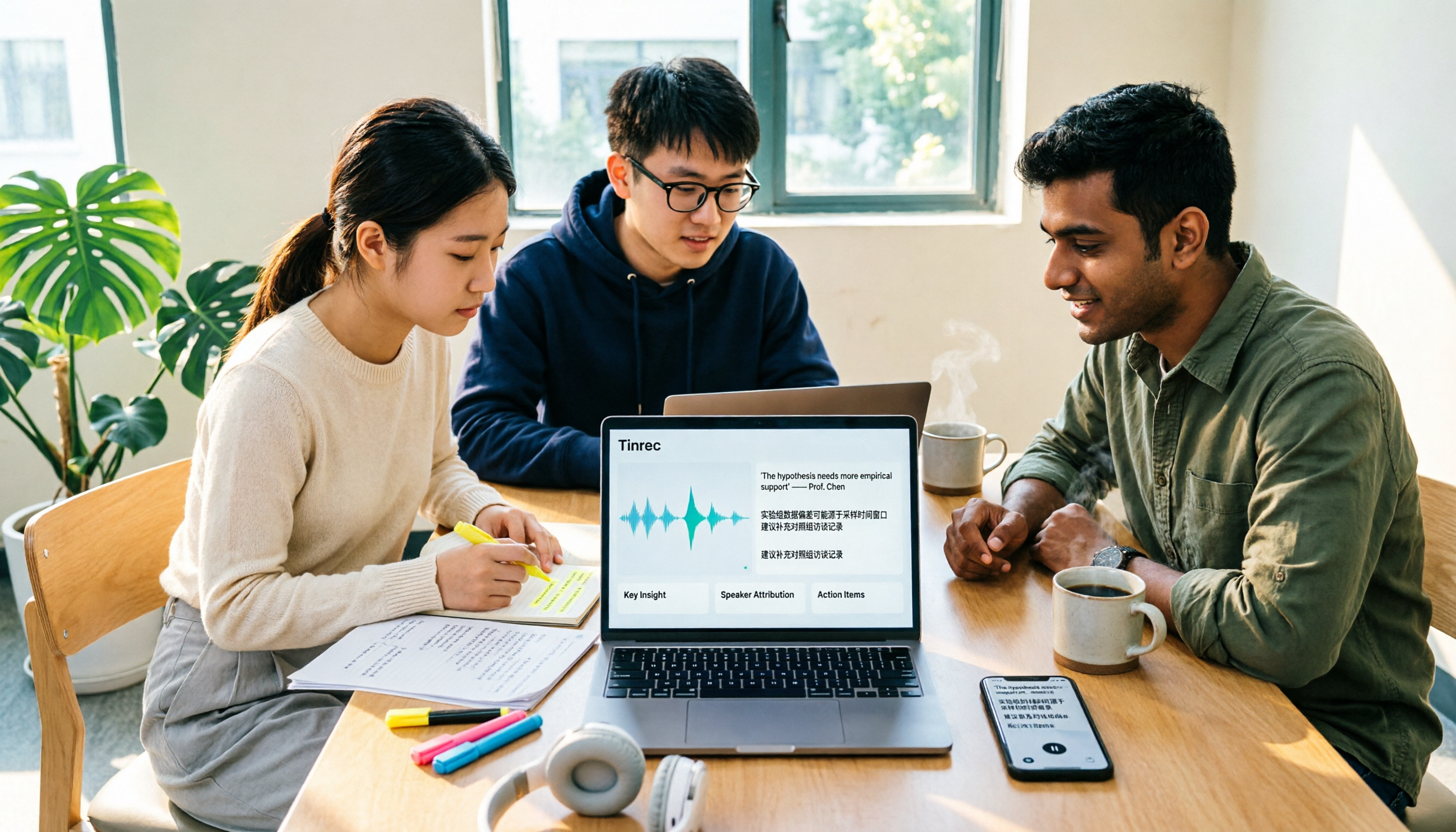
Best Meeting Transcription Tools of 2026: 4 Tested, This Free Version Is Enough for Students
Starting from real struggles with class recordings and group discussions, we tested four meeting transcription tools—Tinrec, Otter.ai, Notta, and TurboScribe—comparing free tiers, Chinese and mixed Chinese-English recognition, post-meeting summaries, and export capabilities. We also outline key decision points and three common pitfalls to help budget-conscious students find a tool they'll actually stick with.

5 Meeting Transcription Tools Tested and Compared for 2026: A Complete Guide from Recording to Meeting Minutes
Meeting transcription isn't as simple as pressing record and getting minutes. This guide covers the actual positioning, operation, and pricing of 5 tools, plus common pitfalls before, during, and after recording, to help you choose the right tool for your scenario.

2026 Complete Guide to Meeting Recording Transcription: Chinese Transcripts, AI Summaries, and Tool Comparison
How to choose a meeting recording transcription tool? This article breaks down 5 key purchasing factors, from Chinese recognition, meeting recording methods, post-meeting organization, quota calculation, to team data governance, and compares Tinrec, Otter.ai, Notta, and TurboScribe in terms of use cases and pricing to help you pick the one that saves the most time.

2026 Comparison of 4 Meeting Transcription Tools: Free Tiers, AI Summaries, and Team Collaboration
How to choose a meeting transcription tool? This article starts from the decision point of 'do you want a verbatim transcript or actionable meeting results?' and covers 4 key selection criteria, hands-on testing of Tinrec, Otter.ai, Notta, and Granola, and honestly explains free tiers, team seats, and pricing to help you avoid common pitfalls like focusing only on accuracy or buying a tool just for transcription.

5 Meeting Transcription Methods Tested and Compared in 2026: The Verbatim Transcript Is Just the Beginning
Meeting transcription isn't just about turning audio into text. This article addresses three common misconceptions and breaks down the actual workflows for real-time transcription, bot-free recording, AI summaries, action item extraction, AI Q&A, and team knowledge retention. It also covers 5 key purchasing checkpoints and FAQs to help you find a method that truly saves time.

2026 Meeting Transcription Comparison: Bot-Free Recording + Auto-Generated Minutes
Tired of spending two hours after every meeting organizing notes? This guide tackles real workplace pain points and compares Tinrec, Notta, Otter.ai, and Granola for meeting transcription. It covers bot-free recording, Chinese and mixed Chinese-English transcription, post-meeting summaries and action items, team data ownership, and pricing. Includes 5 key buying criteria, 4 common pitfalls to avoid, and scenario-based recommendations (prices and plans verified as of August 2026).

2026 Comparison of 4 Meeting Transcription Tools: Which Saves the Most Time from Transcript to Meeting Minutes?
How to choose a meeting transcription tool? This article starts from the decision point: do you need a verbatim transcript or meeting minutes you can send out directly? It covers 4 key selection criteria and compares Tinrec, Otter.ai, Notta, and Granola in Chinese transcription, post-meeting organization, audio retention, and team collaboration, with 3 common pitfalls and scenario-based recommendations.

2026 Comparison of 6 Meeting Transcription Tools: Which Saves the Most Time on Chinese Transcripts and Post-Meeting Organization?
We tested 6 meeting transcription tools with the same mixed Chinese-English meeting recording, comparing bot-free recording, Chinese transcription, post-meeting summaries and action items, team data retention, and pricing. Includes a quick comparison chart and buying advice to help you pick the one that truly saves time.