

Turn recordings into transcripts and summaries in minutes
Upload audio or video for multilingual transcription, AI notes, and action items
Google Meet Can Record Videos – But Then What?
Google Meet has a built-in recording feature. If you're a Google Workspace paid subscriber, one click saves the entire meeting as a video file. But for most people, the real pain point is: after recording, how do you turn the content into usable meeting notes? Who has time to re-watch a one-hour video?
Tinrec was created to solve this exact problem. It doesn't compete with “meeting recording” – you can keep using Google Meet to record, but the subsequent steps of transcription, summarization, action item extraction, and meeting minutes generation are all handled by Tinrec.
This article first quickly compares the core differences between Google Meet recording and Tinrec, then uses 5 steps to show you how to turn your Google Meet meeting audio into a clear text record and action list.
(Illustration: A person attending a Google Meet on a laptop, phone beside them, screen showing Tinrec's real-time transcription interface, background is a tidy desk.)
Google Meet Recording vs Tinrec: 5 Key Differences
| Dimension | Google Meet Recording | Tinrec |
|---|---|---|
| Who can use it | Google Workspace paid plans only; free version cannot record | Available to everyone; free plan includes monthly base credits |
| Output | Only video file, no text | Transcript, AI summary, chapters, action items, Q&A |
| Post-use | Must re-watch video and take manual notes | Searchable, queryable, exportable |
| Cross-meeting accumulation | Videos scattered across cloud, hard to integrate | All meeting records in one database, searchable and reviewable |
| Multi-source support | Only Google Meet | Same workflow applies to classes, interviews, video links, local audio files |
In short: Google Meet handles the "recording", Tinrec handles the "processing". Together, they form a complete meeting note workflow. Next, we'll walk you through the steps.
Before You Start | What You Need
- A computer (to join Google Meet and play recorded video/audio)
- A smartphone with the Tinrec app (iPhone or Android; free version works)
- Google Meet meeting audio (cloud recording file, self-recorded sound, or live capture via Tinrec)
- Stable internet (needed for real-time transcription; offline import possible for pre-recorded files)
Step 1 | Acquire Google Meet Meeting Audio
Purpose: Capture the meeting audio to serve as material for later transcription.
If you’re on a Google Workspace paid plan, simply click Record during the meeting. After it ends, Google saves the video to your Drive. You can download the MP4 or extract the audio track.
If you’re on the free plan or can’t record, no problem. Place your phone near the computer speaker, open Tinrec’s “Live Recording” feature, and let it capture the entire meeting. This method is simple but sufficient for transcription.
Why ensure clean audio? Because AI transcription accuracy depends entirely on audio quality—less background noise and clearer speech yield more accurate transcripts. Spending 30 seconds to check your recording position can save hours of proofreading.
After this, you'll have a meeting audio recording (either a file or a record in Tinrec).
(Illustration: A phone placed in front of a laptop, screen showing Google Meet interface, phone recording, with a coffee cup and notebook nearby.)
Step 2 | Import Audio into Tinrec or Start Real-Time Transcription
Now, let Tinrec process the audio.
If you have an audio file, open Tinrec, tap “Import Audio/Video File”, and select the Google Meet recording (or MP3). Tinrec will upload and start transcribing automatically.
If you used Tinrec’s live recording, just press the record button at the meeting start; it transcribes as it records, and you get the transcript immediately after the meeting ends.
The key point: You don’t need to do anything manually; just let the AI run. Depending on meeting length, it finishes in a few to ten-plus minutes.
(Illustration: Phone screen showing Tinrec’s “Import Audio/Video File” button, with a meeting recording file icon on the desk background, soft lighting.)
Stop organizing recordings by hand
Upload audio or video and automatically get a transcript, summary, and action items
Step 3 | Quickly Proofread the Transcript and Mark Key Points
After transcription, you’ll see a full transcript. Don’t rush to read everything; use Tinrec’s “Memo” feature to mark key passages while listening.
How? Open the transcript, tap the mark button next to the timeline, and highlight important discussions, decisions, or tasks assigned by the boss. Tinrec collects them into a key points list.
Why do this? Because long meeting transcripts are too lengthy; marking key points first makes subsequent summaries and action items more accurate. These marks also sync to your notes.
After this, you’ll have not only a transcript but also your own curated key highlights.
(Illustration: Phone or computer screen showing a transcript with several lines highlighted in yellow, with a “Key Summary” card floating beside it.)
Step 4 | Generate Meeting Minutes and Action Items with One Click
This is where Tinrec shines. On the transcript page, tap “AI Summary” to auto-generate a condensed meeting summary covering discussion topics, conclusions, and next steps.
Furthermore, use the “Action Items” feature to let AI extract all action items from the meeting, including assignees and deadlines (if mentioned in the meeting).
If you find the summary insufficient, continue with “AI Chat” to ask questions like, “What was the conclusion on the budget discussion?” Tinrec will answer based on the transcript.
These results can be copied directly, or exported as Word, PDF, TXT, or even synced to Notion or Google Docs.
(Illustration: Phone screen showing meeting minutes, with bullet points “1. Confirm Q3 goals” and “2. Marketing budget increase 10%”, and an “Action Items” section below with one item checked.)
Step 5 | Export and Share to Keep Your Team in Sync
After organizing, the final step is to deliver the results. Tinrec supports multiple export formats, including plain text, PDF, Word, and even generating a shareable link.
If your team uses Notion or Google Docs, you can set up auto-sync so that meeting notes automatically appear in the shared document library after each meeting.
The value of this step: You no longer need to manually copy, paste, or format; all content is structured and highlighted, ready for colleagues to understand at a glance.
(Illustration: Laptop screen showing a meeting record exported as PDF, titled “2026-07-05 Project Progress Meeting”, with a phone showing Tinrec’s “Export Successful” notification.)
FAQ and Troubleshooting
Q: Google Meet free version can't record, what do I do? The simplest method is to use your phone to open Tinrec’s live recording and place it near the computer speaker. Although audio quality may be affected by the environment, Tinrec’s built-in noise reduction filters out most background noise, and transcription results are still quite good.
Q: Some parts of the transcript are inaccurate, how to handle? This could be due to multiple people talking simultaneously, low volume, or accents. You can tap the paragraph to listen to the original audio and correct it. Tinrec’s “AI Chat” can also help understand unclear sections – ask “What is this part about?” and it will infer from context. Compared to other tools that only allow manual editing, this is much more convenient.
Q: If the meeting is long, does transcription take a long time? For a typical one-hour meeting, Tinrec finishes in about 5-10 minutes. For live recording, transcription appears almost in real-time. Compared to re-watching the video and taking notes, it saves 90% of the time.
Q: Can meeting notes auto-sync to my calendar or project management tool? Currently, Tinrec supports export to Notion, Google Docs, Dropbox, etc., and can download as PDF or Word. Although it doesn’t directly integrate with Google Calendar, you can manually paste the exported file or use a shareable link to notify your team quickly.
Advanced Tips | 3 Ways to Double Your Efficiency with Tinrec
Use “AI Chat” to directly extract meeting conclusions instead of reading the entire transcript
After the meeting, simply ask Tinrec: “What are the three key points of this meeting?” “Who is responsible for what?” It extracts answers from the transcript, performing an initial filter for you – most transcription tools on the market don’t support this conversational query.Cross-meeting search to build your personal knowledge base
All transcribed meetings, classes, and interviews are stored in Tinrec’s history. You can search past discussions by keywords; for example, search “marketing budget” to pull up all related meetings from the past three months. Instead of digging through cloud drive videos each time, let Tinrec build a searchable audio database for you.Beyond meetings, also use it to organize YouTube tutorials and interview recordings
Tinrec supports pasting video links (YouTube, Bilibili, etc.) for direct transcription and summarization, and can also import interview audio files. This way, meetings, learning, and research are all organized with the same workflow, no need to switch between tools.
If You Don’t Use Tinrec, Here Are Other Options
- Otter.ai: Focuses on English meetings, auto-joins online meetings, identifies speakers. Suitable for global teams, but Chinese language support is less detailed than Tinrec.
- Notta: Strong in file transcription and real-time translation, but also focuses mainly on “transcription”; its post-transcription organization, Q&A, and export handoff features are weaker.
If what you need is to turn a Google Meet meeting into a complete actionable record, Tinrec’s “Record → Understand → Act” workflow is closer to your needs.
Conclusion
Google Meet can record your meeting, but to turn the content into text, summaries, and action items, you need Tinrec. These five steps – record, transcribe, mark, generate, export – mean you no longer have to re-watch the entire video or take manual notes.
Next step: Download Tinrec free version, record one of your own Google Meet meetings and try it out. The monthly base credits are enough for two or three sessions, so you can experience the difference from “recorded but never watched” to “meeting done, record ready”.
Turn every recording into actionable outcomes
Get 60 free transcription minutes when you sign in. No credit card required.
Related Reading
You might also like
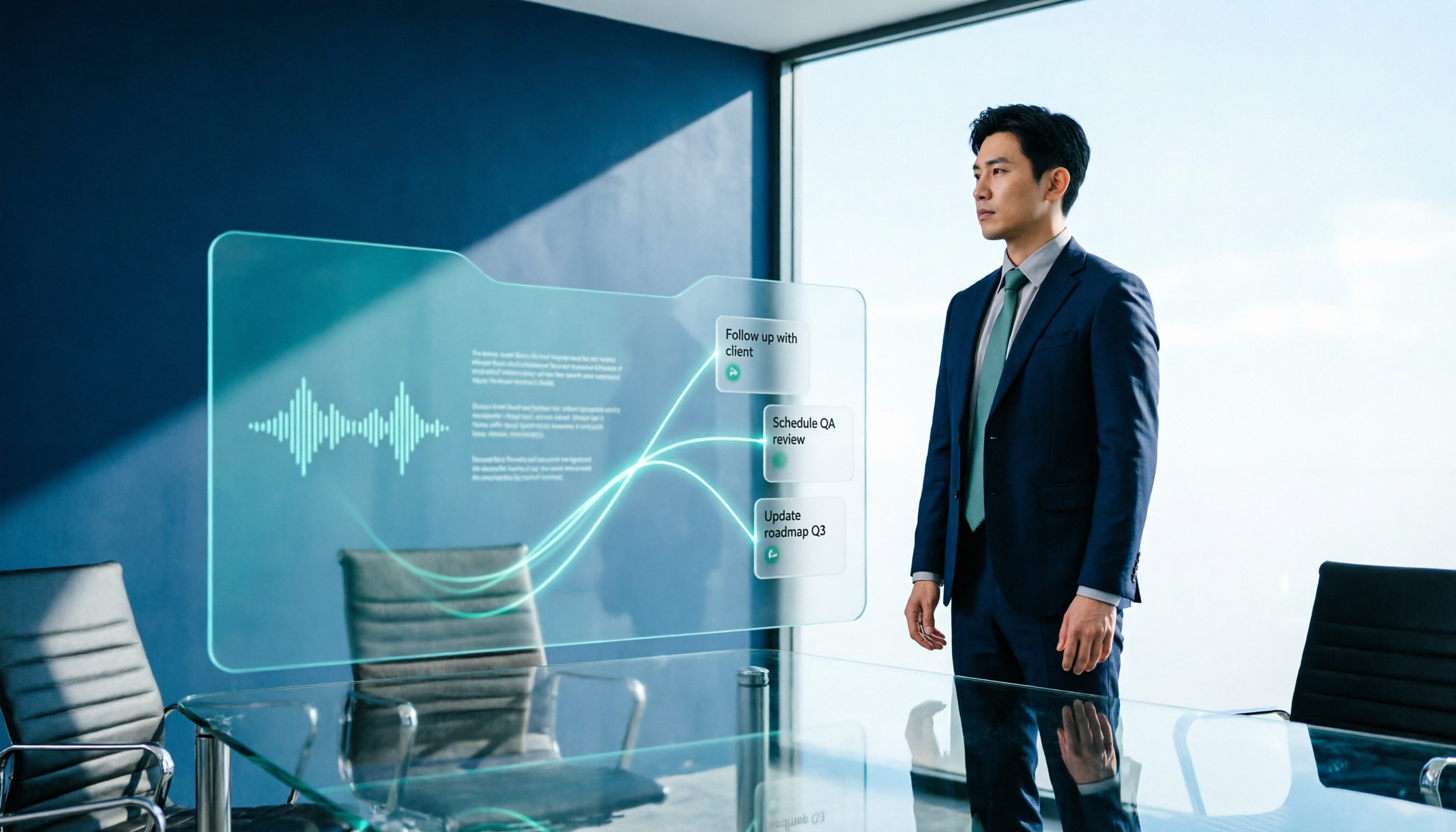
2026 AI Meeting Workflow Tools Compared: Which One Turns Discussions into Actionable To-Dos?
Many people think an AI meeting workflow is just 'record, hand it to AI, wait for a summary,' but the resulting notes often go unread. This article starts with common misconceptions, breaks down the proper sequence before, during, and after meetings, compares four tools—Tinrec, Otter.ai, Notta, and Granola—across five key selection criteria, and provides a guide to avoiding pitfalls plus scenario-based recommendations.

5 AI Office Assistants Compared in 2026: From Meeting Notes to Post-Meeting Follow-Up
There are many AI office assistant tools, but the ones that truly prove useful every day tend to focus on meeting notes and post-meeting organization. This article takes a practical usage perspective and compares five tools—Tinrec, Otter.ai, Fireflies.ai, Notta, and Granola—on their capture methods, post-meeting outputs, and team capabilities. It also outlines 5 purchase checkpoints and answers common questions.

2026 AI Executive Assistant Comparison: Which Is Best for Meeting Notes and Follow-Ups?
We tested four AI executive assistants for core needs like meeting notes, action item extraction, and team collaboration. Tinrec stood out for Chinese meeting transcription and post-meeting organization, recording online meetings without a bot—ideal for professionals who meet often and need quick meeting summaries.

Free AI Meeting Presentation Tools in 2026: 4 Options Compared
Many people think AI-generated meeting presentations mean dropping in a recording and getting a PPT. In reality, the bottleneck is organizing the meeting content. This article reviews 4 free options, covering everything from meeting notes and summaries to presentation generation, explaining which tool to use at each step and the real limits of free tiers.

Tinrec vs Granola 2026: 5-Factor Comparison — Which Meeting Follow-Up AI Is Better for Professionals?
Compare Tinrec and Granola across post-meeting summaries, action items, follow-up questions, recording retention, and team governance to see which is better suited for meeting follow-up AI workflows.
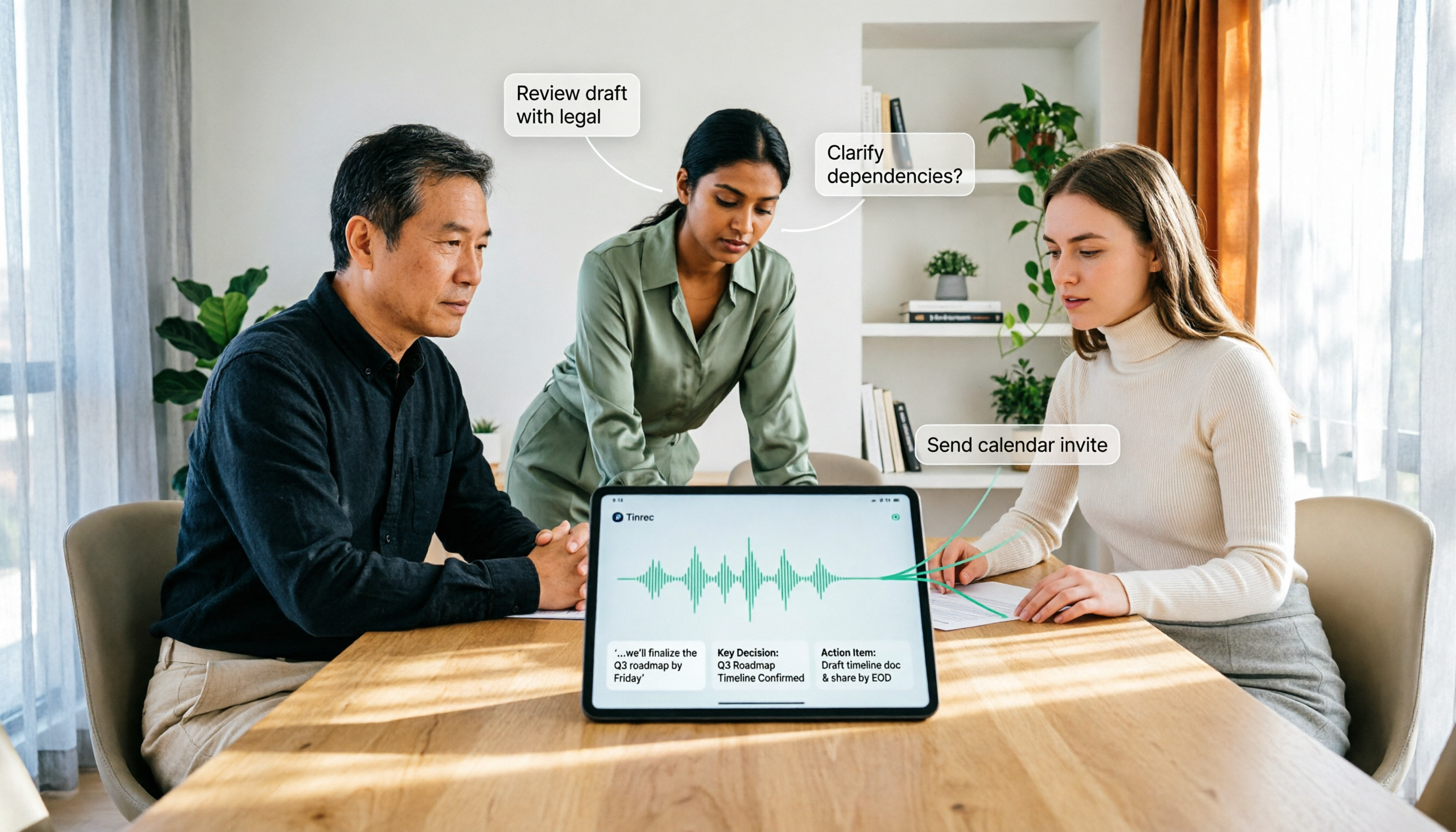
How to Use AI Agent Multi-Turn Conversations in 2026: 5 Steps to Build an Automated Meeting Workflow
Many people treat AI Agent multi-turn conversations as asking the same question multiple times, which only repeats the same blind spots and doubles costs. This article breaks down what multi-turn conversations should really have: memory, tool invocation, and stopping conditions, and uses Tinrec to demonstrate how to turn a meeting from recording, transcription, summarization to post-meeting follow-up into a truly deliverable workflow.

2026 Guide: AI Post-Meeting Processing — Auto Summaries + Action Item Extraction, Team Knowledge Retention
Post-meeting processing isn't just converting recordings into transcripts. This article addresses common misconceptions, outlines 5 key selection criteria, shares hands-on testing of Tinrec and team plan details, briefly reviews Granola and Notta, and provides a pitfall-avoidance guide and scenario-based recommendations to help you choose the right tool.

2026 AI Meeting Follow-Through Comparison: Which Tool Actually Tracks Action Items to Completion?
Meeting notes look great, but nothing gets done? This article breaks down the three most common pitfalls and the closed-loop workflow of capture, correction, assignment, tracking, and review. It compares Tinrec, Notta, Granola, and Otter.ai on bot-free recording, post-meeting Q&A, and team governance, with real pricing and tips to avoid common mistakes.

2026 AI Meeting Notes Comparison: Which Tool Extracts Action Items Best?
Action items scattered after meetings? This hands-on comparison of Tinrec, Otter.ai, Notta, and Granola evaluates automatic action item extraction from four angles: Chinese-language meetings, bot-free recording, post-meeting follow-up, and team collaboration—helping you decide which fits your meeting workflow.