
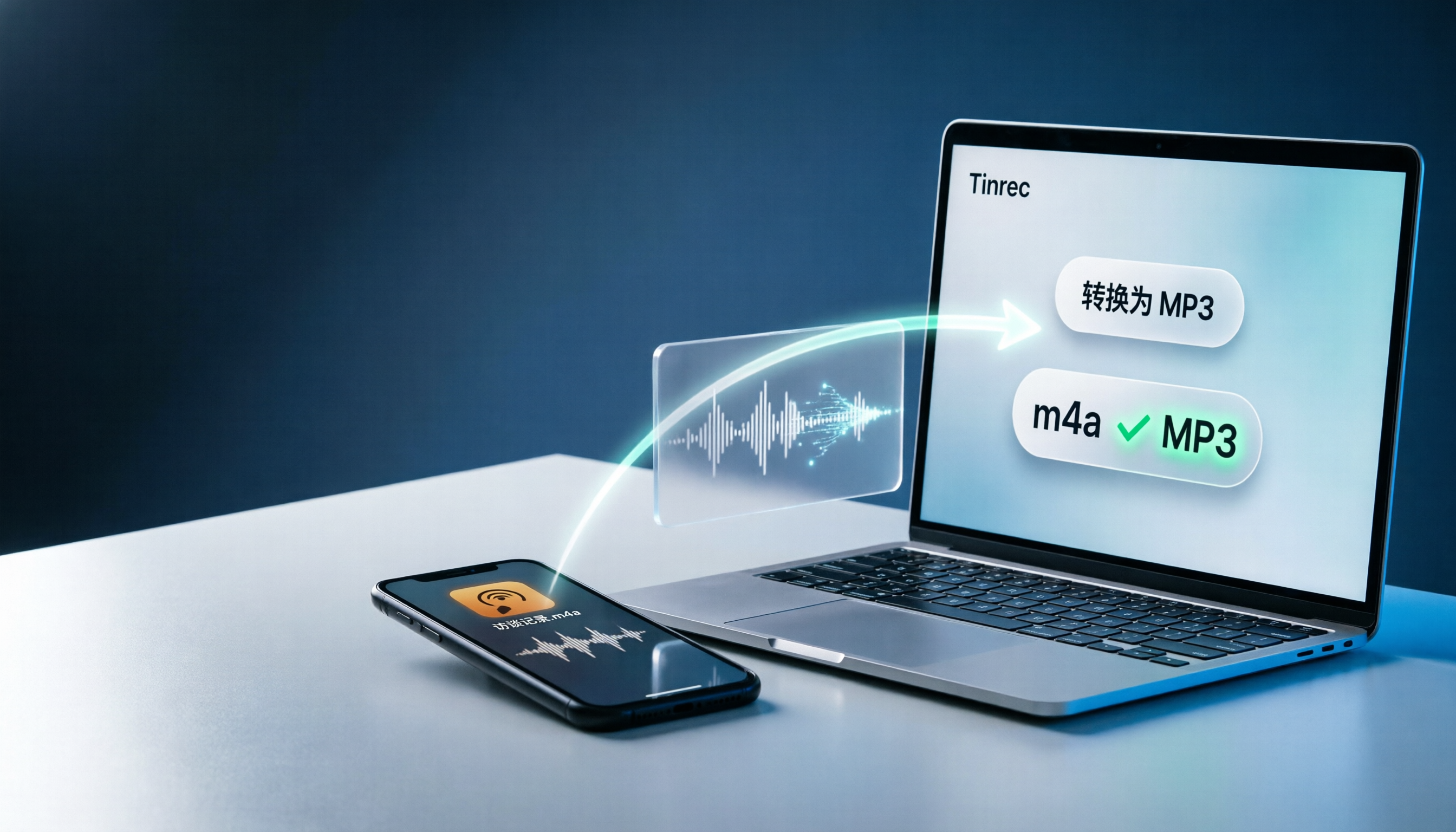
Turn recordings into transcripts and summaries in minutes
Upload audio or video for multilingual transcription, AI notes, and action items
What Format Are iPhone Voice Recordings?
When you record with the built-in Voice Memos app on iPhone, the default file format is M4A.
This isn't some hidden setting—it's been Apple's default approach since the early days of iOS. Every recording you see in Voice Memos, once exported to the Files app, will have an .m4a extension.
M4A is a type of MPEG-4 audio file that uses AAC encoding. The upside is that it offers decent sound quality while taking up much less space than WAV. But the downside is straightforward: many Windows PCs, older media players, some car stereos, and certain voice recorders don't recognize this format.
So whenever someone asks, "What format are iPhone voice recordings?" the next question is usually, "How do I convert them to MP3?"
First, Figure Out Where Your Recording Is
Before converting, you need to know where your recording is currently stored.
Scenario 1: The recording is still in the Voice Memos app and hasn't been exported.
Scenario 2: You've already exported it to the Files app—maybe in iCloud Drive, On My iPhone, or the Downloads folder.
Scenario 3: The recording has already been transferred to your computer via AirDrop, LINE, email, or iCloud web.
Confirm the location first so you don't waste effort later.
Exporting a Recording from Voice Memos
If you haven't exported yet, follow these steps:
- Open the Voice Memos app.
- Tap the recording you want to process.
- Tap the "…" or share button in the top-right corner.
- Select "Save to Files."
- Choose a folder, such as "Downloads" or iCloud Drive.
- Tap "Save."
Your recording will then appear in the Files app as an M4A file.
Honestly, this step isn't hard. The tricky part is converting M4A to MP3.
Method 1: Use an Online Converter—No Storage Needed
This option suits those who don't want to install extra apps on their computer or phone.
Here's the typical process:
- Upload the M4A file to an online audio converter website.
- Select MP3 as the output format.
- Click convert.
- Download the resulting MP3 file.
The advantage is that it works on both phone and computer without installing anything.
The downside is also clear: if your recording contains meetings, interviews, or sensitive content, uploading it to a free online service might make you uneasy. Free tools often keep files on their servers for a while, so be aware of that.
Method 2: Use Desktop Software or iTunes
If you prefer handling files on your computer, this method is reliable.
Windows users can use well-established audio converter software to import M4A and convert to MP3. macOS users can use built-in tools or third-party apps.
Stop organizing recordings by hand
Upload audio or video and automatically get a transcript, summary, and action items
The benefit is that your files don't get uploaded to someone else's server, offering better privacy.
The downside is that there are more steps, and each software interface is different. If you only convert a file occasionally, booting up your computer just for that can be a hassle.
Method 3: Use a Mobile App for Conversion
This is what I find to be the most convenient approach.
Many iOS converter apps now let you convert M4A to MP3 directly on your phone. The process is roughly:
- Select the M4A recording from the Files app.
- Choose MP3 as the output format.
- Convert.
- Save it back to the Files app or share it.
Everything happens on your phone—no need to turn on a computer or upload files to a third-party website.
If you just need the recording to play on Windows, share with colleagues, or feed into other tools, this method is more than enough.
Will the File Get Smaller After Converting to MP3?
Not necessarily.
Many people assume MP3 is always smaller than M4A. In reality, M4A's AAC encoding often produces smaller files than MP3 at the same quality level.
So if you're converting to MP3 to save space, the effect might be minimal.
If you truly want to free up space, instead of obsessing over conversion, consider deleting old recordings you no longer need. When your iPhone storage is nearly full, removing a few old recordings is more practical than converting files.
If What You Need Isn't MP3, but Text
This is another point I really want to make.
Many people convert to MP3 simply because they need to replay recordings on their computer and transcribe them. But honestly, a one-hour meeting recording could take you three hours to replay and type up.
If your goal is to organize content rather than just change formats, a more practical approach is to feed the recording directly into an AI transcription tool. Tools like Tinrec let you upload M4A or MP3 files and convert them into transcripts, complete with summaries, key points, and action items.
You don't need to convert the file yourself or listen to the entire recording again.
Summary: iPhone Recordings Are M4A—Converting to MP3 Depends on Your Needs
First, remember this: iPhone Voice Memos recordings are saved as M4A by default.
If you just need the file to play on more devices, pick any conversion method that feels convenient—mobile app, online site, or desktop software all work.
But if what you really want is "turning recording content into text," converting to MP3 isn't a necessary step. Just feed the M4A directly into an AI transcription tool, and you'll save far more time than you would researching conversion methods.
My advice: if you only convert a file occasionally, a mobile app is the easiest. If you regularly need to process meeting or interview recordings, stop worrying about MP3 and find an AI tool that can handle M4A directly.
References
- Export Voice Memos recordings to Files on iPhone - Apple Support (Taiwan)
- [Phone Tips] How to Upload/Save Voice Memos from iPhone to Computer and Convert to MP3? - Jyes Communication
- How to Convert iPhone Voice Memos to MP3? 3 Ways to Convert M4A to MP3! - Tech Girlz
- iPhone recordings too large, any smaller format? - Mobile01
- Want to Efficiently Convert iPhone Voice Memos to MP3? These AI Transcription Tools in 2026 Will Boost Your Productivity - Tinrec Blog
Turn every recording into actionable outcomes
Get 60 free transcription minutes when you sign in. No credit card required.
Related Reading
You might also like

2026 Comparison of 3 Simultaneous Interpretation Apps: Latency, Bilingual Transcripts, Post-Meeting Organization—Which One Is Really Enough?
The value of a simultaneous interpretation app goes beyond the instant translation in your earphones. Starting from real pain points in cross-language meetings, this article breaks down four key aspects: real-time transcription, bilingual comparison, summary and action items, and team knowledge retention. It also shares five details to consider when choosing an app, based on hands-on experience with Tinrec.

4 Real-Time Translation Apps Compared for 2026: From Travel Conversations to Meeting Notes
Real-time translation apps aren't just about how many languages they support. This article compares Tinrec, Google Translate, Microsoft Translator, and VoiceTra across four angles—travel conversations, multilingual meetings, post-meeting organization, and team collaboration—to help you find the right fit.

2026 Voice Translation App Comparison: Tinrec vs Google Translate — Which One Turns Meetings into Usable Data?
Most people download voice translation apps thinking 'speak a sentence, get a translation,' but the real time sink is reviewing meetings and interviews afterward. This comparison of Tinrec and Google Translate evaluates five dimensions—transcripts, online meeting recording, post-meeting organization, bilingual comparison, and team collaboration—to help you decide which fits your actual workflow.

5 Real-World Online Translation Scenarios Compared in 2026: Which Needs Bilingual Subtitles Most—Meetings, Classes, or Videos?
Online real-time translation isn't just pasting text into a translation box. This article breaks down five scenarios—international meetings, online courses, foreign-language videos, client interviews, and team collaboration—and uses Tinrec to compare original text, translated text, and bilingual views. It also covers six buying checkpoints and FAQs to help you choose the right tool, not just the cheapest one.
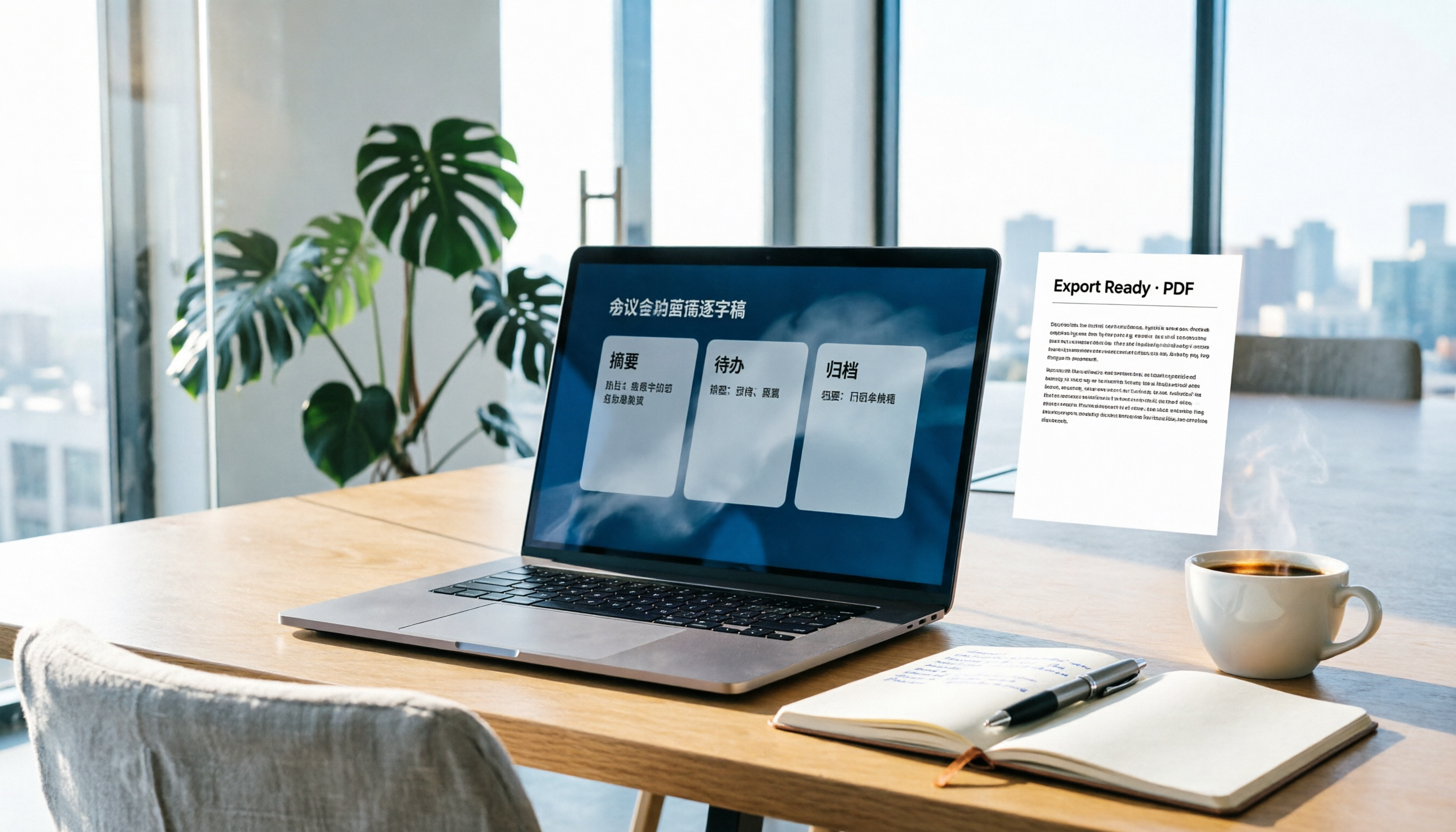
How to Write Meeting Minutes in Word (2026 Workflow): 3-Section Structure + AI-Generated Transcripts
Writing meeting minutes in Word isn't hard—the hard part is where the content comes from. This guide breaks down a three-section Word meeting minutes structure you can hand off directly, and shows how to use Tinrec to generate transcripts, summaries, and action items during the meeting, then export to Word for formatting and archiving—cutting documentation time from two hours to ten minutes.

Tinrec vs Otter.ai: Real-Time Translation Software Comparison for Chinese Meetings (2026)
Based on a student's hands-on experience, this comparison evaluates Tinrec and Otter.ai across five dimensions: real-time translation, Chinese-English mixed speech recognition, free tier limits, post-meeting organization, and recording sources. It verifies pricing and restrictions for each plan and explains which real-time translation software better suits classroom, group project, and international meeting scenarios for Taiwanese university students.

2026 Comparison of 5 Speech-to-Text Tools: Is the Free Version Enough, and Which Handles Chinese Meetings Better?
Speech-to-text isn't just about turning audio into words. This article addresses three common misconceptions, breaks down the real differences between speech-to-text tools, and uses Tinrec to demonstrate a complete workflow from recording, transcription, summarization, to-dos, to team knowledge retention. It also includes 5 purchasing checkpoints and FAQs.

2026 Comparison of 4 Free Transcription Tools: Which One Has the Best Free Quota and Post-Meeting Organization?
Based on real scenarios of meetings, classes, and interviews, this article compares the free transcription capabilities of Tinrec, Google AI Studio, Good Tape, and oTranscribe, and summarizes free quotas, Chinese recognition, post-meeting summaries, and export limitations to help you decide which one to try first.

Free Transcription in 2026: Tinrec's 3-Step Audio-to-Text with AI Summary & Action Items
Turn class, meeting, and interview recordings into searchable transcripts even on a tight budget. This guide covers 4 key factors for choosing a free transcription tool, tests Tinrec's audio-to-text, AI Q&A, and action item extraction workflow, and honestly compares the free limits and use cases of Google AI Studio, Yating Transcription, and MyEdit.