
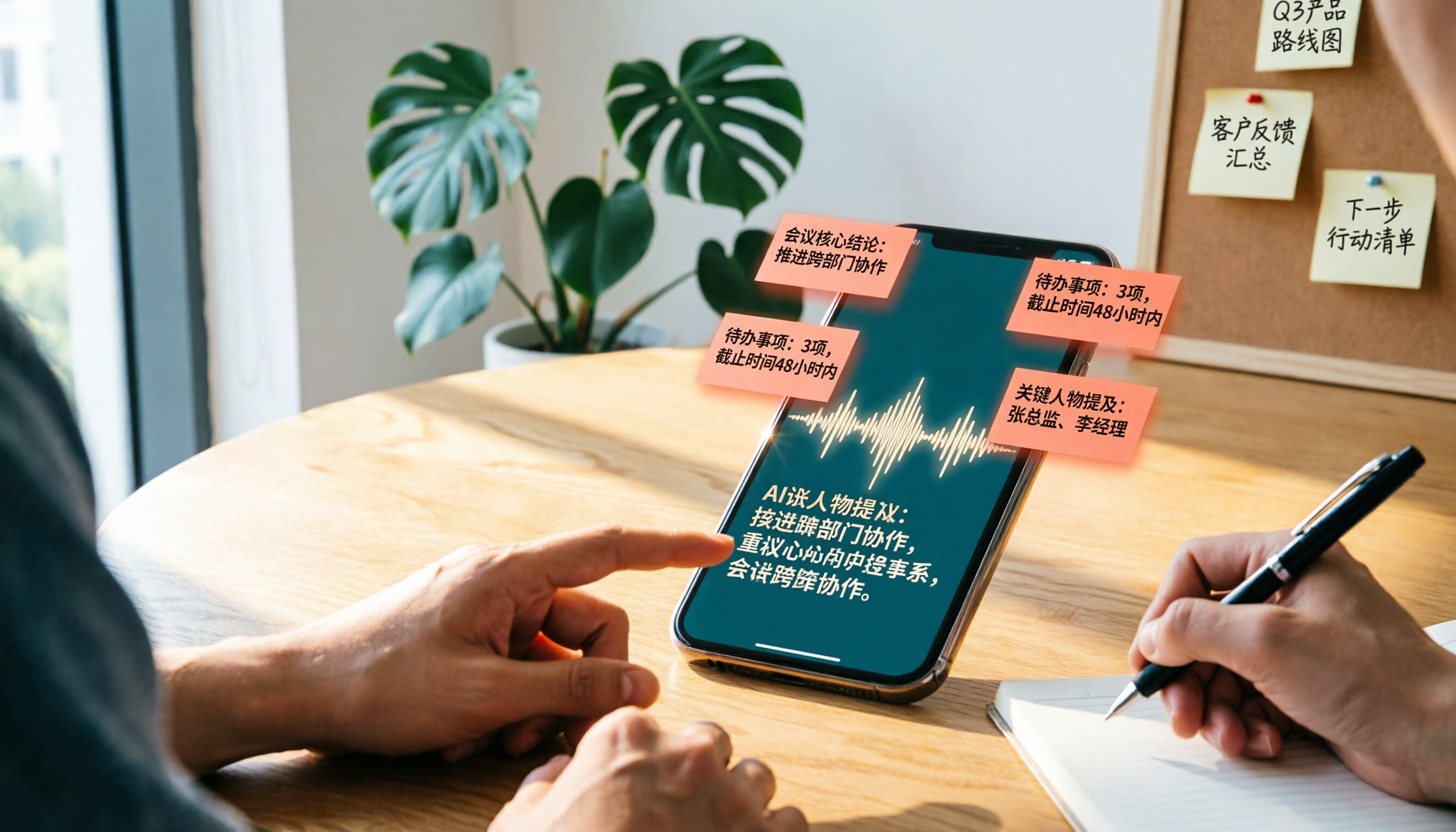
Turn recordings into transcripts and summaries in minutes
Upload audio or video for multilingual transcription, AI notes, and action items
iPhone Voice-to-Text: Should You Use Built-in Features or a Third-Party App?
Recording on an iPhone is easy—what takes time is turning that audio into text and organizing it into key points. A two-hour meeting that requires another two hours of transcription at home is a poor use of time for students, professionals, and interviewers alike.
The core question this article answers: If you need to convert iPhone recordings to text, should you just use Voice Memos or Notes, or do you need a dedicated AI transcription app?
We break down your options across five dimensions: accuracy, AI summarization, cross-platform support, free tier, and team collaboration.
5 Key Points to Understand Before Choosing a Voice-to-Text Tool
1. Built-in transcription isn't available on all iPhones
Apple's Voice Memos and Notes both have built-in transcription, but audio transcripts require an iPhone 12 or later, and supported languages include English, Spanish, French, German, Japanese, Korean, Simplified Chinese, and Traditional Chinese. Some countries or regions still don't have access. If you have an older model or often record mixed Chinese-English content, the limitations of built-in features become more apparent.
2. Accuracy depends on real-world conditions, not marketing claims
Many tools claim high accuracy, but tests are often conducted in quiet recording studios. Real-world scenarios include air conditioning noise, keyboard clicks, overlapping speech, and accents, which significantly reduce accuracy. Judge based on your own recording environment, not just advertised numbers.
3. Transcription is just the first step—organizing is the real time sink
Transcripts are long; reading through them to extract conclusions, action items, and decisions is where time really goes. If a tool only transcribes, you'll still have to organize manually.
4. Cross-platform support matters more than you think
Many people record on iPhone but switch to a computer to organize. If a tool is iOS-only or transcripts stay locked on your phone, your workflow breaks.
5. Free tier adequacy depends on your usage frequency
Free versions typically have monthly minute limits. Someone who records 2–3 meetings a week has different needs than someone who records interviews daily.
Tinrec (Miao Ting Lu Yin)—Our Top Pick After Testing
Tinrec (Miao Ting Lu Yin) is an AI meeting notes and collaboration tool that supports iOS, Android, and web. It doesn't just convert audio to text—it emphasizes post-transcription organization and team knowledge management.
Ask follow-up questions after recording
Most transcription tools stop at the transcript. Tinrec's difference: after recording, you can ask it things like "Who mentioned the budget in the last meeting?" or "What was the conclusion?" It provides answers based on semantic understanding, not just keyword search results. For anyone who doesn't want to sift through a 30-minute transcript, this saves real work time.
Optimized for Chinese and multilingual meetings
Tinrec handles Chinese, Traditional Chinese, and mixed Chinese-English content well, and supports real-time translation and bilingual viewing. If you often record Chinese meetings, lectures, or interviews, this makes it more practical than many English-focused meeting tools.
Record online meetings without a bot
Tinrec's desktop version captures system audio directly, so you don't need to add a bot to Zoom, Google Meet, Microsoft Teams, or Webex meetings. That means you can record and transcribe without adding an extra "participant" to the call.
Limitations to be clear about
The free version has basic usage limits; heavy users need to upgrade. Actual accuracy is affected by recording quality, accents, noise, overlapping speech, and technical jargon, so don't treat it as a 100% accurate human replacement. For critical decisions, always cross-check with the transcript timestamps and original audio.
Stop organizing recordings by hand
Upload audio or video and automatically get a transcript, summary, and action items
Who it's for
If you need to record Chinese content, want to ask AI for key points right after recording, switch between iPhone and computer for organizing, or want to centralize meeting materials for your team, Tinrec is currently a solid choice.
Beyond Tinrec: Other iPhone Voice-to-Text Options
Apple Voice Memos
Built into iPhone, iOS 18 supports post-recording transcription, and you can copy parts of the text to emails or documents. Pros: no extra app needed. Cons: requires iPhone 12 or later, and transcription and AI summarization are basic. If you occasionally record a short clip and don't want to install new tools, start here. But if you need AI summaries, action item extraction, or cross-platform organization, Voice Memos can't match Tinrec's post-meeting workflow.
Apple Notes
The Notes app also supports recording and transcription, good for quick ideas or short clips. But it's more "audio attached to a note" than a full meeting notes tool. When you need to manage multiple recordings, search, ask questions, or share with a team, Notes' limitations become apparent.
Otter.ai
A mature choice for English meetings. Free plan offers 300 minutes/month; Pro is about USD 8.49/user/month billed annually. Features include online meeting notes, speaker identification, and AI Chat. However, its Chinese experience isn't as polished as English. If you primarily record English content, Otter.ai is worth considering. For Chinese meeting organization, real-time translation, or team knowledge management, Tinrec is closer to your needs.
Notta
A multi-platform transcription and translation tool. Free plan offers 120 minutes/month with a 3-minute limit per recording; Pro is about USD 8.17/month billed annually. Notta's multilingual transcription is decent, but the 3-minute free limit is too short for meetings or interviews. Tinrec offers more complete AI Q&A, bot-free recording, and team spaces.
Pitfall Guide: 4 Common Mistakes When Choosing an iPhone Voice-to-Text App
Pitfall 1: Trusting official accuracy claims
Many tools claim high accuracy, but tests are done in quiet studios. Real meetings have AC noise, keyboards, and overlapping speech, so accuracy drops. Try the free version with your own recordings instead of relying on spec sheets.
Pitfall 2: Ignoring post-recording organization costs
Using a tool just for transcription means using only a third of its potential. Transcripts are just the starting point; the real time goes into organizing key points, action items, and conclusions. With AI Q&A like Tinrec's, asking "What was the meeting conclusion?" right after recording is much faster than manually scanning a 30-minute transcript.
Pitfall 3: Not checking cross-platform needs
You record on iPhone today, but organize on a computer tomorrow. If the tool is mobile-only or exporting transcripts is cumbersome, your workflow stalls. Confirm whether you need to work across devices before choosing.
Pitfall 4: Forgetting recording compliance
Regardless of the tool, always comply with local laws and obtain consent from participants before recording or transcribing. This isn't a tool issue, but it's more important than which app you pick.
Conclusion: Which One Should You Choose?
If you only occasionally convert iPhone recordings to text and have an iPhone 12 or later, start with the built-in Voice Memos or Notes.
But if you want "ready-to-use" results—Chinese transcription, AI summaries, action item extraction, Q&A for key points, cross-platform organization, or team-shared meeting materials—Tinrec is our top pick after testing.
Here's a scenario-based recommendation:
- Need Chinese meeting, interview, or lecture transcription with AI organization → Tinrec
- Want to ask follow-up questions about key points, conclusions, or action items → Tinrec
- Need cross-platform use across iPhone, Android, and computer → Tinrec
- Want to turn meeting materials into a searchable team asset → Tinrec
- Zero budget and only record English content → Otter.ai
- Prefer built-in iPhone features and don't need AI organization → Apple Voice Memos or Notes
We recommend downloading Tinrec's free version first, testing transcription and AI organization with your real recordings, and only upgrading if it meets your needs—no need to pay upfront.
References
- View Voice Memos transcripts on iPhone - Apple Support (Taiwan)
- Record and transcribe audio in Notes on iPhone - Apple Support (Taiwan)
- iPhone Voice Memo to Text: How to Get Transcripts Without Third-Party Apps - Mr. Mad
- How to Convert iPhone Voice Memos to Text? 3 Easy Methods - iMyFone
- [Latest] iOS 18: How to Convert iPhone Voice Memos to Text - TopMediai
Turn every recording into actionable outcomes
Get 60 free transcription minutes when you sign in. No credit card required.
Related Reading
You might also like

2026 Comparison of 3 Simultaneous Interpretation Apps: Latency, Bilingual Transcripts, Post-Meeting Organization—Which One Is Really Enough?
The value of a simultaneous interpretation app goes beyond the instant translation in your earphones. Starting from real pain points in cross-language meetings, this article breaks down four key aspects: real-time transcription, bilingual comparison, summary and action items, and team knowledge retention. It also shares five details to consider when choosing an app, based on hands-on experience with Tinrec.

4 Real-Time Translation Apps Compared for 2026: From Travel Conversations to Meeting Notes
Real-time translation apps aren't just about how many languages they support. This article compares Tinrec, Google Translate, Microsoft Translator, and VoiceTra across four angles—travel conversations, multilingual meetings, post-meeting organization, and team collaboration—to help you find the right fit.

2026 Voice Translation App Comparison: Tinrec vs Google Translate — Which One Turns Meetings into Usable Data?
Most people download voice translation apps thinking 'speak a sentence, get a translation,' but the real time sink is reviewing meetings and interviews afterward. This comparison of Tinrec and Google Translate evaluates five dimensions—transcripts, online meeting recording, post-meeting organization, bilingual comparison, and team collaboration—to help you decide which fits your actual workflow.

5 Real-World Online Translation Scenarios Compared in 2026: Which Needs Bilingual Subtitles Most—Meetings, Classes, or Videos?
Online real-time translation isn't just pasting text into a translation box. This article breaks down five scenarios—international meetings, online courses, foreign-language videos, client interviews, and team collaboration—and uses Tinrec to compare original text, translated text, and bilingual views. It also covers six buying checkpoints and FAQs to help you choose the right tool, not just the cheapest one.
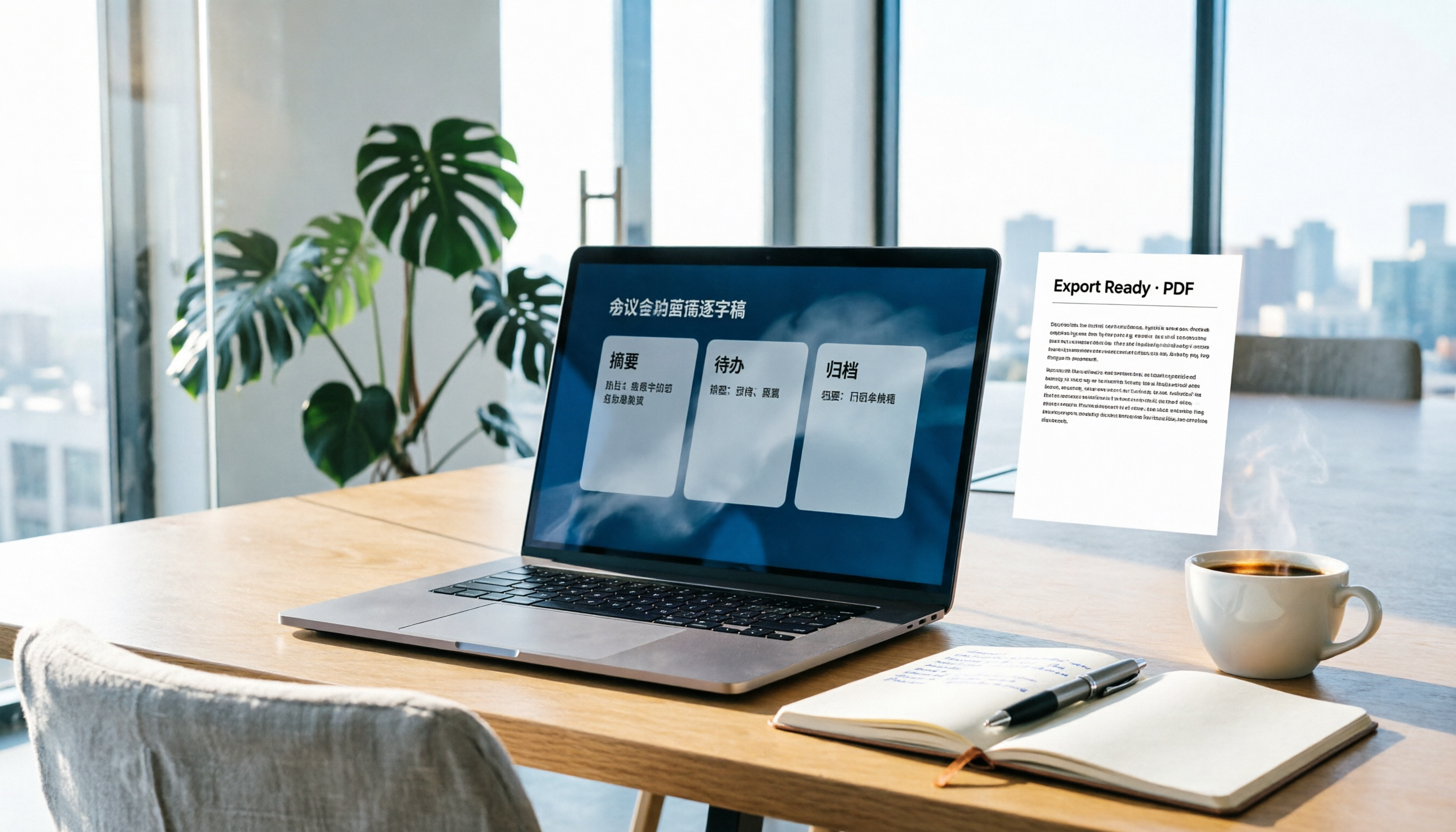
How to Write Meeting Minutes in Word (2026 Workflow): 3-Section Structure + AI-Generated Transcripts
Writing meeting minutes in Word isn't hard—the hard part is where the content comes from. This guide breaks down a three-section Word meeting minutes structure you can hand off directly, and shows how to use Tinrec to generate transcripts, summaries, and action items during the meeting, then export to Word for formatting and archiving—cutting documentation time from two hours to ten minutes.

Tinrec vs Otter.ai: Real-Time Translation Software Comparison for Chinese Meetings (2026)
Based on a student's hands-on experience, this comparison evaluates Tinrec and Otter.ai across five dimensions: real-time translation, Chinese-English mixed speech recognition, free tier limits, post-meeting organization, and recording sources. It verifies pricing and restrictions for each plan and explains which real-time translation software better suits classroom, group project, and international meeting scenarios for Taiwanese university students.

2026 Comparison of 5 Speech-to-Text Tools: Is the Free Version Enough, and Which Handles Chinese Meetings Better?
Speech-to-text isn't just about turning audio into words. This article addresses three common misconceptions, breaks down the real differences between speech-to-text tools, and uses Tinrec to demonstrate a complete workflow from recording, transcription, summarization, to-dos, to team knowledge retention. It also includes 5 purchasing checkpoints and FAQs.

2026 Comparison of 4 Free Transcription Tools: Which One Has the Best Free Quota and Post-Meeting Organization?
Based on real scenarios of meetings, classes, and interviews, this article compares the free transcription capabilities of Tinrec, Google AI Studio, Good Tape, and oTranscribe, and summarizes free quotas, Chinese recognition, post-meeting summaries, and export limitations to help you decide which one to try first.
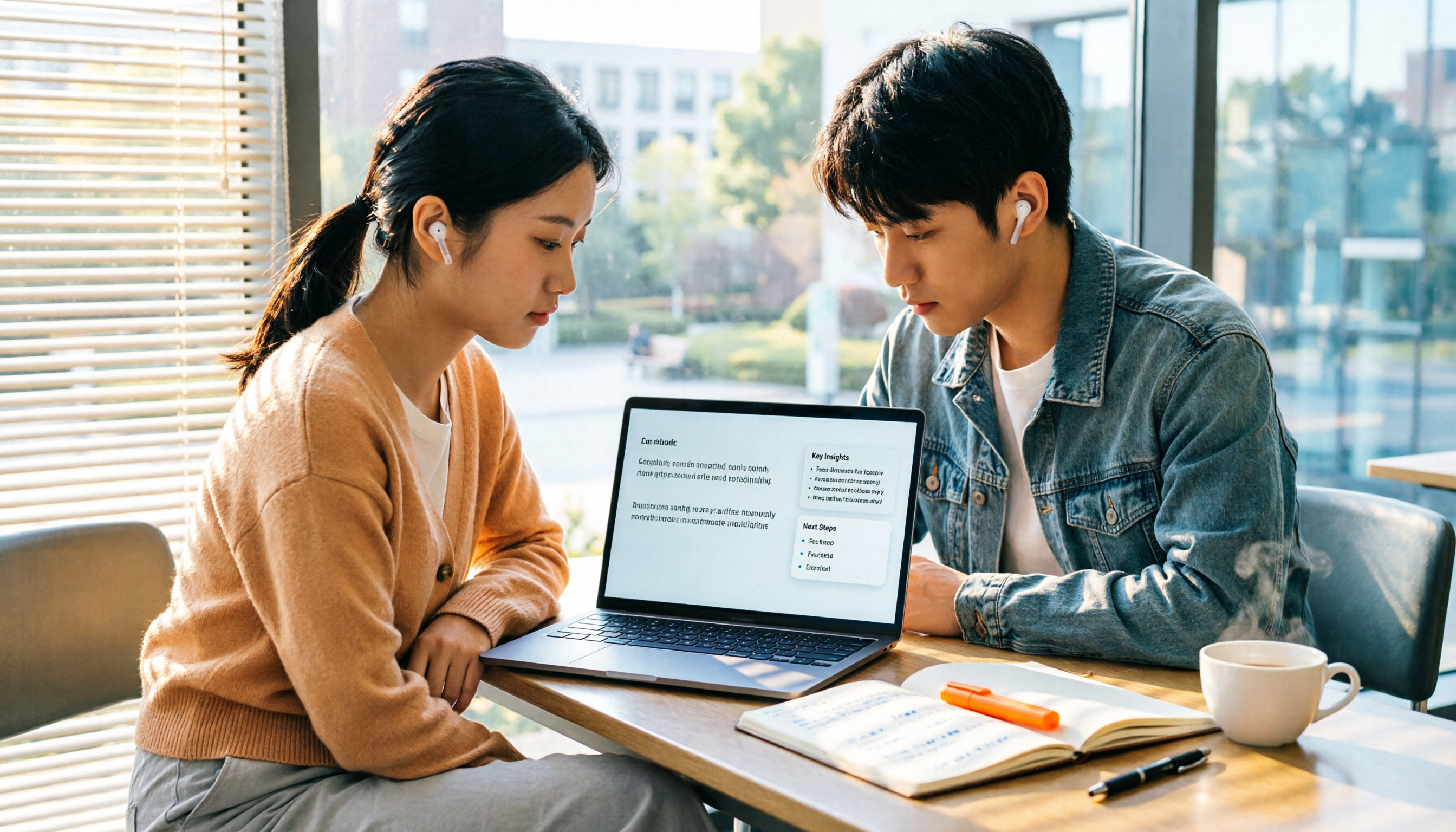
Free Transcription in 2026: Tinrec's 3-Step Audio-to-Text with AI Summary & Action Items
Turn class, meeting, and interview recordings into searchable transcripts even on a tight budget. This guide covers 4 key factors for choosing a free transcription tool, tests Tinrec's audio-to-text, AI Q&A, and action item extraction workflow, and honestly compares the free limits and use cases of Google AI Studio, Yating Transcription, and MyEdit.