

Turn recordings into transcripts and summaries in minutes
Upload audio or video for multilingual transcription, AI notes, and action items
Before Your Meeting, Ask: Is This Call Really Just Between Us?
You're preparing for an online meeting that involves pricing, contract details, or product roadmaps. The meeting link has been sent, and the other party has joined Google Meet. Just before the meeting starts, a question crosses your mind: Is this call encrypted? If a competitor or an unrelated party intercepts the packets, could the content leak?
This question isn't just for tech folks. For small business owners, startup teams, and department heads, meeting content often is the business decision itself. If the encryption mechanism is unclear, you're essentially putting your company's most sensitive discussions on a channel you don't fully understand.
Google Meet's encryption actually works on multiple layers, and the level of protection differs between personal accounts and Workspace accounts. This article breaks down each layer so you know exactly which type of protection you're using before your next meeting.
Before Diving into Google Meet Encryption, Understand These 3 Terms
Cloud Encryption
Cloud encryption is Google Meet's default mechanism. All meetings and calls are encrypted during transmission between your device and Google's data centers, and recordings are stored encrypted in Google Drive. This means your data has basic protection both in transit and at rest, but Google's servers can still process audio and video content during the meeting to provide features like live captions and noise suppression.
End-to-End Encryption (E2EE)
End-to-end encryption means that call content is only decrypted on the participants' devices, and Google's servers cannot read it. According to Google's official documentation, 1:1 and group voice and video calls on the new Meet app with personal accounts are end-to-end encrypted and are not stored on Google's servers. This is a clear upgrade for personal privacy.
Client-side Encryption (CSE)
Client-side encryption is an additional layer of protection that can be enabled for Workspace Enterprise editions. All media content is encrypted directly in each participant's browser, and the encryption keys exist only on the user side, so Google's servers and other service providers cannot decrypt it. To use this feature, administrators must first connect Google Workspace to an external identity provider and an encryption key service.
Google Meet Call Encryption: Actual Differences Between Personal and Workspace Versions
Personal Accounts: End-to-End Encryption on the New Meet App
If you're using a personal Google account and initiate a 1:1 or group call through the new Meet app, your audio and video content is protected with end-to-end encryption. The media content from these calls is not stored on Google's servers, and only the sender and receiver in the call can interpret the content.
It's important to note that end-to-end encryption applies to the "call" itself. If you're using Google Meet's "meeting" format, or a standard meeting under a Workspace account, the default is still cloud encryption, not end-to-end encryption.
Workspace Accounts: Cloud Encryption by Default, Client-Side Encryption Available
Standard meetings and calls for Workspace users are encrypted by default with cloud encryption. This means both transmission and storage are encrypted, but Google's servers can still process media content during the meeting. If your business needs stricter protection, administrators can enable client-side encryption, so meeting media is encrypted directly in the browser, and Google cannot decrypt it.
A 2025 update also allows client-side encrypted meetings to be joined from Google Meet hardware devices. Importantly, hardware devices don't need a special invitation; as long as the participant's identity meets the access requirements for client-side encryption, they can join.
Stop organizing recordings by hand
Upload audio or video and automatically get a transcript, summary, and action items
Encryption Status of Call Recordings and Messages
Google's official documentation states that call recordings are protected with encryption at rest when stored in Google Drive. Messages sent in the new Meet app are stored encrypted on Google's servers. Live captions use audio data, but Google states that this data is not linked to personally identifiable information and is not stored.
Beyond Encryption: Careful Data Management After Meetings
Encryption addresses protection during transmission and storage, but after the meeting ends, how you save and share recordings, transcripts, and meeting notes is another privacy concern. Many people simply dump meeting recordings into cloud storage without considering who has access, whether the content needs to be retained, or how to find it later.
For teams that need to review meeting content repeatedly, it's better to centralize recordings in a manageable, searchable team space rather than scattering them across personal devices or chat threads. For example, Tinrec 秒听录音 captures system audio via a desktop app, so you can record meetings without adding a bot to Google Meet, and it generates transcripts, summaries, and action items in real time. Once meeting data is in the team space, you can set roles and seats, and administrators can view usage and activity logs.
This doesn't mean encryption isn't important; rather, it's a reminder: encryption protects the security of the call itself, but post-meeting data governance determines whether content can be used properly without leaking.
Pitfall Guide: 4 Common Mistakes When Evaluating Meeting Encryption
Pitfall 1: Assuming All Google Meet Meetings Are End-to-End Encrypted
Standard Google Meet meetings are encrypted with cloud encryption by default. Only calls on the new Meet app with personal accounts are end-to-end encrypted. If you're using a Workspace account or a regular meeting link, don't assume the content is end-to-end encrypted.
Pitfall 2: Equating "Encrypted" with "Google Can't See Anything"
Cloud encryption protects data in transit and at rest, but Google's servers can still process meeting content to provide features like captions and noise suppression. Only in end-to-end encryption or client-side encryption scenarios can Google not interpret the media content.
Pitfall 3: Ignoring Access Permissions for Recordings and Transcripts After Enabling Encryption
Just because the call is encrypted doesn't mean there's no risk of leakage after the meeting ends. If recordings, transcripts, and AI summaries are stored in personal cloud drives or shared in casual chat groups, access permissions might be more permissive than you think.
Pitfall 4: Using Third-Party Tools to Record Meetings Without Checking Data Flow
If you use a third-party tool to record Google Meet meetings, the recording content passes through that tool's servers or devices. Encryption protects the Meet call itself; you need to separately verify how the third-party tool handles data. Choosing a tool that keeps recordings within a team space and allows you to manage member permissions is safer than uploading recordings to an unknown cloud.
Summary: Which Encryption Option Should You Use?
First, identify your use case, then decide which level of protection you need:
- Personal 1:1 or group calls, with both parties using the new Meet app: End-to-end encryption is enabled by default, suitable for private calls.
- Workspace standard meetings that need live captions and AI features: Cloud encryption provides protection in transit and at rest, meeting the needs of most business meetings.
- Workspace meetings involving highly confidential content, and you can accept the extra setup cost: Ask your administrator to enable client-side encryption so that even Google cannot decrypt the media content.
- Need recordings, transcripts, and team collaboration after the meeting: Beyond encryption, choose a tool that centralizes team data and allows you to set roles and seats, avoiding scattered recording files.
Google Meet's encryption is more comprehensive than most people think, but "comprehensive" only applies if you know which layer you're using. Before your next meeting, check your account type and meeting format, then decide whether you need additional encryption settings. That's more practical than worrying about content leaks afterward.
References
- Learn about call & meeting encryption in Google Meet - Google Meet Help
- Understand the basics of privacy in Google Meet - Google Meet Help
- Is Google Meet Encrypted? Full Guide (2025)
- r/privacy on Reddit: Paranoid about google meet possibly storing my video calls and even my facial data without my knowledge
- Google Workspace Updates: Join a client-side encrypted meeting from a Google Meet Hardware device
Turn every recording into actionable outcomes
Get 60 free transcription minutes when you sign in. No credit card required.
Related Reading
You might also like

2026 Comparison of 3 Simultaneous Interpretation Apps: Latency, Bilingual Transcripts, Post-Meeting Organization—Which One Is Really Enough?
The value of a simultaneous interpretation app goes beyond the instant translation in your earphones. Starting from real pain points in cross-language meetings, this article breaks down four key aspects: real-time transcription, bilingual comparison, summary and action items, and team knowledge retention. It also shares five details to consider when choosing an app, based on hands-on experience with Tinrec.
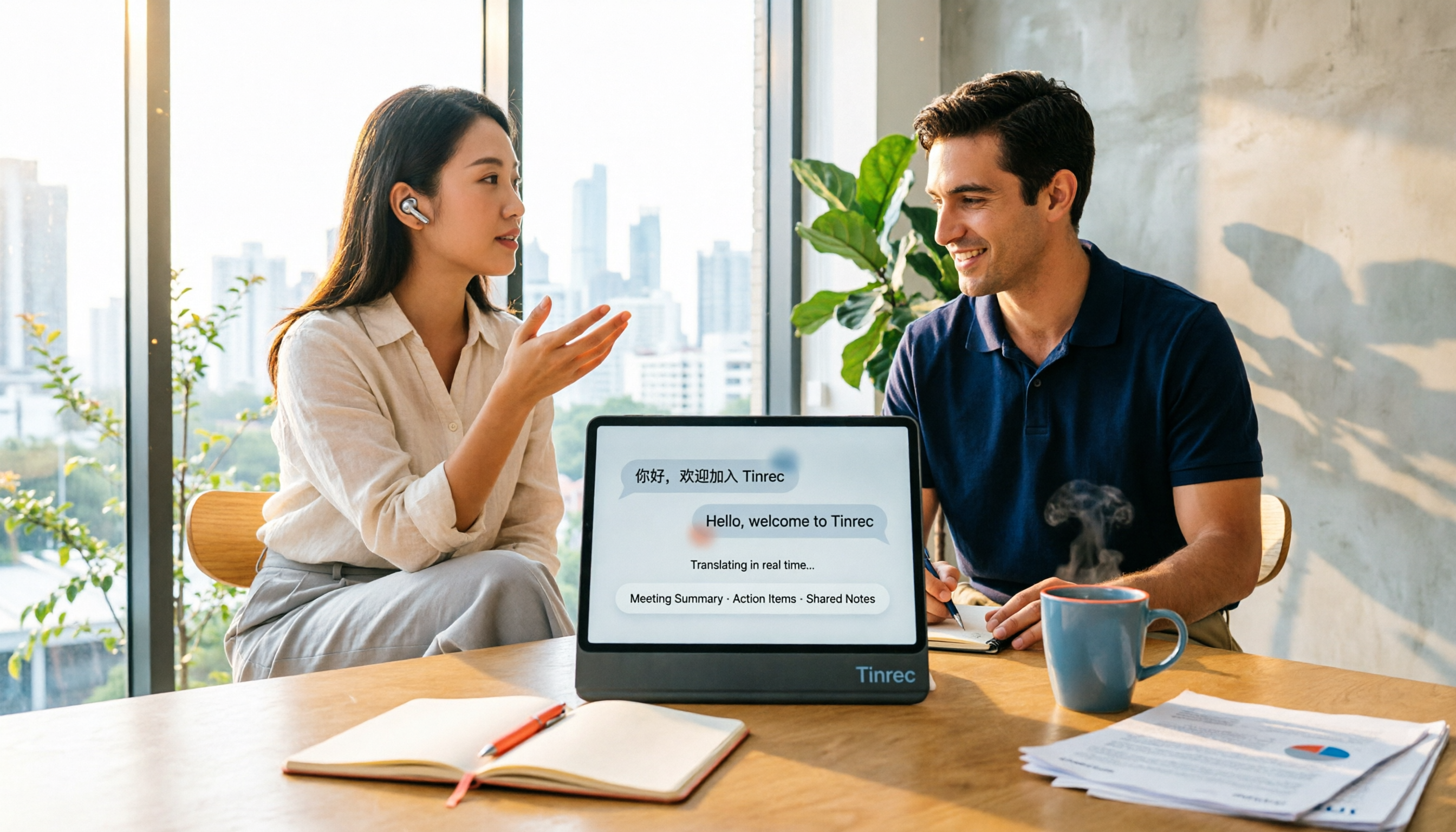
4 Real-Time Translation Apps Compared for 2026: From Travel Conversations to Meeting Notes
Real-time translation apps aren't just about how many languages they support. This article compares Tinrec, Google Translate, Microsoft Translator, and VoiceTra across four angles—travel conversations, multilingual meetings, post-meeting organization, and team collaboration—to help you find the right fit.

2026 Voice Translation App Comparison: Tinrec vs Google Translate — Which One Turns Meetings into Usable Data?
Most people download voice translation apps thinking 'speak a sentence, get a translation,' but the real time sink is reviewing meetings and interviews afterward. This comparison of Tinrec and Google Translate evaluates five dimensions—transcripts, online meeting recording, post-meeting organization, bilingual comparison, and team collaboration—to help you decide which fits your actual workflow.

5 Real-World Online Translation Scenarios Compared in 2026: Which Needs Bilingual Subtitles Most—Meetings, Classes, or Videos?
Online real-time translation isn't just pasting text into a translation box. This article breaks down five scenarios—international meetings, online courses, foreign-language videos, client interviews, and team collaboration—and uses Tinrec to compare original text, translated text, and bilingual views. It also covers six buying checkpoints and FAQs to help you choose the right tool, not just the cheapest one.

How to Write Meeting Minutes in Word (2026 Workflow): 3-Section Structure + AI-Generated Transcripts
Writing meeting minutes in Word isn't hard—the hard part is where the content comes from. This guide breaks down a three-section Word meeting minutes structure you can hand off directly, and shows how to use Tinrec to generate transcripts, summaries, and action items during the meeting, then export to Word for formatting and archiving—cutting documentation time from two hours to ten minutes.

Tinrec vs Otter.ai: Real-Time Translation Software Comparison for Chinese Meetings (2026)
Based on a student's hands-on experience, this comparison evaluates Tinrec and Otter.ai across five dimensions: real-time translation, Chinese-English mixed speech recognition, free tier limits, post-meeting organization, and recording sources. It verifies pricing and restrictions for each plan and explains which real-time translation software better suits classroom, group project, and international meeting scenarios for Taiwanese university students.
2026 Comparison of 5 Speech-to-Text Tools: Is the Free Version Enough, and Which Handles Chinese Meetings Better?
Speech-to-text isn't just about turning audio into words. This article addresses three common misconceptions, breaks down the real differences between speech-to-text tools, and uses Tinrec to demonstrate a complete workflow from recording, transcription, summarization, to-dos, to team knowledge retention. It also includes 5 purchasing checkpoints and FAQs.

2026 Comparison of 4 Free Transcription Tools: Which One Has the Best Free Quota and Post-Meeting Organization?
Based on real scenarios of meetings, classes, and interviews, this article compares the free transcription capabilities of Tinrec, Google AI Studio, Good Tape, and oTranscribe, and summarizes free quotas, Chinese recognition, post-meeting summaries, and export limitations to help you decide which one to try first.
Free Transcription in 2026: Tinrec's 3-Step Audio-to-Text with AI Summary & Action Items
Turn class, meeting, and interview recordings into searchable transcripts even on a tight budget. This guide covers 4 key factors for choosing a free transcription tool, tests Tinrec's audio-to-text, AI Q&A, and action item extraction workflow, and honestly compares the free limits and use cases of Google AI Studio, Yating Transcription, and MyEdit.