

Turn recordings into transcripts and summaries in minutes
Upload audio or video for multilingual transcription, AI notes, and action items
5 iPhone Recording Methods Compared in 2026: Voice Memos, Action Button, and AI Meeting Notes — Which Should You Choose?
Two-Hour Meeting, Two-Hour Cleanup — What You're Missing Isn't a Record Button, It's the Post-Recording Workflow
A two-hour meeting followed by two hours of transcribing and creating to-dos — that's the daily reality for many office workers.
Even more awkward: when your boss suddenly asks, "What was the conclusion of last week's meeting?" you can only drag the audio timeline and listen back segment by segment.
If it's a client phone interview, it's even trickier — if you didn't record it, you can't get it back.
Actually, iPhone has always had recording capabilities, and it can do more than you think — you can even start recording by tapping the back of your phone. The real problem usually isn't "how to record," but "what to do after recording."
This article will explain iPhone's built-in recording methods clearly, then discuss how to supplement them when built-in features aren't enough.
Before You Start Recording, Understand These 4 Things
1. What kind of sound are you recording?
In-person meetings, phone calls, online meetings, or audio files already on your phone? These four require completely different approaches.
iPhone's built-in recording excels at in-person audio capture; but if you need to handle online meetings on Zoom, Google Meet, or Teams, you'll need a different approach, because the phone's recording function can't directly capture audio from these apps.
2. What will you do with the recording afterward?
If you just need a backup, Voice Memos is more than enough. But if you need a transcript, need to quickly find "who said what," and want to automatically generate to-dos, then a single record button won't solve it — you need to check whether the tool has transcription and AI organization capabilities.
3. Are your audio quality settings correct?
In Settings, you can choose between "Compressed" or "Lossless" quality. For everyday casual recording, Compressed is sufficient; for important interviews or music recording, Lossless will sound much clearer.
Also, after selecting "Stereo" or "Spatial Audio," iPhone will use multiple microphones for left and right channel recording, and when you play back with headphones, you'll hear different sounds from different microphones.
4. Do you need cross-device or team sharing?
Recording on your phone today and organizing on your computer tomorrow is a common workflow. If a tool only works on a single device, your data will be scattered. This is especially true for team meetings — if meeting notes stay only on an individual's phone, when that person leaves, the notes leave too.
How to Use iPhone's Built-in Recording: Learn 4 Methods at Once
Method 1: Voice Memos — The Most Basic and Reliable
"Voice Memos" is iPhone's built-in recording app. Open it and tap the record button to start capturing — suitable for meetings, classes, and jotting down ideas.
During recording, an orange dot appears at the top of the screen, indicating the microphone is in use. On supported models, you can also see the ongoing recording in the Dynamic Island — tap it to return to Voice Memos.
Method 2: Action Button (iPhone 15 Pro / Pro Max)
If you have an iPhone 15 Pro or iPhone 15 Pro Max, you can use the "Action Button" for one-tap recording.
The path is: Settings > Action Button > find "Voice Memos."
Once set up, even if the screen is locked, pressing the Action Button starts recording immediately — this is currently the fastest way.
Method 3: Back Tap (Supported on iOS 12 and Later)
Other iPhone models also have a quick-launch method: just double-tap or triple-tap the back of your phone to start recording. Setup requires two steps.
First, create a shortcut: Open the "Shortcuts" app > tap "+" in the top right > type "Voice Memos" in the search bar > select "Create Recording" > tap "Done."
Second, bind it to Back Tap: Settings > Accessibility > Touch > Back Tap, choose "Double Tap" or "Triple Tap," scroll down to find "Shortcuts," and select the "Create Recording" shortcut you just created.
Note that you need to unlock the screen before using this method.
Method 4: Call Recording (iOS 18.1 and Later)
iPhone didn't have built-in call recording before — this feature officially arrived with iOS 18.1.
When used, the system displays a "This call will be recorded" prompt during the call, letting both parties know the conversation is being recorded. After the call ends, you can find the recording in the "Notes" app by tapping "View Saved Call" — the app also automatically generates a transcript.
Be aware that the transcript may not fully reflect the call content; it's recommended to verify accuracy before use. Also, the system emits a prompt, so iPhone cannot secretly record without the other party's knowledge; under the laws of most countries (including Taiwan), recording generally requires both parties' consent, and secret recording without consent may constitute a criminal offense of妨害秘密 (invasion of privacy).
Tinrec — Turn What You Record on iPhone into Usable Data
Tinrec is an AI meeting notes and collaboration tool for individuals and teams, available on desktop, mobile, and web. It doesn't just convert audio to text — it organizes meeting recordings into searchable, summarizable, queryable, and exportable data.
Transcribe While Recording — See the Transcript Right After the Meeting
During in-person meetings or interviews, open Tinrec for real-time audio-to-text transcription — as you speak, the transcript appears. After recording, AI automatically generates summaries, chapters, key points, and to-dos — who's responsible for what and by when, all at a glance.
Stop organizing recordings by hand
Upload audio or video and automatically get a transcript, summary, and action items
No Bot Needed for Online Meetings
This is where it stands out from many meeting tools. Tinrec's desktop version directly captures your computer's system audio, so when handling Zoom, Google Meet, Microsoft Teams, or Webex meetings, you don't need to invite a bot account into the meeting room.
Ask It Questions After Recording
The most annoying part of transcripts: in 30 minutes of content, you have to search for a single sentence yourself. Tinrec supports AI Q&A around meeting content — you can directly ask "What was the conclusion of this meeting?" or "What was the budget cap the client mentioned?" and it gives you answers, not a list of keyword search results.
Additionally, it supports real-time translation (original, translated, or bilingual), importing audio and video files for transcription, exporting results to Notion, Google Docs, OneNote, Dropbox, and more, and can generate reports, tables, and documents through Agent post-processing.
Team Edition Gets Things Done
If you're recording team meetings, Tinrec's Team Edition provides an independent team space where meeting data belongs to the team, including member and seat management, usage analytics, audit logs, audio recycle bin, and team hotwords. Members without a seat can still view, play, and read team data, but actual recording, uploading, editing, and exporting require a seat. When a member leaves the team, data can be transferred to other active members and won't disappear with the individual.
For pricing, the Personal Edition offers a Free plan, Weekly Pass, Pro Monthly, and Pro Annual — you can start with the Free plan. The Team Edition offers a 7-day trial for first-time eligible users, including 1 free seat and 300 minutes of shared team import quota; paid seats are USD 29.80/seat/month for monthly billing, or USD 199/seat/year for annual billing (about USD 16.58/month), with each paid seat providing 2,000 minutes of shared team import quota per month. Actual prices and benefits are subject to the official purchase page.
Things to Note
The Free plan provides a basic quota — if you're a heavy user organizing meetings daily, you'll need to consider a paid plan. Also, transcription and summary quality can be affected by recording quality, ambient noise, accents, multiple people speaking simultaneously, and technical terminology. For important content, it's recommended to cross-check with audio playback and not rely solely on AI.
Who It's For
If you frequently hold Chinese-language meetings, want to use AI to find key points right after recording, need to switch between phone and computer, or want to turn meeting data into team assets, Tinrec will better meet your needs than a simple recording app.
Besides iPhone Built-in and Tinrec, What Other Options Are There?
Granola
A bot-free AI meeting notes tool. Basic is free, Business is USD 14/user/month. It also transcribes in real time via desktop system audio and combines with your handwritten notes to generate content. Note that it doesn't support uploading pre-recorded audio files and doesn't save meeting audio — if you need to keep recordings or want to bring in old interview files for organization, Tinrec covers this more completely.
PLAUD Note / NotePin
A representative of AI recording hardware — you're buying a standalone device, suitable for portable recording and phone call recording. Currently on the US official site, NotePin is USD 159 and Note Pro is USD 189; membership plans are Starter at 300 minutes/month and Pro at USD 99.99/year. The advantage is the hardware form factor; the cost is carrying an extra device. Tinrec requires no additional equipment and works on web, desktop, and mobile, handling online meetings and historical files as well.
TurboScribe
A cost-effective document transcription tool focused on long documents and batch uploads. Free allows 3 files per day, up to 30 minutes per file; Unlimited is USD 120/year. If you have a bunch of pre-recorded long audio files to batch transcribe, it's very capable; but it lacks real-time meeting recording, AI Q&A, and to-do extraction — post-meeting organization is still up to you.
Pitfall Guide: The 4 Most Common Mistakes When Recording on iPhone
Pitfall 1: Thinking you can secretly record an entire phone call. iOS 18.1's call recording displays a prompt during the call, so both parties know it's being recorded; the "quiet recording" methods taught online only capture your side of the audio — the other party's voice won't be recorded. Also, under Taiwan law, recording generally requires both parties' consent; recording without consent may be illegal.
Pitfall 2: Thinking built-in features can record LINE or Zoom calls. iPhone's built-in recording cannot directly access these apps' call audio — forcing it will only capture speakerphone output with poor quality. To handle online meetings, switch to a desktop solution that captures system audio, or use the platform's own recording feature.
Pitfall 3: Only focusing on recording, ignoring battery and settings. Long recordings drain battery. Technically you can record continuously for over 24 hours, but it's recommended to plug in a charger; switching to other apps during recording may also cause interruptions. For important content, remember to switch audio quality to Lossless first.
Pitfall 4: Treating recordings only as backups without post-processing. Recording 30 minutes but only being able to drag the timeline yourself to find key points is as good as not recording. When choosing a tool, think ahead: does it have summarization, to-do, and Q&A capabilities?
Conclusion: Which One Should You Actually Use?
Just want to jot down a voice note → iPhone's built-in Voice Memos is enough, paired with the Action Button (15 Pro / Pro Max) or Back Tap — one tap to start.
Frequently take calls and need call evidence → iOS 18.1 or later's built-in call recording — remember to inform the other party first.
Many Chinese meetings, need transcripts and to-dos after recording → Tinrec. The Free plan has a basic quota, enough to try a few meetings first.
Don't want an extra bot in online meetings → Tinrec desktop version directly captures system audio.
Need team sharing of meeting data → Tinrec Team Edition. First-time eligible users get a 7-day trial, including 1 free seat and 300 minutes of shared import quota.
Mainly record English meetings → Otter.ai has a more mature understanding of English business meetings. Basic is free with 300 minutes/month — a worthwhile option to compare in English scenarios.
In short, iPhone's built-in features already solve "recording it." But if what you care about is "how to quickly use it after recording," that's where you really need to choose a tool. It's recommended to start with a free plan and consider paying only if it works for you — no need to spend money upfront.
References
Turn every recording into actionable outcomes
Get 60 free transcription minutes when you sign in. No credit card required.
Related Reading
You might also like
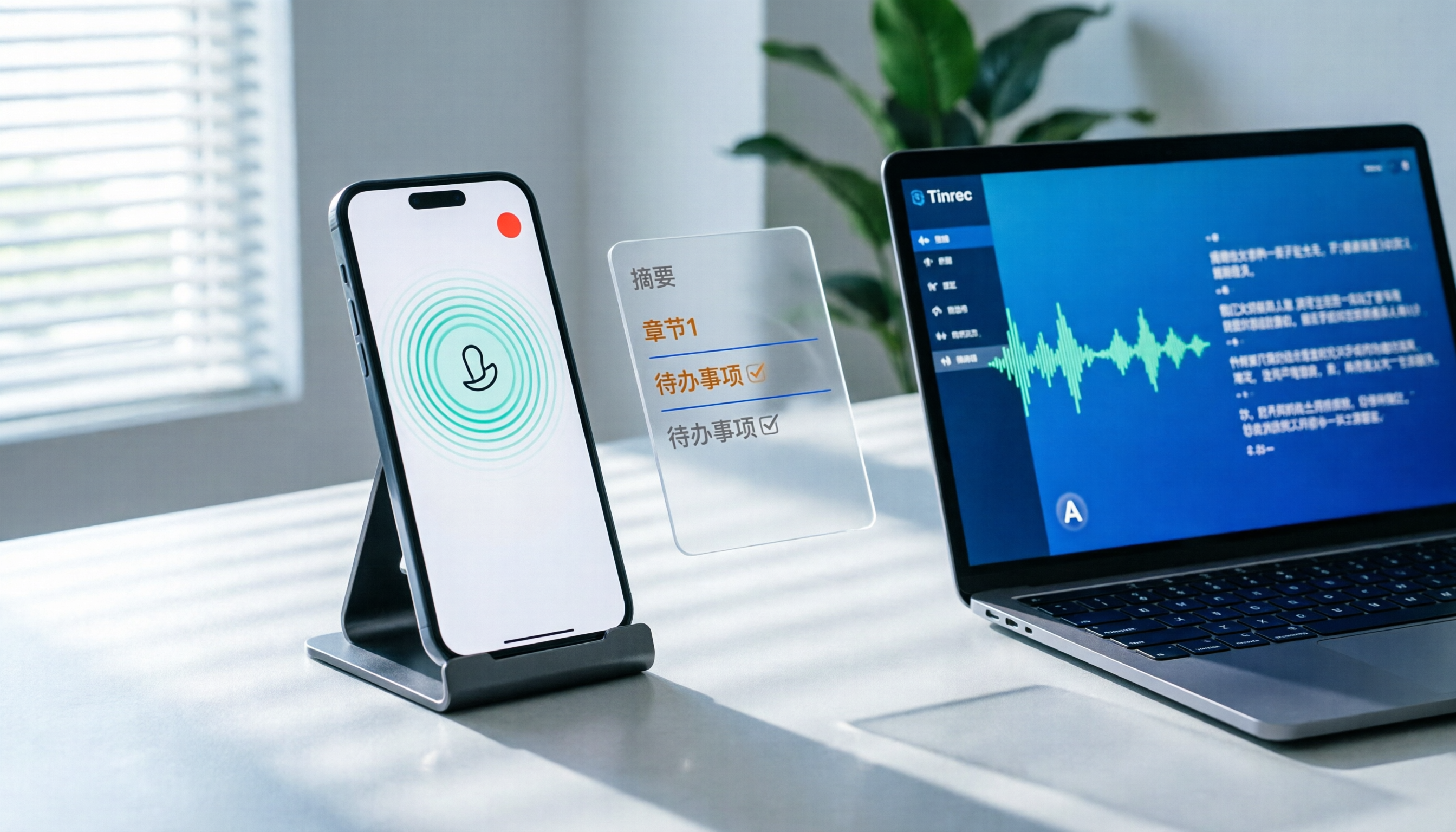
How to Record LINE Calls on iPhone in 2026: 3 Steps + Tinrec Auto Transcription
LINE doesn't have built-in call recording, but iPhone users can record LINE calls using the system's 'Local Capture' feature in iOS 26 or later. This guide shows you how to record in 3 steps, avoid the common mistake of not enabling speakerphone, and use Tinrec to turn recordings into transcripts, summaries, chapters, and action items. You can also ask AI questions to quickly find key points, plus 5 tips for choosing a call recording tool and FAQs.

6 Best iPhone Recording Apps in 2026: Free vs Paid Comparison
2026 update: A side-by-side comparison of 6 iPhone recording apps, from built-in Voice Memos and Recorder Pro to Tinrec, Notta, Otter.ai, and TurboScribe. See free tiers, pricing, and best use cases at a glance, plus practical recommendations for mid-level managers.

4 Noise-Canceling Recording Tools Tested for 2026: How Much Can AI Rescue Unusable Audio?
The low hum of an office air conditioner, background chatter in a café, or static during an online meeting often marks the beginning of a transcription disaster. This guide covers 5 key buying factors—from mic techniques to post-production noise reduction and AI transcription—and compares Tinrec, PLAUD, Otter.ai, and Notta to help you find the most time-saving setup.

Recording Meetings in 2026: 5 Scenarios Compared — What Protects You and What Could Be a Crime
Is recording a meeting illegal? This article compares five common scenarios against Taiwan's Criminal Code Article 315-1, the Communication Security and Surveillance Act, and the Labor Standards Act to identify recordings that protect you, common pitfalls, and how to turn recordings into usable transcripts, summaries, and action items with Tinrec.

2026 iPhone Call Recording Showdown: Tinrec vs PLAUD Note — Which One Fits Your Workflow?
iPhone has built-in call recording starting with iOS 18.1, but the real time sink is turning those recordings into transcripts, summaries, and action items. This article first answers whether you can record calls on iPhone using official sources, then compares Tinrec and PLAUD Note across five dimensions: hardware requirements, meeting scenarios, post-call organization, Chinese-language experience, and team collaboration, so you can decide which approach better fits your workflow.
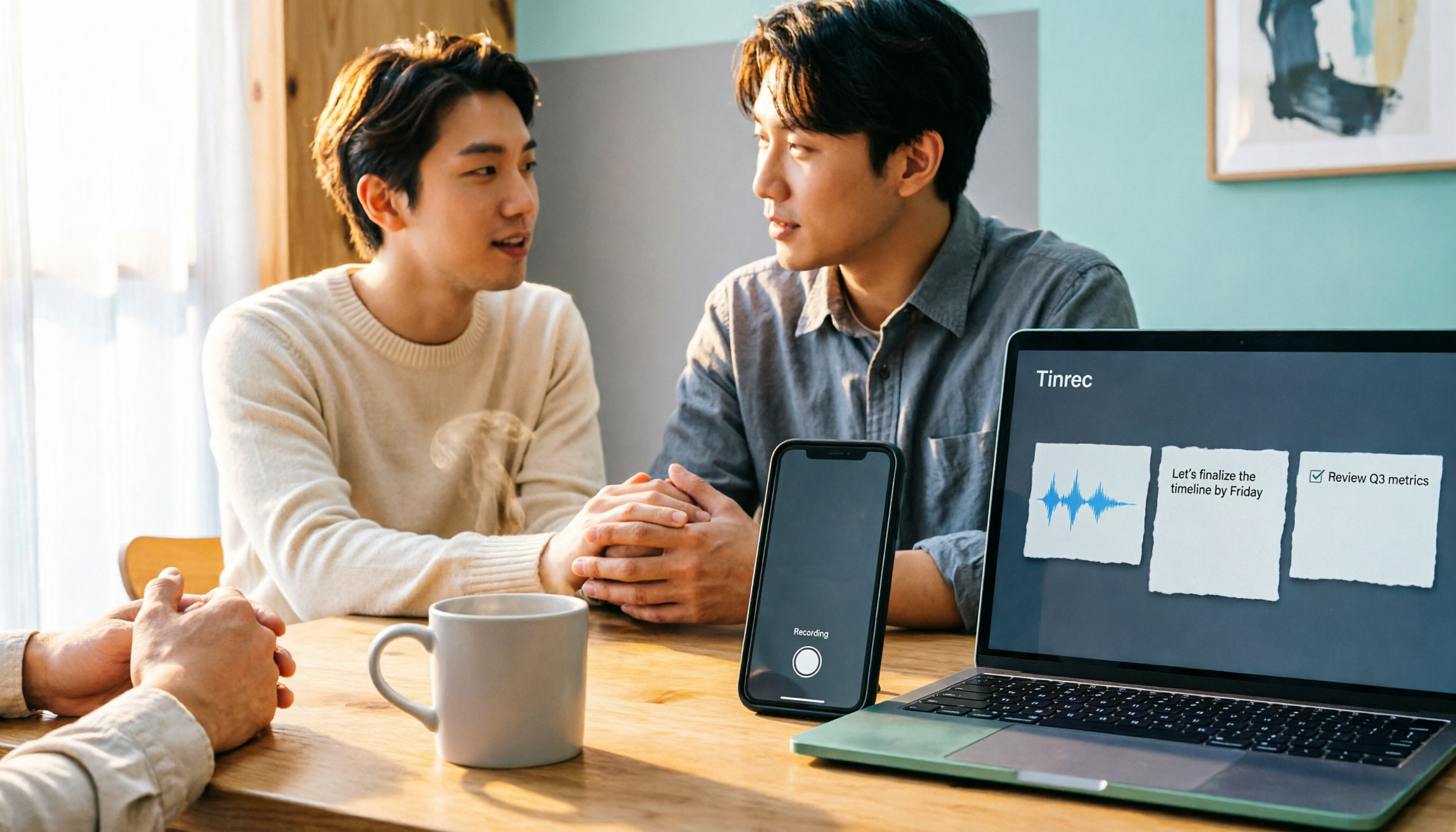
3 iPhone 17 Screen Recording and Post-Meeting Solutions Compared: From Control Center Setup to Tinrec
Screen recording on iPhone 17 isn't hard—it's what comes after that's tricky. This guide walks you through adding Screen Recording to Control Center, enabling the microphone, and stopping and saving your recording. Then we compare built-in screen recording, Dual Capture, and Tinrec for post-meeting organization, so you can see which fits your workflow.

4 Windows 11 Recording Tools Compared in 2026: Do Built-in Features Cut It for Meeting Transcripts and Summaries?
How do you record audio on Windows 11? This article compares four approaches: the built-in Sound Recorder, Xbox Game Bar, Stereo Mix with free software, and Tinrec. It explains the key settings for capturing system audio, the differences between transcripts and meeting summaries, and gives clear recommendations based on your use case.

Tinrec vs Notta 2026: 5-Dimension Comparison of AI Meeting Assistants
A mid-level manager overseeing a 10-person team and 15 weekly meetings puts Tinrec and Notta head-to-head across 5 dimensions: recording methods, Chinese and mixed-language experience, post-meeting workflow, team governance, and plan quotas, with honest limitations and use cases.

4 Cantonese Speech-to-Text Tools Tested for 2026: Which Saves More Time on Transcripts and AI Meeting Notes?
The hardest part of a Cantonese meeting isn't understanding it—it's turning what you heard into written form. This hands-on comparison of Tinrec, Notta, Granola, and TurboScribe examines their differences in Chinese and Cantonese meeting transcription, post-meeting summaries, AI Q&A, and team collaboration. We break down each tool's free tier, pricing, and limitations, plus key buying factors and pitfalls to avoid, so you can pick the one that truly saves you cleanup time.