
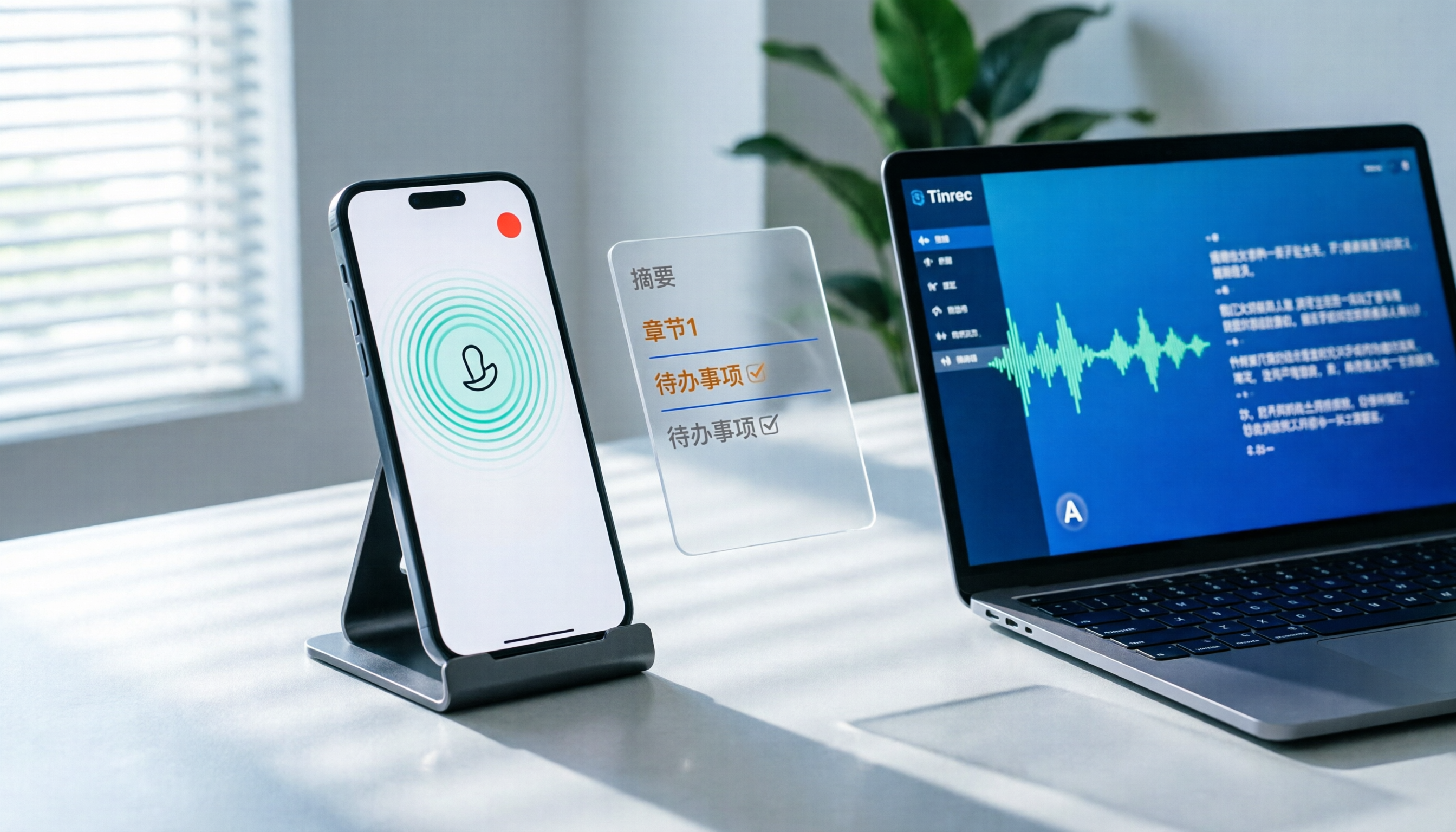
Turn recordings into transcripts and summaries in minutes
Upload audio or video for multilingual transcription, AI notes, and action items
How to Record LINE Calls on iPhone in 2026: 3 Steps + Tinrec Auto Transcription
A client rattles off a list of requirements during a LINE call. You're nodding along, saying "uh-huh, okay," but inside you're panicking—after hanging up, all you remember are three keywords. This isn't a memory problem; it's because LINE calls don't leave behind any file you can replay.
iPhone users now have a two-part solution: first, use the system feature to record the call, then use the right tool to turn that recording into searchable, quotable data. Here's how, broken into two parts.
How to Record LINE Calls on iPhone: 3 Steps
LINE still doesn't have built-in call recording, but iPhone in iOS 26 and later offers a system-level "Local Capture" feature that can record both device audio and microphone input, including voice calls from LINE, WhatsApp, Messenger, and other messaging apps. According to tutorials from multiple tech outlets, here's the process:
Step 1: Add "Local Capture" to Control Center. Go to Settings → Control Center and add "Local Capture" to your included controls. This way you can quickly access it during a call.
Step 2: Turn on speakerphone before the call starts. This is where beginners often get stuck—if you don't enable speakerphone, the recording will likely only capture your own voice. The system needs to play the other person's audio through the speaker to capture both sides.
Step 3: Swipe down to open Control Center and tap "Local Capture" to start recording. A red dot will appear in the Dynamic Island. Long-press the red dot to stop recording. The audio will be saved automatically in the Files app (usually in the iCloud "Downloads" folder).
Three practical tips:
- Try not to let the screen go to sleep during recording, as the system might interrupt the process to save power.
- Don't switch to other apps that need the microphone, as this may interrupt the recording.
- If you're only recording audio, a 1-hour call is about a few dozen MB. If you also record video, the file will be significantly larger. Check your phone's storage before recording.
Finally, the legal aspect. In Taiwan, recording a call as a participant to preserve evidence is generally acceptable, but recording to spy on others' privacy is not. It's always safest to inform the other party before recording.
Recording Is Just the First Step: Tinrec Turns Audio into Usable Data
A recording file sitting in the Files app is essentially unorganized. Having to replay a 40-minute client call just to find one sentence is like having the meeting all over again.
Take Tinrec (秒听录音) as an example. It's an AI meeting notes and collaboration tool for individuals and teams. You import the LINE call recording you just made, and it directly produces a transcript, then organizes it into summaries, chapters, key points, and action items. The whole process requires no replaying and no typing.
Even more useful is the follow-up AI Q&A. Once the transcript is ready, you can ask questions directly about the call—"What was the client's budget limit?" "What concerns did they have about the delivery date?"—Tinrec will answer based on semantic understanding and point you to the relevant sections. For roles like sales, customer service, and project management, where "the work starts after the call ends," the time saved is immediate.
For team use, Tinrec's team plan centralizes these calls and meeting data in a team space: new members can view historical data, managers can assign seats and view usage, and when members change, the data remains with the team instead of disappearing with individual accounts.
What Are Tinrec's Core Capabilities?
1. Audio and video file transcription. LINE call recordings, voice memos recorded on your phone, existing meeting recordings—all can be imported and converted to text. This is the first stop for connecting files recorded with "Local Capture" to your workflow.
2. AI summaries and chapters. It doesn't just compress the transcript into a paragraph; it breaks it into chapters based on the discussion flow and highlights what each section covers. A 40-minute call can usually be grasped in a few dozen seconds.
3. Action item extraction. It pulls out "who is responsible for what and when." That casual "send me the quote by next Wednesday" from the client becomes a line on your to-do list, not just an impression in your head.
4. AI conversational queries. After the transcript is done, you can ask questions directly without searching for keywords. You can even ask across multiple meetings, which is great for tracking all communications with the same client.
Stop organizing recordings by hand
Upload audio or video and automatically get a transcript, summary, and action items
5. Real-time translation and bilingual view. For cross-language calls, you can see the original, translation, or bilingual content while recording, and review the transcript the same way afterward.
6. Multi-format export and Agent post-processing. Organized content can be exported to Notion, Google Docs, OneNote, Dropbox, etc., for further use, and can also generate reports, tables, and meeting minutes documents.
7. Team space and governance. The team plan offers member, role, and seat management, usage analytics, audit logs, and an audio recycle bin. Note that roles determine governance permissions, while seats determine whether you can record and upload/edit. These are different concepts; active members without a seat can still view and play team data.
Real-World Use Cases
Sales and client communication. After recording a client's LINE call, import it into Tinrec. The transcript and summary are ready at once, and the action list becomes the basis for your next follow-up, so you don't have to rely on memory.
Project weekly meetings and cross-department discussions. Use Tinrec's desktop version to record system audio for remote meetings—no need to add a meeting bot. Summaries, chapters, and action items are generated automatically, and the decision basis stays in the same team space.
Interviews and research. After transcribing a one-hour interview with Tinrec, you can directly ask "What was the interviewee's reaction to the price?" to quickly find quotable passages.
Personal learning and content organization. Online courses, voice memos, random thoughts—use Tinrec to build a searchable, queryable personal database instead of scattered audio files on your phone.
5 Things to Consider When Choosing a Call Recording Tool
1. Chinese and mixed Chinese-English recognition performance. Workplace calls in Taiwan often mix Chinese and English, so testing with just one standard Chinese sentence isn't enough. Try it with your own recordings; Tinrec covers Chinese, Traditional Chinese, and multilingual meeting scenarios, and you can maintain professional terminology with team hotwords.
2. What you can do after recording. Transcription is just the baseline; the real difference is whether it can summarize, extract action items, and let you ask questions directly. Tinrec puts summaries, chapters, action items, and AI Q&A in one workflow.
3. Can it handle your files? Call recordings are usually m4a audio files, and may be mixed with meeting videos. Tinrec supports audio and video file imports, so you don't need to convert files yourself.
4. Cross-device and meeting sources. Phone recordings and computer meetings should all go to the same place. Tinrec offers mobile, desktop, and web versions. The desktop version can record system audio from Zoom, Google Meet, Microsoft Teams, Webex, and other online meetings.
5. Data ownership and team governance. If recordings involve company clients, storing data in personal accounts is a risk. Tinrec's team plan keeps data owned by the team and includes member, seat, usage, and audit management capabilities.
FAQ
Q1: Does LINE have built-in call recording?
No. LINE does not provide call recording. iPhone users currently rely mainly on the system's "Local Capture" feature in iOS 26 and later.
Q2: Why doesn't the recording capture the other person's voice?
The most common reason is not enabling speakerphone during the call. The system needs to play the other person's audio through the speaker to capture it. Make sure speakerphone is on before recording.
Q3: How do I turn a recorded call into a transcript?
Import the audio file into Tinrec. It will automatically generate a transcript, then create summaries, chapters, and action items. You can also ask questions directly about the content.
Q4: Are call recording files large?
If you're only recording audio, a 1-hour call is about a few dozen MB. If you also record video, the file will be significantly larger. Keep an eye on your phone's free space before recording.
Q5: Does team plan meeting data belong to the individual or the company?
It belongs to the team. Tinrec's team plan stores meeting data in the team space. When a member leaves or is removed, their resources must be handed over to other active members; data cannot be taken away by the individual.
Q6: Do I need the other party's consent to record?
In Taiwan, recording a call as a participant to preserve evidence is generally legal, but it can be controversial if it involves others' privacy. In practice, it's best to inform the other party before recording and follow company policies and local laws.
Conclusion
iPhone's "Local Capture" solves the "can't record" problem, but organizing after recording is what really eats up time. Import your LINE call recordings into Tinrec to get transcripts, summaries, action items, and AI Q&A all at once, turning call content from an audio file sitting in a folder into data you can actually use.
If you handle calls or meeting notes every week, start with Tinrec's free plan to experience the difference of "no replaying." For team use, you can directly evaluate the team plan's space, seats, and governance capabilities.
References
Turn every recording into actionable outcomes
Get 60 free transcription minutes when you sign in. No credit card required.
Related Reading
You might also like

6 Best iPhone Recording Apps in 2026: Free vs Paid Comparison
2026 update: A side-by-side comparison of 6 iPhone recording apps, from built-in Voice Memos and Recorder Pro to Tinrec, Notta, Otter.ai, and TurboScribe. See free tiers, pricing, and best use cases at a glance, plus practical recommendations for mid-level managers.

4 Noise-Canceling Recording Tools Tested for 2026: How Much Can AI Rescue Unusable Audio?
The low hum of an office air conditioner, background chatter in a café, or static during an online meeting often marks the beginning of a transcription disaster. This guide covers 5 key buying factors—from mic techniques to post-production noise reduction and AI transcription—and compares Tinrec, PLAUD, Otter.ai, and Notta to help you find the most time-saving setup.

5 iPhone Recording Methods Compared in 2026: Voice Memos, Action Button, and AI Meeting Notes — Which Should You Choose?
iPhone's built-in recording is more useful than you think: Voice Memos, one-tap recording with the Action Button, Back Tap quick launch, and iOS 18.1 call recording — learn how to set up all four methods. This article also covers audio quality, stereo, and spatial audio settings, and compares post-recording organization solutions, explaining how Tinrec differs in Chinese meeting transcription, AI Q&A, and team collaboration to help you choose the smoothest recording workflow.

Recording Meetings in 2026: 5 Scenarios Compared — What Protects You and What Could Be a Crime
Is recording a meeting illegal? This article compares five common scenarios against Taiwan's Criminal Code Article 315-1, the Communication Security and Surveillance Act, and the Labor Standards Act to identify recordings that protect you, common pitfalls, and how to turn recordings into usable transcripts, summaries, and action items with Tinrec.

2026 iPhone Call Recording Showdown: Tinrec vs PLAUD Note — Which One Fits Your Workflow?
iPhone has built-in call recording starting with iOS 18.1, but the real time sink is turning those recordings into transcripts, summaries, and action items. This article first answers whether you can record calls on iPhone using official sources, then compares Tinrec and PLAUD Note across five dimensions: hardware requirements, meeting scenarios, post-call organization, Chinese-language experience, and team collaboration, so you can decide which approach better fits your workflow.

3 iPhone 17 Screen Recording and Post-Meeting Solutions Compared: From Control Center Setup to Tinrec
Screen recording on iPhone 17 isn't hard—it's what comes after that's tricky. This guide walks you through adding Screen Recording to Control Center, enabling the microphone, and stopping and saving your recording. Then we compare built-in screen recording, Dual Capture, and Tinrec for post-meeting organization, so you can see which fits your workflow.

4 Windows 11 Recording Tools Compared in 2026: Do Built-in Features Cut It for Meeting Transcripts and Summaries?
How do you record audio on Windows 11? This article compares four approaches: the built-in Sound Recorder, Xbox Game Bar, Stereo Mix with free software, and Tinrec. It explains the key settings for capturing system audio, the differences between transcripts and meeting summaries, and gives clear recommendations based on your use case.

Tinrec vs Notta 2026: 5-Dimension Comparison of AI Meeting Assistants
A mid-level manager overseeing a 10-person team and 15 weekly meetings puts Tinrec and Notta head-to-head across 5 dimensions: recording methods, Chinese and mixed-language experience, post-meeting workflow, team governance, and plan quotas, with honest limitations and use cases.

4 Cantonese Speech-to-Text Tools Tested for 2026: Which Saves More Time on Transcripts and AI Meeting Notes?
The hardest part of a Cantonese meeting isn't understanding it—it's turning what you heard into written form. This hands-on comparison of Tinrec, Notta, Granola, and TurboScribe examines their differences in Chinese and Cantonese meeting transcription, post-meeting summaries, AI Q&A, and team collaboration. We break down each tool's free tier, pricing, and limitations, plus key buying factors and pitfalls to avoid, so you can pick the one that truly saves you cleanup time.