

Turn recordings into transcripts and summaries in minutes
Upload audio or video for multilingual transcription, AI notes, and action items
3 Voice-to-Text Tools Tested for 2026: The Easiest Way to Convert WeChat Voice Messages on Apple Watch
Can You Only Reply to WeChat on Apple Watch with Voice? Debunking a Common Misconception
Many people, upon receiving a WeChat message on their Apple Watch for the first time, react with: "The screen is so small, how do I reply?"
So they hold down the screen, record a voice message, and send it—that's the quickest way.
The problem is, voice messages aren't always convenient for the recipient. They might be in a meeting or commuting and can't listen. If it's a client or boss, a voice message might even seem unprofessional.
Another common misconception: assuming that "voice messages" on the watch automatically become text. Actually, these are two different things. A voice message is a voice message; voice-to-text is another input method.
Some even try to type on the watch face, only to spend two minutes on one sentence and give up.
This article addresses that issue: Can WeChat voice messages on Apple Watch be converted to text? If so, how? And if the watch isn't enough, what's a more effortless approach?
First, the Answer You Want: Can WeChat Voice on Apple Watch Be Converted to Text?
Yes, but first clarify what you mean.
Scenario 1: Voice input when replying to messages
When you receive a WeChat message on Apple Watch and tap to reply, you'll usually see a microphone icon. Tap it, and watchOS dictation will transcribe your speech into text, which you can confirm and send. According to Apple's official support documents, dictation transcribes speech into text, but some languages are not supported. This dictation is a system-level feature, not something WeChat developed separately.
Scenario 2: Sending a voice message directly
This treats the watch as a recorder, recording a voice clip to send. The recipient gets an audio file, not text.
Scenario 3: Handwriting or keyboard input
The watch also has Scribble and an on-screen keyboard. Scribble lets you write one character at a time; if recognition is wrong, you can turn the Digital Crown to change characters; when traditional Chinese characters have too many strokes, writing simplified Chinese will automatically convert to traditional. If your paired iPhone is nearby, you can also type directly on it.
Note that not every Watch app supports all input methods. What you actually see in WeChat depends on your watch's current screen.
So the answer is clear: you can convert to text, thanks to watchOS dictation.
But there's an easily overlooked gap—dictation is "real-time input"; once you speak and send, it's gone. It won't save a transcript or organize meeting notes.
If you just want to reply "OK, I'll be there at 3," watch dictation is sufficient. But if you're dealing with long voice content like meetings, interviews, or lectures, the watch's input method isn't designed for that.
Before Buying a Voice-to-Text Tool, Understand These 4 Key Points
1. Accuracy depends on real environments, not advertised numbers
Many tools claim "98% accuracy," but that's usually measured in a quiet studio. In real scenarios with air conditioning, keyboard sounds, and multiple people talking over each other, accuracy drops noticeably. It's better to test with your own recording than to rely on specs.
2. Does the output persist?
Watch dictation is real-time input; once spoken, it's sent, with no archive. But meeting notes are different—you need a transcript you can review, a summary you can search, and action items you can track. This is the first question to ask when choosing a tool.
3. Can you continue across devices?
If you record on your phone today and want to organize on your computer tomorrow, a tool that doesn't support cross-platform will break the workflow. For office workers, continuity between phone, tablet, and computer is crucial.
4. Can you further process after transcription?
If a tool only gives you a transcript, you have "raw material," not a "finished product." Whether it can automatically generate summaries, chapters, action items, and answer questions about the content determines whether you save ten minutes or two hours.
Tinrec – Our Top Pick After Testing
Tinrec is an AI meeting notes and collaboration tool for individuals and teams, supporting iOS, Android, and web.
Transcribe in-person and online meetings directly
Tinrec supports real-time recording to text, suitable for offline meetings, interviews, and on-site notes. For online meetings, the desktop version captures system audio directly, handling Zoom, Google Meet, Microsoft Teams, Webex, etc., without inviting a meeting bot. This is especially useful for those who frequently have external meetings—you don't have to explain to clients that "an AI bot will join."
After recording is where it truly saves time
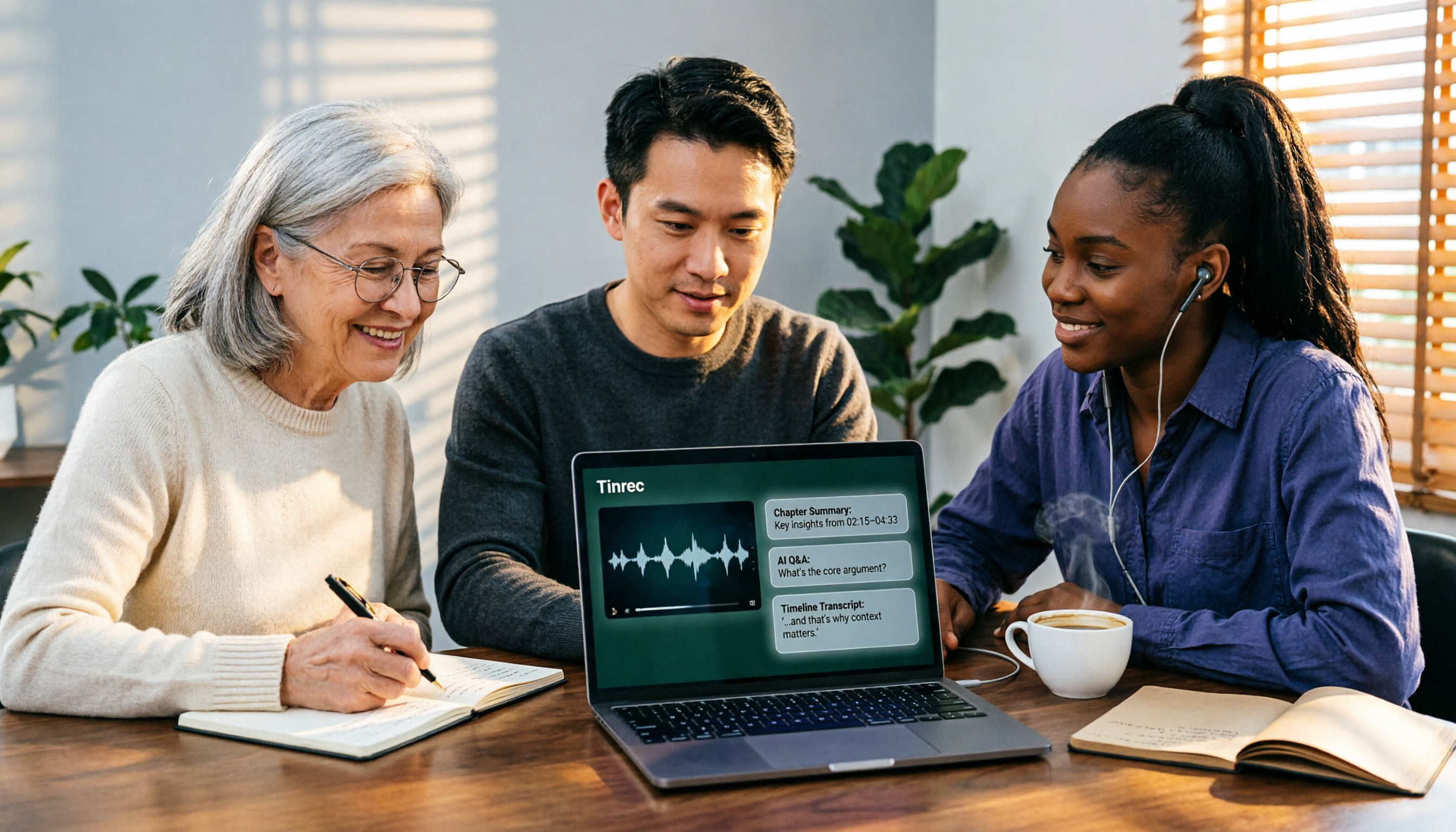
After the meeting, Tinrec automatically generates summaries, chapters, and action items. For a one-hour meeting, you can first read the summary to grasp key points, then decide whether to dive into the transcript.
More uniquely, AI Q&A. You can directly ask, "Who mentioned the budget in the last meeting?" or "What were the client's concerns about pricing?" It doesn't give you a list of keyword search results but answers based on the meeting content. This is a huge time-saver when tracing decision contexts.
Output integrates into your existing workflow
Stop organizing recordings by hand
Upload audio or video and automatically get a transcript, summary, and action items
Organized content can be exported to Notion, Google Docs, OneNote, Dropbox for further use, and can also generate reports, tables, and meeting minutes. It also supports real-time translation, so cross-language meetings can show original, translated, or bilingual content simultaneously.
Actual performance and limitations
Regarding accuracy, honestly, it depends on recording quality, ambient noise, accents, overlapping speech, and technical terms; no tool can guarantee a fixed number. A practical approach is to test with your own meeting recording to see if it recognizes your internal product names and jargon. Tinrec has "team hotwords" to maintain frequently used terms, which helps with proper noun recognition.
As for limitations, the free version offers basic quota, suitable for trying recording, import, summary, and transcription; if you have regular weekly meetings, consider a weekly pass or Pro. Also, if you have a large number of long audio files to batch process, that's another tool's strength (mentioned later).
Who it's for
If you need Chinese or mixed Chinese-English meeting notes, want online meetings without a bot, want to use AI to find key points after recording, and need it on both phone and computer—Tinrec is currently a suitable choice.
For team use, Tinrec's team version provides a separate team space: meeting data belongs to the team, you can create multiple teams, invite members via link, set owner/admin/member roles, and allocate seats. Admins can also see usage trends, member rankings, and audit logs, plus an audio recycle bin to recover accidentally deleted recordings.
One commonly confused point: in the team version, "role" and "seat" are two different things. Role determines who can manage the team; seat determines whether a member can record, upload, edit, and export. Members without a seat but still valid can view, play, and read team data. Currently, the team version primarily shares at the team level, not per-file permissions.
The team version offers a 7-day trial for first-time eligible users, including 1 free seat and 300 minutes of shared import quota; after payment, it's USD 29.80 per paid seat per month, or USD 199 per paid seat per year (about USD 16.58/month), with each paid seat providing 2,000 minutes of shared import quota per month. Real-time recording is currently not deducted by minutes under an active plan; file and web imports use the shared quota. Actual prices and benefits are subject to the official purchase page.
Besides Tinrec, What Other Options Are There?
Notta
A multi-platform transcription tool supporting meeting notes, file import, translation, and team plans, with high overlap with Tinrec. The official free version offers 120 minutes per month, max 3 minutes per session; Pro annual is about USD 8.17/month, with 1,800 minutes per month. If you mainly need to batch process existing audio files, Notta is worth a look. But bot-free desktop recording for online meetings, AI Q&A, and post-meeting agent processing are more complete in Tinrec.
Otter.ai
A mature choice for English business meetings. Basic free offers 300 minutes per month; Pro annual is about USD 8.49/user/month, including 1,200 minutes of in-app recording and 10 file imports per month. If your meetings are almost all in English, Otter's experience is indeed solid. However, for Chinese and mixed Chinese-English meetings, as well as real-time translation and bilingual transcripts, Tinrec better meets the needs of Taiwanese users.
PLAUD Note / NotePin
A representative AI recording hardware; NotePin official price USD 159, Note Pro USD 189, membership Starter 300 minutes/month, Pro annual USD 99.99/year. Advantages: portable, long battery life, can record phone calls. Disadvantages: need to carry an extra device and spend on hardware. If you don't want to buy more devices, Tinrec can handle online meetings and historical files via web, desktop, and mobile, offering more flexibility.
Pitfall Guide: 4 Most Common Mistakes When Choosing a Voice-to-Text Tool
Pitfall 1: Mistaking "watch dictation" for "having a transcript"
This is the most common misunderstanding. watchOS dictation does convert your speech to text, but it's a one-time input; once sent, it's over. It doesn't save the recording or organize key points. To handle meeting content, you need a tool that saves, searches, and post-processes. They solve different problems.
Pitfall 2: Only looking at advertised accuracy
As mentioned, 98% is usually measured under ideal conditions. A recommended approach: take a real meeting recording from your company, try a free trial, and see if it recognizes your product names, people, and jargon. This is more accurate than any spec sheet.
Pitfall 3: Using the tool only as "voice-to-text"
If you just transcribe and leave it, you're only using a third of its capability. With Tinrec, generating summaries and action items, using AI Q&A to trace decision contexts, exporting to Notion to continue writing—these are where real time savings happen. Asking "What was the conclusion of this meeting?" right after recording is much faster than flipping through a 30-minute transcript yourself.
Pitfall 4: Ignoring legal and authorization issues of recording
Regardless of the tool, before recording, you should check local regulations and obtain consent from participants if necessary. This isn't a tool issue but a user responsibility, yet many forget it when recording a meeting for the first time.
Conclusion: Which One Should You Choose?
In short: WeChat voice on Apple Watch can be converted to text using watchOS dictation; but to organize meetings and long voice content, you need a different level of tool.
Recommendations by scenario:
- Just occasionally replying to a WeChat message on the watch → Use Apple Watch built-in dictation, no need to install anything else.
- Need to organize meetings, interviews, lecture recordings → Tinrec (covers real-time recording, file import, and online meetings).
- Meetings are in Chinese or mixed Chinese-English → Tinrec (Chinese experience and real-time translation are key).
- Want to use AI to find key points and generate action items after recording → Tinrec (AI Q&A and post-meeting output are more complete).
- Need continuity between phone and computer → Tinrec (iOS, Android, web all available).
- Team needs to share meeting data, manage members and usage → Tinrec team version (team space, seats, usage analytics, audit logs).
- Meetings are almost all in English, limited budget → Otter.ai (this is one of the few scenarios where we recommend another tool).
We suggest starting with Tinrec's free version, throw in one of your most challenging recordings, and see how the transcript and summary perform. If it works for you, consider a weekly pass or Pro; no need to pay upfront.
References
- About Apple Watch text-to-speech - V2EX
- Enter text on Apple Watch - Apple Support (Taiwan)
- How to change Apple Watch voice input back to Chinese! - Mobile01
- Apple Watch can play with Moments and send voice messages, why doesn't WeChat fly? - Huxiu
- Apple Watch feature tutorial: How to input text on the watch, how to switch input languages - Apple Almond
Turn every recording into actionable outcomes
Get 60 free transcription minutes when you sign in. No credit card required.
Related Reading
You might also like

2026 Comparison of 4 Online Video URL Parsing Tools: Beyond Downloading, Which One Turns Content into Usable Text?
Paste a video URL and you can parse and download it, but the real bottleneck is often not downloading—it's what comes after. Based on real-world use cases, this article compares four common approaches—Tinrec, CatchV, TopClipper, and JDownloader—explaining how to choose a video URL parsing tool, what pitfalls to watch for, and why most people ultimately need more than just an MP4 file: they need searchable, quotable transcripts and meeting summaries.

5 iPhone Speech-to-Text Methods Tested and Compared in 2026: Are Built-in Features Enough or Do You Need an App?
Starting from the most common misconceptions, we tested and compared iPhone Dictation, Voice Memos transcripts, iMessage voice message transcription, and Tinrec. Learn how to avoid device and version pitfalls and turn transcripts into usable meeting notes.
2026 AI Video-to-Text Tools Compared: Which Summaries Actually Save Time?
Watched the video but still have no notes? This article shares hands-on experience with four AI video-to-text and summarization tools in 2026, comparing accuracy, handling videos without captions, post-meeting organization, and team collaboration. It also tests Tinrec's performance in audio/video transcription, AI summaries and chapters, AI Q&A, and export workflows, ending with clear recommendations segmented by use case.

Tinrec vs Notta 2026: 5-Dimension Comparison — Which Is Better for Chinese Meeting Summaries?
Discovering you recorded an entire semester of lectures but never organized them before finals? This student-perspective comparison of Tinrec and Notta covers post-transcription processing, Chinese language performance, free tiers, and team collaboration, with a pitfalls guide and buying advice to help you find the best summarization tool for classes and group projects.

2026 Short Video Learning Note Tools Compared: Why Tinrec Wins for Chinese Video Notes
As a mid-level manager juggling 15 meetings a week, I tested AI tools for turning short video tutorials into notes. This in-depth comparison of Tinrec and Otter.ai covers Chinese transcription, audio/video import, AI summaries, Q&A, export, and team collaboration, explaining why Tinrec is better suited for learners who want to turn tutorial videos into searchable notes.

2026 Free Online English-Chinese Translation Options: 4 Tools Compared
When you need English-Chinese translation, most people instinctively paste content into an online translator. But for long, multi-person meetings or interviews with mixed Chinese and English, sentence-by-sentence translation often falls short. This article reviews 4 common online English-Chinese translation options, explains their free quotas and use cases, and tests Tinrec's real-time translation, bilingual transcript, and post-meeting AI summary in a meeting scenario.

5 Smart Meeting Minutes Tools Tested for 2026: Which Handles Chinese Transcription and Free Quotas Best?
How to choose a smart meeting minutes tool in 2026? This article starts with common pitfalls and compares Tinrec, Notta, Otter.ai, and PLAUD Note in real tests. It covers 4 key buying factors, a pitfall guide, and scenario recommendations, while honestly explaining Tinrec's bot-free meeting recording, AI Q&A, team spaces, pricing, and usage limits.

3 Ways to Transcribe Voice to Text on iPhone in 2026: Built-in vs. Tinrec — Which Saves More Time?
Your iPhone can already turn speech into text, but the real time sink is organizing the transcript afterward. This guide covers the device and language requirements for Apple's built-in transcription, and explains how Tinrec fills the gap on iPhone with summaries, action items, AI Q&A, and team knowledge storage — so you can decide whether to stick with the built-in option or switch tools.

2026 Comparison of 4 Audio-to-Text Tools: Stop at Transcripts, Meeting Minutes Are Key
Most people get stuck with audio-to-text not because of the tool, but the method. This article addresses three common misconceptions, breaks the process into four stages: record, transcribe, organize, and act. Using Tinrec as an example, it explains the complete workflow from transcripts, AI summaries, action item extraction, AI Q&A, multi-format export to team spaces. It concludes with 5 purchasing checkpoints and a quick start checklist.