

Turn recordings into transcripts and summaries in minutes
Upload audio or video for multilingual transcription, AI notes, and action items
4 Best EPUB to PDF Converters in 2026: Which Free Version Is Good Enough?
You bought an ebook from an online bookstore, downloaded it as an .epub file, and excitedly tried to open it on your work computer—only to get a message saying "this format is not supported." You try your phone and tablet, but still can't open it. You paid for it, yet you're stuck on a file format.
This situation is actually very common. EPUB is the mainstream format for ebooks, but it requires a dedicated reader to open. PDF, on the other hand, can be opened directly on almost any device and any system. If you want to print the book you bought, send it to a colleague, or save it to the cloud for easy access, converting to PDF is the quickest solution.
In this article, we'll test 4 common online EPUB to PDF converters, summarize their free limits, file restrictions, and layout performance, and help you pick one that works for you.
Why Convert EPUB to PDF? First, Understand the Difference Between the Two Formats
EPUB is designed to be "reflowable"—text flows automatically to fit the screen size, and font size can be adjusted. This is why it's ideal for reading on e-readers.
But because of this, EPUB cannot guarantee what each page looks like; the layout changes from one device to another.
PDF is the opposite. Its layout is fixed—what's on each page is locked in—so it looks exactly the same on any device. For printing, archiving, signing off, or sharing with someone who doesn't have a reader, PDF is much easier.
If you're just reading on your Kindle or e-reader, you don't necessarily need to convert. But if you need to preview on more devices, print it out, or share it with others, converting to PDF is much more convenient.
Before Choosing an EPUB to PDF Tool, Understand These 4 Key Points
1. How much is free and how large can files be?
Almost all free online tools have hidden limits. Some limit the number of files per day, others limit the size per file—for example, some services allow no more than two conversions per day, and some online versions can only handle files under 20MB. Check the rules before converting so you don't get rejected halfway through uploading.
2. Will the layout be preserved?
This is the most common complaint. EPUB is a reflowable format, and when converted to a fixed-layout PDF, images, footnotes, tables, and even vertical text may shift. A good tool will try to preserve the original text, chapter breaks, and reading order, so the resulting PDF still reads smoothly. Spend a minute flipping through a few pages after conversion—it's better than discovering problems after printing.
3. Privacy handling after file upload
Ebook content is also your private data. When choosing a tool, check how it handles uploaded files—whether it encrypts them, and whether they remain on the server after conversion. Some services use encryption to protect the conversion process and do not retain files after completion; others automatically delete them after a certain period. If you're converting confidential documents, consider using an offline desktop tool instead.
4. Is there a desktop version as a backup?
Online versions are convenient, but they can get stuck with large files or batch conversions. Many services also offer desktop versions that unlock file size limits, support batch processing, and add password protection or metadata editing. If you convert files often, a desktop version will be more practical than an online one.
Most Recommended After Testing: Smallpdf Online EPUB to PDF
Smallpdf is an online PDF tool that works right in your browser; EPUB to PDF is just one of its features. Drag your .epub file into the converter, wait a few seconds, and download the converted PDF.
It only takes a few steps: open the conversion page → drag in or select your .epub file → the system starts converting automatically → download the PDF when done. No software installation or technical setup required.
What reassured me most in practice was the layout. According to the official description, it preserves the original text, chapter breaks, and reading order during conversion—this is crucial for ebooks. Some tools squeeze paragraphs together or mess up chapter headings, making it painful to read; Smallpdf produces a clear structure, and the page-turning rhythm is close to the original book.
Stop organizing recordings by hand
Upload audio or video and automatically get a transcript, summary, and action items
Cross-platform support is another advantage. It runs directly in the browser, so it works on Windows, Mac, Linux, iOS, and Android—meaning you're not tied to any device.
Privacy is clearly explained: unless you actively save the file to Smallpdf's document storage, uploaded and converted files are automatically deleted after 1 hour. For someone who occasionally converts a book, this is no burden.
After conversion, if you have other needs, you can use the same suite to compress PDFs, add highlights and comments, redact sensitive information, or apply watermarks—no need to find another service.
Note that there are still differences between the free version and advanced features; actual limits and restrictions are subject to the official page. If you only occasionally convert an ebook to PDF, the free version is usually enough; if you need to handle large files or use it frequently, then compare paid plans.
Overall, Smallpdf is suitable for users who "don't want to install software, want to convert a book quickly, and care about layout and file privacy." As an online tool, it's quite polished.
Besides Smallpdf, What Other Options Are There?
CleverPDF
A familiar online conversion service for Taiwanese users, with a Chinese interface. The operation is just three steps: "Upload EPUB → Click Start Conversion → Download PDF." The official description says the content in the EPUB is accurately preserved after conversion, and it reads fine on PDF readers. Note that the current online version can only handle files under 20MB; if you often convert large files, the official desktop version has no size limit and supports batch conversion. If you prefer a Chinese interface and your files aren't large, try this first.
FreePDFConvert
A completely free online converter that doesn't require registration. It supports EPUB, MOBI, AZW, PRC, TPZ, and other ebook formats, so it can even handle Kindle files. The official site states that conversions are protected with 256-bit encryption and files are not kept on the server after successful conversion. However, the free version has quantity limits—the source mentions no more than two conversions per day. Suitable for those who occasionally convert one or two books and don't want to register an account.
PDF Candy
It focuses on speeding things up with cloud servers; the official site says you can get the converted file in seconds. The privacy statement is straightforward: uploaded files are only used to generate the output PDF and are not shared further. If you need finer settings, such as adding password protection or editing metadata, the official site recommends using the desktop version. If you care about conversion speed and want to get the file quickly, consider this one.
Pitfall Guide: The 4 Most Common Mistakes When Converting EPUB to PDF
Mistake 1: Expecting the output to look exactly like the original book
EPUB is a reflowable layout, PDF is a fixed layout—they are fundamentally different. During conversion, image positions, footnotes, tables, and even vertical text may shift. This isn't a bad tool; it's an inherent trade-off of format conversion. Flip through a few pages after conversion to check, rather than discovering problems after printing.
Mistake 2: Ignoring free version file size and usage limits
Many people upload ebooks of hundreds of MB, only to get stuck with a "file too large" message. Free online tools typically have limits like 20MB per file and two conversions per day. There are two solutions for large files: switch to a desktop version, or process the file in batches. Checking the rules before converting can save a lot of back-and-forth.
Mistake 3: Uploading password-protected or DRM files directly
Some ebooks have an open password or copyright protection (DRM). Such files cannot be read by the tool, and conversion will fail or prompt for a password. If your EPUB is like this, you need to obtain the correct password first, or use another source that can handle it—otherwise, trying different tools will yield the same result.
Mistake 4: Sending confidential content to free online services
If you're converting internal company documents or personal files, remember to choose a service that encrypts and automatically deletes files, or use an offline desktop tool. Spending a few extra seconds to choose the right tool is worth it compared to worrying about data leaks later.
Conclusion: Which One Should You Use?
Simply put, these 4 tools each suit different scenarios:
- Want to convert a book quickly and care about layout and file privacy → Smallpdf
- Prefer a Chinese interface and files under 20MB → CleverPDF
- Don't want to register and only convert one or two books a day → FreePDFConvert
- Care about conversion speed and want the file in seconds → PDF Candy
If you often convert large files or want to process many books at once, online versions will usually hit limits—then consider the desktop versions of each.
I suggest trying a free online tool to convert one book first, confirm the layout is fine and the content reads smoothly, then decide whether to go further. When it comes to file conversion, trying it once is more accurate than reading ten reviews.
References
Turn every recording into actionable outcomes
Get 60 free transcription minutes when you sign in. No credit card required.
Related Reading
You might also like
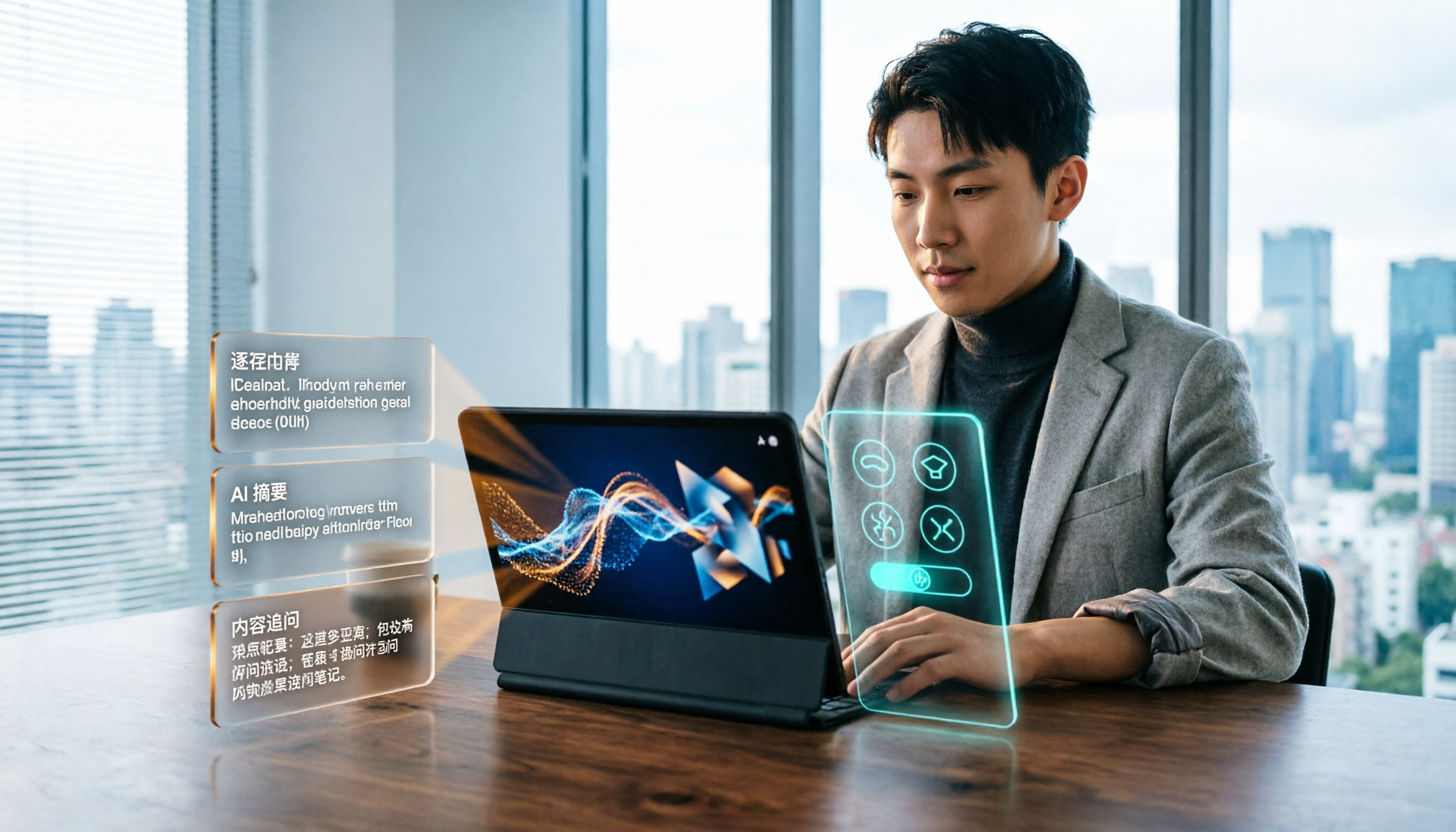
2026 Short Video Learning Efficiency Tools Buying Guide: 4 Tested Picks and Recommendations
Watched tons of short videos but can't remember them? This article breaks down 5 key points for choosing short video learning tools, compares 4 tools with hands-on testing, and shares 5 common pitfalls to avoid. It also explains how to use transcripts, AI summaries, and content Q&A to turn fragmented viewing into notes you can find and explain.

4 Real-Time Speech-to-Text Tools Compared for 2026: Which One Is Best for Chinese Meetings?
Chinese meetings, mixed Chinese-English, multiple people talking over each other—how do you choose a real-time speech-to-text tool? This article compares Tinrec, Otter.ai, Granola, and PLAUD based on real-world usage scenarios, covering meeting recording methods, post-meeting organization, AI follow-up questions, team collaboration, and pricing limits, and summarizes key buying factors and common pitfalls to help you decide which tool best fits your workflow.

6 Best MP3 to Text Tools in 2026: Which Free Version Is Actually Enough?
Meeting and interview MP3s pile up on your phone, and manual transcription takes far too long. This guide compares 6 MP3-to-text tools, from free online transcription to AI meeting assistants with summarization and Q&A, covering free limits, pricing, and best use cases to help you find the most time-saving option.
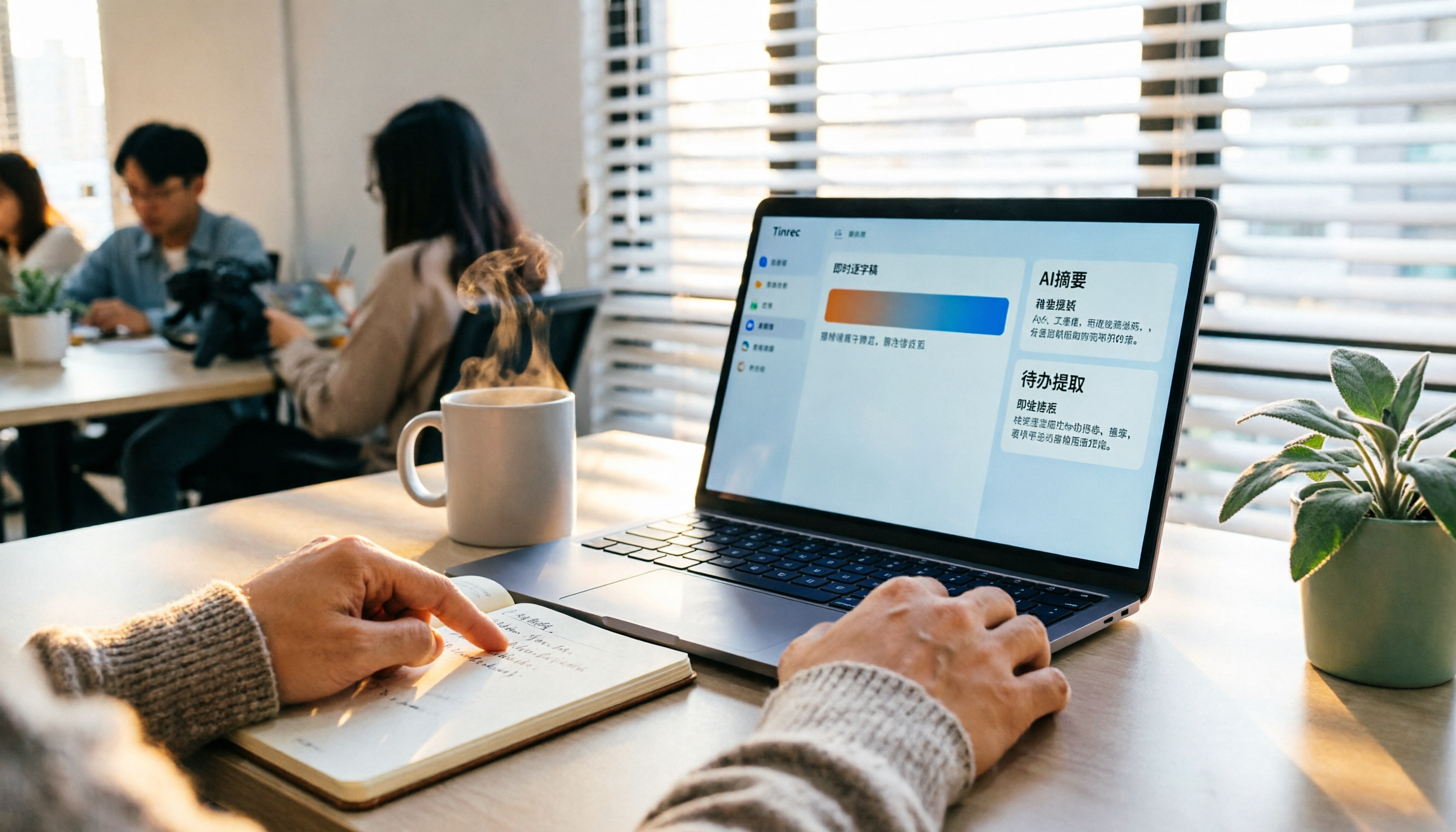
2026 Speech-to-Text Comparison: Tencent Cloud ASR vs. Meeting Bots vs. Tinrec
Speech-to-text isn't just about uploading an audio file. This article addresses three common mistakes office workers make, comparing cloud ASR services like Tencent Cloud Speech Recognition, AI assistants that join meetings as bots, and Tinrec's desktop-based bot-free meeting transcription workflow. It covers real-time transcription, AI summaries, action item extraction, team spaces, and key purchasing considerations.

2026 Comparison of 4 Automatic Meeting Minutes Software: From Free to Team Editions
How to choose automatic meeting minutes software? This article addresses common misconceptions and compares Tinrec, Otter.ai, Notta, and Granola on meeting capture methods, post-meeting organization, Chinese language support, and team collaboration. It also provides selection criteria and pitfalls to help you find the right solution for Chinese meetings and team knowledge retention.

2026 Video Note-Taking Tools Compared: Which One Turns a 2-Hour Lecture into Exam-Ready Notes?
A week before finals, I opened a dozen lecture recordings and couldn't find the key points. This student-perspective comparison of 4 video note-taking tools covers whether they accept your video files, whether they produce summaries and action items, whether you can ask follow-up questions, and whether the free tier is enough. I also share my full-semester experience with Tinrec, including its workflow and limitations.

The Complete Guide to Image Text Recognition in 2026: OCR Principles, Tool Selection, and Practical Workflow
Should you use an online tool, a mobile app, or built-in features for image text recognition? This article starts with OCR principles, helps you assess image types and choose the right tool, walks through the complete workflow from cropping and recognition to proofreading and archiving, and explains which tool to use for meeting recordings.

2026 Voice Recorder Guide: Turn Meeting Audio into Transcripts and AI Summaries with Action Items
Most people searching for a "voice recorder" actually need a tool that turns meeting audio into usable text. This guide covers common misconceptions, four key factors for choosing the right tool, and a hands-on review of Tinrec's bot-free meeting recording, AI Q&A, and team spaces, plus a brief look at Otter.ai, Notta, and Granola for different use cases and pitfalls to avoid.
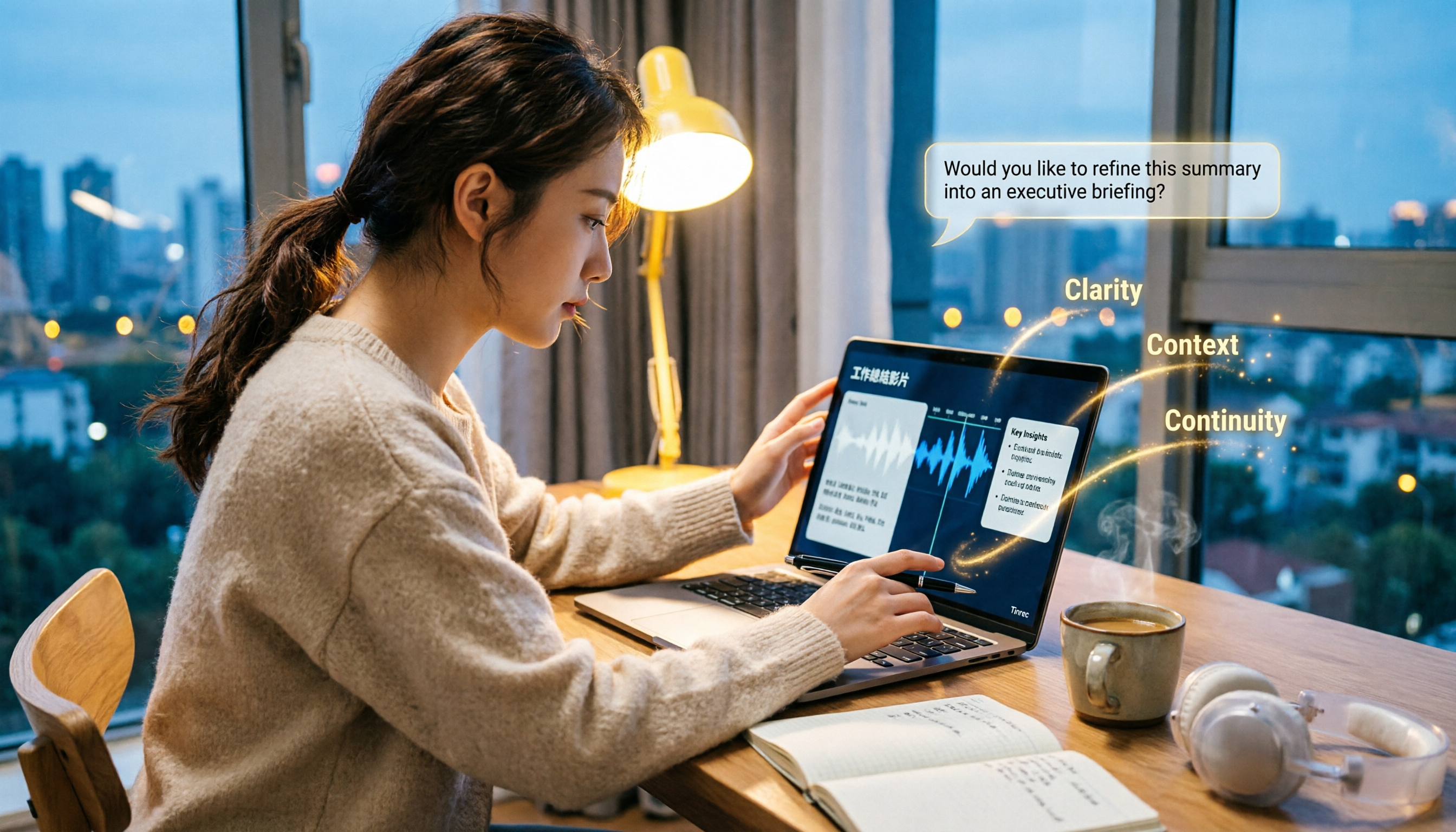
2026 Comparison of 4 Work Summary Video Tools: Which Saves More Time for Transcription and AI Summarization?
The bottleneck in organizing work summary videos is often not transcription accuracy, but what to do with the text afterward. This article starts with four key points for selection, tests how Tinrec handles existing video files, records online meetings without bots, and uses AI follow-up questions. It also briefly reviews Notta, TurboScribe, and Granola for their suitable scenarios, and concludes with a pitfalls guide and a 6-step starter.